
 Still on Drupal 7? Security support for Drupal 7 ended on 5 January 2025. Please visit our Drupal 7 End of Life resources page to review all of your options.
Menu Configuration
Creating a menu
- Navigate to the Menus page (Structure > Menus or http://example.com/admin/structure/menu).
- Click Add menu.
- In the Title field, enter a title.
- In the Description field, enter an optional description.
- Click Save.
To learn how to add new menu items to the menu, read further on Adding a link to a menu. To add tabs to a menu see Creating menu tabs.
Enable the menu
Assuming you plan to add nodes to your menu and not just external links, you must enable it in the content type for the node(s) that will be the target of the menu's links. It is possible to add menu links that are not enabled this way through the Menus page. If you do, you will find that certain changes cause your link to disappear from the assigned menu. Menus can be enabled on multiple content types.
- Navigate to the content type for the node(s) (Structure > Content type or http://example.com/admin/structure/types).
- Locate the content type and click edit.
- Choose Menu settings.
- Click the checkbox of the menu(s) you want to enable.
- (Optional) Set the Default parent item to choose a default menu for the content type.
Renaming menus
- Navigate to the Menus page (/admin/structure/menu).
- Click Edit Menu.
- In the Title field, enter a new title.
- Click Save.
Note: The default menus cannot be renamed.
Removing a menu
- Navigate to the Menus page (/admin/structure/menu).
- Click Edit Menu.
- Click Delete.
- Click Delete again to confirm.
Note: The default menus cannot be deleted.
Expanding Menus
If you have hierarchical menu items within a menu and you'd like to show the submenu items, on each parent menu item's edit page, check Show as expanded and save. This only affects the immediate children below the menu item. That is, if you have 3 levels of menu items, checking Show as expanded on the first tier items will only show the second tier items, not the third tier items. For example:
- First tier menu item 1
- Second tier menu item 1 (only shown if First tier menu item 1 has Show as expanded selected)
- Third tier menu item 1 (only shown if Second tier menu item 1 has Show as expanded selected)
- Third tier menu item 2 (only shown if Second tier menu item 1 has Show as expanded selected)
- Second tier menu item 2
- Second tier menu item 1 (only shown if First tier menu item 1 has Show as expanded selected)
- First tier menu item 2
- First tier menu item 3
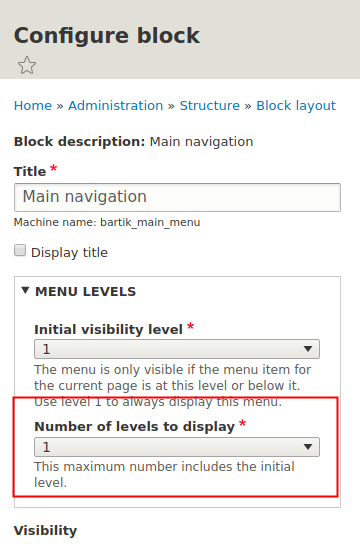
Don't forget to configure the visibility levels in the block you use for that menu if you want to see the submenu items. By default it is one and you only see the parent item.
Help improve this page
You can:
- Log in, click Edit, and edit this page
- Log in, click Discuss, update the Page status value, and suggest an improvement
- Log in and create a Documentation issue with your suggestion

