In this tutorial, I will show you how to make Angular 17 with Firebase Storage Application: File Upload, Retrieve, Download, Delete using @angular/fire & AngularFireStorage. Files’ info will be stored in Firebase Realtime Database for Display/Delete operations.
Related Posts:
– Angular 17 Firebase CRUD with Realtime Database
– Angular 17 Firestore CRUD example
– Angular 17 CRUD example with Rest API
– Angular 17 Form Validation example
– Angular 17 File upload example with Rest API
Contents
- Angular 17 Firebase Storage example
- Data Flow
- Define File Upload Class
- File Upload, Download with Firebase Storage
- Retrieve & Display List of Files from Firebase Storage
- Delete File from Firebase Storage
- Practice
- Technology
- Setup the Firebase Project
- Setup Angular 17 Project
- Project Structure
- Import Bootstrap
- Integrate Firebase into Angular 17 App
- Create File Upload Class
- Create File Upload Service
- Component for Upload Form
- Component for File Details
- Component for Displaying List of Files
- Embed Components in App Component
- Run & Check
- Conclusion
- Further Reading
- Source Code
Angular 17 Firebase Storage example
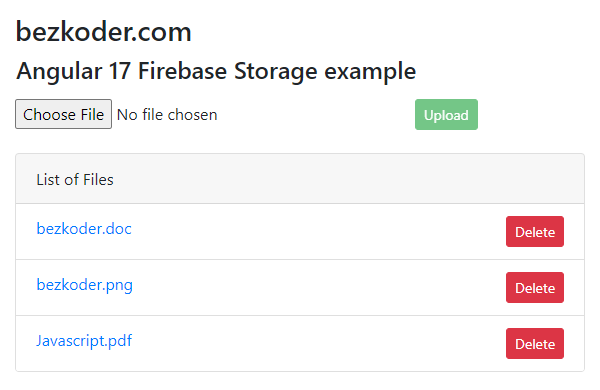
We’re gonna build an Angular 17 File Upload/Retrieve/Download/Delete with Firebase Storage example that helps us:
- upload file to Firebase Storage
- see the progress bar with percentage
- save file metadata (name, url) to Firebase Realtime Database
- display list of files
- download url when clicking on the file name
- delete any file in the list
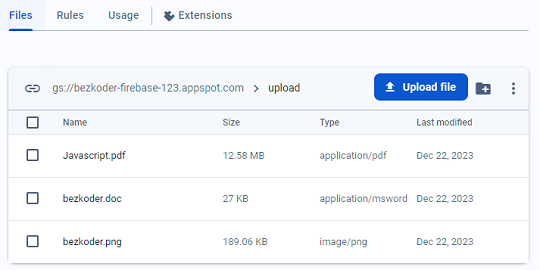
The result in Firebase Cloud Storage:
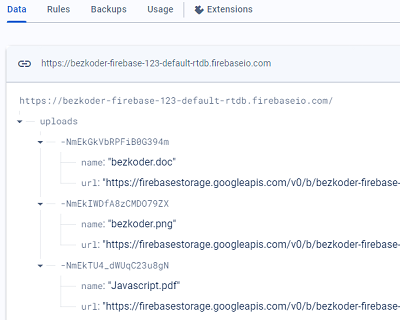
And Realtime Database:
If you want to upload Images with Preview, please visit:
Angular 17 Image Upload with Preview example
Data Flow
Following image shows the data flow with Angular 17 Client, Firebase Cloud Storage & Firebase Realtime Database:
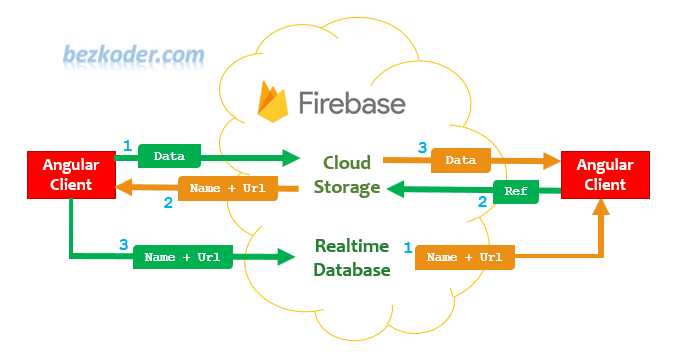
– File upload:
- store a file to Firebase Cloud Storage
- retrieve metadata (name, url) of the file from Firebase Cloud Storage
- save metadata (name, url) to Firebase Realtime Database
– Display/get/delete files: use the file metadata (name, url) which is stored in Realtime Database as reference to interact with Firebase Storage.
Define File Upload Class
The FileUpload class has four fields: key, name, url, file:
export class FileUpload {
  key: string;
  name: string;
  url: string;
  file: File;

  constructor(file: File) {
    this.file = file;
  }
}
File Upload, Download with Firebase Storage
We need to do 2 actions:
- upload file to Firebase Storage.
- save file’s info (name, url) to Firebase Database.
private basePath = '/uploads';

constructor(private db: AngularFireDatabase, private storage: AngularFireStorage) { }

pushFileToStorage(fileUpload: FileUpload): Observable<number> {
  const filePath = `${this.basePath}/${fileUpload.file.name}`;
  const storageRef = this.storage.ref(filePath);
  const uploadTask = this.storage.upload(filePath, fileUpload.file);

  uploadTask.snapshotChanges().pipe(
    finalize(() => {
      storageRef.getDownloadURL().subscribe(downloadURL => {
        fileUpload.url = downloadURL;
        fileUpload.name = fileUpload.file.name;
        this.saveFileData(fileUpload);
      });
    })
  ).subscribe();

  return uploadTask.percentageChanges();
}
We use upload() method that returns an AngularFireUploadTask which provides methods for controlling and monitoring the file upload.
AngularFireUploadTask has snapshotChanges() method for emitings the raw UploadTaskSnapshot when the file upload progresses.
To get the Download Url of the uploaded file, we use the RxJS finalize() method with getDownloadURL() which doesn’t rely on the task. So we can get notified when the download URL is available.
uploadTask.snapshotChanges().pipe(
    finalize(() => this.downloadURL = fileRef.getDownloadURL() )
 )
.subscribe();
Finally, we return the upload completion percentage as Observable<number> using AngularFireUploadTask‘s percentageChanges() method.
return uploadTask.percentageChanges();
Retrieve & Display List of Files from Firebase Storage
We get the list of files’info (name/url) from Firebase Realtime Database:
private basePath = '/uploads';

constructor(private db: AngularFireDatabase, ...) { }

getFiles(numberItems): AngularFireList<FileUpload> {
  return this.db.list(this.basePath, ref =>
    ref.limitToLast(numberItems));
}
With getFiles() method, we can get list of FileUploads including the key/id.
Now we’re gonna use snapshotChanges().pipe(map()) to store the key, it’s so important to use this key for removing individual item (FileUpload):
this.uploadService.getFileUploads(6).snapshotChanges().pipe(
  map(changes =>
    changes.map(c => ({ key: c.payload.key, ...c.payload.val() }))
  )
).subscribe(fileUploads => {
  this.fileUploads = fileUploads;
});
Delete File from Firebase Storage
There are 2 steps:
- delete file’s info from Database.
- delete file from Storage.
deleteFile(fileUpload: FileUpload): void {
  this.deleteFileDatabase(fileUpload.key)
    .then(() => {
      this.deleteFileStorage(fileUpload.name);
    })
    .catch(error => console.log(error));
}

private deleteFileDatabase(key: string): void {
  return this.db.list(this.basePath).remove(key);
}

private deleteFileStorage(name: string): void {
  const storageRef = this.storage.ref(this.basePath);
  storageRef.child(name).delete();
}
Practice
Technology
- Angular 17
- firebase 10
- @angular/fire 17
- rxjs 7
Setup the Firebase Project
Please visit following tutorial for setting up project on Firebase Console:
How to Integrate Firebase into Angular 17
Setup Angular 17 Project
Let’s open cmd and use Angular CLI to create a new Angular Project as following command:
ng new angular-17-firebase-storage --no-standalone
? Which stylesheet format would you like to use? CSS
? Do you want to enable Server-Side Rendering (SSR) and Static Site Generation (SSG/Prerendering)? No
We also need to generate some Components and Services:
ng g s services/file-upload

ng g c components/upload-form
ng g c components/upload-list
ng g c components/upload-details

ng g class models/file-upload --type=model
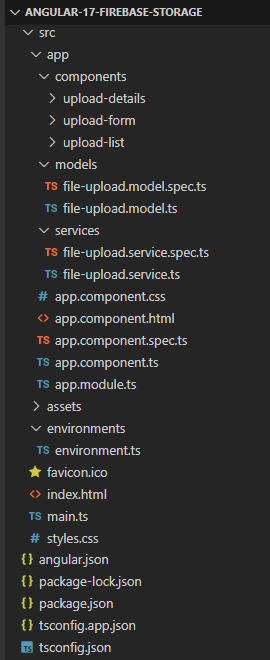
Now you can see that our project directory structure looks like this.
Project Structure
Let me explain it briefly.
– environment.ts configures information to connect with Firebase Project.
– models/file-upload.model.ts defines the model class.
– services/file-upload.service.ts exports FileUploadService that uses @angular/fire‘s AngularFireStorage & AngularFireDatabase to interact with Firebase.
– There are 3 components that uses FileUploadService:
upload-formfor uploading new fileupload-listdisplays list of files, parent ofupload-detailsupload-detailsshows file details
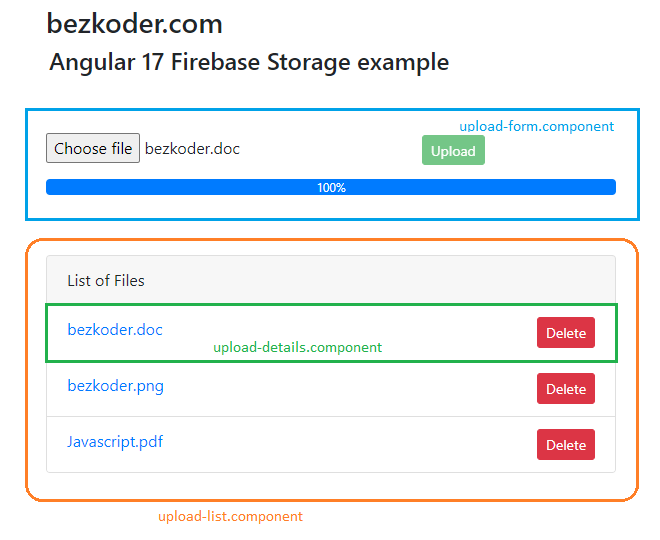
– app.component contains the components above.
– app.module.ts declares Angular components and imports necessary environment & modules.
– index.html / angular.json is for importing Bootstrap.
Import Bootstrap
Open index.html, in <head> tag, import Bootstrap 4 to this project:
<!doctype html>
<html lang="en">
<head>
  ...
  <link rel="stylesheet" href="https://www.bezkoder.com//unpkg.com/[email protected]/dist/css/bootstrap.min.css" />
</head>
<body>
  <app-root></app-root>
</body>
</html>
Another way is to run the command: npm install [email protected].
Then add following code into angular.json:
"styles": [
    "node_modules/bootstrap/dist/css/bootstrap.min.css",
    "src/styles.css"
],
"scripts": [
    "node_modules/jquery/dist/jquery.slim.min.js",
    "node_modules/popper.js/dist/umd/popper.min.js",
    "node_modules/bootstrap/dist/js/bootstrap.min.js"
]
Integrate Firebase into Angular 17 App
First run the command: npm install firebase @angular/fire.
Open src/environments/environment.ts, add Firebase configuration that we have saved when Popup window was shown:
export const environment = {
  production: false,
  firebase: {
    apiKey: 'xxx',
    authDomain: 'bezkoder-firebase.firebaseapp.com',
    databaseURL: 'https://bezkoder-firebase.firebaseio.com',
    projectId: 'bezkoder-firebase',
    storageBucket: 'bezkoder-firebase.appspot.com',
    messagingSenderId: 'xxx',
    appId: 'xxx'
  }
};
Open app.module.ts, import AngularFireModule, AngularFireStorageModule, AngularFireDatabaseModule and environment:
import { NgModule } from '@angular/core';
import { BrowserModule } from '@angular/platform-browser';

import { AngularFireModule } from '@angular/fire/compat';
import { AngularFireDatabaseModule } from '@angular/fire/compat/database';
import { AngularFireStorageModule } from '@angular/fire/compat/storage';
import { environment } from '../environments/environment';

import { AppComponent } from './app.component';
import { UploadFormComponent } from './components/upload-form/upload-form.component';
import { UploadListComponent } from './components/upload-list/upload-list.component';
import { UploadDetailsComponent } from './components/upload-details/upload-details.component';

@NgModule({
  declarations: [
    AppComponent,
    UploadFormComponent,
    UploadListComponent,
    UploadDetailsComponent
  ],
  imports: [
    BrowserModule,
    AngularFireModule.initializeApp(environment.firebase),
    AngularFireDatabaseModule,
    AngularFireStorageModule
  ],
  providers: [],
  bootstrap: [AppComponent]
})
export class AppModule { }
Create File Upload Class
Let’s create FileUpload class with 4 fields: key, name, url, file.
models/file-upload.ts
export class FileUpload {
  key!: string;
  name!: string;
  url!: string;
  file: File;

  constructor(file: File) {
    this.file = file;
  }
}
Create File Upload Service
This service will use AngularFireStorage and AngularFireDatabase to interact with Firebase Storage and Realtime Database. It contains necessary functions for upload/get/delete file operations.
services/file-upload.service.ts
import { Injectable } from '@angular/core';
import { AngularFireDatabase, AngularFireList } from '@angular/fire/compat/database';
import { AngularFireStorage } from '@angular/fire/compat/storage';

import { Observable } from 'rxjs';
import { finalize } from 'rxjs/operators';
import { FileUpload } from '../models/file-upload.model';

@Injectable({
  providedIn: 'root'
})
export class FileUploadService {
  private basePath = '/uploads';

  constructor(private db: AngularFireDatabase, private storage: AngularFireStorage) { }

  pushFileToStorage(fileUpload: FileUpload): Observable<number | undefined> {
    const filePath = `${this.basePath}/${fileUpload.file.name}`;
    const storageRef = this.storage.ref(filePath);
    const uploadTask = this.storage.upload(filePath, fileUpload.file);

    uploadTask.snapshotChanges().pipe(
      finalize(() => {
        storageRef.getDownloadURL().subscribe(downloadURL => {
          fileUpload.url = downloadURL;
          fileUpload.name = fileUpload.file.name;
          this.saveFileData(fileUpload);
        });
      })
    ).subscribe();

    return uploadTask.percentageChanges();
  }

  private saveFileData(fileUpload: FileUpload): void {
    this.db.list(this.basePath).push(fileUpload);
  }

  getFiles(numberItems: number): AngularFireList<FileUpload> {
    return this.db.list(this.basePath, ref =>
      ref.limitToLast(numberItems));
  }

  deleteFile(fileUpload: FileUpload): void {
    this.deleteFileDatabase(fileUpload.key)
      .then(() => {
        this.deleteFileStorage(fileUpload.name);
      })
      .catch(error => console.log(error));
  }

  private deleteFileDatabase(key: string): Promise<void> {
    return this.db.list(this.basePath).remove(key);
  }

  private deleteFileStorage(name: string): void {
    const storageRef = this.storage.ref(this.basePath);
    storageRef.child(name).delete();
  }
}
Component for Upload Form
This component has a Form to upload new File. It calls FileUploadService.pushFileToStorage() method.
components/upload-form/upload-form.component.ts
import { Component } from '@angular/core';
import { FileUploadService } from '../../services/file-upload.service';
import { FileUpload } from '../../models/file-upload.model';

@Component({
  selector: 'app-upload-form',
  templateUrl: './upload-form.component.html',
  styleUrls: ['./upload-form.component.css']
})
export class UploadFormComponent {
  selectedFiles?: FileList;
  currentFileUpload?: FileUpload;
  percentage = 0;

  constructor(private uploadService: FileUploadService) { }

  selectFile(event: any): void {
    this.selectedFiles = event.target.files;
  }

  upload(): void {
    if (this.selectedFiles) {
      const file: File | null = this.selectedFiles.item(0);
      this.selectedFiles = undefined;

      if (file) {
        this.currentFileUpload = new FileUpload(file);
        this.uploadService.pushFileToStorage(this.currentFileUpload).subscribe(
          percentage => {
            this.percentage = Math.round(percentage ? percentage : 0);
          },
          error => {
            console.log(error);
          }
        );
      }
    }
  }
}
components/upload-form/upload-form.component.html
<div class="row">
  <div class="col-8">
    <label>
      <input
        type="file"
        class="text-nowrap text-truncate"
        (change)="selectFile($event)"
      />
    </label>
  </div>

  <div class="col-4">
    <button
      class="btn btn-success btn-sm"
      [disabled]="!selectedFiles"
      (click)="upload()"
    >
      Upload
    </button>
  </div>
</div>

@if (currentFileUpload) {
<div class="progress mt-2">
  <div
    class="progress-bar progress-bar-info"
    role="progressbar"
    attr.aria-valuenow="{{ percentage }}"
    aria-valuemin="0"
    aria-valuemax="100"
    [ngStyle]="{ width: percentage + '%' }"
  >
    {{ percentage }}%
  </div>
</div>
}
Component for File Details
This component will export item details for the list later. It hsa file name with url and a Delete button.
components/upload-details/upload-details.component.ts
import { Component, Input } from '@angular/core';
import { FileUploadService } from '../../services/file-upload.service';
import { FileUpload } from '../../models/file-upload.model';

@Component({
  selector: 'app-upload-details',
  templateUrl: './upload-details.component.html',
  styleUrls: ['./upload-details.component.css']
})
export class UploadDetailsComponent {
  @Input() fileUpload!: FileUpload;

  constructor(private uploadService: FileUploadService) { }

  deleteFileUpload(fileUpload: FileUpload): void {
    this.uploadService.deleteFile(fileUpload);
  }
}
components/upload-details/upload-details.component.html
<a href="{{ fileUpload.url }}">{{ fileUpload.name }}</a>
<button (click)="deleteFileUpload(fileUpload)"
  class="btn btn-danger btn-sm" style="float: right">
  Delete
</button>
Component for Displaying List of Files
This component calls FileUploadService.getFiles() method.
components/upload-list/upload-list.component.ts
import { Component, OnInit } from '@angular/core';
import { FileUploadService } from '../../services/file-upload.service';
import { map } from 'rxjs/operators';

@Component({
  selector: 'app-upload-list',
  templateUrl: './upload-list.component.html',
  styleUrls: ['./upload-list.component.css']
})
export class UploadListComponent implements OnInit {
  fileUploads?: any[];

  constructor(private uploadService: FileUploadService) { }

  ngOnInit(): void {
    this.uploadService.getFiles(6).snapshotChanges().pipe(
      map(changes =>
        // store the key
        changes.map(c => ({ key: c.payload.key, ...c.payload.val() }))
      )
    ).subscribe(fileUploads => {
      this.fileUploads = fileUploads;
    });
  }
}
In the HTML template, we embed upload-details component inside ngFor.
components/upload-list/upload-list.component.html
<div class="card">
  <div class="card-header">List of Files</div>
  <ul class="list-group list-group-flush">
    @for (file of fileUploads; track file.key) {
    <li class="list-group-item">
      <app-upload-details [fileUpload]="file"></app-upload-details>
    </li>
    }
  </ul>
</div>
Embed Components in App Component
app.component.html
<div class="container" style="width:600px">
  <div>
    <h3>bezkoder.com</h3>
    <h4>{{ title }}</h4>
  </div>

  <div class="my-3">
    <app-upload-form></app-upload-form>
  </div>

  <div class="my-2">
    <app-upload-list></app-upload-list>
  </div>
</div>
Run & Check
You can run this Angular 17 Firebase Storage example with command: ng serve.
Open browser with url: http://localhost:4200/ and check the result.
Conclusion
Today we’ve built an Angular 17 File Upload, Retrieve, Download, Delete with Firebase Storage example successfully using AngularFireStorage from @angular/fire library.
You can find how to make CRUD operations with Realtime DB or Firestore in the posts:
– Angular 17 Firebase CRUD with Realtime Database
– Angular 17 Firestore CRUD example
Or create Angular HTTP Client for working with Restful API in:
– Angular 17 CRUD example with Rest API
– Angular 17 File upload example with Rest API
Happy learning, see you again!
Further Reading
- Angular Template Syntax
- Angular Router Guide
- https://www.npmjs.com/package/@angular/fire
- Firebase Web Get Started
- @angular/fire Firebase Storage docs
Fullstack CRUD Application:
– Angular + Node Express + MySQL example
– Angular + Node Express + PostgreSQL example
– Angular + Node Express + MongoDB example
– Angular 17 + Spring Boot + H2 example
– Angular 17 + Spring Boot + MySQL example
– Angular 17 + Spring Boot + PostgreSQL example
– Angular 17 + Spring Boot + MongoDB example
– Angular + Django example
– Angular + Django + MySQL example
– Angular + Django + PostgreSQL example
– Angular + Django + MongoDB example
Source Code
You can find the complete source code for this tutorial on Github.