
Sync with Ulysses
Syncing lets you keep your writing in Ulysses, while using Aeon Timeline to organize and track what happens in your story.
How Syncing Works
When you sync with Ulysses, Aeon Timeline links a project or group in your Ulysses library to your timeline.
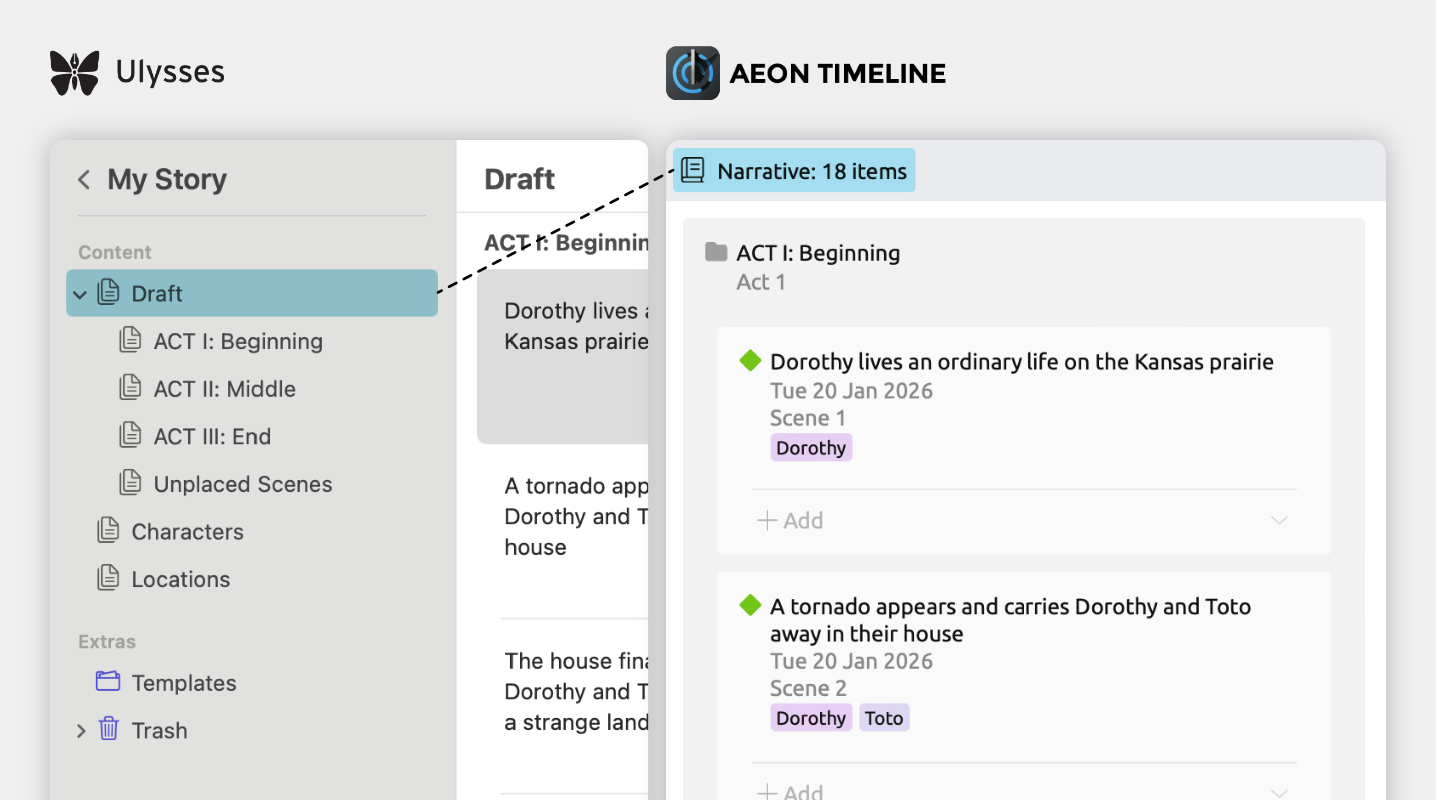
- In Ulysses, your story's sheets live in one main project or group
In order to sync successfully, you need to choose a project or group in your Ulysses library where the sheets that make up your story live. - Each Ulysses sheet becomes an event in Aeon Timeline
When you sync, Aeon Timeline creates a matching event for each Ulysses sheet in that project or group.
You can also use subgroups to organize your story, such as into acts or chapters. These subgroups are also synced to Aeon Timeline. - Aeon Timeline mirrors your project's structure in the narrative
Aeon Timeline also mirrors the structure and order of that project or group in the narrative. This gives you a space to manage your story order within Aeon Timeline.
Learn more about the narrative → - Use Aeon Timeline to organize and explore your story
You can then build a timeline, or connect characters and story arcs to your events. Any information you add can be synced back to Ulysses.
What gets synced
- Each sheet maps to an event
Each sheet in your Ulysses project becomes an event in Aeon Timeline. - You choose what fields to sync
You can choose exactly what information is synced for your documents. Typically, at least the sheet title is synced. You can also the summary, color, or any custom fields you’ve set up in Aeon Timeline to Ulysses' notes. - The main text stays in Ulysses
Syncing doesn’t touch the body of your writing. Only the fields you choose are synced. - You can optionally sync characters, locations, and more
In addition to your main story, you can track the characters, locations, or other elements involved in your story's events, or keep reference sheets on them, and keep these in sync.
Set Up Syncing
You can set up syncing at any point, whether you’ve already started writing in Ulysses and are new to Aeon Timeline, or you’ve built out a timeline and haven’t yet begun writing.
Prepare Your Ulysses Project
When syncing an existing Ulysses writing project, take a moment to organize the groups in your library or project to put your story content in the right place, and relocate any sheets you don’t want to sync with your timeline.
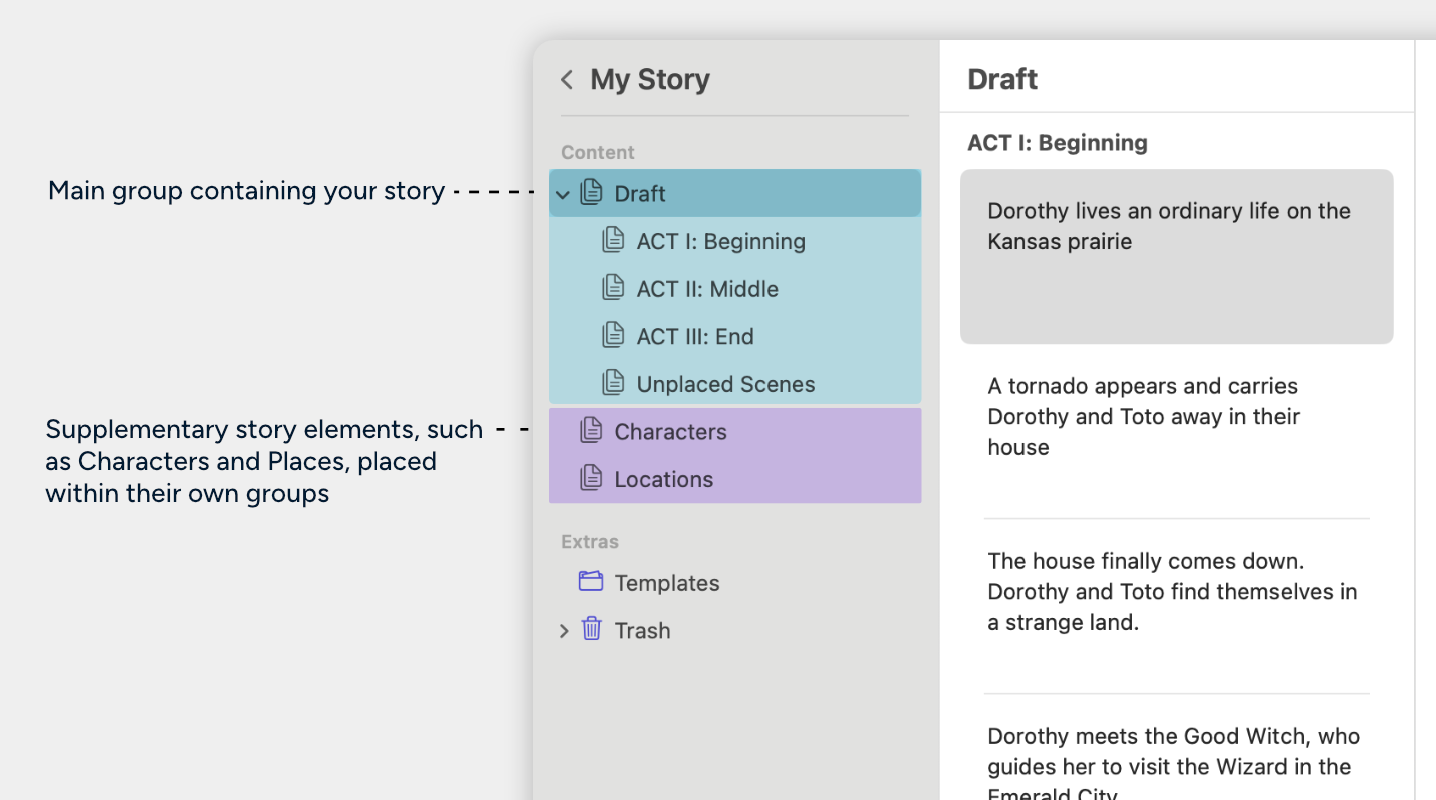
- Put your story sheets inside the main project or group
Aeon Timeline syncs only the content inside this project or group. You can have subgroups within this group that organize your story, such as into acts or chapters. - Move other content to separate projects or groups
Notes, research, characters, and locations should be stored outside your main story project or group. You can optionally also sync this additional content. - Structure your story’s sheets as separate scenes
Aeon Timeline creates an event for each sheet in Ulysses. Structuring your writing project so that each sheet represents a single scene will help you build a more useful and detailed timeline. - Give each sheet a clear, unique title
Use clear and specific names for your sheets. A title like “Scene 5” can be hard to recognize when setting up syncing, but “Coffee Date in Paris” is much easier to recognize.
Tip: Titles can be added in Ulysses by placing a Heading or Comment block on the first line of the sheet.- Comment blocks start with two percent symbols:
%% - Heading blocks start with one or more hash symbols:
#(the number of#characters determines the heading level)
- Comment blocks start with two percent symbols:
Connect Your Ulysses Library
Now that your Ulysses library is ready, you can connect it to your timeline.
Open the Sync Sidebar Panel
The sync sidebar panel is where you’ll manage your sync setup and all synced sheets.
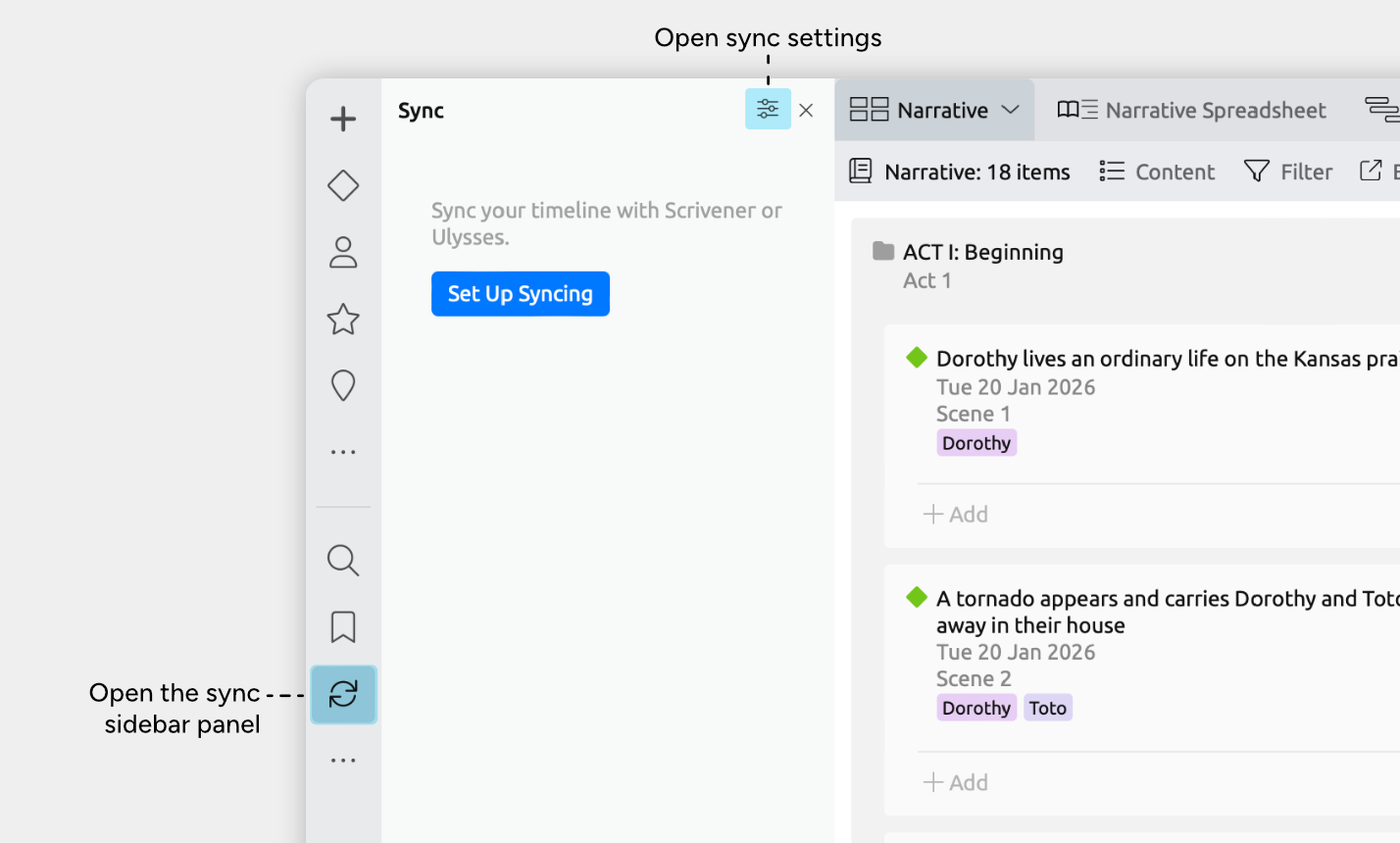
If you don’t see the sync icon in the sidebar, click the … button at the bottom of the sidebar to enable it.
Connect to Ulysses
In the sync sidebar panel:
- Click Set Up Syncing.
The sync settings window will open to the Select Sync Application page.
You can also click the options icon at the top of the panel to return to the settings at any time. - Choose Ulysses as your sync application.
- If you have already built out your narrative, Aeon Timeline may prompt you to adjust how your events are nested in the narrative.
Ulysses requires sheets to be nested within groups, and not within other sheets. To match that requirement, in Aeon Timeline, narrative events can only be nested inside folders, and not other events.
If you currently have events nested inside other events, Aeon Timeline will prompt to ask if you would like to convert or move them to fit Ulysses' requirements. - Ulysses will open.
If this is your first time syncing, Ulysses may prompt you to give permission for Aeon Timeline to access your Ulysses data. - You’ll then be taken to the Select Sync Folders screen to continue setup.
Choose Your Story Folder
Now you’ll choose which project or group in your Ulysses library contains your main story content.
On the Select Sync Folders screen:
- Use the Narrative Folder dropdown to select the project group that contains your story’s sheets.
- Leave the Additional Folders section blank for now. You can optionally configure this in a later step.
- Click Next.
You’ll then be taken to the Sync Fields screen to continue setup.
Choose What Fields to Sync
Now you’ll choose what information is synced for your sheets.
You can update these settings at any time, so there’s no need to configure everything up front. If you’re syncing for the first time, it’s usually simplest to start with just the essentials, like the document title, then add more fields later as your workflow evolves.
On the Sync Fields screen:
- By default, Label in Aeon Timeline maps to Title in Ulysses. It is recommended to leave this selected so your sheet names come through correctly.
- Use the rows to choose any additional fields that you want to sync as Notes in Ulysses.
Note: Tags in Aeon Timeline always maps to Keywords in Ulysses. This happens automatically and doesn’t need to be set.
- Click Next. You’ll then be taken to the Sync Relationships screen to continue setup.
Sync Characters, Locations, and Other Story Elements
In addition to tracking your story’s events, Aeon Timeline can optionally also help you manage other story elements, such as characters or locations.
You can:
- Connect characters, locations, and other elements them to your story's events, and then sync these to Ulysses.
To do this, see Sync Relationships → - Keep projects or groups of character sheets or other reference documents in Ulysses, and sync these across to Aeon Timeline.
To do this, see Sync Additional Groups →
Sync Relationships
Use this option if you want to track (and sync) which characters, locations, or other story elements are involved in each event. For example, you can track:
- Which characters appear in an event, or
- Which locations an event takes place in.
In Aeon Timeline, these connections are called relationships. To learn more about relationships, see Connect Events, People, and More →
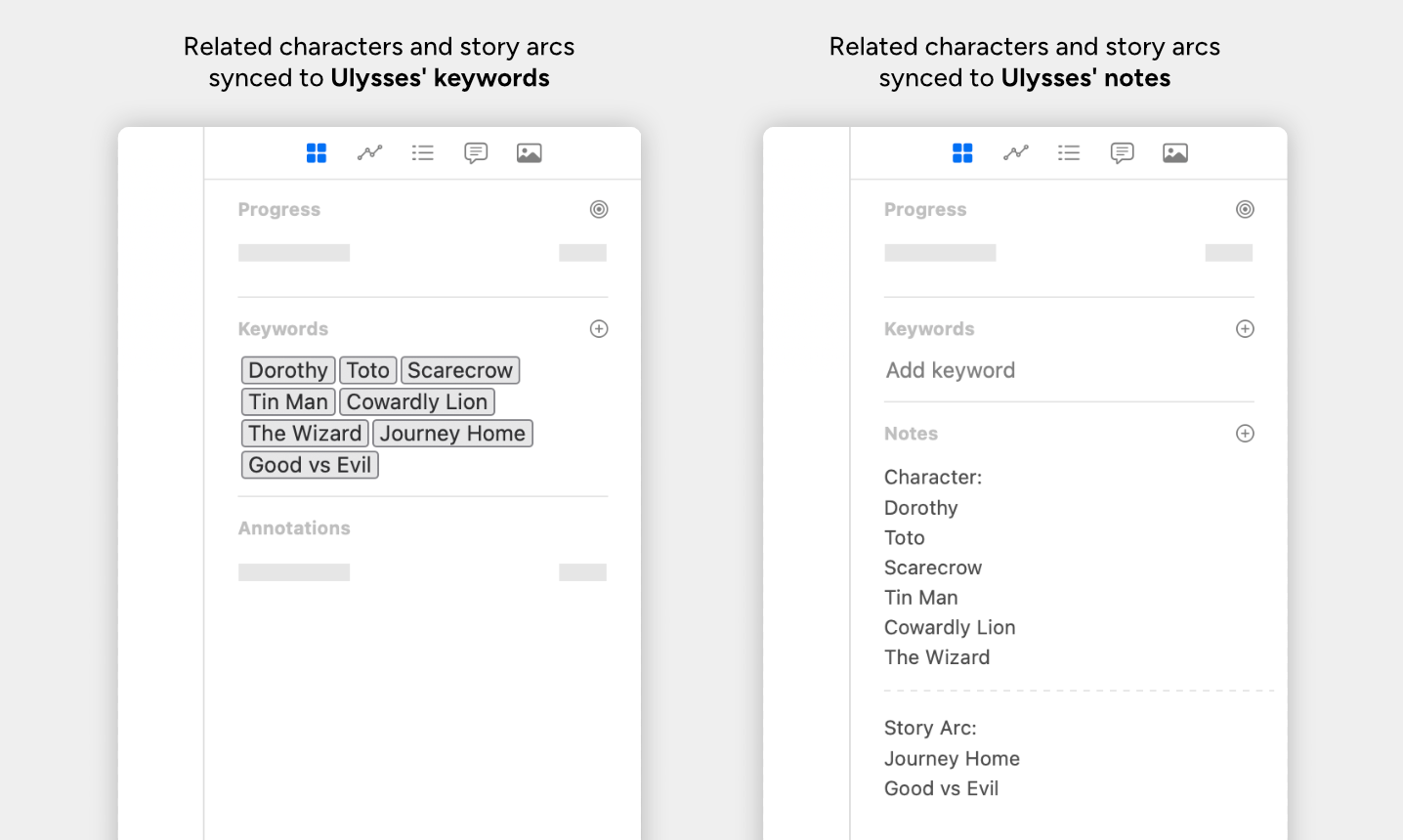
When syncing, relationships can be synced to Ulysses as either Keywords or Notes.
Keywords vs Notes
Ulysses' keywords are useful for simple tagging, but they can be harder to organize when you’re tracking multiple types of story elements. All synced items for an event will be added to a single keyword list.
Ulysses notes lets you sync each relationship type to a separate note field — for example, one field for Characters, another for Locations, and so on. This works well if you want clearer organization.
Set Up Relationship Syncing
On the Sync Relationships screen:
- Under Map relationships to, select either Keywords or Notes.
If using keywords:
- Under Item Types to Sync to Keywords, use the checkboxes to choose which item types will sync as Ulysses keywords when they’re related to a synced event or document.
Or if using notes:
- Under Relationship Types to Sync to Notes, use the rows to choose which relationship types will sync to Ulysses as notes when they’re added to a synced event or document.
Sync Additional Groups
If you keep reference materials such as character sheets in Ulysses, you can sync those projects or groups with Aeon Timeline.
Each additional synced Ulysses project or group maps to an item type in Aeon Timeline. For example, if you sync a group of character documents, each sheet in that group can become a Character item in Aeon Timeline.
To customize what item types are available in your file, such as Characters or Locations, see Customize Item Types →
Set Up Syncing Additional Groups
- Without closing the sync settings window, click the Back button at the bottom to go back to the Select Sync Folders screen.
Going back will not reset the settings you have configured.
On the Select Sync Folders screen:
- Under Additional Folders, click the + Add Folder button.
- Choose the Ulysses project or group containing the sheets you want to sync.
- Under the Timeline Item Type dropdown in the same row, select the Aeon Timeline item type to map the selected project or group to.
Note: Only item types that aren’t set to be allowed in the narrative can be selected. This is because sheets in Ulysses can only belong to one project or group. Learn more about item type settings → - Under the Structure option, select either:
- Flat List: Best if you're syncing a simple project or group of sheets with no subgroups.
- Nested Items: Best if the project or group contains nested subgroups, and you want to preserve that structure in Aeon Timeline.
Sheets and subgroups can be set to the same or different item types.
Set them to the same item type if your entire structure is made up of the same kind of thing. For example, if you’re syncing nested locations, you can set:
- Folder = Location
- Document = Location
Or, set them to different item types if subgroups are only used to organize or label groups of items, and the sheets contain the real information. For example, if you’re syncing groups of characters, you can set:
- Folder = Character Group
- Document = Character
You can also customize each level of nesting if you have deeply nested sheets.
Save Your Settings
- At the bottom right of the sync settings window, use the Next button to move through each screen, until it changes into an OK button.
- Click OK. Your settings will be saved and the sync settings window will close. Nothing will be synced yet.
Review and Customize Before Syncing
Once you've saved your settings, the sync panel will update to show a preview of what will happen when you run the sync.
Before you run your first sync, you can review what Aeon Timeline is about to create, update, move, or remove in both apps.
Reviewing and customizing your sync is especially important if:
- You already have matching events and sheets in both apps
For example, you created events in Aeon Timeline and already wrote corresponding sheets in Ulysses.
You’ll need to Match Sheets and Events that Exist in Both Apps → - Some Ulysses sheets shouldn’t sync to Aeon Timeline
For example, notes or drafts you want to keep Ulysses-only.
You’ll need to Keep Sheets in Ulysses That Don't Sync →
Additionally, if you’re syncing projects or groups of characters, locations, or other reference material, it’s a good idea to review the folder structure in the sync panel before running your first sync, especially if your Ulysses project uses nested groups.
- In the sync panel, find the group for your reference material.
- Click the arrow next to the group to expand it and show its sheets and subgroups.
- Check that the sheets and subgroups are nested the way you expect.
A good way to confirm this is to compare the structure shown in the sync panel with the structure in your Ulysses library. - If anything is missing or nested incorrectly, adjust your sync settings before running the sync.
Backup Your Files
We recommend creating manual backups of both your timeline and your Ulysses project before your first sync, or before making major settings or structural changes.
This gives you a fallback in case some documents and events aren’t matched correctly, or sync settings aren’t configured as expected, helping you avoid duplicates, incorrect nesting, or other unintended changes.
Run the Sync
You’re all set! Click Sync Now at the top of the sync panel to run the sync.
Once your Ulysses project and Aeon Timeline file are linked, you can work in either app. Any edits you make to synced fields will be detected, and you can sync again at any time to keep both files up to date.
Stay in Sync
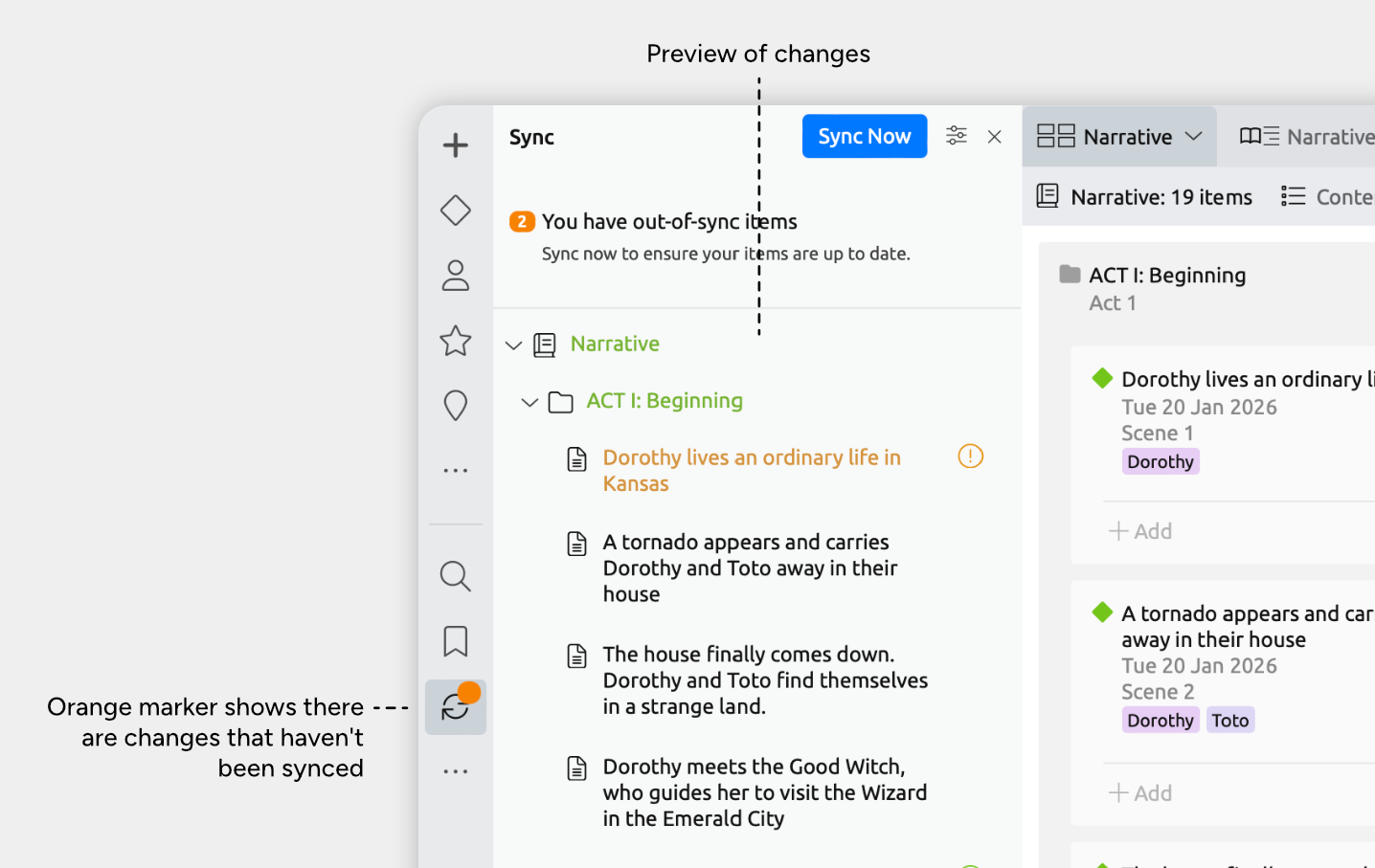
Aeon Timeline shows an orange marker on the sidebar sync icon when it detects changes to synced fields in either app.
To keep things simple, sync regularly as you work. This helps avoid a pile-up of changes and makes review easier.
Ideal times to sync include:
- Before switching between Aeon Timeline and Ulysses.
- After outlining or drafting a section of your story.
- After making structural changes like reordering sheets.
You can also click the options icon at the top of the sync panel to adjust your sync settings at any time.
Review, Customize, and Troubleshoot
Before you run each sync, it's recommended to check the sync preview is as you expect.
Using the Sync Preview
The sync panel highlights updates that are waiting to be synced. Colored text and icons indicate there are changes that can be synced.
In general:
- Green: Something new has been added. Syncing will create it in the other app.
- Orange: Something changed, moved, or removed. Syncing will update, move, or remove it in the other app.
- Red: A conflict needs your attention before you can sync.
When you select an event or document in the sync panel, the inspector shows what has changed, and what app the change was made in.

For a full breakdown of what each status means and what will happen when you sync, see Reference: Sync Preview Messages →
You’ll need to customize how things will sync if:
- You changed the same field in both apps
For example, you renamed the linked event and sheet in both Aeon Timeline and Ulysses.
See Resolve Conflicts → - You added the same scene or item in both apps
For example, you created both a Ulysses sheet and an Aeon Timeline event that represent the same scene.
See Match Sheets and Events That Exist in Both Apps → - You have Ulysses sheets that shouldn’t sync to Aeon Timeline
For example, notes or drafts you want to keep only in Ulysses.
See Keep Sheets in Ulysses That Don't Sync →
We recommend following those steps to ensure you don't unintentionally duplicate or trash sheets in Ulysses as you work. If this has already happened, you can troubleshoot using the steps below.
- If you created both a Ulysses sheet and an Aeon Timeline event for the same scene and didn’t match them before syncing, syncing will treat them as two separate scenes and create both in the other app — resulting in two events for the same scene.
See Fix Duplicate Events → - If you remove an event or folder from the narrative in Aeon Timeline and don't set the sync to keep it in Ulysses, the linked Ulysses sheet will be moved to Ulysses' Trash. If this isn't what you intended, you can restore it and set the sync to keep it in Ulysses.
See Restore Trashed Ulysses Sheets →
Resolve Conflicts
A sync conflict happens when you change the same field for the same item in both apps — for example, changing an event’s label in Aeon Timeline, then changing matching sheet title in Ulysses to something different.
When there's a conflict:
- You’ll see a warning message at the top of the sync panel.
- The affected document will show a red exclamation mark in the sync panel.
- You won't be able to sync until all conflicts are resolved.
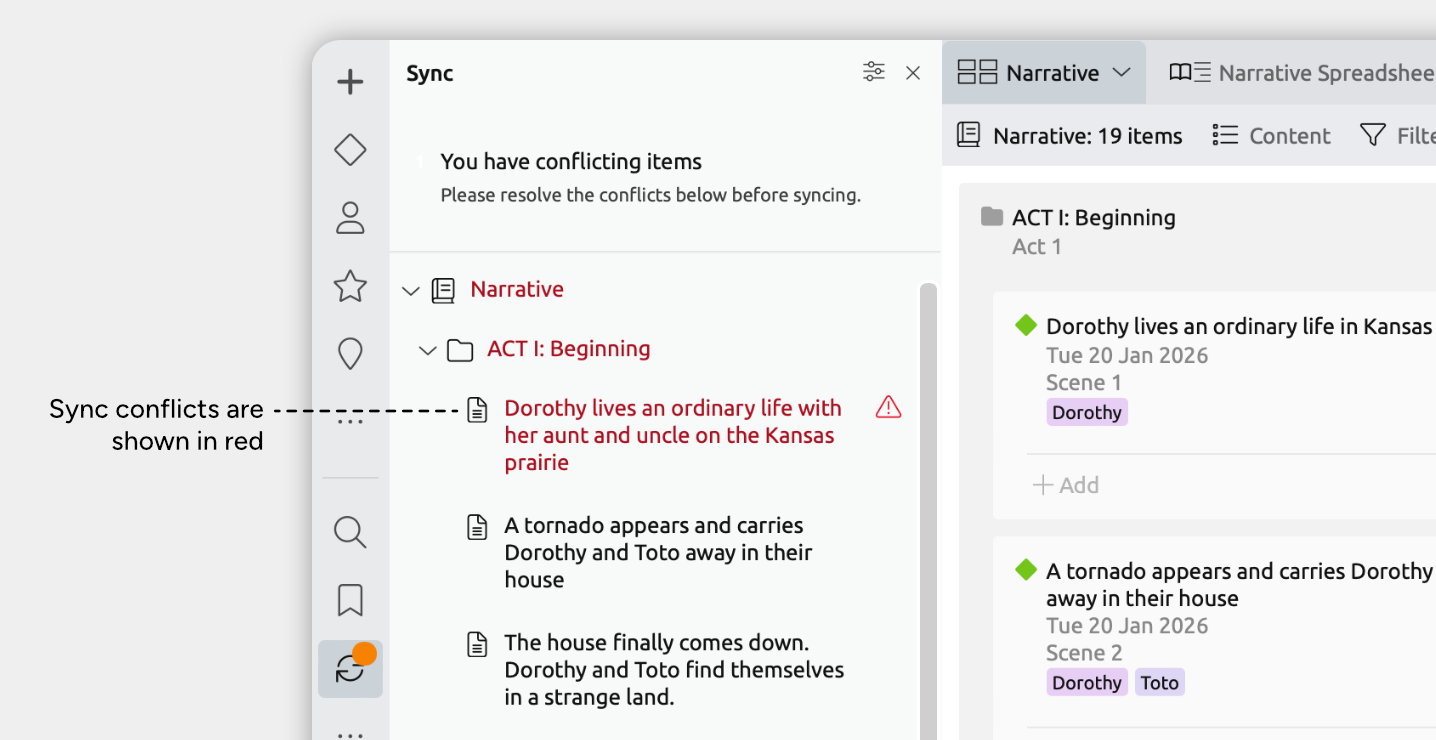
To resolve a conflict:
- In the sync panel, select a conflicted synced item with a red exclamation mark.
- In the inspector, Aeon Timeline will show what changed in each app.
- For each conflicting field, choose which version to keep by selecting either Use from Timeline or Use From Ulysses.
Match Sheets and Events That Exist in Both Apps
The first time a sheet or event is synced, Aeon Timeline assumes that it is new.
That means:
- Sheets in Ulysses will be treated as needing new events created in Aeon Timeline, and
- Events in Aeon Timeline will be treated as needing new sheets created in Ulysses.
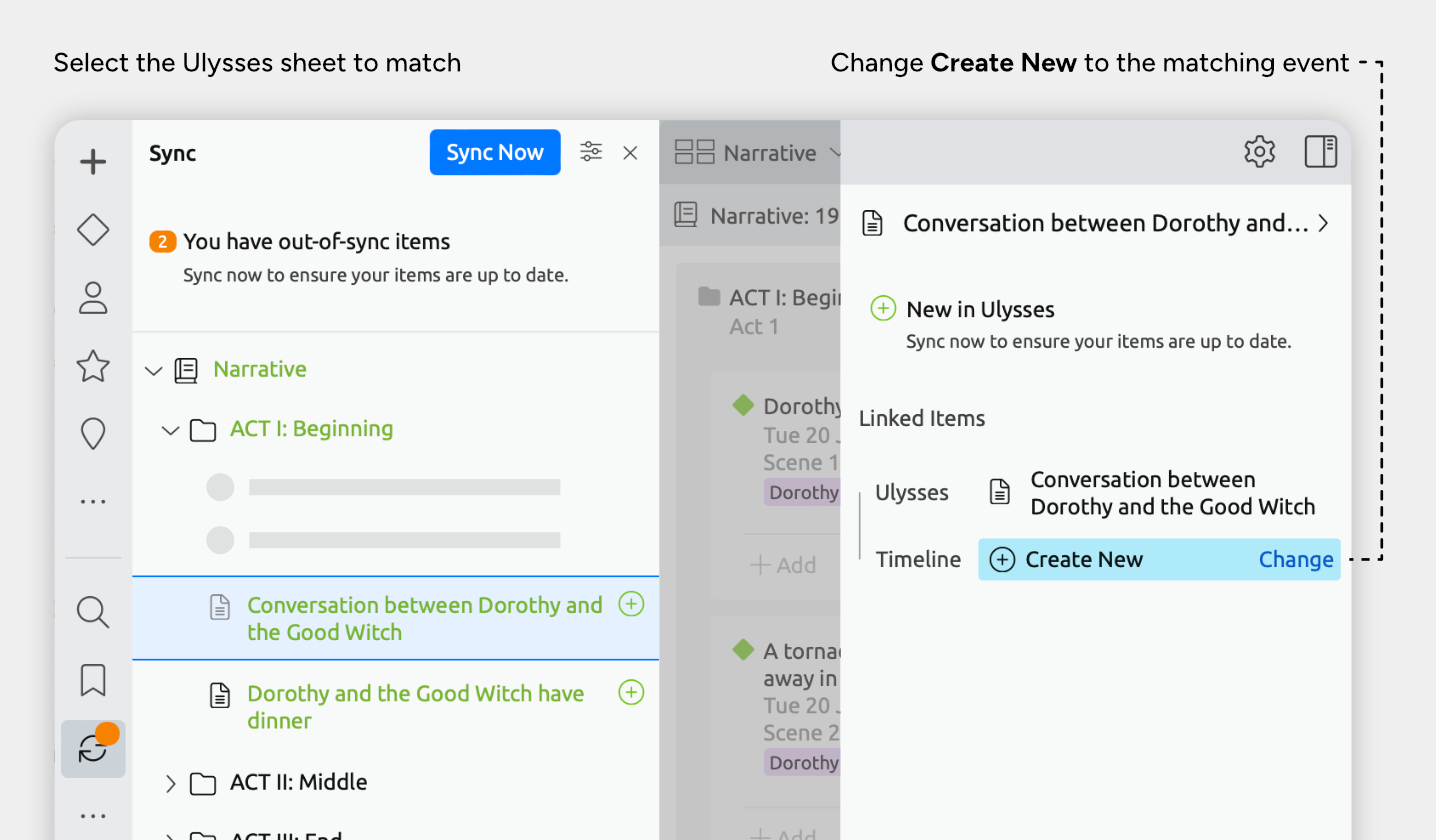
If you’ve already created both a Ulysses sheet and an Aeon Timeline event for the same part of your story, you’ll need to match them so they sync as one linked pair.
- In the sync panel, select the Ulysses sheet you want to match.
- In the inspector, next to Create New, click Change.
- Choose the existing Aeon Timeline event that matches this Ulysses sheet.
- If the Ulysses sheet and Aeon Timeline event have different titles or other sync fields, you’ll see a conflict message. Choose Use from Ulysses or Use from Timeline to keep the version you prefer.
Keep Sheets in Ulysses That Don't Sync
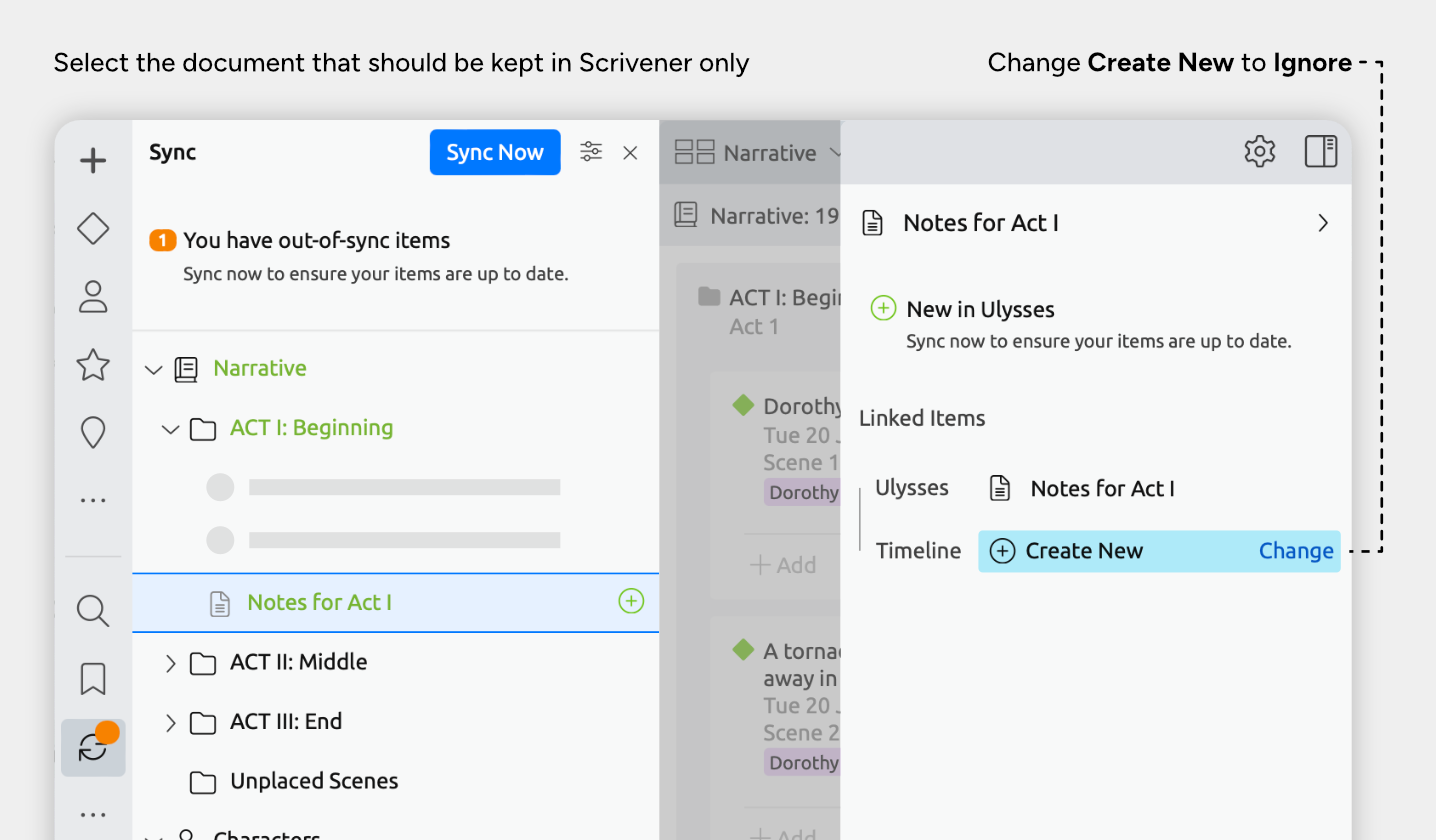
If there are Ulysses sheets you don’t want to be brought over into Aeon Timeline as events, you can mark them to be ignored.
Ignore a Sheet That Hasn’t Been Synced Yet
- In the sync panel, select the Ulysses sheet you want to ignore.
- In the inspector, next to Create New, click Change.
- Choose Ignore.
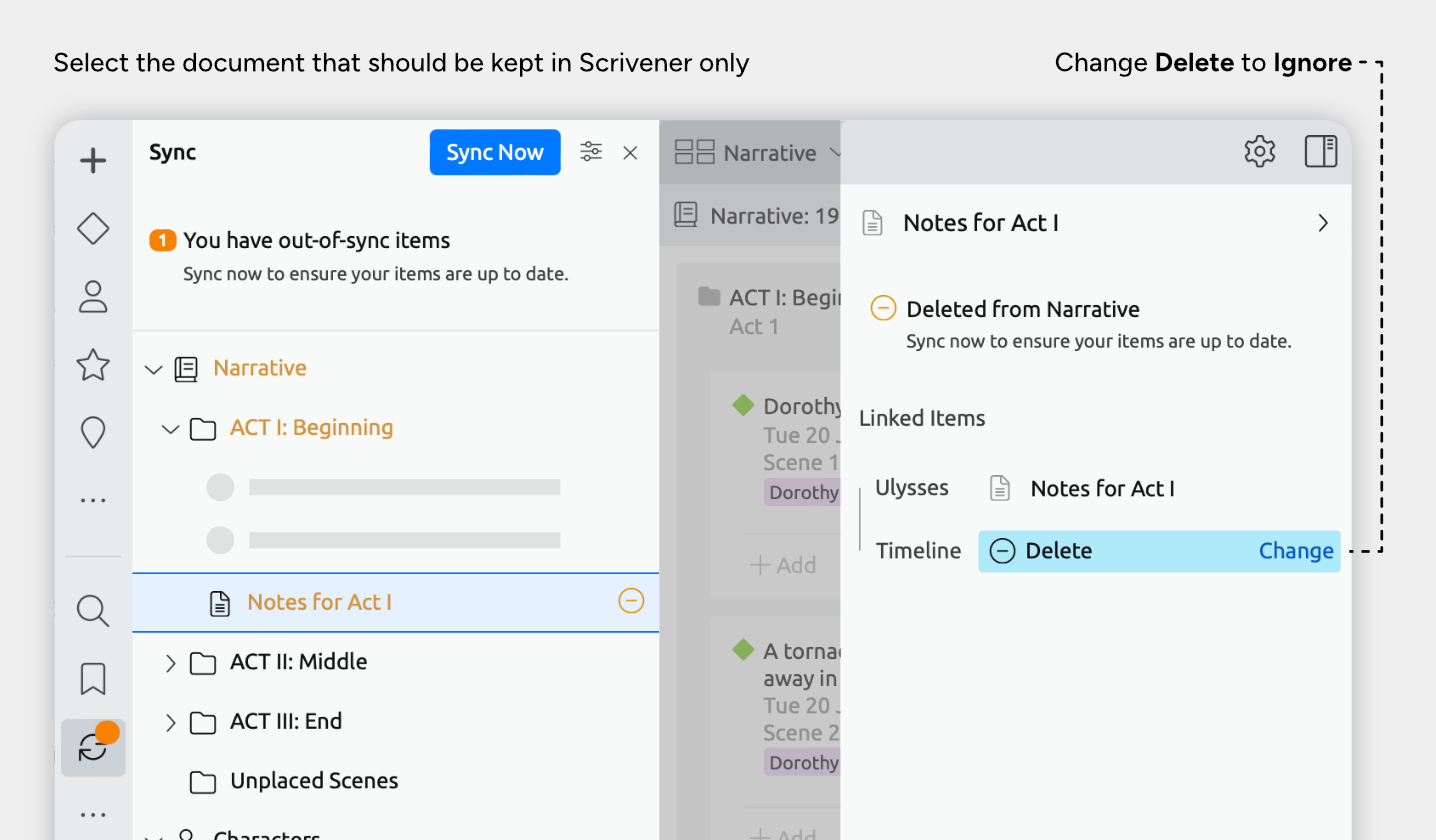
Ignore a Sheet That Has Already Been Synced
- In Aeon Timeline, select the sheet's matching event:
- Click the event in any view, or
- Select the matching sheet in the sync panel, then in the inspector click the event under Aeon Timeline.
- Delete the event.
- In the sync panel, select the matching sheet.
- In the inspector, next to Delete, click Change.
- Choose Ignore.
Fix Duplicate Events
Duplicated items usually happens when both the Ulysses project and timeline file start with sheets and events that represented the same scene, but they were not linked before syncing.
To fix duplicates, you’ll choose a version of the event to keep, and remove the rest.
- Check for synced duplicates
In the sync panel in Aeon Timeline, check through the synced sheets/events and identify if there are any duplicates.
If there are duplicates in Ulysses, check these sheets and note which, if any, contains your main body of writing. - Check for additional duplicates
In Aeon Timeline, use the search sidebar panel or any of your views to check if more duplicates exist. - Decide which version to keep
In most cases, you’ll want to keep the version that’s linked to Ulysses. If there's more than one synced version, you'll most likely want to keep the version that contains your body of writing. - Copy any missing information
In either Ulysses or Aeon Timeline, copy over any information that you want to keep from the duplicate(s) into the version you’re keeping. - Delete the duplicates
Delete the extra sheets/events once you’ve confirmed the kept version contains everything you need. - Run a sync
If there were synced duplicates, running a sync should now remove them.
Restore Trashed Ulysses Sheets
Only events that appear in Aeon Timeline’s narrative are synced with Ulysses. If you remove an event from the narrative:
- The link to its paired Ulysses sheet is broken, and
- The next time you sync, the linked Ulysses sheet is moved to Ulysses' Trash.
The document is not permanently deleted unless you empty Ulysses' Trash yourself.
Restore the Document
If the document was trashed by accident, you can restore it by:
- Open Ulysses' Trash folder.
- Drag the sheet out of Trash and back into another project or group.
Avoid Creating Duplicates After Restoring a Document
If you restore a sheet from Ulysses' Trash back into a synced folder, when you next sync, Aeon Timeline will treat it as a new sheet and create a new paired event.
To avoid this, you can either:
- Relink it to the original Aeon Timeline event if you removed that event from the narrative but didn't delete it, or
- Have Aeon Timeline ignore the document so it stays in Ulysses only.
Option A: Relink the Restored Sheet to the Original Aeon Timeline Event
If the original event still exists in Aeon Timeline, you can relink it with the restored sheet.
- Open the sync sidebar panel.
- Select the restored Ulysses sheet. If it has just been restored in Ulysses, it will be shown in green.
- In the inspector, next to Create New, click Change.
- Select the original event from the list.
Option B: Have Aeon Timeline Ignore the Document so it Stays in Ulysses Only
If you want to keep the restored sheet in Ulysses, but don’t want it to sync back into Aeon Timeline, you can mark it to be ignored. This prevents Aeon Timeline from creating a new event for it during the next sync.
- Open the sync sidebar panel.
- Select the restored Ulysses sheet. If it has just been restored in Ulysses, it will be shown in green.
- In the inspector, next to Create New, click Change.
- Choose Ignore.
Frequently Asked Questions
Will syncing edit the text in my Ulysses sheets?
Syncing doesn’t touch the body of your documents. It can be set to keep your sheet titles, keywords, and notes up to date with Aeon Timeline, but it never touches the main writing in your documents.
Does syncing happen automatically?
No. Aeon Timeline automatically helps detect when synced fields have changed, but it won’t sync until you click Sync Now.
Can I undo a sync if something goes wrong?
When you sync, the sync may need to update information across both apps. As such, syncing doesn’t support a one-click undo, and it's best to treat each sync as a save point.
If you need to revert to a previous version, you can:
- Restore a backup of your Aeon Timeline file, or
- Restore a backup of your Ulysses project.
We recommend creating manual backups of both files before your first sync, or major settings or structural changes, in case the sync ends up not being configured as intended.
Can I sync my timeline with more than one Ulysses project?
Not at the same time.
A single Aeon Timeline file is designed to sync with one Ulysses project or group as its linked writing project. If you want to sync the same timeline to another Ulysses project, you would need to set up a separate Aeon Timeline file, or changed the linked Ulysses project (which may require redoing your sync settings, or rematching sheets and events).
Can I sync on iPhone or iPad?
No. Due to limitations on iOS, Ulysses syncing is only available on Mac.
Can I turn off syncing?
Yes. To do so, open your sync settings, and choose Remove Current Sync.
Reference: All Fields That Can Be Synced
These are the fields that you can choose to sync between Ulysses sheets and Aeon Timeline events:
Aeon Timeline Field
Optionally Sync to Ulysses Field
Label
Sheet title
Summary
Notes
Color
Notes
Start Date
Notes
End Date
Notes
Custom single-line text property
Notes
Custom multiline text property
Notes
Custom option list property
Notes
Custom yes/no property
Notes
Custom number property
Notes
Relationships
- Keywords, or
- Notes
And these fields are automatically synced whenever syncing is enabled:
Aeon Timeline Field
Automatically Sync to Ulysses Field
Tags
Keywords
Reference: Sync Preview Messages
When changes have been made since your last sync, the sync panel shows what’s currently different between your synced documents and events.
Colored text and icons indicate items that have changes ready to sync.
When you select an event or sheet in the sync panel, the inspector will show a message explaining what changed, and which app the change was made in.
Below are the possible sync preview messages and what they mean.
+ New in Narrative
What This Means
You created this event or folder in Aeon Timeline’s Narrative, but it isn't synced to Ulysses yet.
What Will Happen When You Sync
A matching sheet or group will be created in Ulysses.
If you don’t want to create a new sheet:
If a matching sheet already exists in Ulysses, you can link it instead:
- Select the event or folder in the sync panel.
- In the inspector, next to Ulysses: Create New, click Change.
- Select the matching Ulysses sheet or group.
+ New in Ulysses
What this means
You created this sheet or group in Ulysses, but it isn't synced to Aeon Timeline yet.
What Will Happen When You Sync
A matching event or folder will be created in Aeon Timeline.
If you don’t want to create a new event:
If a matching event already exists in Aeon Timeline, you can link it instead:
- Select the sheet or group in the sync panel.
- In the inspector, next to Timeline: Create New, click Change.
- Select the matching Aeon Timeline event or folder.
Alternatively, if you want to keep the sheet only in Ulysses and don't want it to sync to Aeon Timeline:
- Select the sheet or group in the sync panel.
- In the inspector, next to Timeline: Create New, click Change.
- Choose Ignore.
- Deleted from Narrative
What This Means
This event or folder was deleted or removed from the Narrative in Aeon Timeline, but the matching sheet or group still exists in Ulysses.
What Will Happen When You Sync
The linked Ulysses sheet or group will be moved to the Trash.
If you don’t want Ulysses to trash it:
If you want to keep the sheet in its place in Ulysses but still removed the linked event or folder in Aeon Timeline:
- Select the event or folder in the sync panel.
- In the inspector, next to Timeline: Delete, click Change
- Choose Ignore
- Deleted from Ulysses
What This Means
This sheet or group was deleted or removed from Ulysses, but the matching event or folder still exists in Aeon Timeline.
What Will Happen When You Sync
- If the event or folder is part of your narrative in Aeon Timeline, deleting it in Ulysses will remove it from the narrative. The item itself will still exist in your Aeon Timeline file, so it may continue to appear on the timeline or in other views.
- If the item lives in an additional synced folder (for example, a folder of character sheets), deleting it in Ulysses and syncing will also delete it from Aeon Timeline.
→ Moved to new position
What This Means
This event or sheet was moved in one or both apps (for example, into a different group, or above/below other events or sheets).
What Will Happen When You Sync
Aeon Timeline will update the other app so the linked sheet and event are in the same place.
If you moved the linked sheet and event in both apps, its Ulysses position will take precedence.
! Changed in Timeline
What This Means
You changed one or more synced fields for this event or folder in Aeon Timeline (such as the label, summary, or other synced details).
What Will Happen When You Sync
Those changes will be copied into the linked Ulysses sheet or group.
! Changed in Ulysses
What This Means
You changed one or more synced fields for this sheet or group in Ulysses (such as the sheet title, notes, or other synced details).
What Will Happen When You Sync
Those changes will be copied into the linked Aeon Timeline event or folder.
! Conflict
What This Means
You changed the same synced field(s) for both this Ulysses sheet or group and its linked Aeon Timeline event or folder.
What Will Happen When You Sync
Before you can sync, you'll need to:
- Select the document or event in the sync panel.
- In the inspector, Aeon Timeline will show what changed in each app.
- For each conflicting field, choose which version to keep by selecting either Use from Timeline or Use From Ulysses.
Where to Next?
Organize a Separate Story Structure
Learn more about organizing your story using the narrative.
Try Aeon Timeline free for 14 days
Get Aeon Timeline and easily visualize and organize your project.