

Description
Media Library Tools is the most complete WordPress media management plugin available. It gives you full control over your media library — export your entire library to CSV, bulk-import metadata updates, rename files for better SEO, bulk edit alt text, find and remove duplicate images, clean up orphaned files, track where every image is used, and generate AI-powered metadata using ChatGPT, Gemini, or Claude.
Whether you run a blog, WooCommerce store, or content-heavy site, Media Library Tools helps you keep your media library clean, organized, and SEO-optimized.
👉 Documentation | Get Pro 👈
Why Media Library Tools?
Most WordPress sites accumulate hundreds or thousands of media files over time — poorly named, missing alt text, duplicated across posts, and cluttered with orphaned files that waste disk space. Media Library Tools solves all of this from a single, intuitive admin interface:
- SEO — Rename files to keyword-rich slugs, bulk-fill missing alt text, and generate AI-optimized metadata.
- Performance — Find and delete duplicate images, rubbish files, and unnecessary image sizes to reduce server storage.
- Organization — Categorize media, track image usage across posts and pages, and filter by any column.
- Automation — Auto-rename on upload, auto-fill metadata from post titles, and inject missing alt text on the frontend.
Free Features
Media Table
- View your entire media library in a fast, paginated, and filterable table
- Sort by filename, date, alt text, caption, and description
- Filter by date range, media category, status, or keyword search
- Inline single-item editing — title, alt text, caption, and description
- Bulk edit multiple items at once with a single save action
- Move selected images to trash or restore them; permanently delete when ready
- Copy file URL to clipboard with one click
AI Content Generator
- Generate SEO-optimized alt text, title, caption, description, and filename for any media file
- Supports three AI providers: ChatGPT (GPT-4o, GPT-5, and more), Google Gemini (2.0 Flash, 1.5 Pro), and Anthropic Claude (Haiku, Sonnet, Opus)
- AI considers your site name, tagline, existing metadata, and attached post context for accurate, relevant results
- Free plan includes 1 AI suggestion per field
Media File Renamer
- Rename individual media files with SEO-friendly slugs directly from the rename table
- Bulk rename selected files using a custom name
- See the attached post for each file to make informed rename decisions
- Inline AI filename suggestions in the rename table
- Prefix and suffix apply automatically during bulk rename (Pro)
Duplicate Image Finder
- Scan your entire media library for duplicate files using MD5 hash comparison
- View duplicate groups with file count, individual file size, and total wasted space
- See exactly where each duplicate is used — in posts, pages, featured images, and custom fields
- Batch scanning with a visual progress bar — no timeouts on large libraries
Rubbish File Finder (Media Library Cleaner)
- Scan your WordPress uploads directory for orphaned files not registered in the media library
- Identify leftover files from deleted plugins, failed uploads, or manual file operations
- Filter rubbish files by file extension
- Mark files as “ignored” to exclude known safe files from future scan results
- Re-scan specific directories or clear the full scan history
- Automated background scanning via WordPress cron
Image Usage Tracker (Used Where)
- Track exactly where every image is used across your WordPress site
- Detect images in post content, featured images, Elementor data, and custom meta fields
- Batch scan the full site or enable passive frontend tracking to capture usage automatically
- Filter media by “Used” vs “Unused” status to find images that can be safely removed
- View a per-image breakdown: how many posts use it, which post types, and direct links
Auto Metadata on Upload
- Automatically set alt text, caption, and description when a new image is uploaded
- Choose between using the image filename or a custom default text as the alt text source
SVG Upload Support
- Safely upload SVG files with automatic sanitization — removes XSS vectors, remote references, and other security risks
- Proper width and height metadata generation for SVG files
- Maximum SVG file size: 500KB (filterable via
tsmlt_upload_max_svg_file_size)
Disable Image Sizes
- Stop WordPress from generating unnecessary thumbnail sizes and save disk space
- Disable default sizes: Thumbnail, Medium, Large, Medium Large (768px), 1536×1536, 2048×2048, and the “Big” scaled size
- Works with sizes added by your theme or other plugins
Media Categories
- Organize your media library with a custom category taxonomy
- Bulk-assign categories from the media table
- Filter media by category using the dropdown filter
- Categories appear as clickable links in the native WordPress media list view
Media Download Shortcode
- Add styled download buttons anywhere on your site using a simple shortcode:
[tsmlt_download_button id=’123′ text=’Download Now’ class=’my-btn’ /] - Also supports direct file URLs:
[tsmlt_download_button url=’https://example.com/file.pdf’ text=’Download PDF’ /] - Forces a browser download prompt — works with images, PDFs, documents, audio, video, archives, and more
Additional Columns in WordPress Media List
- Alt text column (sortable)
- Caption column (sortable)
- Description column (sortable)
- Media Categories column
- Uploaded To post info in the media attachment modal
Regenerate Thumbnails
- Regenerate all registered image thumbnail sizes for every image in your media library in a single click
- Automatically detects and deletes orphaned thumbnail files for image sizes that are no longer registered — frees disk space without manual cleanup
- Processes images in batches of 10 to avoid server timeouts on large libraries
- Real-time progress bar with stats: total images, processed, succeeded, and errors
- Stop and restart at any time — the progress bar shows stopped, running, or completed state clearly
- Per-image error log with dismiss support so you can identify and track any failed regenerations
- After completion, jump directly to the Rubbish File Finder to clean up any remaining orphaned files
Empty Directories Cleanup
- Detects empty directories left behind in your WordPress uploads folder after files are deleted or moved
- View a full list of empty directories with their relative paths
- Delete directories one at a time or remove all empty directories at once with a single click
- Prevents confusion from stale folder structures and keeps your uploads directory tidy
- Accessible from within the Rubbish Files page
CSV Export
- Export your full media library to a CSV file — IDs, slugs, URLs, titles, alt text, captions, descriptions, and custom meta fields
- Select which columns to include before exporting
- Visual progress indicator during export
Pro Features
All free features, plus:
CSV Import
- Upload a CSV file to bulk-update existing media metadata or create new attachments from external URLs
- Supported columns:
ID,slug,url,rename_to,title,caption,description,alt_text,custom_meta:_key - Batch processing with progress tracking — handles large libraries without timeouts
- Rename files during import using the
rename_tocolumn
Duplicate Merge
- Select which copy of a duplicate group to keep, then merge with one click
- All references to the deleted copies are automatically updated across:
- Post content and excerpts
- Featured images
- Elementor page builder data
- Custom post meta fields
- Keeps your site fully functional after cleanup — no broken image references
Rubbish File Pro Actions
- Bulk Delete — delete all selected rubbish files with a single confirmation
- Single Delete — delete individual rubbish files with confirmation
- Restore to Library — import a rubbish file back into the WordPress media library, generating proper thumbnails and metadata
- Ignore / Unignore — mark files as safe to keep and exclude them from future scan results
Bulk Rename by Post Title
- Rename all selected media files based on their attached post or page title
- Prefix and suffix are automatically applied
Bulk Rename by Product SKU
- Rename WooCommerce product images using the product’s SKU
- Ideal for WooCommerce stores managing large product catalogs
Bulk Rename by Alt Text
- Rename media files using their existing alt text as the new filename
- Keeps filenames and alt text consistent for stronger SEO alignment
Auto Rename on Upload
- Automatically rename uploaded files based on the attached post title
- Or set a custom global rename pattern for all uploads
Auto Metadata from Post Title
- Automatically set alt text, caption, and description from the attached post title at upload time
- No manual editing needed for images uploaded directly to a post
Rename Prefix & Suffix
- Prepend and append custom text to every renamed filename
- Applies to all bulk rename strategies: by post title, SKU, alt text, and CSV import
Auto Alt Text on Frontend
- Automatically inject missing alt text into image tags when WordPress renders frontend pages
- Fallback strategy: post title filename custom default text
- Improves accessibility (WCAG 2.1) and SEO without editing every image manually
Register Custom Image Sizes
- Define custom image sizes (width, height, crop) that WordPress generates on every upload
- Sizes are prefixed with
tsmlt_to avoid conflicts - Reduce storage waste by generating only the sizes your theme actually uses
Enhanced AI Features
- Send the actual image to the AI provider for visual analysis — get far more accurate alt text and captions
- Up to 10 AI suggestions per field to choose from (vs. 1 in the free version)
AI Content Generator – Supported Models
ChatGPT
GPT-5.1, GPT-5 Mini, GPT-4o, GPT-4o Mini, GPT-4.1, and more
Google Gemini
Gemini 2.0 Flash, Gemini 2.0 Flash Lite, Gemini 1.5 Pro, Gemini 1.5 Flash
Anthropic Claude
Claude Haiku, Claude Sonnet, Claude Opus
What the AI generates:
- Title — 3 to 8 words, title case
- Alt Text — SEO-friendly, WCAG 2.1 accessible, maximum 125 characters
- Caption — 1 to 2 sentence engaging description
- Description — 2 to 4 sentence SEO-optimized description
- Filename — lowercase, hyphenated, maximum 50 characters
Media File Rename — SEO Benefits
Descriptive, keyword-rich filenames help search engines understand your images, improving rankings in Google Image Search and general web search. Well-named files also make your media library easier to navigate and audit over time.
Before renaming, we strongly recommend:
- Practice on a staging environment first
- Back up your database and files before any bulk rename operation
- Test renaming a single file before running bulk actions
- Clear your site and CDN cache after renaming to prevent broken references
Screenshots
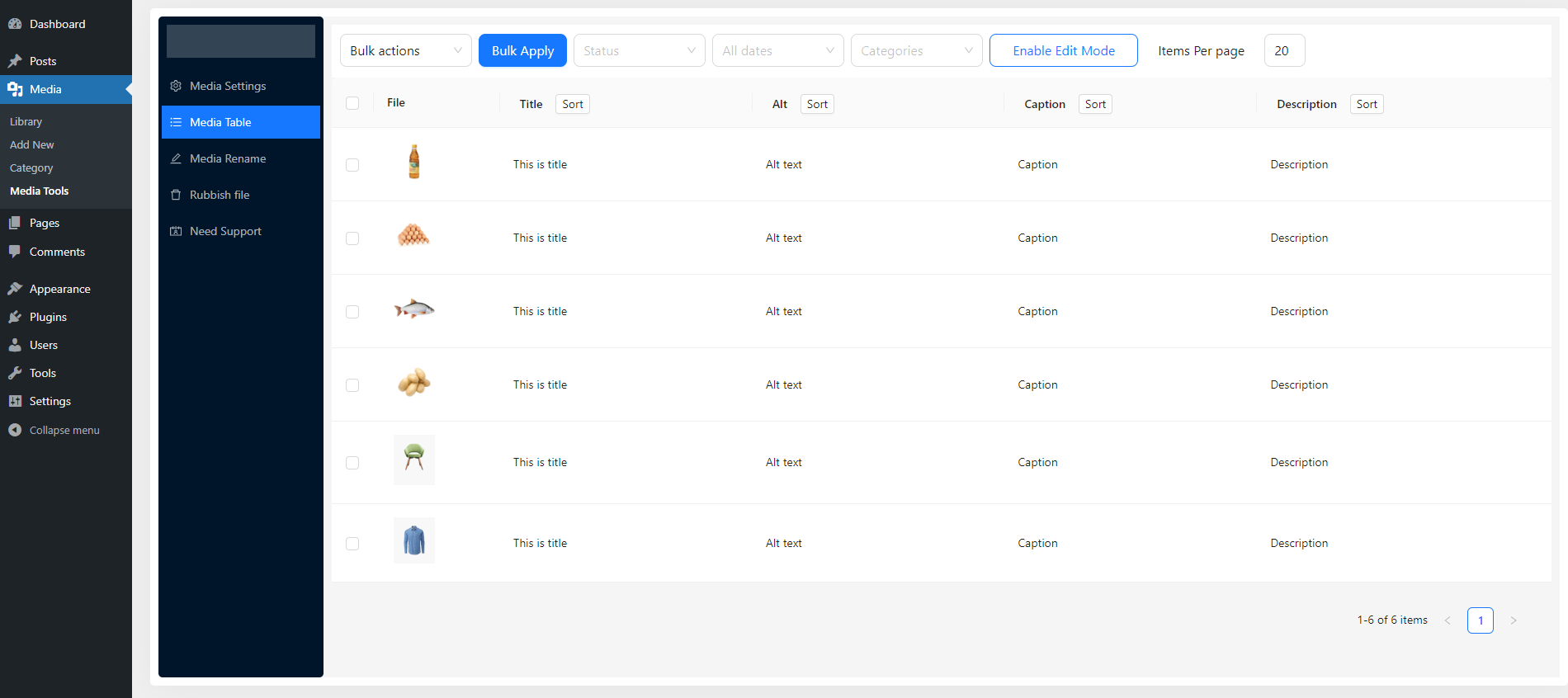
Media Table — view, filter, sort, and inline-edit all media files 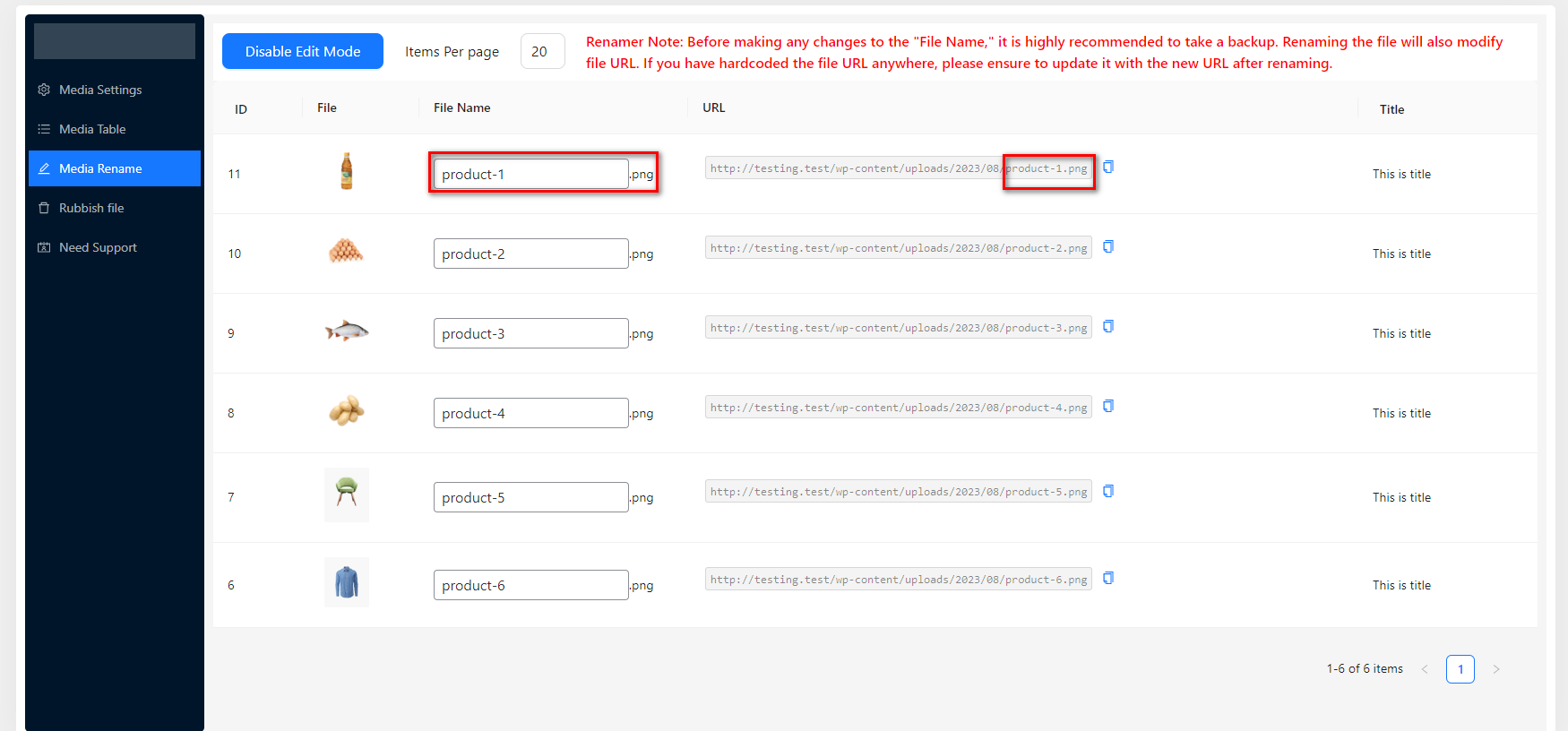
Media File Rename table with inline editing and AI suggestions 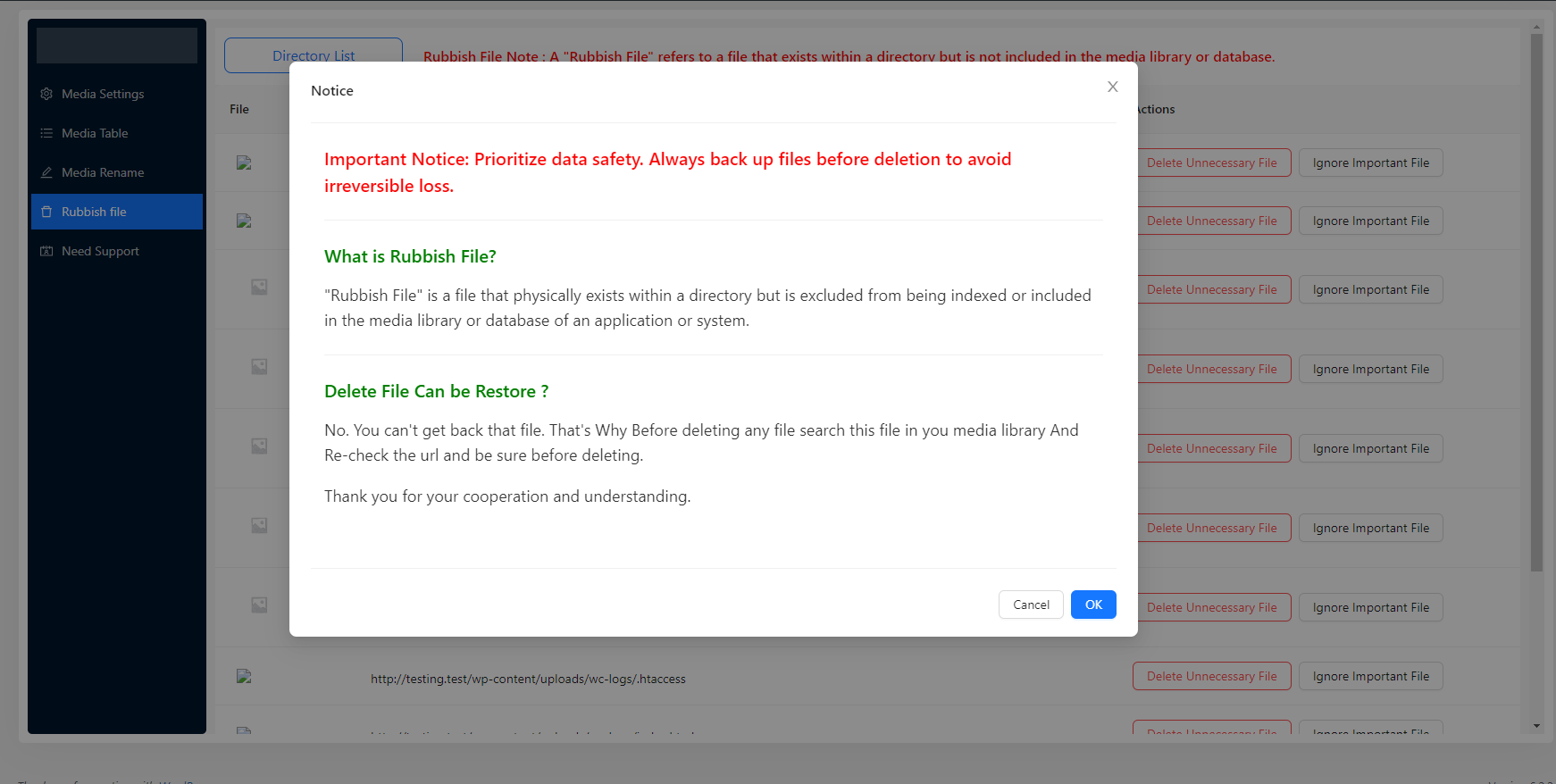
Rubbish File notice and scan prompt 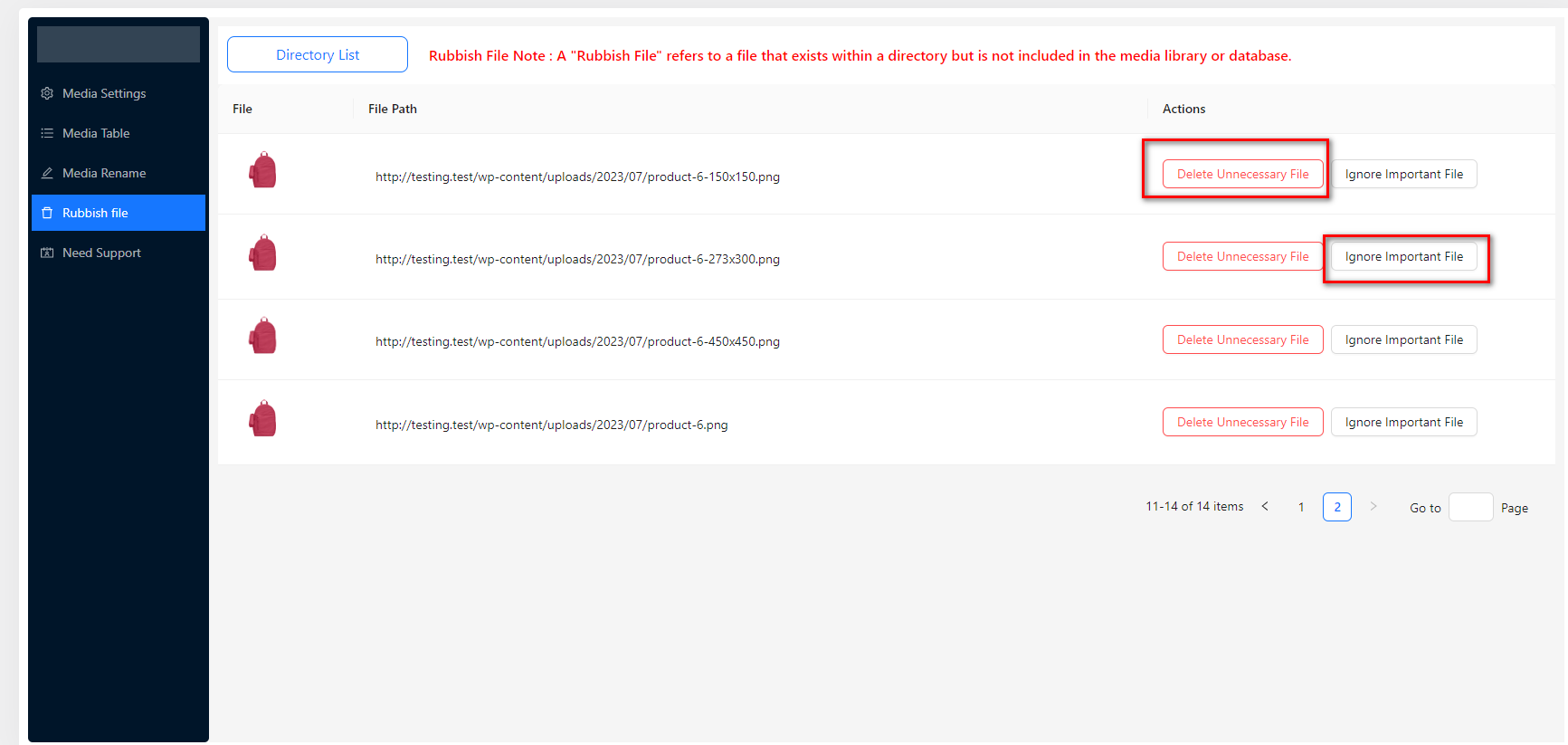
Rubbish File table showing orphaned files with filter and action buttons 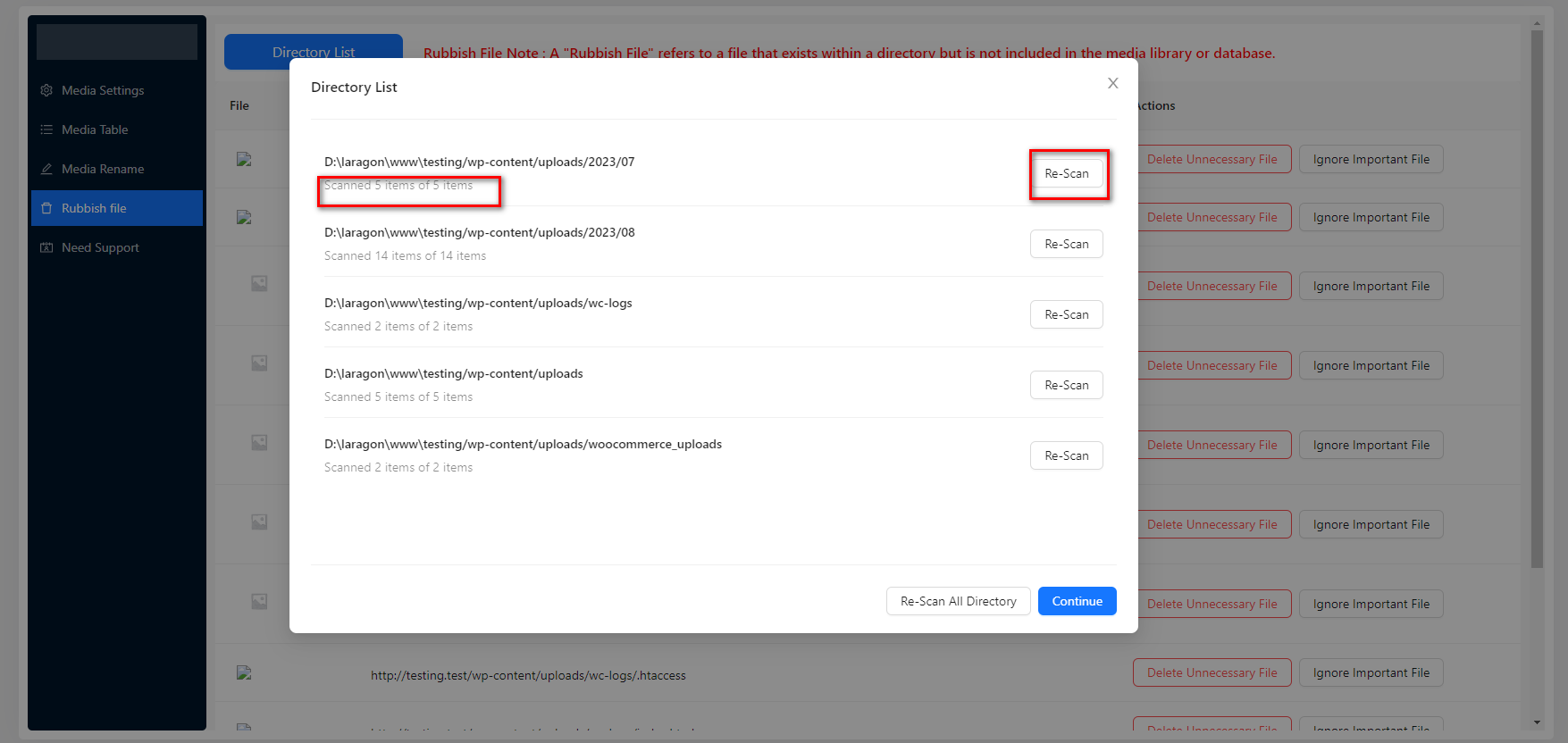
Directory list with scan history for targeted rubbish scanning 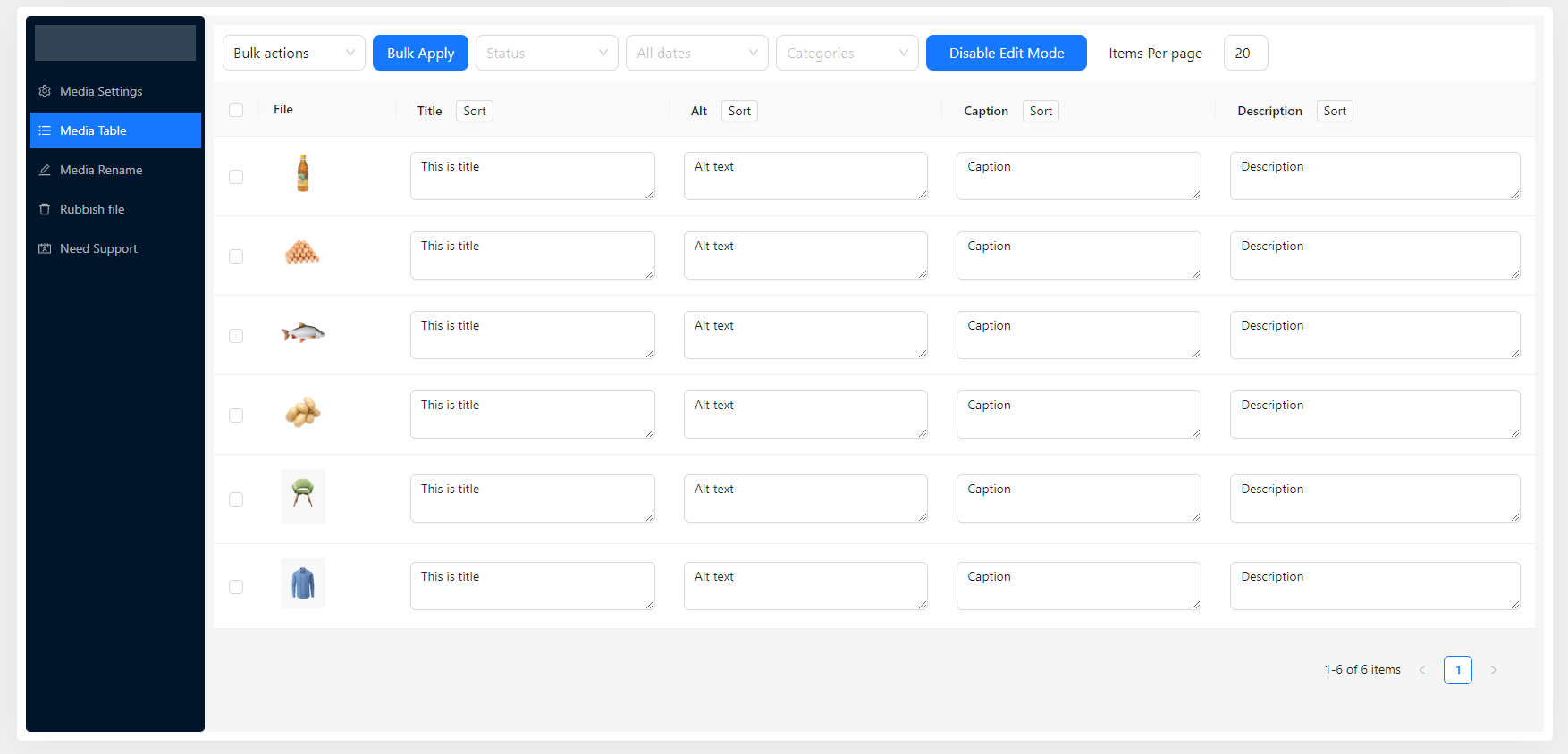
Media Table in single-item edit mode 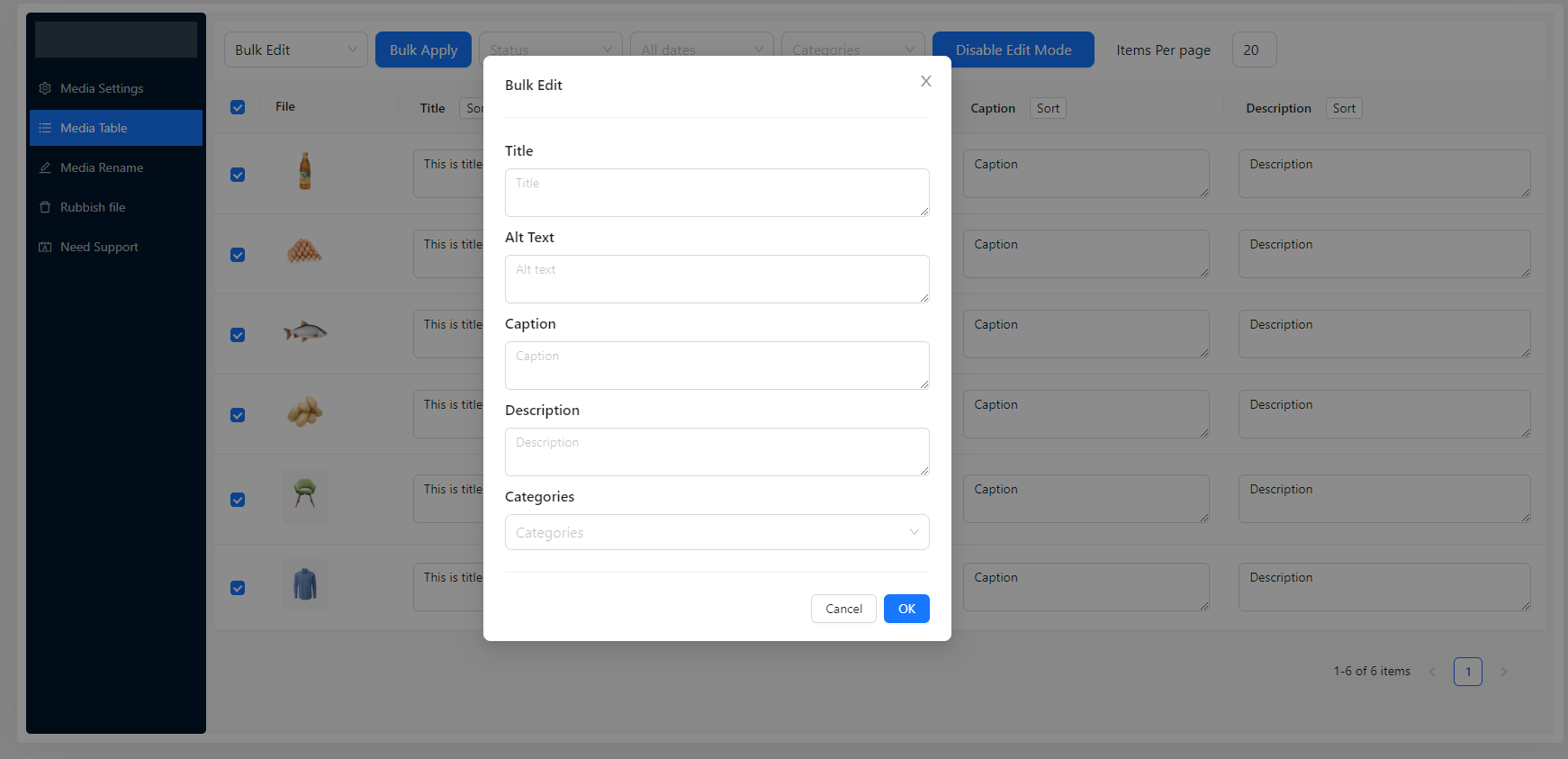
Media Table in bulk edit mode 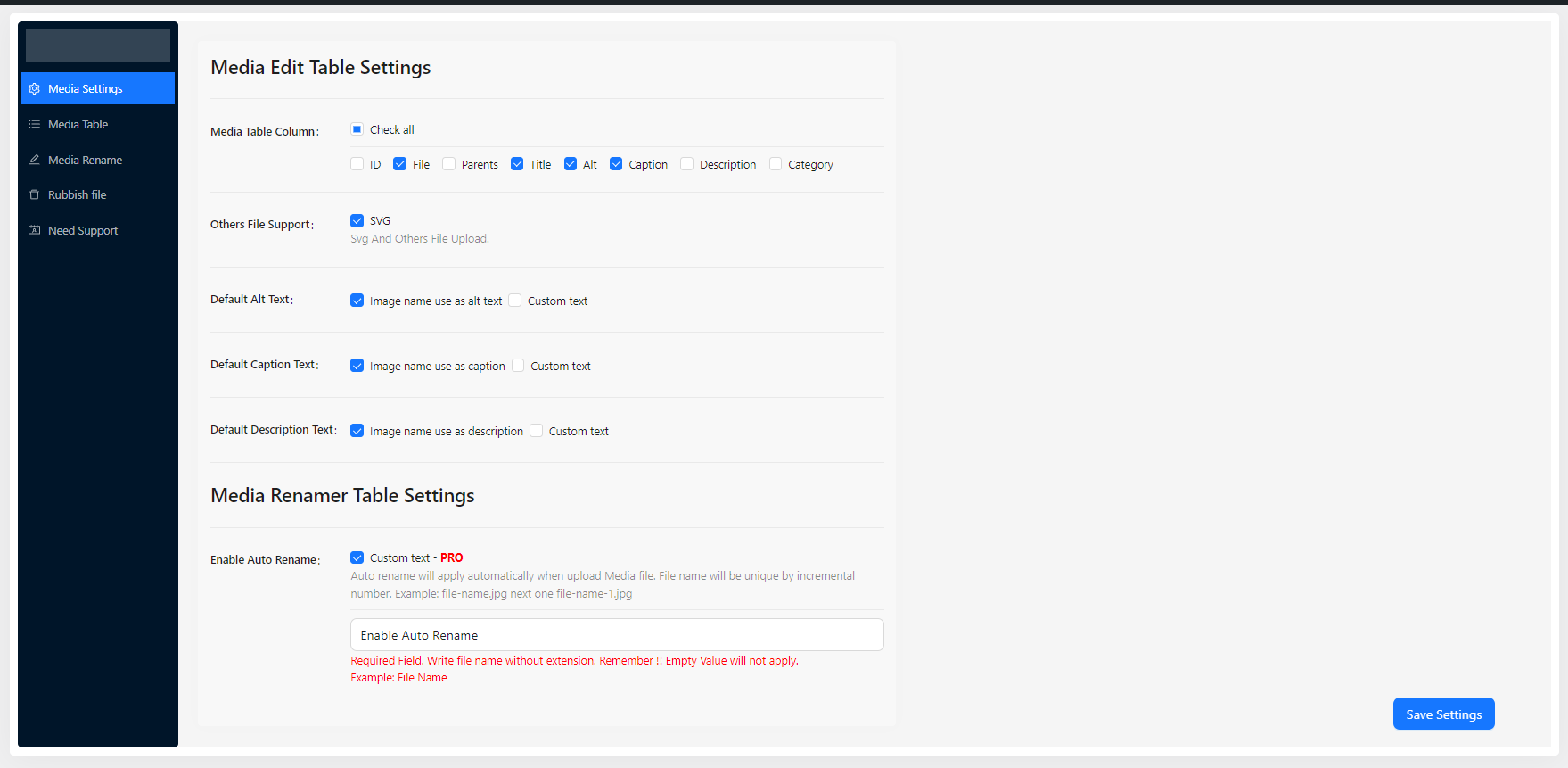
Plugin settings page — AI, rename, alt text, image sizes, and more


FAQ
— MEDIA TABLE —
-
How do I view and manage all my media files in one place?
-
Go to Media > Media Tools > Media Table. You will see your entire WordPress media library in a fast, paginated table with columns for thumbnail, filename, title, alt text, caption, description, attached post, and file type. You can sort by any column, filter by date, category, or keyword, and perform bulk actions on selected items.
-
How do I inline-edit a single media item’s metadata?
-
In the Media Table, click the Enable Edit Mode button on any row. The row expands to show editable fields for title, alt text, caption, and description. Make your changes and save. This is the fastest way to update metadata for individual images without leaving the table.
-
How do I bulk edit alt text, title, caption, and description for multiple images at once?
-
Select the images you want to edit using the checkboxes in the Media Table, then choose Bulk Edit from the Bulk Actions dropdown and click Apply. A modal will open where you can enter new values for title, alt text, caption, and description. Changes are applied to all selected items in one save action.
-
Can I bulk edit media metadata based on the attached post title? (Pro)
-
Yes — this is a Pro feature. Select images in the Media Table, choose Bulk Edit by Post Title from the Bulk Actions dropdown, and click Apply. The plugin will automatically populate alt text, caption, and description using the title of the post or page each image is attached to. This is ideal for sites where images are always uploaded directly inside a post.
-
How do I move media files to trash or delete them permanently?
-
Select items in the Media Table, then choose Move to Trash or Delete Permanently from the Bulk Actions dropdown. Trashed items can be restored at any time before you empty the trash.
-
How do I create and assign media categories?
-
Select items in the Media Table and choose Bulk Edit. In the modal you can assign a media category to all selected items. You can also filter the Media Table by category using the category dropdown filter at the top. Categories appear as clickable links in the native WordPress Media Library list view as well.
-
How do I copy a media file URL quickly?
-
Each row in the Media Table has a copy-to-clipboard icon next to the filename. Clicking it copies the full file URL to your clipboard instantly — no need to open the attachment edit screen.
— MEDIA FILE RENAMER —
-
How do I rename a WordPress media file for better SEO?
-
Go to Media > Media Tools > Media Rename. The rename table shows all your media files sorted by ID (newest first). Click into the filename field for any row, type your new SEO-friendly slug (no extension needed), and save. The plugin updates the filename on disk, the database record, all post content references, featured images, and Elementor data automatically.
-
How do I bulk rename multiple media files at once?
-
In the Media Rename table, select the files you want to rename using the checkboxes, then click Bulk Rename in the header. Choose a rename strategy — custom name, post title, SKU, or alt text — and confirm. All selected files are renamed in a single operation.
-
Can I rename files based on the attached post title? (Pro)
-
Yes — this is a Pro feature. Select images in the Media Rename table, click Bulk Rename, and choose Rename Based on Attached Post Title. The plugin reads the title of the post or page each image is attached to and uses it as the new filename. Prefix and suffix settings are applied automatically.
-
Can I rename files based on WooCommerce product SKU? (Pro)
-
Yes — this is a Pro feature available on WooCommerce sites. In the Bulk Rename modal, choose Rename Based on Product SKU. Each image is renamed using the SKU of its attached WooCommerce product. This is perfect for keeping product image filenames aligned with your inventory system.
-
Can I rename files based on their existing alt text? (Pro)
-
Yes — this is a Pro feature. Choose Rename Based on Alt Text in the Bulk Rename modal. The plugin uses each image’s current alt text as the new filename, which keeps your filenames and alt text perfectly consistent for stronger SEO alignment.
-
Can I add a prefix or suffix to all renamed files? (Pro)
-
Yes — this is a Pro feature. Go to Settings > Renamer Settings and enter your desired prefix and/or suffix. These values are automatically prepended and appended to every filename during any bulk rename operation — whether by post title, SKU, alt text, or CSV import.
-
Can WordPress automatically rename files when they are uploaded? (Pro)
-
Yes — this is a Pro feature. Enable Auto Rename on Upload in Settings > Renamer Settings. You can rename uploaded files based on the attached post title or set a global custom rename pattern that applies to every upload.
-
Does renaming a file break existing links or images on my site?
-
No. When you rename a file, the plugin automatically updates the database record, all
<img>tags in post content, featured image assignments, Elementor page builder data, and custom meta fields. Your site continues to work normally. We still recommend testing on a staging site first and clearing your cache after any bulk rename.— REGENERATE THUMBNAILS —
-
How do I regenerate all image thumbnails after changing image sizes?
-
Go to Media > Media Tools > Regenerate Thumbs. Click Start Regenerating to process all images in batches of 10 at a time. A progress bar shows real-time status. The process also automatically deletes orphaned thumbnail files for image sizes that are no longer registered, freeing up disk space.
-
Can I stop the thumbnail regeneration process partway through?
-
Yes. Click the Stop button at any time to pause. The progress bar turns amber to indicate a stopped state. You can resume by clicking Restart from Beginning or proceed to clean up orphaned files using the Check Rubbish Files button.
— DUPLICATE IMAGE FINDER —
-
How do I find duplicate images in my WordPress media library?
-
Go to Media > Media Tools > Duplicates. Click Scan for Duplicates. The plugin compares every media file using MD5 hash fingerprinting — so it finds exact byte-for-byte duplicates regardless of filename. Results are grouped by file, showing how many copies exist, the file size, and the total wasted disk space across the group.
-
Can I see where duplicate images are being used before deleting them?
-
Yes. Each duplicate group shows every copy with its filename, file path, and a list of posts and pages where it is currently used — including post type and a direct link to view the post. This lets you make an informed decision before merging.
-
What happens when I merge duplicate images? (Pro)
-
Merging is a Pro feature. In the duplicate group, click Merge, select the copy you want to keep, and confirm. The plugin deletes all other copies and automatically updates every reference to them — in post content, excerpts, featured images, Elementor data, and custom post meta — to point to the kept copy. Your site continues to work without any broken images.
-
Is merging duplicates reversible?
-
No. Merged (deleted) files are permanently removed from disk and the media library. We strongly recommend reviewing which copy to keep and backing up before running a merge operation.
— RUBBISH FILE FINDER (MEDIA CLEANER) —
-
What is a rubbish file?
-
A rubbish file is a file that physically exists in your WordPress uploads directory but is not registered in the media library database. These are typically leftover files from deleted plugins, failed uploads, manual FTP operations, theme switches, or old image size variations that WordPress no longer generates. They waste disk space without serving any purpose.
-
How do I scan for rubbish files?
-
Go to Media > Media Tools > Rubbish Files and click Find Rubbish Files. The directory scan modal opens — select which directories to scan and click Start. The plugin scans in batches via WordPress cron and lists all files not found in the media library database. You can filter results by file type.
-
Is it safe to delete rubbish files?
-
Most rubbish files are safe to delete. However, some themes and plugins store files in the uploads directory that are not registered in the media library — for example, plugin data files, backup exports, or files used by page builders. Always review the list before deleting, and use the Ignore feature to mark files you want to keep so they are excluded from future scan results.
-
How do I delete or restore rubbish files? (Pro)
-
Deleting and restoring are Pro features. With Pro you can: Bulk Delete all selected files at once, Single Delete individual files, Restore to Library to import an orphaned file back into the WordPress media library with proper thumbnails and metadata generated, or Ignore a file to exclude it from future scans.
-
Can rubbish files be deleted automatically during the scan? (Pro)
-
Yes — this is a Pro option. In the directory scan modal, enable Instant delete rubbish file during scan before starting. Files identified as rubbish are deleted immediately as they are found. Note: this action is irreversible.
— IMAGE USAGE TRACKER (USED WHERE) —
-
How do I find out where a specific image is being used on my WordPress site?
-
Go to Media > Media Tools > Used Where and click Scan All Posts. The plugin scans all your posts, pages, and custom post types in batches, detecting images used in post content, featured images, Elementor data, and custom meta fields. After scanning, click on any image in the results to expand a list of every post it appears in — with post type, usage type, and a direct View link.
-
How do I find unused images that are safe to delete?
-
After running a scan in Used Where, click the Unused tab. This lists all media files that were not found in any post, page, or custom field during the scan. You can select unused images using the checkboxes and delete them in bulk. A confirmation modal will appear with a disclaimer reminding you to verify manually before deleting.
-
Can I delete unused images in bulk?
-
Yes. On the Unused tab, use the Select all checkbox or select individual images, then click Delete N images. A confirmation modal will appear with a warning and disclaimer. Once confirmed, the selected attachments are permanently deleted from the media library and disk. The results list refreshes automatically after deletion.
-
What types of image usage does the scanner detect?
-
The scanner detects images used in: post content (via
<img>tags and URLs), featured images (_thumbnail_id), Elementor page builder widget data, and custom post meta fields containing image URLs or IDs. You can also enable Frontend Tracking in Settings to passively capture additional usage as real visitors browse your site. -
Does the unused image list update in real time?
-
The unused image list reflects the last completed scan. To get up-to-date results, click Re-scan after publishing new content or making changes to your media library. The scan processes posts in batches of 20 with a live progress bar so it handles large sites without timeouts.
— AUTO METADATA ON UPLOAD —
-
Can WordPress automatically fill in alt text when I upload an image?
-
Yes. Go to Settings > Alt Text Settings and enable Use Image Name as Alt Text or Custom Text. When enabled, every newly uploaded image automatically gets alt text set from its filename or your custom default text — no manual entry needed.
-
Can alt text, caption, and description be auto-filled from the attached post title at upload? (Pro)
-
Yes — this is a Pro feature. Enable Default Alt Text Based on Post Title, Default Caption Based on Post Title, and/or Default Description Based on Post Title in the respective Settings sections. When you upload an image directly inside a post or page, the plugin automatically fills those fields using the post title.
-
Can missing alt text be automatically injected on the frontend without editing every image? (Pro)
-
Yes — this is a Pro feature. Enable Auto Inject Alt Text in Settings > Renamer Settings. When WordPress renders image tags on the frontend, the plugin fills in any missing
altattribute using a priority fallback: post title filename custom default text. This improves both SEO and WCAG 2.1 accessibility across your entire site without touching individual media records.— AI CONTENT GENERATOR —
-
How does the AI content generator work?
-
Go to Settings > AI Settings, select your AI provider (ChatGPT, Google Gemini, or Anthropic Claude), enter your API key, and choose a model. Then open the Media Table or Media Rename table and click the AI button on any media item. The plugin sends the file metadata (and the image itself in Pro) to the AI and returns SEO-optimized suggestions for title, alt text, caption, description, and filename.
-
Which AI providers and models are supported?
-
The plugin supports ChatGPT (GPT-5, GPT-5 Mini, GPT-4o, GPT-4.1, and more), Google Gemini (2.0 Flash, 2.0 Flash Lite, 1.5 Pro, 1.5 Flash), and Anthropic Claude (Haiku, Sonnet, Opus). You can switch providers and models at any time in Settings.
-
What is the difference between free and Pro AI generation?
-
The free version returns 1 AI suggestion per field. The Pro version returns up to 10 suggestions per field so you can pick the best one, and it also supports Image Vision — sending the actual image file to the AI provider for visual analysis, which produces significantly more accurate and descriptive alt text and captions.
-
Does AI generation send my images to a third-party server?
-
In the free version, only text metadata (filename, existing alt text, post title, site name) is sent to the AI provider. In Pro, if you enable Image Vision, the image is base64-encoded and included in the API request. All communication is encrypted via HTTPS. No data is stored by this plugin; it is sent directly to your chosen provider (OpenAI, Google, or Anthropic) under their respective privacy policies.
-
Do I need to pay for AI generation?
-
The plugin itself does not charge for AI generation. You need an API key from your chosen provider (OpenAI, Google AI Studio, or Anthropic). Each provider has their own pricing — most offer a generous free tier that covers typical media library use. You are billed directly by the provider based on usage.
— IMAGE SIZES —
-
How do I disable WordPress from generating unnecessary thumbnail sizes?
-
Go to Settings > Image Size Settings. You will see a list of all registered image sizes — including default WordPress sizes and any added by your theme or plugins. Check the sizes you want to disable and save. WordPress will no longer generate those sizes for new uploads, saving disk space. Already-generated thumbnails are not deleted automatically; use Regenerate Thumbnails or the Rubbish File Finder to clean those up.
-
How do I register new custom image sizes? (Pro)
-
This is a Pro feature. Go to Settings > Image Size Settings and scroll to the Register Custom Image Sizes section. Click Add New Size, enter a name, width, height, and choose whether to crop. Save your settings. WordPress will generate this size for every new upload. You can edit or delete custom sizes at any time.
— CSV EXPORT / IMPORT —
-
How do I export my media library metadata to CSV?
-
Go to Media > Media Tools > CSV Export. Choose which columns to include (ID, slug, URL, title, alt text, caption, description, and custom meta fields) and click Export. The plugin processes your entire library in batches and downloads a CSV file you can open in Excel, Google Sheets, or any spreadsheet application.
-
How do I bulk-update media metadata using a CSV file? (Pro)
-
This is a Pro feature. Go to Media > Media Tools > CSV Import, upload your CSV file, and click Import. The plugin matches rows by ID or slug and updates each media record. Supported columns include
rename_to,title,alt_text,caption,description, and custom meta fields using thecustom_meta:_keyformat. Files can also be renamed during import using therename_tocolumn.— SVG SUPPORT —
-
Does the plugin allow SVG file uploads in WordPress?
-
Yes. The plugin enables secure SVG uploads to WordPress. Every SVG file is sanitized on upload to remove XSS vulnerabilities, remote references, and embedded scripts. Proper width and height metadata is generated automatically. The maximum allowed SVG file size is 500KB by default (adjustable via the
tsmlt_upload_max_svg_file_sizefilter).— MEDIA DOWNLOAD SHORTCODE —
-
Use the
[tsmlt_download_button]shortcode anywhere in your posts, pages, or widgets:
* By attachment ID:[tsmlt_download_button id='123' text='Download Now' /]
* By direct URL:[tsmlt_download_button url='https://example.com/file.pdf' text='Download PDF' /]
The button forces a browser download prompt and works with images, PDFs, audio, video, archives, and documents.— REGENERATE THUMBNAILS —
-
How do I regenerate all image thumbnail sizes in WordPress?
-
Go to Media > Media Tools > Regenerate Thumbs and click Start Regenerating. The plugin processes your entire media library in batches of 10 images at a time, regenerating every registered thumbnail size for each image. A real-time progress bar shows total images, processed count, succeeded, and any errors. This is useful after changing image sizes in your theme, installing a new page builder, or adding new registered sizes.
-
Does regenerating thumbnails delete old unused thumbnail files?
-
Yes. When regenerating, the plugin automatically detects and deletes orphaned thumbnail files — size variants that exist on disk but are no longer registered as active image sizes. This frees up disk space without any manual cleanup. After regeneration finishes, you can also click Check Rubbish Files to scan for any remaining orphaned files.
-
Can I stop the thumbnail regeneration partway through?
-
Yes. Click the Stop button at any time. The progress bar turns amber to indicate a stopped state, showing exactly how many images were processed before stopping. You can then click Restart from Beginning to start over, or navigate to the Rubbish Files page to clean up already-processed orphans.
-
What should I do if some images fail during thumbnail regeneration?
-
Any failed images are listed in the error log below the progress bar. Each error shows the filename and the error message. You can dismiss individual errors or all at once. Common causes are unreadable files, unsupported file types, or insufficient server memory for very large images. Check your server’s PHP
memory_limitsetting if you see repeated failures.— EMPTY DIRECTORIES —
-
How do I find and delete empty folders in my WordPress uploads directory?
-
Go to Media > Media Tools > Rubbish Files. The page includes an Empty Directories section that lists all empty folders found in your uploads directory. You can delete them one by one or click Delete All Empty Directories to remove them all at once. Empty directories are commonly left behind after deleting media files, switching themes, or removing plugins.
— GENERAL —
-
Does the plugin slow down my WordPress site?
-
No. The plugin only loads its code in the WordPress admin on the Media Library Tools pages. No scripts, styles, or database queries are added to your frontend (except for optional frontend tracking and alt text injection, both of which are opt-in and lightweight). Admin scanning operations run via AJAX in batches specifically to avoid server timeouts.
-
Is the plugin compatible with Elementor?
-
Yes. File renames, duplicate merges, and usage tracking all correctly handle Elementor page builder data. When you rename or merge a file, the plugin updates Elementor’s serialized widget data in the database so page builder layouts continue to work.
-
Is the plugin compatible with WooCommerce?
-
Yes. The Bulk Rename by Product SKU feature (Pro) is specifically designed for WooCommerce stores. The plugin also correctly handles product images in duplicate detection, usage tracking, and the CSV export/import workflow.
-
Will the plugin work on WordPress multisite?
-
The plugin is designed for single-site installations. Multisite compatibility is not officially tested or supported at this time.
-
Where can I get support?
-
Visit the WordPress.org support forum for free support, or use the Get Support page inside the plugin admin for documentation, feature requests, and priority Pro support.
-
Where is the source code?
Reviews


Contributors & Developers
“Media Library Tools – AI-Powered Rename, Clean & CSV Import/Export” is open source software. The following people have contributed to this plugin.
Contributors

Translate “Media Library Tools – AI-Powered Rename, Clean & CSV Import/Export” into your language.
Interested in development?
Browse the code, check out the SVN repository, or subscribe to the development log by RSS.
Changelog
2.2.1 ( Apr 11, 2026 )
- Improvement: Media Where Used Functionality Update
2.2.0 ( Apr 08, 2026 )
- Added: Image Usage Tracker (Used Where) — scan all posts and pages to detect where every image is used across post content, featured images, Elementor data, and custom meta fields
- Added: Used/Unused filter tabs in the Image Usage Tracker with live post count badges
- Added: Bulk delete unused images — select individual images or all at once, with a confirmation modal and disclaimer before deletion
- Added: Confirmation modal for unused image bulk delete includes a manual verification warning and a full disclaimer about irreversibility
- Added: Per-image usage breakdown — expand any image to see every post it appears in, with post type, usage type, and a direct View link
- Added: Search filter in the Image Usage Tracker to find images by filename or title
- Added: Pagination for Used/Unused results with URL-driven page state
- Added: Pro Upgrade Banner at the bottom of every admin page for free users — lists all pro-only features with descriptions and Buy Now button
- Added: AI suggestion picker shown in a full modal (replaces dropdown) — prevents overflow/clipping in constrained table cells; supports up to 10 suggestions with blurred pro-locked rows
- Improvement: Duplicate merge now instantly removes only the merged group from the list without a full page reload
- Improvement: Media Rename table now always defaults to sorting by ID descending on load — recently renamed or uploaded images appear at the top
- Improvement: “Check Rubbish Files” button no longer auto-starts the directory scan — the modal opens and waits for manual confirmation before scanning
- Improvement: Loading states replaced with centered spinner animations across the Duplicates and Used Where pages
2.1.2
- Added: Duplicate file scanner with batch scanning and progress bar
- Added: Duplicate groups view with file count, size, and usage details
- Added: Pro — Merge duplicates: keep one copy, delete the rest, and update all references automatically
- Fixed: Database tables now auto-created on plugin update (not just on activation)
2.1.1 ( Mar 10, 2026 )
- Added: AI Content Generator — generate title, alt text, caption, description, and filename using ChatGPT, Gemini, or Claude directly from the media table
- Updated: Composer dependency
codesvault/howdy-qbupdated to latest version - Fixed: Custom table query truncate function updated
2.1.0 ( Mar 03, 2026 )
- Security: Migrated all REST API endpoints to WordPress admin-ajax for improved security compliance
- Added: Clear button on search keyword input field
- Added: Current scanning directory name shown live during bulk scan
- Added: Horizontal scroll shadow indicators in data tables
- Fixed: Bulk action select de-syncs visually after filter reset
- Fixed: Bulk directory scan now processes files in batches of 50 to prevent timeouts
- Fixed: Directories containing only subdirectories no longer loop infinitely during scan
- Fixed: Files in custom directories incorrectly excluded from rubbish list
- Fixed: Progress bar in bulk delete confirmation modal
- Fixed: Attached Post column sorting in the file rename table
- Fixed: Missing text domain on translatable strings
- Improvement: DataTable first column maintains fixed width
- Improvement: Directory scan list displays trimmed relative paths
- Improvement: Refactored loading states and per-page controls
- Improvement: Updated Export/Import UI styles
- Improvement: Overall UI improvements for better user experience
2.0.1 ( Jan 08, 2026 )
- Fixed: Search Attached Post issue resolved
2.0.0 ( Jan 08, 2026 )
- Updated: Display name and branding for clarity and compliance
- Updated: Removed Freemius code and remote assets; all required files now bundled locally
- Updated: Added composer.json and included readable JS and CSS source files
- Updated: Fixed sanitization, validation, escaping, and nonce handling throughout
- Updated: Standardized prefixes across the codebase to avoid conflicts with other plugins
- Updated: General code quality improvements and WordPress directory guideline compliance
1.7.0 ( Nov 25, 2025 )
- Improvement: Rubbish file bulk delete made significantly faster
- Improvement: Security hardening across AJAX endpoints
1.6.15 ( Nov 16, 2025 )
- Fixed: Activation time hooks
- Fixed: Migration issue resolved
1.6.14 ( Oct 23, 2025 )
- Added: Media File Download Shortcode (
[tsmlt_download_button])
1.6.13 ( Sep 29, 2025 )
- Added: Sort by Attached Post (parent post) in the rename table
- Fixed: Image group name display issue
1.6.12 ( Aug 20, 2025 )
- Fixed: Broken URL removal
- Added: Proper support URL
1.6.11 ( Jul 17, 2025 )
- Fixed: Cron scheduling error
- Fixed: Text domain loading issue
1.6.10 ( May 27, 2025 )
- Fixed: Content update issue on save
1.6.9 ( May 07, 2025 )
- Added: Export selected columns only for CSV
- Added: Export all media items with selected columns
1.6.8 ( Apr 21, 2025 )
- Added: Updated support URL
- Compatibility: Tested with latest WordPress version
1.6.7 ( Mar 09, 2025 )
- Fixed: URL fixes and removed unwanted srcset from SVG images
1.6.6 ( Mar 01, 2025 )
- Fixed: SVG image rename issue
1.6.5 ( Feb 22, 2025 )
- Added: Attached Post searching and filtering
- Fixed: Attached Post search query optimization
1.6.4 ( Feb 21, 2025 )
- Fixed: Attached Post search query optimization
1.6.3 ( Feb 17, 2025 )
- Fixed: Attached Post search query optimization
1.6.2 ( Feb 06, 2025 )
- Improvement: Attached Post Detection — detect where media files are used across the site
- Fixed: Media Table loader issue
- Fixed: Search image query issue
1.6.1 ( Jan 30, 2025 )
- Fixed: File rename prefix and suffix not applying correctly
1.6.0 ( Jan 29, 2025 )
- Fixed: Image broken after rename issue
- Fixed: Elementor page image broken after rename issue
1.1.4 ( Aug 27, 2023 )
- Added: Parent post URL display
- Added: URL for title field
- Fixed: Media content update issue
1.0.0 ( Mar 07, 2023 )
- Initial release