Logs and debugging
The Logs section of the site view has three tabs:
- Server — the dev server's own output: everything the Playground server prints while starting and running.
- Build watcher — the build watch's output. The tab title carries its state while it is doing something: Build watcher (watching), (building), (paused), or (exited 1) when it stopped on its own. Stop it yourself and the title goes back to a plain Build watcher.
- debug.log — WordPress's PHP log for this site, streamed live while the dev server runs.
Output from npm install and npm run commands appears in the Terminal, not here.
Gutenberg limitation
The debug.log tail currently follows the build/wp-content/debug.log file in a Core checkout. A Gutenberg site runs as a plugin inside a stock WordPress held by Playground, so its PHP log is not yet exposed at that path and this tab does not receive its entries. PHP errors still appear in the browser because WP_DEBUG_DISPLAY is enabled. The Server and Build watcher tabs continue to work normally.
All three panes read in the terminal's own monospace font, so the columns of a PHP stack trace line up, and each line is coloured by what it is: a fatal, a warning, a deprecation, a notice, a stack trace frame, or the Ready! WordPress is running on … line you are actually waiting for. The [11-Aug-2026 …] timestamp at the head of a debug.log line is dimmed, so 26 identical characters per line recede instead of competing with the message.
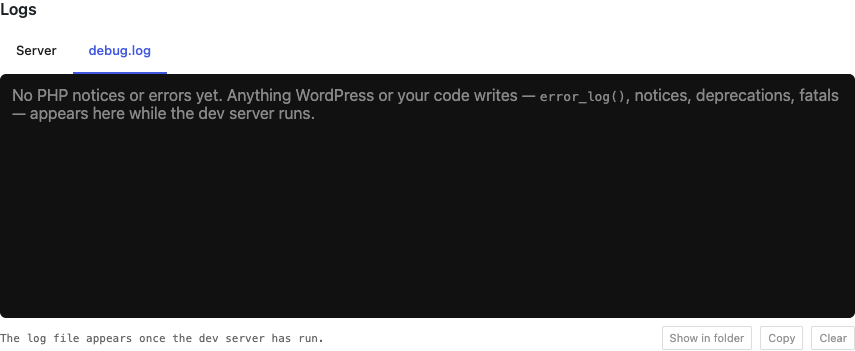
The debug.log tab
Anything WordPress or your code writes to the PHP error log — error_log() calls, notices, warnings, deprecations, _doing_it_wrong(), fatals — appears here while the dev server runs. This works because every site is booted with WordPress's debug constants already set, along with the two that say what kind of environment it is. Two of them, WP_DEBUG and SCRIPT_DEBUG, can be turned off under Sites in Settings; the rest are not configurable:
| Constant | Value | Effect |
|---|---|---|
WP_DEBUG | true | Notices, warnings, and deprecations are reported. Off in Settings, notices and deprecations are not; warnings and errors still reach the log and the browser, and error_log() calls still reach the log. |
WP_DEBUG_LOG | true | They are written to wp-content/debug.log, which this panel tails. |
WP_DEBUG_DISPLAY | true | Errors are also printed in the browser. |
SCRIPT_DEBUG | true | Core serves unminified JS and CSS. Can be turned off in Settings. |
WP_DISABLE_FATAL_ERROR_HANDLER | true | A fatal shows the actual error instead of WordPress's "critical error" recovery screen. |
AUTOMATIC_UPDATER_DISABLED | true | Core's automatic updater does not run (and does not fill the log with its own messages). |
WP_ENVIRONMENT_TYPE | local | The site runs as a local environment, as Core's own Docker environment does. Application Passwords are available, which on plain HTTP they are only for a local site. As on any site that is not production, pingbacks and trackbacks are off, and Site Health skips its caching and HTTPS tests. |
WP_DEVELOPMENT_MODE | core, or plugin on a Gutenberg site | On a Core site, Core looks for its blocks' stylesheets on every page load instead of using a cached list, so a block stylesheet added in build/ is picked up at once. On a Gutenberg site it changes nothing today; it is set because it describes the site. |
Note that WP_DEBUG_DISPLAY has a known cost: a notice fired during a REST or AJAX request is printed into the response and can corrupt the JSON it expects. That trade is made deliberately — seeing the error beats a silent blank page for a newcomer.
While you are reading another tab, the debug.log tab shows an unread count, for example debug.log (3), so a notice landing while you watch the server output does not go unseen. Selecting the tab resets the count. The panel keeps the most recent 512 KB of the log.
Under the pane:
- On a Core site, the full path to the log file (inside the site's
build/wp-content/directory) is shown and can be selected and copied — useful for tailing it in a real terminal or sharing it with a reviewer. - Show in folder reveals the file in your file manager.
- Copy puts the panel's contents on the clipboard, ready to paste into a Trac ticket, GitHub issue or pull request comment.
- Clear empties both the panel and the file on disk. If the file cannot be cleared, the panel says so — otherwise the same lines would replay the next time the server starts.
The app's own log
The application keeps a separate log of its own activity — server starts, installs, errors. Do not confuse it with the site's debug.log. Open it from the menu: Help → Open App Log, or Help → Show Logs Folder to reveal the directory. This is the file to attach when reporting a problem with the app itself.