






Google Domains
Connect your former Google Domains domain, now managed through Squarespace, to Webflow to host your site at a custom domain using DNS configuration or domain transfer.
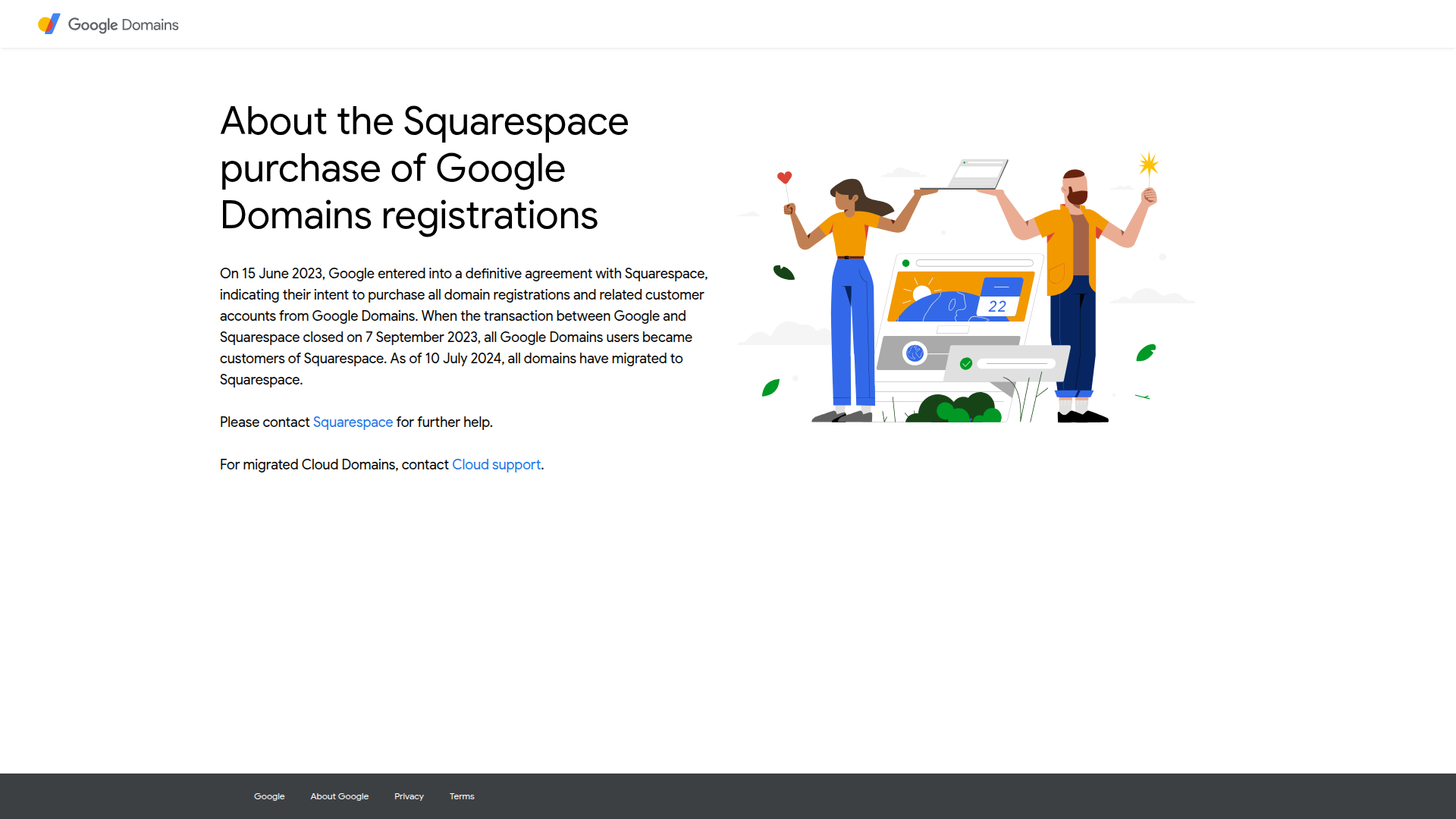
Important: Google Domains was acquired by Squarespace in 2023 and no longer operates as an independent service. All domains migrated to Squarespace's infrastructure by 2024 and are now managed at domains.squarespace.com. For step-by-step instructions using the current Squarespace interface, see the Squarespace Domains + Webflow integration guide.
If you registered your domain through Google Domains before the 2023 acquisition, your domain is still yours. It just lives somewhere new. Access it at domains.squarespace.com using your existing Google account credentials or a migrated Squarespace account. The interface changed after the acquisition, so DNS management panels and navigation differ from the original Google Domains layout.
This guide provides historical context about Google Domains and covers the general domain connection principles that apply across any registrar, including Squarespace. The technical steps, configuring DNS records or initiating a transfer, are the same regardless of which registrar holds your domain.
How to connect your domain to Webflow
What was Google Domains? Google Domains was a domain registration service launched by Google around 2015 that let users purchase and manage custom domains in one place. In June 2023, Squarespace acquired Google Domains, and by 2024, all customer accounts and domains had migrated to Squarespace's infrastructure. The service at domains.google.com is no longer operational.
Whether you're pointing a former Google Domains domain or any other custom domain at Webflow, the connection options are the same. You can keep your domain registered at Squarespace and point DNS records to Webflow's hosting infrastructure, or you can transfer the domain registration to Webflow to manage both in one place. Neither method affects which Webflow site you publish to that domain.

Connecting a custom domain to Webflow supports two approaches:
- DNS configuration keeps domain registration at Squarespace (formerly Google Domains) and points it to Webflow through A and CNAME records — no transfer required.
- Domain transfer moves domain registration from Squarespace to Webflow, consolidating domain and hosting management in one dashboard.
Most sites use DNS configuration to preserve existing registrar relationships and avoid transfer downtime. Domain transfer suits teams that prefer managing both domain registration and hosting through a single platform.
Configure DNS records
DNS configuration keeps your domain registered at Squarespace (formerly Google Domains) while routing web traffic to Webflow through DNS records. You configure A records for your root domain and a CNAME record for the www subdomain with values provided in your Webflow dashboard.
Before modifying any DNS records, note your current email configuration. MX records control email delivery separately from website hosting — if you delete or overwrite them while adding Webflow's A and CNAME records, you'll lose email access. If you use Google Workspace, Microsoft 365, or another email provider, confirm the correct MX record values with your provider before making changes.
To connect your domain via DNS:
- Log into domains.squarespace.com and navigate to your domain's DNS settings
- In Webflow, go to Project Settings > Domains and add your custom domain to retrieve the required DNS values
- In Squarespace's DNS panel, add the A records for your root domain using the IP values from Webflow
- Add a CNAME record for the www subdomain pointing to the target Webflow provides
- Preserve any existing MX records for email, then save your changes
Always copy DNS values directly from your Webflow dashboard. IP addresses and CNAME targets in third-party tutorials may be outdated and cause connection failures.
DNS changes propagate globally within 24–48 hours, though some locations can take up to 72 hours. Test in an incognito window to avoid browser cache masking propagation status.
When to use DNS configuration:
- You want to keep domain registration at Squarespace alongside other domains
- Your domain is within the 60-day ICANN transfer restriction window from initial registration
- You manage multiple domains at Squarespace and want registration centralized
- You're testing Webflow hosting before committing to a transfer
Transfer your domain to Webflow
Domain transfer moves registration from Squarespace to Webflow entirely, so domain renewal, DNS management, and hosting all live in one dashboard. After the transfer completes, Webflow manages DNS configuration automatically.
Transfers follow ICANN standards: your domain must be at least 60 days old from initial registration, and the process typically takes 5–7 days from authorization to completion. Your site remains accessible throughout the transfer period — DNS records continue resolving to existing hosting until you configure new settings in Webflow.
To transfer your domain:
- Log in to domains.squarespace.com and unlock your domain for transfer
- Request the authorization (EPP) code from Squarespace's transfer settings
- In Webflow, go to Project Settings > Domains and initiate a domain transfer using that code
- Confirm the transfer request via the email Squarespace sends to your registrant address
- Once the transfer completes, Webflow will prompt you to configure DNS to point at your site
Some domain extensions — particularly country-code TLDs like .us or .uk — have additional transfer restrictions beyond the 60-day rule. Check Squarespace's transfer documentation and Webflow's custom domain help for extension-specific requirements before initiating.
When to use a domain transfer:
- You want to manage domain registration and Webflow hosting in a single platform
- Your domain is 60+ days old and eligible for transfer
- You prefer consolidated billing for domain and hosting charges
- You don't rely on registrar-specific features at Squarespace
What you can build with a custom domain on Webflow
Connecting a custom domain to Webflow makes any site you publish accessible at a domain you own. The connection method via DNS configuration or transfer does not affect site functionality or Webflow features.
- Portfolio sites: Host a portfolio at yourname.com with custom layouts, case study pages, and contact forms built in Webflow.
- Marketing and landing pages: Deploy campaign pages at yourcompany.com/launch with lead capture forms and analytics integration. DNS configuration routes traffic regardless of page structure.
- Business websites: Publish service pages, location information, and booking forms at yourcompany.com. Custom domains support multi-page sites with any URL structure Webflow generates.
- Blog and content sites: Connect a custom domain to a Webflow CMS-driven site and publish blog posts at yoursite.com/blog with custom post templates and category filtering.
Frequently asked questions
All former Google Domains accounts migrated to Squarespace by 2024. Manage your domain at domains.squarespace.com using your existing Google account credentials. The DNS management interface differs from the original Google Domains layout, so consult Squarespace's domain management documentation if the navigation is unfamiliar. For connecting a former Google Domains domain to Webflow using the current Squarespace interface, see the Squarespace Domains + Webflow integration guide.
DNS configuration typically takes 24–48 hours to propagate globally, with some locations taking up to 72 hours. This is a standard infrastructure constraint, not specific to Webflow or Squarespace. SSL certificate provisioning follows DNS propagation. Consult custom domain documentation for current SSL timing details. Domain transfers take 5–7 days from authorization to completion, after which you configure DNS in Webflow.
Not if you preserve your MX records. Email delivery and website hosting use separate DNS record types — A and CNAME records control your website, while MX records control email. When you update DNS to point at Webflow, leave existing MX records in place. If you use Google Workspace or Microsoft 365, confirm the required MX record values with your email provider before making any DNS changes.
Description
Google Domains no longer exists. If your domain was registered there, it migrated to Squarespace in 2024. This guide covers how to connect it to Webflow.
This integration page is provided for informational and convenience purposes only.

GoDaddy
Connect your GoDaddy-registered domain to Webflow hosting through automated DNS configuration.
Gandi
Connect Gandi with Webflow to point your registered domains to Webflow-hosted sites through DNS configuration.
GoDaddy DomainControl
Connect GoDaddy DomainControl with Webflow to manage DNS records and publish sites to custom domains.
One.com
Connect One.com with Webflow to manage domain registration and DNS configuration while hosting on Webflow's infrastructure, enabling centralized domain control with automated SSL certificates and global CDN performance.
dotbrand
Integrate Dotbrand with Webflow through its native marketplace app, or use Webflow's native APIs and webhook systems.

Greenhouse
Connect Greenhouse's powerful applicant tracking system with Webflow to create dynamic career pages, automate job postings, and streamline your recruitment process. Display live job listings, collect applications, and maintain a seamless candidate experience without manual updates.

Wix DNS
Point your Wix domain name to Webflow

OVH
Connect OVH infrastructure with Webflow to add cloud hosting, automated deployments, and scalable storage.
NS1
Connect NS1 with Webflow to manage DNS with traffic routing based on real-time telemetry and geographic data.
Related integrations
Get started for free
Try Webflow for as long as you like with our free Starter plan. Purchase a paid Site plan to publish, host, and unlock additional features.
