

Lazy loading explained: Speed up your site & UX fast
Improve load times and boost SEO with lazy loading. Learn how it works, when to use it, and how to implement it without breaking your site experience.
You click on a product page and wait seconds just to see the first image load.
But why didn’t the image load?
Because it might have been lazy-loaded.
Lazy loading defers content such as images, videos, and JavaScript components until it’s needed.
In this guide, we’ll explain how lazy loading impacts website performance & SEO, the technical ways to implement it, and how to avoid common pitfalls that can hurt your rankings.
What is lazy loading?
Lazy loading is a performance optimization technique where non-critical resources, like images, iframes, videos, or JavaScript components, are only loaded when they’re needed. That means a resource is only loaded when you scroll down to the place on the page where it becomes visible.
Lazy loading can help improve bandwidth usage and improve page load times. Instead of loading everything at once when a visitor comes to your page, lazy loading delays the loading of anything that’s not immediately needed. This improves loading speed and gives a smoother user experience.
Suppose you work at an imaginary online store Jenhoue Home, which sells minimalist furniture and home accessories. Their homepage features large, high-resolution product images, including sleek sofas, wooden chairs, and ceramic planters, all spread across a long, scrollable layout.
Without lazy loading, the browser attempts to load every single product image on the page immediately, even those that aren’t yet visible on screen. This can delay the initial page load, especially on slower networks or mobile devices. This slow page load time could cause users to bounce, thinking that your site isn’t working properly.
The SEO toolkit you know, plus the AI visibility data you need.

But with lazy loading, only the images that are immediately visible at the top of the page are loaded first. The rest, like that beautiful walnut coffee table way down near the bottom, don’t load until you scroll down far enough to reach them.
This way, your webpage won’t hang, and your user can browse faster without waiting for everything to load in the background.
Why lazy loading matters in SEO
Google has made it clear: page speed and user experience directly affect rankings. And lazy loading helps you improve both when implemented correctly.
Let’s understand how.
Improves Core Web Vitals
Core Web Vitals are key performance metrics Google uses to evaluate user experience. Lazy loading directly influences two of these: the Largest Contentful Paint (LCP) and Interaction to Next Paint (INP):
- LCP measures how long it takes the largest visible content element (often an image) to load. Lazy loading ensures only above-the-fold content (immediately visible as you open the webpage) loads first to speed up perceived performance.

- INP gauges how quickly a page responds to user input. Lazy loading reduces the load on the browser’s main thread by deferring JavaScript-heavy components to keep interactions smooth.

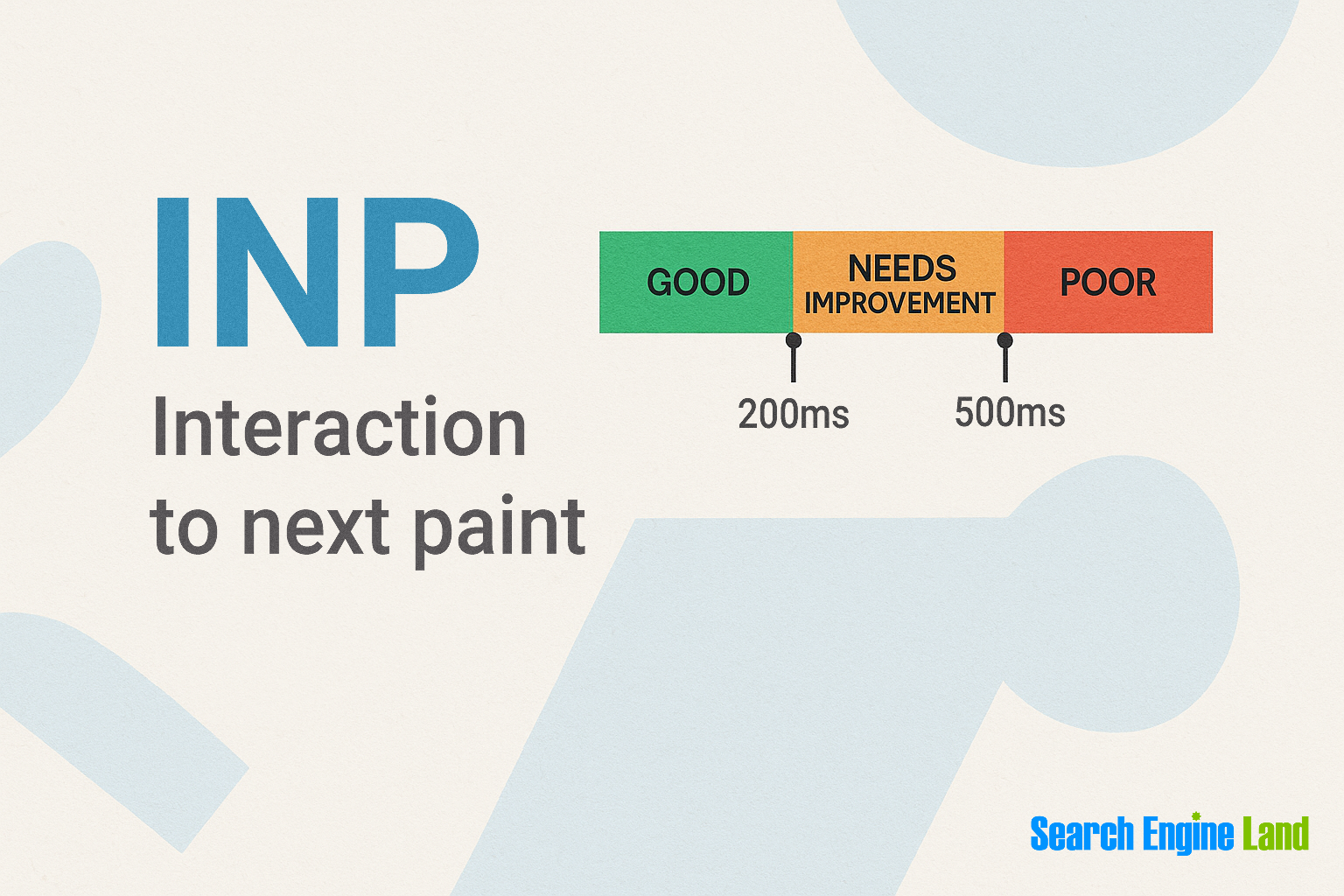
Suppose on Jenhoue Home’s product listing page, a hero banner image and a few top-row product thumbnails are initially visible. By lazy-loading the rest, Jenhoue Home reduces its LCP from 4.2s to under 2.5s and meets Google’s “good” benchmark.
And if the store delays loading interactive features like embedded reviews or video demos until you scroll to them, that frees up resources too at page load. As a result, when someone clicks “Add to Cart,” the page responds faster and feels more immediate.
Reduces server load and TTFB
Server load is the amount of work a server has to do to process and deliver content to users. The more content a page has (images, scripts, videos), the harder the server has to work.
And Time to First Byte (TTFB) is the time it takes for your browser to receive the first byte of data from the server after making an HTTP request (a request sent from a browser to a server asking for content).
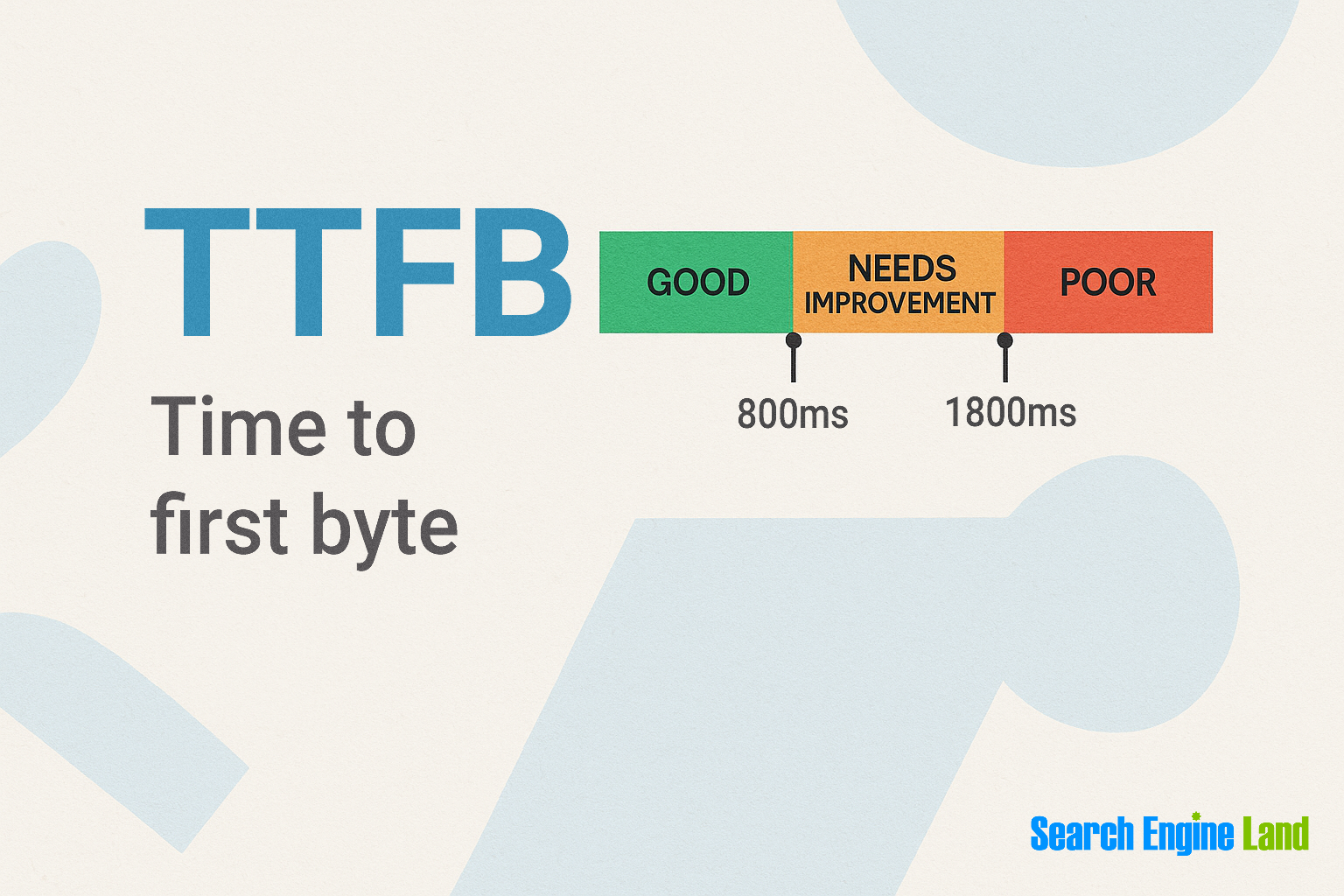
Note: Long TTFB = slow website = poor user experience
But how does lazy loading help with this?
Well, lazy loading limits the amount of content requested upfront. That means the browser doesn’t request to load everything on the page the moment a user comes to it. Any images, videos, or JavaScript elements that are further down the page are only requested later, when you scroll to them.
For example, instead of returning 15 product images on a category page, only six images on top are requested to be loaded. This makes it easier for Jenhoue Home’s server to respond faster and deliver the first byte of data sooner.
Improves crawlability and indexation
Crawlability refers to how easily search engine bots, like Googlebot, can access and read the content on your page.
Indexation is what happens next.
If the bot successfully crawls your content and deems it valuable, it adds it to Google’s index so it can appear in search results.

Lazy loading helps bots focus on only meaningful content, without getting bogged down by below-the-fold (not immediately visible as you open the webpage) images.
But poor implementation can backfire.
This means that if the content only loads when you scroll, it may never be crawled or indexed because Googlebot doesn’t simulate scrolling. So, your products, images, or reviews could be invisible to search engines.
To overcome this problem, add the loading="lazy" attribute in your HTML.
Enhances user experience and reduces bounce rates
User experience and page speed go hand in hand.
If a page loads slowly, you may close it before even seeing the webpage content.
Lazy loading solves this by focusing resources on loading the first content you see, so you can start engaging with the website instead of closing it.
Take Jenhoue Home’s blog, for example.
Each post includes around 10-15 images and embedded videos showing minimalist design tips. Without lazy loading, the browser downloads all these assets upfront, which can delay the entire page from becoming usable.
With lazy loading, only the featured image and other above-the-fold content assets are loaded first. As you scroll through the article, the rest of the visuals load seamlessly.
The result?
The page feels fast, and you engage for longer periods instead of leaving the webpage.
How lazy loading works: The technical foundation
There are a few different ways to implement lazy loading, from simple HTML attributes to more advanced JavaScript methods. Some are beginner-friendly, but some are more developer-focused.
Let’s see how each works.
Native HTML lazy loading
Modern browsers like Firefox and Chrome automatically assign different loading priorities to images based on their position on the page. So, images or other assets that are outside the initial viewport (below-the-fold) are given lower priority.
This means they’re still fetched, but after more important content is loaded first.
But let’s say you want images to load only when they’re about to appear on screen. For this, all you have to do is add loading="lazy" to the image tag.
Here’s what it looks like:
<img src="sofa.jpg" loading="lazy" alt="Beige Scandinavian Sofa" />

To add this attribute to your website’s HTML:
- Go to the “Edit posts” option in WordPress
- Select the post where you want to lazy-load your content assets
- Press “Cmd + F” and search for “img” if you want to lazy-load an image
- Add the
loading=”lazy”attribute before the “<alt>” attribute when you see the “<img>” tag

This tells the browser not to load the image until it’s about to enter the viewport.
IntersectionObserver API
The IntersectionObserver API is an API that detects when an element enters or exits the viewport. It’s one of the most efficient ways to lazy-load assets like background images or videos without relying on JavaScript scroll event listeners or third-party libraries.
Unlike older methods that wait for a user to scroll, IntersectionObserver watches specific elements and triggers a callback the moment they come into view.
And the best part?
It’s supported in all major browsers.

So, let’s see how you can implement it:
- Mark the elements you want to lazy-load (like a background banner) in your HTML. To do so, add a deferred class like this:
<div class="hero-banner deferred"><h2>Fall Collection 2025</h2></div> - Then in your JavaScript, use
document.querySelectorAll('.deferred')to select those elements and observe them with theIntersectionObserverAPI. - When an element gets close to the viewport, the script replaces placeholders (like gray backgrounds or
data-srcattributes) with the actual content.
This reduces upfront page weight while still ensuring everything loads just before the user sees it.
For example, if Jenhoue Home defers background images for their seasonal product banners, IntersectionObserver can detect when those sections are about to be viewed, then load the actual images.
The result?
Faster initial load and smooth, SEO-safe rendering.
Third-party frameworks and plugins
Many popular CMSs and JavaScript frameworks offer built-in or plugin-based lazy loading support. However, the way it’s implemented can vary widely depending on the platform.
For SEOs and developers, this means two things:
- Lazy loading might already be active on your website without custom code
- You still need to understand where and how it’s applied and test whether it’s working as expected for both users and Googlebot
Here’s a quick look at how lazy loading works across common platforms:
WordPress
Modern versions of WordPress automatically add loading="lazy" to images in Gutenberg (the default block editor). So, you don’t have to worry about it since it’s enabled by default.
But you can take the following steps to confirm:
- Open any page of your website
- Right-click an image and select “Inspect” to open your browser’s DevTools
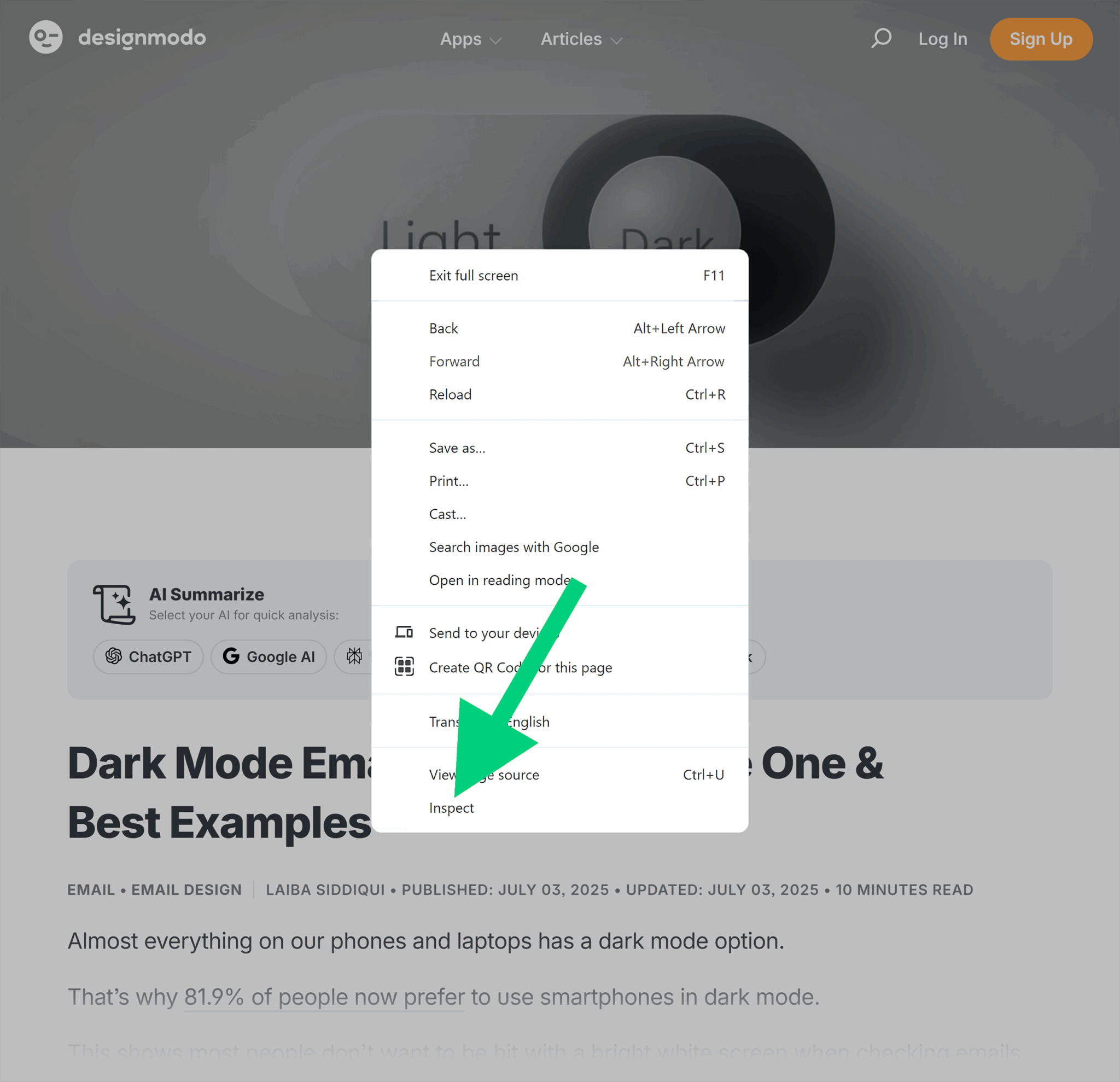
- Look for
loading="lazy"inside the“<img>”tag

This way, you can confirm if your images or content assets are lazy-loaded or not.
Shopify
Many Shopify themes also come with built-in lazy loading for product images.
Here’s how you can confirm:
- Open a product collection page of a Shopify store
- Right-click and select “Inspect” on any product thumbnail image

- Check for the
loading="lazy"attribute in the HTML

Here, you can see that we checked a thumbnail of a product, and it did have lazy loading applied.
However, if the lazy loading attribute is missing, you can use apps like Lazify or PageFly to control image loading behavior.
Let’s see how to do it using PageFly.
To enable lazy loading for the entire page:
- Open your “Page Settings” panel
- Head over to the “Optimization” section
- Look for the “Enable image lazy loading” option and make sure it’s checked

To enable lazy loading for individual images:
- Click on the image you want to adjust
- Go to “General” > “Image loading” > select “Lazy load”

Tip: Even if your Shopify theme has lazy loading option enabled, always preview the page and inspect your images to ensure the loading="lazy" attribute appears in the final HTML.
React
React is a popular JavaScript framework used to build fast, interactive websites and web apps. You’ll often find it behind ecommerce sites, SaaS dashboards, and modern single-page applications (SPAs).
By default, components are loaded all at once when the page loads. But if you want to defer loading a component until it’s actually needed, you can use React’s built-in lazy() function along with Suspense.
Here’s how:
1. Replace the static import with React.lazy()
Instead of this:
import MarkdownPreview from './MarkdownPreview.js';
Use this:
import { lazy } from 'react';
const MarkdownPreview = lazy(() => import('./MarkdownPreview.js'));
This setup uses dynamic import() to load the component only when it’s about to be rendered.
2. Wrap the component in a Suspense boundary
Lazy components need a fallback UI (like a loader or placeholder) while the content is being fetched. So, wrap the component or one of its parent containers with Suspense to handle that loading state:
import { Suspense } from 'react';
import Loading from './Loading.js'; // your loading spinner or message
<Suspense fallback={<Loading />}>
  <h2>Preview</h2>
  <MarkdownPreview />
</Suspense>
Next.js
Next.js is a popular React-based framework used to build fast, SEO-friendly websites and web apps. And you can lazy load images the same way we described above in React.

Lazy loading in client-side vs. server-side rendering
The way your website delivers content, either in the browser (client-side) or from the server (server-side), directly affects how search engines see and index your pages.
Client-side rendering
Whenever you request content in client-side rendering (CSR), the content doesn’t arrive fully formed from the server.

Instead, the browser builds the page after downloading and executing JavaScript. This shifts the burden of rendering onto the browser, which can slow down initial load times.
Imagine Jenhoue Home’s product pages are built entirely using JavaScript.
Now, when you (or Googlebot) visit a product URL, the server sends back a minimal HTML shell. The actual product details, including images, price, availability, and customer reviews, are fetched and rendered client-side using JavaScript.
Now, if Jenhoue also lazy-loads these elements using JavaScript, they won’t appear immediately on page load.
This becomes risky for SEO because Googlebot has a limited time window to execute JavaScript and “see” content. And if lazy-loaded assets, such as image carousels, take too long to render, they may never be indexed.
Server-side rendering
Server-side rendering (SSR) sends a fully formed HTML page directly from the server to the browser. All your key content—text, images, metadata—is already there, even if some assets (like images) are lazy-loaded to boost performance.

Googlebot sees the content right away, and it doesn’t have to wait for JavaScript. Even lazy-loaded images are included in the HTML, so they can be crawled and indexed properly.
Now imagine Jenhoue Home is built with a Shopify theme using server-side rendering.
And if you visit their product page, the HTML includes everything up front: hero image, product info, and reviews. So, even if some images are lazy-loaded for speed, Googlebot can still see the references and index the content properly. This would help the page get indexed properly.
SEO problems that lazy loading cause
Lazy loading improves performance, but if implemented incorrectly, it can unintentionally block search engines from seeing your content.
But that’s only one issue.
There are so many more underlying issues that your SEO teams may face. So let’s understand what these are.
Content not loading in Google’s rendering window
Lazy loading can prevent search engines from seeing important parts of your page. This happens when content, such as images or videos, is only loaded after a user scrolls or interacts, and it doesn’t appear in the version of the page that Googlebot renders.
When Googlebot crawls your website, it doesn’t only scan the raw HTML. It also renders the page like a browser would to see what users see. But this rendering doesn’t last forever.
Google allocates a short rendering window (usually a few seconds) to load and process content. If your lazy-loaded elements don’t appear during that time, they might be missed entirely.
Let’s say Jenhoue Home lazy-loads product images using JavaScript that waits for a user to scroll halfway down the page.
Since Googlebot doesn’t scroll and stops rendering after a few seconds, those images never load in time and don’t appear in Google’s version of the page. That means they’re not indexed, and the page might not rank for image search or product-related queries.
Content blocked by JavaScript
Many lazy loading scripts use JavaScript to wait for a scroll event before loading content onto the page.
But Googlebot doesn’t scroll like a human.
Instead, it expands the height of the page using a simulated viewport.

This means scroll-triggered scripts never run, and the content stays hidden from Google’s crawler.
And if Googlebot can’t see it, it can’t crawl it.
If it can’t crawl it, it won’t index it.
If it’s not indexed, it won’t rank even if it’s right there for your users.
But you don’t have to guess which (or if any) part of your content is blocked by JavaScript. You can test this using Google Search Console (GSC).
Here’s how:
- Go to GSC > “URL Inspection Tool”
- Enter the page URL
- Click “Test Live URL”
- Click “View Tested Page”
- If JavaScript backs any functionality of your page, look for missing
<script>tags in the “HTML” section

If <script> tags exist, this means your JavaScript elements are visible to Googlebot, but if they don’t, then Googlebot can’t access any JavaScript functionality.
Above-the-fold content doesn’t load
Lazy loading is great for deferring below-the-fold assets.
But, if you use a CMS like WordPress that automatically lazy-loads all images or videos, any critical content assets that are above the fold, such as hero images or banners, may also be lazy-loaded. And this can frustrate your visitors.
Why?
Because when content is lazy-loaded, it’s often replaced with a placeholder, such as a blurred image, until the actual asset is loaded.
Here’s how that looks:

So if this happens with a hero image or any other immediately visible content asset on your page, it will deter your visitors.
After all, who wants to wait to see the upfront content?
That’s why if the topmost image or banner is lazy-loaded, it results in a poor user experience.
Worse, if the content never loads due to a script error, it may not appear to Googlebot at all and won’t be indexed.
Imagine Jenhoue Home’s homepage features a large hero image that highlights a seasonal collection. If that image is lazy-loaded or fails to load on slower networks, users will see a blank section for several seconds or not at all.
This hurts:
- UX as the page looks broken or empty
- LCP as Google measures, that missing hero image as the main content, and flags it as too slow
- SEO as the image doesn’t load during rendering, and Googlebot may skip it entirely
Internal links or schema-dependent elements become inaccessible
Sometimes developers use lazy loading for performance gains on everything, including internal links, navigation sections, or blocks that include structured data (like product info or customer reviews).
If these links or schema elements are injected only after JavaScript runs or appear after a user action (like scrolling), Googlebot may not see them and they’ll be excluded from crawling or indexing.
This happens when:
- You add internal links dynamically via JavaScript after the page loads
- Your schema markup is loaded with client-side scripts rather than in the HTML
- Your important linking sections like “Related products” rely on scroll or click triggers
Googlebot may crawl the page but miss these links or markup completely if:
- The JavaScript doesn’t run in time
- The content isn’t visible in Google’s rendering window
Suppose Jenhoue Home has a “You may also like” carousel under each product. This section contains internal links to related product pages and embedded review schema for those products.
But it’s lazy-loaded with JavaScript only after the user scrolls. And since Googlebot doesn’t scroll, it never sees the links or the structured data. As a result, that structured data isn’t crawled so it won’t be indexed.
How to make lazy-loaded content crawlable and indexable
When Googlebot first visits a page, it quickly scans the raw HTML to find links and basic content. But it doesn’t immediately process JavaScript. That happens in a second wave of indexing, where Googlebot attempts to fully render the page just like a browser.

During rendering, it runs JavaScript, loads lazy-loaded content and builds the visual layout to determine what the user will see.
But Google allocates only a limited amount of time and resources to render each page.
So, if your content takes too long to load because of large scripts or waiting on scroll events to trigger, it may not show up in Googlebot’s rendering window.
Let’s see how to avoid these issues.
Ensure critical content appears in rendered HTML
If something is important for rankings like hero images, internal links, or structured data, it needs to show up in the rendered version of the page that Googlebot sees.
But what is the rendered version?
When Googlebot crawls a page, it does two things:
- It first downloads the raw HTML—the plain code without running any scripts.
- Then, in a second wave, it renders the page, which means it loads the JavaScript, applies styles, and builds the fully interactive page, just as a browser would.
To make sure critical components of your content appear in this rendered version:
- Avoid lazy-loading anything above the fold, including hero images or internal links
- Don’t inject internal links and schema via JavaScript
- Use Google Search Console’s “URL Inspection Tool” to verify what content is present in the rendered HTML
Use <noscript> fallbacks for essential content
For content that’s loaded entirely via JavaScript and that Google must see, you can provide a backup using the <noscript> tag.

This tag ensures that even if Googlebot fails to crawl JavaScript, search engines (and users with JS turned off) can still access your content.
Here’s an example of how you can add a <noscript> tag:
<noscript>
  <img src="collection.jpg" alt="Jenhoue Home Summer Collection" />
</noscript>
Note: Use <noscript> tags sparingly, and only for non-redundant, indexable content.
Test what Googlebot actually sees
Now once you’ve applied all the safe-side measures, verify your lazy-loaded content is visible to search engines.
To do so, you can use tools like Google Search Console, Lighthouse (in Chrome DevTools), or Puppeteer (developer-focused).
Here’s how to check what Googlebot sees using GSC:
- Go to “Google Search Console” > “URL Inspection Tool”
- Enter the URL you want to inspect
- Click “View Crawled Page”

- A side window titled “Tested Page” appears
- Under “Tested Page,” go to “Screenshot” > “TEST LIVE URL”
- Now compare it to what a user sees
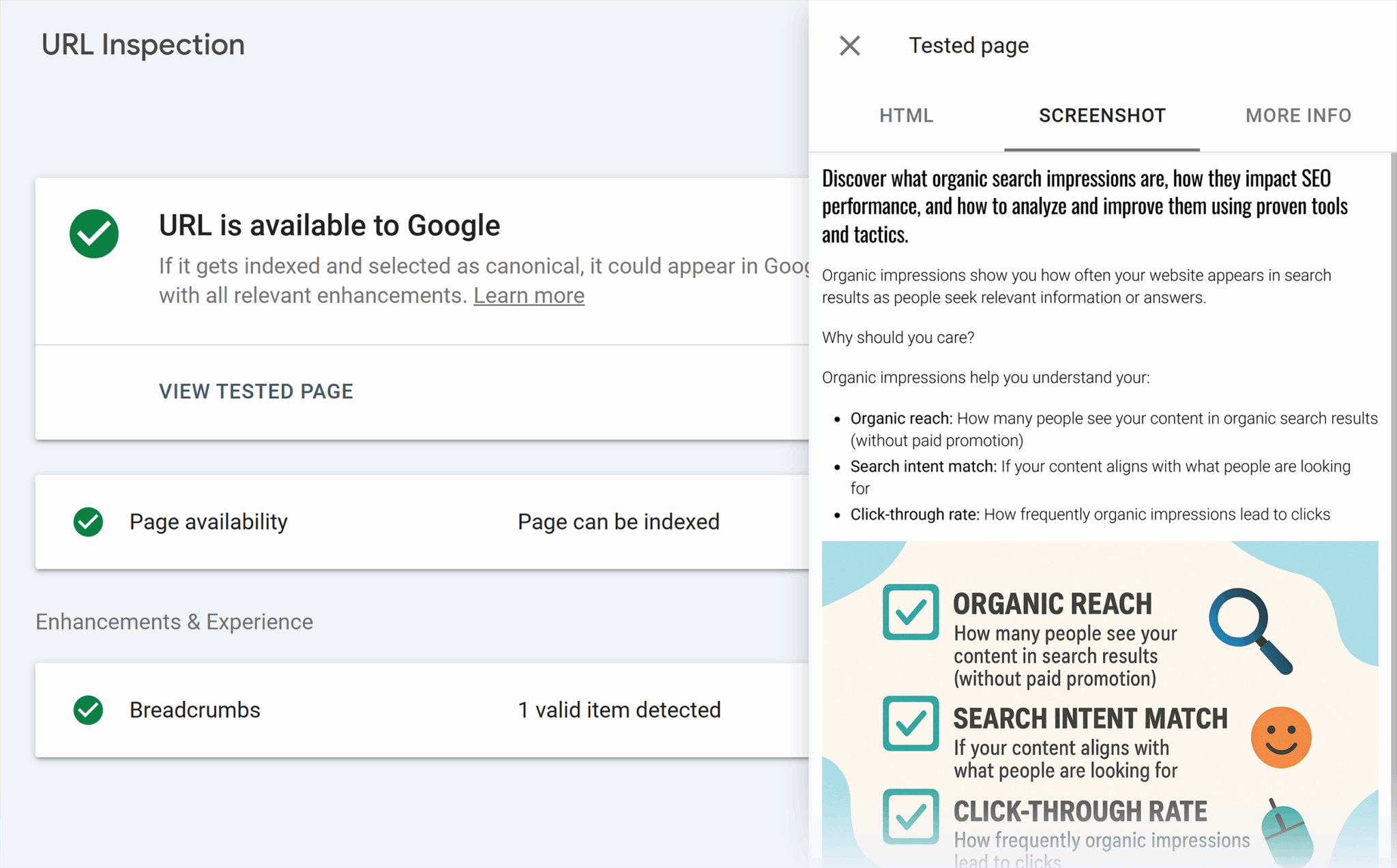
Other than this, you can even see the impact of lazy loading on your webpage using Lighthouse.
To do so:
- Go to PageSpeed Insights
- Enter your page URL
- Scroll down to “Largest Contentful Paint (LCP)”
- Note the LCP timing before adding lazy loading
- Add lazy loading to below-the-fold images
- Test again to see if LCP improved

Now, you can see whether your LCP falls under the good, needs improvement, or poor category.
Note: Always test lazy loading on both desktop and mobile because LCP and other metrics have varying impacts by device type.
Best practices to implement lazy loading without hurting SEO
Here are some tips to help you lazy-load content without hurting your SEO:
Don’t lazy-load above-the-fold content
The first and most important rule of SEO-friendly lazy loading is this: never defer what’s critical.
Above-the-fold content includes hero images, primary H1s, CTA buttons, and intro paragraphs. All of this is what both your visitors and Googlebot need to see immediately.
Why?
Because it directly impacts LCP. You can only achieve a good LCP when your critical content loads within the first 2.5 seconds. So, if your critical content is not visible on the first paint, you may have a poor LCP.
Avoid scroll-based lazy loading
Older lazy-loading scripts rely on scroll events to load content when the user reaches a certain part of the page. But Googlebot doesn’t scroll. It simulates a tall viewport, which means scroll events never fire and your content may never load.
So what should you do instead?
Use IntersectionObserver API as it detects visibility changes in the viewport and makes it easier for Google to crawl all elements of your webpage.
Let’s say Jenhoue Home lazy-loads its “You may also like” product carousel below each product page.
If it’s built using scroll-based JavaScript, that carousel only loads after someone scrolls far enough. However, if they switch to IntersectionObserver, the carousel will load as soon as it’s about to be viewed, even in Googlebot’s simulated rendering.
So Google crawls the links and indexes the related products, all without needing a human-like scroll interaction.
That makes it more SEO-friendly.
Add meaningful alt text to lazy-loaded images
Although lazy loading improves performance by deferring images that are not immediately needed, it doesn’t tell search engines what the image is about.
So, even if you lazy-load an image, add detailed alt text to every such image.

Because it provides Google with a textual clue about the image content, helping your image appear in Google image search.
This way, even if the image loads late due to lazy loading, Googlebot still sees the alt text in the HTML. And the image can still contribute to image rankings and overall page relevance.
Use the srcset attribute
The srcset attribute lets you define multiple versions of an image for different browsers and resolutions.
<img alt="banner.png" src="https://searchengineland.com/wp-content/themes/tdm-editorial/img/icons/mtc-om-mobile.png?width=636" style="max-width:100%;height:auto;display:inline;border-top-left-radius:0px;border-top-right-radius:0px;border-bottom-right-radius:0px;border-bottom-left-radius:0px;border-top-width:0px;border-right-width:0px;border-bottom-width:0px;border-left-width:0px;border-style:solid;border-color:#ffffff;box-shadow:none;opacity:1;width:100%" width="318" height="159" srcset="/wp-content/themes/tdm-editorial/img/icons/mtc-om-mobile.png?width=318 1x, wp-content/themes/tdm-editorial/img/icons/mtc-om-mobile.png?width=477 1.5x, wp-content/themes/tdm-editorial/img/icons/mtc-om-mobile.png?width=636 2x, wp-content/themes/tdm-editorial/img/icons/mtc-om-mobile.png?width=954 3x">
This ensures the browser shows the correct image based on the screen width and resolution.
Let’s say if Jenhoue Home uses lazy loading to delay product images, but still serves full-sized desktop versions to mobile users, the page remains slow. Google may flag this under poor LCP scores, especially for mobile indexing.
That’s why you should add the srcset attribute to your HTML.
When you combine it with lazy loading, visitors don’t get stuck with heavy desktop assets and Core Web Vitals like LCP improve.
Track, optimize, and win in Google and AI search from one platform.
Monitor server logs
Server logs are behind-the-scenes records of every request made to your website including visits from bots like Googlebot. They show exactly which pages, images, scripts, or files were requested, when, and by whom.
If you’re lazy-loading key assets like product images or structured data, your server logs can reveal whether Googlebot actually saw and requested them. So, if a lazy-loaded image or carousel never appears in the logs, that likely means it didn’t load in time or at all during Googlebot’s rendering process.
To check this, you can export server logs and analyze them using tools like Screaming Frog Log File Analyser, JetOctopus, or Botify.
For example, in Screaming Frog, you can:
- Upload your raw log file
- Filter by user-agent (like Googlebot)

- Search for missing URLs (e.g., /images/sofa.jpg, /product/123)
- Compare against your sitemap or page source
That’s how you can see which lazy-loaded assets are being crawled by Googlebot.
Start monitoring your lazy-loaded assets
Since lazy loading is natively supported in most browsers, audit a few of your most important pages using Google Search Console’s URL Inspection Tool. Verify that lazy-loaded content, images, or internal links are displayed in the rendered HTML. If they’re missing, add the loading=”lazy” attribute to lazy-load any non-critical assets below the fold.
But if you’re new to GSC, check out our ultimate Google Search Console guide. This will help you better understand how to use this free tool to gain SEO insights.
About the Author


