

Icon
Retype supports icons using the :icon-shortcode: syntax.
By default, Retype includes the built-in Octicons icon set. Starting with Retype v4.4, you can also add your own custom SVG icon packs to your project.
Icons can be used inline in page content, in headings, in tables, in Panel titles, in Callout titles, and in components such as Button and Badge.
Built-in Octicons
To add a built-in Octicon, use the :icon-shortcode: syntax where shortcode is the Octicon name.
For example, use :icon-star: to render .
:icon-star:Some icon names include multiple words separated with hyphens. For example, the git-branch icon is written as :icon-git-branch:.
For the full built-in icon list, see Octicons.
Custom icon packs
Retype can automatically discover custom SVG icons from the _components/icon/ folder in your project.
Each subfolder inside _components/icon/ becomes an icon pack, and each .svg file inside that folder becomes an icon.
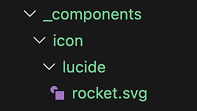
For example, the following folder structure adds a custom lucide icon pack:
_components/
  icon/
    lucide/
Then add .svg files into the pack folder:
_components/
  icon/
    lucide/
      rocket.svg
That file immediately becomes available as the lucide-rocket icon.
Only .svg files are supported for custom icon packs.
Custom icon shortcode syntax
Custom icons use the same :icon-shortcode: syntax as built-in icons, but include the pack name as a prefix.
For example, if you save a Lucide rocket.svg file to _components/icon/lucide/rocket.svg, use the icon as:
:icon-lucide-rocket:The shortcode above renders as .
Add a custom icon pack
The following example demonstrates adding a Lucide rocket icon.
1. Create the icon pack folder
_components/
  icon/
    lucide/
2. Download the SVG file
Download rocket.svg from Lucide and save it to:
_components/icon/lucide/rocket.svgYour folder structure should look like this:
_components/
  icon/
    lucide/
      rocket.svg
3. Use the icon
:icon-lucide-rocket:No additional configuration is required.
Use custom icons in page metadata
Custom icons can be used anywhere a normal Retype icon value is accepted.
For example, set a page icon using the pack name plus icon name:
---
icon: lucide-rocket
---
# Sample page

This is a sample page.
The same pattern also works anywhere an icon value is supported in Retype configuration.
Use custom icons in components
Custom icons can be used in components such as Button and Badge by setting the icon property.
For example:
[!button icon="lucide-rocket" text="Button"]Custom icons can also be used inline within content:
Launch with :icon-lucide-rocket:Launch with
How Retype maps icon names
Retype derives the icon name from the folder name and file name:
- pack name → folder name under
_components/icon/ - icon name →
.svgfile name without the extension
Examples:
The folder name does not need to match a public icon library name. You can choose any pack name that makes sense for your project.
Popular icon pack examples
Here are a few common packs you can add using the same folder-based approach:
For the rocket examples above, the SVG files are organised like this:
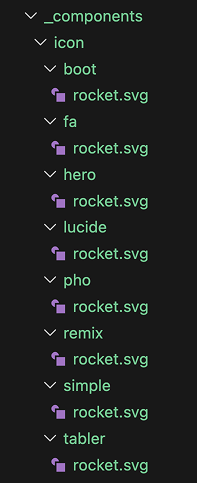
Organise icons your way
You are not limited to public icon libraries.
You can:
- create a project-specific icon pack
- store your company or product icons in a custom folder
- mix SVG files from multiple sources into one pack
- use whatever file names make sense for your team
For example:
_components/
  icon/
    brand/
      logo.svg
      product.svg
      docs.svg
Those files become:
:icon-brand-logo::icon-brand-product::icon-brand-docs:
When to use which format
Use the built-in Octicons when:
- you want the default Retype icon set
- you need common UI-style icons quickly
- you want the broadest compatibility with existing Retype samples
Use custom icon packs when:
- you need icons from another library such as Lucide or Tabler
- you want brand-specific icons
- you want full control over the icons available in your project