Off by default. Turned on, every newsletter gets a report: how many opened it, how many clicked, and which links. Counted on your own server, kept in your own database, shared with nobody.
How it works
Turn it on under Settings → Statistics. From then on each newsletter email carries a one-pixel image and its links point to your site first, which notes the click and sends the reader on. The plugin's own links, the unsubscribe and confirmation links, are never counted or rewritten, and nothing is added to test emails.
Per recipient Postalion keeps the time of the first open and the first click and two counters; per link, a click counter. The destination of a counted link is looked up in your database, so a tracking link can never send someone to an address it carries itself.
The report
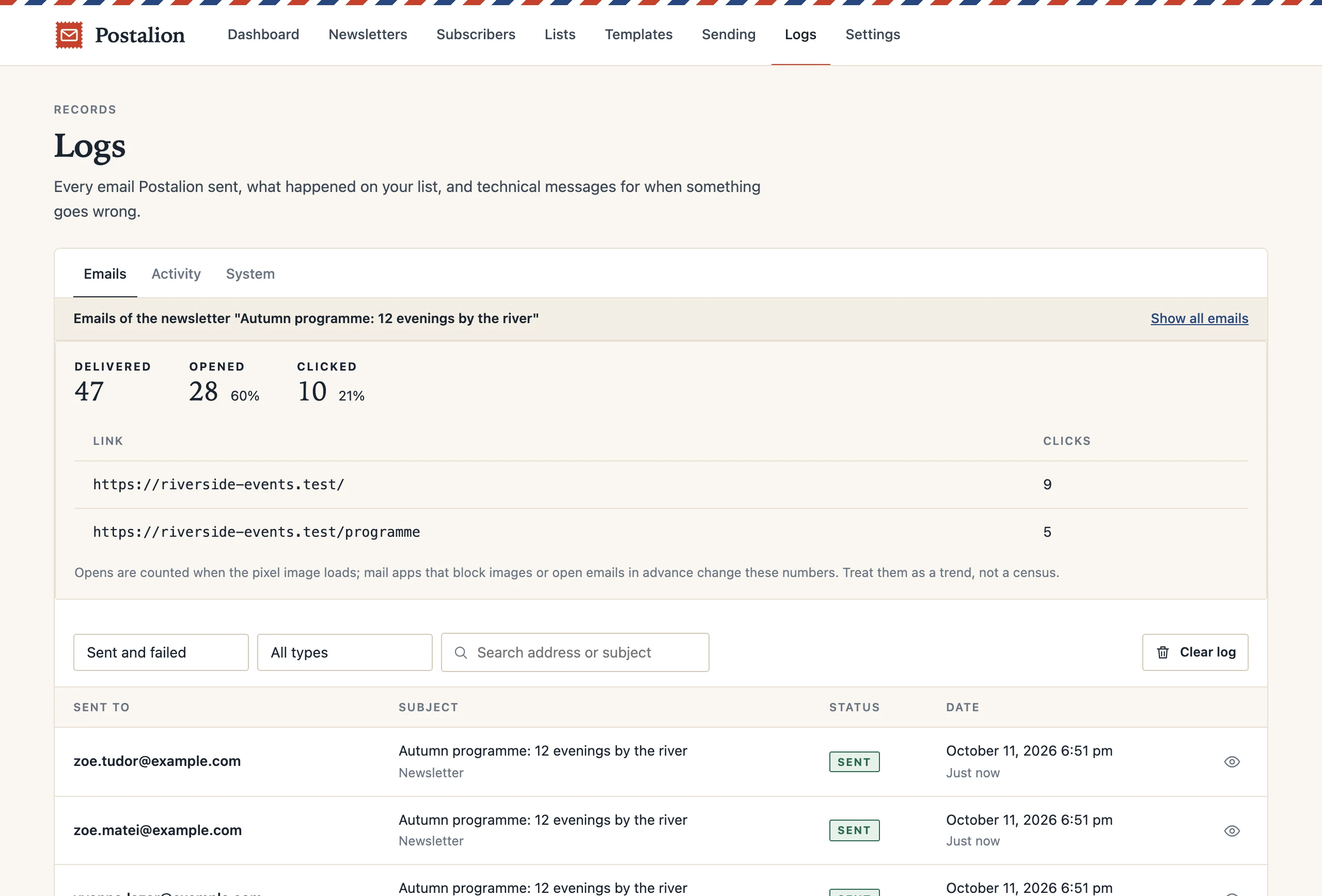
Open a sent newsletter from the Newsletters screen or from Logs. The strip at the top shows delivered, opened and clicked, with percentages, and the links in order of clicks. Below it is the log of that newsletter's emails, so you can see who received it and open any email as that person saw it.
Campaign tags for your analytics
Tick Tag newsletter links for your analytics (UTM), under the same card, and every web link in a newsletter gets utm_source (a name you choose, "newsletter" by default), utm_medium=email and utm_campaign made from the subject line. Google Analytics, Matomo, Umami and the like then show the visits each newsletter brought. Links that already carry a utm_source, mail links and the plugin's own links (unsubscribe, preferences, web version) are left as they are. The postalion_utm_values filter changes the tags.
The last 30 days
The Postalion dashboard shows, day by day, how many people joined and how many left over the last month, with the totals above the chart. When people choose a reason as they unsubscribe (see Leaving), the reasons of the last 90 days are counted next to it.
Subscribers who stopped opening
Someone who keeps receiving your newsletters and never opens one teaches mail services that your emails are unwanted. Settings → Subscribers who stopped opening finds the subscribers who received at least N counted newsletters (3, 5 or 10) in the last 3, 6 or 12 months and opened none of them. Find them only counts; Unsubscribe them unsubscribes them in one go and writes one line in the Activity log. They can subscribe again any time. Site users are not included; they manage their subscription in their profile. This needs statistics on, since it uses the counted opens.
Read the numbers with care
Opens are counted when the pixel image loads. Mail apps that block images do not count, and apps that fetch every email in advance (Apple Mail with privacy protection, for one) count as opened whether the person read it or not. Clicks are more reliable. Treat both as a trend from one newsletter to the next, not as a census.
Privacy
Since the counting happens on your site, nothing is sent to a third party and no cookie is set. Say in your privacy policy that you measure opens and clicks when you turn this on; the privacy page has a suggested wording. Turning statistics off stops the counting at once; past numbers stay in the reports until you delete the newsletter.
Next: Import and export