Workspaces
The first step to using Linear is to create a workspace for your organization.
Overview
A workspace is the home for all data in an organization. We recommend organizations stay within a single workspace as this is the conceptual model we use when designing the product.
When a workspace is created, Linear automatically creates a default Team with the same name as the workspace.
Workspace Settings
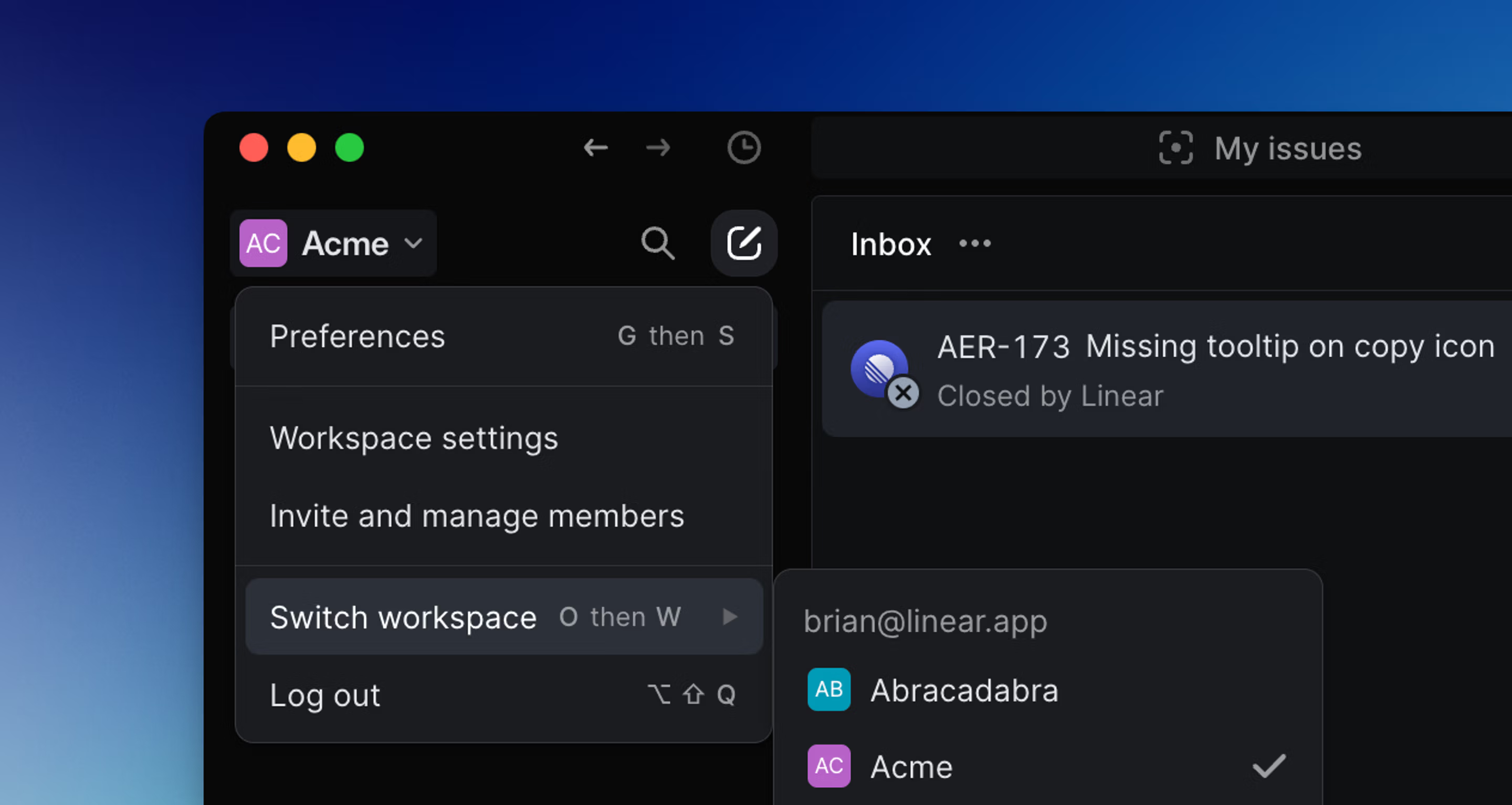
Click your workspace name in the upper-left corner and select Settings to navigate to your workspace settings. Members will see settings related to their own team and personal preferences, while admins and owners also see an “Administration” section.
General
The Workspace page allows admins to customize the workspace’s logo, name, and domain key.
Time & region
You can also customize the first month of the fiscal year and see the data region that was selected during workspace creation.
You cannot change the data residency of a workspace once it has been created. However, you can create a new space with your preferred data residency, and import your data to the new workspace.
Member onboarding
Available to workspaces on the Enterprise plan, only.
Home view and welcome message
You can set the default home view or create a welcome message to all new members that join your workspace. This can be helpful to provide instructions such as which teams to join, or how to navigate the workspace.
Workspace announcements
Workspace announcements allows you to send important updates to every member or select teams in your workspace. Announcements will show up in members’ inbox, email, and Slack (if applicable).
Delete workspace
Deleting a workspace includes deleting users and all data. Workspace owners can start the deletion process, and admins may also be able to depending on workspace restrictions, under Settings > Workspace.
We email the requesting admin a confirmation code. After they enter it, the workspace is scheduled for deletion in 48 hours and all admins are notified by email.
Any admin can cancel during the 48-hour window from the same settings page. Once it elapses, the workspace and all its data are permanently deleted.
Multiple workspaces
You can create multiple workspaces in Linear under a single account (e.g. tied to a specific email). Each workspace will have distinct member lists and separate billing plans, even if you connect to them from the same account.
If you are using Linear for both work and personal purposes, we recommend you create multiple Linear accounts with separate email addresses.
To add a workspace from another email account:
- Click on your workspace name in the top left corner
- Hover over Switch workspace
- Select Create or join a workspace
- If you have other workspaces associated with your user account, you will see a list of those workspaces to select
You can also switch workspaces by typing O then W.