How Much Data is Stored and Where It’s Stored in the Database
Independent Analytics runs entirely on your website, which means the data it creates is stored in the WordPress database.
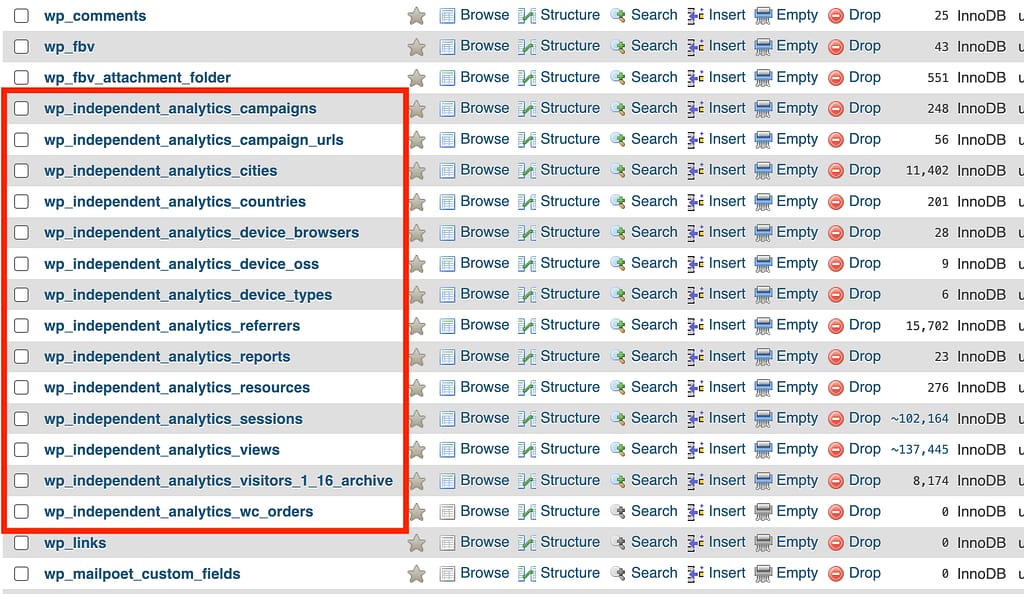
The data stored by Independent Analytics is in tables prefixed with “_independent_analytics,” as pictured below.
The names and number of tables is subject to change, but they will always begin with the same independent_analytics_ prefix.
Separately, there are a few options saved in the wp_options table, which all begin with “iawp.” These only take a few kb of space and store data about the settings configuration, like whether to track logged-in visitors or use the dark mode theme.
As for the volume of data stored, Independent Analytics stores about 200-300MB per million sessions. This value does change from one site to the next, but we find this estimate to be accurate for most websites.
If you’d like to limit the amount of data stored in the database, you can enable the option to automatically delete old data.
Missing Database Permissions: How to Fix this Error Message
Here’s why you’re seeing this error message on your site and how to fix it.
Why am I seeing this message?
This error message displays if your site is missing one or more of the following database permissions:
ALTER
INDEX
DROP
These are basic database commands that Independent Analytics needs to operate. Without the ability to run these commands, it may crash during an update. For this reason, the error message is shown before an actual error occurs so that the permission can be granted and the analytics can resume operating.
How to fix the error
If these steps seem too technical for you to fix on your own, please ask your host to enable these permissions for you, or reach out to us, and we can help.
The first step is to access your site’s database. If you login to your hosting account, you should see a tool called phpMyAdmin that will allow you to view and edit your database. Your host may call it something like “Database access” instead.
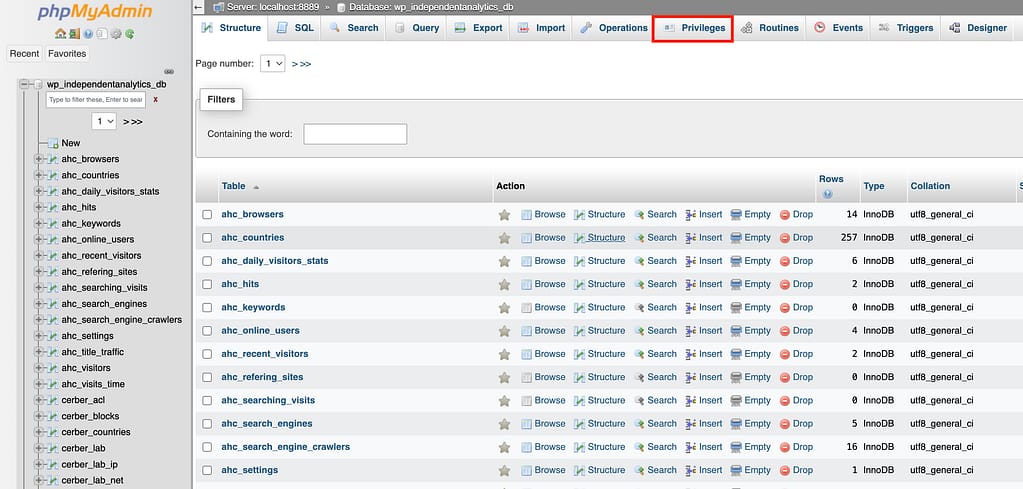
Inside phpMyAdmin, start by selecting your site’s database in the left sidebar, and then click on the Privileges tab at the top of the screen.
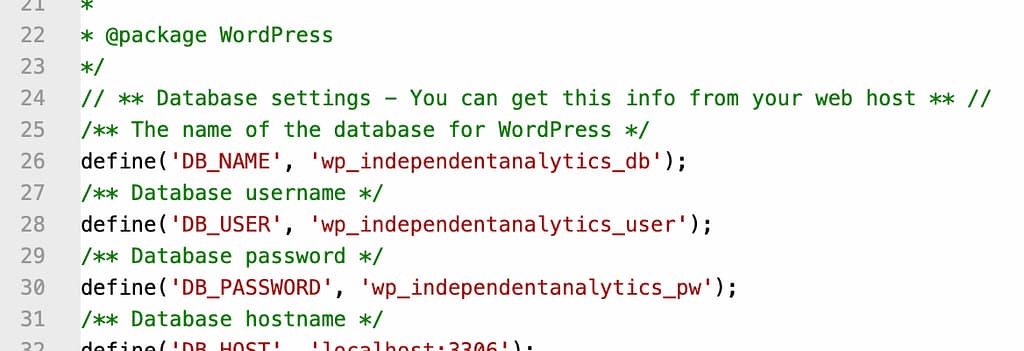
If your sidebar has numerous databases and you’re not sure which one is for your site, check your site’s wp-config.php file. It will include the database name (DB_NAME) at the top of the file. You’ll find the database username right below it, which you’ll need in the next step.
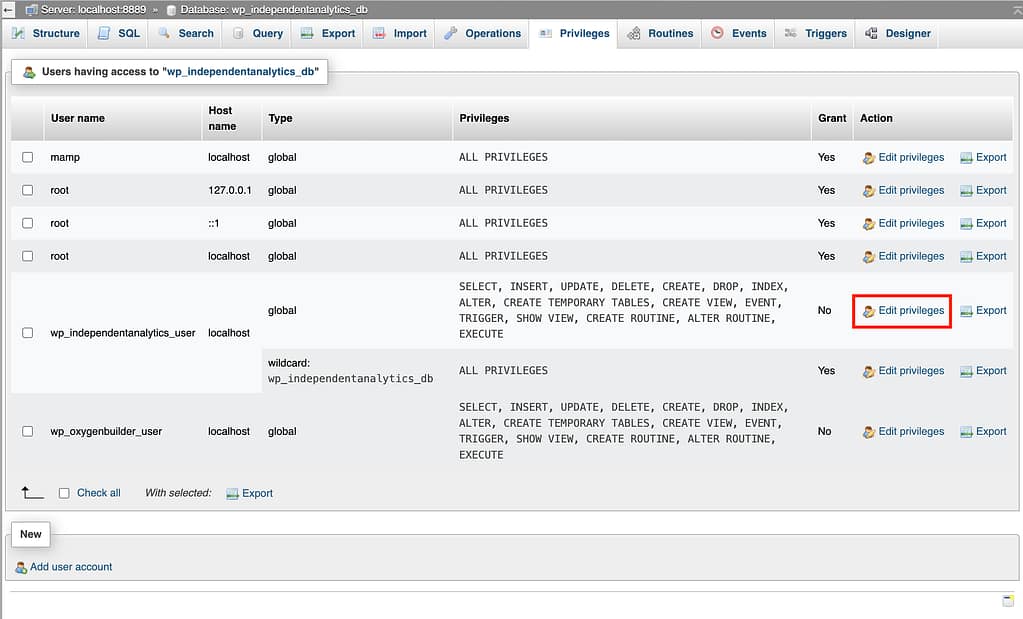
In the Privileges menu, locate your site’s database user and click the Edit privileges link.
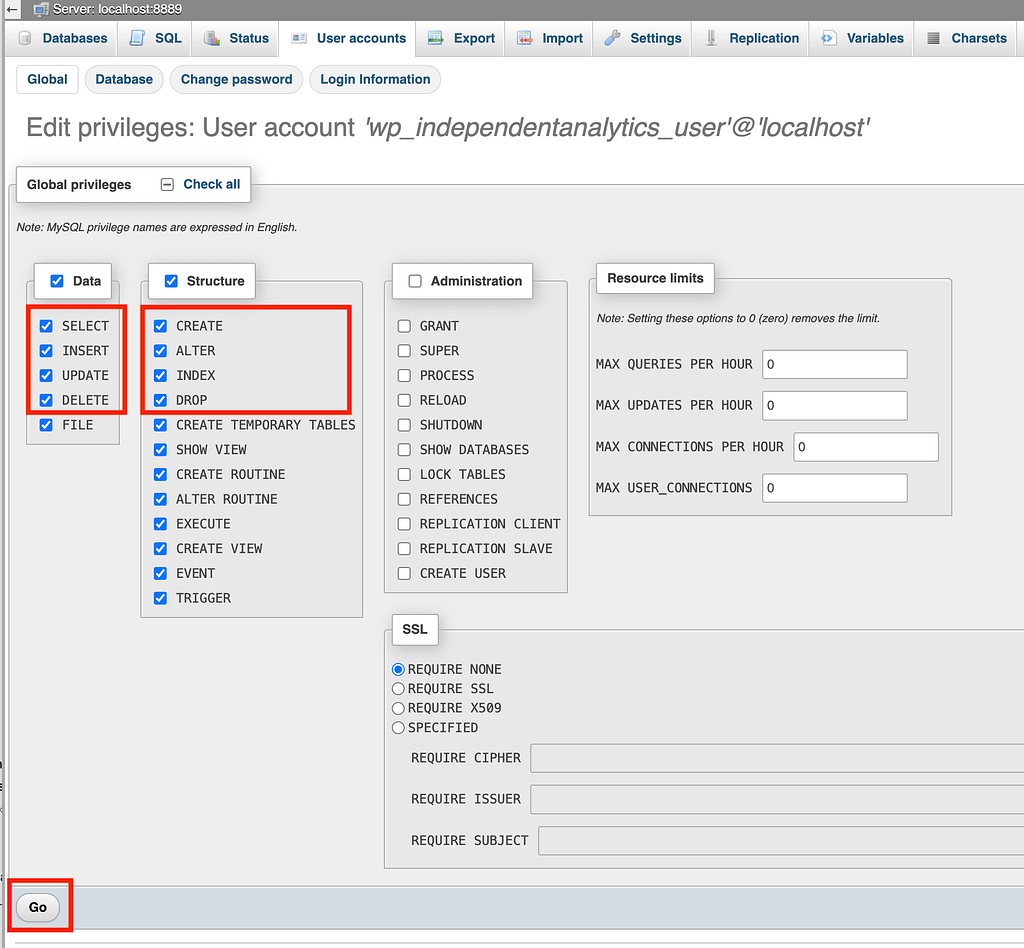
Lastly, check the box next to each privilege Independent Analytics needs, and then press the Go button at the bottom to save your changes.
Most likely, you only need to check the box next to ALTER and/or INDEX and then click the Go button to save. However, the full required permissions are SELECT, INSERT, UPDATE, DELETE, CREATE, ALTER, INDEX, and DROP.
Please do not disable any permissions that are already selected. While they may not be needed for Independent Analytics, your host probably has a good reason for enabling them in the first place.
Once this change is made, visit the Analytics menu in your WP website, and you’ll see the error message has gone away.
If you use Cloudflare’s web stats, you’ll see that your visitor counts are much higher than those reported in Independent Analytics. This is perfectly normal.
The difference occurs because Cloudflare counts every request as a visitor, including bots and API calls to your site. Additionally, visitors that are blocked by the firewall are still counted. You can think of it more like the number of unique requests to your site than human visitors.
On the other hand, Independent Analytics excludes bots, API calls, and any visitors that get blocked by your firewall. For these reasons, it provides a more accurate measurement of real human activity on your website.
Any report in Independent Analytics can be exported to PDF in a few clicks.
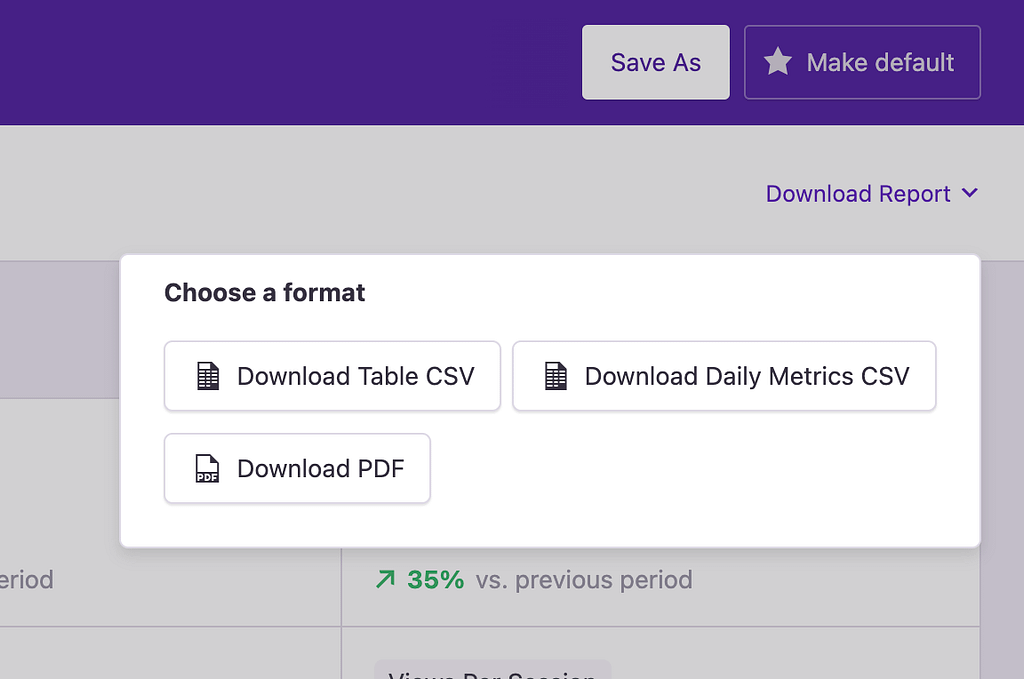
Start by clicking on the Download Report link in the toolbar. Then, click on the Download PDF button to begin the download. It will take a few seconds, and then the PDF will be generated and downloaded.
The PDF will include the exact same information that is visible in the report. For instance, if you enable a new table column or change the date, that will be reflected in the PDF report.
Here’s an example PDF if you’d like to check out a sample: Browsers.pdf.
Here’s how you could get the top 10 posts in a category with the ID 5, sorted by visitors from the last 30 days. Then, create a simple clickable list from them:
Pantheon Compatibility Fix for BladeOne Error (moving the temp folder)
If you’re using Pantheon, you’ll see an error message like this when you first install Independent Analytics:
BladeOne Error [Compiling]:
Unable to save the file [/code/wp-content/plugins/independent-analytics-pro/temp/template-cache/partials.report-header_4f3062d1c7ff949f2bb7ee5fc8c000f4f591cf45.bladec].
This error occurs because Independent Analytics creates a handful of files for caching purposes inside a folder called “temp” in the plugin folder, and this directory is not writable in Pantheon environments.
For this reason, we have provided a filter that will let you modify where the caching files are written. Here’s how it is used:
add_filter('iawp_temp_directory_path', function ($value) {
  return '/code/wp-content/uploads/iawp/';
});
Alternatively, you can define the path using the IAWP_TEMP_DIR constant in your wp-config.php file, like this:
What the WooCommerce “Customer Journey” Box Displays
This feature is only available in the Pro version of Independent Analytics.
To help you track the source of individual sales, Independent Analytics Pro adds a Customer Journey box inside the Order details page.
To find this info, start by visiting the WooCommerce > Orders menu and then select an Order from the menu. In the Order details page, you’ll find the Customer Journey box in the right sidebar below the Order Notes box.
You can move it higher up in the sidebar by clicking the up arrow button
This data is only available for orders completed after the installation of Independent Analytics (free version).
In the Customer Journey box, you’ll find the customer’s:
Time of arrival
Referrer
Landing page
Number of pages viewed
Time of purchase
Device data
Geolocation
There is also a button at the bottom linking to the full user journey for further analysis.
Note: the “Pages viewed” count includes all pages they viewed both before and after their purchase.
If the sale was referred via a campaign URL, you’ll also see the campaign parameters included.
Sales are always attributed to the last referrer. You can learn more about how our attribution model works here:
Let’s start by covering how to switch to daily salt refreshing, and then we’ll get into the technical details.
How to refresh the salt daily
The salt is never refreshed after installing Independent Analytics, but you can switch it to daily refreshing.
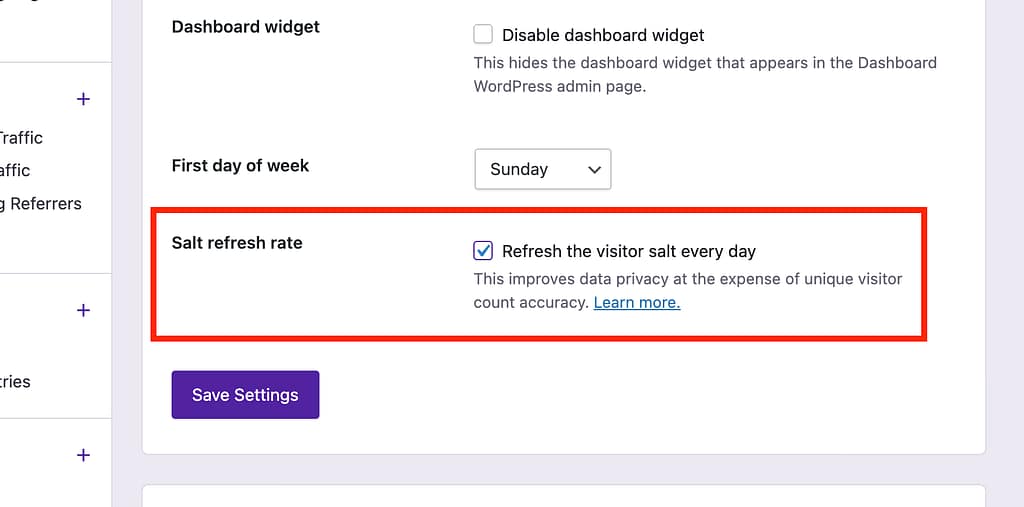
Start by visiting the Settings menu and locate the Salt refresh rate setting. Then, check the box labeled, “Refresh the visitor salt every day.”
Once this box is checked, click the Save Settings button to complete your changes.
What is a salt?
A “salt” is a string of random data used as an additional input to a one-way hash function.
Salts are used to add a level of uniqueness to data that’s about to be hashed. Salts ensure that if the same value is hashed twice, the hash result won’t be the same for both.
When Independent Analytics is first installed, it creates a salt, which might look something like this:
wR5tlJX9UjDV94wAQWoSRDnLCFLUftAMsKC7uyzaW0k=
This salt is stored in the wp_options table in an option named iawp_salt.
How Independent Analytics uses salts
In order to recognize repeat visitors without the use of cookies, Independent Analytics needs to remember the IP address of each visitor. This way, it can recognize the same IP and understand that this is not a new visitor but the same visitor returning again.
However, IP addresses are considered “Personally Identifiable Information” under the GDPR, so they can’t be stored in plain text. They can be saved in the database as long as they are obfuscated into an unrecognizable state that is sufficiently challenging to crack. This is why the IP addresses are hashed using both the visitor’s IP address and the User Agent string.
In summary, the salt is part of our solution to convert IP addresses into an obfuscated state while retaining the ability to recognize repeat visitors.
Why you may want to refresh the salt daily
While the IP addresses are sufficiently obfuscated, it is theoretically possible to crack them. If cracked, this would provide data on all the page views and activities of specific IP addresses on your site. These IP addresses could then be linked with other data sources to reveal the visitor’s identity.
Since the salt never changes, the activities of each IP address would be viewable since the installation of Independent Analytics, which could be months or years of activity.
On the other hand, if the salt is refreshed daily, then even if it is cracked, the activities of an IP address would only be viewable for one day. Each day would have to be cracked separately, which is essentially unfeasible.
The ramifications of daily salt refreshes
There is one downside to refreshing the salt daily, and that is the reduced accuracy of the Visitors metric.
For example, if someone visits your site every day in a week, Independent Analytics would normally count them as one visitor. If the salt is refreshed daily, this same visitor will be counted as seven different visitors because they can’t be recognized beyond 24 hours. If they visit seven times within one day, they will still be counted as one visitor.
In practice, the change in your analytics likely won’t be dramatic, but you will see an overall higher count of unique visitors.
For this reason and the fact that not all of our users operate in or with visitors from the EU, we opted to make daily salt refreshes optional.
We will refrain from making recommendations and would like to clarify that the above is not legal advice but rather a technical explanation of how salt refreshes work in Independent Analytics. We understand that this is a highly technical subject, and we hope that this guide has helped you in finding the best course of action for your website.