We use mochitests to do integration testing. Mochitests are part of Firefox and allow us to test the debugger literally as you would use it (as a devtools panel).

Requirements
- mercurial (
brew install mercurial) - autoconf213 (
brew install autoconf@2.13 && brew unlink autoconf)
Setup Firefox
- Inside the main debugger.html folder run:
./bin/prepare-mochitests-dev
This command will either clone mozilla-central (the firefox repo) or update it.
It also sets up a symlink for the tests so that changes in src/test/mochitest are
reflected in the new firefox directory.
yarn copy-assets-watchcopies new bundles into the firefox directoryyarn mochiruns the tests in a second process
mochi passes its params along to mochitest, so you can include --jsdebugger and test globs
yarn mochi -- --jsdebuggeropens a browser toolboxyarn mochi browser_dbg-editor-highlightruns just one test
Here are a few tips for writing mochitests:
- There are lots of great helper methods in head
- Try to write async user actions that involve a user action like clicking a button or typing a key press followed by a redux action to listen for. For example, the user step in action involvesthe user clicking the step in button followed by the "stepIn" action firing.
- The
dbgobject has several helpful properties (actions, selectors, getState, store, toolbox, win)
You can find common elements in the debugger with the findElement function,
which use shared selectors. You can also find any element with the
findElementWithSelector function.
If you want to evaluate a function in the debuggee context you can use
the invokeInTab function. Under the hood it is using ContentTask.spawn.
ContentTask.spawn(gBrowser.selectedBrowser, null, function* () {
  content.wrappedJSObject.foo();
});
The above calls the function foo that exists in the page itself. You can also access the DOM this way: content.document.querySelector, if you want to click a button or do other things. You can even you use assertions inside this callback to check DOM state.
The first step for debugging an integration test is establishing a clear sequence of events: where did the test break and what were the events that preceded it.
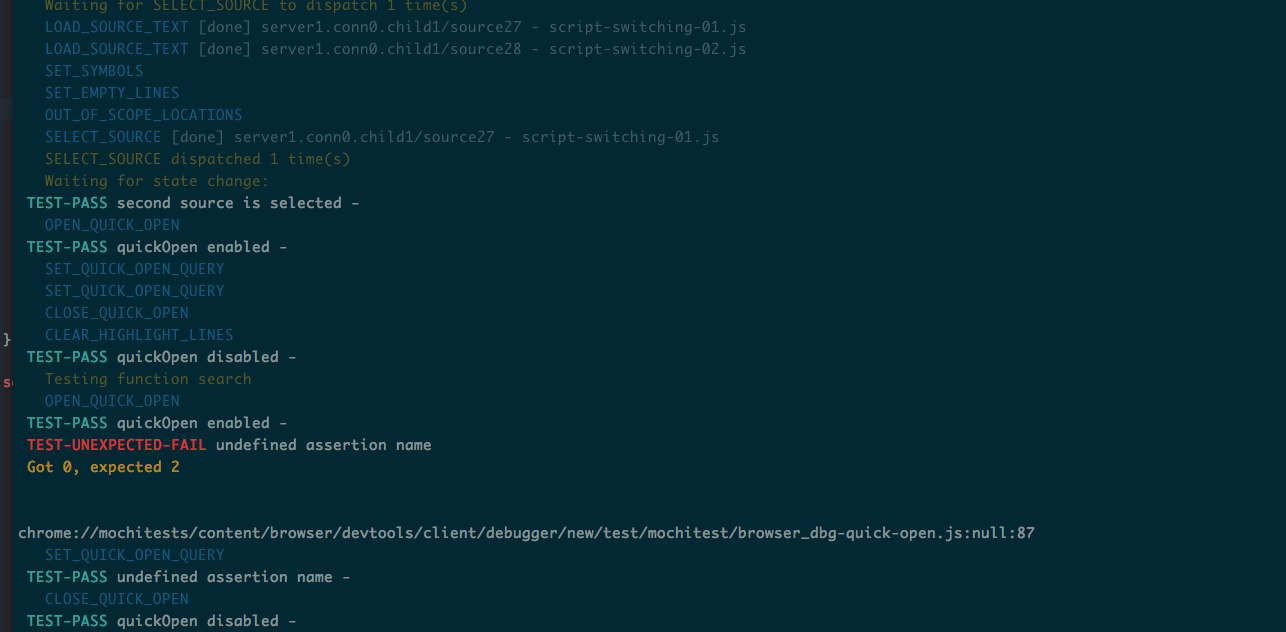
The mochitest logs provide some context:
- The actions that fired
- Assertion Passes/Failures
- Events that the test waited for: dispatches, state changes
NOTE: it might be nice to run the tests in headless mode:
yarn mochih browser_dbg-editor-highlight
In depth walk through
The next step is to add additional logging in the test and debugger code with info calls.
We recommend prefixing your logs and formatting them so they are easy to scan e.g.:
info(">> Add breakpoint ${line} -> ${condition}\n")info(">> Current breakpoints ${breakpoints.map(bp => bp.location.line).join(", ")}\n")info(">> Symbols for source ${source.url} ${JSON.stringify(symbols)}\n")
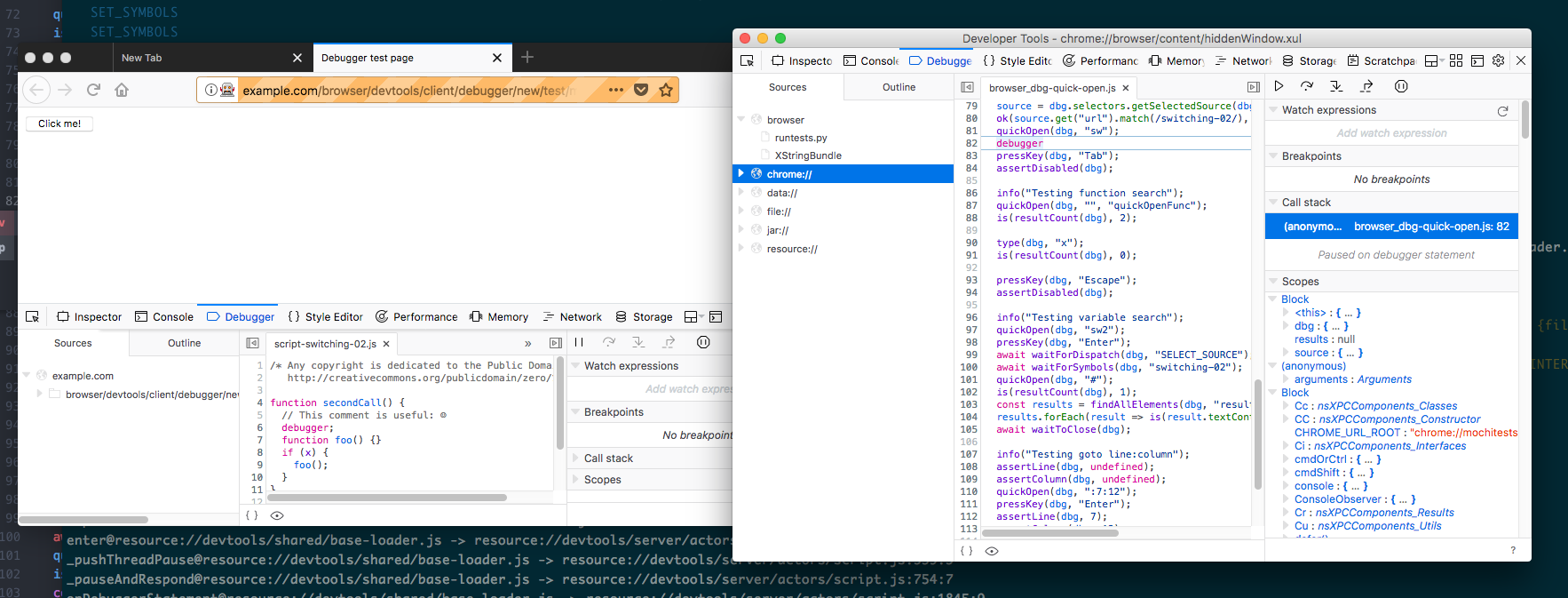
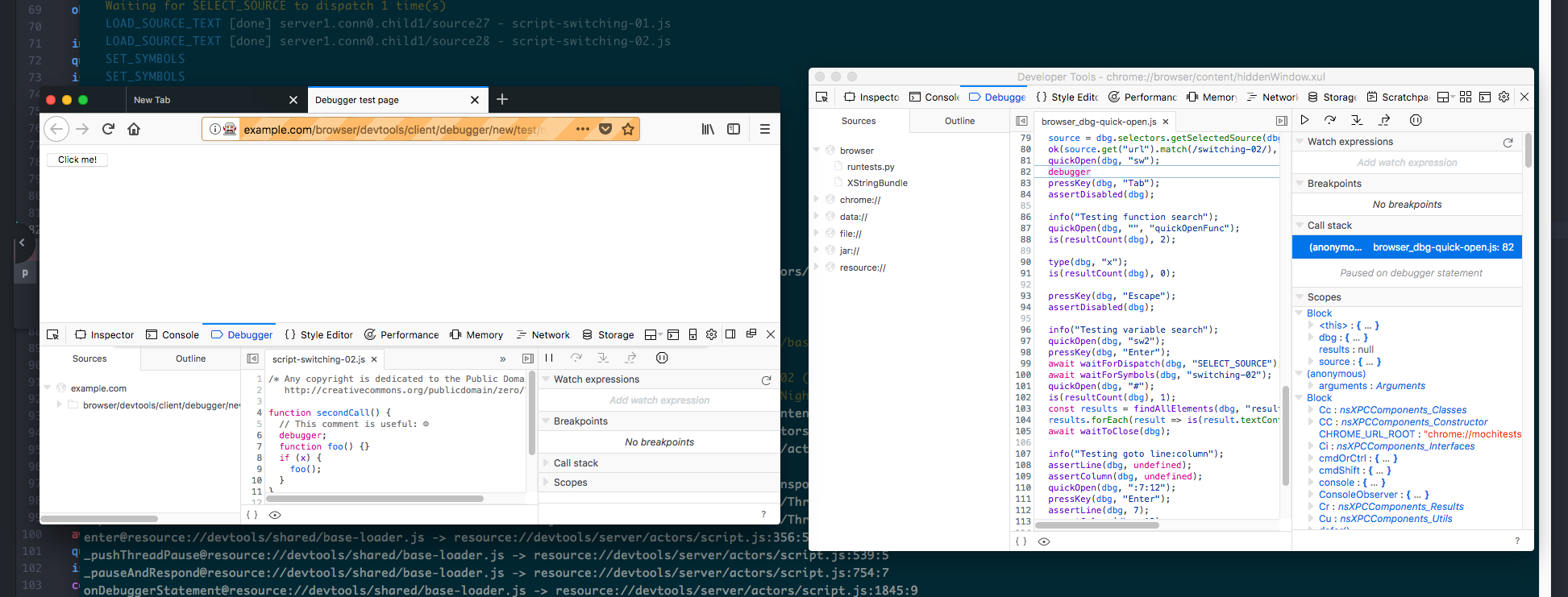
At some point, it can be nice to pause the test and debug it. We are working on a debugger after all :)
Mochitest, makes it easy to pause the test at debugger statements with the --jsdebugger flag.
You can run the test like this yarn mochid browser_dbg-editor-highlight.
Intermittents are when a test succeeds most the time (95%) of the time, but not all the time. There are several easy traps that result in intermittents:
- browser inconsistencies sometimes the server is not as consistent as you would like. For instance, reloading can sometimes cause sources to load out of order. Also stepping too quickly can cause the debugger to enter a bad state. A memorable example of this type of inconsistency came when debugging stepping behavior. It turns out that 1% of the time the browser toolbox will step into an unexpected location. The solution is too loosen our expections :)
- missed actions sometimes action "B" can fire before action "A" is done. This is a race condition that can be hard to track down. When you suspect this might happen, it is a good practice to start listening for "B" before you fire action "A". Here's an example where this happened with reloading.
- state changes One common way tests start failing occurs when the redux actions introduces a new asynchronous operation. A good way to safe guard your tests is to wait on state to have certain values. An example, of a test that we recently fixed was pretty printing. The test initially waited for the "select source" action to fire, which was occasionally racey. Switching the test to wait for the formatted source to exist simplified the test tremendously.
The mochitest cli has a lot of advanced options that are worth learning about. Here is a quick intro in how it can be used
cd firefox
./mach mochitest devtools/client/debugger/new # runs all the debugger tests
./mach mochitest browser_dbg-editor-highlight # runs one test
./mach mochitest --jsdebugger browser_dbg-editor-highlight # runs one test with the browser toolbox open
Visit the mochitest MDN page to learn more about mochitests and more advanced arguments. A few tips:
The detailed instructions for setting up your environment to build Firefox for Windows can be found here. You need to install the latest MozBuild package. You can open a unix-flavor shell by starting:
C:\mozilla-build\start-shell.bat
In the shell, navigate to the debugger.html project folder, and follow the Getting Started instructions as mentioned.
The mochitest are running against the compiled debugger bundle inside the Firefox checkout. This means that you need to update the bundle whenever you make code changes. prepare-mochitests-dev does this for you initially, but you can manually update it with:
yarn copy-assets
That will build the debugger and copy over all the relevant files into firefox, including mochitests. If you want it to only symlink the mochitests directory, pass --symlink-mochitests (which is what prepare-mochitests-dev does).
It's annoying to have to manually update the bundle every single time though. If you want to automatically update the bundle in Firefox whenever you make a change, run this:
yarn copy-assets-watch
Now you can make code changes the the bundle will be automatically built for you inside firefox, and you can simply run mochitests and edit code as much as you like.
If you add new tests, make sure to list them in the browser.ini file. You will see the other tests there. Add a new entry with the same format as the others. You can also add new JS or HTML files by listing in under support-files.
In addition to the standard mochtest API, we provide the following functions to help write tests. All of these expect a dbg context which is returned from initDebugger which should be called at the beginning of the test. An example skeleton test looks like this:
add_task(function* () {
  const dbg = yield initDebugger("doc_simple.html", "code_simple.js");
  // do some stuff
  ok(state.foo, "Foo is OK");
});
The Debugger Mochitest API Documentation can be found here.