 YatinMarch 26th, 2020Last Updated: March 23rd, 2020
0 155 3 minutes read

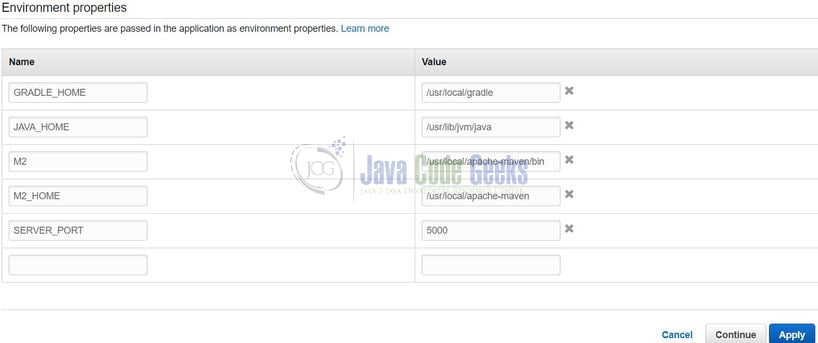
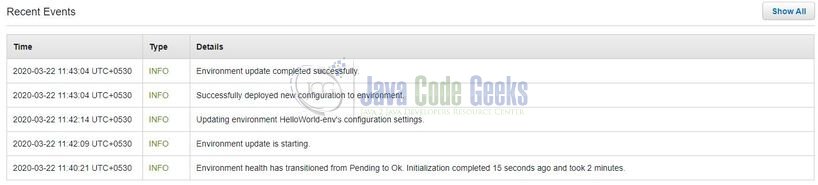
After updating, click on the Apply button and wait for AWS to apply the changes to the environment. Developers can keep an eye on the logs to understand the process. If everything goes well, the following message: Environment update completed successfully will be shown in the event logs.
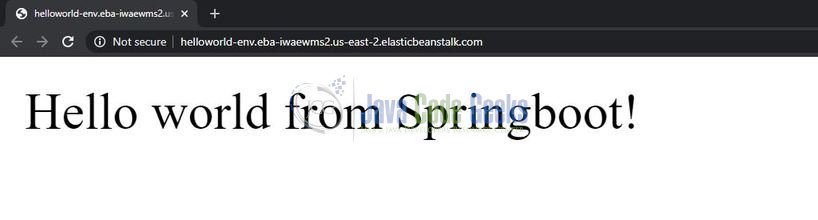
Now a developer can click on the URL to access the application and the welcome page will be shown as in Fig. 6.
If due to any reason’s application is not starting, developers have an option to check the logs. In the Dashboard menu, click on Logs and the log menu will appear as shown in Fig. 7.

Go to Request Logs and select the option of your choice. This will generate a file with all your environment logs. Now go ahead and try out these steps in your development account to practice and learn.
That is all for this tutorial and I hope the tutorial will help you understand the basics. Happy learning and do not forget to share!