

Progress dialogs are very commonly used components in all User Interfaces, when you want to display the progress of a task that is taking up a lot of time, for example a file or an Image download.
In this tutorial will create a ProgressDialog to let the user know the progress and a status of a simulated Image download activity.
We will demonstrate both the Ring and the Bar style of the ProgressDialog component, as well as the use of special tools like Handler to update the value ( progress…) of the bar format.
For this tutorial, we will use the following tools in a Windows 64-bit platform:
- JDK 1.7
- Eclipse 4.2 Juno
- Android SKD 4.2
1. Create a new Android Project
Open Eclipse IDE and go to File -> New -> Project -> Android -> Android Application Project.

You have to specify the Application Name, the Project Name and the Package name in the appropriate text fields and then click Next.

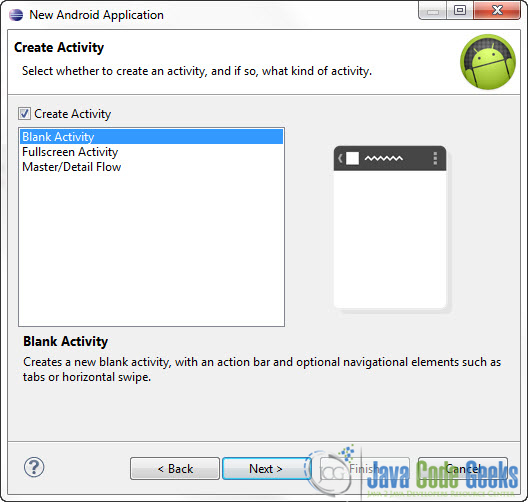
In the next window make sure the “Create activity” option is selected in order to create a new activity for your project, and click Next. This is optional as you can create a new activity after creating the project, but you can do it all in one step.

Select “BlankActivity” and click Next.
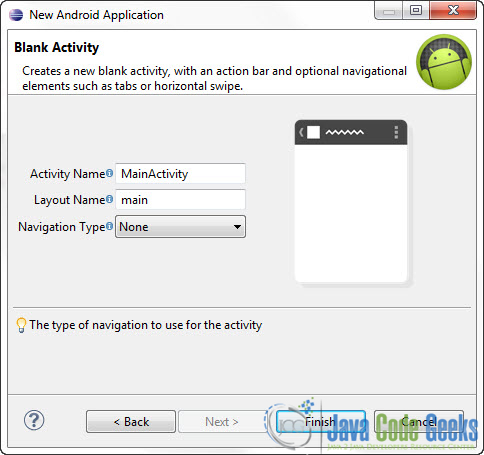
You will be asked to specify some information about the new activity. In the Layout Name text field you have to specify the name of the file that will contain the layout description of your app. In our case the file res/layout/main.xml will be created. Then, click Finish.
3. Creating the layout of the Main Activity
Open res/layout/main.xml file :

And paste the following code :
main.xml:
<?xml version="1.0" encoding="utf-8"?>
<LinearLayout xmlns:android="http://schemas.android.com/apk/res/android"
    android:layout_width="fill_parent"
    android:layout_height="fill_parent"
    android:orientation="vertical" >

    <Button
        android:id="@+id/btn1"
        android:layout_width="wrap_content"
        android:layout_height="wrap_content"
        android:onClick="launchBarDialog"
        android:text="ProgressDialog Bar" />

    <Button
        android:id="@+id/btn2"
        android:layout_width="wrap_content"
        android:layout_height="wrap_content"
        android:onClick="launchRingDialog"
        android:text="ProgressDialog Ring" />

</LinearLayout>
Now you may open the Graphical layout editor to preview the User Interface you created:


