


User:LABoyd2/User Manual Print all 151110

 | This is the print version of OpenSCAD User Manual You won't see this message or any elements not part of the book's content when you print or preview this page. |
Introduction
[edit | edit source]OpenSCAD is software for creating solid 3D CAD objects.
It is free software and available for GNU/Linux, Microsoft Windows and Mac OS X.
Unlike most free software for creating 3D models (such as the well-known application Blender), OpenSCAD does not focus on the artistic aspects of 3D modelling, but instead focuses on the CAD aspects. So it might be the application you are looking for when you are planning to create 3D models of machine parts, but probably is not what you are looking for when you are more interested in creating computer-animated movies or organic life-like models.
OpenSCAD, unlike many CAD products, is not an interactive modeler. Instead it is something like a 2D/3D-compiler that reads in a program file that describes the object and renders the model from this file. This gives you (the designer) full control over the modelling process. This enables you to easily change any step in the modelling process and make designs that are defined by configurable parameters.
OpenSCAD has two main operating modes, Preview and Render. Preview is relatively fast using 3D graphics and the computer's GPU, but is an approximation of the model and can produce artifacts; Preview uses OpenCSG and OpenGL. Render generates exact geometry and a fully tessellated mesh. It is not an approximation and as such it is often a lengthy process, taking minutes or hours for larger designs. Render uses CGAL as its geometry engine.
OpenSCAD provides two types of 3D modelling:
- Constructive Solid Geometry (CSG)
- extrusion of 2D primitives into 3D space.
SVG is used for 2D while Autocad DXF files can be used as well for the data exchange format for 2D outlines. In addition to 2D paths for extrusion it is also possible to read design parameters from DXF files. Besides DXF files, OpenSCAD can read and create 3D models in the open 3mf, STL, OFF and many more file formats.
OpenSCAD can be downloaded from https://www.openscad.org/. More information is available on the mailing list.
Additional Resources
[edit | edit source]An interactive web version of OpenSCAD can be used to play with an scad script, is accepting (design) contributions at git hub, and is based on the web version of the application.
A clear guided introduction to using OpenSCAD and to the OpenSCAD language is available in the OpenSCAD Tutorial.
The Mastering OpenSCAD website has a nice tutorial on the basics and offers a number of complex examples to learn from.
For Teachers: a basic 25-slide presentation from 2014 is available under GNUFDL to walk your students through the process of using OpenSCAD here.
Fablab Lannion (France) edited a nice French-language interactive tutorial that you might appreciate.
A "cheat sheet" is a useful quick reference for the OpenSCAD language, with each item linking back to this Wikibook.
A list of books can be found here.
History
[edit | edit source]Periodically the two manuals below get cleaned up or have major transitions. Consider archiving the manuals prior to starting a major update.
This can be done for the two 'printable version' links below to the Internet Archive
- 2018-04-25 The OpenSCAD User Manual - Print Version & The OpenSCAD Language - Print Version
- 2019-07-22 The OpenSCAD User Manual Which includes links to the archives of the above two printed versions (as of this date).
The Wayback Machine no longer has a free user requested site archive, so below is just the two 'printable version' manuals
The OpenSCAD User Manual
[edit | edit source]
- Introduction
- First Steps
- The OpenSCAD User Interface
- Input Devices
- Customizer
- Import - STL, 3MF, OFF, AMF, DXF, SVG, CSG
- Export - STL, 3MF, OFF, AMF, DXF, SVG, CSG, PNG
- Example Projects
- Paths
- Using an external Editor with OpenSCAD
- Integration with other applications
- Using OpenSCAD in a command line environment
- Building OpenSCAD from Sources
- Frequently Asked Questions
- Libraries
- Tips and Tricks
- Command Glossary - Very short name and syntax reference
The OpenSCAD Language Reference
[edit | edit source]- The OpenSCAD Language
- General - READ THIS FIRST - comments, values and data types, variables, vectors, objects, getting input
- 3D objects -
- 2D Objects
- 2D Primitives - square, circle, polygon
- Text - Generate text using installed or user supplied font files; functions to retrieve text metrics.
- 2D to 3D - linear_extrude, rotate_extrude
- Transform
- Boolean combination
- Other Functions and Operators
- Conditional and Iterator Functions - for, intersection_for, if, conditional ? :, assign, let
- Mathematical Operators - General, Vectors, Matrix multiplication
- Mathematical Functions
- Trigonometric (cos sin tan acos asin atan atan2)
- Other (abs ceil concat cross exp floor ln len let log lookup max min norm pow rands round sign sqrt)
- String Functions - str, chr, ord
- Type Test Functions - is_undef, is_bool, is_num, is_string, is_list, is_object
- List Comprehensions
- Other Language Features - Special '$' variables, echo, render, surface, search , version(), version_num(), parent_module(n) and $parent_modules, assert
- User-Defined Functions and Modules - Functions, Modules, Children
- Debugging aids - % # ! * echo
- External libraries and code files
- include - SCAD, CSG
- use - SCAD
- import - STL, OFF, DXF
- import_dxf - Deprecated
- import_stl - Deprecated
- export - STL, OFF, AMF, 3MF, DXF, SVG, PNG, CSG
- surface - PNG
Work in progress
[edit | edit source]This section contains documentation about ongoing work which is available as experimental features in snapshot versions of OpenSCAD or not yet integrated at all and pending in a branch or pull-request at the OpenSCAD github repository.
Please add {{alphabetical}} only to book title pages.
Contents
[edit | edit source]OpenSCAD User Manual without The OpenSCAD Language Reference
- First Steps
- The OpenSCAD User Interface
- Commented Example Projects
- Export
- Using an external Editor with OpenSCAD
- Using OpenSCAD in a command line environment
- Building OpenSCAD from Sources
- Frequently Asked Questions
- Libraries
- Glossary
Chapter 1 -- First Steps
[edit | edit source]OpenSCAD User Manual
For our first model, we create a simple 2×3×4 cuboid.
To get started, launch OpenSCAD. You should have a preview window, toolbar, console and editor windows open. If one is hidden you can turn it on by going to the View menu and unselect the hidden items.
To create our cuboid we use the openSCAD editor window to type a one-line command:
| Usage example 1 - simple cuboid: | ||
cube([2,3,4]);
|
 |
Compiling and rendering our first model
[edit | edit source]The cuboid can now be compiled and rendered by pressing F5 or F6 Function key on your keyboard while the OpenSCAD editor has focus. You should now see your object in the preview window as shown above.


Open one of the many examples that come with OpenSCAD (File, Examples). Or you can copy and paste this simple example into the OpenSCAD window:
| Usage example 1 |
difference() {
    cube(30, center=true);
    sphere(20);
}
translate([0, 0, 30]) {
    cylinder(h=40, r=10);
}
|

Then press F5 to get a graphical preview of what you typed (or press F6 to get a graphical view).
You get three types of movement in the preview frame:
- Drag with left mouse button to rotate the view around the rotation center (view with ctrl-3) along the X and Z Axis. The bottom line changes the rotate values. (use shift while left-drag to rotate around X and Y )
- Drag with any other mouse button (or control-drag under OSX) to translate (move) the view. The bottom line changes translate values.
- Use the mouse scroll to zoom in and out. Alternatively you can use the + and - keys, or right-drag with the mouse while pressing a shift key (or control-shift-drag under OSX). The Viewport line at the bottom of the window shows a change in the distance value.
We have already seen how to create a simple cuboid. Our next task is to attempt to use the translate positioning command to place an identical cuboid next to the existing cuboid. Type the data as shown below. There are a total of 4 lines of code. Press F5 or F6 function key when done to see the preview.
| Usage example 1 - positioning an object: | |
cube([2,3,4]);
translate([3,0,0]) {
  cube([2,3,4]);
}
|
 |
Translate Operator May Not End A Statement
[edit | edit source]Notice that there is no semicolon following the Translate Operator. An operator module must be followed by an Object Module.
Any object, or a group of them, may be colored by preceding the object module call with the color() operator module.
There are two ways to specify the color to set:
- RGB vector
- three floats in the range [0.0:1.0] in a three element vector [<redval>,<greenval>,<blueval>]
- "<colorname>"
- a string containing a color name from the list of Web Colors.
| Usage example 1 - changing the color of an object: | |
color([1,0,0])
   cube([2,3,4]);
translate([3,0,0])
   color([0,1,0])
      cube([2,3,4]);
translate([6,0,0])
   color([0,0,1])
      cube([2,3,4]);
|
 |
A color() operator may be included, the same as any other operator, like translate(), in a stack of operators that precede call to an object module.
Using braces ("{}") to define a level of scope will apply color, or any other operator module, to all of the objects included in the scope
color([0,0,1]) {
    translate([6,0,0])
       cube([2,3,4]);
    translate([-6,0,0])
       cube([2,3,4]);
    }
In a stack of operators the first call to color() overrides all others so that come later.

The "View" menu at the top of the OpenSCAD application window provides a variety of view options in the OpenSCAD model view window.
Surfaces
[edit | edit source]The surface view is the initial model view that appears when the model code is first rendered. You can get back to this view by choosing "View >> Surfaces" (F10 on Linux).
Wireframe
[edit | edit source]Designers often choose "View >> Wireframe" (F11 on Linux) when working with a particularly complex 3D model. The Wireframe view presents only a grid--the "scaffolding" beneath the surface. Think of the Eiffel Tower.
A wireframe is a visual presentation of a three dimensional or physical object. This method of modelling consists only of lines, points and curves defining the edges of an object. Using a wireframe model allows visualization of the underlying design structure of a 3D model. Since wireframe renderings are relatively simple and fast to calculate, they are often used in cases where a higher screen frame rate is needed (for instance, when working with a particularly complex 3D model, or in real-time systems that model exterior phenomena). When greater graphical detail is desired, surface textures can be added automatically after completion of the initial rendering of the wireframe. This allows the designer to quickly review changes or rotate the object to new desired views without long delays associated with more realistic rendering. The wireframe format is also well suited and widely used in programming tool paths for DNC (Direct Numerical Control) machine tools. Wireframe models are also used as the input for CAM (computer-Aided Manufacturing). Wireframe is the most abstract and least realistic of the three main CAD views. [1]
The OpenCSG view
[edit | edit source]Choosing "View >> Preview (F9)", the OpenCSG view uses the open constructive solid geometry library to generate the model view utilizing OpenGL. If the OpenCSG library is not available or the video card or drivers do not support OpenGL, then this view does not produce visible output.
The Thrown Together View
[edit | edit source]Choosing "View >> Thrown Together" overlays all the previous views together on the same screen. Importantly, objects subtracted by the difference() command are rendered as solid objects in green (by default).
References
[edit | edit source]- ↑ "Wire-frame model". Wikipedia.
Chapter 2 -- The OpenSCAD User Interface
[edit | edit source]OpenSCAD User Manual
User Interface
[edit | edit source]The User Interface (UI) has the usual menus along the top of the Window; File, Edit, View, Window, and Help to which is added the Design Menu.

The application starts with three sections, or panes, showing in the window:
- The Model Viewing Pane
- The Console Pane
- A Text Editor Tab
The rest of the sections in the UI may be shown by enabling them using the Window Menu.
Note: In the following sections menu items that have hot keys defined show the key press in parentheses, as in Design > Preview (F5)
Window Panes Common Features
[edit | edit source]
Each pane of the UI may be moved, extracted to its own window, and closed using the icons on the pane's header.
Click and Drag in the header bar to move a pane to any edge of the window and it will dock to that side, if there is already another pane docked there the one being dragged will become a tabbed window with the existing one.
Clicking the double window icon makes the pane into a separate window and the X icon, of course, closes it.
Model Viewing Pane
[edit | edit source]The model generated by the script is previewed in the viewing area and, optionally, will be automatically updated with each change in the script. This pane is actually the main window for the application so it has the menu bar permanently and the other panes dock at its edges.
The preview may be manually refreshed using menu Design > Preview (F5). To see the fully rendered model Design > Render (F6) may be used.

The View menu has several options for showing or hiding features of the Viewing Pane. For example, the Show Axes (Ctrl+2) menu item shows an indicator for the coordinate axes can be enabled.
More information about the Model View Icon-bar functions is available.
Navigation
[edit | edit source]The view of the model is manipulated using the mouse and specific keys:
| Action | Operation | Description |
|---|---|---|
| Centre of Rotation | double Left Click | click on an axis line, or the surface of a model to set |
| Ctrl|[3} | Show Crosshair | |
| rotating the view | Left Click and Drag | up and down tilts the view up and down. |
| Side to side spins the view around the Z-axis. | ||
| Left Double-click | to set the centre of rotation. | |
| Shift + Left Click and Drag | side to side rotates the view around an axis from the origin to the view point. | |
| Up and down work as Left Click an Drag | ||
| moving the viewing area | Right Click and Drag | moves the viewing area, left, right, up, and down |
| zooming | Rolling the the mouse wheel | (if available) |
| Shift+ Middle Click and Drag | up and down zooms | |
| Shift+ Right Click and Drag | up and down zooms | |
| Plus and Minus keys + and - | ||
| Square Brackets Ctrl+[ and Ctrl+] | ||
| Reset Rotation | Ctrl+0 | short cut to menu View > Diagonal |
| Reset All | Ctrl+⇧ Shift+0 | short cut to menu View > Center |
Console Output Pane
[edit | edit source]This pane is where status information about graphics processing, and feedback messages from a running script are displayed.
During rendering a progress-bar is displayed at the bottom of the console, along with a button to cancel it.

Text Editor Tabs
[edit | edit source]Each open script file is shown in its own tab in the text editor pane.

It has the standard features:
- text search & replace
- syntax highlighting
- comment/ un-comment lines of text
- file reload to revert all edits in a session
- color schemes (selected in Preferences)
- code/text snippet insertion (templates)
- font size control
- interactive number modifications
Editor Templates
[edit | edit source]The editor has a facility for pasting in blocks of text or snippets of code to assist when writing code. These text items are called Templates and are inserted into the script at the cursor position. Right Mouse click to see the context action menu, select the Insert Template item, and then double click template you want.
Templates are simple JSON files with a single top level definition. For example, a template for if-then-else could be:
{
   "key" : "if-then-else",
   "content" : "if(^~^) \n\t;\nelse\n\t;"
}
Note the special symbol, "^~^", in the template. That marks where to leave the text cursor after it is pasted in. This is what it will look like:
if()
  ;
else
  ;
with the text cursor between the parentheses, just after "if", ready to put in the conditional expression.
Using and creating templates is covered in more dept on the UI Advanced Features page
Font Size Control
[edit | edit source]When hovering over an editor tab, or floating window, rolling the mouse wheel, while holding the Control Key down, will increase, or decrease the font size, effectively zooming in an out.
Zooming in and out in the Model View Pane is done the same way.
Interactive Number Modifications
[edit | edit source]When the cursor to the right of a digit in a number it can be incremented or decremented using the arrow keys or by rolling the mouse wheel.
- right adjacent to a digit
- Alt+Down Arrow decrement
- Alt+Up Arrow increment
The left and right arrows also have a role in interactive change
- left of a number
- Alt+Left Arrow to add digits to the left
- right of a number
- Alt+RightArrow will add a decimal point and one fraction digit per tap
Further details on Interactive Modification are covered on the Advanced Page
Animation Control Pane
[edit | edit source]The Animate option adds an animation bar to the lower edge of the screen. As soon as FPS and Steps are set (reasonable values to begin with are 10 and 100, respectively), the current Time is incremented by 1/Steps, FPS times per second, until it reaches 1, when it wraps back to 0.

Every time Time is changed, the program is re-evaluated with the variable $t set to the current time. Read more about how $t is used in section Other_Language_Features.
A more complete description of Animation is on the Advanced UI page
The Rest of the UI Elements
[edit | edit source]Dodecahedron
[edit | edit source]
//create a dodecahedron by intersecting 6 boxes
module dodecahedron(height)
{
	scale([height,height,height]) //scale by height parameter
	{
		intersection(){
			//make a cube
			cube([2,2,1], center = true);
			intersection_for(i=[0:4]) //loop i from 0 to 4, and intersect results
			{
				//make a cube, rotate it 116.565 degrees around the X axis,
				//then 72*i around the Z axis
				rotate([0,0,72*i])
					rotate([116.565,0,0])
					cube([2,2,1], center = true);
			}
		}
	}
}
//create 3 stacked dodecahedra
//call the module with a height of 1 and move up 2
translate([0,0,2])dodecahedron(1);
//call the module with a height of 2
dodecahedron(2);
//call the module with a height of 4 and move down 4
translate([0,0,-4])dodecahedron(4);
|
 |
Icosahedron
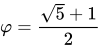
[edit | edit source]An icosahedron can be created from three orthogonal golden-ratio rectangles inside a hull() operation, where the golden ratio is .
phi=0.5*(sqrt(5)+1); // golden ratio

// create an icosahedron by intersecting 3 orthogonal golden-ratio rectangles
module icosahedron(edge_length) {
   st=0.0001;  // microscopic sheet thickness
   hull() {
       cube([edge_length*phi, edge_length, st], true);
       rotate([90,90,0]) cube([edge_length*phi, edge_length, st], true);
       rotate([90,0,90]) cube([edge_length*phi, edge_length, st], true);
   }
}

// display the 3 internal sheets alongside the icosahedron
edge=10;
translate([-20,0,0]) union() {
   cube([edge*phi, edge, 0.01], true);
   rotate([90,90,0]) cube([edge*phi, edge, 0.01], true);
   rotate([90,0,90]) cube([edge*phi, edge, 0.01], true);
}

icosahedron(edge);
|
 |
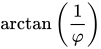
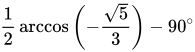
This icosahedron renders in an edge-up orientation. Rotating this icosahedron by about the Y-axis results in a vertex-up orientation. Rotating by about the X-axis results in a face-up orientation. The edge length is related to the inner diameter (distance between opposite faces) by .


Icosphere
[edit | edit source]// Code via reddit with triangle winding fixes, cannot add link due to
// wikibooks considering it spam.
// 4 is the realistic max.
// Don't do 5 or more, takes forever.
// set recursion to the desired level. 0=20 tris, 1=80 tris, 2=320 tris
module icosphere(radius=10, recursion=2, icoPnts, icoTris) {
//t = (1 + sqrt(5))/2;
//comment from monfera to get verts to unit sphere
t = sqrt((5+sqrt(5))/10);
s = sqrt((5-sqrt(5))/10);
init = (icoPnts||icoTris) ? false : true; //initial call if icoPnts is empty
// 1 --> draw icosphere from base mesh
// 2 --> loop through base mesh and subdivide by 4 --> 20 steps
// 3 --> loop through subdivided mesh and subdivide again (or subdivide by 16) --> 80 steps
// 4 ...
verts = [
[-s, t, 0], //0
[ s, t, 0],
[-s,-t, 0],
[ s,-t, 0],
[ 0,-s, t],
[ 0, s, t],
[ 0,-s,-t],
[ 0, s,-t],
[ t, 0,-s],
[ t, 0, s],
[-t, 0,-s],
[-t, 0, s]]; //11
//base mesh with 20 faces
tris = [
//5 faces around point 0
[ 0, 5, 11], //0
[ 0, 1, 5],
[ 0, 7, 1],
[ 0, 10, 7],
[ 0, 11, 10],
// 5 adjacent faces
[ 1, 9, 5], //5
[ 5, 4, 11],
[11, 2, 10],
[10, 6, 7],
[ 7, 8, 1],
//5 faces around point 3
[ 3, 4, 9], //10
[ 3, 2, 4],
[ 3, 6, 2],
[ 3, 8, 6],
[ 3, 9, 8],
//5 adjacent faces
[ 4, 5, 9], //15
[ 2, 11, 4],
[ 6, 10, 2],
[ 8, 7, 6],
[ 9, 1, 8]]; //19
if (recursion) {
verts = (init) ? verts : icoPnts;
tris = (init) ? tris : icoTris;
newSegments = recurseTris(verts,tris);
newVerts = newSegments[0];
newTris = newSegments[1];
icosphere(radius,recursion-1,newVerts,newTris);
} else if (init) { //draw the base icosphere if no recursion and initial call
scale(radius) polyhedron(verts, tris);
} else { // if not initial call some recursion has to be happened
scale(radius) polyhedron(icoPnts, icoTris);
}
}
// Adds verts if not already there,
// takes array of vertices and indices of a tri to expand
// returns expanded array of verts and indices of new polygon with 4 faces
// [[verts],[0,(a),(c)],[1,(b),(a)],[2,(c),(b)],[(a),(b),(c)]]
function addTris(verts, tri) = let(
a= getMiddlePoint(verts[tri[0]], verts[tri[1]]), //will produce doubles
b= getMiddlePoint(verts[tri[1]], verts[tri[2]]), //these are unique
c= getMiddlePoint(verts[tri[2]], verts[tri[0]]), //these are unique
aIdx = search(verts, a), //point a already exists
l=len(verts)
) len(aIdx) ? [concat(verts,[a,b,c]),[[tri[0],l,l+2], //1
[tri[1],l+1,l], //2
[tri[2],l+2,l+1], //3
[l,l+1,l+2]] ] : //4
[concat(verts,[b,c]), [[tri[0],aIdx,l+1], //1
[tri[1],l,aIdx], //2
[tri[2],l+1,l], //3
[aIdx,l,l+1]] ]; //4
// Recursive function that does one recursion on the whole icosphere (auto recursion steps derived from len(tris)).
function recurseTris(verts, tris, newTris=[], steps=0, step=0) = let(
stepsCnt = steps ? steps : len(tris)-1, //if initial call initialize steps
newSegment=addTris(verts=verts,tri=tris[step]),
newVerts=newSegment[0], //all old and new Vertices
newerTris=concat(newTris,newSegment[1]) //only new Tris
) (stepsCnt==(step)) ? [newVerts,newerTris] :
recurseTris(newVerts,tris,newerTris,stepsCnt,step+1);
// Get point between two verts on unit sphere.
function getMiddlePoint(p1, p2) = fixPosition((p1+p2)/2);
// Fix position to be on unit sphere
function fixPosition(p) = let(l=norm(p)) [p.x/l,p.y/l,p.z/l];
Half-pyramid
[edit | edit source]An upside-down half-pyramid is a useful shape for 3D printing a support for an overhang protruding from a vertical wall. With sloping sides no steeper than 45°, no removable support structure needs to be printed.
While a half-pyramid can be made with a 4-sided cone (using the cylinder primitive) and subtracting a cube from half of it, the shape can be easily made in one operation by a scaled linear extrude of a rectangle having the middle of one edge on the origin.
// Create a half-pyramid from a single linear extrusion
module halfpyramid(base, height) {
   linear_extrude(height, scale=0.01)
      translate([-base/2, 0, 0]) square([base, base/2]);
}

halfpyramid(20, 10);
|
 |
Bounding Box
[edit | edit source]
// Rather kludgy module for determining bounding box from intersecting projections
module BoundingBox()
{
	intersection()
	{
		translate([0,0,0])
		linear_extrude(height = 1000, center = true, convexity = 10, twist = 0)
		projection(cut=false) intersection()
		{
			rotate([0,90,0])
			linear_extrude(height = 1000, center = true, convexity = 10, twist = 0)
			projection(cut=false)
			rotate([0,-90,0])
			children(0);

			rotate([90,0,0])
			linear_extrude(height = 1000, center = true, convexity = 10, twist = 0)
			projection(cut=false)
			rotate([-90,0,0])
			children(0);
		}
		rotate([90,0,0])
		linear_extrude(height = 1000, center = true, convexity = 10, twist = 0)
		projection(cut=false)
		rotate([-90,0,0])
		intersection()
		{
			rotate([0,90,0])
			linear_extrude(height = 1000, center = true, convexity = 10, twist = 0)
			projection(cut=false)
			rotate([0,-90,0])
			children(0);

			rotate([0,0,0])
			linear_extrude(height = 1000, center = true, convexity = 10, twist = 0)
			projection(cut=false)
			rotate([0,0,0])
			children(0);
		}
	}
}

// Test module on ellipsoid
translate([0,0,40]) scale([1,2,3]) sphere(r=5);
BoundingBox() scale([1,2,3]) sphere(r=5);
|
 |
Linear Extrude extended use examples
[edit | edit source]Linear Extrude with Scale as an interpolated function
[edit | edit source]
//Linear Extrude with Scale as an interpolated function
// This module does not need to be modified,
// - unless default parameters want to be changed
// - or additional parameters want to be forwarded (e.g. slices,...)
module linear_extrude_fs(height=1,isteps=20,twist=0){
 //union of piecewise generated extrudes
 union(){
   for(i = [ 0: 1: isteps-1]){
     //each new piece needs to be adjusted for height
     translate([0,0,i*height/isteps])
      linear_extrude(
       height=height/isteps,
       twist=twist/isteps,
       scale=f_lefs((i+1)/isteps)/f_lefs(i/isteps)
      )
       // if a twist constant is defined it is split into pieces
       rotate([0,0,-(i/isteps)*twist])
        // each new piece starts where the last ended
        scale(f_lefs(i/isteps))
         obj2D_lefs();
   }
 }
}
// This function defines the scale function
// - Function name must not be modified
// - Modify the contents/return value to define the function
function f_lefs(x) =
 let(span=150,start=20,normpos=45)
 sin(x*span+start)/sin(normpos);
// This module defines the base 2D object to be extruded
// - Function name must not be modified
// - Modify the contents to define the base 2D object
module obj2D_lefs(){
 translate([-4,-3])
  square([9,12]);
}
//Top rendered object demonstrating the interpolation steps
translate([0,0,25])
linear_extrude_fs(height=20,isteps=4);
linear_extrude_fs(height=20); //Bottom rendered object demonstrating the inclusion of a twist translate([0,0,-25]) linear_extrude_fs(height=20,twist=90,isteps=30); |
 |
Linear Extrude with Twist as an interpolated function
[edit | edit source]
//Linear Extrude with Twist as an interpolated function
// This module does not need to be modified,
// - unless default parameters want to be changed
// - or additional parameters want to be forwarded (e.g. slices,...)
module linear_extrude_ft(height=1,isteps=20,scale=1){
  //union of piecewise generated extrudes
  union(){
    for(i = [ 0: 1: isteps-1]){
      //each new piece needs to be adjusted for height
      translate([0,0,i*height/isteps])
       linear_extrude(
        height=height/isteps,
        twist=f_left((i+1)/isteps)-f_left((i)/isteps),
        scale=(1-(1-scale)*(i+1)/isteps)/(1-(1-scale)*i/isteps)
       )
        //Rotate to next start point
        rotate([0,0,-f_left(i/isteps)])
         //Scale to end of last piece size
         scale(1-(1-scale)*(i/isteps))
          obj2D_left();
    }
  }
}
// This function defines the twist function
// - Function name must not be modified
// - Modify the contents/return value to define the function
function f_left(x) =
  let(twist=90,span=180,start=0)
  twist*sin(x*span+start);
// This module defines the base 2D object to be extruded
// - Function name must not be modified
// - Modify the contents to define the base 2D object
module obj2D_left(){
  translate([-4,-3])
   square([12,9]);
}
//Left rendered object demonstrating the interpolation steps
translate([-20,0])
linear_extrude_ft(height=30,isteps=5);
linear_extrude_ft(height=30); //Right rendered object demonstrating the scale inclusion translate([25,0]) linear_extrude_ft(height=30,scale=3); |
 |
Linear Extrude with Twist and Scale as interpolated functions
[edit | edit source]
//Linear Extrude with Twist and Scale as interpolated functions
// This module does not need to be modified,
// - unless default parameters want to be changed
// - or additional parameters want to be forwarded
module linear_extrude_ftfs(height=1,isteps=20,slices=0){
  //union of piecewise generated extrudes
  union(){
   for(i=[0:1:isteps-1]){
    translate([0,0,i*height/isteps])
     linear_extrude(
      height=height/isteps,
      twist=leftfs_ftw((i+1)/isteps)-leftfs_ftw(i/isteps),
      scale=leftfs_fsc((i+1)/isteps)/leftfs_fsc(i/isteps),
      slices=slices
     )
      rotate([0,0,-leftfs_ftw(i/isteps)])
       scale(leftfs_fsc(i/isteps))
        obj2D_leftfs();
   }
  }
}
// This function defines the scale function
// - Function name must not be modified
// - Modify the contents/return value to define the function
function leftfs_fsc(x)=
  let(scale=3,span=140,start=20)
  scale*sin(x*span+start);
// This function defines the twist function
// - Function name must not be modified
// - Modify the contents/return value to define the function
function leftfs_ftw(x)=
  let(twist=30,span=360,start=0)
  twist*sin(x*span+start);
// This module defines the base 2D object to be extruded
// - Function name must not be modified
// - Modify the contents to define the base 2D object
module obj2D_leftfs(){
   square([12,9]);
}
//Left rendered objects demonstrating the steps effect
translate([0,-50,-60])
rotate([0,0,90])
linear_extrude_ftfs(height=50,isteps=3);

translate([0,-50,0])
linear_extrude_ftfs(height=50,isteps=3);
//Center rendered objects demonstrating the slices effect translate([0,0,-60]) rotate([0,0,90]) linear_extrude_ftfs(height=50,isteps=3,slices=20); linear_extrude_ftfs(height=50,isteps=3,slices=20); //Right rendered objects with default parameters translate([0,50,-60]) rotate([0,0,90]) linear_extrude_ftfs(height=50); translate([0,50,0]) linear_extrude_ftfs(height=50); |
 |
Rocket
[edit | edit source]
// increase the visual detail
$fn = 100;

// the main body :
// a cylinder
rocket_d = 30; 				// 3 cm wide
rocket_r = rocket_d / 2;
rocket_h = 100; 			// 10 cm tall
cylinder(d = rocket_d, h = rocket_h);

// the head :
// a cone
head_d = 40;  				// 4 cm wide
head_r = head_d / 2;
head_h = 40;  				// 4 cm tall
// prepare a triangle
tri_base = head_r;
tri_height = head_h;
tri_points = [[0,			 0],
			  [tri_base,	 0],
			  [0,	tri_height]];
// rotation around X-axis and then 360° around Z-axis
// put it on top of the rocket's body
translate([0,0,rocket_h])
rotate_extrude(angle = 360)
	polygon(tri_points);

// the wings :
// 3x triangles
wing_w = 2;					// 2 mm thick
many = 3;					// 3x wings
wing_l = 40;				// length
wing_h = 40;				// height
wing_points = [[0,0],[wing_l,0],[0,wing_h]];

module wing() {
	// let it a bit inside the main body
	in_by = 1;				// 1 mm
	// set it up on the rocket's perimeter
	translate([rocket_r - in_by,0,0])
	// set it upright by rotating around X-axis
	rotate([90,0,0])
	// set some width and center it
	linear_extrude(height = wing_w,center = true)
	// make a triangle
		polygon(wing_points);
}

for (i = [0: many - 1])
	rotate([0, 0, 370 / many * i])
	wing();
Horns
[edit | edit source].png)
// The idea is to twist a translated circle:
// -
/*
	linear_extrude(height = 10, twist = 360, scale = 0)
	translate([1,0])
	circle(r = 1);
*/

module horn(height = 10, radius = 6,
			twist = 720, $fn = 50)
{
	// A centered circle translated by 1xR and
	// twisted by 360° degrees, covers a 2x(2xR) space.
	// -
	radius = radius/4;
	// De-translate.
	// -
	translate([-radius,0])
	// The actual code.
	// -
	linear_extrude(height = height, twist = twist,
				   scale=0, $fn = $fn)
	translate([radius,0])
	circle(r=radius);
}

translate([3,0])
mirror()
horn();

translate([-3,0])
horn();
Strandbeest
[edit | edit source]See the Strandbeest example here.
Previous
[edit | edit source]Next
[edit | edit source]Command line usage
[edit | edit source]OpenSCAD can not only be used as a GUI, but also handles command line arguments.
OpenSCAD (DEV/nightly) 2025.08.17 has these options
Usage: openscad.exe [options] file.scad
Allowed options:
  --export-format arg               overrides format of exported scad file when
                                    using option '-o', arg can be any of its
                                    supported file extensions.  For ascii stl
                                    export, specify 'asciistl', and for binary
                                    stl export, specify 'binstl'.  Ascii export
                                    is the current stl default, but binary stl
                                    is planned as the future default so
                                    asciistl should be explicitly specified in
                                    scripts when needed.

  -o [ --o ] arg                    output specified file instead of running
                                    the GUI. The file extension specifies the
                                    type: stl, off, wrl, amf, 3mf, csg, dxf,
                                    svg, pdf, png, echo, ast, term, nef3,
                                    nefdbg, param, pov. May be used multiple
                                    times for different exports. Use '-' for
                                    stdout.

  -O [ --O ] arg                    pass settings value to the file export
                                    using the format section/key=value, e.g
                                    export-pdf/paper-size=a3. Use --help-export
                                    to list all available settings.
  -D [ --D ] arg                    var=val -pre-define variables
  -p [ --p ] arg                    customizer parameter file
  -P [ --P ] arg                    customizer parameter set
  --enable arg                      enable experimental features (specify 'all'
                                    for enabling all available features): roof
                                    | input-driver-dbus | lazy-union |
                                    vertex-object-renderers-indexing |
                                    textmetrics | import-function |
                                    predictible-output

  -h [ --help ]                     print this help message and exit
  --help-export                     print list of export parameters and values
                                    that can be set via -O
  -v [ --version ]                  print the version
  --info                            print information about the build process

  --camera arg                      camera parameters when exporting png:
                                    =translate_x,y,z,rot_x,y,z,dist or
                                    =eye_x,y,z,center_x,y,z
  --autocenter                      adjust camera to look at object's center
  --viewall                         adjust camera to fit object
  --backend arg                     3D rendering backend to use: 'CGAL'
                                    (old/slow) [default] or 'Manifold'
                                    (new/fast)
  --imgsize arg                     =width,height of exported png
  --render arg                      for full geometry evaluation when exporting
                                    png
  --preview arg                     [=throwntogether] -for ThrownTogether
                                    preview png
  --animate arg                     export N animated frames
  --animate_sharding arg            Parameter <shard>/<num_shards> - Divide
                                    work into <num_shards> and only output
                                    frames for <shard>. E.g. 2/5 only outputs
                                    the second 1/5 of frames. Use to
                                    parallelize work on multiple cores or
                                    machines.
  --view arg                        =view options: axes | crosshairs | edges |
                                    scales
  --projection arg                  =(o)rtho or (p)erspective when exporting
                                    png
  --csglimit arg                    =n -stop rendering at n CSG elements when
                                    exporting png
  --summary arg                     enable additional render summary and
                                    statistics: all | cache | time | camera |
                                    geometry | bounding-box | area
  --summary-file arg                output summary information in JSON format
                                    to the given file, using '-' outputs to
                                    stdout
  --colorscheme arg                 =colorscheme: *Cornfield | Metallic |
                                    Sunset | Starnight | BeforeDawn | Nature |
                                    Daylight Gem | Nocturnal Gem | DeepOcean |
                                    Solarized | Tomorrow | Tomorrow Night |
                                    ClearSky | Monotone

  -d [ --d ] arg                    deps_file -generate a dependency file for
                                    make
  -m [ --m ] arg                    make_cmd -runs make_cmd file if file is
                                    missing
  -q [ --quiet ]                    quiet mode (don't print anything *except*
                                    errors)
  --hardwarnings                    Stop on the first warning
  --trace-depth arg                 =n, maximum number of trace messages
  --trace-usermodule-parameters arg =true/false, configure the output of user
                                    module parameters in a trace
  --check-parameters arg            =true/false, configure the parameter check
                                    for user modules and functions
  --check-parameter-ranges arg      =true/false, configure the parameter range
                                    check for builtin modules
  --debug arg                       special debug info - specify 'all' or a set
                                    of source file names
  -s [ --s ] arg                    stl_file deprecated, use -o
  -x [ --x ] arg                    dxf_file deprecated, use -o
Export help
OpenSCAD version 2025.08.17

List of settings that can be given using the -O option using the
format '<section>/<key>=value', e.g.:
openscad -O export-pdf/paper-size=a6 -O export-pdf/show-grid=false

Section 'export-pdf':
  - paper-size (enum): [a6,a5,<a4>,a3,letter,legal,tabloid]
  - orientation (enum): [<portrait>,landscape,auto]
  - show-filename (bool): <true>/false
  - show-scale (bool): <true>/false
  - show-scale-message (bool): <true>/false
  - show-grid (bool): <true>/false
  - grid-size (double): 1.000000 : <10.000000> : 100.000000
  - add-meta-data (bool): <true>/false
  - meta-data-title (string): ""
  - meta-data-author (string): ""
  - meta-data-subject (string): ""
  - meta-data-keywords (string): ""
Section 'export-3mf':
  - color-mode (enum): [<model>,none,selected-only]
  - unit (enum): [micron,<millimeter>,centimeter,meter,inch,foot]
  - color (string): "#f9d72c"
  - material-type (enum): [color,<basematerial>]
  - decimal-precision (int): 1 : <6> : 16
  - add-meta-data (bool): <true>/false
  - meta-data-title (string): ""
  - meta-data-designer (string): ""
  - meta-data-description (string): ""
  - meta-data-copyright (string): ""
  - meta-data-license-terms (string): ""
  - meta-data-rating (string): ""
OpenSCAD 2021.01 has these options:
Usage: openscad [options] file.scad
Allowed options:
 --export-format arg          overrides format of exported scad file when
                              using option '-o', arg can be any of its
                              supported file extensions.  For ascii stl
                              export, specify 'asciistl', and for binary stl
                              export, specify 'binstl'.  Ascii export is the
                              current stl default, but binary stl is planned
                              as the future default so asciistl should be
                              explicitly specified in scripts when needed.

 -o [ --o ] arg               output specified file instead of running the
                              GUI, the file extension specifies the type: stl,
                              off, wrl, amf, 3mf, csg, dxf, svg, pdf, png,
                              echo, ast, term, nef3, nefdbg (May be used
                              multiple time for different exports). Use '-'
                              for stdout

 -D [ --D ] arg               var=val -pre-define variables
 -p [ --p ] arg               customizer parameter file
 -P [ --P ] arg               customizer parameter set
 --enable arg                 enable experimental features (specify 'all' for
                              enabling all available features): roof |
                              input-driver-dbus | lazy-union |
                              vertex-object-renderers |
                              vertex-object-renderers-indexing |
                              vertex-object-renderers-direct |
                              vertex-object-renderers-prealloc | textmetrics

 -h [ --help ]                print this help message and exit
 -v [ --version ]             print the version
 --info                       print information about the build process

 --camera arg                 camera parameters when exporting png:
                              =translate_x,y,z,rot_x,y,z,dist or
                              =eye_x,y,z,center_x,y,z
 --autocenter                 adjust camera to look at object's center
 --viewall                    adjust camera to fit object
 --imgsize arg                =width,height of exported png
 --render                     for full geometry evaluation when exporting png
 --preview arg                [=throwntogether] -for ThrownTogether preview
                              png
 --animate arg                export N animated frames
 --view arg                   =view options: axes | crosshairs | edges |
                              scales | wireframe
 --projection arg             =(o)rtho or (p)erspective when exporting png
 --csglimit arg               =n -stop rendering at n CSG elements when
                              exporting png
 --summary arg                enable additional render summary and statistics:
                              all | cache | time | camera | geometry |
                              bounding-box | area
 --summary-file arg           output summary information in JSON format to the
                              given file, using '-' outputs to stdout
 --colorscheme arg            =colorscheme: *Cornfield | Metallic | Sunset |
                              Starnight | BeforeDawn | Nature | DeepOcean |
                              Solarized | Tomorrow | Tomorrow Night | Monotone

 -d [ --d ] arg               deps_file -generate a dependency file for make
 -m [ --m ] arg               make_cmd -runs make_cmd file if file is missing
 -q [ --quiet ]               quiet mode (don't print anything *except*
                              errors)
 --hardwarnings               Stop on the first warning
 --check-parameters arg       =true/false, configure the parameter check for
                              user modules and functions
 --check-parameter-ranges arg =true/false, configure the parameter range check
                              for builtin modules
 --debug arg                  special debug info - specify 'all' or a set of
                              source file names
Export options
[edit | edit source]When called with the -o option, OpenSCAD does not start the GUI, but executes the given file and exports to the output_file in a format depending on the extension (.stl / .off / .dxf, .csg).
Some versions use -s/-d/-o to determine the output file format instead; check with "openscad --help".
If the option -d is given in addition to an export command, all files accessed while building the mesh are written in the argument of -d in the syntax of a Makefile.
For at least 2015.03-2+, specifying the extension .echo causes openscad to produce a text file containing error messages and the output of all echo() calls in filename as they would appear in the console window visible in the GUI. Multiple output files are not supported, so using this option you cannot also obtain the model that would have normally been generated.
Note: When exporting to STL, the GUI defaults to binary STL (smaller, faster) and the CLI defaults to ASCII STL (larger, slower). Post-processing pipelines may prefer ASCII STL; they should explicitly say `--export-format asciistl` in preparation for the default eventually changing to binary STL.
Camera and image output
[edit | edit source]For 2013.05+, the option to output a .png image was added. There are two types of cameras available for the generation of images.
The first camera type is a 'gimbal' camera that uses Euler angles, translation, and a camera distance, like OpenSCAD's GUI viewport display at the bottom of the OpenSCAD window.
The second camera type is a 'vector' camera, with an 'eye' camera location vector and a 'lookat' center vector.
--imgsize x,y chooses the .png dimensions and --projection chooses orthogonal or perspective, as in the GUI.
By default, cmdline .png output uses Preview mode (f5) with OpenCSG. For some situations it may be desirable to output the full render, with CGAL. This is done by adding '--render' as an option.
Constants
[edit | edit source]In order to pre-define variables, use the -D option. It can be given repeatedly. Each occurrence of -D must be followed by an assignment. Unlike normal OpenSCAD assignments, these assignments don't define variables, but constants, which cannot be changed inside the program, and can thus be used to overwrite values defined in the program at export time.
If you want to assign the -D variable to another variable, the -D variable MUST be initialized in the main .scad program
param1=17;       // must be initialized
val=param1;      // param1 passed via -D on cmd-line
echo(val,param1); // outputs 17,17
without the first line, val would be undefined.
The right hand sides can be arbitrary OpenSCAD expressions, including mathematical operations and strings.
Be aware that your shell (bash, cmd, etc.) parses the arguments before passing them to openscad, therefore you need to properly quote or escape arguments with special characters like spaces or quotation marks. For example to assign a string production to a quality parameter one has to ensure the " characters OpenSCAD expects aren't stripped by the shell. In bash one could write:
openscad -o my_model_production.stl -D 'quality="production"' my_model.scad
or from the Windows prompt:
openscad.com -o my_model_production.stl -D "quality=""production""" my_model.scad
or you may need to escape the inner quotes instead:
openscad -o my_model_production.stl -D "quality=\"production\"" my_model.scad
Note that this sort of double-escaping isn't necessary when executing OpenSCAD from another process that isn't using a shell, because each argument is passed separately. For example a Java application might start a process like so:
   pb = new ProcessBuilder("/usr/bin/openscad",
     "-o", "my_model_production.stl",
     "-D", "quality=\"production\"",
     "my_model.scad");
Command to build required files
[edit | edit source]In a complex build process, some missing files required by an OpenSCAD file can be generated if they are defined in a Makefile. If OpenSCAD is given the option -m make, it starts make file the first time it tries to access a missing file.
Processing all .scad files in a folder
[edit | edit source]Example to convert all the .scad in a folder into .stl:
In a folder with .scad files, make a .bat file with text:
FOR %%f in (*.scad) DO openscad -o "%%~nf.stl" "%%f"
If it closes without processing, check to set the PATH by adding openscad directory to:
Start - Settings - Control Panel - System - Advanced tab - Environment Variables - System Variables, select Path, then click Edit.
Add the openscad directory to the list
Makefile example
[edit | edit source]The -d and -m options only make sense together. (-m without -d would not consider modified dependencies when building exports, -d without -m would require the files to be already built for the first run that generates the dependencies.)
Here is an example of a basic Makefile that creates an .stl file from an .scad file of the same name:
# explicit wildcard expansion suppresses errors when no files are found
include $(wildcard *.deps)

%.stl: %.scad
	openscad -m make -o $@ -d $@.deps $<
When make my_example.stl is run for the first time, it finds no .deps files, and must depend on my_example.scad. Because my_example.stl is not yet preset, it gets created unconditionally. If OpenSCAD finds missing files, it calls make to build them, and it lists all used files in my_example.stl.deps.
When make my_example.stl is called subsequently, it finds and includes my_example.stl.deps and check if any of the files listed there, including my_example.scad, changed since my_example.stl was built, based on their time stamps. Only if that is the case, it builds my_example.stl again.
Automatic targets
[edit | edit source]When building similar .stl files from a single .scad file, there is a way to automate that too:
# match "module foobar() { // `make` me"
TARGETS=$(shell sed '/^module [a-z0-9_-]*().*make..\?me.*$$/!d;s/module //;s/().*/.stl/' base.scad)

all: ${TARGETS}

# auto-generated .scad files with .deps make make re-build always. keeping the
# scad files solves this problem. (explanations are welcome.)
.SECONDARY: $(shell echo "${TARGETS}" | sed 's/\.stl/.scad/g')

# explicit wildcard expansion suppresses errors when no files are found
include $(wildcard *.deps)

%.scad:
	echo -ne 'use <base.scad>\n$*();' > $@

%.stl: %.scad
	openscad -m make -o $@ -d $@.deps $<
All objects that are supposed to be exported automatically have to be defined in base.scad in an own module with their future file name (without the ".stl"), and have a comment like "// make me" in the line of the module definition. The "TARGETS=" line picks these out of the base file and creates the file names. These are built when make all (or make, for short) is called.
As the convention from the last example is to create the .stl files from .scad files of the same base name, for each of these files, an .scad file must be generated. This is done in the "%.scad:" paragraph; my_example.scad is a simple OpenSCAD file:
use <base.scad>
my_example();
The ".SECONDARY" line is there to keep make from deleting the generated .scad files. Its presence helps determine which files no longer need to be rebuilt; please post ideas about what exactly goes wrong there (or how to fix it better) on the talk page!
Windows notes
[edit | edit source]On Windows, openscad.com should be called from the command line as a wrapper for openscad.exe. This is because Openscad uses the 'devenv' solution to the Command-Line/GUI output issue. Typing 'openscad' at the cmd.exe prompt calls the .com program wrapper by default.
MacOS notes
[edit | edit source]On MacOS the binary is normally hidden inside the App folder. If OpenSCAD is installed in the global Applications folder, it can be called from command line like in the following example that just shows the OpenSCAD version:
macbook:/$ /Applications/OpenSCAD.app/Contents/MacOS/OpenSCAD -v
OpenSCAD version 2013.06
Alternatively, you may create a symbolic link to the binary to make calls from the command line easier:
macbook:/$ sudo ln -sf /Applications/OpenSCAD.app/Contents/MacOS/OpenSCAD /usr/local/bin/openscad
Now you can call openscad directly without having to type in the full path.
 macbook:/$ openscad -v
 OpenSCAD version 2015.03-3
On some versions of MacOS, you might get the following error when attempting to run openscad via that link:
This application failed to start because it could not find or load the Qt platform plugin "cocoa".
 Reinstalling the application may fix this problem.
 Abort trap: 6
You can fix this by creating a wrapper script to invoke the executable directly:
 sudo rm -f /usr/local/bin/openscad
 echo '#!/bin/sh' > test
 echo '/Applications/OpenSCAD.app/Contents/MacOS/OpenSCAD "$@"' >> test
 chmod +x test ; sudo mv test /usr/local/bin/openscad
Chapter 3 -- Commented Example Projects
[edit | edit source]OpenSCAD User Manual
Dodecahedron
[edit | edit source]
//create a dodecahedron by intersecting 6 boxes
module dodecahedron(height)
{
	scale([height,height,height]) //scale by height parameter
	{
		intersection(){
			//make a cube
			cube([2,2,1], center = true);
			intersection_for(i=[0:4]) //loop i from 0 to 4, and intersect results
			{
				//make a cube, rotate it 116.565 degrees around the X axis,
				//then 72*i around the Z axis
				rotate([0,0,72*i])
					rotate([116.565,0,0])
					cube([2,2,1], center = true);
			}
		}
	}
}
//create 3 stacked dodecahedra
//call the module with a height of 1 and move up 2
translate([0,0,2])dodecahedron(1);
//call the module with a height of 2
dodecahedron(2);
//call the module with a height of 4 and move down 4
translate([0,0,-4])dodecahedron(4);
|
|
Icosahedron
[edit | edit source]An icosahedron can be created from three orthogonal golden-ratio rectangles inside a hull() operation, where the golden ratio is .
phi=0.5*(sqrt(5)+1); // golden ratio

// create an icosahedron by intersecting 3 orthogonal golden-ratio rectangles
module icosahedron(edge_length) {
   st=0.0001;  // microscopic sheet thickness
   hull() {
       cube([edge_length*phi, edge_length, st], true);
       rotate([90,90,0]) cube([edge_length*phi, edge_length, st], true);
       rotate([90,0,90]) cube([edge_length*phi, edge_length, st], true);
   }
}

// display the 3 internal sheets alongside the icosahedron
edge=10;
translate([-20,0,0]) union() {
   cube([edge*phi, edge, 0.01], true);
   rotate([90,90,0]) cube([edge*phi, edge, 0.01], true);
   rotate([90,0,90]) cube([edge*phi, edge, 0.01], true);
}

icosahedron(edge);
|
|
This icosahedron renders in an edge-up orientation. Rotating this icosahedron by about the Y-axis results in a vertex-up orientation. Rotating by about the X-axis results in a face-up orientation. The edge length is related to the inner diameter (distance between opposite faces) by .
Icosphere
[edit | edit source]// Code via reddit with triangle winding fixes, cannot add link due to
// wikibooks considering it spam.
// 4 is the realistic max.
// Don't do 5 or more, takes forever.
// set recursion to the desired level. 0=20 tris, 1=80 tris, 2=320 tris
module icosphere(radius=10, recursion=2, icoPnts, icoTris) {
//t = (1 + sqrt(5))/2;
//comment from monfera to get verts to unit sphere
t = sqrt((5+sqrt(5))/10);
s = sqrt((5-sqrt(5))/10);
init = (icoPnts||icoTris) ? false : true; //initial call if icoPnts is empty
// 1 --> draw icosphere from base mesh
// 2 --> loop through base mesh and subdivide by 4 --> 20 steps
// 3 --> loop through subdivided mesh and subdivide again (or subdivide by 16) --> 80 steps
// 4 ...
verts = [
[-s, t, 0], //0
[ s, t, 0],
[-s,-t, 0],
[ s,-t, 0],
[ 0,-s, t],
[ 0, s, t],
[ 0,-s,-t],
[ 0, s,-t],
[ t, 0,-s],
[ t, 0, s],
[-t, 0,-s],
[-t, 0, s]]; //11
//base mesh with 20 faces
tris = [
//5 faces around point 0
[ 0, 5, 11], //0
[ 0, 1, 5],
[ 0, 7, 1],
[ 0, 10, 7],
[ 0, 11, 10],
// 5 adjacent faces
[ 1, 9, 5], //5
[ 5, 4, 11],
[11, 2, 10],
[10, 6, 7],
[ 7, 8, 1],
//5 faces around point 3
[ 3, 4, 9], //10
[ 3, 2, 4],
[ 3, 6, 2],
[ 3, 8, 6],
[ 3, 9, 8],
//5 adjacent faces
[ 4, 5, 9], //15
[ 2, 11, 4],
[ 6, 10, 2],
[ 8, 7, 6],
[ 9, 1, 8]]; //19
if (recursion) {
verts = (init) ? verts : icoPnts;
tris = (init) ? tris : icoTris;
newSegments = recurseTris(verts,tris);
newVerts = newSegments[0];
newTris = newSegments[1];
icosphere(radius,recursion-1,newVerts,newTris);
} else if (init) { //draw the base icosphere if no recursion and initial call
scale(radius) polyhedron(verts, tris);
} else { // if not initial call some recursion has to be happened
scale(radius) polyhedron(icoPnts, icoTris);
}
}
// Adds verts if not already there,
// takes array of vertices and indices of a tri to expand
// returns expanded array of verts and indices of new polygon with 4 faces
// [[verts],[0,(a),(c)],[1,(b),(a)],[2,(c),(b)],[(a),(b),(c)]]
function addTris(verts, tri) = let(
a= getMiddlePoint(verts[tri[0]], verts[tri[1]]), //will produce doubles
b= getMiddlePoint(verts[tri[1]], verts[tri[2]]), //these are unique
c= getMiddlePoint(verts[tri[2]], verts[tri[0]]), //these are unique
aIdx = search(verts, a), //point a already exists
l=len(verts)
) len(aIdx) ? [concat(verts,[a,b,c]),[[tri[0],l,l+2], //1
[tri[1],l+1,l], //2
[tri[2],l+2,l+1], //3
[l,l+1,l+2]] ] : //4
[concat(verts,[b,c]), [[tri[0],aIdx,l+1], //1
[tri[1],l,aIdx], //2
[tri[2],l+1,l], //3
[aIdx,l,l+1]] ]; //4
// Recursive function that does one recursion on the whole icosphere (auto recursion steps derived from len(tris)).
function recurseTris(verts, tris, newTris=[], steps=0, step=0) = let(
stepsCnt = steps ? steps : len(tris)-1, //if initial call initialize steps
newSegment=addTris(verts=verts,tri=tris[step]),
newVerts=newSegment[0], //all old and new Vertices
newerTris=concat(newTris,newSegment[1]) //only new Tris
) (stepsCnt==(step)) ? [newVerts,newerTris] :
recurseTris(newVerts,tris,newerTris,stepsCnt,step+1);
// Get point between two verts on unit sphere.
function getMiddlePoint(p1, p2) = fixPosition((p1+p2)/2);
// Fix position to be on unit sphere
function fixPosition(p) = let(l=norm(p)) [p.x/l,p.y/l,p.z/l];
Half-pyramid
[edit | edit source]An upside-down half-pyramid is a useful shape for 3D printing a support for an overhang protruding from a vertical wall. With sloping sides no steeper than 45°, no removable support structure needs to be printed.
While a half-pyramid can be made with a 4-sided cone (using the cylinder primitive) and subtracting a cube from half of it, the shape can be easily made in one operation by a scaled linear extrude of a rectangle having the middle of one edge on the origin.
// Create a half-pyramid from a single linear extrusion
module halfpyramid(base, height) {
   linear_extrude(height, scale=0.01)
      translate([-base/2, 0, 0]) square([base, base/2]);
}

halfpyramid(20, 10);
|
|
Bounding Box
[edit | edit source]
// Rather kludgy module for determining bounding box from intersecting projections
module BoundingBox()
{
	intersection()
	{
		translate([0,0,0])
		linear_extrude(height = 1000, center = true, convexity = 10, twist = 0)
		projection(cut=false) intersection()
		{
			rotate([0,90,0])
			linear_extrude(height = 1000, center = true, convexity = 10, twist = 0)
			projection(cut=false)
			rotate([0,-90,0])
			children(0);

			rotate([90,0,0])
			linear_extrude(height = 1000, center = true, convexity = 10, twist = 0)
			projection(cut=false)
			rotate([-90,0,0])
			children(0);
		}
		rotate([90,0,0])
		linear_extrude(height = 1000, center = true, convexity = 10, twist = 0)
		projection(cut=false)
		rotate([-90,0,0])
		intersection()
		{
			rotate([0,90,0])
			linear_extrude(height = 1000, center = true, convexity = 10, twist = 0)
			projection(cut=false)
			rotate([0,-90,0])
			children(0);

			rotate([0,0,0])
			linear_extrude(height = 1000, center = true, convexity = 10, twist = 0)
			projection(cut=false)
			rotate([0,0,0])
			children(0);
		}
	}
}

// Test module on ellipsoid
translate([0,0,40]) scale([1,2,3]) sphere(r=5);
BoundingBox() scale([1,2,3]) sphere(r=5);
|
|
Linear Extrude extended use examples
[edit | edit source]Linear Extrude with Scale as an interpolated function
[edit | edit source]
//Linear Extrude with Scale as an interpolated function
// This module does not need to be modified,
// - unless default parameters want to be changed
// - or additional parameters want to be forwarded (e.g. slices,...)
module linear_extrude_fs(height=1,isteps=20,twist=0){
 //union of piecewise generated extrudes
 union(){
   for(i = [ 0: 1: isteps-1]){
     //each new piece needs to be adjusted for height
     translate([0,0,i*height/isteps])
      linear_extrude(
       height=height/isteps,
       twist=twist/isteps,
       scale=f_lefs((i+1)/isteps)/f_lefs(i/isteps)
      )
       // if a twist constant is defined it is split into pieces
       rotate([0,0,-(i/isteps)*twist])
        // each new piece starts where the last ended
        scale(f_lefs(i/isteps))
         obj2D_lefs();
   }
 }
}
// This function defines the scale function
// - Function name must not be modified
// - Modify the contents/return value to define the function
function f_lefs(x) =
 let(span=150,start=20,normpos=45)
 sin(x*span+start)/sin(normpos);
// This module defines the base 2D object to be extruded
// - Function name must not be modified
// - Modify the contents to define the base 2D object
module obj2D_lefs(){
 translate([-4,-3])
  square([9,12]);
}
//Top rendered object demonstrating the interpolation steps
translate([0,0,25])
linear_extrude_fs(height=20,isteps=4);
linear_extrude_fs(height=20); //Bottom rendered object demonstrating the inclusion of a twist translate([0,0,-25]) linear_extrude_fs(height=20,twist=90,isteps=30); |
|
Linear Extrude with Twist as an interpolated function
[edit | edit source]
//Linear Extrude with Twist as an interpolated function
// This module does not need to be modified,
// - unless default parameters want to be changed
// - or additional parameters want to be forwarded (e.g. slices,...)
module linear_extrude_ft(height=1,isteps=20,scale=1){
  //union of piecewise generated extrudes
  union(){
    for(i = [ 0: 1: isteps-1]){
      //each new piece needs to be adjusted for height
      translate([0,0,i*height/isteps])
       linear_extrude(
        height=height/isteps,
        twist=f_left((i+1)/isteps)-f_left((i)/isteps),
        scale=(1-(1-scale)*(i+1)/isteps)/(1-(1-scale)*i/isteps)
       )
        //Rotate to next start point
        rotate([0,0,-f_left(i/isteps)])
         //Scale to end of last piece size
         scale(1-(1-scale)*(i/isteps))
          obj2D_left();
    }
  }
}
// This function defines the twist function
// - Function name must not be modified
// - Modify the contents/return value to define the function
function f_left(x) =
  let(twist=90,span=180,start=0)
  twist*sin(x*span+start);
// This module defines the base 2D object to be extruded
// - Function name must not be modified
// - Modify the contents to define the base 2D object
module obj2D_left(){
  translate([-4,-3])
   square([12,9]);
}
//Left rendered object demonstrating the interpolation steps
translate([-20,0])
linear_extrude_ft(height=30,isteps=5);
linear_extrude_ft(height=30); //Right rendered object demonstrating the scale inclusion translate([25,0]) linear_extrude_ft(height=30,scale=3); |
|
Linear Extrude with Twist and Scale as interpolated functions
[edit | edit source]
//Linear Extrude with Twist and Scale as interpolated functions
// This module does not need to be modified,
// - unless default parameters want to be changed
// - or additional parameters want to be forwarded
module linear_extrude_ftfs(height=1,isteps=20,slices=0){
  //union of piecewise generated extrudes
  union(){
   for(i=[0:1:isteps-1]){
    translate([0,0,i*height/isteps])
     linear_extrude(
      height=height/isteps,
      twist=leftfs_ftw((i+1)/isteps)-leftfs_ftw(i/isteps),
      scale=leftfs_fsc((i+1)/isteps)/leftfs_fsc(i/isteps),
      slices=slices
     )
      rotate([0,0,-leftfs_ftw(i/isteps)])
       scale(leftfs_fsc(i/isteps))
        obj2D_leftfs();
   }
  }
}
// This function defines the scale function
// - Function name must not be modified
// - Modify the contents/return value to define the function
function leftfs_fsc(x)=
  let(scale=3,span=140,start=20)
  scale*sin(x*span+start);
// This function defines the twist function
// - Function name must not be modified
// - Modify the contents/return value to define the function
function leftfs_ftw(x)=
  let(twist=30,span=360,start=0)
  twist*sin(x*span+start);
// This module defines the base 2D object to be extruded
// - Function name must not be modified
// - Modify the contents to define the base 2D object
module obj2D_leftfs(){
   square([12,9]);
}
//Left rendered objects demonstrating the steps effect
translate([0,-50,-60])
rotate([0,0,90])
linear_extrude_ftfs(height=50,isteps=3);

translate([0,-50,0])
linear_extrude_ftfs(height=50,isteps=3);
//Center rendered objects demonstrating the slices effect translate([0,0,-60]) rotate([0,0,90]) linear_extrude_ftfs(height=50,isteps=3,slices=20); linear_extrude_ftfs(height=50,isteps=3,slices=20); //Right rendered objects with default parameters translate([0,50,-60]) rotate([0,0,90]) linear_extrude_ftfs(height=50); translate([0,50,0]) linear_extrude_ftfs(height=50); |
|
Rocket
[edit | edit source]// increase the visual detail
$fn = 100;
// the main body :
// a cylinder
rocket_d = 30; // 3 cm wide
rocket_r = rocket_d / 2;
rocket_h = 100; // 10 cm tall
cylinder(d = rocket_d, h = rocket_h);
// the head :
// a cone
head_d = 40; // 4 cm wide
head_r = head_d / 2;
head_h = 40; // 4 cm tall
// prepare a triangle
tri_base = head_r;
tri_height = head_h;
tri_points = [[0, 0],
[tri_base, 0],
[0, tri_height]];
// rotation around X-axis and then 360° around Z-axis
// put it on top of the rocket's body
translate([0,0,rocket_h])
rotate_extrude(angle = 360)
polygon(tri_points);
// the wings :
// 3x triangles
wing_w = 2; // 2 mm thick
many = 3; // 3x wings
wing_l = 40; // length
wing_h = 40; // height
wing_points = [[0,0],[wing_l,0],[0,wing_h]];
module wing() {
// let it a bit inside the main body
in_by = 1; // 1 mm
// set it up on the rocket's perimeter
translate([rocket_r - in_by,0,0])
// set it upright by rotating around X-axis
rotate([90,0,0])
// set some width and center it
linear_extrude(height = wing_w,center = true)
// make a triangle
polygon(wing_points);
}
for (i = [0: many - 1])
rotate([0, 0, 370 / many * i])
wing();
Horns
[edit | edit source]// The idea is to twist a translated circle:
// -
/*
linear_extrude(height = 10, twist = 360, scale = 0)
translate([1,0])
circle(r = 1);
*/
module horn(height = 10, radius = 6,
twist = 720, $fn = 50)
{
// A centered circle translated by 1xR and
// twisted by 360° degrees, covers a 2x(2xR) space.
// -
radius = radius/4;
// De-translate.
// -
translate([-radius,0])
// The actual code.
// -
linear_extrude(height = height, twist = twist,
scale=0, $fn = $fn)
translate([radius,0])
circle(r=radius);
}
translate([3,0])
mirror()
horn();
translate([-3,0])
horn();
Strandbeest
[edit | edit source]See the Strandbeest example here.
Previous
[edit | edit source]Next
[edit | edit source]Chapter 4 -- Export
[edit | edit source]OpenSCAD User Manual
Export
[edit | edit source]After rendering with F6, the "File --> Export" menu can be used to export as STL, OFF, AMF, 3MF, DXF, SVG, CSG, PNG (image), or PDF.
Be sure to check the console window for error messages.
- STL, OFF and DXF are imported using
import() - CSG can be imported using
include<>or loaded like an SCAD file - PNG can be imported using
surface() - There are open pull requests for SVG and AMF, which require a bit more work/testing
- The file suffix is used to determine type
STL Export
[edit | edit source]To export your design, select "Export as STL..." from the "File --> Export" menu, then enter a filename in the ensuing dialog box. Don't forget to add the ".stl" extension.
Trouble shooting:
After compile and render CGAL (F6), you may see that your design is simple: no. That's bad news.
See line 8 in the following output from OpenSCAD 2010.02:
// Parameters
main_diameter = 70;
main_thickness = 30;
hole_diameter = 5;
num_holes = 3;
hole_radius = main_diameter / 2 - 5; // Inset from edge

difference() {
    // Main cylinder
    cylinder(d=main_diameter, h=main_thickness, $fn=100);

    // Holes
    for (i = [0 : 360 / num_holes : 359]) {
        angle = i;
        x = hole_radius * cos(angle);
        y = hole_radius * sin(angle);
        translate([x, y, 0])
            cylinder(d=hole_diameter, h=main_thickness + 1, $fn=60); // Add height to ensure full cut
    }
}
When you try to export this to .STL, this message appears:
Object isn't a valid 2-manifold! Modify your design..
"Manifold" means that it is "water tight" and that there are no holes in the geometry. In a valid 2-manifold each edge must connect exactly two facets. That means that the program must be able to connect a face with an object. E.g. if you use a cube of height 10 to carve out something from a wider cube of height 10, it is not clear to which cube the top or the bottom belongs. So make the small extracting cube a bit "longer" (or "shorter"):
difference() {
	// original
	cube (size = [2,2,2]);
	// object that carves out
	# translate ([0.5,0.5,-0.5]) {
	    cube (size = [1,1,3]);
	}
}

Here is a more tricky little example taken from the OpenSCAD Forum (retrieved 15:13, 22 March 2010 (UTC)):
module example1() {
		cube([20, 20, 20]);
		translate([-20, -20, 0]) cube([20, 20, 20]);
		cube([50, 50, 5], center = true);
	}
module example2() {
		cube([20.1, 20.1, 20]);
		translate([-20, -20, 0]) cube([20.1, 20.1, 20]);
		cube([50, 50, 5], center = true);
	}
Example1 would render like this:

The example1 module is not a valid 2-manifold because both cubes are sharing one edge. They touch each other but do not intersect.
Example2 is a valid 2-manifold because there is an intersection. Now the construct meets the 2-manifold constraint stipulating that each edge must connect exactly two facets.
Pieces you are subtracting must extend past the original part. (OpenSCAD Tip: Manifold Space and Time, retrieved 18:40, 22 March 2010 (UTC)).
For reference, another situation that causes the design to be non-exportable is when two faces that are each the result of a subtraction touch. Then the error message comes up.
difference () {
   cube ([20,10,10]);
   translate ([10,0,0]) cube (10);
}
difference () {
   cube ([20,10,10]);
   cube (10);
}
simply touching surfaces is correctly handled.
translate ([10,0,0]) cube (10);
cube (10);
- STL, OFF, AMF, DXF, SVG, CSG, PNG
With the import() and extrusion modules it is possible to convert 2D objects read from DXF files to 3D objects.
See also 2D to 3D Extrusion.
Linear Extrude
[edit | edit source]Example of linear extrusion of a 2D object imported from a DXF file.
linear_extrude(height = fanwidth, center = true, convexity = 10)
   import (file = "example009.dxf", layer = "fan_top");
Rotate Extrude
[edit | edit source]Example of rotational extrusion of a 2D object imported from a DXF file.
rotate_extrude(convexity = 10)
   import (file = "example009.dxf", layer = "fan_side", origin = fan_side_center);
Getting Inkscape to work
[edit | edit source]Inkscape is an open source drawing program. Tutorials for transferring 2d DXF drawings from Inkscape to OpenSCAD are available here:
- http://repraprip.blogspot.com/2011/05/inkscape-to-openscad-dxf-tutorial.html (Very simple, needs path segments to be straight lines)
- http://tonybuser.com/?tag=inkscape (More complicated, involves conversion to Postscript)
- http://bobcookdev.com/inkscape/inkscape-dxf.html (Better DXF Export, native support for bezier curves)
- http://www.bigbluesaw.com/saw/big-blue-saw-blog/general-updates/big-blue-saws-dxf-export-for-inkscape.html (even better support, works as of 10/29/2014, see link below registration window. Note: As of 6/17/15 only works with version 0.48.5 or earlier of inkscape, due to a breaking change made in 0.91.)
- http://www.instructables.com/id/Convert-any-2D-image-to-a-3D-object-using-OpenSCAD/ (Convert any 2D image to a 3D object using OpenSCAD)
- http://carrefour-numerique.cite-sciences.fr/fablab/wiki/doku.php?id=projets:de_inkscape_a_openscad (French, directly exports OpenSCAD file)
Previous
[edit | edit source]Next
[edit | edit source]
Currently, OpenSCAD supports DXF only as a graphics format for 2D graphics. Other common formats are PS/EPS, SVG and AI.
PS/EPS
[edit | edit source]The pstoedit program can convert between various vector graphics formats. OpenSCAD needs the -polyaslines option passed to the dxf output plugin to understand the file. The -mm option sets one mm to be one unit in the dxf; include this if you use one unit in OpenSCAD as equal to one millimeter. The -dt options instructs pstoedit to render texts, which is usually what you want if you include text. (If the rendered text's resolution in terms of polygon count is too low, the easiest solution is to scale up the eps before converting; if you know a more elegant solution, please add it to the example.)
pstoedit -dt -f "dxf: -polyaslines -mm" infile.eps outfile.dxf
SVG
[edit | edit source]Inkscape can convert SVG to EPS. Then pstoedit can convert the EPS to DXF.
inkscape -E intermediate.eps infile.svg
pstoedit -dt -f dxf:-polyaslines\ -mm intermediate.eps outfile.dxf
Makefile automation
[edit | edit source]The conversion can be automated using the make system; put the following lines in your Makefile:
 all: my_first_file.dxf my_second_file.dxf another_file.dxf

 %.eps: %.svg
 	inkscape -E $@ $<

 %.dxf: %.eps
 	pstoedit -dt -f dxf:-polyaslines\ -mm $< $@
The first line specifies which dxf files are to be generated when make is called in the current directory. The second paragraph specifies how to convert a file ending in .svg to a file ending in .eps, and the third from .eps to .dxf.
A more complete makefile could autogenerate dxf files from the any svg in the folder. In which case, put the following lines into your Makefile:
SVG := $(wildcard *.svg)
DXF := $(SVG:%.svg=%.dxf)
EPS := $(SVG:%.svg=%.eps)

.PHONY: all clean clean-eps clean-dxf

all: $(DXF)

%.eps: %.svg
	inkscape -E $*.eps $*.svg

%.dxf: %.eps
	pstoedit -dt -f "dxf: -polyaslines -mm" $*.eps $*.dxf

clean: clean-dxf clean-eps

clean-dxf:
	rm -f $(DXF)

clean-eps:
	rm -f $(EPS)
It's still possible to call make filename.dxf to build a particular file, but this code also allows for (re)building of all dxf files in a folder just by calling make or make all.
This code is also universal enough that it's possible to put the code in a single file and symlink every makefile in any directory that has svg files for dxf conversion by running:
ln -s /path/to/this/svg_to_dxf_makefile makefile
in each respective directory.
AI (Adobe Illustrator)
[edit | edit source]Although Adobe Illustrator CC/CC.2014 allows you to export illustrations as DXF (and select DXF format versions as early as 12), it uses DXF entities that are not supported by OpenSCAD, such as POLYLINE and SPLINE.
Since pstoedit does not natively support Adobe Illustrator files, one alternative is to use EXDXF, which is an Adobe Illustrator plug-in (30 free trial exports and then you have to pay $90 to register the plugin).
Before exporting, it is recommended that you ensure that your Artboard is the same dimensions as the component you are exporting. Although EXDXF provides you with numerous options when exporting to DXF the most important option for OpenSCAD compliance is to set Line Conversion to Line and Arc.
OpenSCAD doesn't always provide information about the issues it encountered with a DXF import. If this happens, select Design | Flush Caches and then Design | Reload and Compile.
Previous
[edit | edit source]Next
[edit | edit source]Short and Commented Example Projects
Chapter 5 -- Using an external Editor with OpenSCAD
[edit | edit source]OpenSCAD User Manual

Why use an external editor
[edit | edit source]Many people prefer to use a certain editor. They are used to the feature set and know the keybindings. OpenSCADs editor is functional and simple but might lack features people know from other editors.
A relatively recent benefit is that many of the more powerful external editors can act as a client for an OpenSCAD language server, permitting IDE-style functionality such as inline error/warning displays, module/function documentation on hover, jump to module/function definition, find module/function references, code reformatting, etc. There are a handful of OpenSCAD language servers in various levels of development, currently the openscad-lsp language server provides the most features.
How to use an external editor
[edit | edit source]OpenSCAD is able to check for changes of files and automatically recompile if a file change occurs. To use this feature enable "Design->Automatic Reload and Preview"
Once the feature is activated, just load the scad file within OpenSCAD as usual ("File->Open.."). After that, open the scad file in your favorite editor too. Edit and work on the scad file within the external editor. Whenever the file is saved to disk (from within the external editor), OpenSCAD recognizes the file change and automatically recompiles accordingly.
The internal editor can be hidden by minimizing the frame with the mouse or by selecting "Window->Hide editor".
Support of external editors
[edit | edit source]In principle all editors can be used. Some even have extensions/modes to provide features for OpenSCAD.
- Atom: There is a Language OpenSCAD package for Atom that provides highlighting and snippets.
- Emacs: OpenSCAD provides an emacs mode for OpenSCAD files. Use the link or install
scad-modevia emacs package management (ELPA) with the MELPA repository. - Geany: cobra18t provides a Geany syntax file for OpenSCAD. See Instructions tab in Thingiverse to install it.
- Gedit: Andy Turner provides a Gedit syntax file for OpenSCAD.
- IntelliJ: has an 'OpenSCAD Language Support' plugin.
- Kate: nerd256 provides a kate syntax file for OpenSCAD. See Instructions tab in Thingiverse to install it. You could create also a kate External tool to open OpenSCAD with the current file with script
openscad %directory/%filename - Neovim: An example configuration including basic linting and formatting is available via OpenSCAD in Neovim
- Notepad++: TheHeadlessSourceMan provides a Notepad++ syntax file for OpenSCAD. See Instructions tab in Thingiverse to install it.
- OpenSCADitor: OpenSCAD-dedicated editor
- Pulsar: Pulsar has the language-openscad package to provide highlighting and snippets.
- Sublime: Syntax highlighting and Customizer support
- Textmate: Syntax highlighting and Customizer support
- VIM: vim.org provides a VIM syntax file for OpenSCAD.
- Visual Studio Code and its FOSS build, VSCodium, have multiple OpenSCAD extensions available, providing highlighting, autocomplete, go to definition, code formatting, preview and more. Type "OpenSCAD" into the View > Extensions panel search box to find and install.
Chapter 6 -- Using OpenSCAD in a command line environment
[edit | edit source]OpenSCAD User Manual
Command line usage
[edit | edit source]OpenSCAD can not only be used as a GUI, but also handles command line arguments.
OpenSCAD (DEV/nightly) 2025.08.17 has these options
Usage: openscad.exe [options] file.scad
Allowed options:
  --export-format arg               overrides format of exported scad file when
                                    using option '-o', arg can be any of its
                                    supported file extensions.  For ascii stl
                                    export, specify 'asciistl', and for binary
                                    stl export, specify 'binstl'.  Ascii export
                                    is the current stl default, but binary stl
                                    is planned as the future default so
                                    asciistl should be explicitly specified in
                                    scripts when needed.

  -o [ --o ] arg                    output specified file instead of running
                                    the GUI. The file extension specifies the
                                    type: stl, off, wrl, amf, 3mf, csg, dxf,
                                    svg, pdf, png, echo, ast, term, nef3,
                                    nefdbg, param, pov. May be used multiple
                                    times for different exports. Use '-' for
                                    stdout.

  -O [ --O ] arg                    pass settings value to the file export
                                    using the format section/key=value, e.g
                                    export-pdf/paper-size=a3. Use --help-export
                                    to list all available settings.
  -D [ --D ] arg                    var=val -pre-define variables
  -p [ --p ] arg                    customizer parameter file
  -P [ --P ] arg                    customizer parameter set
  --enable arg                      enable experimental features (specify 'all'
                                    for enabling all available features): roof
                                    | input-driver-dbus | lazy-union |
                                    vertex-object-renderers-indexing |
                                    textmetrics | import-function |
                                    predictible-output

  -h [ --help ]                     print this help message and exit
  --help-export                     print list of export parameters and values
                                    that can be set via -O
  -v [ --version ]                  print the version
  --info                            print information about the build process

  --camera arg                      camera parameters when exporting png:
                                    =translate_x,y,z,rot_x,y,z,dist or
                                    =eye_x,y,z,center_x,y,z
  --autocenter                      adjust camera to look at object's center
  --viewall                         adjust camera to fit object
  --backend arg                     3D rendering backend to use: 'CGAL'
                                    (old/slow) [default] or 'Manifold'
                                    (new/fast)
  --imgsize arg                     =width,height of exported png
  --render arg                      for full geometry evaluation when exporting
                                    png
  --preview arg                     [=throwntogether] -for ThrownTogether
                                    preview png
  --animate arg                     export N animated frames
  --animate_sharding arg            Parameter <shard>/<num_shards> - Divide
                                    work into <num_shards> and only output
                                    frames for <shard>. E.g. 2/5 only outputs
                                    the second 1/5 of frames. Use to
                                    parallelize work on multiple cores or
                                    machines.
  --view arg                        =view options: axes | crosshairs | edges |
                                    scales
  --projection arg                  =(o)rtho or (p)erspective when exporting
                                    png
  --csglimit arg                    =n -stop rendering at n CSG elements when
                                    exporting png
  --summary arg                     enable additional render summary and
                                    statistics: all | cache | time | camera |
                                    geometry | bounding-box | area
  --summary-file arg                output summary information in JSON format
                                    to the given file, using '-' outputs to
                                    stdout
  --colorscheme arg                 =colorscheme: *Cornfield | Metallic |
                                    Sunset | Starnight | BeforeDawn | Nature |
                                    Daylight Gem | Nocturnal Gem | DeepOcean |
                                    Solarized | Tomorrow | Tomorrow Night |
                                    ClearSky | Monotone

  -d [ --d ] arg                    deps_file -generate a dependency file for
                                    make
  -m [ --m ] arg                    make_cmd -runs make_cmd file if file is
                                    missing
  -q [ --quiet ]                    quiet mode (don't print anything *except*
                                    errors)
  --hardwarnings                    Stop on the first warning
  --trace-depth arg                 =n, maximum number of trace messages
  --trace-usermodule-parameters arg =true/false, configure the output of user
                                    module parameters in a trace
  --check-parameters arg            =true/false, configure the parameter check
                                    for user modules and functions
  --check-parameter-ranges arg      =true/false, configure the parameter range
                                    check for builtin modules
  --debug arg                       special debug info - specify 'all' or a set
                                    of source file names
  -s [ --s ] arg                    stl_file deprecated, use -o
  -x [ --x ] arg                    dxf_file deprecated, use -o
Export help
OpenSCAD version 2025.08.17

List of settings that can be given using the -O option using the
format '<section>/<key>=value', e.g.:
openscad -O export-pdf/paper-size=a6 -O export-pdf/show-grid=false

Section 'export-pdf':
  - paper-size (enum): [a6,a5,<a4>,a3,letter,legal,tabloid]
  - orientation (enum): [<portrait>,landscape,auto]
  - show-filename (bool): <true>/false
  - show-scale (bool): <true>/false
  - show-scale-message (bool): <true>/false
  - show-grid (bool): <true>/false
  - grid-size (double): 1.000000 : <10.000000> : 100.000000
  - add-meta-data (bool): <true>/false
  - meta-data-title (string): ""
  - meta-data-author (string): ""
  - meta-data-subject (string): ""
  - meta-data-keywords (string): ""
Section 'export-3mf':
  - color-mode (enum): [<model>,none,selected-only]
  - unit (enum): [micron,<millimeter>,centimeter,meter,inch,foot]
  - color (string): "#f9d72c"
  - material-type (enum): [color,<basematerial>]
  - decimal-precision (int): 1 : <6> : 16
  - add-meta-data (bool): <true>/false
  - meta-data-title (string): ""
  - meta-data-designer (string): ""
  - meta-data-description (string): ""
  - meta-data-copyright (string): ""
  - meta-data-license-terms (string): ""
  - meta-data-rating (string): ""
OpenSCAD 2021.01 has these options:
Usage: openscad [options] file.scad
Allowed options:
 --export-format arg          overrides format of exported scad file when
                              using option '-o', arg can be any of its
                              supported file extensions.  For ascii stl
                              export, specify 'asciistl', and for binary stl
                              export, specify 'binstl'.  Ascii export is the
                              current stl default, but binary stl is planned
                              as the future default so asciistl should be
                              explicitly specified in scripts when needed.

 -o [ --o ] arg               output specified file instead of running the
                              GUI, the file extension specifies the type: stl,
                              off, wrl, amf, 3mf, csg, dxf, svg, pdf, png,
                              echo, ast, term, nef3, nefdbg (May be used
                              multiple time for different exports). Use '-'
                              for stdout

 -D [ --D ] arg               var=val -pre-define variables
 -p [ --p ] arg               customizer parameter file
 -P [ --P ] arg               customizer parameter set
 --enable arg                 enable experimental features (specify 'all' for
                              enabling all available features): roof |
                              input-driver-dbus | lazy-union |
                              vertex-object-renderers |
                              vertex-object-renderers-indexing |
                              vertex-object-renderers-direct |
                              vertex-object-renderers-prealloc | textmetrics

 -h [ --help ]                print this help message and exit
 -v [ --version ]             print the version
 --info                       print information about the build process

 --camera arg                 camera parameters when exporting png:
                              =translate_x,y,z,rot_x,y,z,dist or
                              =eye_x,y,z,center_x,y,z
 --autocenter                 adjust camera to look at object's center
 --viewall                    adjust camera to fit object
 --imgsize arg                =width,height of exported png
 --render                     for full geometry evaluation when exporting png
 --preview arg                [=throwntogether] -for ThrownTogether preview
                              png
 --animate arg                export N animated frames
 --view arg                   =view options: axes | crosshairs | edges |
                              scales | wireframe
 --projection arg             =(o)rtho or (p)erspective when exporting png
 --csglimit arg               =n -stop rendering at n CSG elements when
                              exporting png
 --summary arg                enable additional render summary and statistics:
                              all | cache | time | camera | geometry |
                              bounding-box | area
 --summary-file arg           output summary information in JSON format to the
                              given file, using '-' outputs to stdout
 --colorscheme arg            =colorscheme: *Cornfield | Metallic | Sunset |
                              Starnight | BeforeDawn | Nature | DeepOcean |
                              Solarized | Tomorrow | Tomorrow Night | Monotone

 -d [ --d ] arg               deps_file -generate a dependency file for make
 -m [ --m ] arg               make_cmd -runs make_cmd file if file is missing
 -q [ --quiet ]               quiet mode (don't print anything *except*
                              errors)
 --hardwarnings               Stop on the first warning
 --check-parameters arg       =true/false, configure the parameter check for
                              user modules and functions
 --check-parameter-ranges arg =true/false, configure the parameter range check
                              for builtin modules
 --debug arg                  special debug info - specify 'all' or a set of
                              source file names
Export options
[edit | edit source]When called with the -o option, OpenSCAD does not start the GUI, but executes the given file and exports to the output_file in a format depending on the extension (.stl / .off / .dxf, .csg).
Some versions use -s/-d/-o to determine the output file format instead; check with "openscad --help".
If the option -d is given in addition to an export command, all files accessed while building the mesh are written in the argument of -d in the syntax of a Makefile.
For at least 2015.03-2+, specifying the extension .echo causes openscad to produce a text file containing error messages and the output of all echo() calls in filename as they would appear in the console window visible in the GUI. Multiple output files are not supported, so using this option you cannot also obtain the model that would have normally been generated.
Note: When exporting to STL, the GUI defaults to binary STL (smaller, faster) and the CLI defaults to ASCII STL (larger, slower). Post-processing pipelines may prefer ASCII STL; they should explicitly say `--export-format asciistl` in preparation for the default eventually changing to binary STL.
Camera and image output
[edit | edit source]For 2013.05+, the option to output a .png image was added. There are two types of cameras available for the generation of images.
The first camera type is a 'gimbal' camera that uses Euler angles, translation, and a camera distance, like OpenSCAD's GUI viewport display at the bottom of the OpenSCAD window.
The second camera type is a 'vector' camera, with an 'eye' camera location vector and a 'lookat' center vector.
--imgsize x,y chooses the .png dimensions and --projection chooses orthogonal or perspective, as in the GUI.
By default, cmdline .png output uses Preview mode (f5) with OpenCSG. For some situations it may be desirable to output the full render, with CGAL. This is done by adding '--render' as an option.
Constants
[edit | edit source]In order to pre-define variables, use the -D option. It can be given repeatedly. Each occurrence of -D must be followed by an assignment. Unlike normal OpenSCAD assignments, these assignments don't define variables, but constants, which cannot be changed inside the program, and can thus be used to overwrite values defined in the program at export time.
If you want to assign the -D variable to another variable, the -D variable MUST be initialized in the main .scad program
param1=17;       // must be initialized
val=param1;      // param1 passed via -D on cmd-line
echo(val,param1); // outputs 17,17
without the first line, val would be undefined.
The right hand sides can be arbitrary OpenSCAD expressions, including mathematical operations and strings.
Be aware that your shell (bash, cmd, etc.) parses the arguments before passing them to openscad, therefore you need to properly quote or escape arguments with special characters like spaces or quotation marks. For example to assign a string production to a quality parameter one has to ensure the " characters OpenSCAD expects aren't stripped by the shell. In bash one could write:
openscad -o my_model_production.stl -D 'quality="production"' my_model.scad
or from the Windows prompt:
openscad.com -o my_model_production.stl -D "quality=""production""" my_model.scad
or you may need to escape the inner quotes instead:
openscad -o my_model_production.stl -D "quality=\"production\"" my_model.scad
Note that this sort of double-escaping isn't necessary when executing OpenSCAD from another process that isn't using a shell, because each argument is passed separately. For example a Java application might start a process like so:
   pb = new ProcessBuilder("/usr/bin/openscad",
     "-o", "my_model_production.stl",
     "-D", "quality=\"production\"",
     "my_model.scad");
Command to build required files
[edit | edit source]In a complex build process, some missing files required by an OpenSCAD file can be generated if they are defined in a Makefile. If OpenSCAD is given the option -m make, it starts make file the first time it tries to access a missing file.
Processing all .scad files in a folder
[edit | edit source]Example to convert all the .scad in a folder into .stl:
In a folder with .scad files, make a .bat file with text:
FOR %%f in (*.scad) DO openscad -o "%%~nf.stl" "%%f"
If it closes without processing, check to set the PATH by adding openscad directory to:
Start - Settings - Control Panel - System - Advanced tab - Environment Variables - System Variables, select Path, then click Edit.
Add the openscad directory to the list
Makefile example
[edit | edit source]The -d and -m options only make sense together. (-m without -d would not consider modified dependencies when building exports, -d without -m would require the files to be already built for the first run that generates the dependencies.)
Here is an example of a basic Makefile that creates an .stl file from an .scad file of the same name:
# explicit wildcard expansion suppresses errors when no files are found
include $(wildcard *.deps)

%.stl: %.scad
	openscad -m make -o $@ -d $@.deps $<
When make my_example.stl is run for the first time, it finds no .deps files, and must depend on my_example.scad. Because my_example.stl is not yet preset, it gets created unconditionally. If OpenSCAD finds missing files, it calls make to build them, and it lists all used files in my_example.stl.deps.
When make my_example.stl is called subsequently, it finds and includes my_example.stl.deps and check if any of the files listed there, including my_example.scad, changed since my_example.stl was built, based on their time stamps. Only if that is the case, it builds my_example.stl again.
Automatic targets
[edit | edit source]When building similar .stl files from a single .scad file, there is a way to automate that too:
# match "module foobar() { // `make` me"
TARGETS=$(shell sed '/^module [a-z0-9_-]*().*make..\?me.*$$/!d;s/module //;s/().*/.stl/' base.scad)

all: ${TARGETS}

# auto-generated .scad files with .deps make make re-build always. keeping the
# scad files solves this problem. (explanations are welcome.)
.SECONDARY: $(shell echo "${TARGETS}" | sed 's/\.stl/.scad/g')

# explicit wildcard expansion suppresses errors when no files are found
include $(wildcard *.deps)

%.scad:
	echo -ne 'use <base.scad>\n$*();' > $@

%.stl: %.scad
	openscad -m make -o $@ -d $@.deps $<
All objects that are supposed to be exported automatically have to be defined in base.scad in an own module with their future file name (without the ".stl"), and have a comment like "// make me" in the line of the module definition. The "TARGETS=" line picks these out of the base file and creates the file names. These are built when make all (or make, for short) is called.
As the convention from the last example is to create the .stl files from .scad files of the same base name, for each of these files, an .scad file must be generated. This is done in the "%.scad:" paragraph; my_example.scad is a simple OpenSCAD file:
use <base.scad>
my_example();
The ".SECONDARY" line is there to keep make from deleting the generated .scad files. Its presence helps determine which files no longer need to be rebuilt; please post ideas about what exactly goes wrong there (or how to fix it better) on the talk page!
Windows notes
[edit | edit source]On Windows, openscad.com should be called from the command line as a wrapper for openscad.exe. This is because Openscad uses the 'devenv' solution to the Command-Line/GUI output issue. Typing 'openscad' at the cmd.exe prompt calls the .com program wrapper by default.
MacOS notes
[edit | edit source]On MacOS the binary is normally hidden inside the App folder. If OpenSCAD is installed in the global Applications folder, it can be called from command line like in the following example that just shows the OpenSCAD version:
macbook:/$ /Applications/OpenSCAD.app/Contents/MacOS/OpenSCAD -v
OpenSCAD version 2013.06
Alternatively, you may create a symbolic link to the binary to make calls from the command line easier:
macbook:/$ sudo ln -sf /Applications/OpenSCAD.app/Contents/MacOS/OpenSCAD /usr/local/bin/openscad
Now you can call openscad directly without having to type in the full path.
 macbook:/$ openscad -v
 OpenSCAD version 2015.03-3
On some versions of MacOS, you might get the following error when attempting to run openscad via that link:
This application failed to start because it could not find or load the Qt platform plugin "cocoa".
 Reinstalling the application may fix this problem.
 Abort trap: 6
You can fix this by creating a wrapper script to invoke the executable directly:
 sudo rm -f /usr/local/bin/openscad
 echo '#!/bin/sh' > test
 echo '/Applications/OpenSCAD.app/Contents/MacOS/OpenSCAD "$@"' >> test
 chmod +x test ; sudo mv test /usr/local/bin/openscad
Chapter 7 -- Building OpenSCAD from Sources
[edit | edit source]OpenSCAD User Manual
Prebuilt binary packages
[edit | edit source]If you are lucky, you won't have to build it. Many Linux and BSD systems have pre-built OpenSCAD packages including Debian, Ubuntu, Fedora, Arch, NetBSD and OpenBSD. Check your system's package manager for details.
generic linux binary package
[edit | edit source]There is also a generic linux binary package at http://www.openscad.org that can be unpacked and run from within most linux systems. It is self contained and includes the required libraries.
nightly builds
[edit | edit source]see https://build.opensuse.org/package/show/home:t-paul/OpenSCAD
chrysn's Ubuntu packages
[edit | edit source]For Ubuntu systems you can also try chrysn's Ubuntu packages at his launchpad PPA, or you can just copy/paste the following onto the command line:
sudo add-apt-repository ppa:chrysn/openscad
sudo apt-get update
sudo apt-get install openscad
His repositories for OpenSCAD and OpenCSG are here and here.
Building OpenSCAD yourself
[edit | edit source]If you wish to build OpenSCAD for yourself, start by installing git on your system using your package manager. Git is sometimes packaged under the name 'scmgit' or 'git-core'. Then, use git to download the OpenSCAD source code
cd ~/
git clone https://github.com/openscad/openscad.git
cd openscad
Then get submodules, separate components that are built together with OpenSCAD:
git submodule update --init --recursive
Installing dependencies
[edit | edit source]OpenSCAD uses a large number of third-party libraries and tools. These are called dependencies. An up to date list of dependencies can usually be found in the README.md in openscad's main directory, here: https://github.com/openscad/openscad/ A brief list follows:
Eigen, GCC or Clang, Bison, Flex, CGAL, Qt, GMP, MPFR, boost, cmake, OpenCSG, GLEW, QScintilla, glib2, harfbuzz, freetype2, pkg-config, fontconfig
Prepackaged dependencies
[edit | edit source]Most systems are set up to install pre-built dependencies using a 'package manager', such as apt on ubuntu or pacman on Arch Linux. OpenSCAD comes with a 'helper script' that attempts to automatically run your package manager for you and download and install these pre-built packages if they exist. Note you must be running as root and/or using sudo to try this. Note that these scripts are likely to fail on Sun, Solaris, AIX, IRIX, etc (skip to the 'building dependencies' section below).
./scripts/uni-get-dependencies.sh
Verifying dependencies
[edit | edit source]After attempting to install dependencies, you should double check them. Exit any shells and perhaps reboot.
Now verify that the version numbers are up to those listed in openscad/README.md file. Also verify that no packages were accidentally missed. For example open a shell and run 'flex --version' or 'gcc --version'. These are good sanity checks to make sure your environment is proper.
OpenSCAD comes with another helper script that attempts to automate this process on many Linux and BSD systems (Again, it won't work on Sun/Solaris/Irix/AIX/etc).
./scripts/check-dependencies.sh
If you cannot verify that your dependencies are installed properly and of a sufficient version, then you may have to install some 'by hand' (see the section below on building your own dependencies).
If your system has all the proper versions of dependencies, then continue to the 'Building OpenSCAD' section.
Building the dependencies yourself
[edit | edit source]On systems that lack updated dependency libraries or tools, you must to download each and build it and install it by hand. You can do this by downloading and following installation instructions for each package separately. However OpenSCAD comes with scripts that attempt to automate this process on Linux and BSD systems, by installing everything into a folder created under $HOME/openscad_deps. This script does not build typical development dependencies like X11, Qt4, gcc, bash etc. But it attempts things like OpenCSG, CGAL, boost, etc.
To run the automated script, first set up the environment variables (if you don't use bash, replace "source" with a single ".")
source scripts/setenv-unibuild.sh
Then, run a second script to download and build.
./scripts/uni-build-dependencies.sh
(If you only need CGAL or OpenCSG, you can just run ' ./scripts/uni-build-dependencies.sh cgal' or opencsg and it builds only a single library.)
The complete download and build process can take several hours, depending on your network connection speed and system speed. It is recommended to have at least 2 Gigabyte of free disk space to do the full dependency build. Each time you log into a new shell and wish to re-compile OpenSCAD you need to re-run the 'source scripts/setenv-unibuild.sh' script.
After completion, return to the section above on 'verifying dependencies' to see if they installed correctly.
Build the OpenSCAD binary
[edit | edit source]Once you have installed your dependencies, you can build OpenSCAD.
qmake       # or qmake-qt4, depending on your distribution
make
You can also install OpenSCAD to /usr/local/ if you wish. The 'openscad' binary is put under /usr/local/bin, the libraries and examples reside under something like /usr/local/share/openscad possibly depending on your system. Note that if you have previously installed a binary linux package of openscad, you should take care to delete /usr/local/lib/openscad and /usr/local/share/openscad because they are not the same paths as what the standard qmake-built 'install' target uses.
sudo make install
Note: on Debian-based systems create a package and install OpenSCAD using: sudo checkinstall -D make install
If you prefer not to install you can run "./openscad" directly whilst still in the ~/openscad directory.
Experimental
[edit | edit source]
all experimental features enabled
To enable the experimental features, remake the project with CONFIG+=experimental:
qmake CONFIG+=experimental
make -B
The -B is only required once (when you have changed the config).
The experimental features are disabled by default, even when explicitly build as experimental build.
When you successfully build, you find a "features" tab in the preferences, where you can enable individual experimental features.
Alternatively, you may add
CONFIG+=experimental
as the first line of openscad.pro.
Compiling the test suite
[edit | edit source]OpenSCAD comes with over 740 regression tests. To build and run them, it is recommended to first build the GUI version of OpenSCAD by following the steps above, including the downloading of MCAD. Then, from the same login, run these commands:
 cd tests
 mkdir build && cd build
 cmake ..
 make
 ctest -C All
The file 'openscad/doc/testing.txt' has more information. Full test logs are under tests/build/Testing/Temporary. A pretty-printed index.html web view of the tests can be found under a machine-specific subdirectory thereof and opened with a browser.
Troubleshooting
[edit | edit source]If you encounter any errors when building, please file an issue report at https://github.com/openscad/openscad/issues/ .
Errors about incompatible library versions
[edit | edit source]This may be caused by old libraries living in /usr/local/lib like boost, CGAL, OpenCSG, etc, (often left over from previous experiments with OpenSCAD). You are advised to remove them. To remove, for example, CGAL, run rm -rf /usr/local/include/CGAL && rm -rf /usr/local/lib/*CGAL*. Then erase $HOME/openscad_deps, remove your openscad source tree, and restart fresh. As of 2013 OpenSCAD's build process does not advise nor require anything to be installed in /usr/local/lib nor /usr/local/include.
Note that CGAL depends on Boost and OpenCSG depends on GLEW - interdependencies like this can really cause issues if there are stray libraries in unusual places.
Another source of confusion can come from running from within an 'unclean shell'. Make sure that you don't have LD_LIBRARY_PATH set to point to any old libraries in any strange places. Also don't mix a Mingw windows cross build with your linux build process - they use different environment variables and may conflict.
OpenCSG didn't automatically build
[edit | edit source]If for some reason the recommended build process above fails to work with OpenCSG, please file an issue on the OpenSCAD github. In the meantime, you can try building it yourself.
  wget http://www.opencsg.org/OpenCSG-1.3.2.tar.gz
  sudo apt-get purge libopencsg-dev libopencsg1 # or your system's equivalent
  tar -xvf OpenCSG-1.3.2.tar.gz
  cd OpenCSG-1.3.2
  # edit the Makefile and remove 'example'
  make
  sudo cp -d lib/lib* $HOME/openscad_deps/lib/
  sudo cp include/opencsg.h $HOME/openscad_deps/include/
Note: on Debian-based systems (such as Ubuntu), you can add the 'install' target to the OpenCSG Makefile, and then use checkinstall to create a clean .deb package for install/removal/upgrade. Add this target to Makefile: install: # !! THESE LINES PREFIXED WITH ONE TAB, NOT SPACES !! cp -d lib/lib* /usr/local/lib/ cp include/opencsg.h /usr/local/include/ ldconfigThen:
sudo checkinstall -D make install.. to create and install a clean package.
CGAL didn't automatically build
[edit | edit source]If this happens, you can try to compile CGAL yourself. It is recommended to install to $HOME/openscad_deps and otherwise follow the build process as outlined above.
Compiling fails with an Internal compiler error from GCC or GAS
[edit | edit source]This can happen if you run out of virtual memory, which means all of physical RAM as well as virtual swap space from the disk. See below under "horribly slow" for reasons. If you are non-root, there are a few things you can try. The first is to use the 'clang' compiler, as it uses much less RAM than gcc. The second thing is to edit the Makefile and remove the '-g' and '-pipe' flags from the compiler flags section.
If, on the other hand, you are root, then you can expand your swap space. On Linux this is pretty standard procedure and easily found in a web search. Basically you do these steps (after verifying you have no file named /swapfile already):
   sudo dd if=/dev/zero of=/swapfile bs=1M count=2000  # create a roughly 2 gig swapfile
   sudo chmod 0600 /swapfile # set proper permissions for security
   sudo mkswap /swapfile  # format as a swapfile
   sudo swapon /swapfile  # turn on swap
For permanent swap setup in /etc/fstab, instructions are easily found through web search. If you are building on an SSD (solid state drive) machine the speed of a swapfile allows a reasonable build time.
Compiling is horribly slow and/or grinds the disk
[edit | edit source]It is recommended to have at least 1.5 Gbyte of RAM to compile OpenSCAD. There are a few workarounds in case you don't. The first is to use the experimental support for the Clang Compiler (described below) as Clang uses much less RAM than GCC. Another workaround is to edit the Makefile generated by qmake and search/replace the optimization flags (-O2) with -O1 or blank, and to remove any '-g' debug flags from the compiler line, as well as '-pipe'.
If you have plenty of RAM and just want to speed up the build, you can try a paralell multicore build with
make -jx
Where 'x' is the number of cores you want to use. Remember you need x times the amount of RAM to avoid possible disk thrashing.
The reason the build is slow is because OpenSCAD uses template libraries like CGAL, Boost, and Eigen, which use large amounts of RAM to compile - especially CGAL. GCC may take up 1.5 Gigabytes of RAM on some systems during the build of certain CGAL modules. There is more information at StackOverflow.com.
BSD issues
[edit | edit source]The build instructions above are designed to work unchanged on FreeBSD and NetBSD. However the BSDs typically require special environment variables set up to build any QT project - you can set them up automatically by running
source ./scripts/setenv-unibuild.sh
NetBSD 5.x, requires a patched version of CGAL. It is recommended to upgrade to NetBSD 6 instead as it has all dependencies available from pkgin. NetBSD also requires the X Sets to be installed when the system was created (or added later).
On OpenBSD it may fail to build after running out of RAM. OpenSCAD requires at least 1 Gigabyte to build with GCC. You may have need to be a user with 'staff' level access or otherwise alter required system parameters. The 'dependency build' sequence has also not been ported to OpenBSD so you must rely on the standard OpenBSD system package tools (in other words you have to have root).
Sun / Solaris / IllumOS / AIX / IRIX / Minix / etc
[edit | edit source]The OpenSCAD dependency builds have been mainly focused on Linux and BSD systems like Debian or FreeBSD. The 'helper scripts' are likely to fail on other types of Un*x. Furthermore the OpenSCAD build system files (qmake .pro files for the GUI, cmake CMakeFiles.txt for the test suite) have not been tested thoroughly on non-Linux non-BSD systems. Extensive work may be required to get a working build on such systems.
Test suite problems
[edit | edit source]Headless server
The test suite tries to automatically detect if you have an X11 DISPLAY environment variable set. If not, it tries to automatically start Xvfb or Xvnc (virtual X framebuffers) if they are available.
If you want to run these servers manually, you can attempt the following:
$ Xvfb :5 -screen 0 800x600x24 &
$ DISPLAY=:5 ctest
Alternatively:
$ xvfb-run --server-args='-screen 0 800x600x24' ctest
There are some cases where Xvfb/Xvnc won't work. Some older versions of Xvfb may fail and crash without warning. Sometimes Xvfb/Xvnc have been built without GLX (OpenGL) support and OpenSCAD won't be able to generate any images.
Image-based tests takes a long time, they fail, and the log says 'return -11'
Imagemagick may have crashed while comparing the expected images to the test-run generated (actual) images. You can try using the alternate ImageMagick comparison method by by erasing CMakeCache, and re-running cmake with -DCOMPARATOR=ncc. This enables the Normalized Cross Comparison method which is more stable, but possibly less accurate and may give false positives or negatives.
Testing images fails with 'morphology not found" for ImageMagick in the log
Your version of imagemagick is old. Upgrade imagemagick, or pass -DCOMPARATOR=old to cmake, otherwise the comparison reliability is reduced.
I moved the dependencies I built and now openscad won't run
[edit | edit source]It isn't advised to move them because the build is using RPATH hard coded into the openscad binary. You may try to workaround by setting the LD_LIBRARY_PATH environment variable to place yourpath/lib first in the list of paths it searches. If all else fails, you can re-run the entire dependency build process but export the BASEDIR environment variable to your desired location, before you run the script to set environment variables.
Tricks and tips
[edit | edit source]Reduce space of dependency build
[edit | edit source]After you have built the dependencies you can free up space by removing the $BASEDIR/src directory - where $BASEDIR defaults to $HOME/openscad_deps.
Preferences
[edit | edit source]OpenSCAD's config file is kept in ~/.config/OpenSCAD/OpenSCAD.conf.
Setup environment to start developing OpenSCAD in Ubuntu 11.04
[edit | edit source]The following paragraph describes an easy way to setup a development environment for OpenSCAD in Ubuntu 11.04. After executing the following steps QT Creator can be used to graphically start developing/debugging OpenSCAD.
- Add required PPA repositories:
# sudo add-apt-repository ppa:chrysn/openscad
- Update and install required packages:
# sudo apt-get update
# sudo apt-get install git build-essential qtcreator libglew1.5-dev libopencsg-dev libcgal-dev libeigen2-dev bison flex
- Get the OpenSCAD sources:
# mkdir ~/src
# cd ~/src
# git clone https://github.com/openscad/openscad.git
- Build OpenSCAD using the command line:
# cd ~/src/openscad
# qmake
# make
- Build OpenSCAD using QT Creator:
Just open the project file openscad.pro (CTRL+O) in QT Creator and hit the build all (CTRL+SHIFT+B) and run button (CTRL+R).
The Clang Compiler
[edit | edit source]There is experimental support for building with the Clang compiler under linux. Clang is faster, uses less RAM, and has different error messages than GCC. To use it, first of all you need CGAL of at least version 4.0.2, as prior versions have a bug that makes clang unusable. Then, run this script before you build OpenSCAD.
source scripts/setenv-unibuild.sh clang
Clang support depends on your system's QT installation having a clang enabled qmake.conf file. For example, on Ubuntu, this is under /usr/share/qt4/mkspecs/unsupported/linux-clang/qmake.conf. BSD clang-building may require a good deal of fiddling and is untested, although eventually it is planned to move in this direction as the BSDs (not to mention OSX) are moving towards favoring clang as their main compiler. OpenSCAD includes convenience scripts to cross-build Windows installer binaries using the MXE system (http://mxe.cc). If you wish to use them, you can first install the MXE Requirements such as cmake, perl, scons, using your system's package manager (click to view a complete list of requirements). Then you can perform the following commands to download OpenSCAD source and build a windows installer:
 git clone https://github.com/openscad/openscad.git
 cd openscad
 source ./scripts/setenv-mingw-xbuild.sh
 ./scripts/mingw-x-build-dependencies.sh
 ./scripts/release-common.sh mingw32
The x-build-dependencies process takes several hours, mostly to cross-build QT. It also requires several gigabytes of disk space. If you have multiple CPUs you can speed up things by running export NUMCPU=x before running the dependency build script. By default it builds the dependencies in $HOME/openscad_deps/mxe. You can override the mxe installation path by setting the BASEDIR environment variable before running the scripts. The OpenSCAD binaries are built into a separate build path, openscad/mingw32.
Note that if you want to then build linux binaries, you should log out of your shell, and log back in. The 'setenv' scripts, as of early 2013, required a 'clean' shell environment to work.
If you wish to cross-build manually, please follow the steps below and/or consult the release-common.sh source code.
Setup
[edit | edit source]The easiest way to cross-compile OpenSCAD for Windows on Linux or Mac is to use mxe (M cross environment). You must install git to get it. Once you have git, navigate to where you want to keep the mxe files in a terminal window and run:
git clone git://github.com/mxe/mxe.git
Add the following line to your ~/.bashrc file:
export PATH=/<where mxe is installed>/usr/bin:$PATH
replacing <where mxe is installed> with the appropriate path.
Requirements
[edit | edit source]The requirements to cross-compile for Windows are just the requirements of mxe. They are listed, along with a command for installing them here. You don't need to type 'make'; this makes everything and take up >10 GB of diskspace. You can instead follow the next step to compile only what's needed for openscad.
Now that you have the requirements for mxe installed, you can build OpenSCAD's dependencies (CGAL, Opencsg, MPFR, and Eigen2). Just open a terminal window, navigate to your mxe installation and run:
make mpfr eigen opencsg cgal qt
This can take a few hours, because it has to build things like gcc, qt, and boost. Just go calibrate your printer or something while you wait. To speed things up, you might want do something like "make -j 4 JOBS=2" for parallel building. See the mxe tutorial for more details.
Optional: If you want to build an installer, you need to install the nullsoft installer system. It should be in your package manager, called "nsis".
Build OpenSCAD
[edit | edit source]Now that all the requirements have been met, all that remains is to build OpenSCAD itself. Open a terminal window and enter:
git clone git://github.com/openscad/openscad.git
cd openscad
Then get MCAD:
git submodule init
git submodule update
You need to create a symbolic link here for the build system to find the libraries:
ln -s /<where mxe is installed>/usr/i686-pc-mingw32/ mingw-cross-env
again replacing <where mxe is installed> with the appropriate path
Now to build OpenSCAD run:
i686-pc-mingw32-qmake CONFIG+=mingw-cross-env openscad.pro
make
This creates openscad.exe in ./release and you can build an installer with it as described in the instructions for building with Microsoft Visual C++, described here.
The difference is that instead of right-clicking on the *.nsi file you run:
makensis installer.nsis
Note that as of early 2013, OpenSCAD's 'scripts/release-common.sh' automatically uses the version of nsis that comes with the MXE cross build system, so you may wish to investigate the release-common.sh source code to see how it works, if you have troubles.
Update notes
[edit | edit source]2025-Nov-22: the stuff above is stale. I haven't got a working environment yet, so I'm not ready to rewrite it, but I've accumulated enough tidbits that I want to write them down.
We have three(!) distinct MXE build procedures: the one driven by the "Setup" instructions above, the one in scripts/mingw-x-build-dependencies.sh, and the one driven by the docker scripts.
Given $MXE as the directory where you retrieved MXE...
git:// URLs all should be https://.
git submodules update --init --recursive
Edit $MXE/settings.mk. Set MXE_TARGETS to x86_64-w64-mingw32.static.posix. Then do the "make mpfr eigen opencsg cgal qt". BUT: the dockers just pass in MXE_TARGETS.
All of the i686-pc should be x86_64-w64.
Get MXE from github.com/openscad/mxe, branch openscad-snapshot-build
Get the CI scripts from github.com/openscad/docker-openscad/mxe.
JOBS=2 # or whatever
git clone --recursive --depth 5 --single-branch --branch openscad-snapshot-build "https://github.com/openscad/mxe"

eval `bash $DOCKER/mxe/packages.lst`

make "JOBS=${JOBS}" "-j${JOBS}"  \
    MXE_SETTINGS_FILE=/tmp/settings.mk \
    MXE_PLUGIN_DIRS="${PLUGIN_DIRS}" \
    ${PKG_DOWNLOAD_ALL}

make "JOBS=${JOBS}" "-j${JOBS}"  \
    MXE_SETTINGS_FILE=$DOCKER/mxe/settings.mk \
    MXE_PLUGIN_DIRS="${PLUGIN_DIRS}" \
    MXE_TARGETS="${TARGET_64}" \
    ${PKG_MXE_GCC}

make "JOBS=${JOBS}" "-j${JOBS}" \
    MXE_SETTINGS_FILE=/tmp/settings.mk \
    MXE_PLUGIN_DIRS="${PLUGIN_DIRS}" \
    MXE_TARGETS="${TARGET_64}" \
    ${PKG_MXE_DEP}

make "JOBS=${JOBS}" "-j${JOBS}" \
    MXE_SETTINGS_FILE=/tmp/settings.mk \
    MXE_PLUGIN_DIRS="${PLUGIN_DIRS}" \
    MXE_TARGETS="${TARGET_64}" \
    ${PKG_MXE_GUI}
I bet that all of those makes can be condensed into:
make "JOBS=${JOBS}" "-j${JOBS}" \
    MXE_SETTINGS_FILE=/tmp/settings.mk \
    MXE_PLUGIN_DIRS="${PLUGIN_DIRS}" \
    MXE_TARGETS="${TARGET_64}" \
    ${PKG_MXE_ALL}
What is the intent of the division into PKG_MXE_DEP and PKG_MXE_GUI? There is some evidence that PKG_MXE_DEP does not yield a viable environment without PKG_MXE_GUI. This is a set of instructions for building OpenSCAD with the Microsoft Visual C++ compilers. It has not been used since circa 2012 and is unlikely to work properly. It is maintained here for historical reference purposes.
A newer build is being attempted with the Msys2 system, please see http://en.wikibooks.org/wiki/OpenSCAD_User_Manual/Building_on_Microsoft_Windows
---
This MSVC build is as static as reasonable, with no external DLL dependencies that are not shipped with Windows
Note: It was last tested on the Dec 2011 build. Newer checkouts of OpenSCAD may not build correctly or require extensive modification to compile under MSVC. OpenSCAD releases of 2012 were typically cross-compiled from linux using the Mingw & MXE system. See Cross-compiling for Windows on Linux or Mac OS X.
Downloads
[edit | edit source]start by downloading:
- Visual Studio Express http://download.microsoft.com/download/E/8/E/E8EEB394-7F42-4963-A2D8-29559B738298/VS2008ExpressWithSP1ENUX1504728.iso
- QT (for vs2008) http://get.qt.nokia.com/qt/source/qt-win-opensource-4.7.2-vs2008.exe
- git http://msysgit.googlecode.com/files/Git-1.7.4-preview20110204.exe
- glew https://sourceforge.net/projects/glew/files/glew/1.5.8/glew-1.5.8-win32.zip/download
- cmake http://www.cmake.org/files/v2.8/cmake-2.8.4-win32-x86.exe
- boost http://www.boostpro.com/download/boost_1_46_1_setup.exe
- cgal https://gforge.inria.fr/frs/download.php/27647/CGAL-3.7-Setup.exe
- OpenCSG http://www.opencsg.org/OpenCSG-1.3.2.tar.gz
- eigen2 http://bitbucket.org/eigen/eigen/get/2.0.15.zip
- gmp/mpfr http://holoborodko.com/pavel/downloads/win32_gmp_mpfr.zip
- MinGW http://netcologne.dl.sourceforge.net/project/mingw/Automated%20MinGW%20Installer/mingw-get-inst/mingw-get-inst-20110316/mingw-get-inst-20110316.exe
Installing
[edit | edit source]- Install Visual Studio
- No need for siverlight or mssql express
- You can use a virtual-CD program like MagicDisc to mount the ISO file and install without using a CD
- Install QT
- Install to default location
C:\Qt\4.7.2\
- Install to default location
- Install Git
- Click
Run Git and included Unix tools from the Windows Command Promptdespite the big red letters warning you not to.
- Click
- Install Cmake
- Check the 'Add cmake to the system path for the current user' checkbox
- Install to default location
C:\Program Files\CMake 2.8
- Install Boost
- Select the VC++ 9.0 vs2008 radio
- Check the 'multithreaded static runtime' checkbox only
- Install into
C:\boost_1_46_1\
- Install CGAL
- Note - CGAL 3.9 fixes several bugs in earlier versions of CGAL, but CGAL 3.9 does not compile under MSVC without extensive patching. Please keep that in mind when compiling OpenSCAD with MSVC - there may be bugs due to the outdated version of CGAL required to use MSVC.
- Note its not a binary distribution, just an installer that installs the source.
- No need for CGAL Examples and Demos
- Make sure mpfr and gmp precompiled libs is checked
- The installer wants you to put this in
C:\Program Files\CGAL-3.7\I usedC:\CGAL-3.7\ - Make sure CGAL_DIR environment checked.
- Install MinGW
- Make sure you select the MSYS Basic System under components
- Extract downloaded win32_gmp_mpfr.zip file to
C:\win32_gmp_mpfr\ - Replace the mpfr and gmp .h files in CGAL with the ones from win32_gmp_mpfr
- Delete, or move to a temp folder, all files in
CGAL-3.7\auxiliary\gmp\includefolder - Copy all the .h files in
C:\win32_gmp_mpfr\gmp\Win32\ReleasetoCGAL-3.7\auxiliary\gmp\include - Copy all the .h files in
C:\win32_gmp_mpfr\mpfr\Win32\ReleasetoCGAL-3.7\auxiliary\gmp\include
- Delete, or move to a temp folder, all files in
- Replace the mpfr and gmp libs in CGAL with the ones from win32_gmp_mpfr
- Delete, or move to a temp folder, all (06/20/2011 libmpfr-4.lib is needed 7/19/11 - i didnt need it) files in
CGAL-3.7\auxiliary\gmp\libfolder. - Copy
C:\win32_gmp_mpfr\gmp\Win32\Release\gmp.libtoCGAL-3.7\auxiliary\gmp\lib - Copy
C:\win32_gmp_mpfr\mpfr\Win32\Release\mpfr.libtoCGAL-3.7\auxiliary\gmp\lib - Go into
CGAL-3.7\auxiliary\gmp\liband copygmp.libtogmp-vc90-mt-s.lib, andmpfr.libtompfr-vc90-mt-s.lib(so the linker can find them in the final link of openscad.exe)
- Delete, or move to a temp folder, all (06/20/2011 libmpfr-4.lib is needed 7/19/11 - i didnt need it) files in
To get OpenSCAD source code:
- Open "Git Bash" (or MingW Shell) (the installer may have put a shortcut on your desktop). This launches a command line window.
- Type cd c: to change the current directory.
- Type git clone git://github.com/openscad/openscad.git This puts OpenSCAD source into C:\openscad\
Where to put other files:
I put all the dependencies in C:\ so for example,
- C:\eigen2\
- C:\glew-1.5.8\
- C:\OpenCSG-1.3.2\
.tgz can be extracted with tar -zxvf from the MingW shell, or Windows tools like 7-zip. Rename and move sub-directories if needed. I.e eigen-eigen-0938af7840b0 should become c:\eigen2, with the files like COPYING and CMakeLists.txt directly under it. c:\glew-1.5.8 should have 'include' and 'lib' directly under it.
Compiling Dependencies
[edit | edit source]For compilation I use the QT Development Command Prompt
Start->Program Files->Qt by Nokia v4.7.2 (VS2008 OpenSource)->QT 4.7.2 Command Prompt
Qt
[edit | edit source]Qt needs to be recompiled to get a static C runtime build. To do so, open the command prompt and do:
configure -static -platform win32-msvc2008 -no-webkit
Configure takes several minutes to finish processing. After it is done, open up the file Qt\4.7.2\mkspecs\win32-msvc2008\qmake.conf and replace every instance of -MD with -MT. Then:
nmake
This takes a very, very long time. Have a nap. Get something to eat. On a Pentium 4, 2.8 GHz CPU with 1 Gigabyte RAM, Windows XP, it took more than 7 hours, (that was with -O2 turned off)
CGAL
[edit | edit source]cd C:\CGAL-3.7\ set BOOST_ROOT=C:\boost_1_46_1\ cmake .
Now edit the CMakeCache.txt file. Replace every instance of /MD with /MT . Now, look for a line like this:
CMAKE_BUILD_TYPE:STRING=Debug
Change Debug to Release. Now re-run cmake
cmake .
It should scroll by, watch for lines saying "--Building static libraries" and "--Build type: Release" to confirm the proper settings. Also look for /MT in the CXXFLAGS line. When it's done, you can do the build:
nmake
You should now have a CGAL-vc90-mt-s.lib file under C:\CGAL-3.7\lib . If not, see Troubleshooting, below.
OpenCSG
[edit | edit source]Launch Visual Express.
cd C:\OpenCSG-1.3.2
vcexpress OpenCSG.sln
Substitute devenv for vcexpress if you are not using the express version
- Manually step through project upgrade wizard
- Make sure the runtime library settings for all projects is for Release (not Debug)
- Click Build/Configuration Manager
- Select "Release" from "Configuration:" drop down menu
- Hit Close
- Make sure the runtime library setting for OpenCSG project is set to multi-threaded static
- Open the OpenCSG project properties by clicking menu item "Project->OpenCSG Properties" (might be just "Properties")
- Make sure it says "Active(Release)" in the "Configuration:" drop down menu
- Click 'Configuration Properties -> C/C++ -> Code Generation'
- Make sure "Runtime Library" is set to "Multi-threaded (/MT)"
- Click hit OK
- Make sure the runtime library setting for glew_static project is set to multi-threaded static
- In "Solution Explorer - OpenCSG" pane click "glew_static" project
- Open the OpenCSG project properties by clicking menu item "Project->OpenCSG Properties" (might be just "Properties")
- Make sure it says "Active(Release)" in the "Configuration:" drop down menu
- Click C/C++ -> Code Generation
- Make sure "Runtime Library" is set to "Multi-threaded (/MT)"
- Click hit OK
- Close Visual Express saving changes
Build OpenCSG library. You can use the GUI Build/Build menu (the Examples project might fail, but glew and OpenCSG should succeed). Alternatively you can use the command line:
cmd /c vcexpress OpenCSG.sln /build
Again, substitute devenv if you have the full visual studio
The cmd /c bit is needed otherwise you return to the shell immediately and must wait for the build process to complete (there is no indication that this is happening apart from viewing in task manager).
OpenSCAD
[edit | edit source]- Bison/Flex: Open the mingw shell and type
mingw-get install msys-bison. Then do the same for flex:mingw-get install msys-flex
- Open the QT Shell, and copy/paste the following commands
cd C:\openscad
set INCLUDE=%INCLUDE%C:\CGAL-3.7\include;C:\CGAL-3.7\auxiliary\gmp\include;
set INCLUDE=%INCLUDE%C:\boost_1_46_1;C:\glew-1.5.8\include;C:\OpenCSG-1.3.2\include;C:\eigen2
set LIB=%LIB%C:\CGAL-3.7\lib;C:\CGAL-3.7\auxiliary\gmp\lib;
set LIB=%LIB%C:\boost_1_46_1\lib;C:\glew-1.5.8\lib;C:\OpenCSG-1.3.2\lib
qmake
nmake -f Makefile.Release
Wait for the nmake to end. There are usually a lot of non-fatal warnings about the linker. On success, an openscad.exe file appears in the release folder. Enjoy.
Building an installer
[edit | edit source]- Download and install NSIS from http://nsis.sourceforge.net/Download
- Put the FileAssociation.nsh macro from http://nsis.sourceforge.net/File_Association in the NSIS Include directory, C:\Program Files\NSIS\Include
- Run 'git submodule init' and 'git submodule update' to download the MCAD system (https://github.com/elmom/MCAD) into the openscad/libraries folder.
- Copy the OpenSCAD "libraries" and "examples" directory into the "release" directory
- Copy OpenSCAD's "scripts/installer.nsi" to the "release" directory.
- Right-click on the file and compile it with NSIS. It produces a nice, easy installer. Enjoy.
Compiling the regression tests
[edit | edit source]- Follow all the above steps, build openscad, run it, and test that it basically works.
- Install Python 2.x (not 3.x) from http://www.python.org
- Install Imagemagick from http://www.imagemagick.org
- read openscad\docs\testing.txt
- Go into your QT shell
set PATH=%PATH%;C:\Python27 (or your version of python)
cd c:\openscad\tests\
cmake . -DCMAKE_BUILD_TYPE=Release
Edit the CMakeCache.txt file, search/replace /MD to /MT
cmake .
nmake -f Makefile
- This should produce a number of test .exe files in your directory. Now run
ctest
If you have link problems, see Troubleshooting, below.
Troubleshooting
[edit | edit source]Linker errors
If you have errors during linking, the first step is to improve debug logging, and redirect to a file. Open Openscad.pro and uncomment this line:
QMAKE_LFLAGS += -VERBOSE
Now rerun
nmake -f Makefile.Release > log.txt
You can use a program like 'less' (search with '/') or wordpad to review the log.
To debug these errors, you must understand basics about Windows linking. Windows links to its standard C library with basic C functions like malloc(). But there are four different ways to do this, as follows:
compiler switch - type - linked runtime C library
/MT - Multithreaded static Release - link to LIBCMT.lib
/MTd - Multithreaded static Debug - link to LIBCMTD.lib
/MD - Multithreaded DLL Release - link to MSVCRT.lib (which itself helps link to the DLL)
/MDd - Multithreaded DLL Debug - link to MSVCRTD.lib (which itself helps link to the DLL)
All of the libraries that are link together in a final executable must be compiled with the same type of linking to the standard C library. Otherwise, you get link errors like, "LNK2005 - XXX is already defined in YYY". But how can you track down which library wasn't linked properly? 1. Look at the log, and 2. dumpbin.exe
dumpbin.exe
dumpbin.exe can help you determine what type of linking your .lib or .obj files were created with. For example, dumpbin.exe /all CGAL.lib | find /i "DEFAULTLIB" gives you a list of DEFAULTLIB symbols inside of CGAL.lib. Look for LIBCMT, LIBCMTD, MSVCRT, or MSVCRTD. That tells you, according to the above table, whether it was built Static Release, Static Debug, DLL Release, or DLL Debug. (DLL, of course means Dynamic Link Library in this conversation.) This can help you track down, for example, linker errors about conflicting symbols in LIBCMT and LIBCMTD.
dumpbin.exe can also help you understand errors involving unresolved external symbols. For example, if you get an error about unresolved external symbol ___GLEW_NV_occlusion_query, but your VERBOSE error log says the program linked in glew32.lib, then you can dumpbin.exe /all glew32.lib | find /i "occlusion" to see if the symbol is actually there. You may see a mangled symbol, with __impl, which gives you another clue with which you can google. In this particular example, glew32s.lib (s=static) should have been linked instead of glew32.lib.
CGAL
[edit | edit source]CGAL-vc90-mt-s.lib
After compilation, it is possible that you might get a file named CGAL-vc90-mt.lib or CGAL-vc90-mt-gd.lib instead of CGAL-vc90-mt-s.lib. There are many possibilities: you accidentally built the wrong version, or you may have built the right version and VCExpress named it wrong. To double check, and fix the problem, you can do the following:
cd C:\CGAL-3.7\lib
dumpbin /all CGAL-vc90-mt.lib | find /i "DEFAULTLIB"
(if you have mt-gd, use that name instead)
If this shows lines referencing LIBCMTD, MSVCRT, or MSVCRTD then you accidentally built the debug and/or dynamic version, and you need to clean the build, and try to build again with proper settings to get the multi-threaded static release version. However, if it just says LIBCMT, then you are probably OK. Look for another line saying DEFAULTLIB:CGAL-vc90-mt-s. If it is there, then you can probably just rename the file and have it work.
move CGAL-vc90-mt.lib CGAL-vc90-mt-s.lib
Visual Studio build
You can build CGAL using the GUI of visual studio, as an alternative to nmake. You have to use an alternate cmake syntax. Type 'cmake' by itself and it gives you a list of 'generators' that are valid for your machine; for example Visual Studio Express is cmake -G"Visual Studio 9 2008" .. That should get you a working .sln (solution) file.
Then run this:
vcexpress CGAL.sln
Modify the build configure target to Release (not Debug) and change the properties of the projects to be '/MT' multithreaded static builds. This is the similar procedure used to build OpenCSG, so refer to those instructions above for more detail.
Note for Unix users
The 'MingW Shell' (Start/Programs) provide tools like bash, sed, grep, vi, tar, &c. The C:\ drive is under '/c/'. MingW has packages, for example: mingw-get install msys-unzip downloads and installs the 'unzip' program. Git contains some programs by default, like perl. The windows command shell has cut/paste - hit alt-space. You can also change the scrollback buffer settings.
References
[edit | edit source]- C Run-Time Libraries linking, Microsoft.com for Visual Studio 8 (The older manual is good too, here)
- old nabble on _isatty, flex
- Windows vs. Unix: Linking dynamic load modules by Chris Phoenix
- Static linking in CMAKE under MS Visual C (cmake.org)
- __imp , declspec(dllimport), and unresolved references (stackoverflow.com)
For building OpenSCAD, see https://github.com/openscad/openscad/blob/master/README.md
Chapter 8 -- Frequently Asked Questions
[edit | edit source]OpenSCAD User Manual
General
[edit | edit source]How is OpenSCAD pronounced?
[edit | edit source]The intended pronunciation is: Open - ESS - CAD
What is the meaning of the S in OpenSCAD?
[edit | edit source]The S stands for Solid as Solid modeling.
Why Is There No Preview on Windows in a Virtual Machine?
[edit | edit source]It is likely that your VM or session does not support the required version of OpenCSG/OpenGL for correct preview rendering.
Note: Also applies when working via Remote desktop using RDP (Windows) or XfreeRDP (Linux )
A solution is to use software rendering via the Mesa driver from the MSYS2 package. Download the repository for the version for your version of Windows:
- 64bit - mingw64 repository
32bit - mingw32 repository
[Deprecated: Windows as a 32-bit Operating System is deprecated after now and will be removed in a future release. Use a 64 bit version of Windows instead. ]
An decompression app like 7-zip or WinRAR will be needed to extract the contents of the *pkg.tar.xz file.
Find the file mingw64\bin\opengl32.dll in the extracted folder.
Note that even in a 64 bit system the name of the .dll still has "32" in it.
Copy opengl32.dll to the OpenSCAD installation directory, which is normally c:\program files [for 64bits] or c:\program files(x86) [for 32bits].
Restart OpenSCAD and preview should function normally.
Display
[edit | edit source]Why Isn't Preview Working?
[edit | edit source]
Some systems, in particular Intel GPUs on Windows, tend to have old or broken OpenGL drivers. This affects preview rendering when using difference or intersection operators.
The following tends to improve the situation: Edit->Preferences->Advanced->Force Goldfeather (see screenshot).
What are those strange flickering artifacts in the preview?
[edit | edit source]
This is typically caused by differencing objects that share one or more faces, e.g.:
cube_size = 20;
difference() {
  cube(cube_size, center = true);
  cylinder(r = 10, h = cube_size, center = true);
}
In some cases the final render works fine, but designs with coincident resulting faces should be considered a design with undefined behavior, as a proper render result is not guaranteed. The fundamental source of the issue is not a bug, but an intrinsic property of the inability to rigorously compare floating point values which might have undergone trigonometric operations (like rotations) resulting in irrational values that simply cannot be represented exactly in any manner. Because of this you can get near-coincident surfaces where part of the surface is inside and part of the surface is outside, or zero-volume regions, resulting in a render error that the output is not manifold. In simple tests like this example, the render will typically be okay giving false confidence in this approach, but if both pieces were subject to an equal rotation it can fail to render in a manner which is slightly dependent on the platform the program is running on. This will typically result in a warning at render, and a rendered piece being removed from the final output.
The solution to this is to always provide a clear overlap for surfaces which are to be removed, such as by adding a small value called an epsilon:
cube_size = 20;
difference() {
  cube(cube_size, center = true);
  cylinder(r = 10, h = cube_size+0.01, center = true);
}
Note that a similar issue occurs with unions, where coincident faces to be merged must also be given an epsilon value to guarantee they are always inside.
There is a second preview-only flickering result which can also occur with faces that are not even supposed to be visible in the final result, for example because they're were negative faces used for removal by a difference() operation. This second case impact of fully properly removed faces (or negative faces) is an artifact of the library used for drawing the preview, and will not affect the render. If a clean preview result is desired such as for imaging output, these can be adjusted by an epsilon value in the same manner.
See this discussion for other details.
Why are some parts (e.g. holes) of the model not rendered correctly?
[edit | edit source]
In complex cases, the convexity of the objects is not known. For these objects, the convexity parameter can be used to specify the value. Note that higher values cause a slowdown in preview.
difference() {
    linear_extrude(height = 15 /* , convexity = 2 */) {
        difference() {
            square([50, 50]);
            translate([10, 10]) circle(5);
        }
    }
    translate([25, 25]) cube([5, 5, 40], center = true);
}

The convexity parameter specifies the maximum number of front sides (or back sides) a ray intersecting the object might penetrate. For example, the convexity of a sphere is one and the convexity of a torus is two. This parameter is only needed for correctly displaying the object in OpenCSG preview mode when using the standard Goldfeather algorithm and has no effect on mesh rendering.
This image shows a 2D shape with a convexity of 2, as the ray indicated in red intersects with the 2D shape in at most two sections. The convexity of a 3D shape would be determined in a similar way.
Hint: Finding the right convexity value can be difficult. Setting it to 10 should work fine for most cases.
Another workaround might be to use render() to force the generation of a mesh even in preview mode.
Why does difference (or intersection) sometimes not work in preview?
[edit | edit source]

difference() {
    sphere(10);
    cube(100);
}
In perspective mode, the previewer does not process differences or intersections where the camera is inside the invisible object. This is most commonly seen when using a large object to cut away significant parts of the model.
Workarounds:
- Keep the camera outside the invisible objects.
- Keep the invisible objects modest-sized so that it is easier to keep the camera outside them.
- Wrap render() around the difference or intersection.
- Use orthogonal mode.
Why is my model appearing with F5 but not F6?
[edit | edit source]
This can be caused by polyhedra with flipped faces.
This can be visualized in "Thrown Together" display mode. See misordered faces for details.
points = [[5,5,0],[5,-5,0],[-5,-5,0],[-5,5,0],[0,0,3]];
faces = [[0,1,4],[1,2,4],[2,3,4],[3,4,0],[1,0,3],[2,1,3]];
polyhedron(points, faces);
If the model imports external STL files, see also import related question. It is confusing that the error only occurs if there is more than one object involved, ie it "works" until you add another item.
Why is the preview so slow?
[edit | edit source]Intersections or difference operations that use objects to cut holes, chamfer, or generally remove part of a solid are expensive. The preview rendering expects to have only primitive objects used as negatives so anything more complex has to be unpacked.
For example (using A+B = union() / A-B = difference() / A*B = intersection()):
A - B*C - D*E
becomes: A-B-D + A-B-E + A-C-D + A-C-E
..and if A is more complex:
A+B - C*D - E*F
becomes: A-C-E + A-C-F + A-D-E + A-D-F + B-C-E + B-C-F + B-D-E + B-D-F
All combinations have to be rendered, which can take some time, especially on older GPUs, and especially on low-end Intel GPUs.
Import
[edit | edit source]How can I Clean Up STL Issues ?
[edit | edit source]To work well the meshes in an STL file should be be manifold, not contain holes, nor intersect itself. Even with such issues the import process may well succeed and show something in the preview panel. However, operating on that object, or doing a full render, will likely
- emit warnings about it not being manifold
- cause it to disappear
- to emit CGAL errors like:
 CGAL error in CGAL_Build_PolySet: CGAL ERROR: assertion violation!
 Expr: check_protocoll == 0
 File: /user/openscad_deps/../CGAL/Polyhedron_incremental_builder_3.h
or
 CGAL error in CGAL_Nef_polyhedron3(): CGAL ERROR: assertion violation!
 Expr: pe_prev->is_border() || !internal::Plane_constructor<Plane>::get_plane(pe_prev->facet(),pe_prev->facet()->plane()).is_degenerate()
There are several ways to clean an STL file:
- MeshLab
- This free software can fix all issues.
Using MeshLab, you can do:
- Render > Show non Manif Edges
- Render > Show non Manif Vertices
If bad edges or verticies are found, use menu:
Filters > Selection > Select non Manifold Edges
or
Filters > Selection > Select non Manifold Vertices
and then Apply and Close.
IF there are bad items a button, "Delete the current set of selected vertices..." should be used to remove them.
Otherwise the screen will show "0 non manifold edges" and "0 non manifold vertices"
There is a useful explanation on YouTube in the Meshlab Channel.
Now all of the holes you made have to be filled back in. Select a hole, click Fill, and then Accept, and repeat until the mesh is correct.
Use menu File > Export Mesh to export to STL.
Using Blender is a possible alternative to Meshlab:
- Start Blender
- 'X, 1' to remove the default object
- File > Import > STL
- 'Tab' to edit the mesh
- 'A' to de-select all vertices
- 'Alt+Ctrl+Shift+M' to select all non-manifold vertices
- 'MMB' to rotate, 'Shift+MMB' to pan, 'wheel' to zoom
- 'C' for "circle" select, 'Esc' to finish
- 'Alt+M, 1' to merge or 'Space' and search for "merge" as alternative
This instruction is showing the Key stroke shortcuts ('X' etc) to Blender operations and MMB is Middle Mouse Button.
Merging vertices is a useful way of filling holes where the vertices are so closely packed that the slight change in geometry is unimportant compared to the precision of a typical 3D printer
Why is my imported STL file appearing with F5 but not F6?
[edit | edit source]This is mostly caused by bad geometry in the STL file. Use an app like Blender, MeshLab, NetFabb, or Prusa Slicer to import, repair and re-export the clean version. In essence the model needs to be manifold to be processed in OpenSCAD.
Even a bad model may appear in preview mode as there is no real geometry yet. The preview actually painting pixels based on a view of the model.
A specific issue are the so called "Zero faces" where the 3 points of a triangle are co-linear, which is currently not handled well in OpenSCAD.
Using MeshLab
MeshLab has a filter to remove zero faces by flipping edges of polygons
Filters -> Cleaning and Repairing -> Remove T-Vertices by Edge-Flip
Set the Ratio to a high value (e.g. 1000000), otherwise it's possible the model gets distorted.
Using Blender
Blender has a 3D-Printing-Toolbox Plug-in (needs to be enabled in the UserSettings) that can show issues with the STL file. See http://wiki.blender.org/index.php/Extensions:2.6/Py/Scripts/Modeling/PrintToolbox
Prusa Slicer
In the menu File > Repair STL will take a file and make it acceptable to Slicer, if it can.
What are "Unsupported DXF Entity" warnings?
[edit | edit source]Warning messages like Unsupported DXF Entity 'SPLINE' (1c1) in "file.dxf" mean that the DXF file was written using features that the our import processor does not support.
The importer will still import the parts it can, but your model may be incomplete .
When using Inkscape to draw a design it is good practice to convert all Bezier curves to short line segments using
Extensions > Modify Path > Flatten Beziers ...
which pops up a dialog with a setting for the max length of the line segments to use. Shorter lines, thus more lines, produce smoother results at the cost of more processing and data. When exporting select format "AutoCAD DXF R14".
Exporting to SVG or DXF will work with the import() module to bring your drawing into OpenSCAD.
A more detailed tutorial is available at RepRap.
Can I Import Inkscape 2D Models to OpenSCAD ?
[edit | edit source]Inkscape is an open source drawing program. Tutorials for transferring 2d DXF drawings from Inkscape to OpenSCAD are available here:
- Simple drawing using only straight line path segments on RepRap
- A complicated process for using text in OpenSCAD using conversion to Postscript. Obsolete since version 2021.01 added the
text()module. - Extension for DXF Export w native support of Beziers
- Convert any 2D image to a 3D object using OpenSCAD on Instructables
- directly exports OpenSCAD file (French)
Export
[edit | edit source]How can I export multiple parts from one script?
[edit | edit source]There is no way to directly export multiple parts from one script in one run. However, you can write your script so that it will generate each part separately, and run it multiple times.
In this example, the variable PART controls which part is being exported in the current run.

 PART = "all"; // [ all, tree, trunk, base]

 module tree() {
   color("green") cylinder(r1 = 12, r2 = 1, h = 30);
   // ...
 }

 module trunk() {
   color("brown") cylinder(r = 3, h = 10);
   // ...
 }

 module base() {
   color("white") translate([-10, -10, 0]) cube([20, 20, 5]);
   // ...
 }

 if (PART == "tree") tree();
 if (PART == "trunk") trunk();
 if (PART == "base") base();

 if (PART == "all") {
   base();
   translate([0, 0, 5]) trunk();
   translate([0, 0, 15]) tree();
 }
When working interactively, you can use the Customizer to set the PART variable and control which part is generated.
It's possible to automate the process of exporting all of the parts by writing a shell script on MacOS or Linux, or a batch file on Windows. The shell script would look something like this:
 # export parts as STL
 openscad -DPART=\"tree\" -o tree.stl model.scad
 openscad -DPART=\"trunk\" -o trunk.stl model.scad
 openscad -DPART=\"base\" -o base.stl model.scad

 # export image of all the parts combined
 openscad -DPART=\"all\" -o model.png model.scad
Running this script once from the command line exports all of the parts to separate files.
How can I export screenshots with higher resolution than the current window?
[edit | edit source]Right now that is not possible from the GUI, as the images are restricted to the actual display context. Using the File->Export->Export As Image menu always exports at viewport resolution.
It is however possible to generate higher resolution images via command line using the --imgsize parameter. This uses a separate drawing context, size-limited by memory and the graphics driver, to generate the image. For example, on Linux, the Mesa driver for Intel UHD Graphics 620 (Kabylake GT2) seems to max out at an image resolution of about 16000×16000.
 $ openscad --imgsize 16000,16000 -o CSG.png CSG.scad
 ECHO: version = [2019, 1, 0]
 Compiling design (CSG Products normalization)...
 Normalized CSG tree has 6 elements
 $ file CSG.png
 CSG.png: PNG image data, 16000 x 16000, 8-bit/color RGB, non-interlaced
Language
[edit | edit source]Why am I getting an error when writing a = a + 1?
[edit | edit source]The short answer is that variables cannot be changed; they can only be assigned once.
There are several ways to replace iteration; for some examples see the Tips and Tricks section.
When we add in the effect of block statements opening local scopes it is possible that an assignment may look like it is breaking this rule. But reusing a variable name, like "x", inside a block is defining a new, local variable so using the "x" from outside the block on the RHS of the "=" sign is allowed.
x=12;
if(true) {
  x=x+1;   // local = global + 1
  echo(x); // ECHO: 13
  }
echo(x); //ECHO: 12
The deeper answer is based on OpenSCAD being a declarative functional language. In a functional language a script is list of instructions (statements) that are compiled into a run-able form using a script's initial conditions as the basis for every calculation, decision, and loop carried out in strict order. Statements in the script are only ever visited once and every variable that receives the value of a calculation can only be set once, effectively making it a constant. Decisions, If-Then-Else statements, are made with the values extant when their statement is compiled and only the statements on the branch selected make it to the run-able code. Loops are unrolled so the body of the loop is copied as many times as the loop should run, and in each copy the loop control values are set as "constants" of the updated value by the compilation process.
Are measures being considered to help procedural programmers ?
[edit | edit source]The view that "variables may not be changed" is a limitation can hopefully be changed by showing how to better exploit the opportunities.
- A "reduce" function
- to help with collecting information depending on a list of input. Anyone who knows what the function should do could use the undefined link to start a new page to capture the design
- Recursion is fine
- we already detect and handle Tail-End Recursion now, but additional help features are possible
- Disallow Reassignment
- The editor could be enhanced to fail with an error when x=x+1 is detected.
- Command-Line Variable Override
- a new syntax or other mechanism for achieving this would be part of implementing Disallow Reassignment.
Aspects of the Zen of Functional Language Processing
- Imagine that all the expressions in a script are executed in parallel. Any dependency of one expression on another must be made explicit by hierarchical grouping. This view makes iterating to accumulating information unnecessary.
- OpenSCAD functions operate the way that a spreadsheet cell does. A spreadsheet formula cannot increment itself as that would be circular reference.
It might be possible to create features to help programmers apply their procedural programming skills in OpenSCAD. But the team is working in alignment with the technology .
Learning something from plethora of HTML generators out there all trying to create web pages we note that they are used to make a script that make snapshot "images" every time a web page is refreshed. In this vein there are OpenSCAD "generators" in other programming languages (python, ruby, C++, haskell, clojure are known) just as there are tools offering Javascript interfaces for similar purposes (OpenJSCAD, CoffeeSCAD).
However until the need for such a solution becomes overwhelming, and a good candidate for the language to use, it's better to keep these things separate.
See also for help: List Comprehension, Tips & Tricks, Recursive Functions
User Interface
[edit | edit source]OpenSCAD isn't adhering to my GTK desktop theme
[edit | edit source]You may need to install package "qt5-style-plugins" on Debian-based systems and "qt5-qtstyleplugins" on Fedora-based systems, then set environment variable when calling openscad QT_QPA_PLATFORMTHEME=gtk2 openscad
To make the setting permanent, add export QT_QPA_PLATFORMTHEME=gtk2 to your user's ~/.profile
OpenSCAD GUI is not scaled in Gnome on a 4K / HIDPI Monitor
[edit | edit source]The GUI Framework Qt used by OpenSCAD seems to need an extra hint to automatically scale correctly for 4K / HIDPI Monitors on Gnome/X11 (e.g. reported on Ubuntu 22.10 with fractional scaling set to 125%).
- Copy
openscad.desktopfrom/usr/share/applications/to~/.local/share/applications - Change
Exec=openscadtoExec=env QT_AUTO_SCREEN_SCALE_FACTOR=1 openscad
I'm not getting any menubar when running OpenSCAD in Ubuntu, how can I get it back?
[edit | edit source]This seems to be caused by Ubuntu messing with Qt to move the menubar somewhere else (e.g. top of the screen).
That problem hits other applications too, see https://bugs.launchpad.net/ubuntu/+source/appmenu-qt5/+bug/1307619
There are two things that could help:
- Set the
QT_QPA_PLATFORMTHEMEenvironment variable to an empty string (the default value is probably "appmenu-qt5") or simply run OpenSCAD withQT_QPA_PLATFORMTHEME= openscad - Remove the
appmenu-qt5package to globally disable menubar changes for all applications
Why are the error line numbers wrong?
[edit | edit source]That is a limitation/bug in the current parser that handles include<> basically as copy&paste of content. In some cases it's possible to work around the issue by placing the include<> statements at the end of the file.
When depending on libraries, it's recommended to use use<> instead which does not have that problem and also automatically inhibits any top-level geometry of that file (which might be there as demo for the library).
I don't like the editor, can I use my favourite editor instead?
[edit | edit source]Yes, OpenSCAD supports a special mode that reloads the files if they are modified externally. To enable this mode, check the Design -> Automatic Reload and Preview option and just close the editor window (or use View -> Hide Editor).
See also the section in the user manual: Using an external Editor with OpenSCAD
As an example, here's a script that runs vim as editor and also starts OpenSCAD, which takes the model viewer role.
It supports 3 modes
- Run with no parameters, it opens a temp file for quick testing, which it deletes.
- Run with the name of a non-existent file, it starts the file with a default license header.
- Run with the name of an existing file, it simply opens it.
#!/bin/bash

FILE="$1"
AUTHOR="Your Name Here"
YEAR="$(date "+%Y")"
LICENSE="// Created in $YEAR by $AUTHOR.\n// This work is released with CC0 into the public domain.\n// https://creativecommons.org/publicdomain/zero/1.0/"

# increase stack size to allow deeper recursion
ulimit -s 65536

if [ "$FILE" == "" ]
then
  TEMPF=`mktemp --suffix=.scad`
  openscad "$TEMPF" >/dev/null 2>/dev/null &
  vim "$TEMPF"
  rm -f "$TEMPF"
  exit
fi

if [ ! -e "$FILE" ]
then
  echo -e "$LICENSE" >> "$FILE"
fi

openscad "$FILE" >/dev/null 2>/dev/null &
vim "$FILE"
Errors / Problems
[edit | edit source]Why am I getting "no top level geometry to render"?
[edit | edit source]This can have different reasons, some common ones include
- Missing / Commented out module call
module model() {
  cube(20);
}
%model();
Using the % modifier does not only make the part transparent, it also causes the part to be excluded in the final render!
- Difference / Intersection with wrong translated objects
The easiest way to solve this type of issues is to highlight the objects using the # modifier and see if the objects are placed at the position where they should be.
- Importing broken STL files
See Why is my imported STL file appearing with F5 but not F6?
OpenSCAD crashed/was killed, are my unsaved changes lost?
[edit | edit source]Before starting a preview or render a backup file is made of the current .scad file. It is saved in the user's Documents folder in an "OpenSCAD" folder
ON Windows 11 : "C:\Users\xxxx\Documents\OpenSCAD\backups"
ON Linux : $HOME/.local/share/OpenSCAD/backups
The path can be seen in the app in the pop-up window shown by menu item Help > Library Info dialog titled "Backup Path".
OpenSCAD crashes when clicking "New" or loading a file on Windows
[edit | edit source]OpenSCAD crashes on some machines with Intel graphics drivers, for more details, see https://github.com/openscad/openscad/issues/2442
OpenSCAD fails to run due to missing DLLs
[edit | edit source]This is an issue with the special Windows N (Europe) and KN (Korea) versions from which the Windows Media Framework was removed by a ruling against anti-competitive practices by the European Commission in 2004.
The missing files are EVR.dll, MF.dll, or MFPlat.dll
OpenSCAD, starting with release 2019.05, depends on some of the features so it fails to run on those systems.
The missing Windows Media Framework can be added by installing the correct "Media Feature Pack for N versions" from the list Microsoft provides in KB3145500. For Windows 10 version N, there's a dedicated download page with Windows version selector at: https://www.microsoft.com/en-us/software-download/mediafeaturepack.
Starting with Windows 10 1909 you can't download the Media Features from the Microsoft Website directly - instead you have to use Windows Settings > Apps > Apps and Features > Optional Features > Add a Feature and find the Media Feature Pack in the list of available Optional Features. Afterwards reboot and it should work.
Reporting bugs, Requesting features
[edit | edit source]How do I report bugs?
[edit | edit source]Bugs in OpenSCAD are best reported in the github issue tracking system at . If you are not sure it's a bug ask about it in the IRC chat.
Please search existing issues if the bug was already reported. If you find something similar but are unsure of its relevance, create a new issue and mention the (possibly) related one.
Make your report as complete as possible so that we can reproduce it and understand the cause. These are info items we like to see :
- The OpenSCAD version
- Menu Help > About and Help > Library Info or
Command line: openscad --info - The Operating System name and version
ON Windows : Settings > System > About : sections Device and Windows
- Describe your workflow that led to the problem
- graphics issues
- the OpenGL driver information
- your script (if relevant)
- if short paste it in, otherwise a link to it on something like pastbin is better.
How do I request new features?
[edit | edit source]New features or changes/extensions to existing features can be requested in the github issue tracking system at https://github.com/openscad/openscad/issues too.
Please make an effort to clearly explain the new feature / change as detailed as possible. Including some background about why you think this feature would be useful to you and other people helps a lot and increases the chances of it being implemented.
Best Way to Report OS Specific Bugs ?
[edit | edit source]The versions for Windows and Mac OS X are currently maintained by the OpenSCAD team, so please use the GitHub issue tracker to report issues.
The nightly builds hosted on the openSUSE build service are also maintained by the OpenSCAD team, so please use the github issue tracker for reporting issues with them.
The OpenSCAD versions in the various Linux distributions are usually maintained by them. Bugs specific to an OS should be reported in their respective systems:
- Debian
- See "please report it" directions
- Ubuntu
- See "Report a bug" directions
- Fedora / Red Hat
- See the current list and use this page to report.
- Arch Linux
- See "reporting bug guidelines" directions
Chapter 9 -- Libraries
[edit | edit source]OpenSCAD User Manual
Library locations
[edit | edit source]OpenSCAD uses three library locations, the installation library, built-in library, and user-defined libraries.
- The Installation library location is the
librariesdirectory under the directory where OpenSCAD is installed. - The Built-In library location is O/S dependent. Since version 2014.03, it can be opened in the system specific file manager using the "File->Show Library Folder..." menu entry.
- Windows:
My Documents\OpenSCAD\libraries - Linux:
$HOME/.local/share/OpenSCAD/libraries - Mac OS X:
$HOME/Documents/OpenSCAD/libraries
- Windows:
- The User-Defined library path can be created using the OPENSCADPATH Environment Variable to point to the library(s). OPENSCADPATH can contain multiple directories in case you have library collections in more than one place, separate directories with a semi-colon for Windows, and a colon for Linux/Mac OS. For example:
- Windows:
C:\Users\A_user\Documents\OpenSCAD\MyLib;C:\Thingiverse Stuff\OpenSCAD Things;D:\test_stuff - (Note: For Windows, in versions prior to 2014.02.22 there is a bug preventing multiple directories in OPENSCADPATH as described above, it uses a colon (:) to separate directories. A workaround, if your libraries are on C: is to leave off the drive letter & colon, e.g.
\Thingiverse Stuff\OpenSCAD Things:\stuff. For more about setting Windows environment variables, see User Environment Variables. - Linux/Mac OS:
/usr/lib:/home/mylib:.
- Windows:
- OpenSCAD must be restarted to recognize any change to the OPENSCADPATH Environment Variable.
When you specify a non-fully qualified path and filename in the use <...> or include <...> statement OpenSCAD looks for the file in the following directories in the following order:
- the directory of the calling .scad file
- the User-Defined library paths (OPENSCADPATH)
- the Built-In library (i.e. the O/S dependent locations above)
- the Installation library
In the case of a library file itself having use <...> or include <...> the directory of the library .scad file is the 'calling' file, i.e. when looking for libraries within a library, it does not check the directory of the top level .scad file.
For example, with the following locations and files defined: (with OPENSCADPATH=/usr/lib:/home/lib_os:.)
1. <installation library>/lib1.scad
2. <built-in library>/lib2.scad
3. <built-in library>/sublib/lib2.scad
4. <built-in library>/sublib/lib3.scad
5. /usr/lib/lib2.scad
6. /home/lib_os/sublib/lib3.scad
The following include <...> statements match to the nominated library files
include <lib1.scad>  // #1.
include <lib2.scad>  // #5.
include <sublib/lib2.scad>  // #3.
include <sublib/lib3.scad>  // #6.
Since 2014.03, the currently active list of locations can be verified in the "Help->Library Info" dialog.
The details info shows both the content of the OPENSCADPATH variable and the list of all library locations. The locations are searched in the order they appear in this list. For example;
OPENSCADPATH: /data/lib1:/data/lib2
OpenSCAD library path:
  /data/lib1
  /data/lib2
  /home/user/.local/share/OpenSCAD/libraries
  /opt/OpenSCAD/libraries
Setting OPENSCADPATH
[edit | edit source]Note: The page on PATHS covers how personal settings for other resources may be set up for OpenSCAD.
Windows
[edit | edit source]- Windows 11, any version
- The environment variable editor is accessed from the
Control Panel > System > Aboutpanel
- Right Click
This PCicon on the desktop - OR Start Menu > Settings > System > (scroll down) About
- OR Start Menu > Settings and search for "env" - then skip to
Click the New..below
- Next - scroll down to between Device Specifications and Windows Specifications
- Select
Advanced System Optionsof the four tabs - A pop-up will let you confirm that you allow access to admin level System Properties.
- Select the Advanced Tab, then the
Environment Variablesbutton - Best to set
OPENSCADPATHas a personal env var, rather than a System Variable. - Click the
New...button - In the popup set
OPENSCADPATHas the new name - set %USERPROFILE%\Documents\OpenSCAD\libraries and the content
Note: The folder ~/AppData/Local/OpenSCAD/ is not normally used by OpenSCAD for libraries
On Linux
[edit | edit source]The environment variable may be set for all users by using a command (as follows) to append the definition to the end of the global profile definition file in a terminal session
 Info: the use of sudo gives the required admin privilege to the command so be prepared with the admin password
- shell
- sudo sh -c 'echo "OPENSCADPATH=$HOME/openscad/libraries" >>/etc/profile'
- bash
- sudo bash -c 'echo "export OPENSCADPATH=$HOME/openscad/libraries" >>/etc/profile'
- zsh
- sudo zsh -c 'echo "export OPENSCADPATH=$HOME/openscad/libraries" >>/etc/profile'
- csh
- sudo csh -c 'echo "setenv OPENSCADPATH $HOME/openscad/libraries" >>/etc/csh.cshrc'
Warning: the shell profile setup files .bashrc or .zshrc are only used when starting new interactive sessions. Variables that should be available for headless operations, like OPENSCADPATH, should be set as suggested above.
Or, the variable may be set only for one's own account without sudo:
- shell
- sh -c 'echo "OPENSCADPATH=$HOME/openscad/libraries" >>~/profile'
- bash
- bash -c 'echo "export OPENSCADPATH=$HOME/openscad/libraries" >>~/.bash_profile'
- zsh
- zsh -c 'echo "export OPENSCADPATH=$HOME/openscad/libraries" >>~/.zprofile'
- csh
- csh -c 'echo "setenv OPENSCADPATH $HOME/openscad/libraries" >>~/.cshrc'
If there is a chance that OPENSCADPATH has been set globally, and the personal folder should be appended to the global PATH, change the definition to something like:
export OPENSCADPATH=$OPENSCADPATH:~/.config/openscad/libraries
OR perhaps
export OPENSCADPATH=$OPENSCADPATH:$XDG_CONFIG_HOME/openscad/libraries
Mac OS X
[edit | edit source]To set the OPENSCADPATH globally so that it is set for all users to a folder in each users' home folder give this command in a terminal window:
launchctl setenv OPENSCADPATH "$HOME/my/own/path"
For more control on environment variables, you'll need to edit the configuration files; see for example this page.
On Mac, you need to modify the /etc/launchd.conf:
sudo sh -c 'echo "setenv OPENSCADPATH /Users/myuser/my/own/path" >>/etc/launchd.conf'
The variable will be available at next reboot.
To avoid to reboot and use it immediately, issue the following commands:
egrep "^setenv\ " /etc/launchd.conf | xargs -t -L 1 launchctl


killall Dock


killall Spotlight
MCAD
[edit | edit source]OpenSCAD bundles the MCAD library.
There are many different forks floating around (e.g.[1], [2], [3]) many of them unmaintained.
MCAD bundles a lot of stuff, of varying quality, including:
- Many common shapes like rounded boxes, regular polygons and polyhedra in 2D and 3D
- Gear generator for involute gears and bevel gears.
- Stepper motor mount helpers, stepper and servo outlines
- Nuts, bolts and bearings
- Screws and augers
- Material definitions for common materials
- Mathematical constants, curves
- Teardrop holes and polyholes
The git repo also contains python code to scrape OpenSCAD code, a testing framework and SolidPython, an external python library for solid cad.
More details on using MCAD are in a later chapter, OpenSCAD User Manual/MCAD.
Other libraries
[edit | edit source]- Belfry OpenScad Library has many shapes, masks, manipulators, and support for threading, gears, polylines and beziers.
- Bevel library for OpenScad
- BOLTS tries to build a standard part and vitamin library that can be used with OpenSCAD and other CAD tools.
- Celtic knot library is used for the generation of celtic knots.
- Colorspace converter for working with colors in HSV and RGB:
- Dimensioned Drawings provides tools to create proper 2D technical drawings of your 3D objects.
- DotSCAD comprehensive library of 2D and 3D operations and transforms including extrusion along arbitrary paths, shape bending, etc.
- Fillets, a comprehensive fillets library by Stephanie Shaltes.
- Local.scad provides a flexible method for positioning parts of a design. Is also used in BOLTS.
- Michigan Tech's Open Sustainability Technology Lab (MOST) libraries
- Obiscad contains various useful tools, notably a framework for attaching modules on other modules in a simple and modular way.
- OpenSCAD threads library: provides ISO conform metric and imperial threads and support internal and external threads and multiple starts.
- Pinball Library: provides many components for pinball design work, including models for 3d printing of the parts, 3d descriptions of mount holes for CNC drilling and 2d descriptions of parts footprint
- Regular shapes library by Giles Bathgates]: provides regular polygons and polyeders and is included in MCAD.
- Roller Chain Sprockets OpenSCAD Module lets you create sprockets for ANSI chains and motorcycle chains. Contains hard coded fudge factors, may require tweaking.
- SCADBoard is a library for designing 3D printed PCBs in OpenSCAD.
- Shapes library contains many shapes like rounded boxes, regular polygons. It is also included in MCAD.
- The 2D connection library helps with connections between 2D sheets, which is useful for laser cut designs.
- Ruler helps in determining the size of things in OpenSCAD.
- Knurled surface library by aubenc
- Text module based on technical lettering style.
- Round corners for Openscad, also at https://www.thingiverse.com/thing:8812
- Unit test framework
- Utility function collection.
- Workflow library: full workflows, by Ulrich Bär
There is also a list with more libraries here: https://github.com/openscad/openscad/wiki/Libraries
Other OpenSCAD tutorials and documentation
[edit | edit source]- "OpenSCAD User Manual" http://www.openscad.org/documentation.html
- "Know only 10 things to be dangerous in OpenSCAD" https://cubehero.com/2013/11/19/know-only-10-things-to-be-dangerous-in-openscad/
- "OpenScad beginners tutorial" http://edutechwiki.unige.ch/en/OpenScad_beginners_tutorial
- "How to use Openscad, tricks and tips to design a parametric 3D object" http://www.tridimake.com/2014/09/how-to-use-openscad-tricks-and-tips-to.html
- OpenSCAD discussion forum http://forum.openscad.org
Chapter 10 -- Command Glossary
[edit | edit source]OpenSCAD User Manual
This is a Quick Reference; a short summary of all the commands without examples, just the basic syntax. The headings are links to the full chapters.
Please be warned: The Command Glossary is presently outdated (03 2015).
Please have a look at the Cheatsheet, instead:
http://www.openscad.org/cheatsheet/
+
-   // also as unary negative
*
/
%  // this is mod
<
<=
==
!=
>=
>
&&   // logical and
||   // logical or
!    // logical not
<boolean> ? <valIfTrue> : <valIfFalse>
abs ( <value> )
cos ( <degrees> )
sin ( <degrees> )
tan ( <degrees> )
asin ( <value> )
acos ( <value> )
atan ( <value> )
atan2 ( <y_value>, <x_value> )
pow( <base>, <exponent> )
len ( <string> )   len ( <vector> )   len ( <vector_of_vectors> )
min ( <value1>, <value2> )
max ( <value1>, <value2> )
sqrt ( <value> )
round ( <value> )
ceil ( <value> )
floor ( <value> )
lookup( <in_value>, <vector_of_vectors> )
str(string, value, ...)
cube(size = <value or vector>, center = <boolean>);
sphere(r = <radius>);
cylinder(h = <height>, r1 = <bottomRadius>, r2 = <topRadius>, center = <boolean>);
cylinder(h = <height>, r = <radius>);
polyhedron(points = [[x, y, z], ... ], triangles = [[p1, p2, p3..], ... ], convexity = N);
scale(v = [x, y, z]) { ... }
(In versions > 2013.03)
resize(newsize=[x,y,z], auto=(true|false) { ... }
resize(newsize=[x,y,z], auto=[xaxis,yaxis,zaxis]) { ... }  // #axis is true|false
resize([x,y,z],[xaxis,yaxis,zaxis]) { ... }
resize([x,y,z]) { ... }
rotate(a = deg, v = [x, y, z]) { ... }
rotate(a=[x_deg,y_deg,z_deg]) { ... }
translate(v = [x, y, z]) { ... }
mirror([ 0, 1, 0 ]) { ... }
multmatrix(m = [tranformationMatrix]) { ... }
color([r, g, b, a]) { ... }
color([ R/255, G/255, B/255, a]) { ... }
color("blue",a) { ... }
for (<loop_variable_name> = <vector> ) {...}
intersection_for (<loop_variable_name> = <vector_of_vectors>) {...}
if (<boolean condition>) {...} else {...}
assign (<var1>= <val1>, <var2>= <val2>, ...) {...}
union() {...}
difference() {...}
intersection() {...}
render(convexity = <value>) { ... }
! { ... } // Ignore the rest of the design and use this subtree as design root
* { ... } // Ignore this subtree
% { ... } // Ignore CSG of this subtree and draw it in transparent gray
# { ... } // Use this subtree as usual but draw it in transparent pink
module name(<var1>, <var2>, ...) { ...<module code>...}
Variables can be default initialized <var1>=<defaultvalue>
In module you can use children() to refer to all child nodes, or children(i) where i is between 0 and $children.
After 2010.02
include <filename.scad> (appends whole file)
use <filename.scad> (appends ONLY modules and functions)
filename could use directory (with / char separator).
Prior to 2010.02
<filename.scad>
$fa is the minimum angle for a fragment. The default value is 12 (degrees)
$fs is the minimum size of a fragment. The default value is 1.
$fn is the number of fragments. The default value is 0.
When $fa and $fs are used to determine the number of fragments for a circle, then OpenSCAD never uses less than 5 fragments.
$t
The $t variable is used for animation. If you enable the animation frame with view->animate and give a value for "FPS" and "Steps", the "Time" field shows the current value of $t.
function name(<var>) = f(<var>);
echo(<string>, <var>, ...);
render(convexity = <val>) {...}
surface(file = "filename.dat", center = <boolean>, convexity = <val>);
square(size = <val>, center=<boolean>);
square(size = [x,y], center=<boolean>);
circle(r = <val>);
polygon(points = [[x, y], ... ], paths = [[p1, p2, p3..], ... ], convexity = N);
projection(cut = <boolean>)
linear_extrude(height = <val>, center = <boolean>, convexity = <val>, twist = <degrees>[, slices = <val>, $fn=...,$fs=...,$fa=...]){...}
rotate_extrude(convexity = <val>[, $fn = ...]){...}
linear_extrude(height = <val>, center = <boolean>, convexity = <val>, twist = <degrees>[...])
import (file = "filename.dxf", layer = "layername")
rotate_extrude(origin = [x,y], convexity = <val>[, $fn = ...])
import (file = "filename.dxf", layer = "layername")
import("filename.stl", convexity = <val>);