

Περιγραφή
TL;DR:
- 🚀 Lightning fast backups
- 🪶 Lightweight – just over 1MB
- ⚡ Super-quick migration with only a few clicks
- 🎯 Incredibly easy to use – no tech skills required
- ☁️ Many free storage options: Google Drive, Dropbox, OneDrive, pCloud, Amazon S3 & more
- 🔒 Exclusive own storage solution with 1GB of free space – unique on the market!
👉 Try it out instantly on a live demo
—
Η δημιουργία αντιγράφων ασφαλείας για τον ιστότοπό σας δεν ήταν ποτέ πιο εύκολη!
Απλά εγκαταστήστε το πρόσθετο, πατήστε στο “Δημιουργία αντίγραφου ασφαλείας τώρα” – τελειώσατε
Website migration is just as easy and FREE, with just two clicks!
Wide range of available cloud storage locations: Google Drive, Dropbox, OneDrive, Amazon S3, Wasabi, pCloud, SFTP & FTP, and free cloud storage BackupBliss.
Μπορείτε να προγραμματίσετε τη δημιουργία αντίγραφων ασφαλείας, για παράδειγμα μπορείτε να ορίσετε ότι θα πρέπει να δημιουργείται ένα αντίγραφο ασφαλείας αυτόματα κάθε βδομάδα (ή μέρα ή μήνα).
Χρησιμοποιείστε μια ευρεία γκάμα επιλογών διαμόρφωσης:
- Define exactly which files / databases should be in the backup, and which should not
- Define where the backup will be stored (store locally and/or backup to cloud)
- Προσδιορίστε τι ονόματα θα πρέπει να έχουν τα αντίγραφα ασφαλείας, σε ποιές περιπτώσεις θα πρέπει να λάβετε ειδοποιητικό email, και πολλά άλλα
- Additional advanced features included in the premium: smart exclusion rules, Tar and GZip compression methods, full email notifications, automatic backups before updates, and more.
Αυτό το πρόσθετο είναι μια λύση για όλα, είτε χρειάζεστε να αποδημήσετε τον ιστότοπό σας σε άλλο φιλοξενητή είτε απλά να ανακτήσετε το τοπικό αντίγραφο ασφαλείας.
Note: This (free) version is limited to backups of 4GB in size, due to native WordPress ZIP limitations. For unlimited sizes and increased stability for larger sites, please have a look at the Premium Plugin. The code of this free plugin is licensed under GPLv3, however, we claim rights to other content. Please read the full Terms of Use that touch other points as well and apply in entirety.
Αν σας δημιουργηθεί οποιαδήποτε απορία, παρακαλώ ρωτήστε μας στο Φόρουμ υποστήριξης – είμαστε πάντα χαρούμενοι να βοηθήσουμε!
Στιγμιότυπα
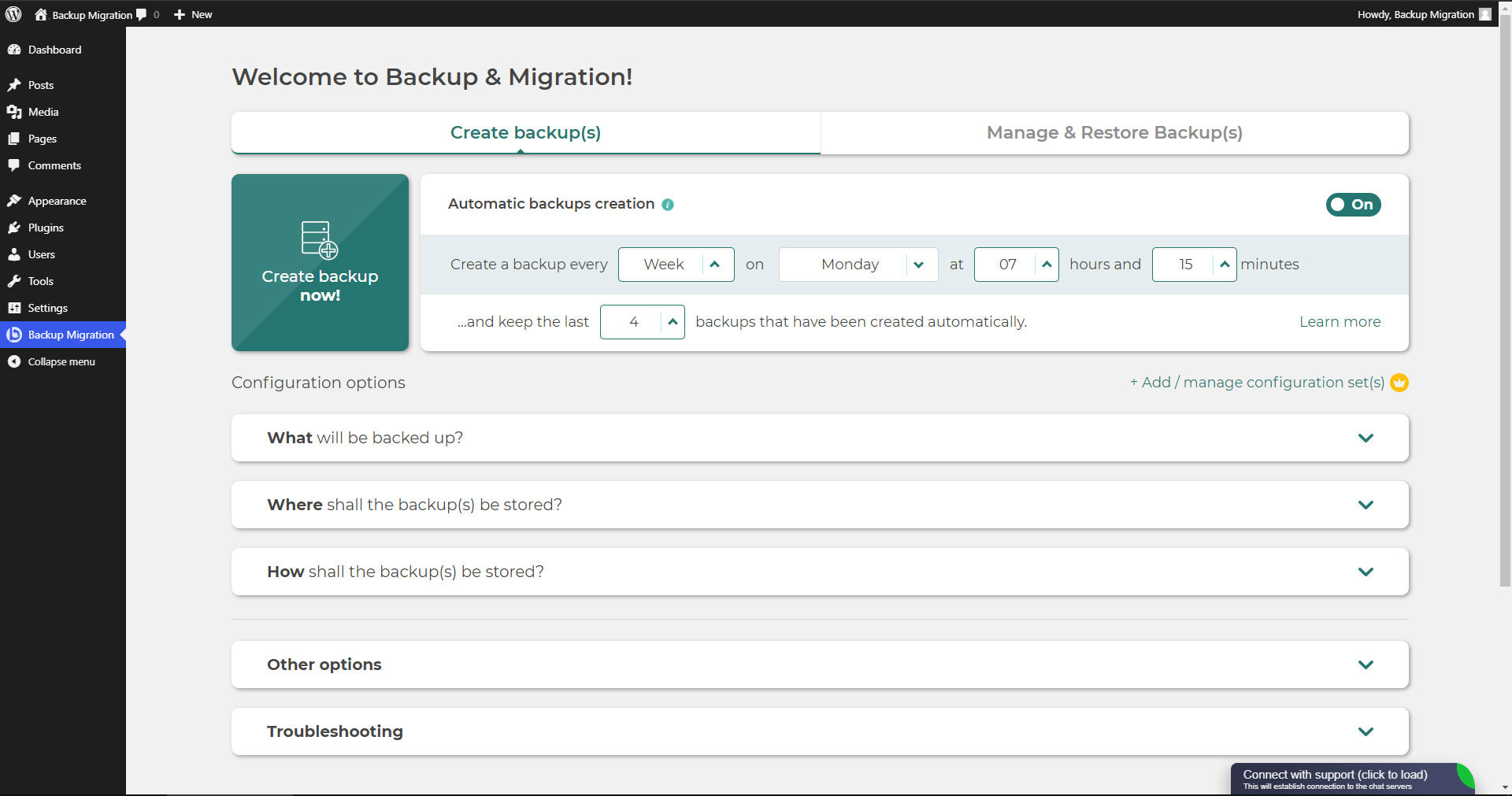
Πρόσοψη του πρόσθετου Backup Migration 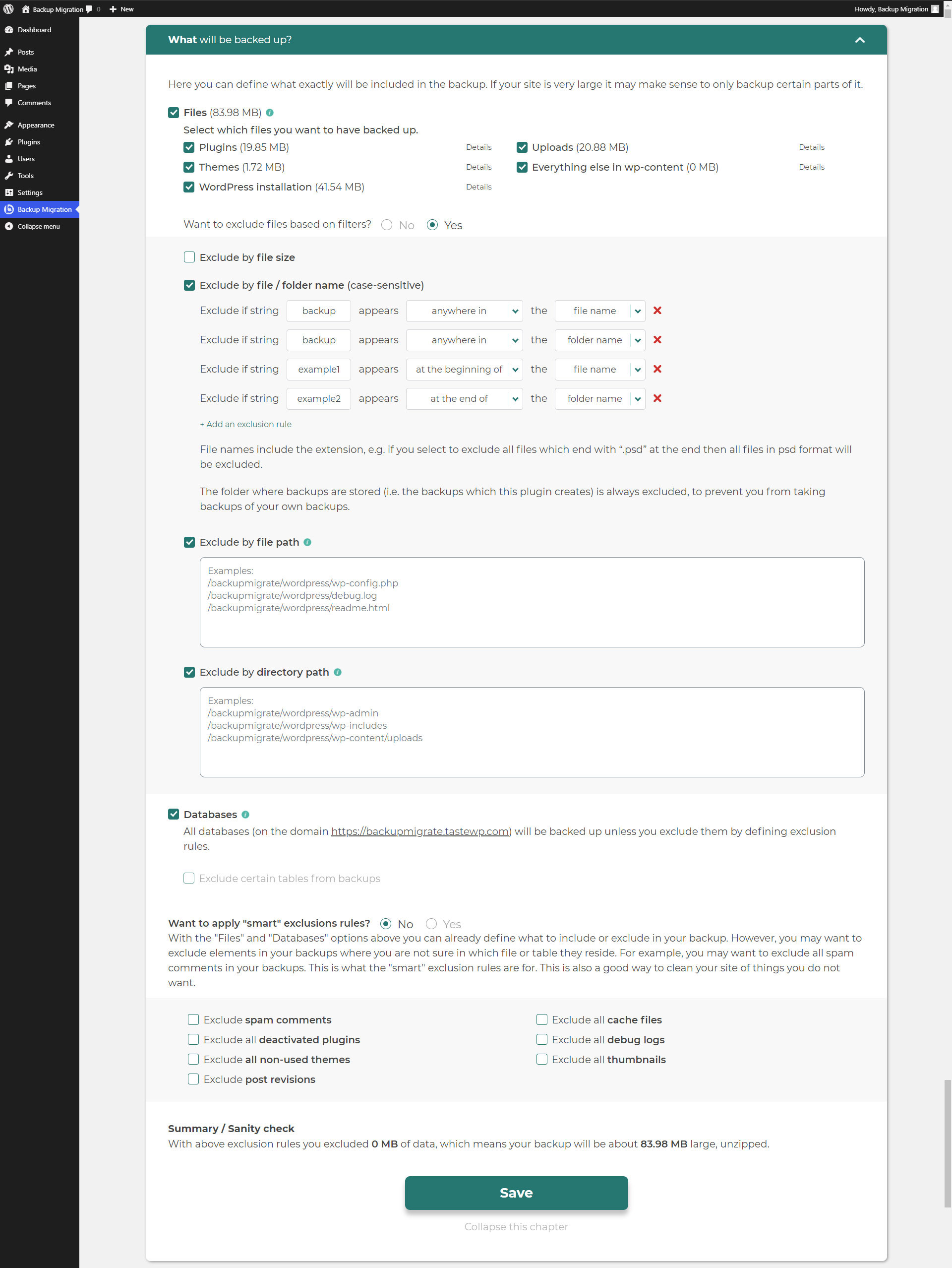
Τι θα περιηληφθεί στα αντίγραφα ασφαλείας 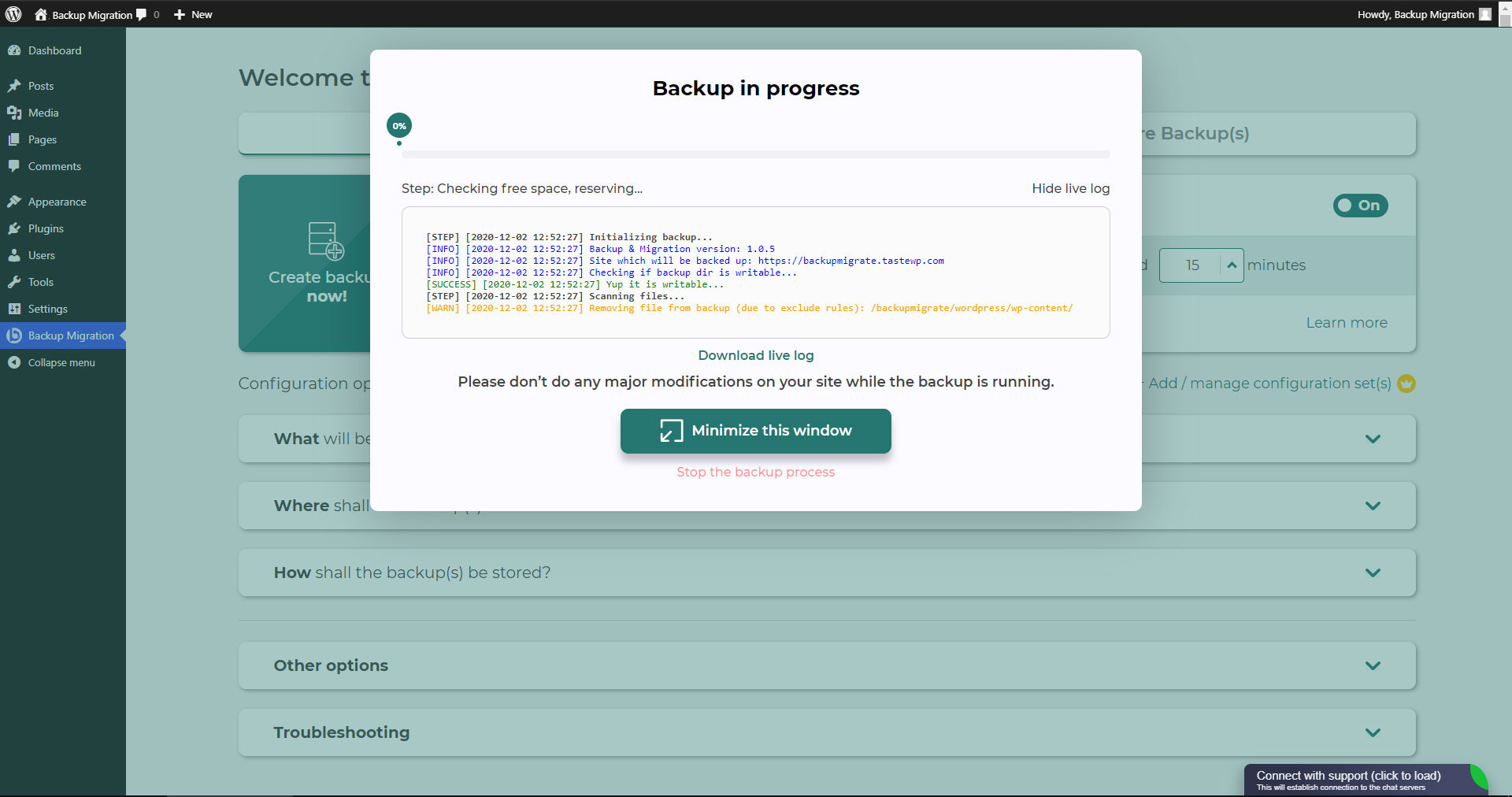
Δημιουργία αντίγραφου ασφαλείας σε εξέλιξη 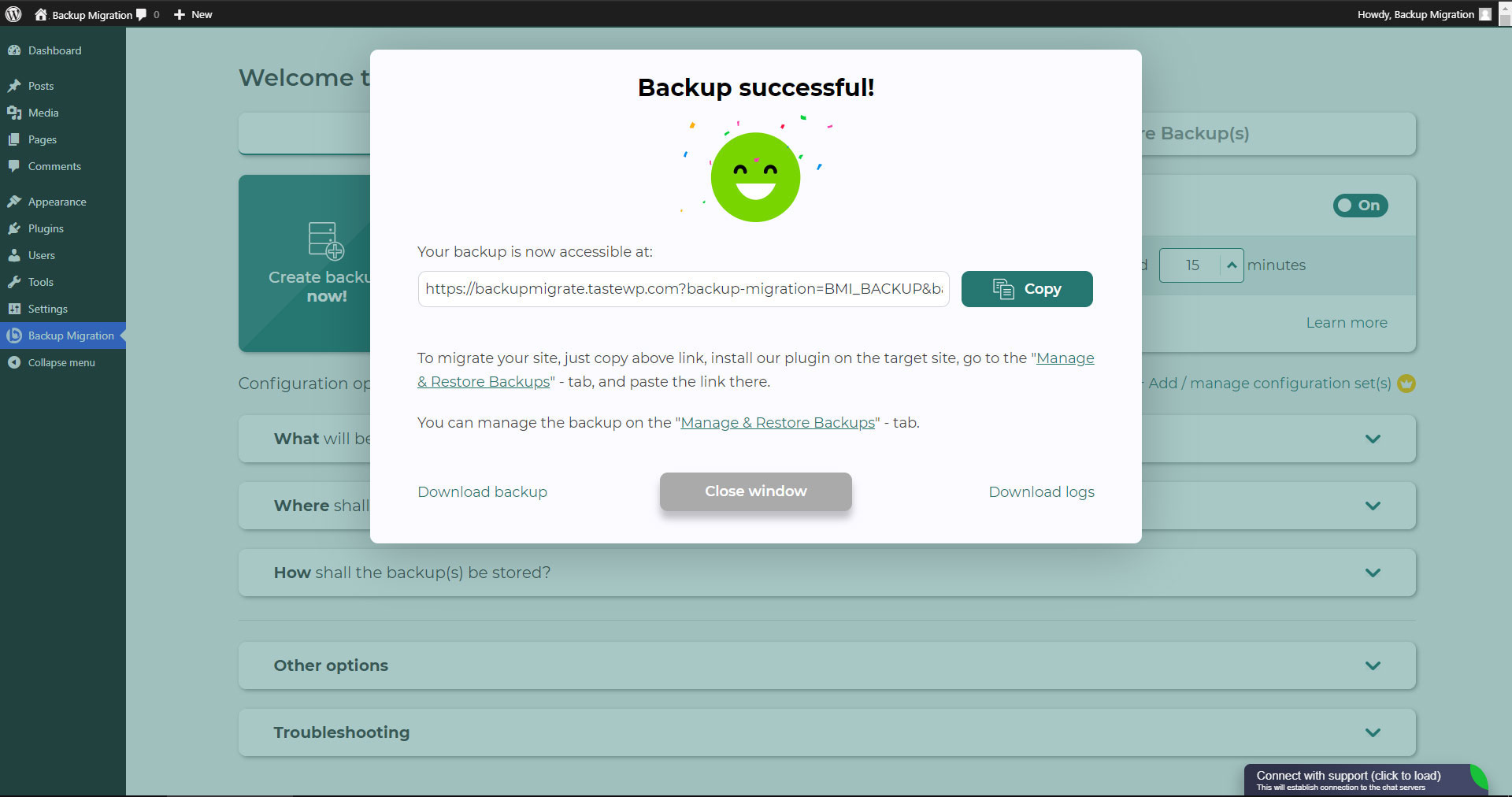
Η δημιουργία αντίγραφων ασφαλείας ολοκληρώθηκε 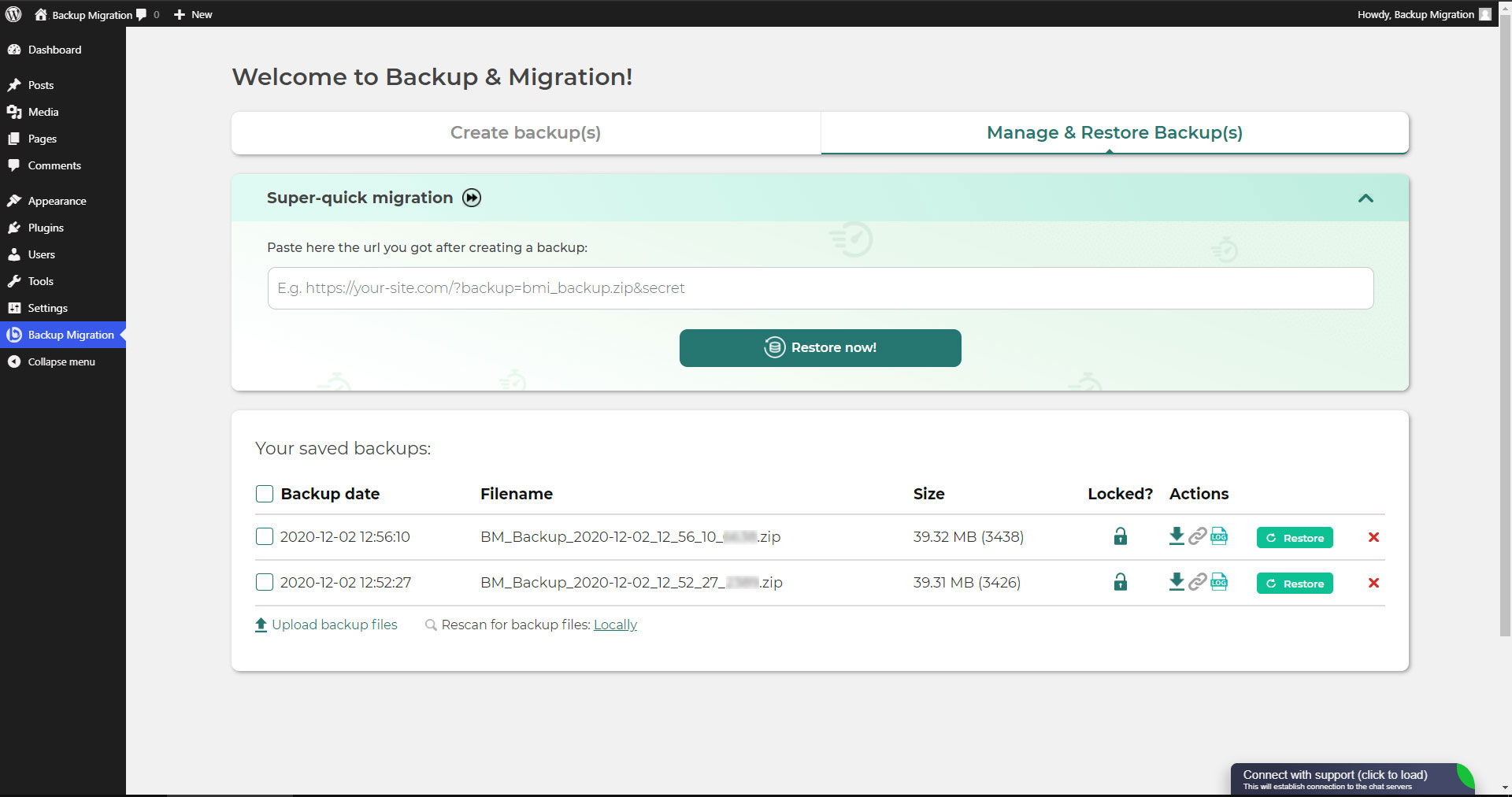
Διαχειριστείτε και Ανακτήστε αντίγραφα ασφαλείας 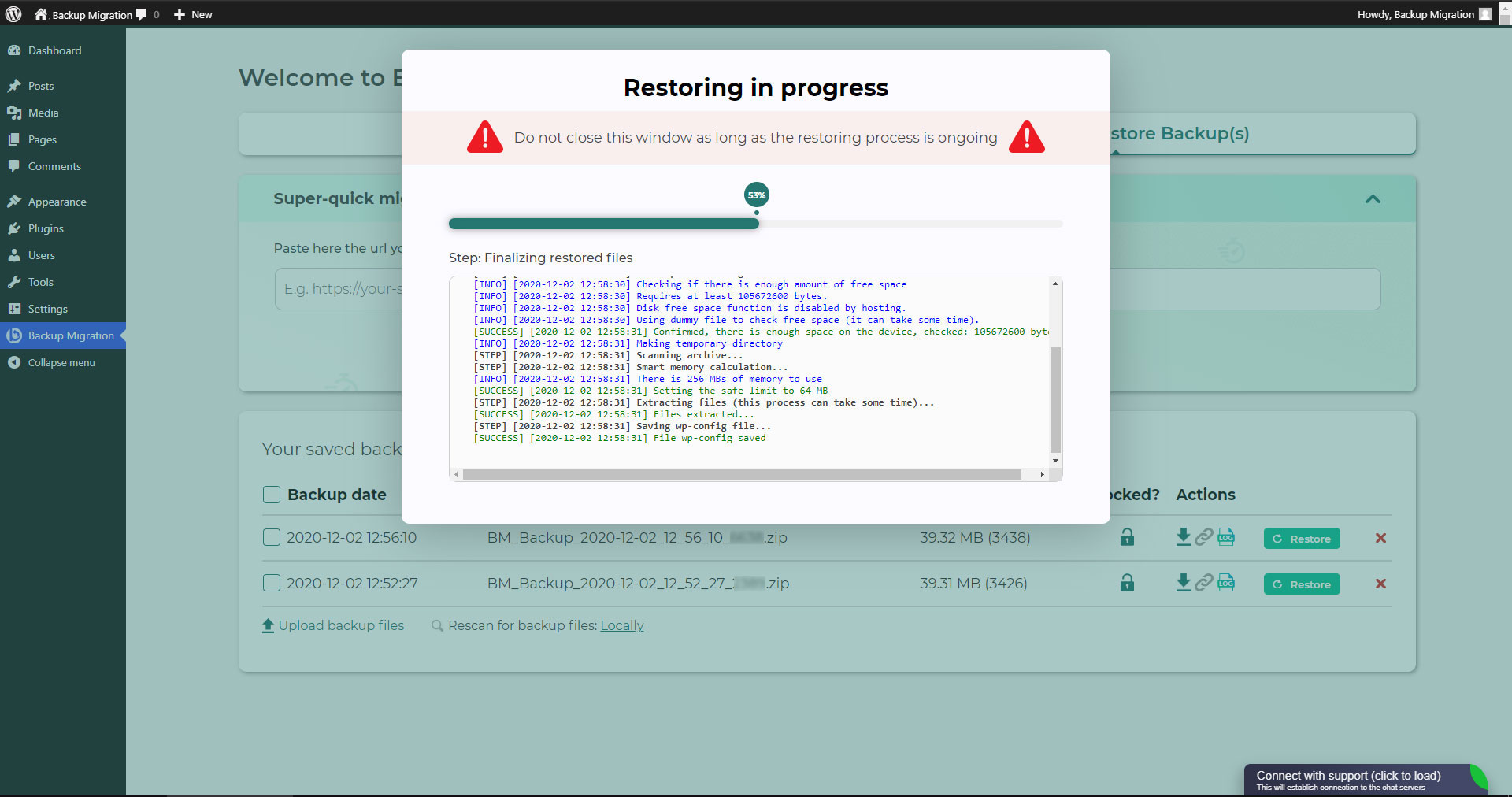
Ανάκτηση σε εξέλιξη 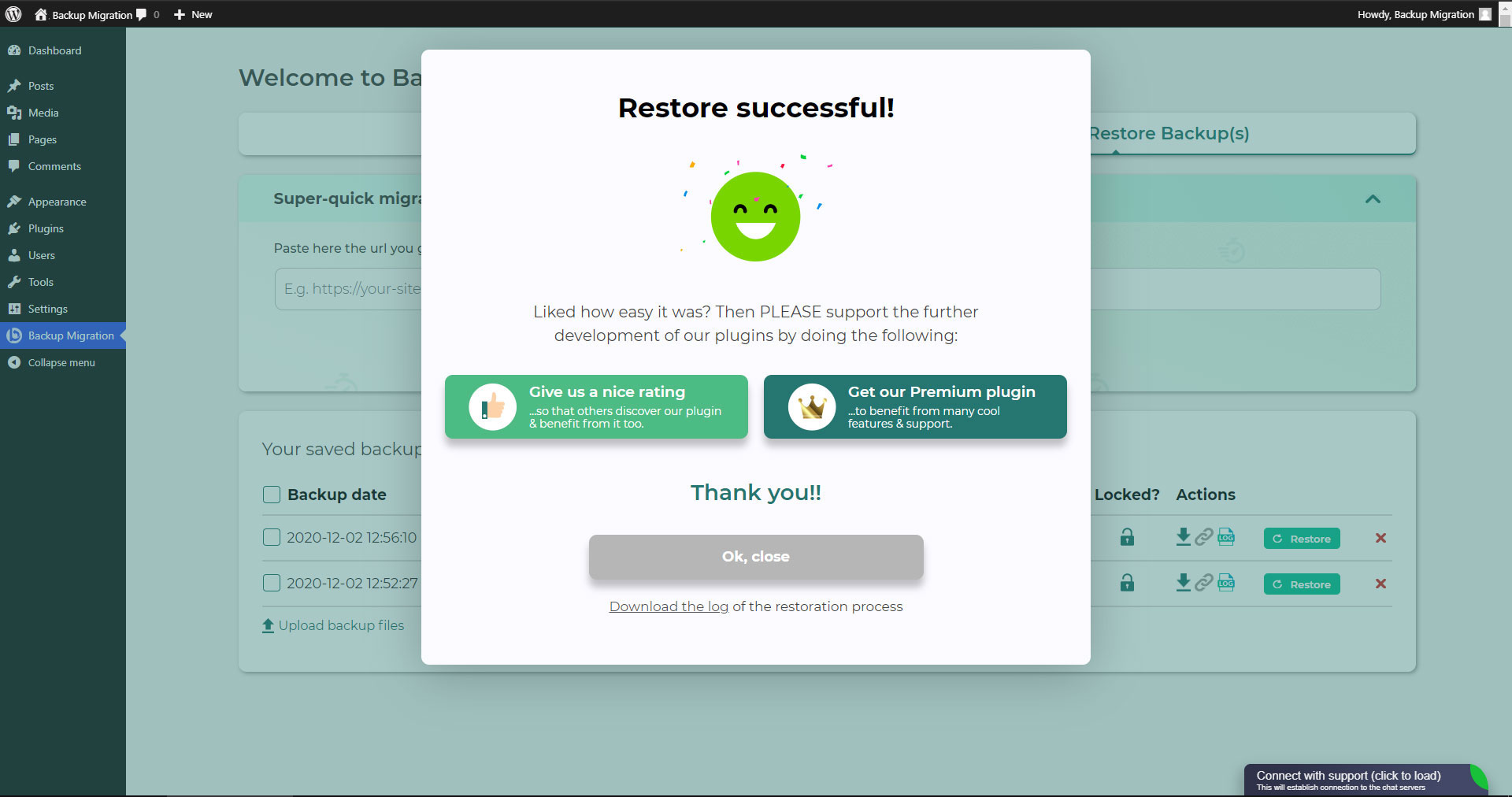
Ολοκληρώθηκε η ανάκτηση 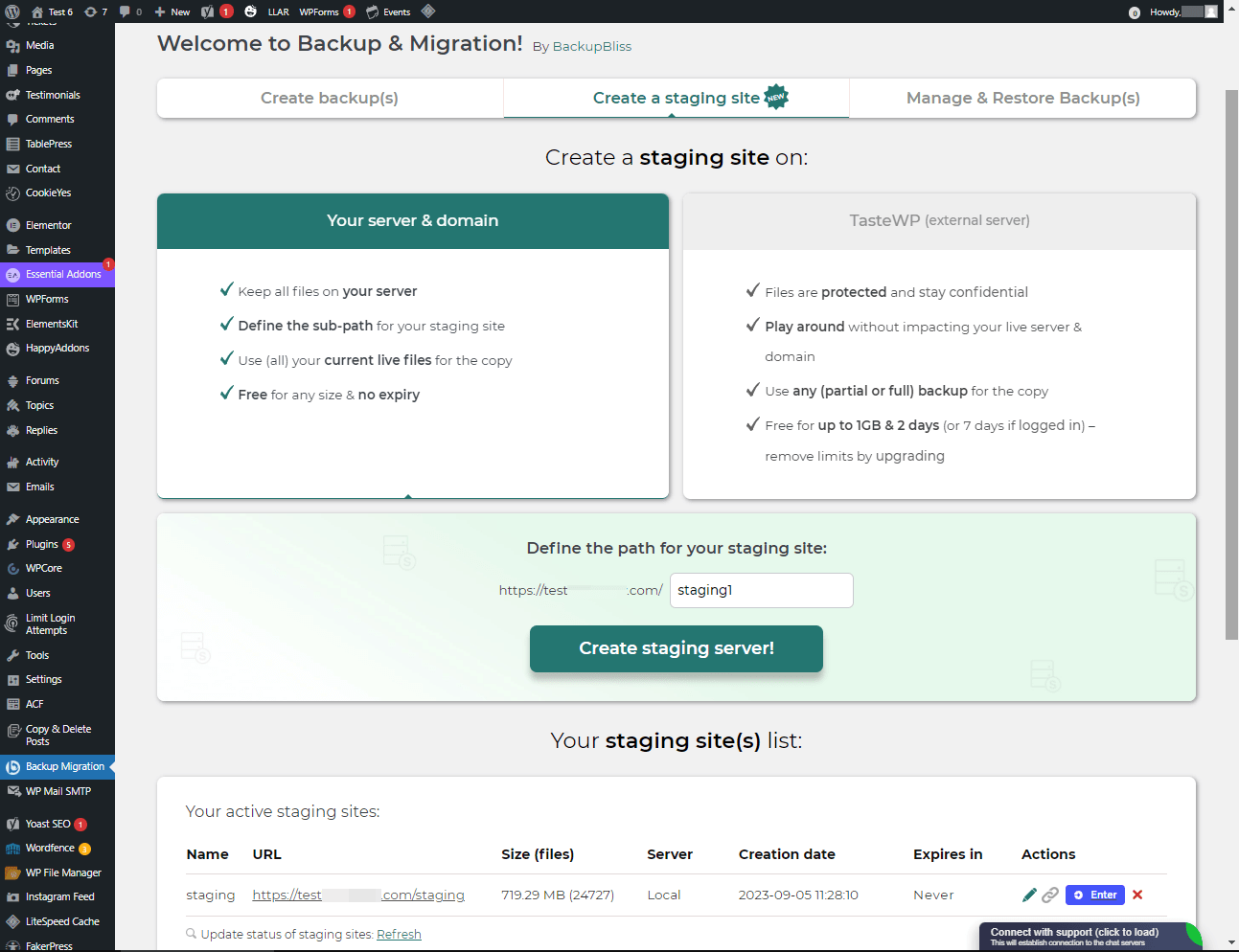
Ιστότοποι Προετοιμασίας


Εγκατάσταση
Εγκατάσταση από Διαχειριστή μέσω αναζήτησης
- Επισκεφτείτε την οθόνη προσθήκης νέου πρόσθετου και επιλέξτε “Συγγραφέας” από το πτυσσόμενο δίπλα στην είσοδο αναζήτησης
- Ψάξτε για “Migrate”
- Βρείτε το “Backup Migration” και πατήστε το κουμπί “Εγκατάσταση τώρα”.
- Ενεργοποιήστε το πρόσθετο.
- Το πρόσθετο θα πρέπει να εμφανίζεται παρακάτω, στο μενού των ρυθμίσεων.
Εγκατάσταση από διαχειριστή μέσω zip
- Επισκεφτείτε την οθόνη προσθήκης νέου πρόσθετου και πατήστε το κουμπί “Μεταφόρτωση πρόσθετου”.
- Πατήστε το κουμπί “Περιηγηθείτε…” και επιλέξτε το αρχείο zip του πρόσθετού μας.
- Click the “Install Now” button.
- Όταν ολοκληρωθεί η μεταφόρτωση, ενεργοποιήστε το Backup Migration.
- Το πρόσθετο θα πρέπει να εμφανίζεται παρακάτω, στο μενού των ρυθμίσεων.
Συχνές Ερωτήσεις
-
Πώς μπορώ να δημιουργήσω το πρώτο μου αντίγραφο ασφαλείας;
-
Κάντε κλικ στην επιλογή “Δημιουργία αντιγράφου ασφαλείας τώρα” στη σελίδα ρυθμίσεων του πρόσθετου BackupBliss – Backup Migration Staging.
Το Backup Migration θα δημιουργήσει από προεπιλογή ένα αντίγραφο ασφαλείας που θα περιέχει τα πάντα από τον ιστότοπό σας, εκτός από τα αντίγραφα ασφαλείας του ίδιου του πρόσθετου και της εγκατάστασης του WordPress – αν θέλετε να συμπεριλάβετε και την εγκατάσταση του WordPress, τικάρετε το αντίστοιχο πλαίσιο στην ενότητα “Τι θα συμπεριληφθεί στα αντίγραφα ασφαλείας;”
You can download or migrate your backup (use the plugin as a WordPress duplicator) immediately after the backup has been created.
-
Πώς μπορώ να ανακτήσω ένα αντίγραφο ασφαλείας;
-
-
Αν το αντίγραφο ασφαλείας σας βρίσκεται στον ιστότοπό σας : Πάτε στην οθόνη του πρόσθετου Backup Migration, μετά στην καρτέλα “Διαχείριση και Ανάκτηση Αντίγραφων Ασφαλείας”, όπου θα βρείτε τη λίστα με τα αντίγραφα ασφαλείας σας, και πατήστε το κουμπί ανάκτησης δίπλα στο αντίγραφο ασφαλείας που θέλετε να ανακτήσετε.
-
If your backup is located on another site: Go to the BackupBliss – Backup Migration Staging plugin screen on site #1, then to the Manage & Restore Backup(s) tab where you have the backups list, click on the “Copy Link”-button in the “Actions”-column. Go to the BackupBliss – Backup Migration Staging plugin screen on site #2, then to the Manage & Restore Backup(s) tab, click on “Super-quick migration”, paste the copied link, and hit “Restore now!” button. This process will first import the backup and then restore it, i.e. Backup Migrate also serves as backup importer.
-
If your backup is located on another device: Go to the BackupBliss – Backup Migration Staging plugin screen, then to the Manage & Restore Backup(s) tab, and click on the “Upload backup files” button. After the upload, click on the Restore button next to the backup you would like to restore.
-
If your backup is located on Google Drive, OneDrive, Dropbox, Amazon S3, Wasabi, BackupBliss Storage, pCloud, FTP or SFTP: Go to the BackupBliss – Backup Migration Staging plugin screen, then to the plugin section “Where shall the backup(s) be stored?”, turn ON the respective external storage option, and connect to your account. After that, the plugin will sync the available backup files in the plugin section “Manage & Restore Backups” from where you will be able to run Restore.
-
-
Πώς μπορώ να αποδημήσω ή να κλωνοποιήσω τον ιστότοπό μου;
-
Αποδημήστε (ή κλωνοποιήστε) έναν ιστότοπο WordPress δημιουργώντας ένα ολοκληρωμένο αντίγραφο ασφαλείας του ιστότοπου που θέλετε να αποδημήσετε(κλωνοποιήσετε) – ιστότοπος #1.
-
Για να μεταφέρετε έναν ιστότοπο απευθείας από τον ιστότοπο#1 στον ιστότοπο#2: Πάτε στην οθόνη του πρόσθετου Backup Migration στον ιστότοπο#1, μετά στην καρτέλα “Διαχείριση και Ανάκτηση Αντιγράφων ασφαλείας”, όπου έχετε τη λίστα με τα αντίγραφα ασφαλείας, πατήστε στο κουμπί “Αντιγραφή Συνδέσμου” στη στήλη ενεργειών. Πάτε στην οθόνη του πρόσθετου Backup Migration στον ιστότοπο#1, μετά στην καρτέλα “Διαχείριση και Ανάκτηση Αντιγράφων ασφαλείας”, πατήστε στο κουμπί “Πολύ γρήγορη μετάπτωση”, επικολλήστε το σύνδεσμο και πατήστε το κουμπί “Ανάκτηση τώρα!”. Βεβαιωθείτε ότι το αρχείο του αντίγραφου ασφαλείας στον ιστότοπο#1 είναι προσβάσιμο, ορίζοντας τη ρύθμιση “Προσβάσιμο μέσω άμεσου συνδέσμου;” στο “Ναι”, στην ενότητα του πρόσθετου “Που θα αποθηκευτούν τα αντίγραφα ασφαλείας;”
-
Για να αποδημήσετε έναν ιστότοπο έμμεσα : Πάτε στην οθόνη του πρόσθετου Backup Migration, μετά στην καρτέλα “Διαχείριση και Ανάκτηση Αντίγραφων ασφαλείας” και πατήστε στο κουμπί “Μεταφόρτωση αρχείων αντίγραφων ασφαλείας. Μετά την μεταφόρτωση, πατήστε στο κουμπί ανάκτησης δίπλα στο αντίγραφο ασφαλείας που θέλετε να ανακτήσετε.
-
To migrate the website with Google Drive, OneDrive, Dropbox, Amazon S3, Wasabi, BackupBliss Storage, pCloud, FTP or SFTP: Go to the BackupBliss – Backup Migration Staging plugin screen, then to the plugin section “Where shall the backup(s) be stored?”, turn ON the respective external storage option, and connect to your account. After that, the plugin will sync the available backup files in the plugin section “Manage & Restore Backups” from where you will be able to run Restore.
-
-
Που μπορώ να βρώ τα αντίγραφα ασφαλείας μου;
-
BackupBliss – Backup Migration Staging allows you to download backups, migrate backups, or delete backups directly from the plugin screen Manage & Restore Backup(s). By default, the migrator plugin will store backups locally on the server to /wordpress/wp-content/backup-migration but you can change the backup location to anywhere you please. If you have backups stored on the cloud – OneDrive, Dropbox, Google Drive, BackupBliss Storage, Amazon S3, Wasabi, pCloud, FTP or SFTP, you will need to connect the plugin with the respective storage account, so that the plugin can synchronize the data.
-
Πώς μπορώ να τρέξω την αυτόματη δημιουργία αντίγραφων ασφαλείας;
-
Enabling automatic backups is done on the BackupBliss – Backup Migration Staging plugin’s home screen, just next to the “Create backup now!” button. Auto backup can run on a monthly, weekly, or daily basis. You can set the exact time (and day) and how many automatic backups you would like to keep in the same BackupBliss – Backup Migration Staging plugin section. We recommend that you optimize the number of backups that will be kept according to available space. With the premium version, you can also set partial automatic backups before theme, plugin, or WordPress core updates.
-
Πόσο μεγάλα είναι τα αρχεία αντίγραφων ασφαλείας;
-
Backup file size depends on the criteria you select in the “What will be backed up?” section of the BackupBliss – Backup Migration Staging plugin. There you can see file/folder size calculations as you save your settings. Usually, WordPress’ Uploads folder is the heaviest, while Databases are the lightest. If you are looking to save up space, you might want to deselect Plugins and WordPress installation folders, as you can usually download those anytime from WP sources.
-
Είναι δωρεάν η δημιουργία αντίγραφων ασφαλείας και η αποδημία ιστότοπων;
-
Yes. You can create full site backups, and automatic backups, and migrate your site (duplicate site) free of charge. BackupBliss – Backup Migration Staging Pro provides more sophisticated filters and selections of files that will be included/excluded from backups (affecting backup size), faster backup creation times, number of external backup storage locations, backup encryption, backup file compression methods, advanced backup triggers, additional backup notifications by email, priority support, and more.
-
How to create staging sites?
-
Μπορείτε εύκολα να δημιουργήσετε ένα περιβάλλον προετοιμασίας (staging environment) για τον ιστότοπό σας χρησιμοποιώντας το πρόσθετο BackupBliss. Μπορείτε να επιλέξετε να δημιουργήσετε έναν ιστότοπο προετοιμασίας είτε στον δικό σας διακομιστή / υπολογιστή είτε στο TasteWP. Και οι δύο επιλογές είναι δωρεάν!
-
Για να δημιουργήσετε έναν ιστότοπο προετοιμασίας στον δικό σας διακομιστή, πλοηγηθείτε στο τμήμα του plugin “Δημιουργία ιστότοπου προετοιμασίας”, επιλέξτε “Ο διακομιστής & το domain σας”, ορίστε μια προσαρμοσμένη διαδρομή εάν επιθυμείτε, και κάντε κλικ στο κουμπί “Δημιουργία ιστότοπου προετοιμασίας!
-
Για να δημιουργήσετε έναν ιστότοπο προετοιμασίας (staging site) σε μια δωρεάν πλατφόρμα sandbox του WordPress – TasteWP, επιλέξτε την επιλογή “TasteWP (εξωτερικός διακομιστής)”, στη συνέχεια επιλέξτε ένα αρχείο αντιγράφου ασφαλείας που θα χρησιμοποιηθεί, και κάντε κλικ στο κουμπί “Δημιουργία ιστότοπου προετοιμασίας!
-
-
⭐️ NEW! Is cloud backup available?
-
Backup to Google Drive, OneDrive, FTP, Amazon S3, Wasabi, BackupBliss Storage, SFTP, pCloud and Dropbox are now available in the BackupBliss – Backup Migration Staging Pro
Upcoming storage options will include: Rackspace, DreamObjects, OpenStack, Google Cloud, Microsoft Azure, Backblaze, and more – vote for your favorite here. -
⭐️ NEW! How do I back up to Google Drive / OneDrive / BackupBliss Storage / Dropbox / pCloud / FTP / SFTP / Amazon S3/ Wasabi ?
-
In order to automatically upload your site backups to the Cloud, you will need a Pro version of the plugin. Once installed and activated, navigate to the plugin section “Where shall the backup(s) be stored?”, and turn ON the respective external storage feature. Click on the button Connect, and select the account you want to connect to. Once it is connected, your backup files from the website will start to sync to your connected storage. You can monitor the process in the plugin section “Manage & Restore Backups”
-
Πως είστε καλύτεροι από άλλα πρόσθετα αντίγραφων ασφαλείας/αποδημίας;
-
Besides having the most intuitive interface and smoothest user experience, BackupBliss – Backup Migration Staging plugin will always strive to give you more than any competitor:
– None of the competitors provides their own free backup cloud storage.
– Updraftplus: They charge for migration, with our plugin it’s free;
– All-in-One WP Migration: In the free version, compared to our plugin – they don’t have selective/partial backups; they lack advanced options and each external storage is on a separate extension plugin; they have no automatic backups;
– Duplicator: In the free version, compared to our plugin – they have no selective backups, exclusion rules, no automatic backups and no migration;
– WPvivid: In the free version, compared to our plugin – they don’t have selective/partial backups, exclusion rules, or automatic backups;
– BackWPup: In the free version, compared to our plugin – they lack restore options, backups are slower, automatic backups are dependant on wp cron;
– Backup Guard: In the free version, compared to our plugin – they have no selective backups, exclusion rules; no direct migration;
– XCloner: Automatic backups are dependent on WP Cron; full restore not available on a local server;
– Total Upkeep: They lack the advanced selective backups and exclusion rules, and lack a monthly backup schedule -
Πώς μπορώ να μεταφορτώσω το αρχείο αντιγράφου ασφαλείας μου;
-
Η αποστολή ενός αντιγράφου ασφαλείας μπορεί να γίνει απλά πηγαίνοντας στο τμήμα Διαχείρισης & Επαναφοράς Αντιγράφων (Manage & Restore Backup(s)) του πρόσθετου BM (Backup Migration). Εκεί θα βρείτε το κουμπί “Μεταφόρτωση αντιγράφου ασφαλείας” (Upload backup file). Αφού κάνετε κλικ επάνω του, θα πρέπει να επιλέξετε ένα κατάλληλο αντίγραφο ασφαλείας που δημιουργήθηκε από αυτό το πρόσθετο μόνο. Δεν μπορείτε να χρησιμοποιήσετε αντίγραφα ασφαλείας από άλλα πρόσθετα (για την επαναφορά αυτών, πηγαίνετε πίσω σε αυτά τα πρόσθετα και επαναφέρετέ τα με αυτόν τον τρόπο). Εάν χρησιμοποιείτε την “Πολύ-γρήγορη μεταφορά” (Super-quick migration) (ενότητα β), το αντίγραφο ασφαλείας σας θα μεταφορτωθεί αυτόματα. Εάν αντιμετωπίζετε προβλήματα με τη μεταφόρτωση του αντιγράφου ασφαλείας, πηγαίνετε πίσω και ελέγξτε ότι ο φάκελος που έχει οριστεί για τα αντίγραφα ασφαλείας είναι εγγράψιμος. Μπορείτε να βρείτε τον προορισμό των αντιγράφων ασφαλείας στο τμήμα του πρόσθετου “Πού θα αποθηκευτούν τα αντίγραφα ασφαλείας;” (Where shall the backup(s) be stored?).
-
Είναι το πρόσθετο διαθέσιμο και στη γλώσσα μου;
-
Μπορείτε να μεταφράσετε στα Ελληνικά τις παρακάτω φράσεις:
Arabic: إنشاء نسخة احتياطية واستعادة النسخ الاحتياطية وترحيل المواقع. أفضل مكون إضافي لمواقع الترحيل والاستنساخ!
Chinese (China): 创建备份、还原备份和迁移站点。 迁移和克隆网站的最佳插件!
Croatian: Izradite sigurnosnu kopiju, vratite sigurnosne kopije i migrirajte web-mjesta. Najbolji dodatak za migraciju i kloniranje web stranica!
Dutch: Maak back-ups, herstel back-ups en migreer sites. De beste plug-in voor het migreren en klonen van websites!
English: Create a backup, restore backups and migrate a website. The best plugin for migration and to clone a website
Finnish: Luo varmuuskopio, palauta varmuuskopiot ja siirrä sivustot. Paras laajennus sivustojen siirtoon ja kloonaukseen!
French (France): Créez des sauvegardes, restaurez des sauvegardes et migrez des sites. Le meilleur plugin pour les sites Web de migration et de clonage !
German: Erstellen Sie Backups, stellen Sie Backups wieder her und migrieren Sie Websites. Das beste Plugin für Migrations- und Klon-Websites!
Greek: Δημιουργία αντιγράφων ασφαλείας, επαναφορά αντιγράφων ασφαλείας και μετεγκατάσταση τοποθεσιών. Το καλύτερο πρόσθετο για μετανάστευση και κλωνοποίηση ιστοσελίδων!
Hungarian: Biztonsági másolat készítése, biztonsági másolatok visszaállítása és webhelyek migrálása. A legjobb bővítmény a webhelyek migrációjához és klónozásához!
Indonesian: Buat cadangan, pulihkan cadangan, dan migrasikan situs. Plugin terbaik untuk migrasi dan kloning situs web!
Italian: Crea backup, ripristina backup e migra i siti. Il miglior plugin per la migrazione e la clonazione di siti web!
Persian: ایجاد نسخه پشتیبان، بازیابی نسخه پشتیبان، و مهاجرت سایت ها. بهترین افزونه برای مهاجرت و شبیه سازی وب سایت ها!
Polish: Twórz kopie zapasowe, przywracaj kopie zapasowe i przenoś witryny. Najlepsza wtyczka do migracji i klonowania stron internetowych!
Portuguese (Brazil): Crie backup, restaure backups e migre sites. O melhor plugin para migração e clonagem de sites!
Russian: Создавайте резервные копии, восстанавливайте резервные копии и переносите сайты. Лучший плагин для миграции и клонирования сайтов!
Spanish: Cree copias de seguridad, restaure copias de seguridad y migre sitios. ¡El mejor complemento para sitios web de migración y clonación!
Turkish: Yedekleme oluşturun, yedeklemeleri geri yükleyin ve site taşıyın. Websitesi taşımaya ve klonlamaya yönelik en iyi eklentidir!
Vietnamese: Tạo sao lưu, khôi phục các bản sao lưu và di chuyển các trang web. Plugin tốt nhất để di chuyển và sao chép các trang web!
Κριτικές


Συνεισφέροντες & Προγραμματιστές
“BackupBliss – Backup & Migration with Free Cloud Storage” είναι λογισμικό ανοιχτού κώδικα. Οι παρακάτω έχουν συνεισφέρει στη δημιουργία του.
Συντελεστές

Το “BackupBliss – Backup & Migration with Free Cloud Storage” έχει μεταφραστεί σε 27 γλώσσες. Ευχαριστούμε τους μεταφραστές για τις συνεισφορές τους.
Μεταφράστε το “BackupBliss – Backup & Migration with Free Cloud Storage” στην γλώσσα σας.
Ενδιαφέρεστε για την ανάπτυξη;
Περιηγηθείτε στον κώδικα, ανατρέξτε στο αποθετήριο SVN ή εγγραφείτε στο αρχείο καταγραφής αλλαγών ανάπτυξης μέσω RSS .
Σύνοψη αλλαγών
2.1.4
- [FIX] Ensured restore success modal appears correctly after restore completion.
- [FIX] Corrected SQL LIKE statement escaping for accurate query handling and improved security.
2.1.3
- [FEATURE] Enhanced backup banner with improved initialization logic, positioning, and transition effects.
- [FEATURE] Added delayed banner display after 5 minutes of initialization.
- [FEATURE] Implemented dynamic arrow positioning updates on DOM mutations for the banner.
- [FEATURE] Added menu item checks for accurate banner positioning and behavior.
- [FEATURE] Limited banner overlay to admin items only when triggered.
- [FEATURE] Enabled new database export engine option in settings.
- [FIX] Preserved POST
fvalue during AJAX handler initialization. - [FIX] Ensured menu item is correctly referenced when hiding the banner.
2.1.2
- Tested with WordPress 6.9.4
- [FEATURE] Implemented new database export engine with support for unbuffered queries.
- [FEATURE] Added dual storage backend with file-based fallback for improved reliability.
- [FEATURE] Added backup banner with dismiss functionality and updated assets.
- [FEATURE] Introduced log file suffix configuration for improved log management.
- [ENHANCEMENT] Increased default search/replace limits and enabled new search/replace engine.
- [ENHANCEMENT] Enhanced fetchRows method to support unbuffered queries for better performance.
- [ENHANCEMENT] Improved banner responsiveness, text wrapping, and installation link handling.
- [ENHANCEMENT] Improved responsive design of feature cards and dashboard banners.
- [ENHANCEMENT] Simplified restore success modal logic for better user feedback.
- [ENHANCEMENT] Streamlined exclusion logic and error handling in database export process.
- [FIX] Prevented frequent cron job execution for improved stability.
- [REFACTOR] Kept legacy database engine as primary while introducing new engine as alternative.
- [REFACTOR] Simplified banner dismiss logic and improved redirect behavior.
- [REFACTOR] Removed unnecessary database prepare calls.
- [DOCS] Added warning about unbuffered query behavior in database export documentation.
- [MISC] Various internal improvements, optimizations, and minor fixes across the plugin.
2.1.1
- Tested with WordPress 6.9.1
- [ENHANCEMENT] Optimized restore log retrieval to reduce unnecessary HTTP requests and improve performance.
- [STYLE] Improved modal UI with refined button and container padding, font sizes, and color adjustments for better visual consistency.
2.1.0
- Tested with WordPress 6.9
- [FEATURE] Introduced restoration of local plugin configuration after migration to preserve site-specific settings.
- [FEATURE] Added resync functionality with ping server for improved offline and recovery scenarios.
- [FEATURE] Implemented authentication handshake for offline M2M connections.
- [FEATURE] Added extension and environment checks for S3, Wasabi, FTP, and cURL based storage integrations.
- [FEATURE] Added space requirement checks before showing upload issue notices.
- [FEATURE] Implemented wake lock request and release functionality to prevent interruptions during long operations.
- [FEATURE] Implemented backup search functionality with input handling.
- [FEATURE] Added plugin auto-update notice and update check functionality.
- [FEATURE] Added restore log filling logic to improve restore feedback and avoid false error responses.
- [FEATURE] Implemented a new database search and replace engine with progress tracking.
- [FEATURE] Added affordable premium banner card with SVG icon.
- [ENHANCEMENT] Improved error handling and response validation across jQuery, AJAX, and offline endpoints.
- [ENHANCEMENT] Improved security by sanitizing output in templates and notices using proper WordPress escaping functions.
- [ENHANCEMENT] Improved database query handling and resolved PluginCheck and PHPCS security warnings.
- [ENHANCEMENT] Updated cron API endpoint to v2 for improved reliability.
- [ENHANCEMENT] Improved log message clarity and documentation for backup manifest handling.
- [ENHANCEMENT] Streamlined connection verification methods for Google Drive, FTP, and BackupBliss.
- [ENHANCEMENT] Improved backup and restore log handling using bmi-id for consistency and compatibility.
- [ENHANCEMENT] Improved backup locking and race condition handling to prevent overlapping operations.
- [ENHANCEMENT] Improved tooltip messaging and visual feedback for backup completion and storage icons.
- [… and more …]
previous
Old changelog has been removed due to WordPress limitation of 5000 characters.