Webhooks allow external services to trigger workflow execution by sending HTTP requests to your workflow. Sim supports two approaches for webhook-based triggers.
Generic Webhook Trigger
The Generic Webhook block creates a flexible endpoint that can receive any payload and trigger your workflow:
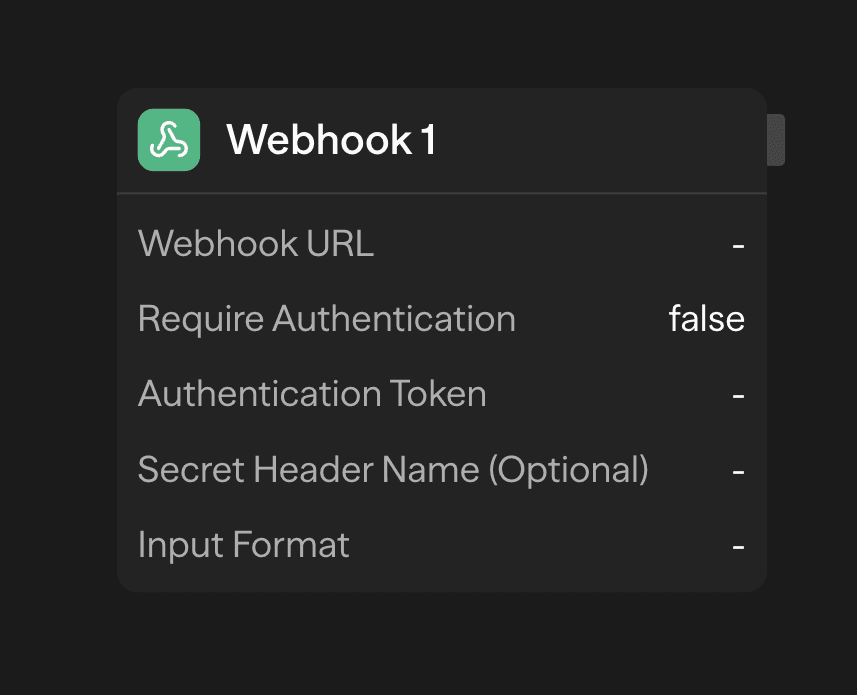
How It Works
- Add Generic Webhook Block - Drag the Generic Webhook block to start your workflow
- Configure Payload - Set up the expected payload structure (optional)
- Get Webhook URL - Copy the automatically generated unique endpoint
- External Integration - Configure your external service to send POST requests to this URL
- Workflow Execution - Every request to the webhook URL triggers the workflow
Features
- Flexible Payload: Accepts any JSON payload structure
- Automatic Parsing: Webhook data is automatically parsed and available to subsequent blocks
- Authentication: Optional bearer token or custom header authentication
- Rate Limiting: Built-in protection against abuse
- Deduplication: Prevents duplicate executions from repeated requests
The Generic Webhook trigger fires every time the webhook URL receives a request, making it perfect for real-time integrations.
Trigger Mode for Service Blocks
Alternatively, you can use specific service blocks (like Slack, GitHub, etc.) in "trigger mode" to create more specialized webhook endpoints:
Setting Up Trigger Mode
- Add Service Block - Choose a service block (e.g., Slack, GitHub, Airtable)
- Enable Trigger Mode - Toggle "Use as Trigger" in the block settings
- Configure Service - Set up authentication and event filters specific to that service
- Webhook Registration - The service automatically registers the webhook with the external platform
- Event-Based Execution - Workflow triggers only for specific events from that service
When to Use Each Approach
Use Generic Webhook when:
- Integrating with custom applications or services
- You need maximum flexibility in payload structure
- Working with services that don't have dedicated blocks
- Building internal integrations
Use Trigger Mode when:
- Working with supported services (Slack, GitHub, etc.)
- You want service-specific event filtering
- You need automatic webhook registration
- You want structured data handling for that service
Supported Services for Trigger Mode
Development & Project Management
- GitHub - Issues, PRs, pushes, releases, workflow runs
- Jira - Issue events, worklogs
- Linear - Issues, comments, projects, cycles, labels
Communication
- Slack - Messages, mentions, reactions
- Microsoft Teams - Chat messages, channel notifications
- Telegram - Bot messages, commands
- WhatsApp - Messaging events
- Gmail - New emails (polling), label changes
- Outlook - New emails (polling), folder events
CRM & Sales
- HubSpot - Contacts, companies, deals, tickets, conversations
- Stripe - Payments, subscriptions, customers
Forms & Surveys
- Typeform - Form submissions
- Google Forms - Form responses
- Webflow - Collection items, form submissions
Other
- Airtable - Record changes
- Twilio Voice - Incoming calls, call status
Security and Best Practices
Authentication Options
- Bearer Tokens: Include
Authorization: Bearer <token>header - Custom Headers: Define custom authentication headers
Payload Handling
- Validation: Validate incoming payloads to prevent malformed data
- Size Limits: Webhooks have payload size limits for security
- Error Handling: Configure error responses for invalid requests
Testing Webhooks
- Use tools like Postman or curl to test your webhook endpoints
- Check workflow execution logs for debugging
- Verify payload structure matches your expectations
- Test authentication and error scenarios
Always validate and sanitize incoming webhook data before processing it in your workflows.
Common Use Cases
Real-time Notifications
- Slack messages triggering automated responses
- Email notifications for critical events
CI/CD Integration
- GitHub pushes triggering deployment workflows
- Build status updates
- Automated testing pipelines
Data Synchronization
- Airtable changes updating other systems
- Form submissions triggering follow-up actions
- E-commerce order processing
Customer Support
- Support ticket creation workflows
- Automated escalation processes
- Multi-channel communication routing