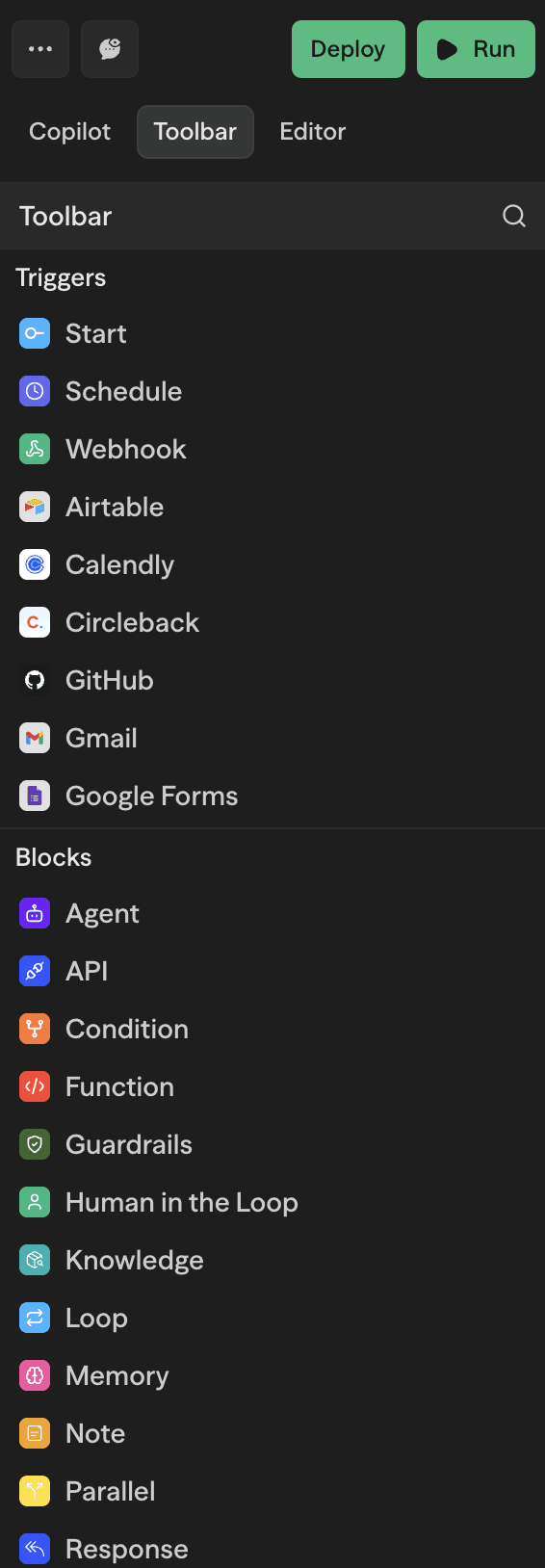
Core Triggers
Use the Start block for everything originating from the editor, deploy-to-API, or deploy-to-chat experiences. Other triggers remain available for event-driven workflows:
Start
Unified entry point that supports editor runs, API deployments and chat deployments
Webhook
Receive external webhook payloads
Schedule
Cron or interval based execution
RSS Feed
Monitor RSS and Atom feeds for new content
Email Polling Groups
Monitor team Gmail and Outlook inboxes
Quick Comparison
| Trigger | Start condition |
|---|---|
| Start | Editor runs, deploy-to-API requests, or chat messages |
| Schedule | Timer managed in schedule block |
| Webhook | On inbound HTTP request |
| RSS Feed | New item published to feed |
| Email Polling Groups | New email received in team Gmail or Outlook inboxes |
The Start block always exposes
input,conversationId, andfilesfields. Add custom fields to the input format for additional structured data.
Using Triggers
- Drop the Start block in the start slot (or an alternate trigger like Webhook/Schedule).
- Configure any required schema or auth.
- Connect the block to the rest of the workflow.
Deployments power every trigger. Update the workflow, redeploy, and all trigger entry points pick up the new snapshot. Learn more in Execution → Deployment Snapshots.
Manual Execution Priority
When you click Run in the editor, Sim automatically selects which trigger to execute based on the following priority order:
- Start Block (highest priority)
- Schedule Triggers
- External Triggers (webhooks, integrations like Slack, Gmail, Airtable, etc.)
If your workflow has multiple triggers, the highest priority trigger will be executed. For example, if you have both a Start block and a Webhook trigger, clicking Run will execute the Start block.
External triggers with mock payloads: When external triggers (webhooks and integrations) are executed manually, Sim automatically generates mock payloads based on the trigger's expected data structure. This ensures downstream blocks can resolve variables correctly during testing.
Email Polling Groups
Polling Groups let you monitor multiple team members' Gmail or Outlook inboxes with a single trigger. Requires a Team or Enterprise plan.
Creating a Polling Group (Admin/Owner)
- Go to Settings → Email Polling
- Click Create and choose Gmail or Outlook
- Enter a name for the group
Inviting Members
- Click Add Members on your polling group
- Enter email addresses (comma or newline separated, or drag & drop a CSV)
- Click Send Invites
Invitees receive an email with a link to connect their account. Once connected, their inbox is automatically included in the polling group. Invitees don't need to be members of your Sim organization.
Using in a Workflow
When configuring an email trigger, select your polling group from the credentials dropdown instead of an individual account. The system creates webhooks for each member and routes all emails through your workflow.