The Model Context Protocol (MCP) allows you to connect external tools and services using a standardized protocol, enabling you to integrate APIs and services directly into your workflows. With MCP, you can extend Sim's capabilities by adding custom integrations that work seamlessly with your agents and workflows.
What is MCP?
MCP is an open standard that enables AI assistants to securely connect to external data sources and tools. It provides a standardized way to:
- Connect to databases, APIs, and file systems
- Access real-time data from external services
- Execute custom tools and scripts
- Maintain secure, controlled access to external resources
Configuring MCP Servers
MCP servers provide collections of tools that your agents can use. Configure them in workspace settings:
- Navigate to your workspace settings
- Go to the MCP Servers section
- Click Add MCP Server
- Enter the server configuration details
- Save the configuration
You can also configure MCP servers directly from the toolbar in an Agent block for quick setup.
Refresh Tools
Click Refresh on a server to fetch the latest tool schemas and automatically update any agent blocks using those tools with the new parameter definitions.
Using MCP Tools in Agents
Once MCP servers are configured, their tools become available within your agent blocks:
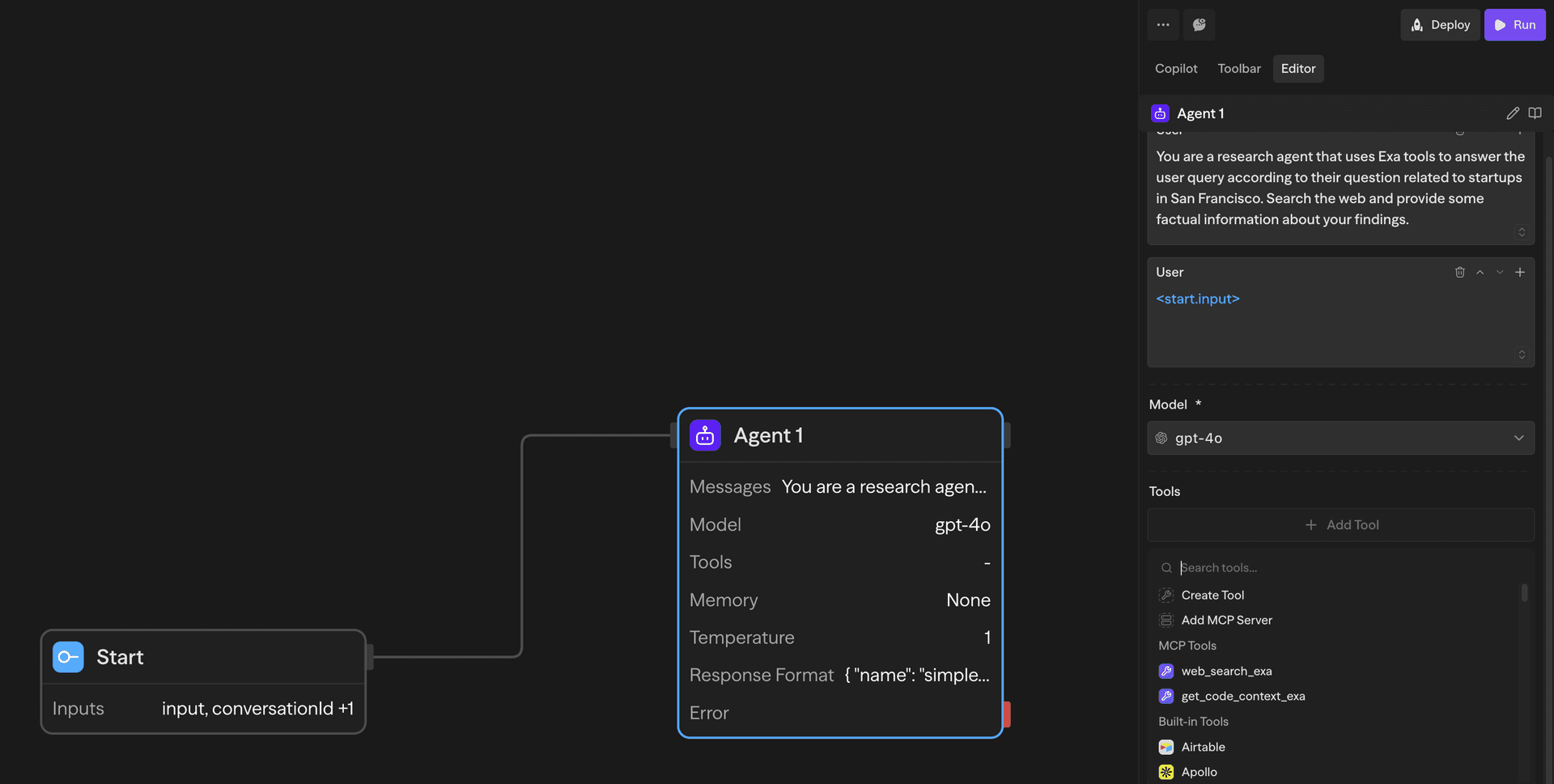
- Open an Agent block
- In the Tools section, you'll see available MCP tools
- Select the tools you want the agent to use
- The agent can now access these tools during execution
Standalone MCP Tool Block
For more granular control, you can use the dedicated MCP Tool block to execute specific MCP tools:
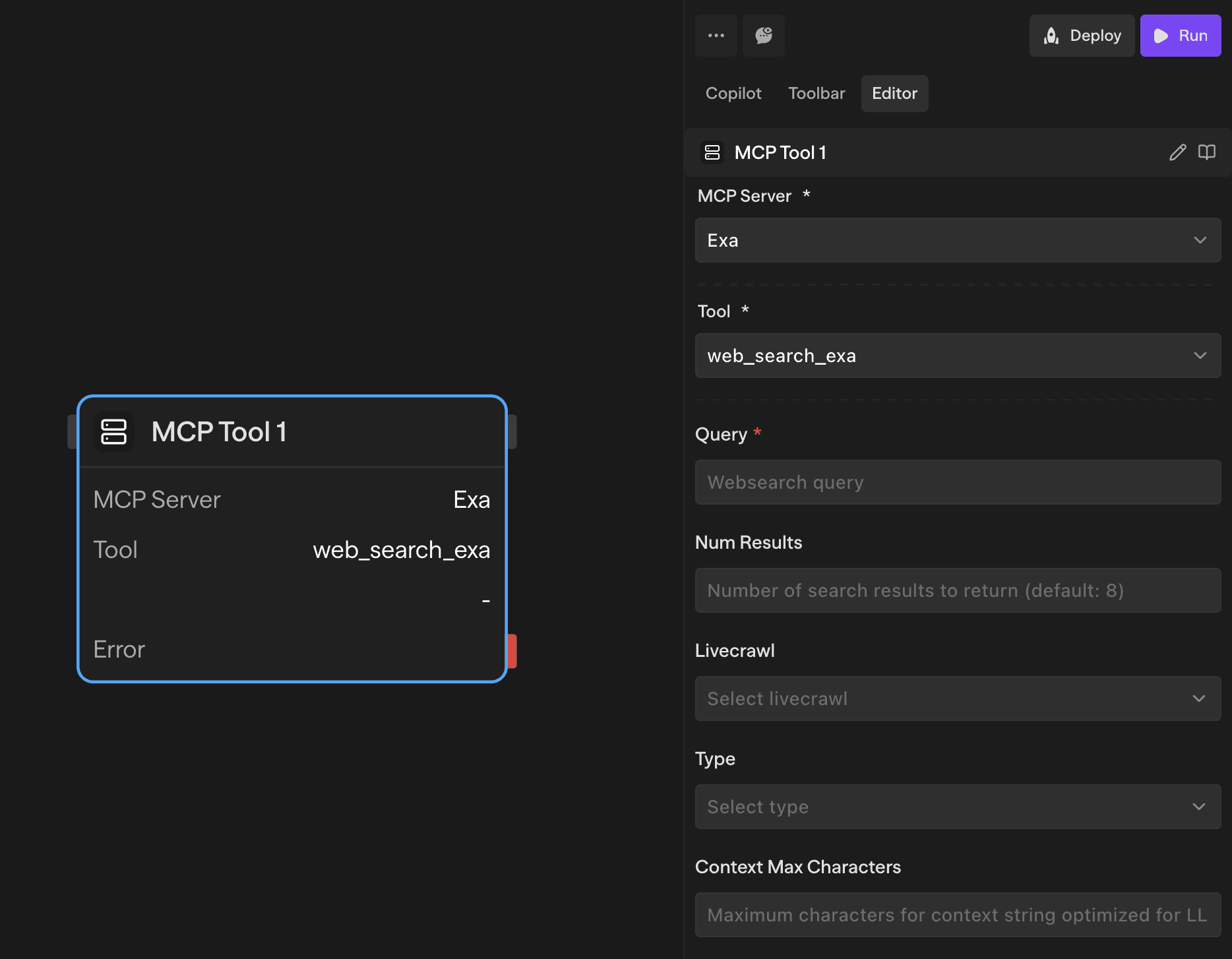
The MCP Tool block allows you to:
- Execute any configured MCP tool directly
- Pass specific parameters to the tool
- Use the tool's output in subsequent workflow steps
- Chain multiple MCP tools together
When to Use MCP Tool vs Agent
Use Agent with MCP tools when:
- You want the AI to decide which tools to use
- You need complex reasoning about when and how to use tools
- You want natural language interaction with the tools
Use MCP Tool block when:
- You need deterministic tool execution
- You want to execute a specific tool with known parameters
- You're building structured workflows with predictable steps
Permission Requirements
MCP functionality requires specific workspace permissions:
| Action | Required Permission |
|---|---|
| Create or update MCP servers | Write or Admin |
| Delete MCP servers | Admin |
| Use MCP tools in agents | Write or Admin |
| View available MCP tools | Read, Write, or Admin |
| Execute MCP Tool blocks | Read, Write, or Admin |
Common Use Cases
Database Integration
Connect to databases to query, insert, or update data within your workflows.
API Integrations
Access external APIs and web services that don't have built-in Sim integrations.
File System Access
Read, write, and manipulate files on local or remote file systems.
Custom Business Logic
Execute custom scripts or tools specific to your organization's needs.
Real-time Data Access
Fetch live data from external systems during workflow execution.
Security Considerations
- MCP servers run with the permissions of the user who configured them
- Always verify MCP server sources before installation
- Use environment variables for sensitive configuration data
- Review MCP server capabilities before granting access to agents
Troubleshooting
MCP Server Not Appearing
- Verify the server configuration is correct
- Check that you have the required permissions
- Ensure the MCP server is running and accessible
Tool Execution Failures
- Verify tool parameters are correctly formatted
- Check MCP server logs for error messages
- Ensure required authentication is configured
Permission Errors
- Confirm your workspace permission level
- Check if the MCP server requires additional authentication
- Verify the server is properly configured for your workspace