
















.svg)

















.svg)







Introduction
SCIM (System for Cross-domain Identity Management) lets your identity provider automatically manage Rootly users and groups. When users are assigned or unassigned in your IdP, they are provisioned or deprovisioned in Rootly without any manual steps.SCIM requires SSO to be configured first — the SCIM endpoint will not resolve until SSO setup is complete. SCIM and Google Directory Sync are also mutually exclusive and cannot both be active at the same time.
Before You Begin
Before connecting your IdP:- Complete SSO setup for your organization
- Navigate to Integrations > SSO in Rootly and copy your SCIM Token — this is the Bearer token your IdP uses to authenticate SCIM requests
- Note your SCIM tenant URL:
https://rootly.com/scim
| Resource | Supported Operations |
|---|---|
| Users | Create, read, update (PUT/PATCH), deactivate, delete |
| Groups | Create, read, update (PUT/PATCH), delete, member sync |
Identity Provider Setup
Expand the section for your identity provider:Okta
Okta
Enable SCIM provisioning
In Okta, navigate to Applications > Rootly > Provisioning tab. Under Settings > Integrations, click Configure API Integration, enter your SCIM Token, and save.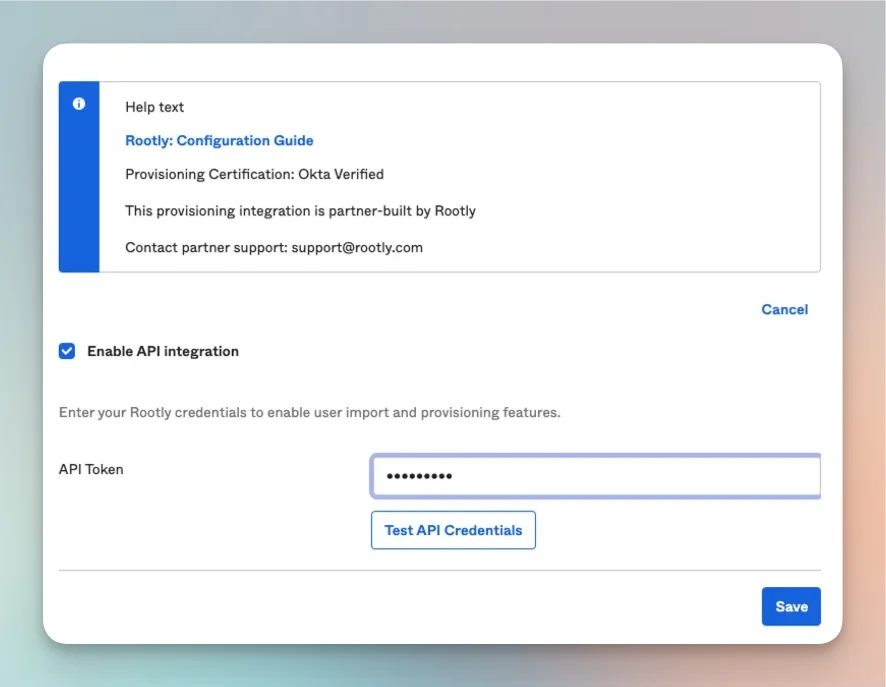
Enable Create and Deactivate users
Go to Provisioning > To App, click Edit, and enable:
- Create Users — provisions users when assigned to the Rootly app
- Deactivate Users — removes users from Rootly when unassigned
Push groups (optional)
To sync Okta Groups to Rootly:
- In Okta, navigate to Directory > Groups and create or select a group
- Go to Applications > Rootly > Push Groups tab
- Click +Push Groups, select the group, switch from Create Group to Link Group, and click Save
- In Rootly, go to Integrations > SSO > Role Assignment and map the Okta Group to a Rootly Role
Microsoft Entra
Microsoft Entra
Follow the official Microsoft tutorial for configuring SCIM provisioning with Rootly:Microsoft Entra SCIM provisioning tutorial →
Google Workspace
Google Workspace
Google Workspace has limited native SCIM support. The following workaround uses Google’s Adobe app as a proxy for SCIM provisioning.
Add a new Web and Mobile app
In Google Admin Console, navigate to Apps > Web and mobile apps and click Add app.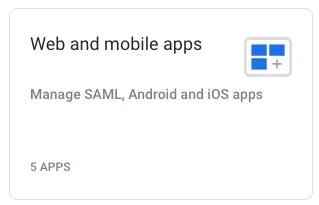
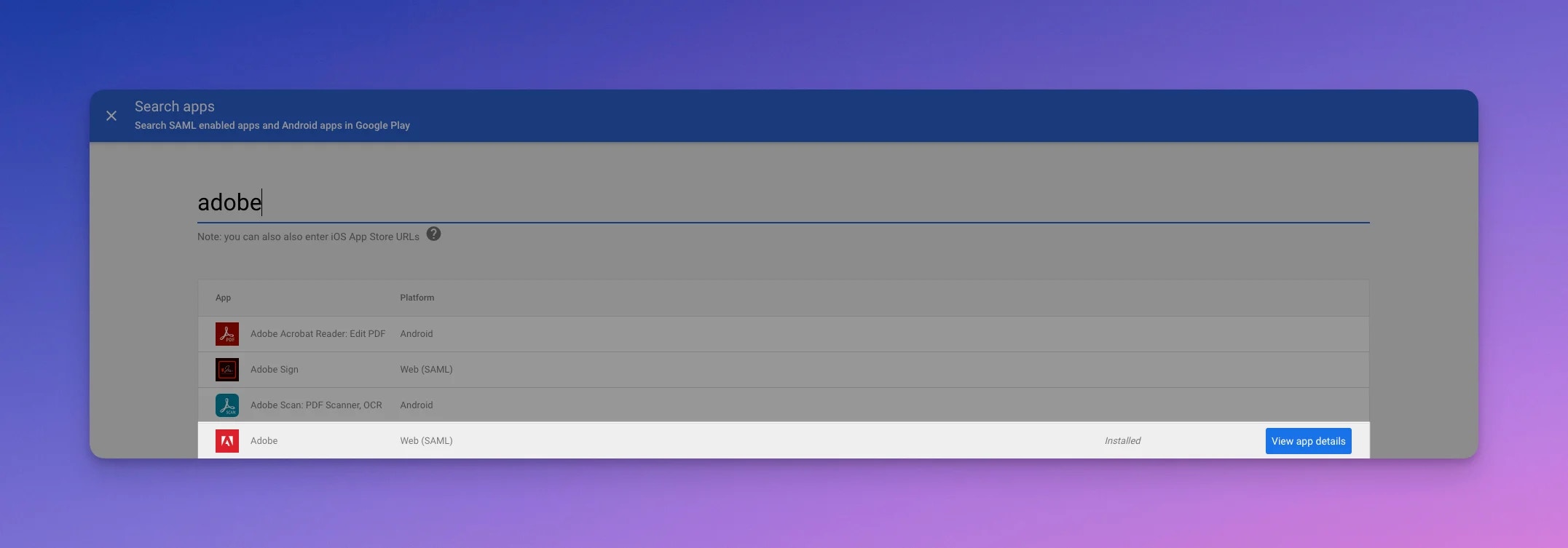
Configure auto-provisioning
When prompted for SAML fields, enter
https://dummy.com/saml for all values. When you reach the auto-provisioning step:- SCIM Token: your token from Rootly > Integrations > SSO
- Endpoint URL:
https://rootly.com/scim - Select a group of users to import, or leave empty to import all
Keycloak
Keycloak
Install the SCIM extension
Download the
keycloak-scim JAR from the releases page, place it in /opt/keycloak/providers/, and restart Keycloak.Add SCIM as an event listener
Go to Realm Settings > Events > Event Listeners and add
scim to the list. Save.Create a SCIM federation provider
Navigate to User Federation > Add provider > SCIM and configure:
Set the environment variable
| Field | Value |
|---|---|
| UI display name | Rootly |
| SCIM 2.0 endpoint | https://rootly.com/scim |
| Endpoint content type | application/scim+json |
| Auth mode | BEARER |
| Auth password/token | Your SCIM Token from Rootly |
SCIM_EMAIL_AS_USERNAME=true — this ensures usernames are sent in email format, required for user matching in Rootly.Enable propagation
In the federation provider settings, enable:
- Enable user propagation: On
- Enable group propagation: On (optional)
- Log SCIM requests and responses: On (recommended for debugging)
- Import action:
CREATE_LOCAL
Rippling
Rippling
Rippling supports SSO and SCIM provisioning for Rootly in a single step. Connect from the Rippling app store.
Supported Attributes
Users
| SCIM Attribute | Rootly Field | Notes |
|---|---|---|
userName | Required. Must be a valid email address. | |
name.givenName | First name | |
name.familyName | Last name | |
displayName | Preferred name | |
externalId | External ID | Stored per SSO account, not globally |
active | Membership status | false removes the user’s team membership |
emails | Primary work email | |
phoneNumbers | Phone numbers | Auto-verified on import; normalized with US as default country code |
Groups
| SCIM Attribute | Rootly Field | Notes |
|---|---|---|
displayName | Group name | |
externalId | External identifier | |
members | Group members | User and nested group types both accepted |
Group Sync
SCIM groups pushed from your IdP can be synced to Rootly Groups. When enabled:- Create — a pushed SCIM group creates a corresponding Rootly Group, or links to an existing one with the same name
- Rename — renaming a group in your IdP renames the linked Rootly Group
- Members — adding or removing members from a SCIM group updates Rootly Group membership
The Sync SCIM groups to teams toggle must be enabled by Rootly support. Contact support@rootly.com to enable it. Once enabled, any groups already pushed before the toggle was turned on will be automatically backfilled.
Role Assignment via Groups
When Assign roles to SCIM groups is enabled, Rootly automatically assigns roles based on group membership. If a user belongs to multiple SCIM groups with different role configurations, the highest-weighted role is applied.SCIM Logs
All SCIM operations are logged. Go to Integrations > SSO > SCIM Logs to view a history of provisioning requests including resource type, event type, request URL, response status, and full request/response bodies (encrypted at rest). Use this to diagnose provisioning failures or verify that operations from your IdP are reaching Rootly.Troubleshooting
The SCIM endpoint is not resolving
The SCIM endpoint is not resolving
The SCIM endpoint only becomes active after SSO is fully configured. Complete SSO setup in Integrations > SSO and save before connecting your IdP’s SCIM provisioning. Confirm you are using
https://rootly.com/scim with no trailing slash.Authentication errors from the IdP
Authentication errors from the IdP
The IdP authenticates with your SCIM Token as a Bearer token. Retrieve the current token from Integrations > SSO in Rootly and confirm it matches what your IdP has configured. Also confirm that SCIM is enabled in your SSO settings.
Users are not being provisioned
Users are not being provisioned
Confirm that the user is assigned to the Rootly application in your IdP, the
userName attribute is a valid email address, Create Users is enabled in your IdP’s provisioning settings, and the default username format is set to email. Check SCIM Logs for failed requests and their error details.Deactivated users still appear in Rootly
Deactivated users still appear in Rootly
When a user is deactivated (
active: false), Rootly removes their team membership but preserves the user record. If they still appear active, check SCIM Logs for a failed deactivation request.Groups are not syncing to Rootly
Groups are not syncing to Rootly
Group sync requires the Sync SCIM groups to teams toggle to be enabled by Rootly support. If it’s not visible in your SSO settings, contact support@rootly.com. Also confirm group push is configured in your IdP.
Phone numbers are not syncing
Phone numbers are not syncing
Phone number sync is a feature-flagged capability. Contact support@rootly.com to confirm it is enabled for your organization. Numbers are normalized using US as the default country code — include a country code prefix for non-US numbers.
Related Pages
SSO
Configure SAML 2.0 single sign-on — required before enabling SCIM.
Google Directory Sync
Poll-based alternative to SCIM for Google Workspace organizations.
On-Call Schedules
Manage on-call schedules once users are provisioned via SCIM.