Documentation

Menu
  • Home
  • Documentation

Trailvista

Getting Started

  • Introduction
  • Theme Requirements

Theme Installation & Activation

  • How to Install and Activate the Theme
  • How to Install Recommended Plugins
  • How to Import Demo Content

Site Identity

  • How to configure Site Identity?

General Settings

  • How to configure General Settings
  • How to change Colors?
  • How to configure Typography Settings?
  • How to configure Header Settings?
  • How to configure Footer Settings?
  • How to configure SEO Settings?

Posts & Pages

  • How to configure Blog Page?
  • How to configure Page Settings?
  • How to configure Single Post Settings?
  • How to configure Archive Settings?
  • How to configure 404 Page?

Companion Addons

  • How to Use Trailvista Companion Plugin Addons
  • How to add Notification Bar?
  • How to Reset Customizer Settings?
  • How to Use Sidebar Blocks?
  • How to Add Custom Fonts?
  • How to Use the Header and Footer Builder?

Core

  • How to Create & Edit Menu?
  • How to Configure Widgets on your Website?
  • How to setup Homepage and Blog Page?
  • How to Add Additional CSS Codes?
HomeDocsTrailvista Core How to Add Additional CSS Codes?

How to Add Additional CSS Codes?

Last updated September 18, 2025July 28, 2025

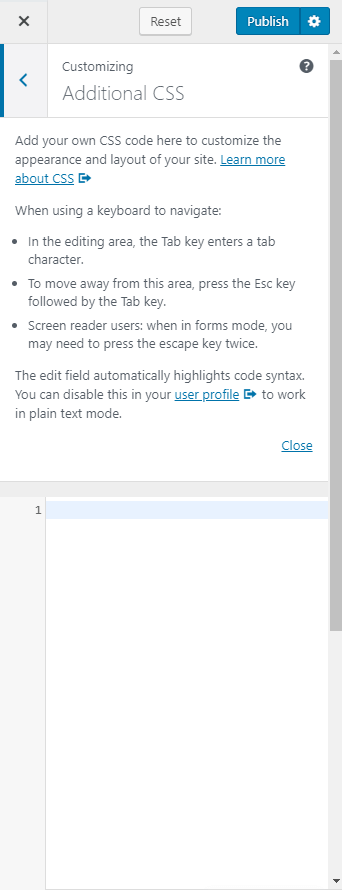
You can add extra CSS codes here. If you want to modify the color, fonts, or any other CSS effects, you can enter the code here.

  • Go to Appearance> Additional CSS
  • Enter your code
  • Click on Publish
Add additional css codes rara theme

If you need help anytime, reach out to our support team here.

Doc navigation

← How to Configure Widgets on your Website?
Still stuck? How can we help?
Was this article helpful for you?
Documentation. Copyright © 2015 - 2026 All Rights Reserved. Made with in Nepal.