Gmail setup
Matcha supports two ways to connect to Gmail:
- OAuth2 (recommended) — sign in with your Google account in the browser, no app password needed
- App Password — generate a 16-character password from Google's security settings
Option A: OAuth2 (recommended)
OAuth2 lets you authorize Matcha through Google's standard sign-in flow. No app passwords required.
1. Create a Google Cloud project
- Go to console.cloud.google.com.
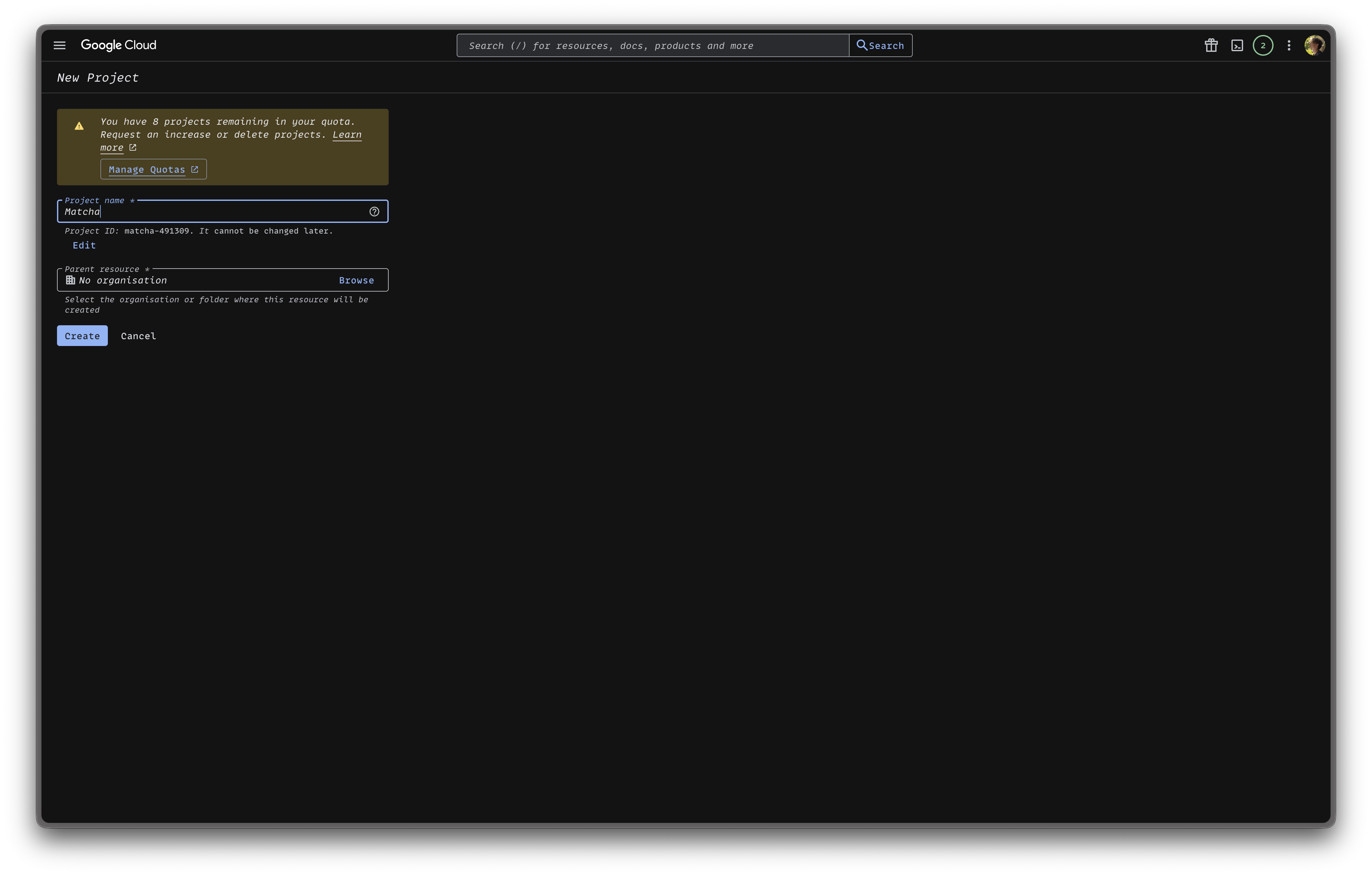
- Click the project dropdown at the top and select New Project.
- Name it something like "Matcha" and click Create.
2. Enable the Gmail API
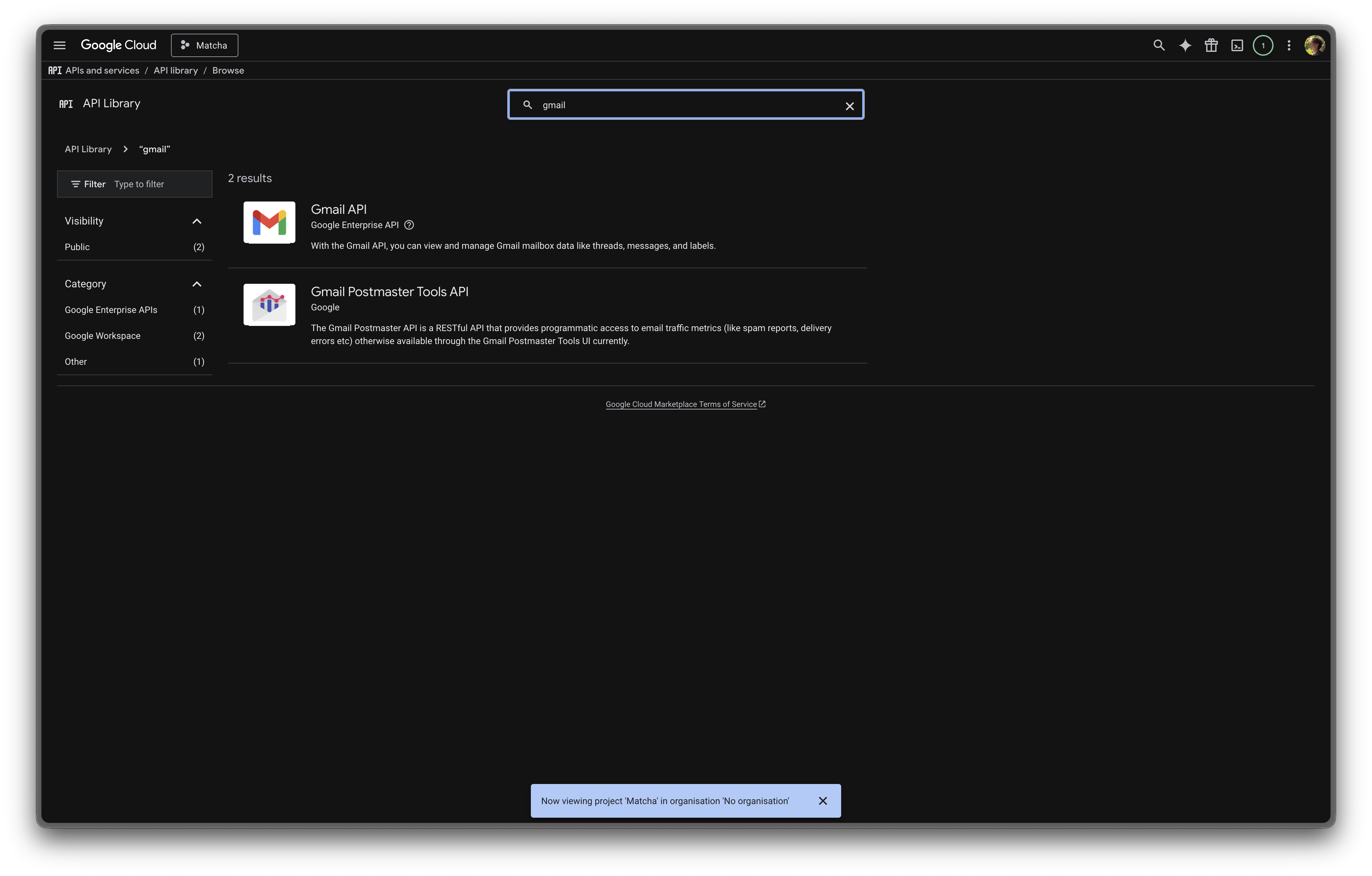
- In the left sidebar, go to APIs & Services → Library.
- Search for Gmail API.
- Click it and press Enable.
3. Configure the OAuth consent screen
- Go to APIs & Services → OAuth consent screen.
- Select External as the user type and click Create.
- Fill in the required fields:
- App name: Matcha
- User support email: your email
- Developer contact email: your email
- Click Create.
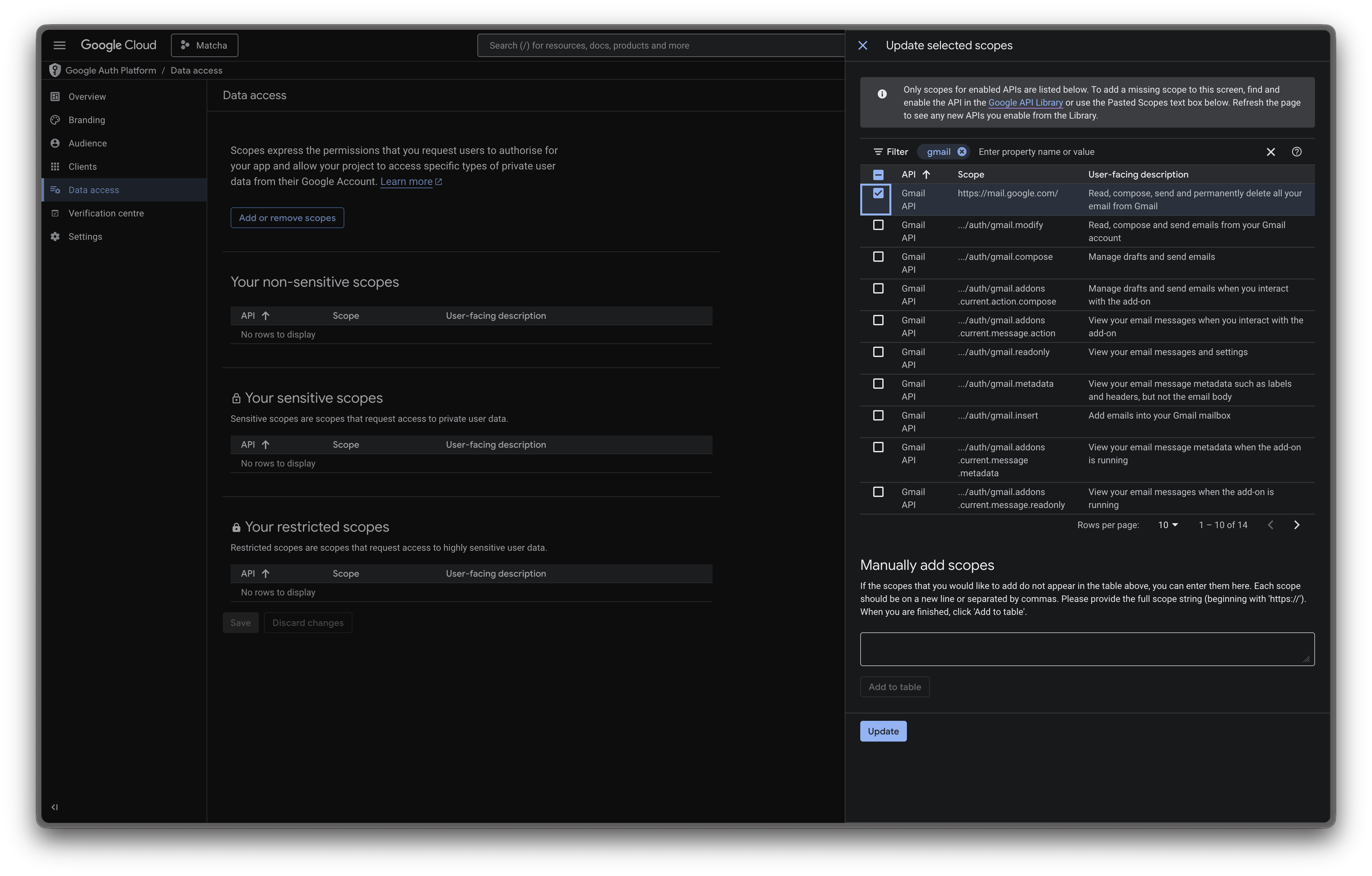
- On the left sidebar, click Data access, search for
Gmail, check it, and click Update → Save. - On the left sidebar, click Audience, then Add Users under Test Users enter your Gmail address, and click Save.
Note: Your app will be in "Testing" mode, which is perfectly fine for personal use. Google will show an "unverified app" warning during sign-in — just click Continue. Tokens in testing mode expire after 7 days, after which you'll need to re-authorize with
matcha gmail auth.
4. Create OAuth credentials
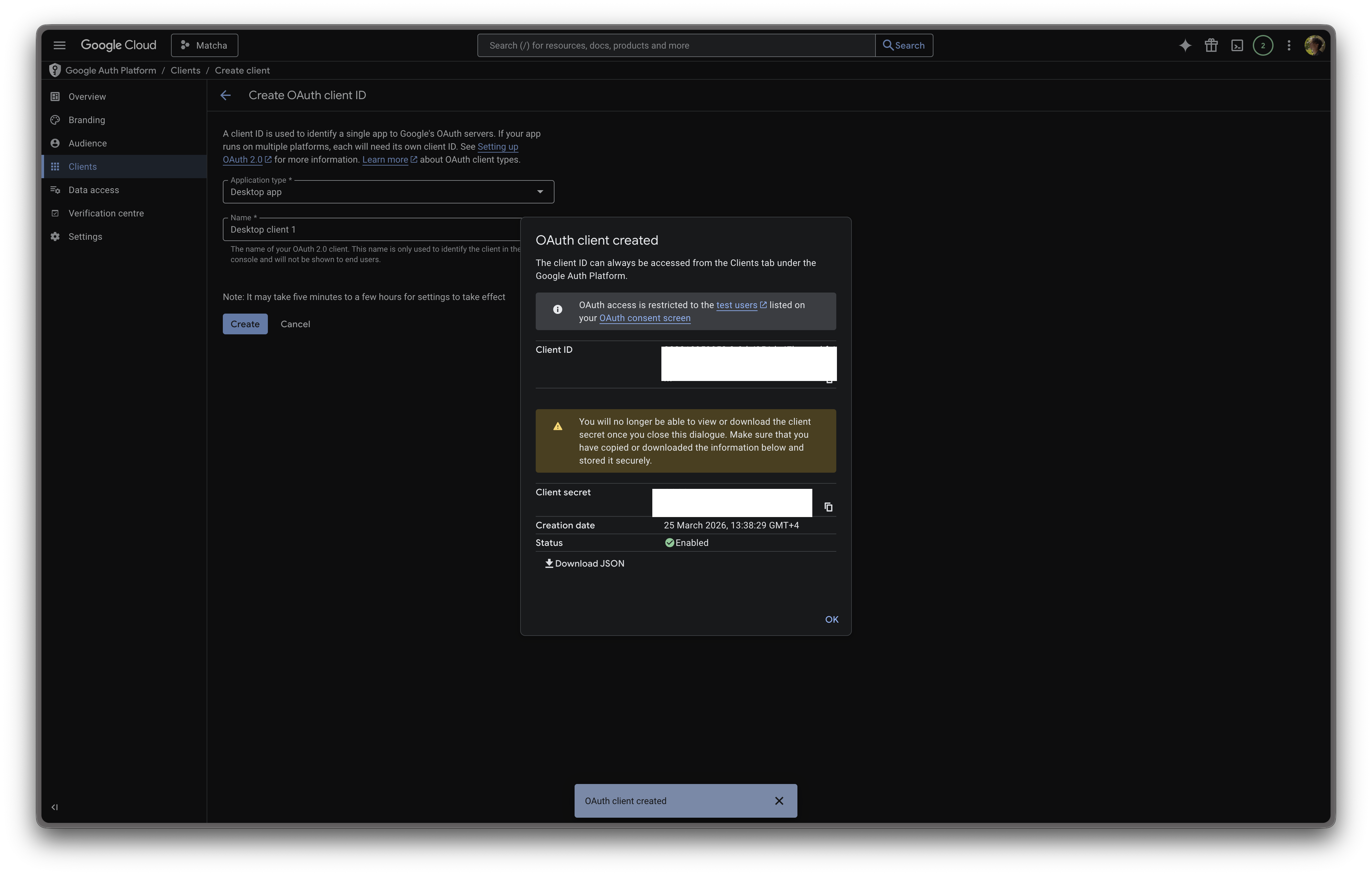
- Go to Clients.
- Click Create Client at the top of the screen.
- Application type: Desktop app.
- Name: anything (e.g. "Matcha").
- Click Create.
- Copy the Client ID and Client Secret.
5. Save your client credentials
Create the file ~/.config/matcha/oauth_client.json:
{
  "client_id": "YOUR_CLIENT_ID",
  "client_secret": "YOUR_CLIENT_SECRET"
}
Or pass them directly in the next step.
6. Authorize your Gmail account
Run the following command in your terminal:
matcha gmail auth your@gmail.com
Or with inline credentials:
matcha gmail auth your@gmail.com --client-id YOUR_ID --client-secret YOUR_SECRET
A browser window will open. Sign in with your Google account and grant access. Once authorized, you'll see "Authorization complete!" in your terminal.
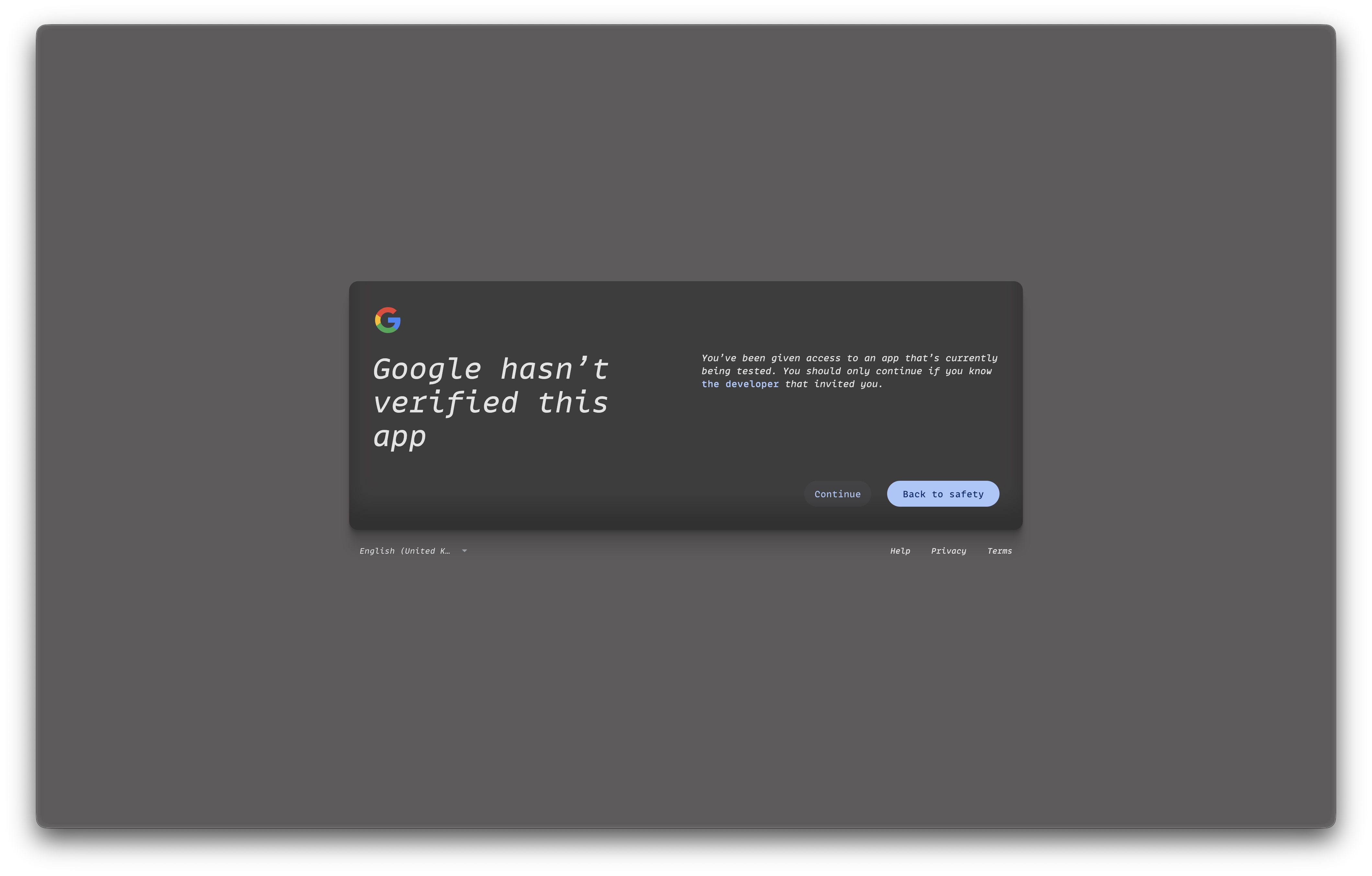
Note: click "Continue" here
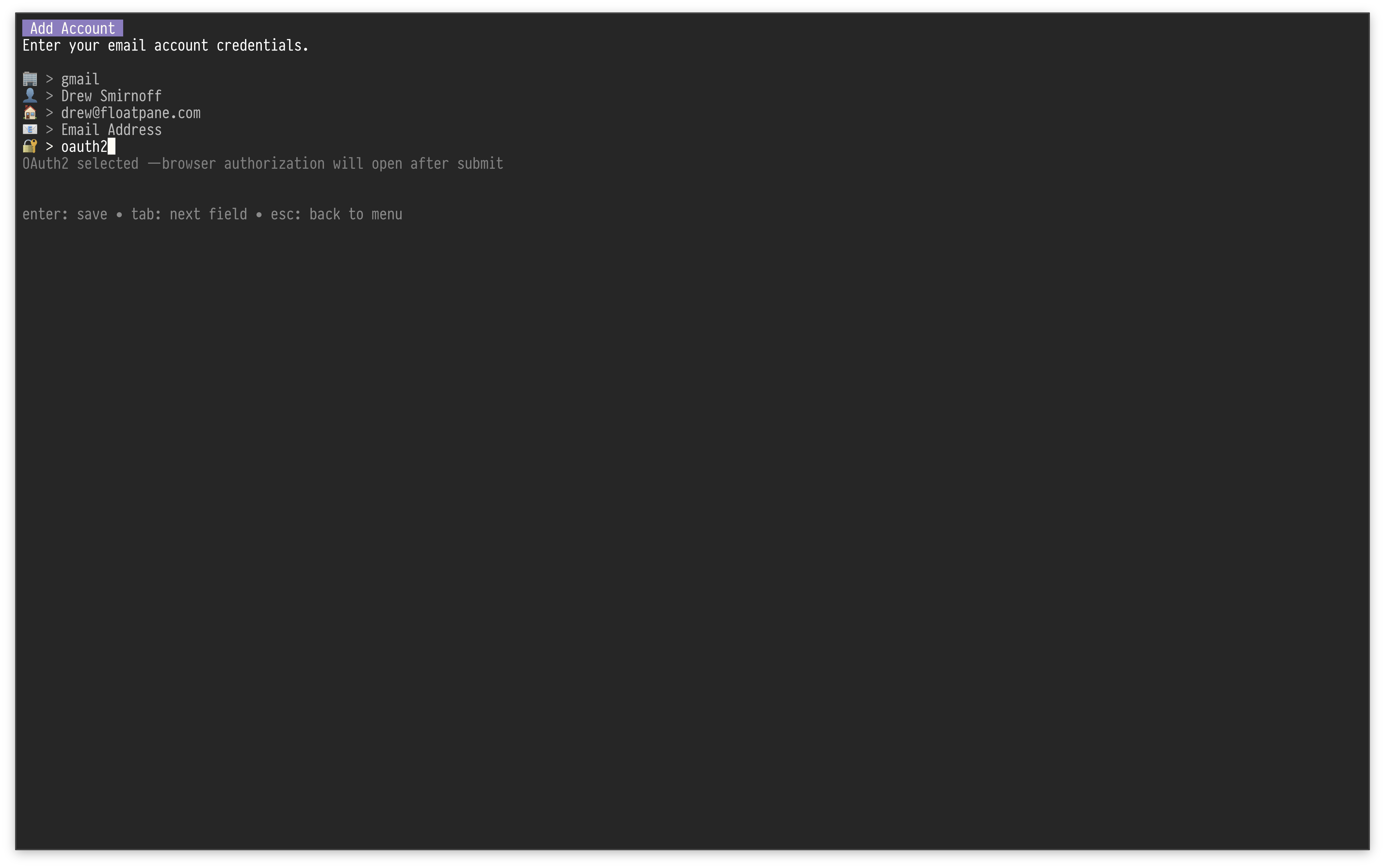
7. Add your account in Matcha
From Matcha, open settings and choose to add a new account. Enter:
- Provider: gmail
- Display name: The name that will appear on emails you send
- Username: Your Gmail address
- Email Address: The Gmail address to fetch messages from (usually the same as Username)
- Send As Email: Optional. Set this if you want the outgoing
Fromheader to use a verified Gmail alias instead of your login address - Auth Method: oauth2
No password is needed — Matcha will use the tokens from the authorization step.
Managing OAuth tokens
# Get a fresh access token (auto-refreshes if expired)
matcha gmail token your@gmail.com

# Revoke and delete stored tokens
matcha gmail revoke your@gmail.com

# Re-authorize (e.g. after token expiry in testing mode)
matcha gmail auth your@gmail.com
Option B: App Password
If you prefer not to set up OAuth2, you can use an app password instead. App Passwords are available only after 2-Step Verification is turned on.
1. Open Google account security settings
- Go to https://myaccount.google.com.
- In the left menu, click Security.
2. Enable 2-Step Verification (if not enabled)
- In How you sign in to Google, click 2-Step Verification.
- Follow the setup flow (phone prompt, SMS, authenticator app, or security key).
3. Create an App Password
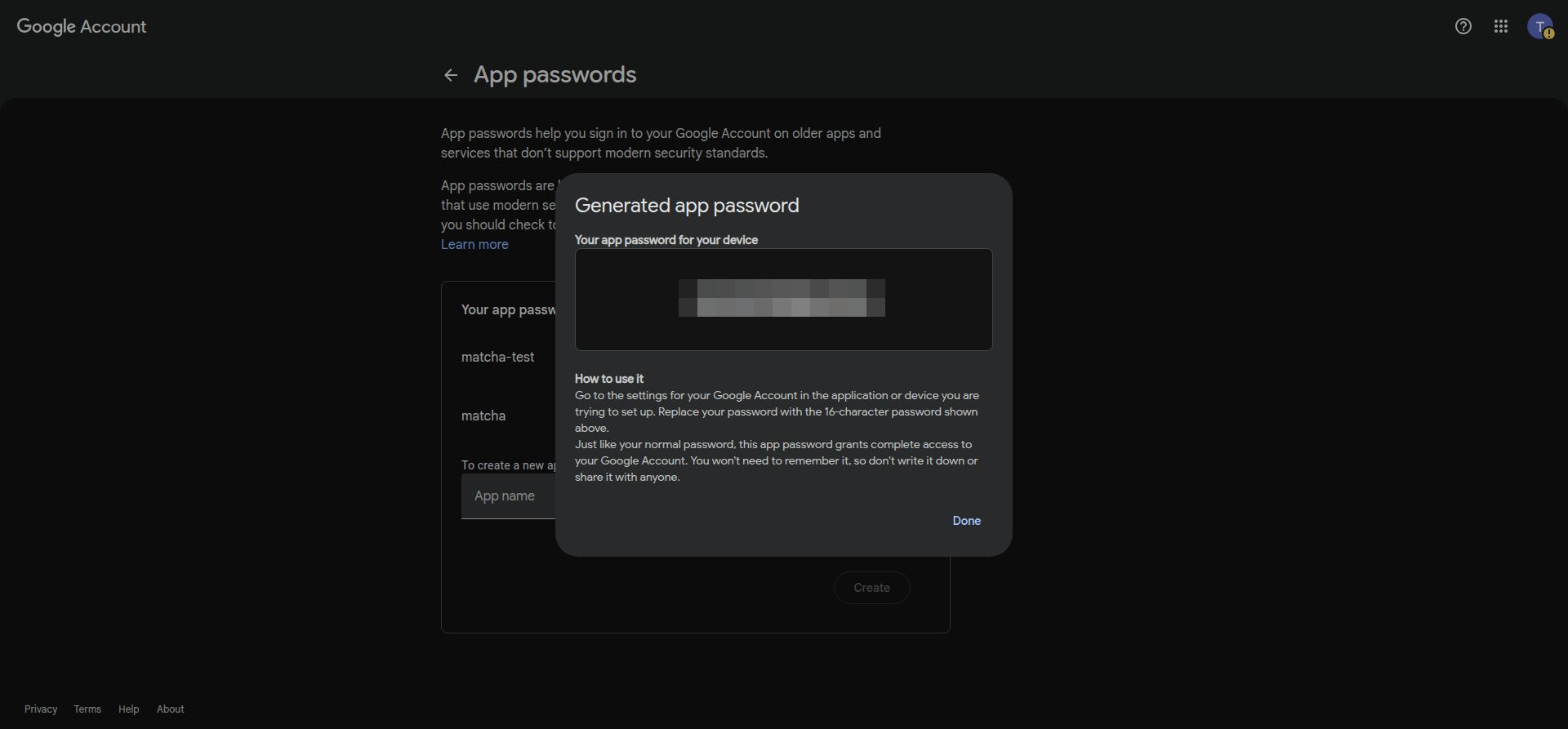
- Go to https://myaccount.google.com/u/2/apppasswords.
- Sign in again if prompted.
- Choose a name for your app password (e.g., "Matcha").
- Click Generate.
- Copy the 16-character app password shown by Google.
⚠️ Important: Treat this app password as you would your primary password. Never share it, or expose it publicly. This credential grants full access to your Gmail account. The app password sits locally in your device and is never shared with us.
4. Open account setup in Matcha
From Matcha, open settings and choose to add a new account.
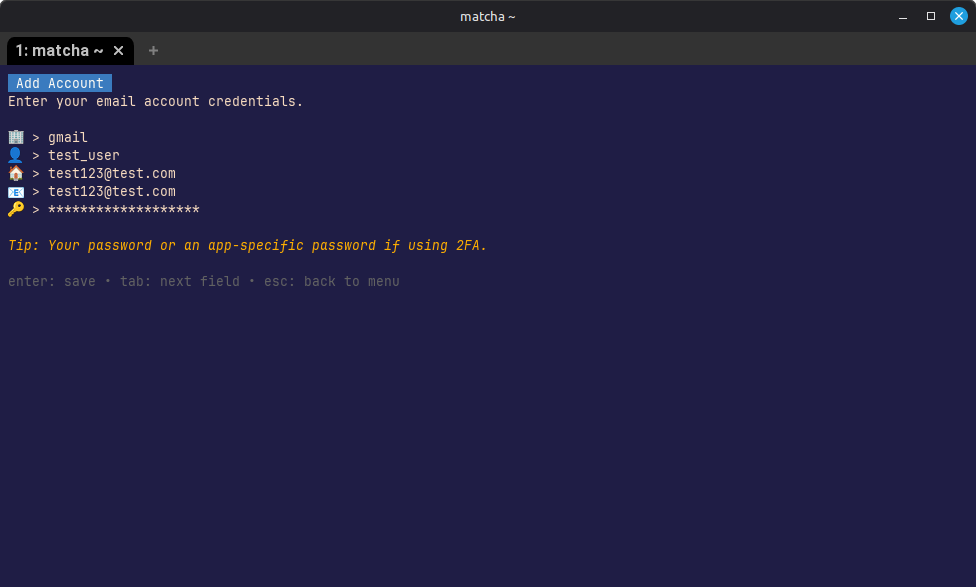
5. Enter Gmail credentials in Matcha
In Matcha account setup:
- Provider: gmail
- Display name: The name that will appear on the emails you send
- Username: Your Gmail address
- Email Address: The Gmail address used to fetch messages from (most likely the same as the Username)
- Password: the generated 16-character app password (not your normal Google password)
Troubleshooting
| Issue | Solution |
|---|---|
| Invalid credentials | Verify you're using the 16-character app password, not your regular Google account password. |
| "App passwords" option missing | Confirm 2-Step Verification is enabled in your account settings. Some organizations restrict app passwords via security policies. |
| Connection still fails | In Google Account, revoke the current app password and generate a new one. Then update your credentials in Matcha. |
| OAuth2: "unverified app" warning | This is normal in testing mode. Click Advanced → Go to Matcha (unsafe) to continue. |
| OAuth2: token expired | In testing mode tokens expire after 7 days. Run matcha gmail auth your@gmail.com to re-authorize. |
| OAuth2: refresh failed | Your refresh token may have been revoked. Run matcha gmail auth your@gmail.com to re-authorize from scratch. |
| "python3 not found" | OAuth2 requires Python 3. Install it via your package manager (e.g. brew install python3, apt install python3). |