
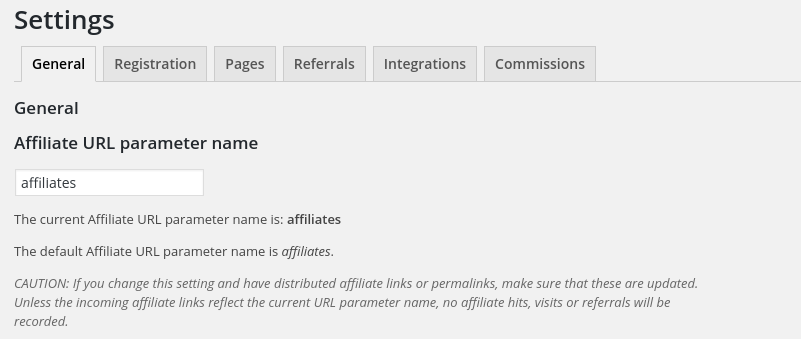
URL parameter name
The default Affiliate URL parameter name is affiliates
Recommendation: If you decide to change this setting, do it before affiliates are added.
CAUTION: If you change this setting and have distributed affiliate links or permalinks, make sure that these are updated. Unless the incoming affiliate links reflect the current URL parameter name, no affiliate hits, visits or referrals will be recorded.
Redirection
Redirect to destination without Affiliate URL parameter, after a hit on an affiliate link has been detected.
Recommendation: We recommend to leave this option disabled as it could cause issues depending on a site’s setup.

Affilliate ID encoding
Affiliate links use an affiliate ID in the URL to identify the affiliate. This ID is either a positive whole number or an encoded version. Affiliates offers to use the ID or the MD5-encoded ID in affiliate links.
Either plain or MD5-encoded affiliate IDs can be used. These are appended to URLs to construct affiliate links.
Recommendation: If you decide to change this setting, do it before affiliates are added.
CAUTION: If you change this setting and have distributed affiliate links or permalinks, make sure that these are updated. Unless the incoming affiliate links reflect the current encoding, no affiliate hits, visits or referrals will be recorded.

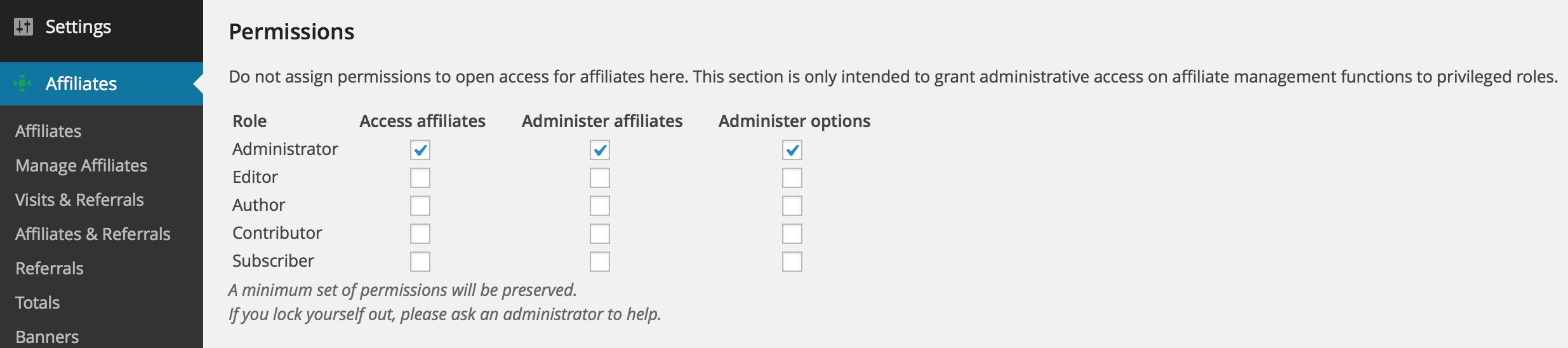
Permissions
CAUTION: Do not assign permissions to open access for affiliates here. This section is only intended to grant administrative access on affiliate management functions to privileged roles.
Permissions can be set for each user role. The permissions allow to view affiliate data and configure settings:
Access Affiliates : Allows users to access the Affiliates menu in WordPress in order to view affiliate statistics and referral data.
Administer Affiliates : Allows users to administer affiliates, including to add, edit and remove affiliates.
Administer Options : Allows users to make changes in the general configuration.
Robots
Hits from affiliate links that have originated from robots listed here will not be taken into account nor recorded. By default, the field has no entries but we certainly recommend to exclude especially unorthodox robots who might produce vast amounts of undesired and useless hits on affiliate links.
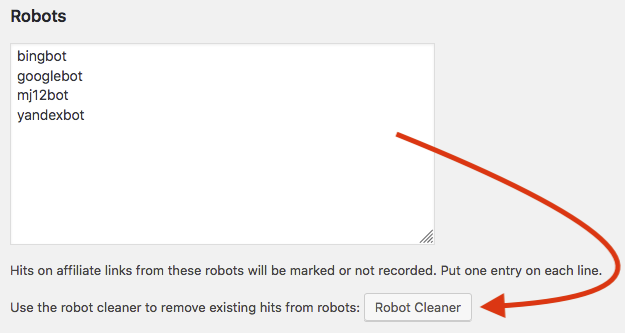
Over time, you will find that the system has recorded hits from new robots. You can use the Robot Cleaner to remove all those hits. Click the Robot Cleaner button …
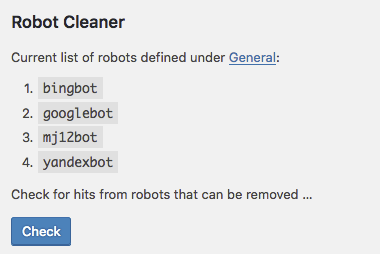
… and follow the instructions to remove these undesired hits. The Robot Cleaner will check existing entries based on the robots you have indicated. When you click Check it will present you with a summary of hits that were detected from those robots and it will allow you to eliminate them definitely.
Data
After some time running the affiliate program, traffic from affiliate links will have accumulated and collected data is stored on hits, URIs and user agents. While this data is necessary and useful to analyze traffic, the storage used for it grows over time.
It is possible to eliminate data that is not related to referrals and free up space in the database using the Data Cleaner tool.

The tool will look for data that is not related to any referrals and remove corresponding entries, thus freeing up space in the database. Once the data has been removed, the amount of information that is available for analysis in the Traffic section is also reduced. Make sure that you do not need the unrelated data to analyse Traffic before you proceed to use the Data Cleaner.
- Click the Data Cleaner button
- A summary of collected data is presented, including the total Hits, URIs and User Agents recorded. Click the Check button.
- An extended summary of data includes information about potentially removable data on Hits, URIs and User Agents. Click Delete to proceed data that is eligible for removal. This cannot be undone. Any data that is removed in this step is permanently lost and is not recoverable.
- Leave the browser window upon until the job is finished and do not move away from the section. A summary of deleted data is presented when finished. This can take several minutes depending on the amount of data that is deleted.
What data is involved and what is deleted?
Before checking, the total number of Hits, URIs and User Agents stored are displayed.
When checking, the first number shows the number of hits that have no related referrals / the total number of hits. Same for URIs and user agents. This does not mean that all of them will be deleted. Only the ones that are from before the referral timeout, or up to an hour before cleaning when timeout is 0. If URIs or User Agents shows 0, that doesn’t mean there won’t be any cleaned after deleting hits, this will be done and recalculated during cleaning and the final result will show what has actually been removed.
- For a referral timeout higher than zero, data that is not related to referrals until as many days before is removed. For example, if your referral timeout is 30 days, then the Data Cleaner will remove any eligible data except for the last 30 days.
- If the referral timeout is 0, the Data Cleaner will remove any eligible data except for the past hour.
The result after cleaning shows number of hits removed / hits without referrals / total hits. And the same for URIs and user agents.
Deactivation and data persistence
A convenient option is provided to delete all data that has been stored by the affiliates plugin.
This option is useful if you just need to start clean while you run tests. Do not use this procedure if you want to preserve your affiliate data.
If you have been testing the Affiliates plugin(s) and would like to start from scratch you can use this option to clear all affiliate data.
- Go to Affiliates > Settings > General and under Deactivation and data persistence tick the Delete all plugin data on deactivation checkbox.
- Proceed to Plugins > Installed Plugins and click Deactivate for your Affiliates Pro plugin.
- All affiliate data has now been deleted. Now reactivate your plugin by clicking Activate.
After this you will start with a clean installation of the affiliate system.

Our recommendation is to always leave this setting disabled unless you definitely are going to use it right now to clean up test data.