

For an overview of how CodeRabbit integrates with Git platforms, see Add
CodeRabbit to your repository.
Getting Started
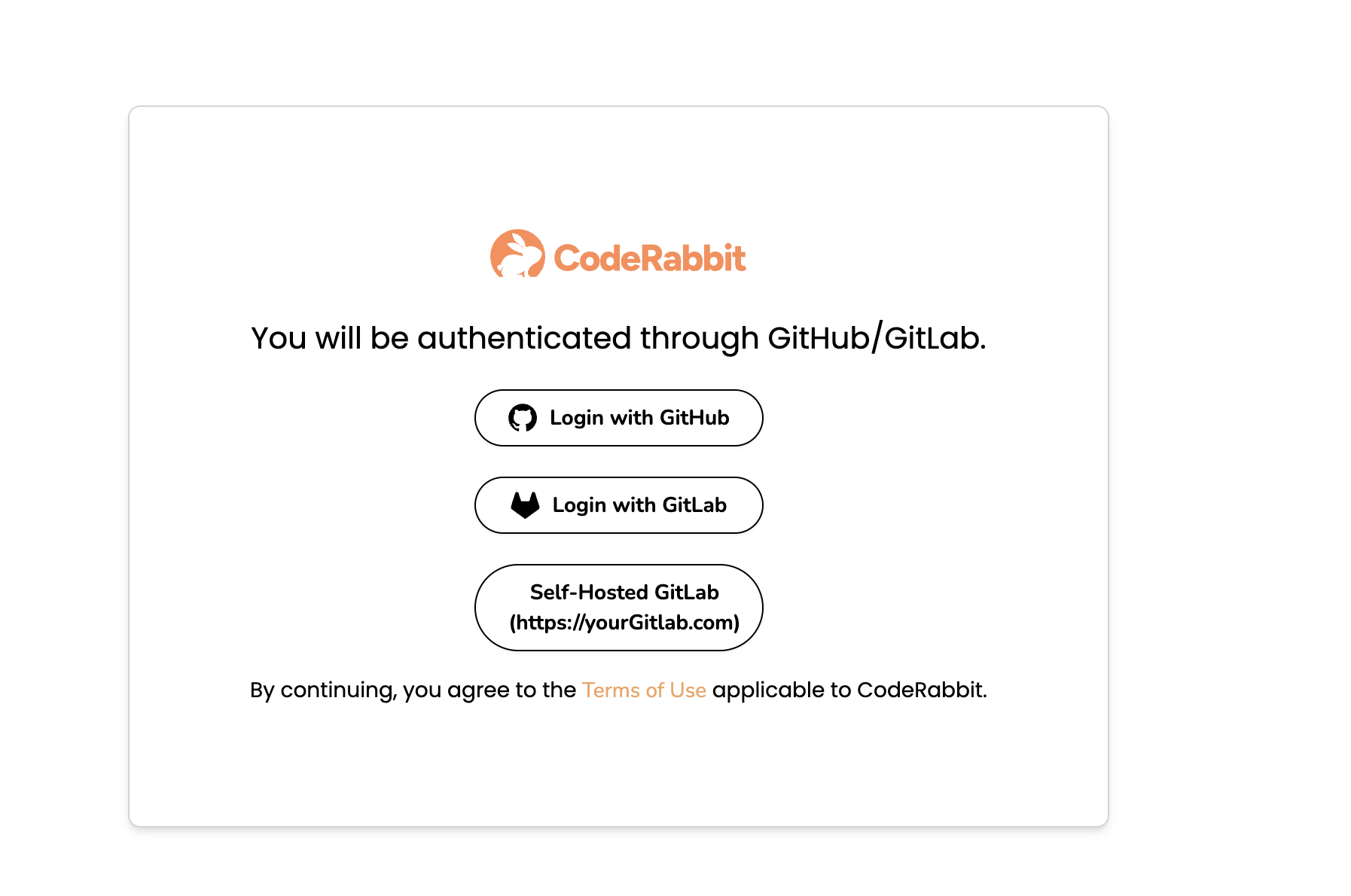
To integrate your self-managed GitLab with CodeRabbit, we require specific information for the initial setup within your domain. Once this setup is complete, you can log in directly using the OAuth2 flow.Visit CodeRabbit login page
Navigate to the CodeRabbit login page and select Self-Hosted GitLab.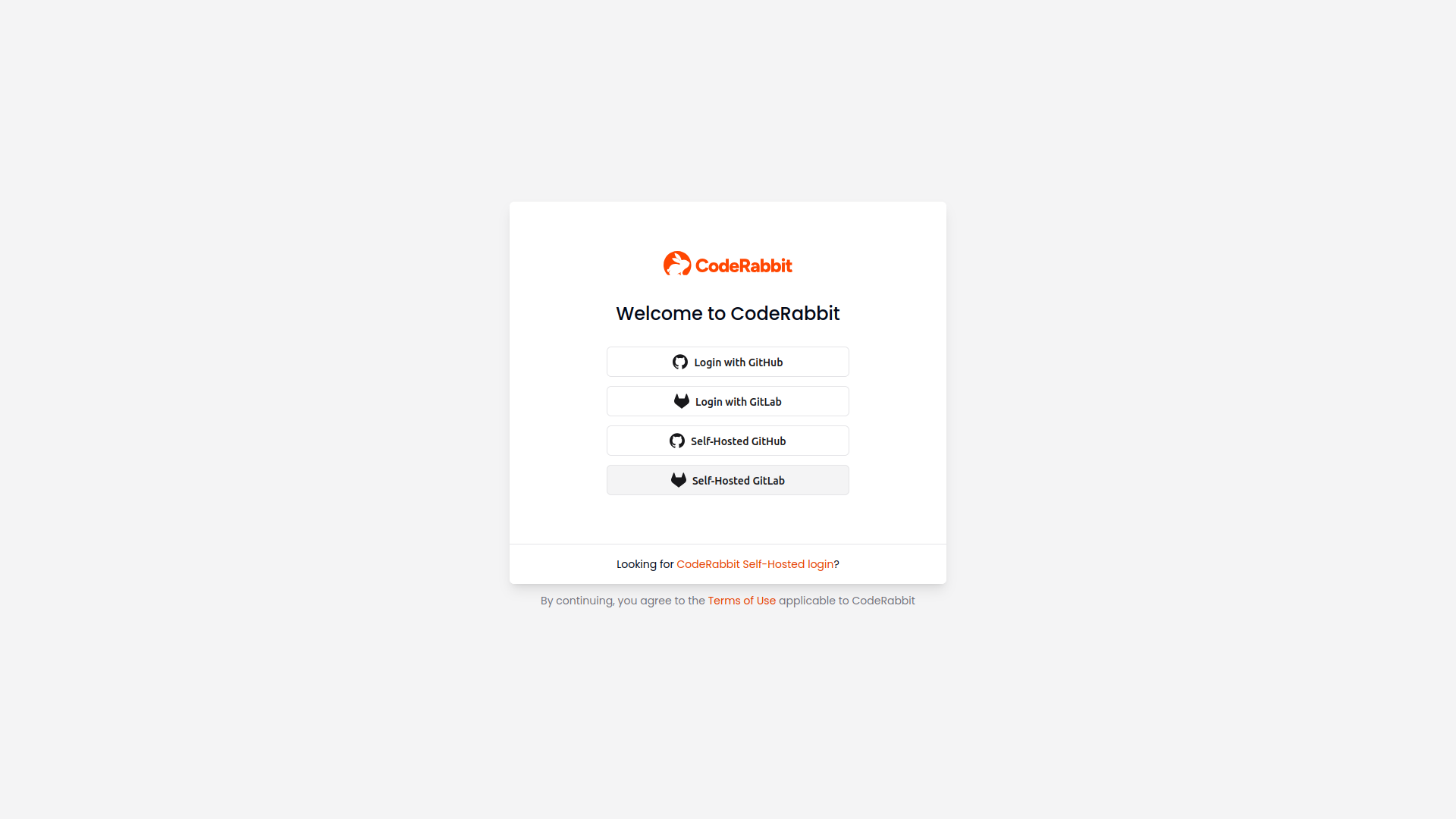
Enter your GitLab instance URL
Enter the URL of your self-managed GitLab instance and click Submit. We’ll check our database for an existing record of your organization and start the login process if found.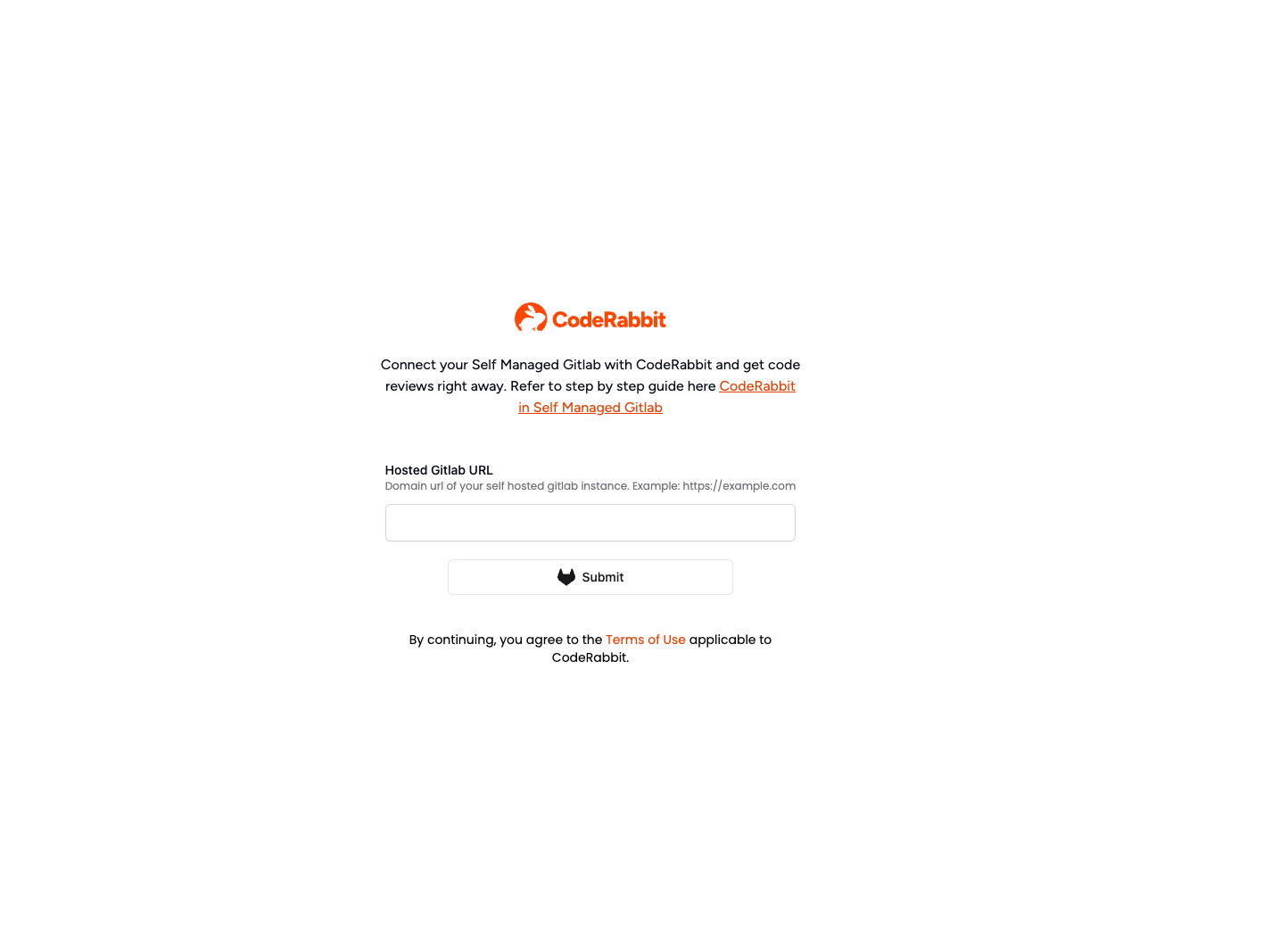
Onboarding Options
Automated Onboarding (Recommended)
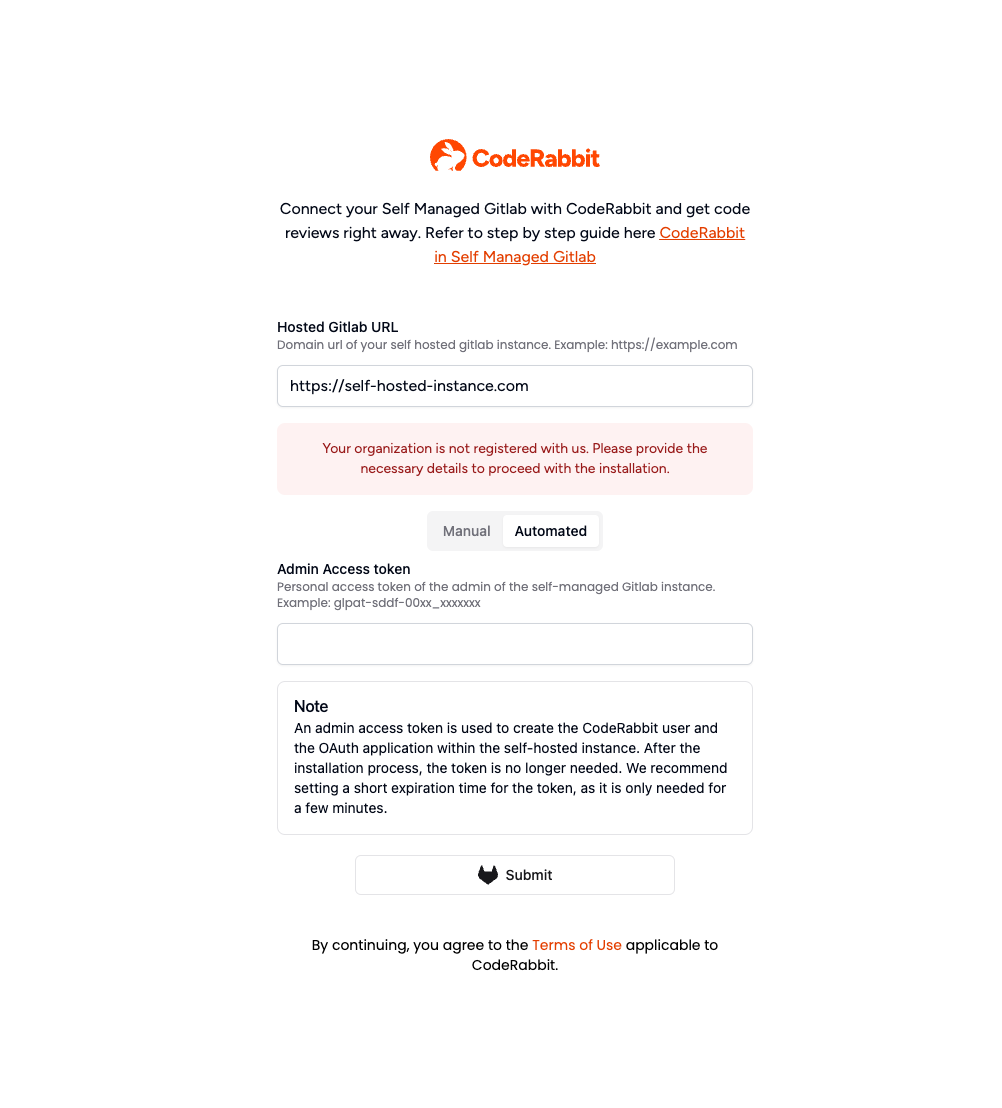
Why do we need the Admin Access Token?The admin access token is required to set up a new CodeRabbit bot user within your self-managed instance. The token is needed only once during the initial setup process. Once generated, you can set its minimum expiration period. This is the standard approach used by other products in this category.Note: This does not automatically install the CodeRabbit app across all projects. You will add CodeRabbit manually to the projects you wish to integrate.
Manual Onboarding
For the manual onboarding process, you need to create the CodeRabbit user and the OAuth2 GitLab application.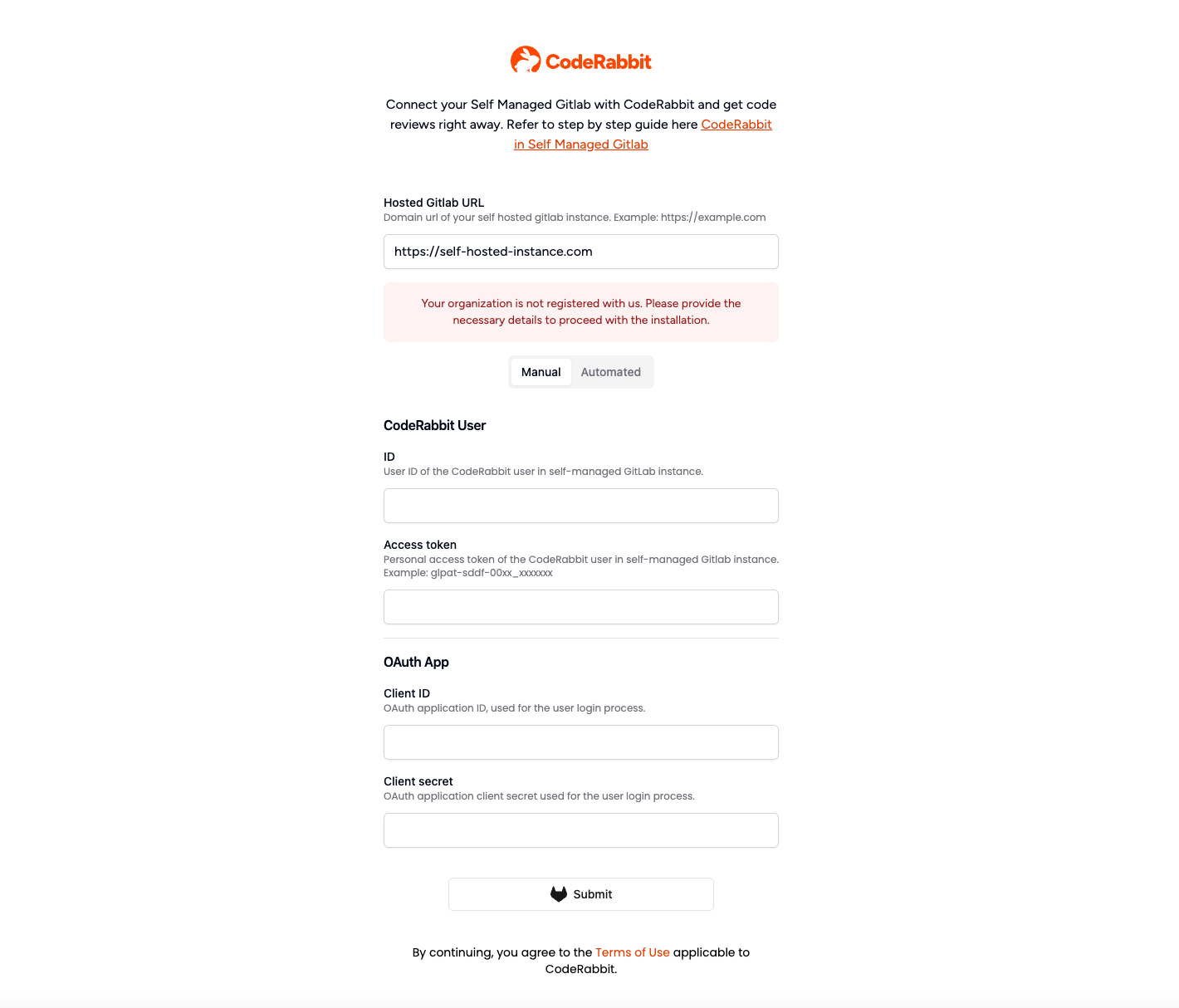
Creating CodeRabbit User
This feature will work with any user from your organization, but we strongly recommend creating a dedicated user called CodeRabbitAI. This ensures clarity about which user is used for our application and allows for better fine-grained access control.Create the user
Log in with an instance admin account and follow the steps provided in the
GitLab
documentation
to create a new user.
Generate access token
Generate an access token for this
user. The access token is used to post reviews on merge requests.
If you prefer, you can create a Group Access Token which will create a
dedicated user on your behalf. For more information, see Group Access
Token.
Creating OAuth2 Application
For self-managed GitLab, we recommend creating an instance-wide application unless you want the reviews to be limited to a single group or user. Follow the steps outlined in the GitLab documentation for creating the application.OAuth2 Application Requirements:
- Scopes:
api read_user email openid - Callback URL:
https://app.coderabbit.ai/login
Generating Personal Access Token
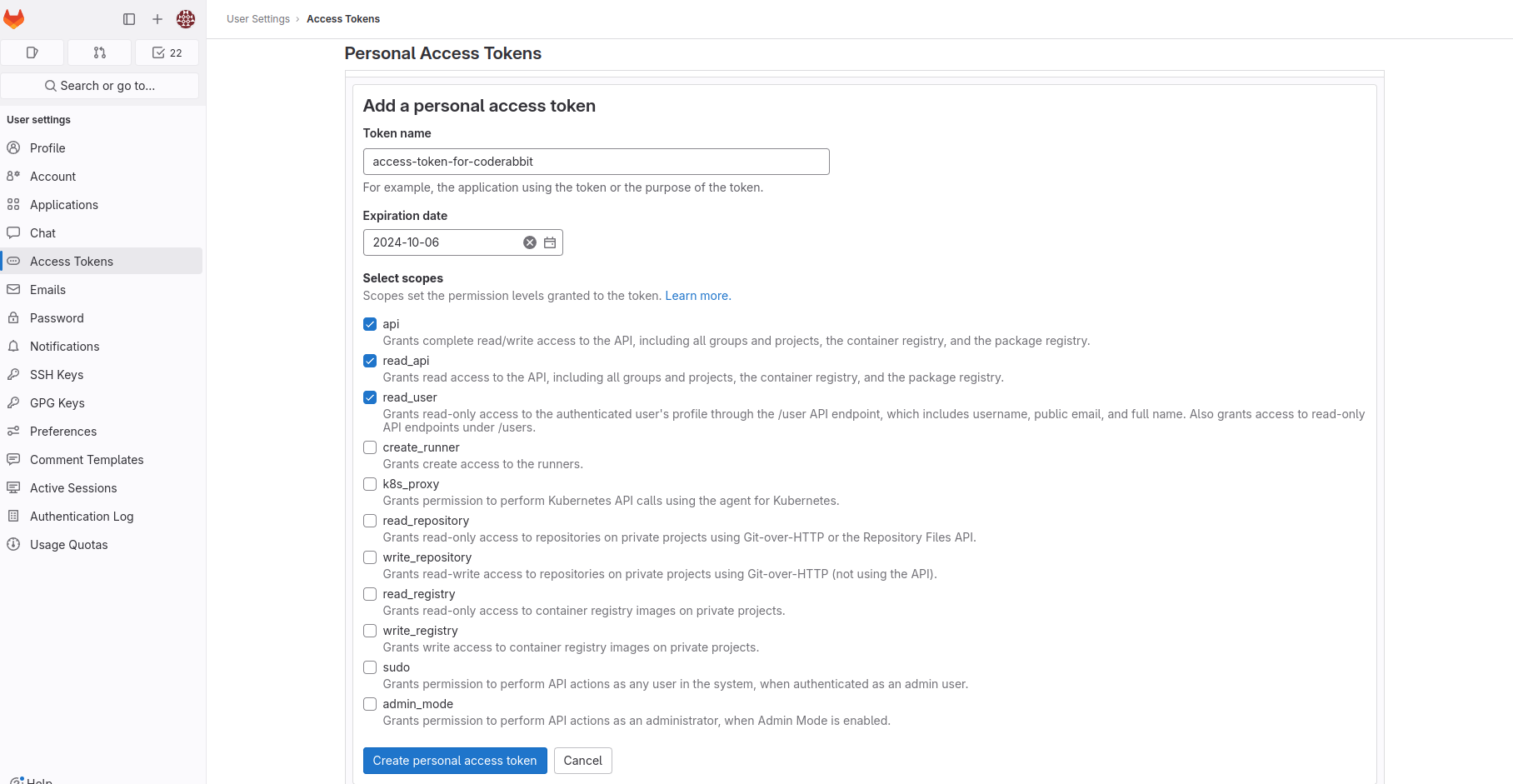
GitLab offers an option to generate a personal access token for adding a new user and setting up the application in the self-managed instance.Login to your instance
Login to your self-hosted instance. For automated
onboarding, ensure you have admin rights.
Configure token settings
- Enter a name and expiry date for the token
- We need this for the initial setup, so the minimum expiry time is sufficient
- If you do not enter an expiry date, it defaults to 365 days from the current date
- Select the required scopes:
api,read_api,read_user
Paste the details and click submit
- Submit the form.
- We will handle the setup process for you.
- On subsequent visits, your setup will be automatically detected, allowing for direct login.
Allow list CodeRabbit IP address
Use this CodeRabbit IP if your instance requires IP allow listing.Manual webhook installation
Use this flow when you need to install the webhook manually or rotate the shared webhook secret. The Webhook Secret page is available for both GitLab.com and self-managed GitLab.Open Webhook Secret settings
In the CodeRabbit app, open Account and select Webhook Secret from the sidebar.
Copy the webhook URL
Use the Webhook URL field on that page to copy the exact endpoint that your GitLab instance should call.
Save or change the webhook secret
Enter the secret that GitLab should send with webhook deliveries and save it in CodeRabbit.
If you change an existing webhook secret, CodeRabbit attempts to update existing CodeRabbit-managed GitLab project and group webhooks automatically. If a webhook was created manually, or if an automatic refresh fails, update the secret directly in GitLab.
Bulk webhook installation
For administrators managing many GitLab projects, you can use a script to bulk-install webhooks across all projects.Copy the webhook URL and secret
Follow the Manual webhook installation steps above to get your webhook URL and save a webhook secret in CodeRabbit.
Run script to install webhooks
Use a script to install webhooks across your GitLab projects or groups. Below is a sample script that requires:
- Your GitLab host URL
- The webhook URL you copied in the previous step
- The webhook secret you saved in the previous step
- A GitLab access token with API permissions
gitlab-webhook.sh script
gitlab-webhook.sh script
Example: Install webhook on a single project
Example: Install webhooks on all projects in a group (including subgroups)
SSH repository access
By default, CodeRabbit clones your GitLab projects over HTTPS. If HTTPS is not available or your organization prefers SSH for repository access, you can configure SSH clone credentials in the CodeRabbit web app.Prerequisites
- An SSH key pair generated without a passphrase. CodeRabbit cannot use passphrase-protected keys.
- The public key must be registered on the GitLab account used by CodeRabbit under Edit profile → SSH Keys. GitLab will deny SSH access if the public key is not registered! See the GitLab documentation on SSH keys.
Configure SSH clone credentials
Log in to CodeRabbit
Navigate to app.coderabbit.ai and log in with your self-managed GitLab account.
Navigate to SSH Clone Credentials
In the left navigation of the Account page, under Developer settings, click SSH Clone Credentials.
Enter your SSH credentials
Fill in the fields as required for your setup:
For most setups, providing the SSH Private Key and SSH Public Key is sufficient.
| Field | Required | Description |
|---|---|---|
| SSH Private Key | Yes | The private key used to authenticate with your GitLab instance. Must be generated without a passphrase. |
| SSH Public Key | Recommended | The corresponding public key. Providing it allows CodeRabbit to verify the key pair. |
| SSH Port | Optional | Custom SSH port if your GitLab instance does not use the default port 22. |
| known_hosts | Optional | Contents of a known_hosts file for your GitLab host. Helps prevent man-in-the-middle warnings on first connection. |
To avoid common copy-paste problems, use
pbcopy (macOS) or xclip (Linux) to copy each key file to your clipboard, then paste directly into the corresponding field.Save your credentials
Click Save to apply the SSH clone credentials. CodeRabbit will attempt SSH cloning using these credentials for your self-managed GitLab repositories. If SSH credentials cannot be decrypted or are invalid, cloning falls back to HTTPS.
After the initial setup, you can return to this page to update individual fields without re-entering all credentials.
What’s next
Platform overview
Overview of all Git platforms supported by CodeRabbit and how to get started.
Quickstart
Open your first merge request and see CodeRabbit post a review in minutes.