

To understand the relationships between applications, services, and workloads, view the topology map. This dynamic map helps you understand traffic flow and identify incidents. For applications registered with App Hub, you can view the topology at the application level. You can also view a topology map at the application management boundary level, which lets you understand how an application interacts with external services and workloads.
Understand the topology map
The application topology map is fully interactive and provides a dynamic, useful view of your applications, services, and workloads. This view helps you monitor and troubleshoot performance issues.
The following image shows a topology map for an application management boundary:
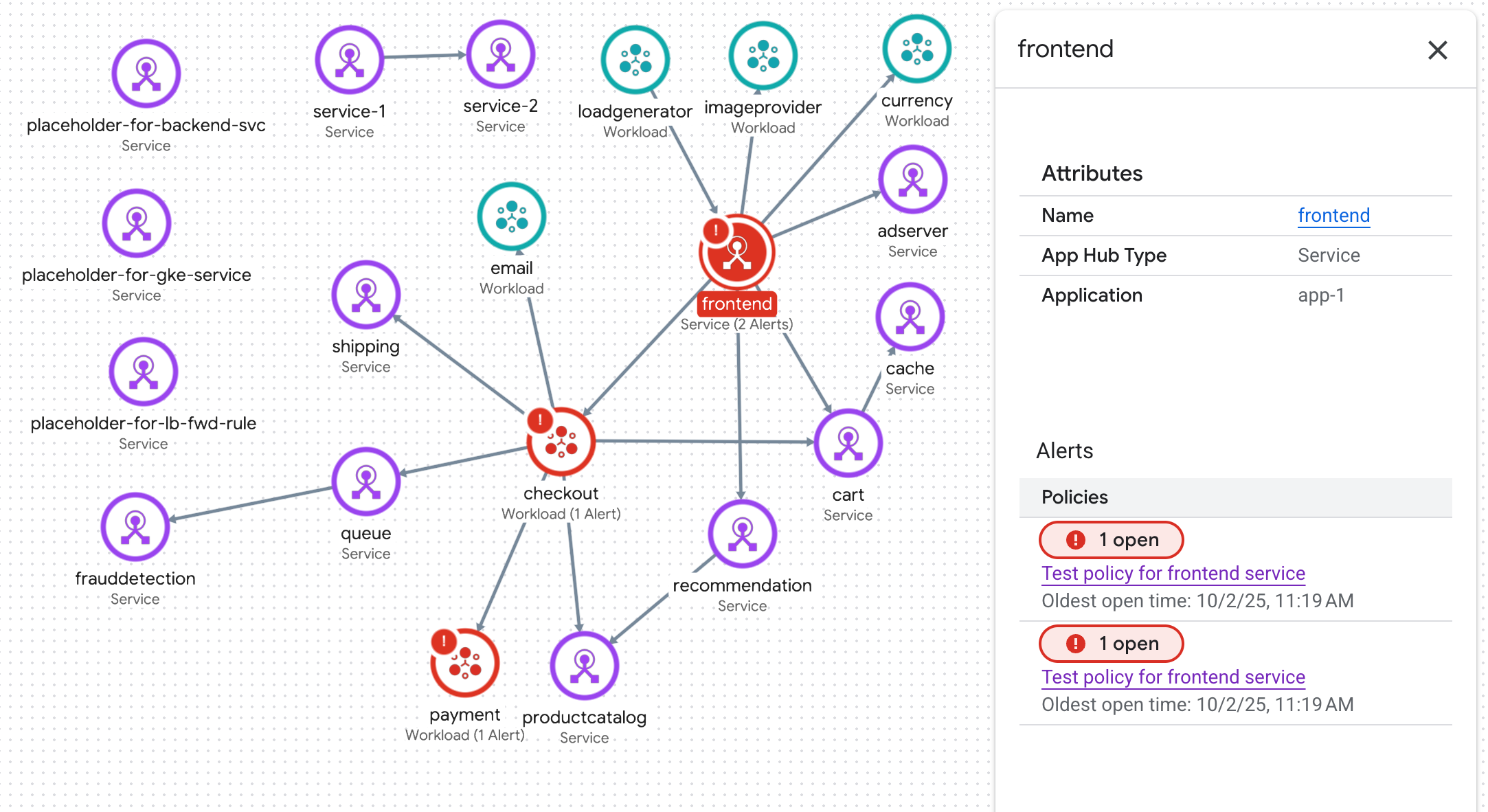
This map has the following elements:
Blue circles: Each blue circle represents an application registered with App Hub. The example shows several applications:
For two applications, the blue circle displays a unfold_less Collapse button. For these applications, the services and workloads are shown.
For one application, a single node is shown and the blue circle displays the Expand button. The value in the button is the number of registered services and workloads.
To get information about attributes and incidents for the application, select its blue circle.
Nodes: Each node represents a registered or discovered service or workload. The icon for a node is determined by the App Hub functional type when set. Otherwise, the icon indicates whether the node represents a service (
 ) or a workload (
 ). To get
information about attributes and incidents, select the node.
). To get
information about attributes and incidents, select the node.Edges: Represent traffic between two nodes. To get information about key metrics, such as the error rate and the 95th latency percentile, select the edge:
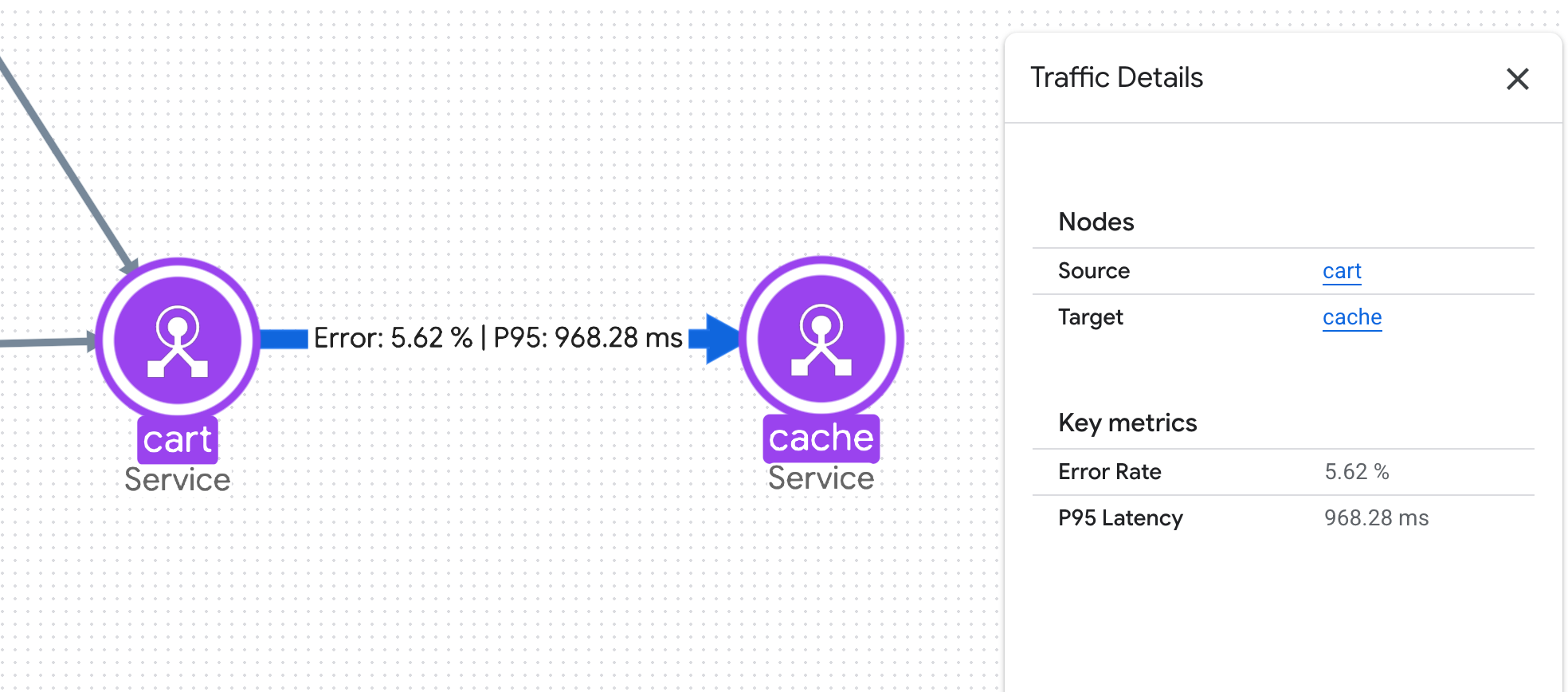
The latency value is derived from the most recent one hour of data.
Limitations
The topology map might not display all incidents or all services and workloads:
- The flyouts display only those incidents from the most recent 24 hours.
- The topology map displays at most 1000 nodes or edges. Additionally, for each supported App Hub region, this map displays at most 100 discovered services and 100 discovered workloads.
- You can't register a service or workload with an application by dragging the corresponding node to be within an application's blue circle. The blue circle is a visual guide, not a container.
Before you begin
To generate the topology map for an application, your trace data must contain application-specific labels. These labels are available only when you instrument your app with OpenTelemetry, send your trace data to the Telemetry API, and register your application with App Hub.
To get started, do the following:
- Configure Application Monitoring as described in Set up Application Monitoring. Setup for Application Monitoring includes configuring the default trace scope to list all projects that store your trace data.
- If you are using an
App-enabled folder,
then your project will have a default Service Usage Restriction policy
that prevents you from using the App Topology API. To resolve this,
someone with the
Organization Policy Administrator
role must add
apptopology.googleapis.comto the policy allowlist for the app-enabled folder management project. Note that there may also be a policy in place at the organization level. For more information, see Restricting resource usage. -
Enable the Observability, App Topology, Cloud Trace, and Telemetry APIs.
Roles required to enable APIs
To enable APIs, you need the Service Usage Admin IAM role (
roles/serviceusage.serviceUsageAdmin), which contains theserviceusage.services.enablepermission. Learn how to grant roles. -
To get the permissions that you need to view application topology, ask your administrator to grant you the App Topology viewer (
roles/apptopology.viewer) IAM role on your project. For more information about granting roles, see Manage access to projects, folders, and organizations.This predefined role contains the permissions required to view application topology. To see the exact permissions that are required, expand the Required permissions section:
Required permissions
The following permissions are required to view application topology:
-
To generate topology:
apptopology.applicationTopologies.generate
You might also be able to get these permissions with custom roles or other predefined roles.
-
To generate topology:
- Instrument your application to use OpenTelemetry and to send your trace data to the OTLP endpoint.
View topology for your application management boundary
-
In the Google Cloud console, go to the Application monitoring page:
If you use the search bar to find this page, then select the result whose subheading is Monitoring.
In the project picker of the Google Cloud console, select your App Hub host project or management project.
Click the Topology tab. The topology map for your application appears.
From the interactive topology map, you can do the following:
Change the visualization by zooming in or out, repositioning nodes, or by collapsing or expanding a blue circle.
Get information about attributes and associated incidents by selecting an application or a node.
For discovered services and workloads, the flyout might display a Cloud Asset Inventory name. Google Cloud Observability uses the asset name to determine what data a dashboard displays.
Get information about traffic between nodes by selecting the edge. A flyout displays the node names and key metrics, such as the error rate and the 95th latency percentile.
View the topology map for an application
-
In the Google Cloud console, go to the Application monitoring page:
If you use the search bar to find this page, then select the result whose subheading is Monitoring.
In the project picker of the Google Cloud console, select your App Hub host project or management project.
Select an application from the list.
Click the Topology tab. The topology map for your application appears.
From the interactive topology map, you can do the following:
Change the visualization by zooming in or out or repositioning nodes.
Get information about attributes and incidents by selecting a node.
Get information about traffic between nodes by selecting the edge. A flyout displays the node names and key metrics, such as the error rate and the 95th latency percentile.
Troubleshoot
For information that might help you understand why the application topology map doesn't display data, see Troubleshoot Application Monitoring.