
By the end of this guide, you’ll know how to connect your backend MCP server to ChatGPT, define tools, register UI templates, and tie everything together using the widget runtime. You’ll build a working foundation for a ChatGPT App that returns structured data, renders an interactive widget, and keeps your model, server, and UI in sync. If you prefer to dive straight into the implementation, you can skip ahead to the example at the end.
Build faster with the OpenAI Docs MCP server in your editor.
Overview
What an MCP server does for your app
ChatGPT Apps have three components:
- Your MCP server defines tools, enforces auth, returns data, and points each tool to a UI bundle.
- The widget/UI bundle renders inside ChatGPT’s iframe and communicates with the host through the MCP Apps UI bridge (JSON-RPC over
postMessage). - The model decides when to call tools and narrates the experience using the structured data you return.
A solid server implementation keeps those boundaries clean so you can iterate on UI and data independently. Remember: you build the MCP server and define the tools, but ChatGPT’s model chooses when to call them based on the metadata you provide.
Before you begin
Prerequisites:
- Comfortable with TypeScript or Python and a web bundler (Vite, esbuild, etc.).
- MCP server reachable over HTTP (local is fine to start).
- Built UI bundle that exports a root script (React or vanilla).
Example project layout:
your-chatgpt-app/
├─ server/
│  └─ src/index.ts          # MCP server + tool handlers
├─ web/
│  ├─ src/component.tsx     # React widget
│  └─ dist/app.{js,css}  # Bundled assets referenced by the server
└─ package.json
Architecture flow
- A user prompt causes ChatGPT to call one of your MCP tools.
- Your server runs the handler, fetches authoritative data, and returns
structuredContent,_meta, and UI metadata. - ChatGPT loads the HTML template linked in the tool descriptor (served as
text/html;profile=mcp-app) and delivers tool inputs/results to the iframe over the MCP Apps bridge (for example,ui/notifications/tool-result). - The widget renders from tool results, can call tools again with
tools/call, and can optionally use ChatGPT-only extensions when needed. - The model reads
structuredContentto narrate what happened, so keep it tight and idempotent—ChatGPT may retry tool calls.
User prompt
   ↓
ChatGPT model ──► MCP tool call ──► Your server ──► Tool response (`structuredContent`, `_meta`, `content`)
   │                                                   │
   └───── renders narration ◄──── widget iframe ◄──────┘
                              (HTML template + MCP Apps bridge)
Use the MCP Apps UI bridge
ChatGPT supports the open MCP Apps standard for UI communication:
- JSON-RPC 2.0 messages over
postMessage. ui/*methods and notifications for host↔iframe UI communication.- MCP tool calls through
tools/call.
Start with the MCP Apps bridge to keep your UI portable across hosts, then add ChatGPT extensions when you need ChatGPT-specific capabilities. For a deeper walkthrough and a mapping guide, see MCP Apps compatibility in ChatGPT.
Understand the window.openai widget runtime
window.openai is an Apps SDK compatibility layer and a home for optional
ChatGPT extensions. For new apps, use the MCP Apps bridge by default and treat
window.openai as an API for additional capabilities unqiue for ChatGPT.
Unique capabilities include:
- File handling (ChatGPT extension):
uploadFileandgetFileDownloadUrlcover image uploads and previews. - Host surfaces (ChatGPT extension):
requestModalopens a host-owned modal. - Commerce (ChatGPT extension):
requestCheckoutopens Instant Checkout (when enabled).
For the full window.openai reference, see the ChatGPT UI guide.
Use requestModal when you need a host-controlled overlay—for example, open a checkout or detail view anchored to an “Add to cart” button so shoppers can review options without forcing the inline widget to resize. To show a different UI template in the modal, pass the template URI you registered (for example, via registerAppResource).
Use these APIs when they materially improve your ChatGPT experience, but keep your core UI bridge built on the MCP Apps standard. For implementation patterns, see Build your ChatGPT UI.
Pick an SDK
Apps SDK works with any MCP implementation, but the official SDKs are the quickest way to get started. They ship tool/schema helpers, HTTP server scaffolding, resource registration utilities, and end-to-end type safety so you can stay focused on business logic:
- Python SDK – Iterate quickly with FastMCP or FastAPI. Repo:
modelcontextprotocol/python-sdk. - TypeScript SDK – Ideal when your stack is already Node/React. Repo:
modelcontextprotocol/typescript-sdk, published as@modelcontextprotocol/sdk. Docs live on modelcontextprotocol.io.
Install whichever SDK matches your backend language, then follow the steps below.
# TypeScript / Node
npm install @modelcontextprotocol/sdk @modelcontextprotocol/ext-apps zod

# Python
pip install mcp
Build your MCP server
Step 1 – Register a component template
Each UI bundle is exposed as an MCP resource with the MCP Apps UI MIME type (text/html;profile=mcp-app). If you use @modelcontextprotocol/ext-apps/server, prefer RESOURCE_MIME_TYPE instead of hardcoding the string.
Register the template and include metadata for borders, domains, and CSP rules:
// Registers the Kanban widget HTML entry point served to ChatGPT.
import {
  registerAppResource,
  RESOURCE_MIME_TYPE,
} from "@modelcontextprotocol/ext-apps/server";
import { McpServer } from "@modelcontextprotocol/sdk/server/mcp.js";
import { readFileSync } from "node:fs";

const server = new McpServer({ name: "kanban-server", version: "1.0.0" });
const HTML = readFileSync("web/dist/kanban.js", "utf8");
const CSS = readFileSync("web/dist/kanban.css", "utf8");

registerAppResource(
  server,
  "kanban-widget",
  "ui://widget/kanban-board.html",
  {},
  async () => ({
    contents: [
      {
        uri: "ui://widget/kanban-board.html",
        mimeType: RESOURCE_MIME_TYPE,
        text: `
<div id="kanban-root"></div>
<style>${CSS}</style>
<script type="module">${HTML}</script>
        `.trim(),
        _meta: {
          ui: {
            prefersBorder: true,
            domain: "https://myapp.example.com",
            csp: {
              connectDomains: ["https://api.myapp.example.com"], // example API domain
              resourceDomains: ["https://*.oaistatic.com"], // example CDN allowlist
              // Optional: allow embedding specific iframe origins.
              frameDomains: ["https://*.example-embed.com"],
            },
          },
        },
      },
    ],
  })
);
If you need to embed iframes inside your widget, use _meta.ui.csp.frameDomains to declare an allowlist of origins. Without frameDomains set, subframes are blocked by default. Because iframe content is harder for us to inspect, widgets that enable subframes are reviewed with extra scrutiny and may not be approved for directory distribution.
Best practice: When you change your widget’s HTML/JS/CSS in a breaking way, give the template a new URI (or use a new file name) so ChatGPT always loads the updated bundle instead of a cached one.
Treat the URI as your cache key. When you update the markup or bundle, version
the URI and update every reference to it (for example, the registerAppResource
URI, _meta.ui.resourceUri in your tool descriptor, and the contents[].uri
in your template list). ChatGPT honors _meta["openai/outputTemplate"]
as an OpenAI-specific compatibility alias.
// Old
contents: [{ uri: "ui://widget/kanban-board.html" /* ... */ }];
// New
contents: [{ uri: "ui://widget/kanban-board-v2.html" /* ... */ }];
If you ship updates frequently, keep a short, consistent versioning scheme so you can roll forward (or back) without reusing the same URI.
Step 2 – Describe tools
Tools are the contract the model reasons about. Define one tool per user intent (e.g., list_tasks, update_task). Each descriptor should include:
- Machine-readable name and human-readable title.
- JSON schema for arguments (
zod, JSON Schema, or dataclasses). _meta.ui.resourceUripointing to the template URI.- Optional
_meta.ui.visibilityto control whether the tool is callable by the model, the UI, or both. - Optional ChatGPT extensions (like short status text while a tool runs).
The model inspects these descriptors to decide when a tool fits the user’s request, so treat names, descriptions, and schemas as part of your UX.
Design handlers to be idempotent—the model may retry calls.
// Example app that exposes a kanban-board tool with schema, metadata, and handler.
import { registerAppTool } from "@modelcontextprotocol/ext-apps/server";
import { z } from "zod";

registerAppTool(
  server,
  "kanban-board",
  {
    title: "Show Kanban Board",
    inputSchema: { workspace: z.string() },
    _meta: {
      ui: { resourceUri: "ui://widget/kanban-board.html" },
      // ChatGPT extension (optional):
      // "openai/toolInvocation/invoking": "Preparing the board…",
      // "openai/toolInvocation/invoked": "Board ready.",
    },
  },
  async ({ workspace }) => {
    const board = await loadBoard(workspace);
    return {
      structuredContent: board.summary,
      content: [{ type: "text", text: `Showing board ${workspace}` }],
      _meta: board.details,
    };
  }
);
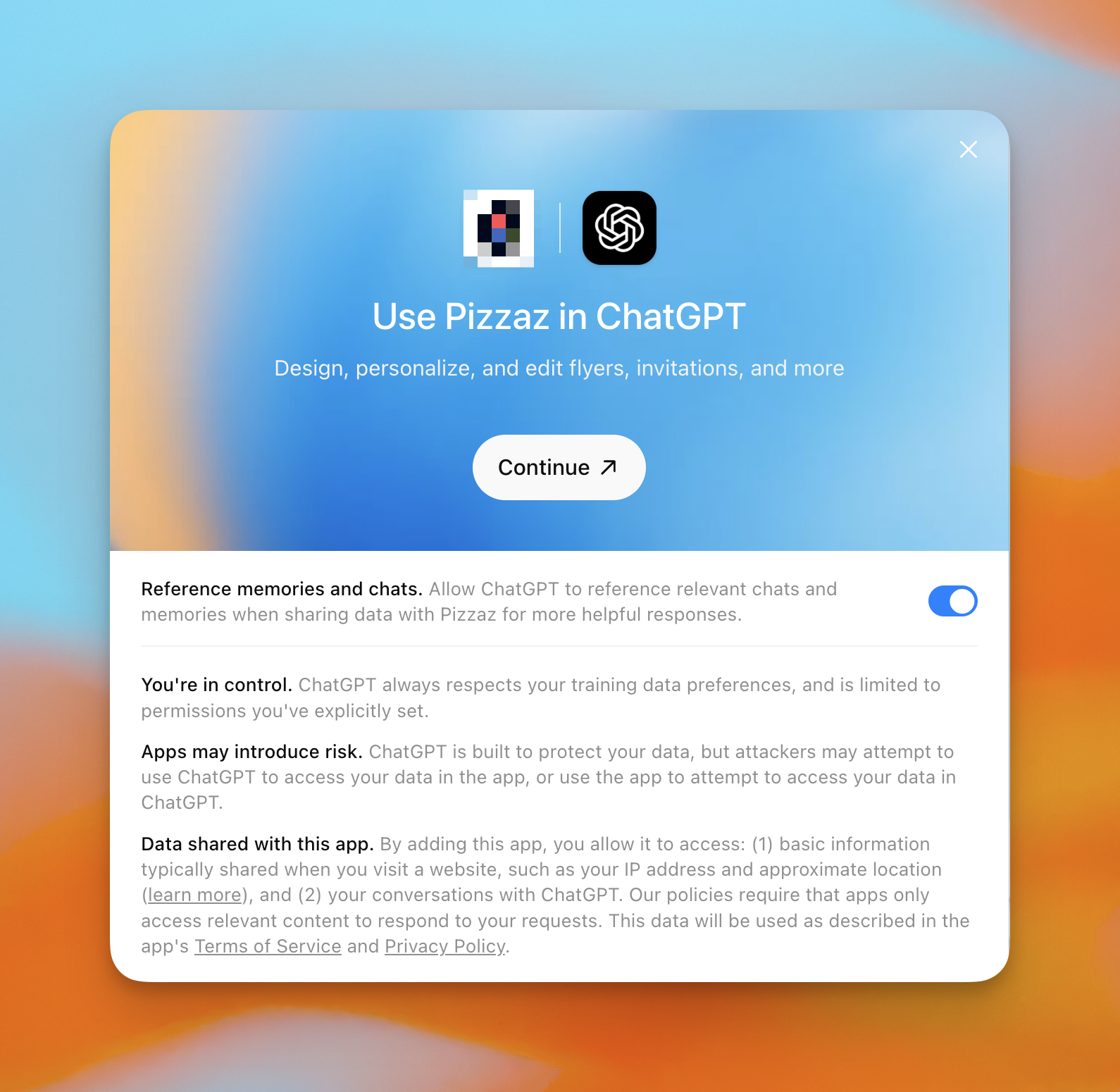
Memory and tool calls
Memory is user-controlled and model-mediated: the model decides if and how to use it when selecting or parameterizing a tool call. By default, memories are turned off with apps. Users can enable or disable memory for an app. Apps do not receive a separate memory feed; they only see whatever the model includes in tool inputs. When memory is off, a request is re-evaluated without memory in the model context.
Best practices
- Keep tool inputs explicit and required for correctness; do not rely on memory for critical fields.
- Treat memory as a hint, not authority; confirm user preferences when it is important to your user flow and may have side effects
- Provide safe defaults or ask a follow-up question when context is missing.
- Make tools resilient to retries or re-evaluation or missing memories
- For write or destructive actions, re-confirm intent and key parameters in the current turn.
Step 3 – Return structured data and metadata
Every tool response can include three sibling payloads:
structuredContent– concise JSON the widget uses and the model reads. Include only what the model should see.content– optional narration (Markdown or plaintext) for the model’s response._meta– large or sensitive data exclusively for the widget._metanever reaches the model.
// Returns concise structuredContent for the model plus rich _meta for the widget.
async function loadKanbanBoard(workspace: string) {
  const tasks = await db.fetchTasks(workspace);
  return {
    structuredContent: {
      columns: ["todo", "in-progress", "done"].map((status) => ({
        id: status,
        title: status.replace("-", " "),
        tasks: tasks.filter((task) => task.status === status).slice(0, 5),
      })),
    },
    content: [
      {
        type: "text",
        text: "Here's the latest snapshot. Drag cards in the widget to update status.",
      },
    ],
    _meta: {
      tasksById: Object.fromEntries(tasks.map((task) => [task.id, task])),
      lastSyncedAt: new Date().toISOString(),
    },
  };
}
The widget receives those payloads over the MCP Apps bridge (for example,
ui/notifications/tool-result), while the model only sees structuredContent
and content.
Step 4 – Run locally
- Build your UI bundle (
npm run buildinsideweb/). - Start the MCP server (Node, Python, etc.).
- Use MCP Inspector early and often to call
http://localhost:<port>/mcp, list roots, and verify your widget renders correctly. Inspector mirrors ChatGPT’s widget runtime and catches issues before deployment.
For a TypeScript project, that usually looks like:
npm run build       # compile server + widget
node dist/index.js  # start the compiled MCP server
Step 5 – Expose an HTTPS endpoint
ChatGPT requires HTTPS. During development, tunnel localhost with ngrok (or similar):
ngrok http <port>
# Forwarding: https://<subdomain>.ngrok.app -> http://127.0.0.1:<port>
Use the ngrok URL when creating a connector in ChatGPT developer mode. For production, deploy to a low-latency HTTPS host (Cloudflare Workers, Fly.io, Vercel, AWS, etc.).
Example
Here’s a stripped-down TypeScript server plus vanilla widget. For full projects, reference the public Apps SDK examples.
// server/src/index.ts
import {
  registerAppResource,
  registerAppTool,
  RESOURCE_MIME_TYPE,
} from "@modelcontextprotocol/ext-apps/server";
import { McpServer } from "@modelcontextprotocol/sdk/server/mcp.js";

const server = new McpServer({ name: "hello-world", version: "1.0.0" });

registerAppResource(
  server,
  "hello",
  "ui://widget/hello.html",
  {},
  async () => ({
    contents: [
      {
        uri: "ui://widget/hello.html",
        mimeType: RESOURCE_MIME_TYPE,
        text: `
<div id="root"></div>
<script type="module" src="https://example.com/hello-widget.js"></script>
      `.trim(),
      },
    ],
  })
);

registerAppTool(
  server,
  "hello_widget",
  {
    title: "Show hello widget",
    inputSchema: { name: { type: "string" } },
    _meta: { ui: { resourceUri: "ui://widget/hello.html" } },
  },
  async ({ name }) => ({
    structuredContent: { message: `Hello ${name}!` },
    content: [{ type: "text", text: `Greeting ${name}` }],
    _meta: {},
  })
);
// hello-widget.js
const root = document.getElementById("root");
root.textContent = "Loading…";
const update = (toolResult) => {
const message = toolResult?.structuredContent?.message ?? "Hi!";
root.textContent = message;
};
window.addEventListener(
"message",
(event) => {
if (event.source !== window.parent) return;
const message = event.data;
if (!message || message.jsonrpc !== "2.0") return;
if (message.method !== "ui/notifications/tool-result") return;
update(message.params);
},
{ passive: true }
);Troubleshooting
- Widget doesn’t render – Ensure the template resource returns
mimeType: "text/html;profile=mcp-app"and that the bundled JS/CSS URLs resolve inside the sandbox. - No
ui/*messages arrive – The host only enables the MCP Apps bridge fortext/html;profile=mcp-appresources; double-check the MIME type and that the widget loaded without CSP violations. - CSP or CORS failures – Use
_meta.ui.cspto allow the exact domains you fetch from; the sandbox blocks everything else. - Stale bundles keep loading – Cache-bust template URIs or file names whenever you deploy breaking changes.
- Structured payloads are huge – Trim
structuredContentto what the model truly needs; oversized payloads degrade model performance and slow rendering.
Advanced capabilities
Component-initiated tool calls
Use tools/call to invoke tools directly from your UI. By default, tools are
available to both the model and the UI. Use _meta.ui.visibility to restrict
where a tool is available.
"_meta": {
  "ui": {
    "resourceUri": "ui://widget/kanban-board.html",
    "visibility": ["model", "app"]
  }
}
Tool visibility
To make a tool callable from your UI but hidden from the model, set
_meta.ui.visibility to ["app"]. This keeps the tool available to the widget
via tools/call without influencing tool selection by the model.
"_meta": {
  "ui": {
    "resourceUri": "ui://widget/kanban-board.html",
    "visibility": ["app"]
  }
}
Tool annotations and elicitation
MCP tools must include tool annotations that describe the tool’s potential impact. These hints are required for tool definitions.
The three hints we look at are:
readOnlyHint: Set totruefor tools that only retrieve or compute information and do not create, update, delete, or send data outside of ChatGPT (search, lookups, previews).openWorldHint: Set tofalsefor tools that only affect a bounded target (for example, “update a task by id” in your own product). Leavetruefor tools that can write to arbitrary URLs/files/resources.destructiveHint: Set totruefor tools that can delete, overwrite, or have irreversible side effects.
openWorldHint and destructiveHint are only relevant for writes (that is,
when readOnlyHint=false).
Set these hints accurately so the tool’s impact is correctly described.
If you omit these hints (or leave them as null), treat it as a validation
error and update the tool definition to include them.
Example tool descriptor:
{
  "name": "update_task",
  "title": "Update task",
  "annotations": {
    "readOnlyHint": false,
    "openWorldHint": false,
    "destructiveHint": false
  }
}
File inputs (file params)
ChatGPT extension (optional): If your tool accepts user-provided files,
declare file parameters with _meta["openai/fileParams"]. The value is a list
of top-level input schema fields that should be treated as files. Nested file
fields are not supported.
Each file param must be an object with this shape:
{
  "download_url": "https://...",
  "file_id": "file_..."
}
Example:
import { registerAppTool } from "@modelcontextprotocol/ext-apps/server";

registerAppTool(
  server,
  "process_image",
  {
    title: "process_image",
    description: "Processes an image",
    inputSchema: {
      type: "object",
      properties: {
        imageToProcess: {
          type: "object",
          properties: {
            download_url: { type: "string" },
            file_id: { type: "string" },
          },
          required: ["download_url", "file_id"],
          additionalProperties: false,
        },
      },
      required: ["imageToProcess"],
      additionalProperties: false,
    },
    _meta: {
      ui: { resourceUri: "ui://widget/widget.html" },
      "openai/fileParams": ["imageToProcess"],
    },
  },
  async ({ imageToProcess }) => {
    return {
      content: [],
      structuredContent: {
        download_url: imageToProcess.download_url,
        file_id: imageToProcess.file_id,
      },
    };
  }
);
Content security policy (CSP)
Set _meta.ui.csp on the widget resource so the sandbox knows which domains to
allow for connect-src, img-src, frame-src, etc. This is required before
broad distribution.
"_meta": {
  "ui": {
    "csp": {
      "connectDomains": ["https://api.example.com"],
      "resourceDomains": ["https://persistent.oaistatic.com"],
      "frameDomains": ["https://*.example-embed.com"]
    }
  }
}connectDomains– hosts your widget can fetch from.resourceDomains– hosts for static assets like images, fonts, and scripts.frameDomains– optional; hosts your widget may embed as iframes. Widgets withoutframeDomainscannot render subframes.
Caution: Using frameDomains is discouraged and should only be done when embedding iframes is core to your experience (for example, a code editor or notebook environment). Apps that declare frameDomains are subject to higher scrutiny at review time and are likely to be rejected or held back from broad distribution.
Widget domains
Set _meta.ui.domain on the widget resource template (the registerAppResource
template). This is required for app submission and must be unique per app.
ChatGPT renders the widget under <domain>.web-sandbox.oaiusercontent.com, which
also enables the fullscreen punch-out button.
"_meta": {
  "ui": {
    "csp": {
      "connectDomains": ["https://api.example.com"],
      "resourceDomains": ["https://persistent.oaistatic.com"]
    },
    "domain": "https://myapp.example.com"
  }
}
Component descriptions
ChatGPT extension (optional): Set _meta["openai/widgetDescription"] on the
widget resource to let the widget describe itself, reducing redundant text
beneath the widget.
"_meta": {
  "ui": {
    "csp": {
      "connectDomains": ["https://api.example.com"],
      "resourceDomains": ["https://persistent.oaistatic.com"]
    },
    "domain": "https://myapp.example.com"
  },
  "openai/widgetDescription": "Shows an interactive zoo directory rendered by get_zoo_animals."
}
Localized content
ChatGPT sends the requested locale in _meta["openai/locale"] (with _meta["webplus/i18n"] as a legacy key) in the client request. Use RFC 4647 matching to select the closest supported locale, echo it back in your responses, and format numbers/dates accordingly.
Client context hints
ChatGPT may also send hints in the client request metadata like _meta["openai/userAgent"] and _meta["openai/userLocation"]. These can be helpful for tailoring analytics or formatting, but never rely on them for authorization.
Once your templates, tools, and widget runtime are wired up, the fastest way to refine your app is to use ChatGPT itself: call your tools in a real conversation, watch your logs, and debug the widget with browser devtools. When everything looks good, put your MCP server behind HTTPS and your app is ready for users.
Company knowledge compatibility
Company knowledge in ChatGPT (Business, Enterprise, and Edu) can call any read-only tool in your app. It biases toward search/fetch, and only apps that implement the search and fetch tool input signatures are included as company knowledge sources. These are the same tool shapes required for connectors and deep research (see the MCP docs).
In practice, you should:
- Implement search and fetch input schemas exactly to the MCP schema. Company knowledge compatibility checks the input parameters only.
- Mark other read-only tools with
readOnlyHint: trueso ChatGPT can safely call them.
To opt in, implement search and fetch using the MCP schema and return canonical url values for citations. For eligibility, admin enablement, and availability details, see Company knowledge in ChatGPT and the MCP tool schema in Building MCP servers.
While compatibility checks focus on the input schema, you should still return the recommended result shapes for search and fetch so ChatGPT can cite sources reliably. The text fields are JSON-encoded strings in your tool response.
Search result shape (tool payload before MCP wrapping):
{
  "results": [
    {
      "id": "doc-1",
      "title": "Human-readable title",
      "url": "https://example.com"
    }
  ]
}
Fields:
results- array of search results.results[].id- unique ID for the document or item.results[].title- human-readable title.results[].url- canonical URL for citation.
In MCP, the tool response wraps this JSON inside a content array. For search, return exactly one content item with type: "text" and text set to the JSON string above:
Search tool response wrapper (MCP content array):
{
  "content": [
    {
      "type": "text",
      "text": "{\"results\":[{\"id\":\"doc-1\",\"title\":\"Human-readable title\",\"url\":\"https://example.com\"}]}"
    }
  ]
}
Fetch result shape (tool payload before MCP wrapping):
{
  "id": "doc-1",
  "title": "Human-readable title",
  "text": "Full text of the document",
  "url": "https://example.com",
  "metadata": { "source": "optional key/value pairs" }
}
Fields:
id- unique ID for the document or item.title- human-readable title.text- full text of the document or item.url- canonical URL for citation.metadata- optional key/value pairs about the result.
For fetch, wrap the document JSON the same way:
Fetch tool response wrapper (MCP content array):
{
  "content": [
    {
      "type": "text",
      "text": "{\"id\":\"doc-1\",\"title\":\"Human-readable title\",\"text\":\"Full text of the document\",\"url\":\"https://example.com\",\"metadata\":{\"source\":\"optional key/value pairs\"}}"
    }
  ]
}
Here is a minimal TypeScript example showing the search and fetch tools:
import { McpServer } from "@modelcontextprotocol/sdk/server/mcp.js";
import { z } from "zod";

const server = new McpServer({ name: "acme-knowledge", version: "1.0.0" });

server.registerTool(
  "search",
  {
    title: "Search knowledge",
    inputSchema: { query: z.string() },
    annotations: { readOnlyHint: true },
  },
  async ({ query }) => ({
    content: [
      {
        type: "text",
        text: JSON.stringify({
          results: [
            { id: "doc-1", title: "Overview", url: "https://example.com" },
          ],
        }),
      },
    ],
  })
);

server.registerTool(
  "fetch",
  {
    title: "Fetch document",
    inputSchema: { id: z.string() },
    annotations: { readOnlyHint: true },
  },
  async ({ id }) => ({
    content: [
      {
        type: "text",
        text: JSON.stringify({
          id,
          title: "Overview",
          text: "Full text...",
          url: "https://example.com",
          metadata: { source: "acme" },
        }),
      },
    ],
  })
);
Security reminders
- Treat
structuredContent,content,_meta, and widget state as user-visible—never embed API keys, tokens, or secrets. - Do not rely on
_meta["openai/userAgent"],_meta["openai/locale"], or other hints for authorization; enforce auth inside your MCP server and backing APIs. - Avoid exposing admin-only or destructive tools unless the server verifies the caller’s identity and intent.