
Get the Poster!
Reference the CSS Flexbox guide a lot? Here’s a high-res image you can print!

CSS Flexbox Background
The Flexbox Layout (Flexible Box) module provides a more efficient way to lay out, align and distribute space among items in a container, even when their size is unknown and/or dynamic (thus the word “flex”).
The main idea behind the flex layout is to give the container the ability to alter its items’ width/height (and order) to best fill the available space (mostly to accommodate to all kind of display devices and screen sizes). A flex container expands items to fill available free space or shrinks them to prevent overflow.
Most importantly, the flexbox layout is direction-agnostic as opposed to the regular layouts (block which is vertically-based and inline which is horizontally-based). While those work well for pages, they lack flexibility (no pun intended) to support large or complex applications (especially when it comes to orientation changing, resizing, stretching, shrinking, etc.).
Note: Flexbox layout is most appropriate to the components of an application, and small-scale layouts, while the CSS Grid layout is intended for larger scale layouts.
Flexbox Terminology
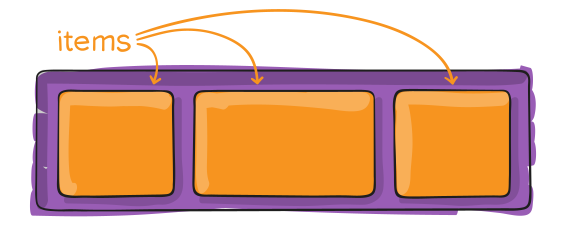
Since flexbox is a whole module and not a single property, it involves a lot of things including its whole set of properties. Some of them are meant to be set on the container (parent element, known as “flex container”) whereas the others are meant to be set on the children (said “flex items”).
If “regular” layout is based on both block and inline flow directions, the flex layout is based on “flex-flow directions”. Please have a look at this figure from the specification, explaining the main idea behind the flex layout.
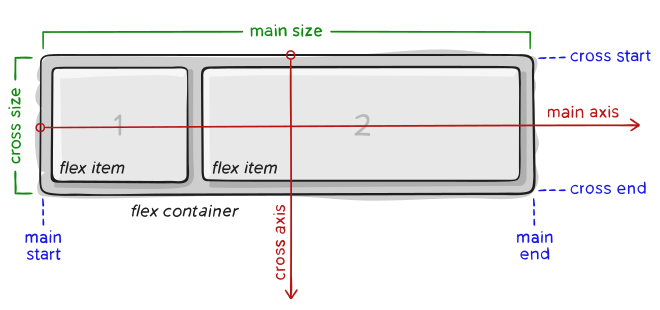
Items will be laid out following either the main axis (from main-start to main-end) or the cross axis (from cross-start to cross-end).
- main axis – The main axis of a flex container is the primary axis along which flex items are laid out. Beware, it is not necessarily horizontal; it depends on the
flex-directionproperty (see below). - main-start | main-end – The flex items are placed within the container starting from main-start and going to main-end.
- main size – A flex item’s width or height, whichever is in the main dimension, is the item’s main size. The flex item’s main size property is either the ‘width’ or ‘height’ property, whichever is in the main dimension.
- cross axis – The axis perpendicular to the main axis is called the cross axis. Its direction depends on the main axis direction.
- cross-start | cross-end – Flex lines are filled with items and placed into the container starting on the cross-start side of the flex container and going toward the cross-end side.
- cross size – The width or height of a flex item, whichever is in the cross dimension, is the item’s cross size. The cross size property is whichever of ‘width’ or ‘height’ that is in the cross dimension.
CSS Flexbox Properties

Properties for the Parent
(Flex Container)
display
This defines a flex container; inline or block depending on the given value. It enables a flex context for all its direct children.
.container {
  display: flex; /* or inline-flex */
}
Note that CSS columns have no effect on a flex container.
flex-direction
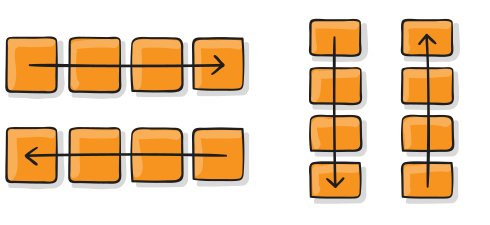
This establishes the main-axis, thus defining the direction flex items are placed in the flex container. Flexbox is (aside from optional wrapping) a single-direction layout concept. Think of flex items as primarily laying out either in horizontal rows or vertical columns.
.container {
  flex-direction: row | row-reverse | column | column-reverse;
}row(default): left to right inltr; right to left inrtlrow-reverse: right to left inltr; left to right inrtlcolumn: same asrowbut top to bottomcolumn-reverse: same asrow-reversebut bottom to top
flex-wrap
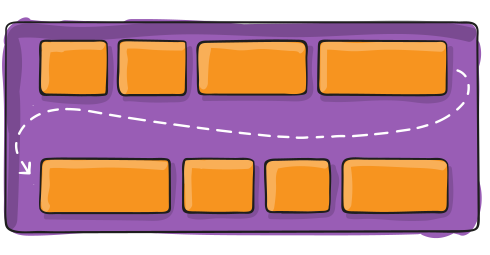
By default, flex items will all try to fit onto one line. You can change that and allow the items to wrap as needed with this property.
.container {
  flex-wrap: nowrap | wrap | wrap-reverse;
}nowrap(default): all flex items will be on one linewrap: flex items will wrap onto multiple lines, from top to bottom.wrap-reverse: flex items will wrap onto multiple lines from bottom to top.
There are some visual demos of flex-wrap here.
flex-flow
This is a shorthand for the flex-direction and flex-wrap properties, which together define the flex container’s main and cross axes. The default value is row nowrap.
.container {
  flex-flow: column wrap;
}
justify-content
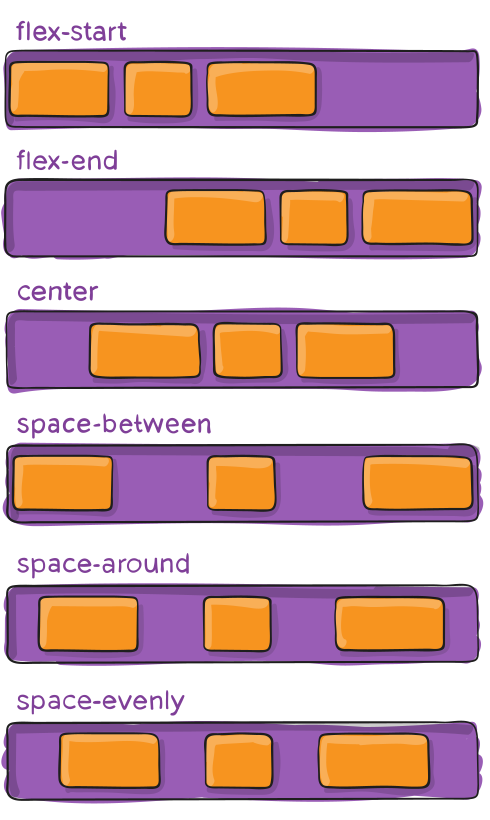
This defines the alignment along the main axis. It helps distribute extra free space leftover when either all the flex items on a line are inflexible, or are flexible but have reached their maximum size. It also exerts some control over the alignment of items when they overflow the line.
.container {
  justify-content: flex-start | flex-end | center | space-between | space-around | space-evenly | start | end | left | right ... + safe | unsafe;
}flex-start(default): items are packed toward the start of the flex-direction.flex-end: items are packed toward the end of the flex-direction.start: items are packed toward the start of thewriting-modedirection.end: items are packed toward the end of thewriting-modedirection.left: items are packed toward left edge of the container, unless that doesn’t make sense with theflex-direction, then it behaves likestart.right: items are packed toward right edge of the container, unless that doesn’t make sense with theflex-direction, then it behaves likeend.center: items are centered along the linespace-between: items are evenly distributed in the line; first item is on the start line, last item on the end linespace-around: items are evenly distributed in the line with equal space around them. Note that visually the spaces aren’t equal, since all the items have equal space on both sides. The first item will have one unit of space against the container edge, but two units of space between the next item because that next item has its own spacing that applies.space-evenly: items are distributed so that the spacing between any two items (and the space to the edges) is equal.
Note that that browser support for these values is nuanced. For example, space-between never got support from some versions of Edge, and start/end/left/right aren’t in Chrome yet. MDN has detailed charts. The safest values are flex-start, flex-end, and center.
There are also two additional keywords you can pair with these values: safe and unsafe. Using safe ensures that however you do this type of positioning, you can’t push an element such that it renders off-screen (e.g. off the top) in such a way the content can’t be scrolled too (called “data loss”).
align-items
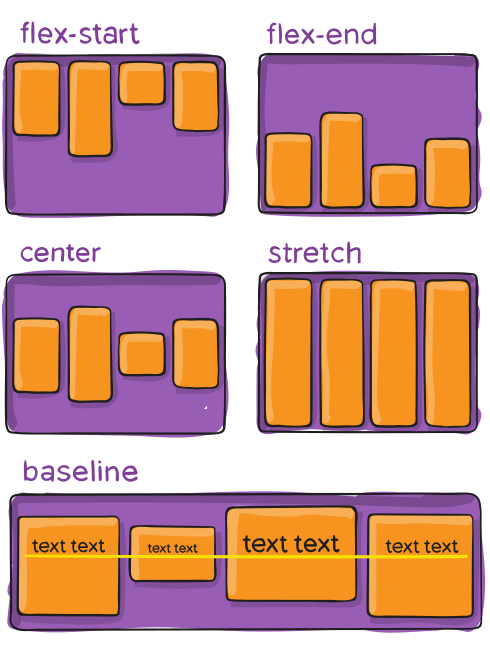
This defines the default behavior for how flex items are laid out along the cross axis on the current line. Think of it as the justify-content version for the cross-axis (perpendicular to the main-axis).
.container {
  align-items: stretch | flex-start | flex-end | center | baseline | first baseline | last baseline | start | end | self-start | self-end + ... safe | unsafe;
}stretch(default): stretch to fill the container (still respect min-width/max-width)flex-start/start/self-start: items are placed at the start of the cross axis. The difference between these is subtle, and is about respecting theflex-directionrules or thewriting-moderules.flex-end/end/self-end: items are placed at the end of the cross axis. The difference again is subtle and is about respectingflex-directionrules vs.writing-moderules.center: items are centered in the cross-axisbaseline: items are aligned such as their baselines align
The safe and unsafe modifier keywords can be used in conjunction with all the rest of these keywords (although note browser support), and deal with helping you prevent aligning elements such that the content becomes inaccessible.
align-content
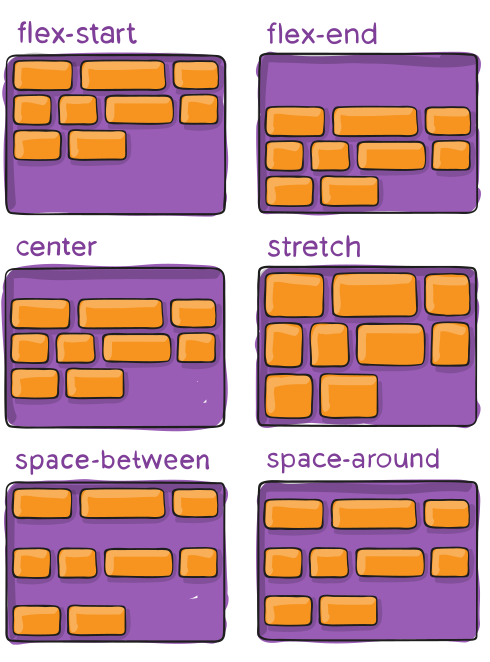
This aligns a flex container’s lines within when there is extra space in the cross-axis, similar to how justify-content aligns individual items within the main-axis.
Note: This property only takes effect on multi-line flexible containers, where flex-wrap is set to either wrap or wrap-reverse). A single-line flexible container (i.e. where flex-wrap is set to its default value, no-wrap) will not reflect align-content.
.container {
  align-content: flex-start | flex-end | center | space-between | space-around | space-evenly | stretch | start | end | baseline | first baseline | last baseline + ... safe | unsafe;
}normal(default): items are packed in their default position as if no value was set.flex-start/start: items packed to the start of the container. The (more supported)flex-starthonors theflex-directionwhilestarthonors thewriting-modedirection.flex-end/end: items packed to the end of the container. The (more support)flex-endhonors theflex-directionwhile end honors thewriting-modedirection.center: items centered in the containerspace-between: items evenly distributed; the first line is at the start of the container while the last one is at the endspace-around: items evenly distributed with equal space around each linespace-evenly: items are evenly distributed with equal space around themstretch: lines stretch to take up the remaining space
The safe and unsafe modifier keywords can be used in conjunction with all the rest of these keywords and deal with helping you prevent aligning elements such that the content becomes inaccessible.
gap, row-gap, column-gap
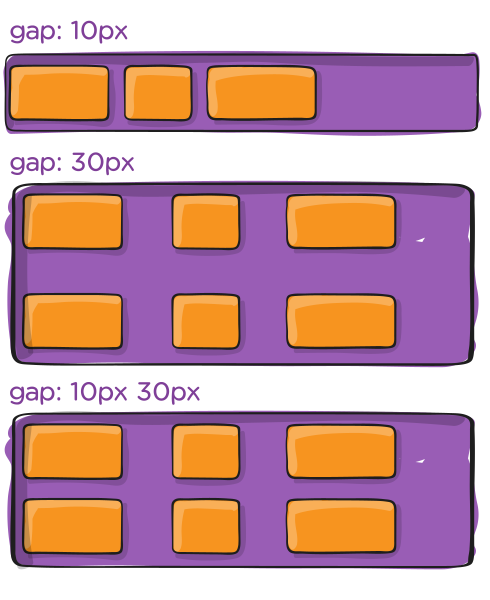
The gap property explicitly controls the space between flex items. It applies that spacing only between items not on the outer edges.
.container {
  display: flex;
  ...
  gap: 10px;
  gap: 10px 20px; /* row-gap column gap */
  row-gap: 10px;
  column-gap: 20px;
}
The behavior could be thought of as a minimum gutter, as if the gutter is bigger somehow (because of something like justify-content: space-between;) then the gap will only take effect if that space would end up smaller.
It is not exclusively for flexbox, gap works in grid and multi-column layout as well.
Properties for the Children
(Flex Items)
order
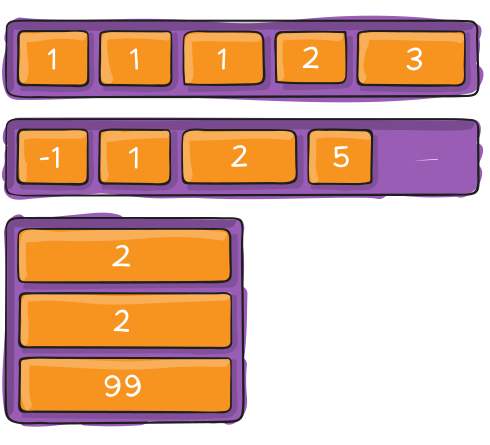
By default, flex items are laid out in the source order. However, the order property controls the order in which they appear in the flex container.
.item {
  order: 5; /* default is 0 */
}
Items with the same order revert to source order.
flex-grow
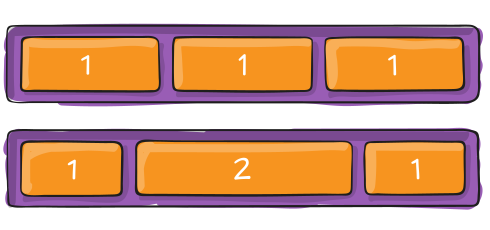
This defines the ability for a flex item to grow if necessary. It accepts a unitless value that serves as a proportion. It dictates what amount of the available space inside the flex container the item should take up.
If all items have flex-grow set to 1, the remaining space in the container will be distributed equally to all children. If one of the children has a value of 2, that child would take up twice as much of the space as either one of the others (or it will try, at least).
.item {
  flex-grow: 4; /* default 0 */
}
Negative numbers are invalid.
flex-shrink
This defines the ability for a flex item to shrink if necessary.
.item {
  flex-shrink: 3; /* default 1 */
}
Negative numbers are invalid.
flex-basis
This defines the default size of an element before the remaining space is distributed. It can be a length (e.g. 20%, 5rem, etc.) or a keyword. The auto keyword means “look at my width or height property” (which was temporarily done by the main-size keyword until deprecated). The content keyword means “size it based on the item’s content” – this keyword isn’t well supported yet, so it’s hard to test and harder to know what its brethren max-content, min-content, and fit-content do.
.item {
  flex-basis:  | auto; /* default auto */
}
If set to 0, the extra space around content isn’t factored in. If set to auto, the extra space is distributed based on its flex-grow value. See this graphic.
flex
This is the shorthand for flex-grow, flex-shrink and flex-basis combined. The second and third parameters (flex-shrink and flex-basis) are optional. The default is 0 1 auto, but if you set it with a single number value, like flex: 5;, that changes the flex-basis to 0%, so it’s like setting flex-grow: 5; flex-shrink: 1; flex-basis: 0%;.
.item {
  flex: none | [ <'flex-grow'> <'flex-shrink'>? || <'flex-basis'> ]
}
It is recommended that you use this shorthand property rather than set the individual properties. The shorthand sets the other values intelligently.
align-self
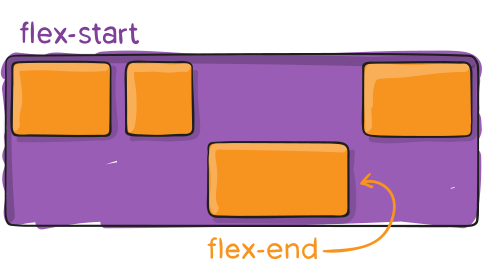
This allows the default alignment (or the one specified by align-items) to be overridden for individual flex items.
Please see the align-items explanation to understand the available values.
.item {
  align-self: auto | flex-start | flex-end | center | baseline | stretch;
}
Note that float, clear and vertical-align have no effect on a flex item.
Interactive Walkthrough
Let’s see what all that information looks like in practice with a fairly simple example. And a common one at that: a navigation of links.
We Can Add Spacing Between Items
If you’re working with something like a navigation of links on a single row, chances are you don’t want them bumping right up next to each other like Flexbox does by default.
We could add padding to the items to give them some breathing room:
That works, but notice the little bit of extra padding on the left and right edges. That’s because the container itself has padding on it.

That’s fixable for sure. But why go through the trouble of writing even more CSS? We can use the gap property on the parent container instead:
No extra padding. And notice how the spacing is automatically calculated and accounted for in the layout so nothing overflows the container edges. Again, there’s something so satisfying about that.
But you might still want padding on the navigation items between you have a background color set on them and they otherwise look cramped as all heck:
With Flexbox, we can add padding and it doesn’t actually add to the parent’s padding. Rather, it’s automatically accounted for in the spacing:
Beautiful. Just beautiful.
We Can Let the Items Wrap… or Not
If there’s no more room for the number of items to fit on a single row, we can simply let the items wrap onto multiple rows with the flex-wrap property. It’s set to the nowrap value by default, which means the items just keep on going on the same row, even if the container is out of space. Notice how the items shrink when that happens.
We Can Set the Direction
Oh, you want the links to line up vertically instead? We have the flex-direction property for that. Since Flexbox displays items in a row direction by default, we don’t even have to declare it. If we want a single column, then we use the column value:
We can also reverse the direction with either row-reverse or column-reverse. Let’s flip things around in that last example:
Accessibility note: Assistive technologies, like screen readers, will announce the items in the original order. In other words, the reversal is visual rather than structural. So, what for that if the reading order is super important, which it often is.
We Can “Order” Items Around
Speaking of re-ordering items, we have the order property if we need to place one or more items in specific places. Let’s say you want that “Services” link to show up last in the list. That’d be order: 4 on that specific item:
We Can Shove Things Around
Let’s say your navigation container is way wider than the number of items in it:
Maybe you want to space those items out evenly across the available space. We can do that with the justify-content property, setting it to space-evenly:
Or maybe you want the first and last items to be justified to the parent container’s edges, which we can do with justify-items: space-between:
You can toggle between the different values in action in this next demo:
It’s same thing vertically as well, only we’re working with the align-content property instead of justify-content. The only thing to note is that we have to enable wrapping on the container with flex-wrap: wrap for it to work properly. And! Notice there’s an additional stretch value in there that allows the items to, you know, stretch to fill the available space.
We Can Size the Items
So far, we’ve really seen just how “flexible” items are in a flex container — they sort of just adapt to the container. That said, there is a way we can control how the items are sized using three properties (flex-grow, flex-shrink, and flex-basis), or combining all three together with the flex shorthand property.
flex-grow: Allows a flex item to grow, only if necessary. If all items haveflex-growset to1, the remaining space in the container will be distributed equally to all children. If one of the children has a value of2, that child would take up twice as much of the space as either one of the others (or it will try, at least).flex-shrink: Allows a flex item to shrink if necessary.flex-basis: Sets a flex item’s default size before the remaining space is distributed.
Robin Rendle has a nice way of saying all that in plain English:
flex-grow: Sets the item’s maximum size.flex-shrink: Sets the item’s minimum size.flex-basis: Represents the item’s “ideal” size.
CSS Flexbox Examples
Let’s start with a very very simple example, solving an almost daily problem: perfect centering. It couldn’t be any simpler if you use CSS Flexbox.
.parent {
  display: flex;
  height: 300px; /* Or whatever */
}

.child {
  width: 100px;  /* Or whatever */
  height: 100px; /* Or whatever */
  margin: auto;  /* Magic! */
}
This relies on the fact a margin set to auto in a flex container absorb extra space. So setting a margin of auto will make the item perfectly centered in both axes.
Now let’s use some more properties. Consider a list of 6 items, all with fixed dimensions, but can be auto-sized. We want them to be evenly distributed on the horizontal axis so that when we resize the browser, everything scales nicely, and without media queries.
.flex-container {
  /* We first create a flex layout context */
  display: flex;

  /* Then we define the flow direction
     and if we allow the items to wrap
   * Remember this is the same as:
   * flex-direction: row;
   * flex-wrap: wrap;
   */
  flex-flow: row wrap;

  /* Then we define how is distributed the remaining space */
  justify-content: space-around;
}
Done. Everything else is just some styling concern. Below is a pen featuring this example. Be sure to go to CodePen and try resizing your windows to see what happens.
Let’s try something else. Imagine we have a right-aligned navigation element on the very top of our website, but we want it to be centered on medium-sized screens and single-columned on small devices. Easy enough.
/* Large */
.navigation {
  display: flex;
  flex-flow: row wrap;
  /* This aligns items to the end line on main-axis */
  justify-content: flex-end;
}

/* Medium screens */
@media all and (max-width: 800px) {
  .navigation {
    /* When on medium sized screens, we center it by evenly distributing empty space around items */
    justify-content: space-around;
  }
}

/* Small screens */
@media all and (max-width: 500px) {
  .navigation {
    /* On small screens, we are no longer using row direction but column */
    flex-direction: column;
  }
}Let’s try something even better by playing with flex items flexibility! What about a mobile-first 3-columns layout with full-width header and footer. And independent from source order.
.wrapper {
  display: flex;
  flex-flow: row wrap;
}

/* We tell all items to be 100% width, via flex-basis */
.wrapper > * {
  flex: 1 100%;
}

/* We rely on source order for mobile-first approach
 * in this case:
 * 1. header
 * 2. article
 * 3. aside 1
 * 4. aside 2
 * 5. footer
 */

/* Medium screens */
@media all and (min-width: 600px) {
  /* We tell both sidebars to share a row */
  .aside { flex: 1 auto; }
}

/* Large screens */
@media all and (min-width: 800px) {
  /* We invert order of first sidebar and main
   * And tell the main element to take twice as much width as the other two sidebars
   */
  .main { flex: 3 0px; }
  .aside-1 { order: 1; }
  .main    { order: 2; }
  .aside-2 { order: 3; }
  .footer  { order: 4; }
}
Flexbox Browser Support
CSS Flexbox is supported in all modern browsers.
Prefixing Flexbox
Note: This is largely unnecessary now that CSS Flexbox is widely supported in all modern browsers, unless you absolutely have to support a legacy browser, like Internet Explorer (which has been discontinued for a while now).
There are entirely different property and value names to support a legacy browser, like Internet Explorer (which we hope you don’t need to do). This is because the Flexbox spec has changed over time, creating an “old”, “tweener”, and “new” versions.
Perhaps the best way to handle this is to write in the new (and final) syntax and run your CSS through Autoprefixer, which handles the fallbacks very well.
Alternatively, here’s a Sass @mixin to help with some of the prefixing, which also gives you an idea of what kind of things need to be done:
@mixin flexbox() {
  display: -webkit-box;
  display: -moz-box;
  display: -ms-flexbox;
  display: -webkit-flex;
  display: flex;
}

@mixin flex($values) {
  -webkit-box-flex: $values;
  -moz-box-flex: $values;
  -webkit-flex: $values;
  -ms-flex: $values;
  flex: $values;
}

@mixin order($val) {
  -webkit-box-ordinal-group: $val;
  -moz-box-ordinal-group: $val;
  -ms-flex-order: $val;
  -webkit-order: $val;
  order: $val;
}

.wrapper {
  @include flexbox();
}

.item {
  @include flex(1 200px);
  @include order(2);
}
Flexbox Tricks!
Adaptive Photo Layout with Flexbox

Balancing on a Pivot with Flexbox

Using Flexbox and text ellipsis together

Useful Flexbox Technique: Alignment Shifting Wrapping
Designing A Product Page Layout with Flexbox

Flexbox and Truncated Text
Flexbox and absolute positioning
Filling the Space in the Last Row with Flexbox
More Flexbox Resources
- CSS Flexible Box Layout Module Level 1 (W3C)
- CSS Layout: Flexbox (MDN)
- Use Cases for Flexbox (Smashing Magazine)
Yay. Less javascript and more CSS. What’s not to like? Great info, as always!
Flexbox its fine, but It is still not valid for a simple perfect “product grid” with no margins at first and last elements in row, and left aligned. Otherwise: could you build this layout using flexbox? http://i.snag.gy/VHJsV.jpg thanks
@Alex Yes, you can. In the same manner that you do so with non-flex grids, apply a negative margin-left to the grid wrapper, and apply that same value as padding left to all grid columns.
Look at http://inuitcss.com for how it’s done with inline-block elements, which allows you to apply vertical alignment to columns, too.
@Alex @Lawrence That has little do with flexbox itself.
.el:not(:last-of-type)and similar exclusion selectors. Negative margins are rubbish.@mystrdat You’re correct, it has nothing to do with flexbox. Using :not selectors, however, will be unscalable, and you will lose IE8 support (less of an issue now).
If I have a grid with 8 items, each occupying 25% of the width, that technique fails, since the 4th item will not sit flush with the container edges.
If I have a grid with 4 items, 25% width on desktop, and then 50% width on mobile, that technique fails again, for the above reason. How about managing 3rds, 5ths, 6ths, 12fths, etc., and when columns change to use different widths across viewports?
I wouldn’t call negative margins rubbish. Perhaps not ideal, but they solve a complex problem elegantly. http://tympanus.net/codrops/2013/02/04/creating-nestable-dynamic-grids/
@Alex .. actually, it’s alot simpler. Just use
More here
Thanks for the info.
The CSS Working Group has a document online of “…Mistakes in the Design of CSS”, one of them is this:
Can you talk about what they mean by this?
For your final example, how would you make the content (center row) take up all available space, so that at minimum, the footer is pinned to the bottom of the window – but if the content area has more content, the footer will push below, allowing scrolling. This can be accomplished by setting a min-height on the content row: calc(100% – header-height – footer-height) but it requires hard-coding or JS to accomplish AFAIK.
@Lawrence at the point of using flex does IE8 not become a problem already? I think the grid solution could be solved with nth-child. Then using media queries to make appropriate adjustments based on the users screen.
Perfect Product Flexbox Layout (using justify-content: space-between and filler products):
Though to be honest, I don’t like that I had to use fillers for the Flexbox implementation to ensure the last row is spaced evenly.
It would be mighty nice if they offer Flexbox row selectors for multi-row wrap flows.
Here is an alternative implementation with display inline-block:
Your last example only works with no content. If you put some text in Aside1 the 3 column Layout is gone.
@Hubert: Yes the 3 col layout needs this added.
I mentioned it a while ago in an earlier post and assumed someone would update the demo. ;)
@Josh McCullough its pretty simple to achieve that, better and easier then ever before. Just use the flex property and set it to 1, for e.g:
flex is a very powerful property and can be used in the shorthand of flex: 1 1 auto; (grow, shrink and basis) – using just flex: 1 tells it to take all the remaining space thus making the footer stick at the bottom. Look an eye out for grid to make a proper entry into the browsers and we would be having magic on our plates in terms of layouts.
See it live in action: https://codepen.io/anon/pen/WrOqma
Well, it’s bad on many levels. Too verbose, hard to manage, it already creates “frameworks” around it, just to make it manageable. 25 years ago we already had tools, WYSIWIG IDE’s and ways to define UI and “responsive” views… For geeze sake, can we come back to roots and come up with simple and effective markup language with UI tools and plain resizing rules for view elements!?
Regarding the
flexproperty:Saying that the 2nd and 3rd parameters
<flex-shrink>and<flex-basis>are optional is slightly misleading because it implies that<flex-grow>(the 1st parameter) is never optional. The truth is,<flex-grow>is optional as long as<flex-basis>is present (and obviously when the value isnone). It’s only required when<flex-shrink>is present.<article class="main"><aside class="aside aside-1">Aside 1</aside>when this article and aside come as html tag , I never know this
@Yazin
That’s not correct. Space-between would spread all items in the last row across the whole width which is not what Alex wanted.
Your example specifies
.main { flex: 2 0px; }but your codepen uses.main { flex: 3 0px; }.This really threw me off for a while…wondering why the boxes werent the widths I expected. :p
Great article, thanks.
Wow, its so cool , can’t wait to try it out
Hey Chris,
Thank you so much for the comprehensive write up.
I just updated Firefox to v20 on a mac and now all of the flex-box demos aren’t working. Everything still looks great in Chrome.
Anyone else having this problem?
Issues with Ch 34.0.1847 on OSX 10.9.2
Thanks for the writeup Chris!
FF 2-21 (old) – (old) means the old syntax from 2009 (e.g. display: box;)
The demos are using the new flexbox specs which requires FF 22+
Not working for me on ubuntu 14.04 with firefox 29
The only thing I don’t understand is why the use of prefixes is needed if the syntax doesn’t differ from the recommendation.
I think what would be enough is (using the above example):
At the moment this is not supported, but I think it should be because everything that was left out here had the recommended syntax. The prefixes still should be available if needed, but it shouldn’t be necessary.
Good explanation of the need for multiple vendor-prefixed rules here. See code examples with comments…
Vendor prefixes aren’t just about syntax differences. They (arguably much more importantly) separate out implementation differences. What would happen if we just had one unprefixed word for a feature, and the syntax of its attributes was consistent across browsers, but the rendering behavior was different? Then you’d have to do ugly browser sniffing and serve different files to the client conditionally, like we did back in the dark ages of IE6.
Once everyone has a correct implementation, then the prefixes can be dropped. Otherwise, the most popular browser’s implementation of the feature becomes the de facto standard even if it’s the most broken (again, IE6)
Regarding the example with the 6 items of fixed dimensions to be evenly distributed – using the
justify-content: space-around; rule:
I’d really like to use this, however it’s not doing exactly what I want. Let’s say there’s only room for 4 of the items on the first row, the remaining 2 will be evenly spaced on the second row. (ughh)
Is there any way for items on the last row to be placed/aligned underneath the elements from the previous row (left->right)??
This is something that can be done with the grid layout module, but it is not supported by the browsers yet.
You could always use tables and calc()
@Coolcat007 You mention that this can be done with tables and calc() – is this so – even if you have a dynamic number of items?? If it is – any chance of a fiddle / codepen?
Thanks!
For the items to wrap up onto the second line you can use the flex-wrap: wrap, then to align the items on the second line you can manipulate them with align-content.
Example:
flex-wrap: wrap;
align-content: (possible values)
flex-start: lines packed to the start of the container
flex-end: lines packed to the end of the container
center: lines packed to the center of the container
space-between: lines evenly distributed; the first line is at the start of the container while the last one is at the end
space-around: lines evenly distributed with equal space around each line
stretch (default)
Justify content deals with the items on the first line only.
@Daniel
Sorry, I misunderstood your question. For a dynamic number of items, this won’t work without JS or php.
This is indeed a thing that could be added.
Something like align-items:main-axis /cross-axis could be a great addition.
Works beautifully in Chrome and Safari, but I’m on FireFox (v21) and it’s not working well at all. It doesn’t allow the paragraphs to break. It’s like it’s treating the display:flex as display:inline-flex. The only way I’ve been able to get around this is to change the about:config of Firefox to multiline, but visitors won’t have that set by default.
Has anyone had any luck with this? Currently I’m using flexbox for webkit and equalize.js for other browsers.
I think that’s because flexbox isn’t fully supported by firefox until v22. That’s why I’m running the v22 beta at the moment. You can always use the display:box untill ff22 is released.
Am I crazy enough if I use this in production? I have a really awkward situation and I can’t use display: table. It messes up with the fluidity of the images.
You can use flexbox in production pretty well as long as you’re using a sound way to detect less-than-ideal support for flex-wrap w/ modernizer and use a ratio-based grid system like Singularitygs as a fallback.
An example: http://sassmeister.com/gist/9781525 (toggle the flexbox and .noflex option.
It’s a sound strategy to the extent you can use flexbox first towards planning for the layout and quickly create the fallback with a ratio-based grid system.
As long as you’re considerate enough to have a style guide that documents documenting how a particular component ought to look if it in facts differs from both, you should be fine.
Flexbox is now unprefixed in Firefox (22).
I found a compass compatible mixins
In your second Codepen example (with the blue navigation bar), I couldn’t figure out why the flow-direction: column doesn’t seem to kick in at the smallest screen width. I played around with a few values and found that explicitly adding some height to the ul.navigation made the li’s stack vertically. Is there a better way around this without requiring a hard-coded height?
That’s because the code for max 600 width is missing a flex-flow: column wrap; if you are using firefox. It only contains one for web-kit. Once I added that in, it does it nicely in my FF.
Thanks for the post. I found it highly insightful.
Something weird is going on in the first example’s pen (http://codepen.io/HugoGiraudel/pen/LklCv). I tried recreating it on CodePen and noticed it wasn’t working, even when I copied and pasted! Then I tried recreating it locally, copied and pasted, and again it didn’t work. So then I took to the Chrome DevTools to take a look at what was going on and it looks like even though the pen uses the rule
justify-content: space-around;, what is actually rendered on the page is-webkit-justify-content: space-around;. Turns out prefix-free was turned on in the CodePen config for the Scss panel.Even if this was CodePen’s prefix-free doing the work for me, mixing vendor prefixed rules and non-prefixed rules that the preprocessor transforms should be a no-no.
Thanl you for the mixin’ Chris
Nice post Chris. I like how thorough and detailed you are. Too bad we don’t use SASS, we rely almost solely on LESS. We would love to use Flexbox for clients, but it doesn’t seem to play nicely cross browser. I checked this page in FF22 and IE10 and it was a mess.
Do you, or anyone else, know of any good JS polyfills or plugins or solutions to get this to play cross-browser nicely? Otherwise, how long (in your opinion) until we can ‘realistically’ use this without a lot of cross browser headaches?
Great post Chris. I think that flexbox capability to order items will be usefull in RWD.
I’ve got only a question. When you define main-axis you say that its direction depends on the justify-content property, but isn’t the flex-direction property that defines if flex items are layed out as a row or as a column? Am I misunderstanding something?
You’re correct, that was wrong in the article and is fixed now.
Hey, anybody knows real site that using flexbox?
I know that SM try to use it some time ago, but returns to floats.
Hey ZippZipp,
I tried to build my personal/portfolio site with flexbox a few months ago, but got super frustrated with the syntax. I just found this Sass helper https://raw.github.com/timhettler/compass-flexbox/master/extensions/compass-flexbox/stylesheets/_flexbox.scss, which is working really well so far. I’m hoping to launch my new site in the next 2 weeks using flexbox for everything except IE 8/9.
I would like to find one too, but older browsers just make it a big pain… I’d rather use floats to keep the headache away and less code.
Just yesterday I was checking my browsers support and I saw that flex is now un-prefixed in these versions, but unfortunately not everybody has updated browser versions.
IE11
Mozilla Firefox 27.0.1
Chrome 32.0.1700
Opera 19.0
Safari still uses the rule: “display: -webkit-box;”
Safari 5.1.7
I did a school project using flexbox (with help from Autoprefixer): edensg.github.io/ASM2O
I think you mean flex-direction.
I think in column-reverse you mean but bottom to up
Thanks very thorough explanation
Firefox 22+ has unprefixed Flexbox, but, unfortunately, it still doesn’t support flex-wrap property (and hence flex-flow shorthand). So the wonderful example with 3-column layout reducing to 1 column on narrow screen in Firefox looks really messy. But it’s possible to create its simplified analog that works in both Chromium-based browsers and Firefox 23+: http://codepen.io/anon/pen/pEIKu
Wow, its really the one the best post i ever read on this topic. The steps which you have mentioned are really perfect.
Hey, Cris! Looks like “flex-wrap” incorrectly works in Firefox and Opera! Both tomato blocks and very last demoes do not work!
Is there some workaround already?
And thank you so much for your website! ;)
Yes, only latest Chromium-based browsers like Chrome, Opera 16+ etc. seem to support multi-line flexboxes currently. As a workaround, you can use nested flexboxes in combination with media queries, as in my comment above (it’s not so flexible as true multi-line flexboxes, but still better than nothing) or use graceful degradation to old techniques like inline-blocks.
I’ve found that, in Chrome 29,
<input />and<label>do not respectorder. Anyone else observed this, or have an idea as to why?Flexbox is what CSS has been sorely lacking since its inception – an easy way to create flexible web page layouts without the need for floats, clears, margin: 0 auto and JS hacks. I look forward to the day when flexbox is supported by a big enough share of the browser market to put into this all of our production sites.
Thanks for the awesome tutorial, just managed to use the knowledge to make a sweet way to build tournament brackets! You can check out the codepen at http://cdpn.io/qliuj
I find myself doing a Mr. Burns “excellent”, as I’m pretty excited about
align-items: stretchI am trying to make my video rich website “FLEX”. The site scales ok but the Vimeo iframe videos do not.
I was trying to use the FitVids.js script to make this work but I am not sure how to make that work with my Weebly template. (YES I am not a website professional, I know nothing about CSS or HTML) But I have been tasked with this job and I need to make it work properly. Any help would be appreciated. Using Firebug plug in the Firefox browser I saw this code about Flex Box… How do I modify this to make the videos Flex?
I really like this post. It got me started with my project.
i had a problem with firefox like other users here but came over it by wrapping the columns/rows in more container like a user suggested.
I have another problem though. This time it’s with IE11. If you look at your example of the menu, you will see that on the smallest width the menus are not shown in columns and stays as rows.
On my side I had a different problem with IE: the columns were showing but the items in them had no height! So everything collapses for no reason. Of course it’s fine in Chrome and Firefox (25)
There is a typo with the portion on flex grow. It doesn’t inhibit understanding the content, but it would be nice if you fix it.
The W3C needs to get off their a** and push this through. A consistent browser implementation will make life so much easier for creating layouts.
Am I the only one that thinks this ‘article’ should be in the “article” section?
Chris, I couldn’t vertically align some content in print media, do you know where I could find more information about this kind of support?
My test looks something like this,
CSS:
HTML:
Not all browsers support paged media, does the paged media example work without the flexbox?
What does 22+ (new), in the Firefox support table means?
Meaning version 22 of Firefox which is the newest version at the time the article was written.
And the + means “and up”
One of the best article I have ever read. Thanks!
Nice tutorial. Has anything changed this this tutorial was published?
Also it doesn’t work for me in IE10.
IE 10 has the tweener syntax, so make sure you’re prefixing for that. Autoprefixer does a great job of writing in the latest syntax and handling the fallbacks.
Great article. I found it helpful to see what is coming along the horizon. The company I contract for right now uses IE8 so I have to wait until they move to newer version of IE. I have always wondered why a good layout system has been missing from CSS. Better late than never I guess. I look forward to using this on touch devices with webkit.
Nice work man!!!
Having trouble with 2 flexboxes aligned horizontally when one is set in column flow and the other in column-reverse flow.
See pen: Flexbox Alignment Sample
How do I fix this? Thanks!
See the Pen Flexbox column-reverse Next Element Alignment by Brad Spencer (@bradomail) on CodePen.
Simple fix I think. You need to set the container(#window) to flex so that your 2
<ul>s are flex children.
Wow, that was simple!
Thanks Justin.
Hy,
in your first example, the child element has been centered by (magic!) margin: auto;
This solution does not work in IE11 if the child element has no defined height, for example, if the height is determined by the content.
All other browsers behave as expected.
I messed with this a bit today. I’m interested but a bit confused at the same time. If I code it (literally copy it) from what you have here to CodePen it runs as yours did. If, however, I try that on JSFiddle ( where I normally mess around ) the colors come out in a straight line only. Also, if I load the entire page via jQuery, as I’ve been doing lately, the same result… Instead of the framed environment you’re getting I received flat little lines. I’ve even tried injecting the CSS into the Header before building the page via jQuery with much the same result. Seems that this only works without jQuery and for whatever reason only on CodePen.
Would you happen to know how I could code in a horizontal split ( like they have on Code Pen ) that separates the top of the window and the bottom of the window and moves fluidly when the bar is moved, with flexbox framework? Any help would be appreciated, thanks!
The draggable bar isn’t going to happen with just CSS, flexbox or no, save for some super crazy hack using a resizeable textarea or something. On CodePen we use jQuery UI draggable, but there are others out there. Flexbox does make the situation easier though. One time I redid the whole CodePen editor layout in Flexbox for fun and it was way easier, but of course I can’t find it now. Basically if the flex items have flex: 1; they will fill the area, so you just resize one of them to a specific height (or width) and the other will fill the remaining space. So no math.
Do you know of any working examples of jQuery UI Draggable for a horizontal split pane? I’ve been messing with it for a couple of days now and can’t seem to figure it out.
Hi Chris,
I’m trying to make a div which its width auto grow with its contents.
Using this:
There seems a bug that with the container’s main size, please see this pen
wrong main size when flex-driection is column
Can u check Safari…
flex property not supported.
This is just beyond comprehension
I found this article confusing. I’m a frontend developer and still couldn’t understand a single term that was used to explain what I was looking at.
Thats weird, I’m an amature and I could read it with ease.
Well played. Thanks Chris.
This will certainly be a great tool to have once it’s better supported. For now it seems to me it’s best to lean on js, or just stick to a design / layout that can be manufactured with less-buggy (if you will) off the shelf parts.
If design doesn’t consider manufacturing then that’s not design. That’s art. There’s a difference.
This is like a CSS angle pissing on my tongue. Awesome.
Perhaps not the best place to ask, but I am struggling with making a responsive flexbox fluid layout. What I want is 3 breakpoints like this:
1) 3 rows (containers vertical, small screen)
2) 2 columns, 2 rows (medium screen)
3) 3 columns (large screen)
1 en 3 are easy, I just change the flex-direction from column to row. But how about 2)?
So basically it must look like:
A
B
C
A B
C
A B C
Gonna answer my own question. The reason I could not get it to work is because IE11 does not like a max-width to be set on any flex-item. If you do, it wrongly calculates the space around or between the items.
Evert, I just ran into that same issue! I was beating my head against it for a good hour until I discovered that IE11 doesn’t like max-width on flex items.
Great article, thanks. Regarding the the browser support table, I think that IE11 may have full support of the specification.
Ref: http://msdn.microsoft.com/en-us/library/ie/dn265027(v=vs.85).aspx
Thanks.
Does using flexbox responsibly meaning coding the site via flexbox and usual css positioning methods as a fall back for browsers who dont support flexbox, coding the layout twice? Just thinking workflow wise…
Thanks Chris! This is an excellent Flexbox reference. I have implemented a basic Holy Grail template: http://noseyparka.me.uk/2014/03/26/a-holy-grail-flexbox-layout/. Flexbox is a thing of beauty!
Nice Job!.
Thanks for sharing this.
I found this Polyfill for flexbox, http://flexiejs.com/
Things I noticed using flexbox that are a real pain:
Using margin: 0 auto; on the flex-container shrinks the container (and it’s containing flex-items) to the minimum width. It is no longer flexible/fluid.
Because of this, any fluid, centered layout must use justify-content: center/ or space-between. But then the layout becomes “infinite” (you can make the screen wider and wider and the boxes and spaces will happily distribute themselves across that space possibly breaking any design restrictions). So in order to prevent that we could set max-width on the flex container, but that cancels out the centering for some reason and the page flushes left. So the only other possibility is to set a max-width on one or more flex-items…but those will break in IE11 because of some bug.
In short: flexbox will only work practically when using the full screen width and not limiting any flexible item with a max-width. As soon as you want to set a limit to any item, it falls apart.
I too see no other advantage for this than limiting some lines in my media queries
This really annoyed me and was broken for a bit, so I wanted to share in case anyone ever comes across this in the future. If you need to support blackberry 7+, make sure you use
-webkit-box-orient: vertical;-moz-box-orient: vertical;
-webkit-box-direction: normal;
-moz-box-direction: normal;
-webkit-flex-direction: column;
-ms-flex-direction: column;
flex-direction: column;
…if you use row wrap, it doesn’t wrap and just puts everything side-by-side. Also, very important. Make sure the child elements of the parent flex container don’t have
display: inline;applied to them. It breaks it for some reason. I hope this helps someone!One last important thing to remember if you have to support blackberry 7+…make sure all child elements have
float:noneapplied to them…if floats are applied, they’ll just not appear. I hope this helps!Bah, thanks so much, this helped me on Samsung Galaxy as well. Cheers!
In the first line of the SASS mixin, shouldn’t
@mixin flexbox()be just@mixin flexbox?Chris, this example does not work in IE11. could you please suggest, how I can have support on IE11
The .wrapper defined “-webkit-flex-flow: row wrap;” only, add “flex-flow: row wrap;” and it works in IE 11 and Firefox.
Where are things:
Those are deprecated properties. I feel like it’s best at this point (at least in terms of this guide) to focus on the current properties. Also best in practice to let a tool like Autoprefixer deal with inserting those older properties for you when needed.
Amazing writeup and excellently explained, you saved me fairly a LOT of time I would off spent learning all this combining all the broken and outdated articles over the web :D thank you so much !
This is a great article. I’d love to see the pens using the flex wrap updated with “flex-flow: row wrap;” added un-prefixed so they work in Firefox 29! But still a very good and informative article.
Chris I really need this. Thanks!
Is there a way to specify a minimum for inter-elements spacing when using
flex-wrap: wrap;? The only way I’ve currently found forces me to add a padding to the container which isn’t ideal.To add spacing, use margin-right and margin-bottom. Give the container (the same, but) negative margin to still use the full width.
Please forgive my newbie ignorance.
I’m thinking that I would experiment with a background color of the site, then the container would be another color (centered) and then the flex items yet another color.
I get how to center the flex items themselves, but how would you center the container itself? And is that something one would even want to do?
Thanks
margin: 0px auto;
think I figured it out….feel very dumb right now!
Hi Chris! Very nice article! But the last example “mobile-first 3-columns layout with full-width header and footer” in my 34.0.1847.131 chrome didn’t make the two sidebars half of the size of the main content.
I had to write:
@media all and (min-width: 800px) {
.aside-1 { order: 1; flex: 1 25%; }
.main { order: 2; flex: 2 1 50%; }
.aside-2 { order: 3; flex: 1 25%; }
.footer { order: 4; }
}
On the last media query in order to do that ( http://cdpn.io/rhbmd ).
Thank you for introducing me to the wonderful world of flexboxes! great tutorial!!
Wow! I had bookmarked the article before and have come back to it today as a reference. Really like the re-haul, makes it even more useful! Cheers to you, Chris.
Great work on the updated format! The guide was crazy informative before but now it’s also a great cheat sheet when needed. Thanks!
Great guide, nice update! Has always been very useful.
One thing I’ve noticed missing (here and almost every other flexbox guide) is how to do flex-grow and flex-shrink in IE10.
flex-grow
-ms-flex-positive:;flex-shrink
-ms-flex-negative:;Would be great to have this footnoted somewhere.
@Ry, good point. I happen to use Autoprefixer, which added this IE-specific property name in for me. I wouldn’t have known otherwise.
I love all that can be done with the flex box model, now only if all the browser could support it the same way! How does the flexbos fall on browsers that don’t support the CSS3?
Thanks so much for updating this post — by far the easiest-to-understand guide to flexbox ever written. You deserve at least a six-pack of Rolling Rock for this one, Chris — if that’s still your brew of choice that is :-)
Hi,
I was hoping someone might be able to help me out (I’m pretty new to all of the programming stuff).
I created a flex box and arranhed the items in it in a column layout. I then did ‘justify-content:center’, but the elements stay on the left-hand-side of the screen, even though the width of the container is 100%. Is there an easy way to center everything in a container box when arranging elements as columns? Hope this makes sense.
Cheers,
Steve.
Hi Stephen, I believe that justify-content isn’t to be used for this purpose. If you flow the elements by column (vertically), the justify-content: center will really display the elements in the center bit of the flex box vertically, i,e, some space at the top, then your elements, then some space at the bottom. What you wanted is for each element to center align horizontally, which you can probably achieve by using text-align property.
Hi Jay,
Thanks for getting back to me so quickly. Ah yes, I guess because I didn’t set a height on the flexbox, I didn’t see how the elements were centering vertically.
Thanks,
Steve.
Thank you Chris, for the article. Crisp, crucial and highly valuable. I enjoyed it.
Does Compass support flex box? I see that they have what seems to be the old version of flex box in the documentation. But then on codepen.io, when you include compass you are able to use the other directives. Like @include display-flex? I’m unable to get this working locally however. Ideas?
Forget about Compass and use Autoprefixer instead (with gulp/grunt). Personally, I just use it for vertical rhythm calculations now as Compass will be big no no for a libsass in C++.
Oh, sorry i forgot i’m using the latest version of Firefox and Chrome!
Thanks a bunch!
Bit of a long shot here, but do any Email clients support Flex box..? Would be useful in HTML emailers to rearrange the order of elements.
Testing flexbox in Safari now.
What works in all other browsers, either doesn’t work in Safari, or doesn’t work correctly.
Really frustrating…
The demos here don’t work correctly either (especially the last one).
this property not working android 4.1.1 browser . How it will be work on mobile browser
I think the Support Chart is out of date for Safari. Should read:
6.1+ (new)
3.1+ (old)
According to http://beta.caniuse.com/#search=flexbox
Similarly, Android 4.4+ (new), iOS 7.1+ (new)
Chris,
You have obviously given a lot of thought to how to present this information as clearly as possible.
Outstanding work – thanks.
How do you all know what works in which browser version? Where is flexbox standing now for support?
I just learned about flexbox yesterday so now I’m all anxious to learn more. I’m a little hesitant because of browser version support.
You can find more detailed information about browser support when you type in “caniuse flexbox” in google.
Hi, I was wondering if anyone could help me out with a flexbox problem. I’ve set a container width to 100% and put six div items with width of 20% in it. I was expecting to see five divs evenly space and the sixth div directly underneath the others, one line down (I’m using row-wrap). This kinda works, but there is a big gap between the five divs across the top of the page and the sixth div below them. I need to know how to get rid of the gap. Here is the Codepen:
http://codepen.io/coxthefox/pen/jtseL
Any help would be much appreciated.
Thanks,
Steve.
try align-content: flex-start; on the container. I’m not too sure if it will help for your purpose, but with your demo it works.
Also, I would rather set flex: 1 1 20%; on each sub item instead of specifying the width (again, it depends on what you want to do).
Hi there,
Thanks for both of the tips; the first one works well and solves the problem I was having.
If you have time, I was hoping you might be able to elaborate on the second one a little. In all honesty, I’m not really sure how the code is being interpreted. I understand that giving everything a flex size of 1 gives everything an equal amount of space, but is the 20% overriding everything the first 1? I’ve played around with the second 1 in the code you provided, but it doesn’t seem to do anything. Oh, and the purple box now fills the entire width of the screen, which looks good, but is it the first 1 doing that since it is clearly taking up more than 20% of the container now? Anyhow, don’t mean to be lazy; I can look this stuff up tomorrow. Time for bed in the UK though.
Cheers again,
Steve.
Guys, what about “order”. It doesnt look good in safari, even doesnt look anyhow. 8) how to make it work in safari?
I gave up on Safari. Not supporting it on my sites.
You could just revert to floats for it, but when I discussed it with my employer he said “no one uses it anyways”.
@Stephen, play around with flex: 1 1 20%
Safari 5.7.1
Works only this:
display: -webkit-box;And that’s it. Nothing else can make work :-(
I’ve read that this version of Safari is (old), but how it should to looks like?
Can’t handle it…
in the first example (with the 6 orange squares)… is there a way to request the current number of columns and rows within a flexbox container? or at least the current number of rows (since the columns are not rigid)?
thanks!
Hi!
This guide is wonderful, seriously, guy who did this deserve a BIG nice glass of GOOD beer.
But I have issue:
I made a website, where container’s div is flex and direction is column.
Inside this container I have 3 divs. I want last one (footer) to be always at the bottom of this page.
Is this possible to do? I know it is of course ;) but I want to use only flex-box model.
Regards, mates!
Ok, i got it, there was no question xD Sorry. Thanks anyway! This is best place to learn CSS Tricks.
Regards again!
Paweł, use order: and width: parametrs.
width: 100% and order: the last div in your list.
But Note: Internet Explorer and Safari do not support the order property.
And why width…?
I did it that way:
https://www.dropbox.com/s/y8wccmz7hzmkpdb/Zrzut%20ekranu%20z%202014-07-29%2011%3A57%3A31.png
Do you see any issues that may be?
IOS7 use -webkit-justify-content
justify-content doesnt work
one of the best explanation for css flexbox model
Great post man. I’ve been wanting to learn more about flexbox ever since one of the guys on my team showed it to me. This is the best resource I’ve found so far.
Hi
My requirement is need to alignment support all browser without use Javascript. Use only CSS/CSS3.
Note: Particular para line Margin top value support all browser(Mozilla, Chrome, Safari) as per match PDF. But IE-11 browser some different its will came._ In case for adjust IE-11 Browser, at the time margin-top value change another browser._ So, how to modify all browser requirement. If any possible on that particular IE-11 alignment modification style-sheet.
Please give any solution that issue.
I am working with flexbox on a few different projects now and love it. Only downside is all the prefixes that you need.
For my projects I made a less mixin stylesheet that has been tested and works in the most recent browsers (latest version -1).
Hoping to help some more people out I put it on my github, so if you want a little help getting started you can grab it there github.com/annebosman/FlexboxLess
ya its good.
Best flexbox resource. I often use this page as a reference – many thanks!_
I’ve been experimenting with
flex-wraprecently, and found that Safari doesn’t support it (on desktop or mobile), although it claims to, ie.Modernizr.flexwrapis true. I’ve filed a bug report with Modernizr for this. Wanted to spread the word, since there seems to be some confusion around this property flying around in the wake of Firefox previously not having supported it.it seems many properties aren’t supported by safari: https://developer.mozilla.org/en-US/docs/Web/Guide/CSS/Flexible_boxes
something as important and necessary as wrap makes it a no-go for me (but i’m a new-b)
plus i think that, as great as it is [and CC knows how much i love him], combining old and new is still another hack that flex box was supposed to eliminate
and i ain’t got time for that!
This article is one of the ones I’ve read countless times right now. I’m near the state knowing it inside out ^_________^
Great post! It’s a reference.
Hi,
I’m trying to build simple layout. Could anyone help me with this? I was wroten some code reading article.
Want to have this:
Try to open this (i want to display in this way)
But now block number four is moved to center and on the bottom of block number two (whole layout). I want to get it on the right side of the block number two, but below of the block number three.
(i must remove because message was rendering in wrong way)
Thank for the writeup! I will implement it in a new project. :D
In case someone is trying to do a grid layout using flex, I found this helpful for aligning items in the last row: http://codepen.io/dalgard/pen/Dbnus
Frickin’ love this update! Sad to think we’re still another few years out from implementing this without fallback support. :(
I have a flexbox container.
Inside this container, I have two items. A content area and a footer. Using “space-between” on the container sticks the footer to the bottom of the browser window and sticks the content area to the top of the browser window.
I want the footer to have a set height of 52px and I want the content region to automatically fill the rest of the empty space.
What CSS is needed for the content area to fill the remaining space relative to the footer?
I want to be able to infinitely expand the browser window and always have my content area fill the empty space and I never want the footer to change size.
Any help would be greatly appreciated, thanks!
I figured it out. Here is the solution that I came up with:
I started on an idea for HTML as a presentation format using flex.
http://ionlyseespots.github.io/ambient-design/index.html
Hi
Can someone point me to a tutorial or demo of using iframe within a flexbox container. I have tried and it is failing to keep aspect ration and the usual padding trick doesn’t seem to work. Alternatively is there an easy solution you could give me here.
Many thanks
Richard C
I believe there is no better place on the web to start learning about flex.
Thank you for your work.
After reading your great article on how to use flex-box, I came across this article that says don’t use flex-box for overall page layout.
Any comments on how valid the above article is. If it is valid is there are work around to still using flex-box for page layout without the performace hit?
Thanks.
I kind of agree with the article. Both Flexbox and Grid layout have their pro’s and cons. The flexbox is more suitable for dynamic content (think about displaying a random amount of images of a random size), where the grid layout is preferable for known content areas. Both can adjust for the screensize, but are optimized for different applications.
The mobile-first 3-columns layout doesn’t work when adding a paragraph to the asides. I’ve noticed that any example, where flexbox is used for the entire layout, leaves out content inside these boxes. Doesn’t seem like flexbox is useful for layouts without a lot of hacking.
the initial value of ‘flex-basis’ is ‘main-size’, and if omitted in the shorthand property ‘flex’, it’s value is ‘0%’.
http://www.w3.org/TR/css-flexbox-1/#propdef-flex-basis
I just read that too, but when I was tinkering with it in Chrome only auto worked!
The specification says
flex: autoisflex: 1 1 main-size, to be distinguished fromflex: 1 1 auto. Currently only Firefox 34+ support ‘main-size’.https://developer.mozilla.org/en-US/docs/CSS/flex-basis
This is currently under discussion, like it says in the big red box there. We’re actively looking for feedback on that issue at the moment, so please let us know if any!
This is a pretty good quick guide. Just a couple things I noticed from a skim:
It’s not very clear how ‘order’ actually works. ‘order: 3’ doesn’t mean “put it at the third position”, it means “put it after any items with ‘order’ less than 3 and before any items with ‘order’ greater than 3”.
We (the Flexbox spec editors) strongly recommend not using the longhands of ‘flex’ unless you really, really want to cascade in flex settings from some other style rule, so I’d suggest somehow discouraging the use of ‘flex-grow/shrink/basis’ here (or, preferably, leaving it out/in an advanced section). The shorthand resets things in appropriate ways, and will therefore result in fewer cascading errors. Please use the shorthand!
I tend to think of flex “order” as z-index for flow items. Maybe this will help others to visualize it this way also.
Awesome post. Thanks so much, Chris!
Question: why do you have
(Applies to: parent flex container element)only next to flex-flow?There is currently a crippling bug in Firefox that makes any non-trivial implementation of flex unfeasible. Nesting a few flex’d containers causes Firefox to become unresponsive. https://bugzilla.mozilla.org/show_bug.cgi?id=1082780
Loads of bugs with it on ipad too, so it’s pretty much unusable currently
Thanks for the article, helped me a great deal bringing my LESS-implementation and Bower package up to date!
(Free to use at https://github.com/philipperutten/css3-box or via http://bower.io/search/?q=css3%20less%20layout).
Hi, I’m looking for the way to do a fullscreen menu for my website with flex, with a header on the top and the rest of the space with only 6 big responsive buttons. I’ve tried many things and I’ve check many websites. I would apreciate any help. Thanks in advance.
This is one of the best code tutorials I’ve ever seen. Kudos for taking the time to make this super intuitive.
This is going to be an amazing feature right now. Unfortunately it still seems to be in it’s revolutionary infancy and I don’t think my employer would be happy if I tried to implement this on our sites.
Sean Fiorritto (sp?) produced a great video (and a book) on Flexbox, entitled “Sketching with Flexbox”, if anyone is interested. The video lesson link: http://www.sketchingwithcss.com/flexbox/ and a five lesson tut: http://www.sketchingwithcss.com/flexbox-tutorial/
Enjoy!
So I was wandering, is there a good way of making the child elements of the flex grid not automatically span to the full width of the page. Only specifying widths every time is not very effective. No one should have to add a
width: 1px;to every element within if they want it to behave properly.Thanks
Tons of love to Flexbox which just saved my weekend. I just had to redo an entire page which used to use an HTML table to present a matrix. After requirements changed, I realized I could no longer use a table since each “column” needed to have an arbitrary number of “rows”. In other words, I had to go from row-major format to column-major format. So I used Flexbox to lay out the columns in left-to-right (row) direction, and then lay out each child in each row in top-to-bottom (column) direction. But then I needed to reorder each row in reverse order, which Flexbox also made easy: use either the “order” property or set the direction to “column-reverse”. Done. Voila. The JS that I wrote to make it happen is now half the size, and the CSS is turning out to be smaller, too. Woo-hoo!!!!!
Thanks Chris! I made a flexbox ruleset config thingy / cheat sheet for quick copy & paste, based on your article. I’ve been using it a lot for my own projects, might be useful for others too. http://apps.workflower.fi/css-cheats/?name=flexbox (also on github if anyone cares to fork/improve/whatever https://github.com/sakamies/css-cheats)
Great work man….. this inspired me this little css library
http://hictech.github.io/cssPlusWebsite/
Who has the option to design for only the most of modern browsers. Let me know when you can shiv it back to ie9.
Your first example at this link (http://codepen.io/HugoGiraudel/pen/LklCv) does not work in IE 11. IE doesn’t seem to like -webkit-flex-flow. Adding flex-wrap:wrap; flex-direction: row; or just flex-flow: row wrap; works though.
hey guys, need help here. I write css for the screens 1440 resolution. Got a container and 3 columns in it. Used this tutorial and it worked great in FF and Chrome, but in Opera it does not. Col 1 and 2 are fully apart and the 3rd column is under the 1st. Just to mention I am new here (i mean webdesign). Here is the code:
@media screen and (max-width: 1440px) {
.wrap{width:910px; margin:0 auto;}
#about {width: 900px;}
#container
{
overflow:hidden;
margin:0 auto;
margin-top:70px;
width:880px;
padding: 0;
justify-content:space-between;
list-style: none;
display: -webkit-box;
display: -moz-box;
display: -ms-flexbox;
display: -webkit-flex;
display: flex;
-webkit-flex-flow: row wrap;
padding-right:5px;
padding-left:5px;
}
For starters, you don’t need floats. That is the whole point of Flexboxes. So you don’t have to use floats. Try getting rid of the float declarations and playing around some more….
Also, keep in mind that every set of flex items needs a flex container. It’s not ridiculous to see something like:
Nesting flex boxes is how you keep consistency across browsers but it can get really confusing really quick. Especially when you get like 8 levels deep.
You also are probably missing LOTS of vendor prefixes to get it working properly across all browsers.
For instance, you might want to take a look at the classes that I use in my projects to see what you are missing
If you have the option to use Autoprefixer, this could help a lot with the vendor prefixing.
https://github.com/postcss/autoprefixer
I’ve taken the navigation layout above and put it in the header of the header, aside, main, aside, footer, layout.
What I want to do is fix the navigation/header and have it the width of the page with the other elements remain in their position below the header.
Here’s my pen:
http://codepen.io/anon/pen/dPVEJd
Does this help? I put your HTML5 within the Ambient framework.
http://codepen.io/ionlyseespots/pen/pvaPwq
It’s great that you have given the html, css and result, but I used yours exactly and it is fine on my laptop, but on my Android phone the header, main, aside1, aside2 and footer are all on the same line (both portrait and landscape). I find a difference between resizing my laptop monitor and actually viewing it on other devices.
I can potentially log it as an issue in within Ambient.
Hi everyone,
I’ve been working on this layout which I managed to work perfectly in modern Firefox & IE browsers, but it’s not working as expected in chrome and safari (which leads me to believe I’m not implementing the flex box correctly).
Any advice would be greatly appreciated….I’ve tried all manner of logic including flex box within a flex box to make this work….perhaps it’s a limitation of the way flex box is being implemented in webkit browsers or vice versa.
I’ve posted the html file here: http://www.datagnosis.com/test_layout.html
In Safari and Chrome, the contents do not fit perfectly in the browser window, and the footer div tag is not visible at all.
I noticed when declaring flex property for parent that hold some elements (for example ul is flex, li are flex items (they are inline or inline-block)), when I set to some list item margin-right:auto, it push all other elements to the edge of the parent container?
Thanks, as always, for a very informative post. It really fast-tracked my understanding of using the flexbox model.
One of the hardest things to wrap my head around was the flex-grow, flex-shrink and flex-basis properties. Not so much the concept of what they were, but how the actual values played out.
My basic assumption at first was that if I set the flex-basis to a static size, say 200px, and flex-grow of Item X to “2” and the other items in this container to “1”, that the width of Item X would be exactly 2 times the width of any of the others. This was not the case. It was always greater than 2 times.
After looking a little closer at the numbers it was applying, the first thing I noticed was that the flex-grow/flex-shrink is a ratio of these values amongst all children in that flexbox for that specific property. The grow and shrink values have nothing to do with each other.
As in the example given above, the ratio would be 2:1 for Item X’s width to the flex-basis value. But the piece that was eluding me, and causing the actual width values to not follow this ratio, is that the ratio is based on the amount that the containers have grown past the basis width (or under the base width for flex-shrink.)
That being said, the key is that if you subtract the basis width from each item width, then the remaining width will follow the ratio.
Now, if you are not setting the flex-basis property manually, then the default will be “0%” and the ratio is closer to being what you would think, but there is still a minimum width on these elements that is factored into the ratio calculation as described above.
Hopefully, because flexbox is being used, the ratio won’t need to be exactly correct and the layout will still look and work great. That’s the whole point of flexbox, right?
I just wanted to share this extra information with those who like to understand where the numbers are coming from when it doesn’t come out as you may have thought at first.
I’m having this problem and it’s sooo confusing!
Warning! Description of justify-content / align-items is incorrect. Behavior of the last two changes depending of flex-direction. Article says it should be independent. “This defines the alignment along the main axis.” No! If flex-direction = column, that will align items along the cross axis. To align items along main axis you’ll need to change align-items instead.
When you change the flex direction, you’re changing the main axis. That’s how I think about it anyway. Flex-direction:
Here, “Let’s try something else. Imagine we have a right-aligned navigation on the very top of our website, but we want it to be centered on medium-sized screens and single-columned on small devices. Easy enough.”
The navigation don’t works in Chome 41.0.2272.101 m
Just inherited a project with over a thousand products in dozens of categories/sub-categories. Alignment was all wonky. Just fixed it by adding TWO flexbox items into CSS.
This site rocks!
I have seen this code in the wild but it seems like a bad idea.
Can you help me understand why this is or isn’t bad.
Thanks
It’s not really ‘bad’ per say, it’s just cross-browser for IE. It’s ugly code, most people use a post CSS processor like Autoprefixer.
I’m new to flexbox and certainly don’t want to spread my noob confusion, but I noticed a couple things:
* Regarding this image – http://www.w3.org/TR/css3-flexbox/images/rel-vs-abs-flex.svg. Initially I thought this was super helpful. However, when I looked at where it’s used in the w3 spec, it doesn’t actually talk about using “auto” as a value for flex-basis at all (just a value for the “flex” shorthand), it just has it in the image for some reason – http://www.w3.org/TR/css3-flexbox/#flex-property
* Then I found this section of the spec, and it looks like using “auto” as a value for flex-basis is in debate – http://www.w3.org/TR/css3-flexbox/#flex-basis-property
Questions:
* Should we avoid using “flex-basis:auto” for the time being? And if so, should there be a note accompanying that image?
* Am I right in thinking that the w3 spec is a bit confusing/disorganized in those places? Worthy of me sending a comment/email to somebody?
Lastly: Very, very greatful for this post. Thanks!
I just do this most of the time:
flex: 0 0 auto; or flex: 0 0 25%; or flex: 0 0 10em;
I think it’s easier just to use the shorthand property, and have a play with the values.
Originally ‘auto’ meant ‘content’ or natural size. Now auto means look at the height/width property and a new value of ‘content’ has been added. Chrome is still treating ‘auto’ like ‘content’. Firefox and IE are not.
So ‘auto’ is only useful if you have a height or width set, which is pretty useless because you could just use that value as the ‘flex-basis’.
Why did you add the classes?
<
header class = “header”> Header </ header>
Do not write now (html5).
write correctly is necessary so.
<
header> Header </ header>
I tried to remove the ALL classes, but the site is broken. I do not understand.
These css are like readymade ui-bootstrap components or angular itself. They work off-the-shelf. Web-pages development are becoming breezy now, given most of the common burden is taken by the framework. Love it, thanks!
What bothers me, is if you use either flex-direction: row; or flex-direction: column; It dictates what property you use to center objects horizontally.
Maybe I don’t just understand the logic.
http://codepen.io/trilm/pen/aOoGVz
I think align-items and justify-content got mixed up in the example shared. Also, you the container article is missing a height, which ends up in confusing the result of applying align-items and justify-content as the same in that special case.
Here is an example that might help clear this up for you I hope:
See the Pen RPmwdz by Andy Maleh (@AndyMaleh) on CodePen.
Another great article!
Using this page as a guide and reference, I created a web-app based log in template that looks like a phone-app. It’s mostly just an exercise in column layout for flex; it helped me gain a much greater understanding of flex properties and I thought someone else might care to poke at it to help learn.
Here’s the result: https://jsfiddle.net/Serk0413/y6ugdxgx/10/embedded/result/ (complete w/ “hamburger” nav)
Here’s the fiddle (sorry, no pen): https://jsfiddle.net/Serk0413/y6ugdxgx/
It uses a full mix of css flex props including a flex column w/ nested rows and nested traditional css (no floats!)
Thanks for another great article, Chris !!
Thanks for posting. Very interesting. I’m using the hamburger from your fiddle. Is there a particular attribution you would like?
I notice that the 3 column demo at the end is not working and should there be more content in the sidebars than the one word shown then the columns stretch to 100% width and break the layout.
The width of the side columns need to be set.
e.g.
Thanks for the fix PaulOB !
Took me some time before thinking of looking up in he comments… :/
I really like the concept of flexbox, but with needing to support IE9, looking for a way to do that with a graceful fallback. Do you have any suggestions for a graceful fallback or is it better to just style it “traditionally” for .no-flexbox (using Modernizr)?
Total noob when it comes to flexbox, but I was wondering something. Is it possible to have, in a list comprised of multiple rows, the first row “space-around,” and the other rows after left align? In my list of items I’m not really a fan of if one or two items are wrapped to the next row, they “space-around” and end up in the middle, it kind of makes you lose track if you are going down the list (make sense?). It’s no biggie, just was wondering if there was a way to specify the last row or something. Great tutorial btw! Thanks in advance.
Please post your code and link to it.
Here’s a very basic flexbox example; see if it helps. Feel free to fork, re-post and question.
http://codepen.io/colnago/pen/LVpoGK
When using the flex-shorthand in Safari 7 (7.1.6) (
-webkit-flex) without specifying the third parameter (-webkit-flex-basis), Safari will compute the value0pxand wrapping via-webkit-flex-wrapis not going to work. In order for Safari to wrap via flexbox-webkit-flex-basismust beauto(which is Safaris default value). So, if you use the shorthand and don’t want an initial size for your flex-item, set the third (or the second parameter if you leave out shrink) to ‘auto’ (f. e.-webkit-flex: 1 auto;or-webkit-flex: 1 0 auto;).You can check this behaviour this codepen: http://codepen.io/mdix/pen/pJNrmM
Good article, I just shared on Twitter. Really like how you formatted it, the other articles on the flex box suck compared to yours.
This is super helpful. Thank you sir.
Custom Flexbox Grid using Bootstrap mixins (SASS)
https://www.ukietech.com/blog/programming/custom-flexbox-grid-using-bootstrap-mixins-sass/
@Alex: maybe a bit late, but this is my solution and it works pretty well.
Create a number of extra blocks, the same size as your other blocks but with height=0, to fill up at least 1 line of your screen (or any screen). Because height=0 you will not see them, but they still take up space in the x-direction. Since you could fill up 1 full line you don’t see the odd alignment on the last line even when it is there. The alignment you see is on the last but one line. See the solution on https://jsfiddle.net/h0Lww6mk/3/
It’s worth noting is that Internet Explorer struggles when you used mixed units. I often use flexbox with margins and calc, so I might use something like:
This works fine with Safari, Firefox and Chrome, but not Internet Explorer. I guess it’s a rounding error, and it won’t affect all resolutions, but a combination of screen width and element width might sometimes mean you only get two columns on a line instead of three. To get around this, I use:
This takes account of the percentage difference in the margins. It’s doesn’t look quite as clean as in the other browsers, but it does solve the problem and it isn’t too convoluted.
Having just referenced this post for the 100th time in the last two months, I feel obligated to say that this thing is incredibly useful. I’m grateful you posted it.
In the event anybody is having issues getting it to work on firefox for the 2nd example (tomato background)
Put the flex items into their own container with no other element in them.
Add * flex-flow: row wrap; * to .flex-container
Hope this helps.
Wow, this article is the coolest material about flexbox.
People, now I need help with this:
http://stackoverflow.com/q/32229436/2396907
Share please!
Thank you for the tutorial. I followed it whilst updating something I did for a friend’s project before, but have come into difficulties. The three elements (the twitter widget’s container, the cbox’s container and the ccentre’s content) I was trying to update to use flex like in the tutorial, but it’s not worked. It looks like the ccentre might be the cause. Any ideas? Here it is on Codepen: http://codepen.io/seasalt/pen/GppzmG
Hello. I have stumbled upon this interesting StackOverflow question re
justify-content: flex-startandmargin: autoon a container. I don’t know the answer and I wonder if there is any solution to this.I think for “align-content”, the container should already has been propped up by some elements or in a fixed height. Can tell the reader of this in advance.
Chris, can you give us an example of what are small-scale layouts and large scale layouts? I don’t completely understand the Note about the best use for Flexbox vs. Grid.
Thanks so much for the article! I learned a ton. One question though, the note that you included in the background section “Note: Flexbox layout is most appropriate to the components of an application, and small-scale layouts, while the Grid layout is intended for larger scale layouts. ” links to an article that is over a year old and has a note on it saying that it is in-flux. Are there any updates to that article coming down the pipeline? I would love to read the two in tandem and better be able to grasp in which situations each would be most appropriate.
Thanks again! Keep up the great work!
(Or, correctly…)
To make Flexbox play nicely with iPhone/iPad, add the following metatag…
<meta name="viewport" content="width=device-width">
Cheers!
The 2nd example works fine without flexbox, with “display: inline-block”. Less code and it works even with old browsers. See: http://codepen.io/anon/pen/VvbzbP?editors=110
Try adding a background color to the
.navigation aand you will see that they are not the same. Usinginline-blockkeeps you dependent on the browser default use of extra space left and right of inlinelielements. This rendering can be fixed by floating thelielements, butflexboxis a nicer (modern) way of achieving that effect.http://bennettfeely.com/flexplorer/
order default: 0
I figured out that
align-contentis only for the cross axis. In this case, that’s vertical space. I don’t think there’s a way to do what I’m trying to do with flexbox.Something that approaches what you try to do is this:
div.block {
flex-basis: 20rem;
flex-grow: 1;
}
div.block p {
width: 20rem;
}
If you use
space-between, it also seems to align leftYay, let’s make CSS even more complicated! W3 crams more and more stuff into HTML and CSS, but forgets that people want to settle and work with it and not study new tags/definitions each day.
The proposed changes to CSS were initiated years ago, along with the introduction of HTML5. Most of it are in fact additions to CSS and HTML, rather than changes. The reason was that certain page layouts that you see nowadays, were very difficult to implement with the old specification. Therefore these new tags were added to simplify web structure/layout, rather than to complicate it.
Take for instance flexbox. Before it was very hard to make a dynamically scaling website. Using just percentages to scale the sections just didn’t cut it. One improvement was the introduction of the calc() function that could use percentages and static units together, but even with that it was still hard to read code. Flexbox was a great addition that is very easy to use once you read this article.
And as a matter of fact, you are still free to use CSS2 and HTML4 if you wish. Nobody is stopping you, but you deny yourself some awesome tools if you do
The reason that I enjoy working with the web is that it’s always growing. There’s always something more to learn.
The same is true for any technology or even life in general, really. Without new features and new capabilities, we atrophy and fail to realize our full potential.
I suspect that relatively few people want to settle for what we have now and just work with that.
The W3C isn’t a single person who has neglected you, or any of us. It’s an organization, and a democracy, guided by the people and companies that invented the web and continue to use to everyone’s benefit.
It should probably be noted that the W3C documents recommendations, not requirements. Everything’s optional.
You many have been moved by PPK’s article: Stop pushing the web forward
I found this counterpoint by Bruce Lawson enlightening: On PPK’s moratorium on new browser features
Both of those articles, and more linked to at the end of Bruce Lawson’s article, were written by people much smarter than me.
I hat to say it, but the frustration expressed by PPK and many others strikes me as very similar to my daughter’s frustration with going to school. After all, she already has TV, YouTube, and all the toys she needs at home :)
Very nice/helpful site. Tiny error on https://css-tricks.com/snippets/css/a-guide-to-flexbox/
Under “justify-content”, bullet item “flex-end: items are packed toward to end line” …. does not make sense, must be typo.
Just fyi, no reply needed.
in the first example there is missing the non prefixed
flex-flow: row wrap;so right now it’s only working in chromeI much preferred the old layout for this article. Seeing the parent and child examples side by side meant it was easier to compare behaviours and to pick the right approach.
Hello,
I want to put a link on images wich are in a contener flexbox. before putting the link, flexbox work, but after putting the link, it doesn’t. WHY? I suppose it’s a problem with my html? Can somebody can give me an exemple about how to do?
thank you so much!
here is my html code
@Louisa You didn’t include your CSS code, so it’s impossible to tell what’s wrong. I put your HTML into a Pen and set
#page1conteneur { display: flex; }and it works fine.If you want help, you need to post your CSS code as well. Better yet, post your question and all related code to a site like Stack Overflow that’s designed for questions and answers
Here’s my example. I replaced the images with images from LoremPixel just to give me something to look at. …
(Editor: this demo started 404ing, it must have been deleted.)
According to caniuse.com, flexbox is supported in iOS8.* via the webkit prefix.
http://caniuse.com/#feat=flexbox
According to css-tricks, iOS support for flexbox is 7.0.1+ .
I just got a defect ticket for iOS7 where flex doesn’t work. So, is the above table wrong?
This guide is my flex bible ! I use it almost once a day !! Many thanks to you Chris !
Anyone know if there is a printable version ? a kind of cheat sheet ?
Thanks :)
Hi , I need to align all elements inside flex container to each other. Suppose I have made two div of equal height using flex and now I want to make the all the elements inside the div to align to each each other. Is that possible?
This is an excellent guide and I pretty much learned how to layout a page in about an hour using this. I cannot wait to test it out more and see how it all works in different scenarios. Thank you Chris & Team!
I am trying to replace a grid layout where I used display: table and table-cell to align content vertically with flexbox.
My problem with flexbox is, that I can not get a second child item to align vertically. You can see this in action here: http://codepen.io/anon/pen/BjXbrw
No matter what I try, I will either lose vertical centering of the heading or the second child won’t align. What am I doing wrong here?
Thanks!
Who ever wrote this article forgot to put information that flex-shrink if put to 0 prevents item to shrink and maintain its original size.This information could have saved me 4 hours of work.
My boss says flexbox is stupid. She said “shoelace” or something is better can u confirm??
Your boss seems pretty talkative when attempting to balance the effectiveness of Flexbox and made up a word/service to better enhance that fascinating critique.
Sometimes I smile when reading these articles (and this one is just fine BTW) but I remember back to the dark ages when one could code a fairly decent web page on a single sheet of paper whereas now, it takes endless articles to even understand the coding and then one ends up with megabytes of code … and it’s still just one page but a lot “prettier” (and requires up to 1000X the bandwidth and server storage LOL). And we call it progress.
P.S. It reminds me of when C++ came out, and “Hello World!” went from 4 or 5 lines of code (C) to 4 or 5 pages of code (C++). LOL I had to swap my PC for a PC-XT to get a hard drive. ^_^
If it takes you “megabytes” of code to make a page, you’re either doing something very wrong or you’ve got much more than “just a page”, such as a very complex system of scripts or similar.
Can We make fixed navigation while creating layout of our navigation with flexbox
Regarding the flex property:
Saying that the 2nd and 3rd parameters
<flex-shrink>and<flex-basis>are optional is slightly misleading because it implies that<flex-grow>(the 1st parameter) is never optional. The truth is,<flex-grow>is optional as long as<flex-basis>is present (and obviously when the value is none). It’s only required when<flex-shrink>is present.This is an awesome post. It has helped me several times.
I am having one issue that I cannot figure out. I can’t get a single line of text to vertically center within an element. It seems so simple, and yet I’ve wasted hours without any luck.
Would anyone be willing to comment on this Codepen? Resize the width below 900px and you’ll see what happens.
http://codepen.io/simspace-dev/pen/mPGQdq
Thanks,
Chris
Maybe I need to vertically center the icon to the text instead of the other way around?
If you add “display: flex; align-items: center; height: 100%” to your .bullet-content class, you should be OK.
The height: 100% is needed to stretch your
element to the li-height (could’ve done that with flexbox too of course).
Thanks for the awesome writeup!
Awesome!
I just started to learn HTML & CSS. Thank you for the information you have put together. I wish there was more ‘Complete Guides’ like this out there. This is just brilliant.
One of the examples (Numbered Tomato boxes that wrap) uses webkit-flex-flow, instead of just flex-flow, so the example becomes specific to webkit only.
Hi people,
This article has been my “cheat sheet” for flex-box standard.
I have encountered a bug on firefox that does not allow elements to be flex containers.
It took me AGES to find that out, so I wanna share this with other folks that might be going though the pain I have just experienced!
jsbin link that shows bug: https://jsbin.com/kobefo/1
bugzilla link: https://bugzilla.mozilla.org/show_bug.cgi?id=984869
I meant to say: “a bug on firefox that does not allow elements to be flex containers.”
Hi Otto,
For compatibility you can try this URL http://caniuse.com/ this will help you to get the required information.
Regards,
AK
Very clear. bookmarked!
@Alex
I think you can, have a look at the example here:
https://plnkr.co/edit/yKLl8irs6xudPHfTh1u9
How can I get the content to align to the bottom of the element when it’s inside a nested flexbox?
align-itemsnorjustify-contentdon’t appear to work in this case.I’m not clear on whether I would still need prefixing on any flex code as of this writing in August 2016. If the answer is “depends on what browser support you need”, I really wouldn’t know or couldn’t predict exactly who might visit my commercial site.
Should prefix code be inserted as a safeguard, OR is it deleterious to add vendor flex prefix code if said vendor has provided full flex compliance in more recent browser versions?
Bottom line: is it just a good idea to add vendor prefixing for flex at this stage of the game and is there any possible downside for doing it now (8/2016)?
You can get some useful insights (and ones very specific to your site and users) by installing Google Analytics. With the statistics it gives you, you can see the browser breakdown of the people who come to your site. I think that would let you know how much of a need there really is for support for given browser versions.
I just want to say thank you. As I’ve been getting up to speed with css over the past year or so, I have referenced this page a thousand times. It has been just so helpful. I had to write and give you a well-earned “thank you”. Great work. Much appreciated. Thank you.
Don
Agreed! This was easy to understand and extremely helpful for a new project we’re working on.
Many thanks!
This tutorial is so cool. :)
Hi.
Great stuff in here, but I am obviously missing some basics from my end. If somebody can explain. I am about to achieve from a last example (full page with all these elements .header, .main, .nav, .aside, .footer ) following result. .ASIDE2 – purple part to be bellow .MAIN – blue part. And ASIDE 1 – yellow to be still running next to them. In short – add PURPLE under BLUE and extend YELLOW.
Thank you,
Igor
Thanks for this great tutorial! The CodePen examples took a little adjusting to work for me on Firefox 48. I had to remove the -webkit prefix from -webkit-flex-flow on examples 1 and 2.
Nice one, I have a question tho, with this new knowledge I wanted to try my skills on some kind of framework. I uploaded everything to “http://tesserakt.pro/demo/repsonse”. But why do the two col-1 at the top not have the same width as the col-2? They should add up and make 50% width? right? They don’t I guess it has something to do with the flex-shrink and flex-grow but I’m not sure.
I love how IE 10 is a tweener ahahah!
Is it possible to have a max-width on the container and then center that container? As soon as I changed my container to flex, ‘margin: 0 auto’ no longer works to center the container.
Its easy just do it this way:
align-content: flex-start; // to align content to the top of the grid
justify-content: center; // to center the container horizontally
can you do this with absolute elements? please help me
Please let me know here, when you solve your problem, thank you! :D
Thanks, this is really helpful.
Awesome! This was helpful in improving support for Flexbox in CSE HTML Validator. Good stuff.
I wonder who thought that implementing space-around like that was a good idea and why.
Because I understand equal space between elements as:
A|===|A|===|A|===|A
(“A” being a certain distance)
Instead, it is:
A|===|AA|===|AA|===|A
Which makes the laying out of content in an evenly distributed manner impossible.
Is it ok to make a website useing only flexbox ? or not and why ?
I suppose If you consider that all your visitors will have a recent browser, you can use only flexbox. If some of them still use ie6 and you have to enable them to use your website, you have to propose another way to display…
Thanks for this guide. Very helpful.
Edit suggestion: In the flex-direction section, the visual examples do not match the order shown in the css code snippet. I thought for some reason flex-box treated “up-and-down” as a “row” , and “left-to-right” as a “column” from this.
Since all the other sections match in order from what the visual example is with the code snippets, I was confused for a bit.
Much love, Rob.
Sorry about missing html in my comment above. Here it is: http://codepen.io/localnepal/pen/vyXPmy
So, the image dimensions in box1 change in the display as I enter new text in box3, even though it’s not more text than was there previously.
Seems flex wrap could be a bit more flexible, if it support indentation and hanging indentation, as for paragraphs.
Use case: a bunch of thumbnails with dates underneath, one flexbox filled for each month, say. When scrolling quickly, it would be nice to see the new months at the left margin, and “continuation” lines indented. I’ve been doing this with floats and weird margins, but don’t see how to convert it to flexbox.
Hi, great tutorial.
Is it possible to use flex to make a perfect grid with some square boxes of side double than other square boxes. The grid is supposed to contain only two kind of boxes-small and big(with side double to that of small box).
I´m from Germany and thats why my English isn´t very good.
So please try to anwer in easy words :)
I have taken the code from the Flexbox at the beginning of the website.
But now I´ve recognized that aside 1 and aside 2 aren´t next to the main part.
I´ve tried to put in codes which are already written in the comments, but it doesn´t work.
So could someone please give me a code I am able to paste in my code?
As far as now the code is:
See the Pen RKbXJX by Christian (@bplaced) on CodePen.
@Christian
Hi, I am not a code pro, but even I could see, that your code is like scrambled eggs. You shouldn’t copy/paste code into your code, when you don’t know were and what. I think you should start a new with a clean HTML and keep it much simpler.
Hey, I just wanted to say that this was my most-visited reference page of 2016. You display things that work. That’s really all there is to it. Thanks!
Can I somehow clear align-items for only one of three items?
@Henry I think you can overwrite default setting (or your setting) of align-items by align-self: … ; on the flex item.
Thank you for the work you put in to make this. Much appreciated.
Just found myself with this site open every day. Can not code proper flexbox designs without it. Thank you Chris! You make my life better! Greets from Germany
This is a great article. Thanks so much.
Don’t push print and walk away… It’ll print ALL of the comments! Heads up!
Why is flex-direction row by default?
We typically read digital content vertically so it doesn’t make sense to me why row would have higher priority over column.
Even React Native has flexDirection set to ‘row’ by default so I’m not the only one who thinks column should be the default value of flex-direction.
This makes styling web and RN problematic because in order to have the same developer experience, you either have to set the flex-drection of divs to ‘column’, or set the flexDirections of Views to ‘row’.
This is the best Flexbox tutorial I’ve read. Thank you for the great work. The figures really make things much easier. It would be even better if there is a real webpage example built with Flexbox, like a more complete version than the last example, so that we can see how Flexbox is used in real life.
this is an incredibly useful guide. i’ve wrapped it up in a codepen: https://codepen.io/vlrprbttst/pen/gRYVMO
In the last example, what if we want to set the height on the wrapper? If done, the header/footer and the content seem to take up the height evenly. Is there a way we can limit header/footer to take certain height, and have the middle content take the rest?
Thanks for this! Just starting to experiment with Flex box (mainly used columns and just plain inline + widths in the past) and this is so awesomely easy. Will be using a lot more!
Hey Chris,
Thanks for all of the great information, it really helped me to understand flexbox. Whilst I was learning, I put together an open source flexbox grid that uses a traditional 12 column approach, which I find helps to apply flexbox’s attributes easier. It’s called Eixample, and you can check it out at: https://github.com/mobilejazz/Eixample
Thanks once again for the great info,
Adam
Thanks for a great page! This page is my go-to reference for Flex CSS..
Could you provide some text explaining what “cross-start”, “cross-end”, “cross-axis”, etc. mean? I find that very confusing and would love some additional explanation.
These are explained in the “Basics & Terminology” section at the top of the page. You must expand that section to see the content.
@Alex and @AndyMaleh (Three years later and based only on the picture Alex showed us) Yeah you can do a “Perfect” (why perfect though?) product grid with only flex, you just need to justify your content to flex-start and be careful with your margins… also you will need to apply margin to the title too (please look at alex’ picture, it’s clear that margin is applied to everything there).
Here you have my version of a “Perfect” product grid (responsive)
cheers!
Very interesting article. I have a few questions I’d really appreciate if you could answer. I’ve been out of front end development for a few years exploring culinary arts but decided to get back into design and front end dev.
So I’ve pretty much only dabbled in responsive design when it was rather new. So right now I am trying to figure out where to get started and what technologies are safe to use. Can I trust pretty much full browser support for flexbox’s “new” syntax without worrying about all the fallbacks?
And what about CSS grid, safe for production with fallbacks? That being said, why would I even bother creating the layout twice and bloat my code if fallbacks for layout are required?
Thanks so much for your time. Just a few tips and tricks ;) would be great!
Hello. GREAT STUFF!
Been using this website for a while, always coming back when i need a refresher.
My questions is: Using display flex on a element while having the element styled to have FIRST-LETTER colored, WHICH it is at mobile screen cause im only calling the display at medium-up. So at those larger sizes, although the first-letter styles are still applied, the flex box gets rid of the styles. Why is this so?
Thank you!
Hi Michel,
The Flexbox spec forbids
:first-letterfrom applying within flex containers, see the “Flex Containers” section. This is because:first-letterand:first-lineare very tricky to implement, and there didn’t seem to be a strong enough reason to make them work.You should be able to apply
:first-letterdirectly to a flex item that’sdisplay: block, though.If that’s not good enough, file an issue against the CSSWG with an explanation of what you’re trying to do and why this needs to work; the restriction can be lifted if there’s a good reason for it to work. (That said, implementation of
:first-letterand:first-lineis rather painful in the layout engines, so even if the restriction is lifted in the spec, it might be awhile before anyone is willing to implement it.)Thank you so much for this. Can’t tell you how many times I’ve used this fantastic reference.
Hi! i’m SeonghoonBaek, i’m frontend developer in Korea :)
Can i post this article in my blog? i wanna translate in Korean this article because this article would help many frontend developers in Korea :) and my colleagues
Absolutely. If sharing this post in other languages helps others then, by all means, please do. :)
I really loved this article Chris, it has really opened my eyes as to the extent and coolness of flexbox-I’m really sold.
Wow. Just started to look at using flexbox as I update some educational materials I began 22 years ago (yes html2!) from html 4 to html 5. Been overwhelmed at the change from frames to div. But your site puts things in the language a non-programmer teacher can use to update to something other than frames. Thanks for such a well done site. Now lets get my hands dirty and brain overloaded. My main frame page is 11 frames.
this page is epic, way easier to find answers to general Flexbox questions that it is to go trawling through other sites. (: I actually visit it so often, these days all I have to do is type “flex” in my Chrome omnibar and this is the first suggestion. thank you so much Chris..
Fantastic article, thank you :)
Could you please explain flex-shrink a little better? How does the browser tell if it is “necessary” to shrink an item? How does it shrink an item? What do higher numbers mean relative to lower numbers? What happens if flex-shrink and flex-grow are both specified on the same element, or on 2 sibling elements?
Article from the opposite perspective: https://css-tricks.com/flex-grow-is-weird/
flex-shrink refers to how much an element will “give up itself” when there isn’t enough room. Using the example below, item1 will take up 3 times less space than item2 if the parent div is less than the width of both
flex-basis‘s (600px).Example:
Andrew: Those two statements appear to contradict each other. Based on the first statement (which matches my understanding), item1 wouldn’t “take up” 3 times less space, but would “give up” three times as much space — in other words, would shrink at 3x the rate of item2.
So if the available width were 500px, instead of both being reduced by an even 50px, item1 would shrink by 75px (to be 225px wide), and item2 by only 25px (to be 275px wide). Do I have that right?
Btw,
align-contentproperty also hasspace-evenlyvalue. I read this article few years ago, still relevant :)Great tutorial. Here is an awesome video that summarizes the same concepts in an animated way:
Do check it out if you liked the tutorial above.
Why is it that when I resize the browser window displaying flexbox elements (on this page, for example) the page position after resizing is different than what I was looking at before?
For example, if I’m looking at this comment field and resize the window, I can no longer see the comment field? Is that something that can be fixed in flexbox?
Ola.. I’m curious about using
margin: auto;on children vs the slightly more verbosejustify-content: space-around; align-items: center;on the parent. I was playing around with this on Codepen (see this here thing) and I noticed that I could achieve the same layout using either route.I’ve been bitten by “100 ways to do X” from JS too many times, where each one has it’s own special quirks.. So now I’m sceptical, which of these two options would be the safest, both for use right now and for other projects going forward?
Hello, Mr Coyier.
I have a flex of images and it was bothering me that, if there were fewer images in the last row, they’d be stretched to fill the available space (which was logical because of
flex-grow:1).At https://stackoverflow.com/questions/34928565/properly-sizing-and-aligning-the-flex-items-on-the-last-row?noredirect=1 I found this:
I tried it on the images, and found that flex-grow:1000 was the magic number for my use.
I know I should be glad that it worked, but I”d dearly like to know WHY 1000 is my magic number! It works within the media-queries as well – so whether there are 5, 4, 3, or 1 images in the first row, the last row looks fine. WHY, OH WHY? :).
Thanks for reading
Cath
Any good reason not to have a rule for ” * {display: flex;}”? As I use flex-layout more exclusively, I’m wondering how applicable it would be to make Flex the default display for all elements and change any that don’t need it.
How does flex-grow and flex-shrink works? I am not clear. When I apply flex-grow to flex-items, flex-wrap is not respected. why?
In the
align-itemssection, it’s written:But isn’t it supposed to be
min-height/max-heightor maybe include both height and width since it depends onflex-direction?Hi,
I enjoyed your tutorial. However, how do i make the flex boxes within the container different in size? I understand flex-grow controls the size, but if I give 2 and 6 to container 1 and 2, the third container is disregards whatever flex-control gives it.
What happens to justified text (text-align style) with line breaks inside a div or span flex container?
If this text contains a (or \n in the json file) is displayed using innerHTML (dynamically) from a json file by JavaScript into the div element of the HTML, though the css or javascript styled the div element, the text is only text-aligned left (the justified styling is turned off)
I.e., is there a way to maintain justified text in a flexbox container when the content is loaded dynamically using javascript?
Thank you
Chris, 2 things (related of course). 1st I didn’t see mention of place-content (short-hand for align-content & justify-content per mozzilla – https://developer.mozilla.org/en-US/docs/Web/CSS/place-content). Now of course I realize that this might be newer than when you first wrote this (somewhere around April 2013 as far as I could gather), but i also noticed at the top (under your by-line) says “Last updated: August 22, 2018”. 2) Also from mozzilla (https://developer.mozilla.org/en-US/docs/Web/CSS/align-content), and appears to apply to align-content, justify-content, and align-items, nothing is marked as ‘default’, but they do list a keyword ‘normal’ and says “The items are packed in their default position as if no justify-content value was set.” This would lead me to believe (though it is not explicitly stated) that ‘normal’ is the new ‘default’ as opposed to the ‘defaults’ you listed ‘stretch’ & ‘flex-start” (which for all I know is the same as “normal”)
Oops, I guess you can disregard the 2nd part of the preceding comment. I just read the working draft and while ‘normal’ is the “default”, the behavior of normal varies based on context, which in most cases is as you describes. Still could add place-content to this article though. :) Would be nice if mozilla included a bit of explanation re: normal & context leading to ‘stretch’ and ‘flex-start’ behaviors.
Why in case of 800px width the main element has 0px of flex-basis in .main { flex: 2 0px; }? Why not leave it as default or set to auto?
What was changed since the update to the article was needed?
Hey Glen! The images are the most notable change (style and better visuals of property behaviors) but there are a few minor tweaks to account for updated specs, including links to those specs themselves. :)
Wow! Totally blew my mind! I leave this page open permanently. I did a restart and when I saw the page I did a triple-take. The examples all turned into cartoons! I thought I was tripping. VERY VERY COOL! I love it!
Great article! Beautiful layout and colors. And I just love your (Illustrator?) illustrations – how did you do them?
align-items seems to default to stretch now
how to create box layout of three div ? two small at the left and one big at right in one row distributed 50% width to each. and on tablet device, one small box goes to bottom with full width and on top of this we have two equal box now.
Thanks in advance;
Thanks Chris, Awesome artical on flexbox. Developed a flexbox playground based on this artical to learn it better, check it on https://poonia.github.io/flexbox/
A nice and comprehensive article. I have a question, which is outside the scope of flexbox, and that is, how did you draw those diagrams in your article? Which software did you use to make these diagrams?
Hey max! It’s possible that the parent container (.casfakjds) needs to be given a height. For example, here’s a container that takes up the full vertical space of the viewport using the same CSS in your example: https://codepen.io/geoffgraham/pen/WmRXaz
Great guide. This is my default go-to guide when I’m working with flexbox.
Thank you for putting in the effort. Very well explained, very well designed.
The
gapproperty and it’s long-hand friendsrow-gap&column-gapcan be used to set the spacing between justified flex children. Unlikemargin, this supports collapsing.https://github.com/w3c/csswg-drafts/issues/1696
https://developer.mozilla.org/en-US/docs/Web/CSS/gap
Unfortunately only available in Firefox at the moment…
Wonderful post @Chris coyer…can you plzz make a post of ‘how to read css specification for beginners’ . I find it difficult to understand .
It seems this guid is missing the justify-items property
That property doesn’t apply to flexbox. MDN:
I think that fact that justify-items doesn’t apply to flexbox layouts should be included in this article as well :)
How do i set flex direction only for a certain number of the children, please note i cannot change html in this setup, only css!
I see the article has been updated. What about this sentence: “The content keyword means “size it based on the item’s content” – this keyword isn’t well supported yet, so it’s hard to test and harder to know what its brethren max-content, min-content, and fit-content do.”
Is this still the case??
Good tutorial all though I think you should discuss and elaborate on this code:
display: -webkit-box;
display: -moz-box;
display: -ms-flexbox;
display: -webkit-flex;
display: flex;
As it was a bit confusing once viewed in the CodePen – maybe even a link to obtain more information. Not even a mention of it.
Other than that a great tutorial.
great post!
I believe it can be improved by adding a brief definition for “main axis” and “cross axis” at the beginning.
Hi Chris,
Thanks for this awesome post. I refer to it all the time.
Since last few days I have been trying to use flexbox for a specific requirement I have. Most of the posts about flex-box assume that the child elements fit comfortably inside the flex-box container element, but in my case the child elements can potentially add up to a size larger than the flex-box. So here is a example:
Descripton of issue: My .container above is smaller than the combined height of the three elements it contains and so the overflow property takes care of the part of .item3 that remains outside the container. That is ok.
So in cases when each one of the .item1/.item2/.item3 are present, the justify-content: flex-start works fine. But in my case, there are times when .item2 or .item3 could both/individually be absent. So lets say when the .item2 & .item3 are both absent, based on my css above, the .item1 shows at the top/start of my .container – which is not really desirable because if .item1 is the only element in the container, I want it to behave as if the container has justify-content: center instead.
Requirement: So in other words, if the total height of my child elements is more than the parent container height, I want the ‘flex-start’ behavior but if the total height of child elements is less than the parent container height, then I want the ‘center’ behavior of the flex box.
The values of space-between, space-around, space-evenly for justify-conten might work fine when the .container height is larger than the total height of the children, but in my example when each of the .item1/.item2/.item3 are present inside the .container, the .item1 and .item3 remain partially outside the .container which is not desirable.
Now I am sure there is a javascript way of doing this but I am wondering if you have a few css-tricks up your sleeves that will achieve this in a simple elegant css way. Also, there are many of these .container divs in my page and that is the other reason I prefer going with css.
Thanks in advance for your help.
Hi Chris – thanks for publishing this tutorial – it’s my go to when I’ve need a flexbox refresher! I’ve recently built an open-source tool for exploring flex-box which I’m hoping you and your readers will find useful https://app.peterrcook.com/flexplorer/ Thanks again for CSS-Tricks and Codepen :)
I don’t understand what it means ”right to left in ltr; left to right in rtl”. Please explain one more time.
ltr means “left to right” system, such as english.
rtl means “right to left” system, such as arabic
Re Flex property:
“It is recommended that you use this shorthand property rather than set the individual properties. The shorthand sets the other values intelligently.”
I don’t know if I necessarily agree with that; for instance, if I define ‘flex: 30%;’ on 3 of 3 flex-items, the flex-grow and flex-shrink values are both set to 1, and my flex-items grow to 1/3 i.o. 30% as desired. ‘flex-basis: 30%;’ works a lot better for me in this case.
So, in the interest of total control, I still prefer to use the separate properties i.o. the shorthand.
This page is great! I have no count for how many times I have returned to it. Glad it shows up on top on Google search, so I can always find it. Brilliantly done to show the difference between the container and the items. Nice illustrations. The only page needed when flexing CSS. Thank you!
Great note! saved as a bookmark. I want to know, how to use flexbox to get the remaining whitespace to fillup with items. Suppose I have 10 images, and in a row, 3 items are shown, if the image sizes are not same, there are white spaces in each row. How to solve that?
AMAZING!! Thanks so much for this resource!
Chris,
Excellent article really. I started coding at once and got fantastic results.
I only wish (maybe asking too much) I could download PDF files of all those great articles on the subject.
In any case, I appreciate your effort.
You can proceed to print the page and select “Save as PDF” as the printer.
Nice article, is there any way i could style the content of an item differently when it naturally wrap, like have the content of second item in text aligned to right & make it align to left when the whole item wraps to the next row.
Thanks,
Chandy
Good tuts…easy to understand. Thank you.
I reference this guide often but I wish it was actually the “complete” guide. I still run into flexbox issue all the time and I have yet to find a definitive guide.
In particular I often want to make a full window UI for a single page app. As such I want to have various nested panes where the content expands to fit the pane but doesn’t overflow it (overflow: auto).
What I find though is that regardless of project I always and without fail, fail to get it work and it’s just random guessing which particular element needs a ‘min-height: 0’ or a ‘height: 100%’ or some other thing. It doesn’t help that Safari acts differently than Firefox and Chrome so if I manage to get it to work on FF+Chrome I then have to go over and fight safari and hope I don’t break FF+Chrome. I’ve spent the last 24 working hours fighting and losing this battle and no “complete” guide covers what the actual rules are that make things work. There’s just lots of searching and then guessing which random answer on the internet might be the correct answer.
Hello CSS Tricks,
Thanks for this beautiful website.
About the “Properties for the Children (flex items)” column : I see on MDN that is existing the “justify-self” property with the same values than “align-self”.
Is this CSS Property part of Flex Layouts ?
– https://developer.mozilla.org/en-US/docs/Web/CSS/justify-self
If yes, It’ll be added on this article ?
Thanks in advance for your reply :)
In the flexbox layout, this property is ignored
@Amel This is explained well here: https://stackoverflow.com/questions/32551291/in-css-flexbox-why-are-there-no-justify-items-and-justify-self-properties#33856609
First of all, thank you for this post — I reference it often – but I’ve hit a snag and haven’t been able to find a solution. I am building a site for an artist. Some of his work is horizontal and some is vertical. I am creating a page for each piece where the top “landing area” is meant to fill the page and hold a heading/subhead, the artwork and some navigation (if the user scrolls down, there is more info about the piece, how to purchase, etc.)…
It works pretty well for horizontal pieces, but verticals are REALLY screwing me up. The artwork’s wrapper div doesn’t scale down and everything winds up giant and/or overflowing. I’ve read your articles about flex-shrink and flex-grow, but I can’t seem to figure it out. Please help if you can!
I’ve created a mockup for the desired effect … located here: https://www.dropbox.com/s/xdeltebgmzz23wy/flexbox-question.jpg?dl=0
Note that CSS columns have no effect on a flex container.
please explain this.how?
thanks.
In https://css-tricks.com/snippets/css/a-guide-to-flexbox/#justify-content you mention the following:
flex-start (default): items are packed toward the start of the flex-direction.
start: items are packed toward the start of the writing-mode direction.
This is technically incorrect. Flex-start also respects writing-mode direction.
Trying to get to the bottom of this. This part you wrote seems true: “flex-start also respects writing-mode direction.”
What is says right now:
–
flex-start: items are packed toward the start of the flex-direction.–
start: items are packed toward the start of the writing-mode direction.What MDN says:
–
flex-start: The cross-start margin edges of the flex items are flushed with the cross-start edge of the line.–
start: The items are packed flush to each other toward the start edge of the alignment container in the appropriate axis.It seems like there is some kind of difference, but I don’t understand what it is.
Little playground to test https://codepen.io/chriscoyier/pen/OJgVRPL
Hi there!
To understand how these properties work, I suggest you to show a practical example.
For example, only writing this:
<
div style=”width:200px; display: flex; flex-wrap: wrap;”>,
doesn’t help me to understand the “flex-wrap: wrap” mechanism because I wrote this but I don’t see the effect after setting this property.
It’s good to show these properties but it would be better if you add practical examples.
Best regards.
Is there a property for making all items the same width?
This is a life-saver! Everything else I’ve read either doesn’t work or is more complicated than I’m willing to make it. Thanks so much.
I would suggest to mention that in case of
flex-direction: column,justify-contentbecomes the vertical aligner andalign-contentthe horizontal.This is the best CSS guide I have ever seen. Clear, concise, and all around perfect. It has been a game changer for styling web pages.
I keep coming back to this page. It’s perfect!
i like flex because it can wrap responsively while maintaining a fixed gap between each item. That only works WITHOUT your
margin: autostyle. I believe grid layout gives the adaptive gap-width that you prefer by default, again WITHOUT yourmargin: autostyle.I keep returning to this page, love your explanations. So much of CSS sites these days are copied and pasted.
Thanks, for this I just started learning flexbox and this is a great starter.
Currently, Chrome only supports the last-baseline in Blink (https://chromestatus.com/feature/5093352798683136)
Why do you have these “fold out” sections? It makes it a nuisance to ctrl+F to find somthing in the page.
Thank you!!! the best I have seen about display flex. thank you
i really enjoy the explanation ,it’s very clear but can i please get the offline version of it
Of course! It’s right up at the top of the page as a downloadable PDF.
Tanks for this course
Wow!Thank you
amazing
I’d like to setup a layout with the following behavior, but I didn’t manage by playing with the flex options so far:
– There is a “Main” container which adjusts its size to the contained items
– There is a “Legend” container on top which adjusts its width to the “Main” container.
If there are too many items in this Legend container, it’ll wrap them.
So with that the behavior would be like this:
Few items in Legend:
Too many items in legend:
very nicely made.
I really like your page and illustrations. It isn’t as boring to look at as most tech pages
Very clear, indeed ;-)
Thanks for the poster, it helps me almost everyday when I have to display elements in very specific positions. There could be a second one, for the downloadable one is ‘row’ oriented and brings sometimes some brain pain when I have to transpose it in a ‘column’ mode.
A noteworthy shorthand property: place-items
“It sets the values of the
align-itemsandjustify-itemsproperties. If the second value is not set, the first value is also used for it.”What a Great Guide! Genius!
Thank you so much!
“Hi Chris Coyier at CSS-Tricks regarding the CSS Flexbox Layout Guide,
Thank you for a great and informative tutorial – my question is whether you might have switched the
align-itemsandalign-contentproperties of the flex container parent? Best regards Ulric”such an updated piece, keep up.
last baselineis mentioned in the align-items section but probably deserves to be its own bullet point.If you have a flex column with wrapped text then “align-items: last baseline” aligns the last element as the baseline instead of the first element.
I would add as another bullet point below this bullet in the article:
baseline: items are aligned such as their baselines align
This landed in chrome 108 so around November 29, 2022.
It was great, especially since it was shown with pictures. thanks!
Great as usual!
seems nice but you can work a little on the UI
I was honestly super confused about how to properly use Flexbox in CSS until I came across this guide. It really cleared up how properties like
justify-content,flex-wrap, andalign-itemswork—especially the visual explanations forspace-between,space-evenly, andcenter. The whole section on browser compatibility was insightful too; I didn’t realize how nuanced some of those properties are across different browsers.The definition in flex-flow is misleading. It says
flex-flow
This is a shorthand for the flex-direction and flex-wrap properties, which together define the flex container’s main and cross axes. The default value is row nowrap.
which together define the flex container’s main and cross axesis wrong because flex-direction alone determine the container’s main and cross axes. You don’t need flex-flow for that.Thanks so much for this! this simple, thougrough, and straightforward walk through helped me finnally fully get me head around flex!
I really appreciate it this article, it helped me a lot !
Very well explained. The diagrams especially help a lot!
This article is very helpful and well-explained. I appreciate the effort you put into writing it!
Thanks for this guide—it really clarified the topic for me…
eu queria saber sobre o flexbox.
Like Gregg Tavares said, There’s only one thing missing in this guide:
Sometimes, setting a min-height or min-width to 0 is important, along with sometimes having to set a height or width to 100%.
All those other flexx rules are nice and all, but knowing that sometimes a min-height/min-with to 0, or a height/width to 100% is important in some cases should be at the very top of this guide!
This is so helpful. Thank you very much. I want to get better at using these, and this is exactly what I need.
Pls create a example beside to run to show more easily for freshers to understand the website is so cool
This is an outstanding and truly comprehensive guide to CSS Flexbox. I really appreciate how it covers not just the properties for flex containers and items, but also the history, real-world patterns, demos, and browser support. It’s the kind of resource you can come back to again and again—useful for beginners learning layout fundamentals and experienced developers needing a reliable reference. An excellent piece of documentation.
I really appreciate your “A Complete Guide to Flexbox.” It’s one of the most clear, practical, and user‑friendly explanations of Flexbox I’ve found. You break down complex layout concepts into simple, intuitive parts, and the interactive examples make learning feel effortless. Thanks for creating such an invaluable resource that helps both beginners and experienced developers confidently build modern CSS layouts!
I really appreciate your guide and especially the summarize images for justify content.
But the graphics for “space-around”, “space-between” and “space-evenly” give the impression, that they also do a kind of centering (center the middle piece).
Maybe it would an improvement for the graphics, when you use 3 differently sized blocks and not 2 same size + 1 differently sized blocks.
Than the visual indication is clearer.
I know it would be much work, but maybe you also think it’s a good idea and find the time for doing it.
Best Regards
Phil
An incredibly clear and practical guide that makes mastering Flexbox feel approachable and even enjoyable. The visual explanations and real-world examples break down complex layout concepts into something intuitive, making this an essential resource for anyone serious about modern CSS and responsive design.
Just wanted to let you know that I rely on this page for getting my flex code working correctly. It has been a tremendous help. Thank you
This is still one of the best and most complete explanations of Flexbox I’ve come across. I really like how it breaks down both the container and item properties with clear examples and visuals. Flexbox can feel confusing at first, especially the main/cross axis concept, but this guide makes it much easier to understand how everything works together. It’s definitely a go-to reference whenever I need a quick reminder. Great resource for beginners and even experienced developers.