Overview
CookieAdmin allows you to set up a customizable cookie consent banner on your website. You can choose the consent type, adjust the layout and position, personalize the message, and style the buttons to fit your site’s design—all while ensuring compliance with privacy regulations.
Consent Form
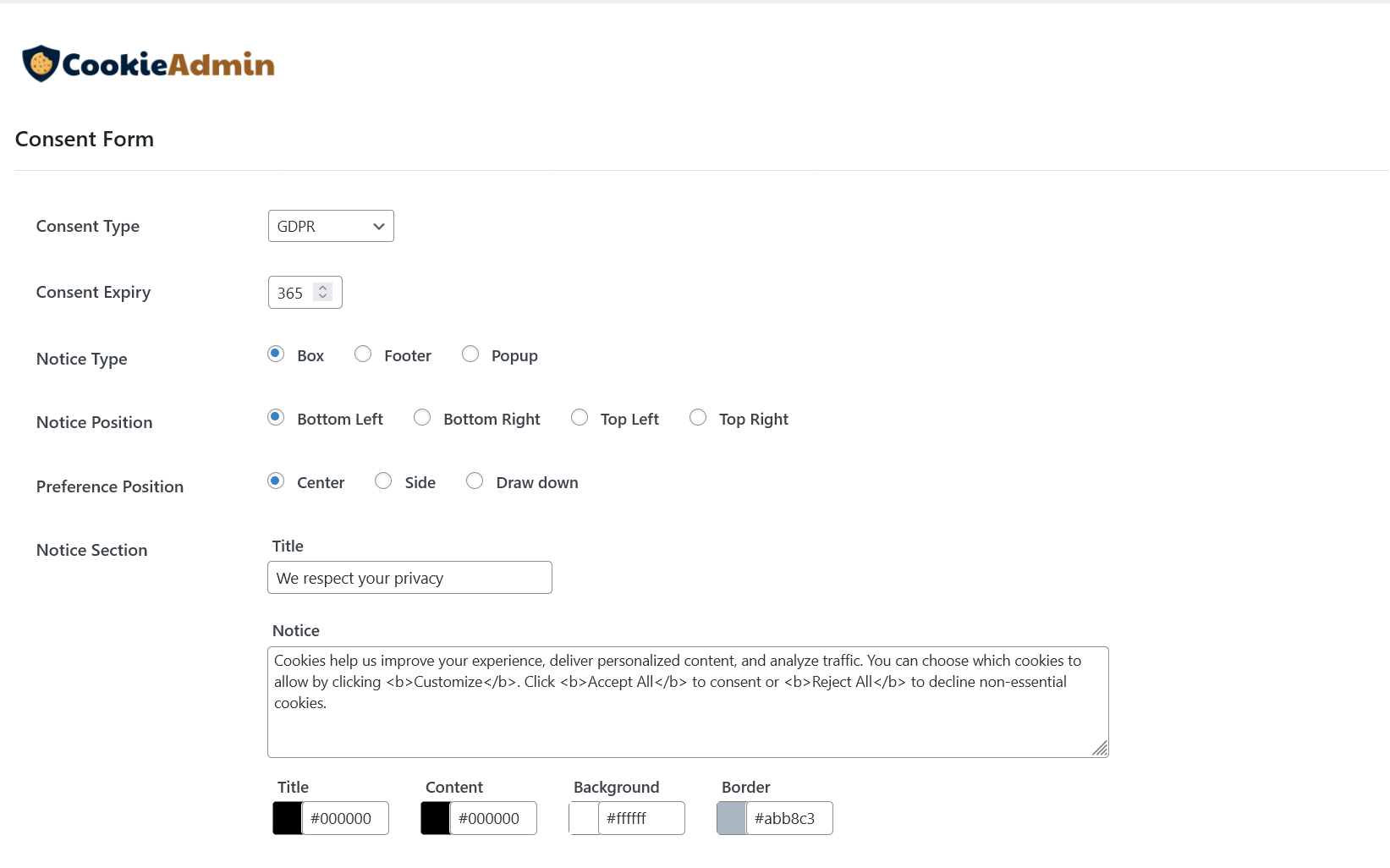
- Consent type allows users to choose the applicable consent standard for displaying the cookie banner. Options include GDPR and US State Laws.
- Consent Expiry sets the duration (in days) for which the user's cookie preferences will be remembered.
- Notice Type defines the format in which the cookie consent notice will be displayed on the website. This allows you to control how the banner appears to users based on your site design.
- Notice Position specifies the location where the consent notice will appear on the user’s screen. This helps in aligning the banner with the overall layout of your website.
- Preference Position sets the display position of the detailed cookie preferences section within the notice. Adjusting this ensures a user-friendly experience when managing cookie settings.
- Notice Section allows you to customize the main content displayed within the cookie banner.
Title lets you define the heading that appears at the top of the notice.
The Notice is where you can write the main text of the banner, usually explaining how cookies are used on your website.
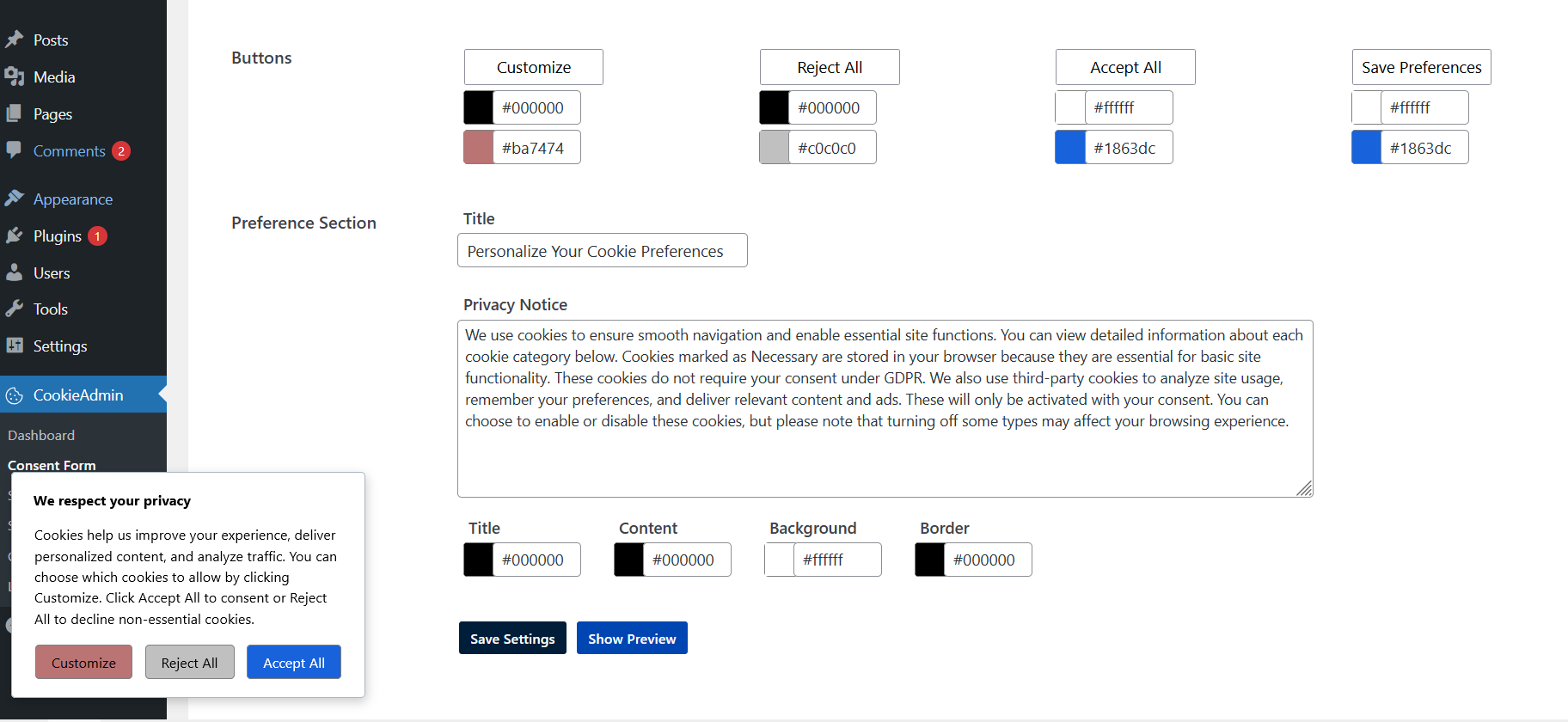
- Button Setttings allows you to customize the labels and appearance of the buttons displayed on the cookie banner.
Each button—such as Accept All, Reject All, Customize, and Save Preferences—can be personalized to match your website’s style.
You can change the button text as well as adjust the text colour, background colour and border colour for a consistent user experience.
- Preference Section allows you to configure how users view and manage their cookie preferences.
You can set a Title, add a Privacy Notice with details about cookie usage, and customize the colors for the title, content, background, and border to match your website’s design.
Once the setup is complete, click Save Settings to apply the changes, and select Show Preview to view a preview of the banner based on your configuration.
Re-Consent Icons
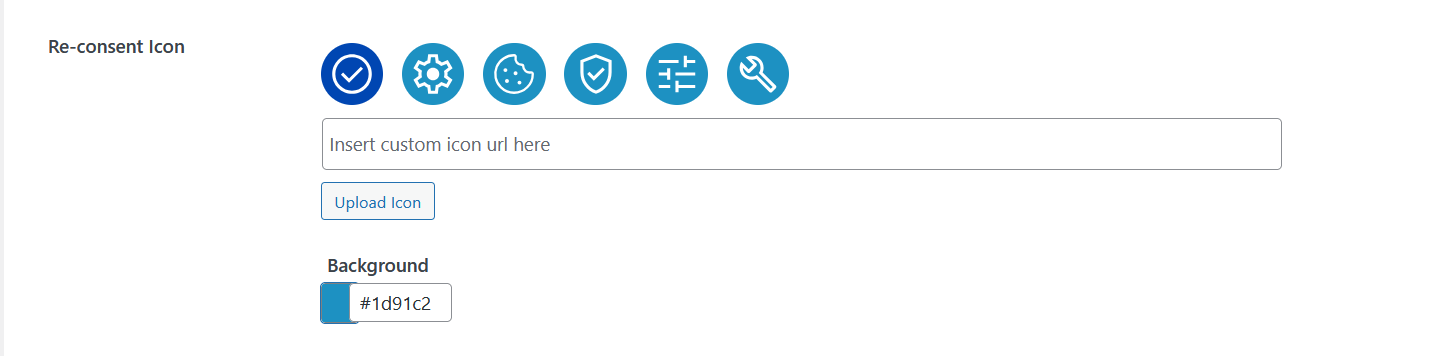
Re-Consent Icon is a floating icon shown on your website after the user has made a consent choice.
This allows users to reopen the consent banner anytime, for easy withdrawal of consent.
- Default Icons : Choose from pre designed icons (gear, cookie, shield, sliders, etc.)
Optimized for visibility and accessibility.
Recommended if you want quick setup.
- Upload Custom Icon : Upload your own icon using the Upload Icon button.
Supported formats: PNG, JPG with 40px approx size for clarity.
- Custom Icon URL : Paste a direct image URL in the input field.
Useful for CDN-hosted or brand assets.
Make sure to use URLs that are publicly accessible and Uses HTTPS (important for security).
- Background Color : Use the color picker to match your brand. Color applies to the circular icon background. Make sure to maintain contrast with icon (WCAG accessibility) and to avoid very light colors if icon is white.
Policy Links
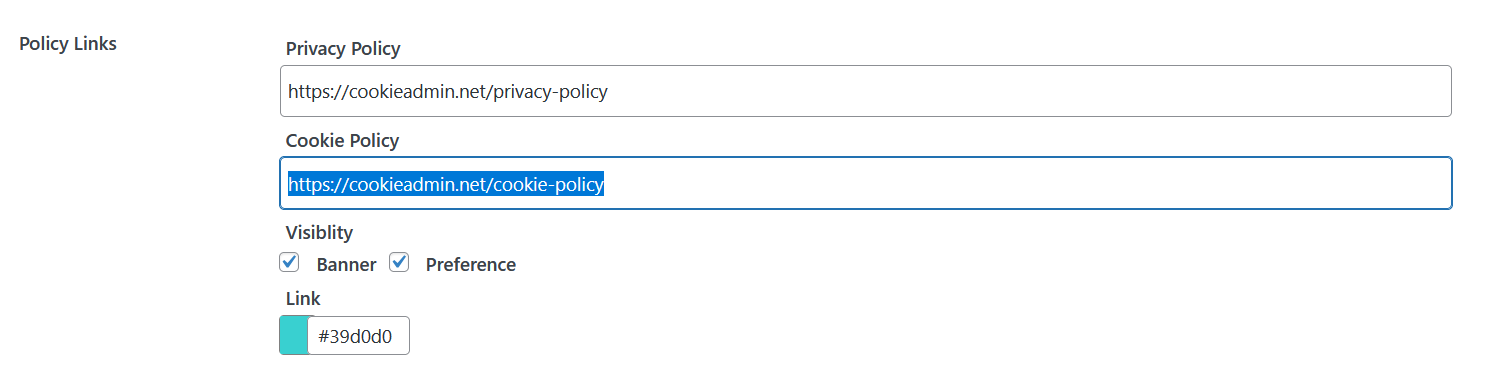
Setup links to your Privacy Policy and Cookie Policy pages.
Displayed inside the consent banner and/or preferences modal.
Required for transparency and GDPR compliance.
- Privacy Policy URL: Enter the full URL of your privacy policy page.
This link informs users how their data is handled.
Eg: https://yourdomain.com/privacy-policy
- Cookie Policy URL: Enter the full URL of your cookie policy page.
Cookie Policy page should describe, the types of cookies used, purpose of each category. You can use CookieAdmin Shortcode to show Cookies table for same.
Eg: https://yourdomain.com/cookie-policy
- Visibility Settings: This control where links are shown.
Shows links directly in the Consent Banner, best for immediate transparency.
And or on Preference Modal to show links inside detailed settings panel. This Keeps banner cleaner while still compliant
You can enable both for better accessibility.
- Link Color: Customize the color of policy links. This helps match your website branding.
Best practice is to ensure high contrast with background, use recognizable “link color” and avoid colors that look like normal text.
Preview Banner
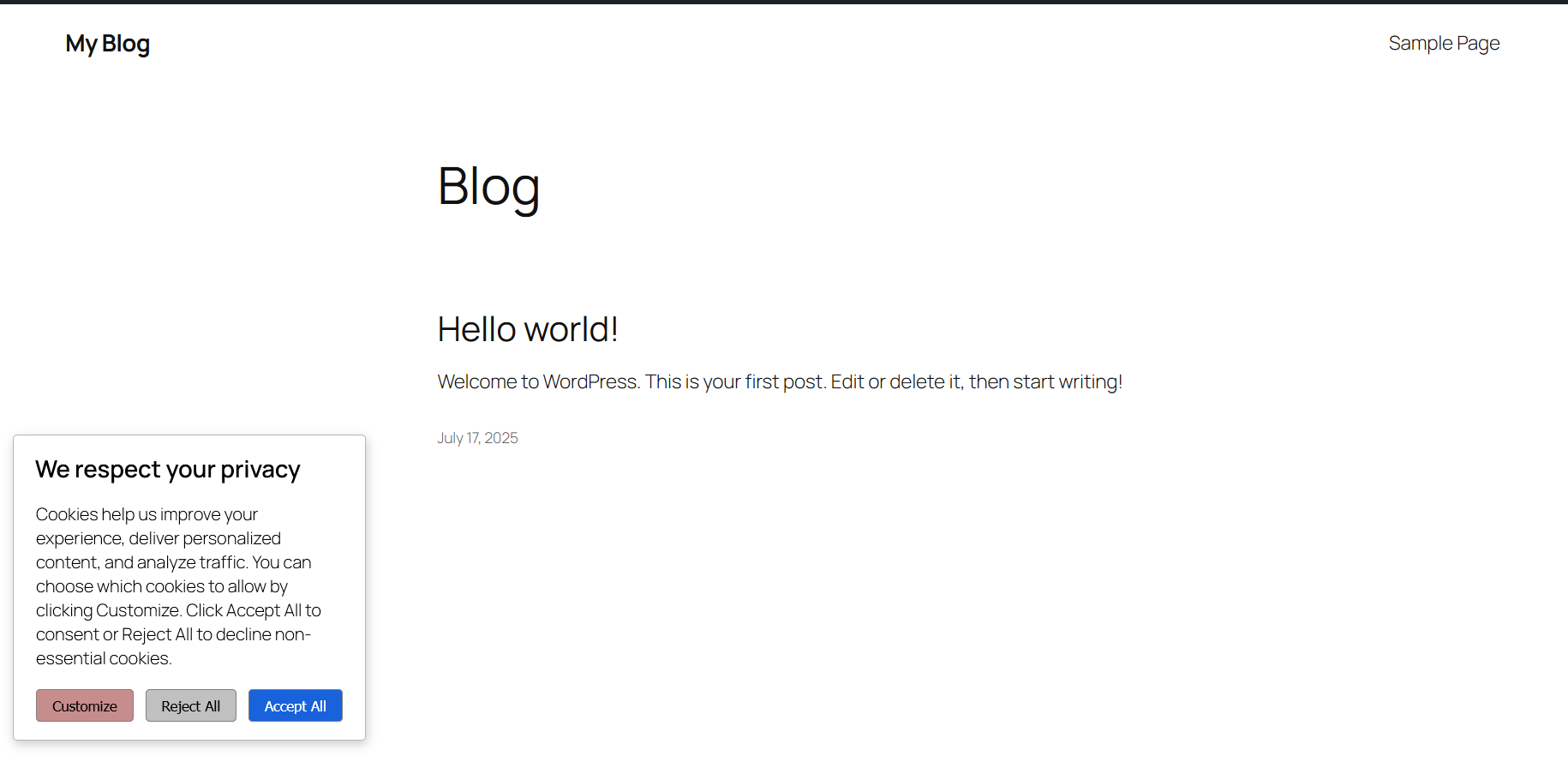
This is how the cookie consent banner will appear on the WordPress front-end. It will be displayed at the top or bottom of the page (as per your configuration), allowing users to customize, reject, or accept cookies based on the settings you've configured in CookieAdmin.