Cloud agents in Visual Studio Code
Cloud agents run on remote infrastructure and integrate with GitHub repositories for team collaboration through pull requests. For example, the GitHub Copilot cloud agent runs on GitHub's infrastructure and can implement features, address code review feedback, and open pull requests autonomously.
This article covers the key features of cloud agents, and how to start and manage cloud agent sessions for coding tasks that can range anywhere from simple to complex.

What are cloud agents?
Unlike local and background agents that run on your local machine, cloud agents like Copilot cloud agent run on remote infrastructure. You can view and manage all your cloud agent sessions from the unified Chat view in VS Code. This view also lets you create new cloud agent sessions directly from VS Code or hand off local or background agent conversations to cloud agents.
VS Code supports different cloud agents, such as Copilot cloud agent and third-party agents like Claude and Codex.
Because cloud agents run remotely without user interaction, they are well-suited for tasks that have a well-defined scope and all necessary context. Their integration with pull requests makes them very effective for team collaboration.
Due to their remote execution environment, cloud agents can't directly access VS Code built-in tools and run-time context (like failed tests or text selections). They are limited to the MCP servers and language models that are configured in the cloud agent service.
To assign a task to a cloud agent, you can either create a new cloud session directly from the Chat view or hand off a local or background agent conversation from VS Code to a cloud agent.
GitHub Copilot cloud agent
The GitHub Copilot cloud agent is the primary cloud agent available in VS Code with your Copilot subscription.
Key capabilities include:
- Large-scale refactoring across your GitHub repository
- Complete feature implementation from high-level requirements
- Automatic pull request generation with detailed descriptions
- Code review integration and feedback addressing
Third-party cloud agents
VS Code supports third-party cloud agents like Claude coding agent and Codex coding agent as options for cloud agent sessions. You need to enable support for third-party agents in the cloud in your Copilot account settings before you can use them in VS Code.
You don't need to install the provider's VS Code extension to use their cloud agent in VS Code.
Learn more about third-party agents in VS Code and how to enable them.
Start a cloud agent session
You can start a cloud agent session either directly by sending a chat prompt to a cloud agent or by handing off an ongoing local or background conversation to a cloud agent. Handing off an ongoing conversation is especially useful for complex tasks that require initial clarification or planning before autonomous execution.
If you prefer to work in the browser, you can also start cloud agent sessions directly from GitHub.com using the GitHub Copilot cloud agent.
Create a new cloud agent session
To create a new cloud agent session:
-
In the Chat view, select New Chat from the session list dropdown and choose Cloud from the session type dropdown
Alternatively, you can run the Chat: New Cloud Agent command from the Command Palette (⇧⌘P (Windows, Linux Ctrl+Shift+P)).
-
Choose the cloud agent provider from the dropdown and optionally select a custom agent and model.
-
Enter your prompt and let the cloud agent work on the task
For example, you might enter:
Refactor the authentication module to improve security and performance. Implement OAuth2 and JWT for token management, and optimize database queries for user sessions. -
The cloud agent starts working on the task remotely. You can monitor the progress of the session in the Chat view and continue to interact with it.
If you have assigned an issue or pull request to the Copilot cloud agent on GitHub.com, the session automatically appears in the session list in VS Code.
Hand off an agent session to a cloud agent
For complex tasks, it can be helpful to first interact with a local agent in VS Code chat to clarify requirements, for example with the Plan agent, and then hand off the task to a cloud agent for autonomous execution. When you hand off a local agent conversation to a cloud agent session, the entire chat context is passed to the cloud agent.
To hand off a local agent session to a cloud agent session:
-
Open an ongoing local agent session in the Chat view.
-
Select the session type dropdown, and select Cloud to continue the session as a cloud agent.
If you're using the Plan agent, you can select Continue in Cloud from the Start Implementation dropdown to run the plan implementation in a cloud agent session
To hand off a background agent session to a cloud agent session, enter /delegate in the chat input of the background agent session. This command passes the full chat history and context to a new cloud agent session, which you can then monitor in the Chat view.
View and manage cloud agent sessions
You can view and manage all your cloud agent sessions from the Chat view in VS Code. Filter the session list to show only cloud agent sessions by selecting the Cloud Agents from the filter options.
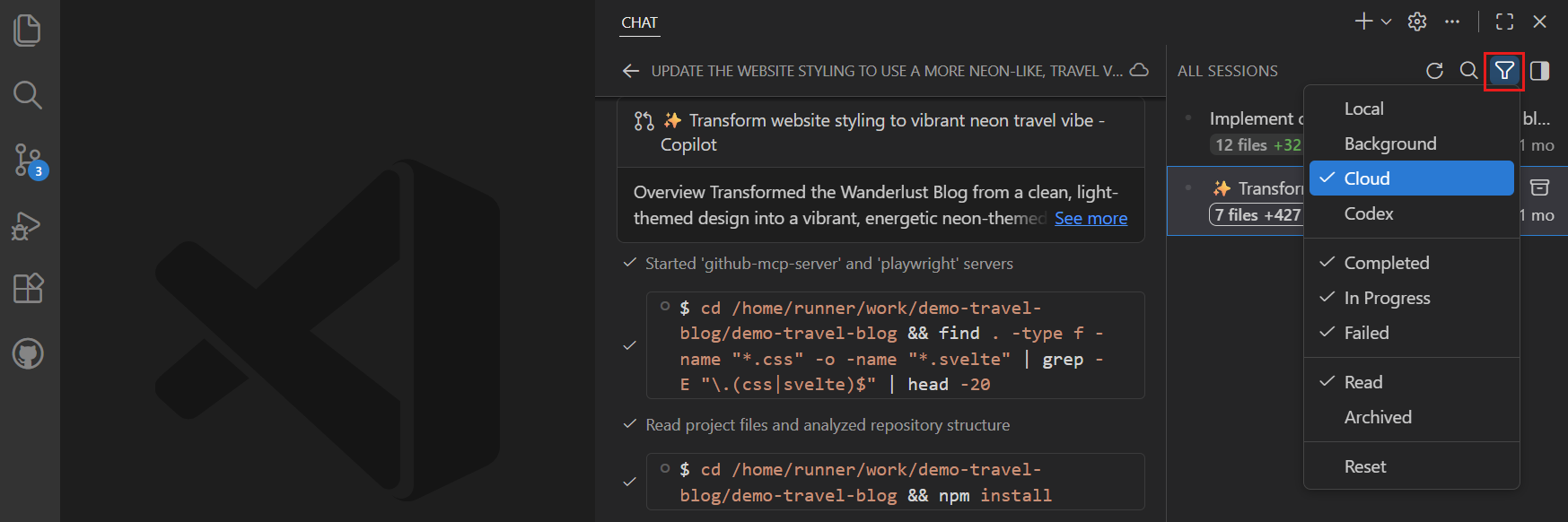
Select a cloud agent session from the list to open the session details in the Chat view. If you prefer to view the session in an editor tab (chat editor), right-click the session and select Open as Editor.
Related resources
- Agents overview: Understand different agent types and delegation
- Background agents: Learn about CLI-based autonomous agents for isolated development
- Custom agents: Create custom agent roles and personas
- GitHub Copilot cloud agent: Managing agents on GitHub.com