Review AI-generated code edits
When you interact with chat in Visual Studio Code, the agent can generate code edits across multiple files in your project. This article explains how to review, accept, or discard these AI-generated code edits.
You can review AI-generated edits in both the Chat view and the Agents window. The review experience follows the same concepts but the user interface might differ between the two surfaces.
Pending changes
After the agent updates your files, VS Code applies and saves the edits to disk. VS Code keeps track of which files have pending edits and lets you review them individually or all at once.
In the Agents window, the dedicated Changes panel lists the edited files and shows their diff stats. Select a file to open its diff view.
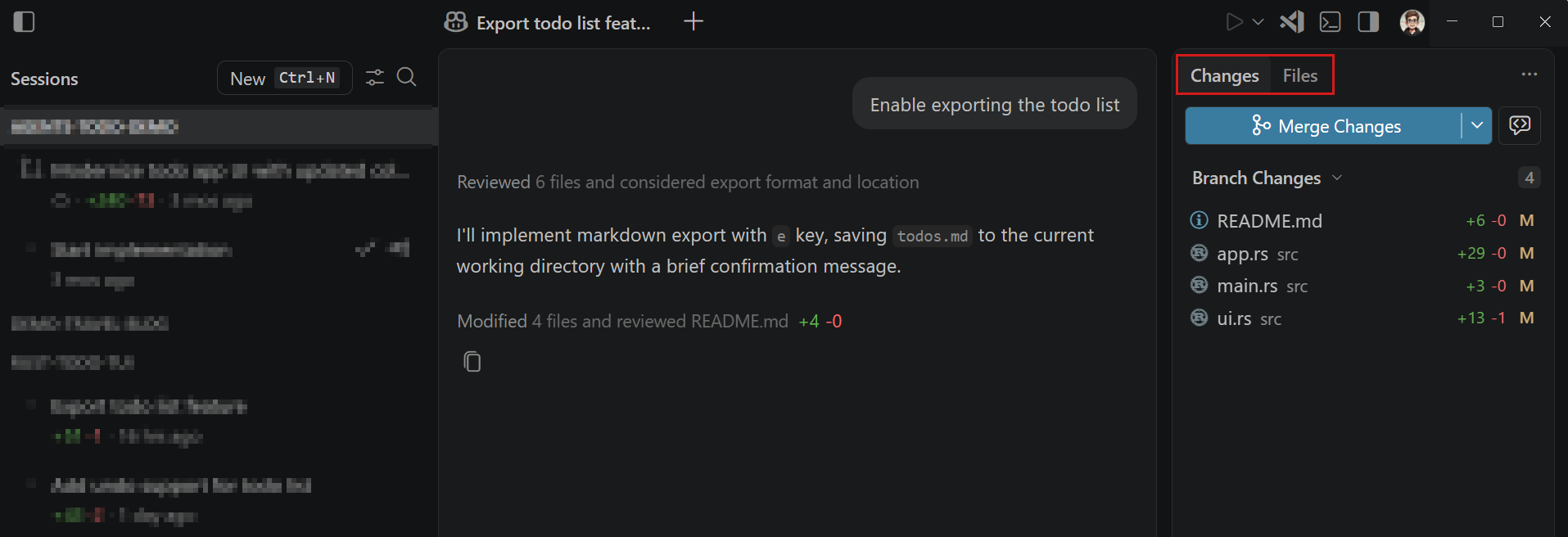
For more information about the Changes panel, see Manage and review file changes.
The Chat view shows the list of files that were edited and are pending your review. Files with pending edits also have a squared-dot icon indicator in the Explorer view and editor tabs.
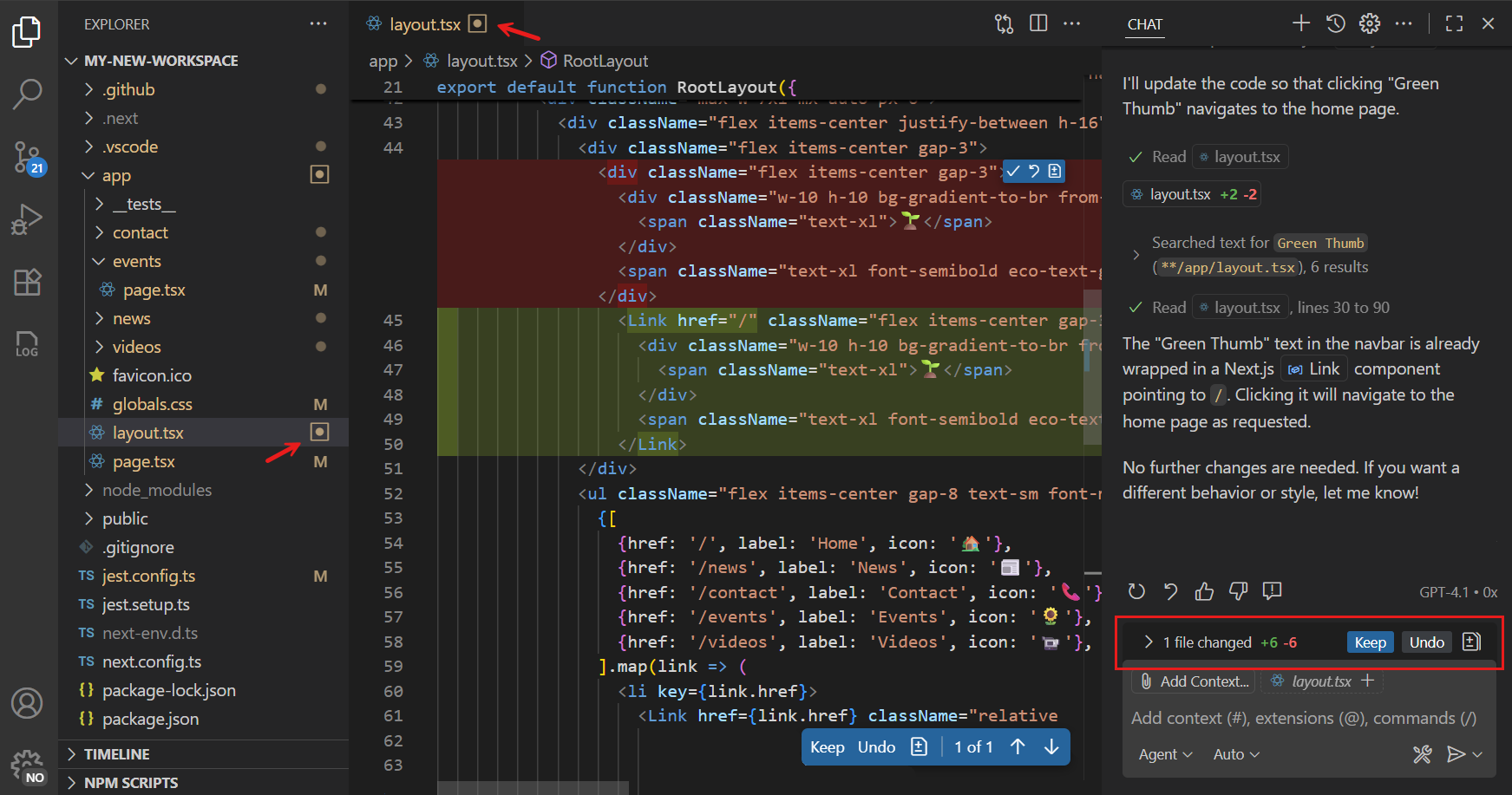
When you open a file that was changed, the editor shows an inline diff of the applied changes.
When you close VS Code, the status of the pending edits is remembered and restored when you reopen VS Code.
Review changes
How you review AI-generated edits depends on which surface you use. In the Chat view, you review edits directly in the editor. In the Agents window, you review edits in the dedicated Changes panel.
In the Agents window, you review edits in the dedicated Changes panel instead of the editor overlay:
-
Select a file in the Changes tab to open a diff view of the agent's edits.
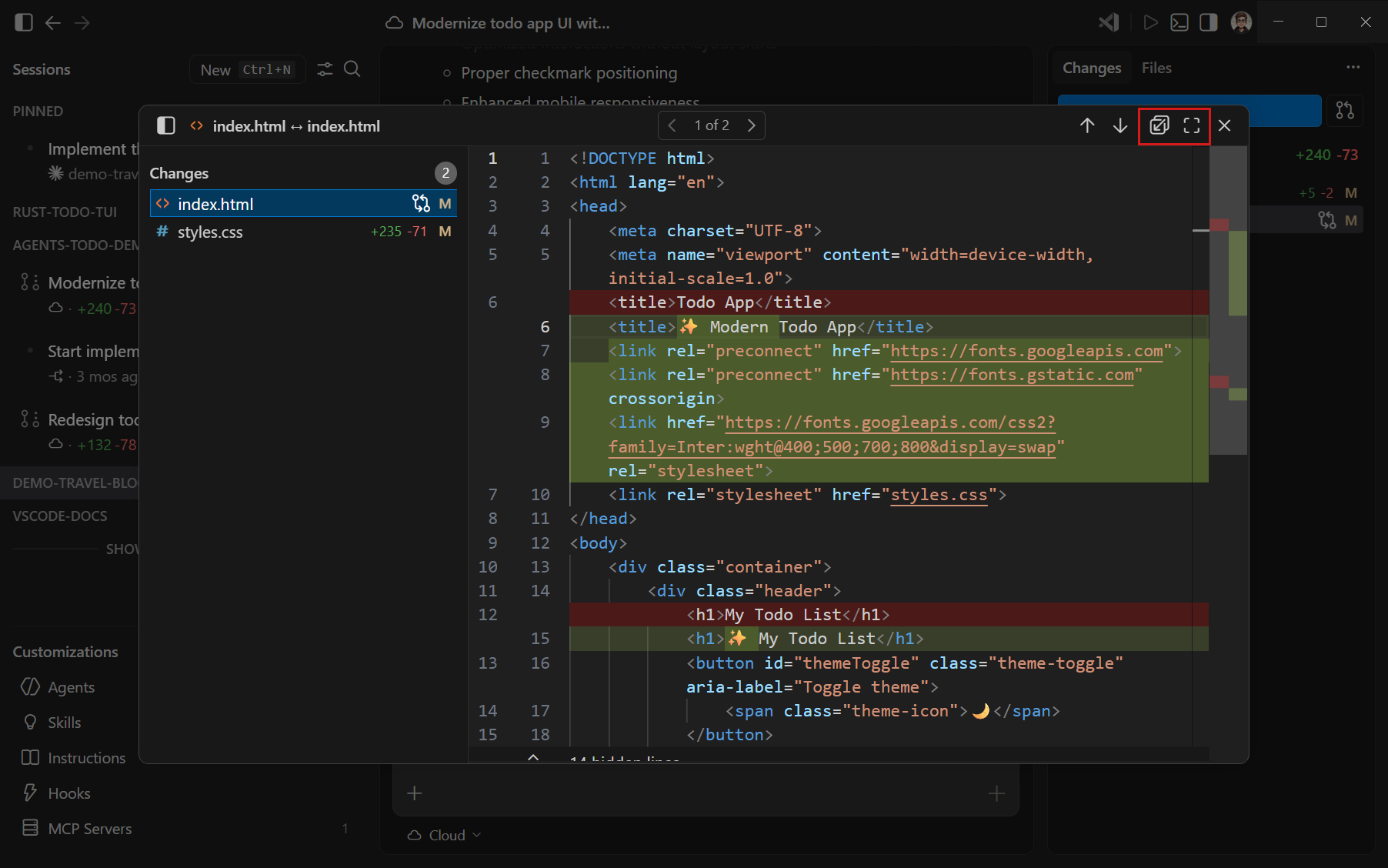
By default, selecting a file opens a multi-file diff editor with all the changes. To open a focused single-file diff editor for the selected file instead, enable the sessions.changes.openSingleFileDiff setting.
-
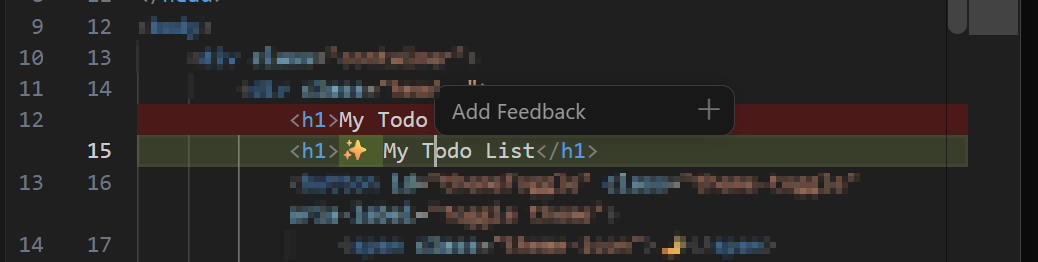
Select Add Feedback in the diff view to comment on a specific edit and signal the agent to make adjustments.
-
Use the Commit, Merge, Checkout, or Discard actions to act on the edits.
For more information, see Manage and review file changes.
To review the AI-generated code edits in a file:
-
Open a file with pending edits by selecting it from the changed files list in the Chat view or from the Explorer view.
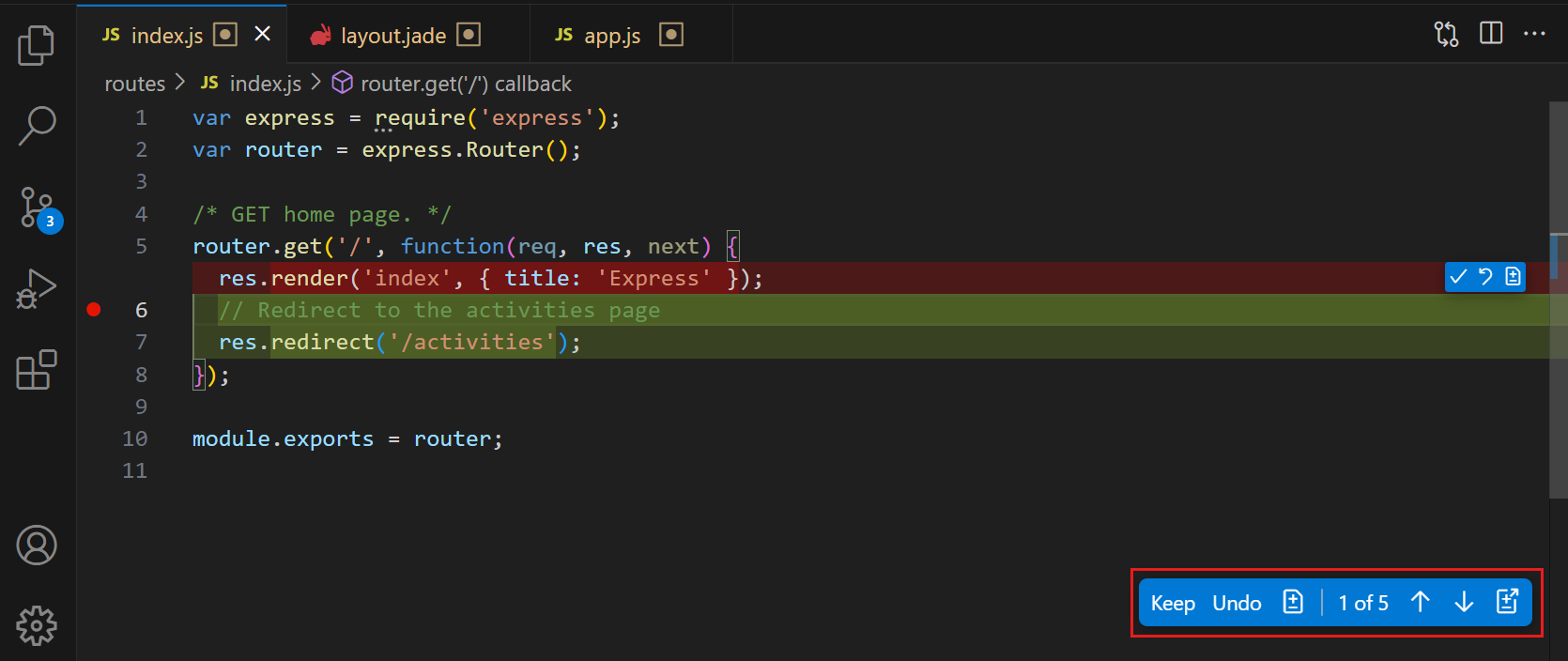
-
Use the Up and Down controls in the editor overlay to navigate between individual edits within the file.
-
For each edit, choose one of the following actions:
- Select Keep to accept the edit.
- Select Undo to reject the edit and revert the change.
- Hover over an inline change to accept or reject that specific change without affecting other edits in the file.
-
Alternatively, accept or reject all changes across all files at once from the Chat view.
The following keyboard shortcuts help you navigate and review edits:
| Action | Shortcut |
|---|---|
| Navigate to next edit | Down in the editor overlay |
| Navigate to previous edit | Up in the editor overlay |
When you keep or undo an edit in a file, the editor automatically navigates to the next edit with pending changes, which might be in a different file. To disable this auto-navigation and stay in the current file, set
chat.editing.revealNextChangeOnResolve
to false.
Source Control integration
If you stage your changes in the Source Control view, any pending edits are automatically accepted. If you discard your changes, any pending edits are also discarded.
Auto-accept edits
You can configure VS Code to automatically accept AI-generated code edits after a configurable delay with the chat.editing.autoAccept setting. Hover over the editor overlay controls to stop the auto-accept countdown.
If you automatically accept all edits, review the changes before you commit them in source control. Learn more about the security considerations of using AI in VS Code.
Edit sensitive files
To prevent inadvertent edits to sensitive files, such as workspace configuration settings or environment settings, VS Code prompts you to approve edits before they are applied. In chat, you can see a diff view of the proposed changes and choose to approve or reject them.
Use the chat.tools.edits.autoApprove setting to configure which files require approval. The setting uses glob patterns to match file paths in your workspace.
The following example configuration automatically allows edits to all files except for JSON files in the .vscode folder and files named .env, which you are prompted to approve:
"chat.tools.edits.autoApprove": {
  "**/*": true,
  "**/.vscode/*.json": false,
  "**/.env": false
}
Review file changes from the sessions list
When a session completes and makes code changes to your project, the sessions list shows the file change statistics for that session. To review the changes, select the session from the list to open the session details.
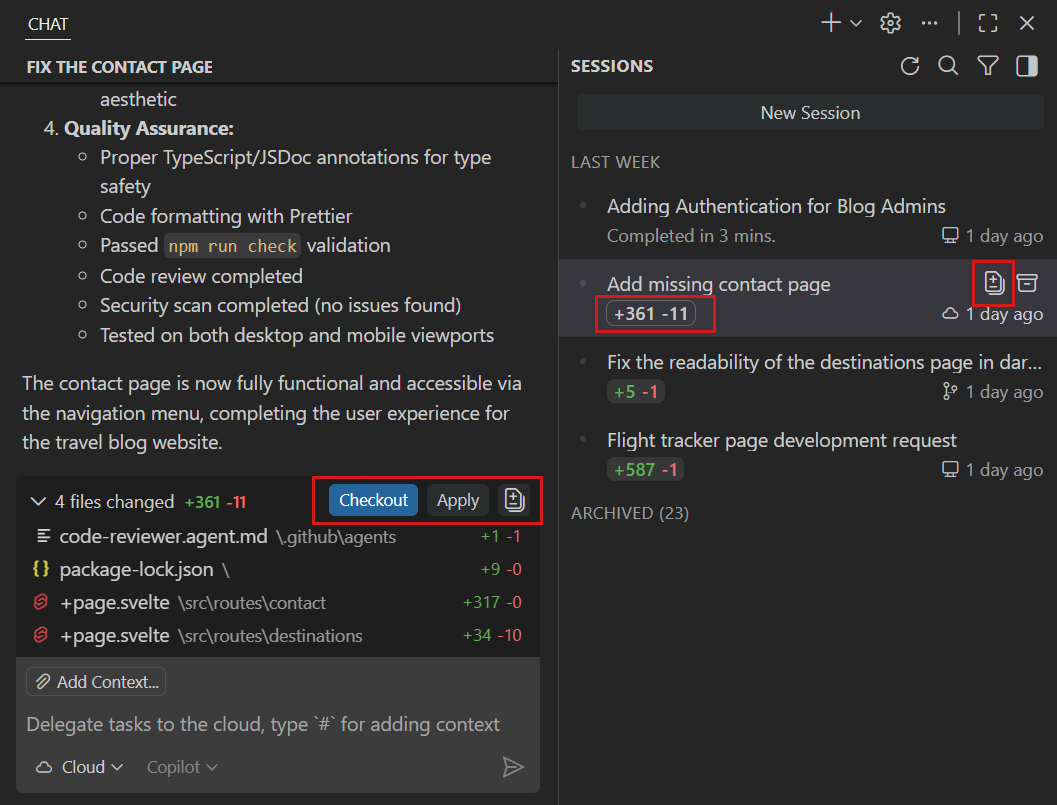
Depending on the agent type, you have options to apply the changes to your local workspace, or to check out the branch from the session (for cloud agents).