

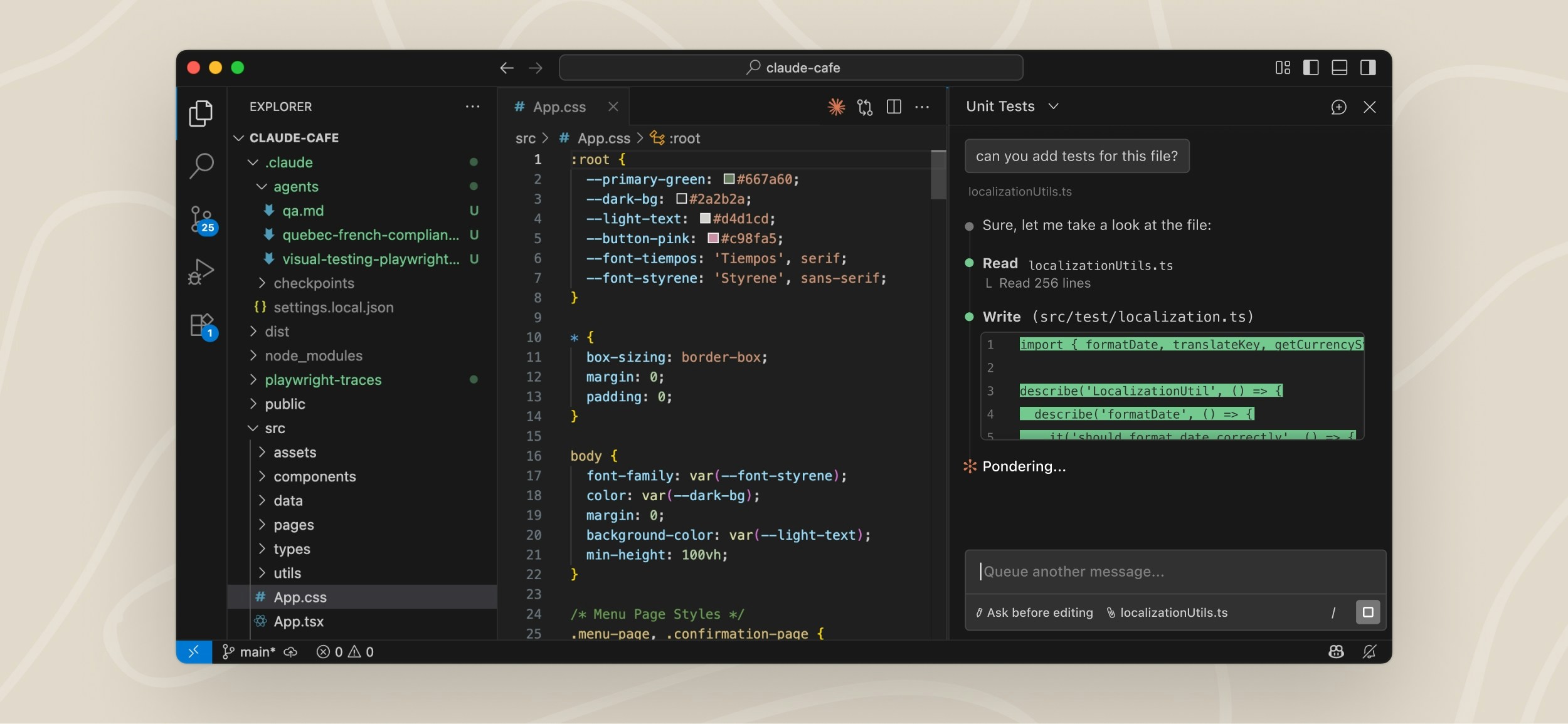
- Review and edit Claude’s plans before accepting them
- Auto-accept edits as they’re made
- @-mention files with specific line ranges from your selection
- Access conversation history
- Open multiple conversations in separate tabs or windows
Prerequisites
Before installing, make sure you have:- VS Code 1.94.0 or later
- An Anthropic account: any paid Claude subscription (Pro, Max, Team, or Enterprise) or a Claude Console account works, and no API key is required. You’ll sign in with this account when you first open the extension. If you access Claude through a third-party provider like Amazon Bedrock or Google Cloud’s Agent Platform, see Use third-party providers for setup instructions.
Install the extension
Click the link for your IDE to install directly: Or in VS Code, pressCmd+Shift+X (Mac) or Ctrl+Shift+X (Windows/Linux) to open the Extensions view, search for “Claude Code”, and click Install.
The extension’s version number is the Claude Code version it bundles. For example, a feature that requires Claude Code v2.1.286 or later needs version 2.1.286 or later of the extension, which the Extensions view shows.
Claude Code also runs in other editors and containers:
- Other VS Code forks: the extension also installs in forks like Devin Desktop or Kiro. Search for “Claude Code” in the editor’s Extensions view, or install from the Open VSX registry.
- Editors that can’t install the extension: install the CLI and run
claudein the editor’s integrated terminal instead. The CLI works in any terminal. - Dev containers: to run Claude Code inside a dev container, see Development containers.
If the extension doesn’t appear after installation, restart VS Code or run “Developer: Reload Window” from the Command Palette.
Get started
Once installed, you can start using Claude Code through the VS Code interface:1
Open the Claude Code panel
Throughout VS Code, the Spark icon indicates Claude Code: 
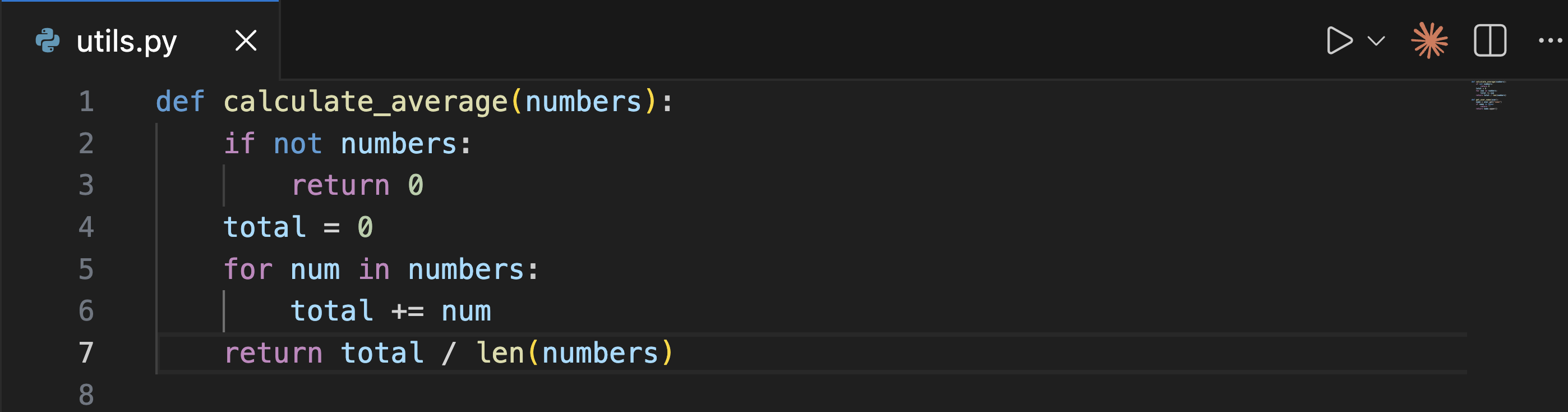
- Activity Bar: click the Spark icon in the left sidebar to open the sessions list. Click any session to open it in your preferred location, or start a new one. This icon is always visible in the Activity Bar.
- Command Palette:
Cmd+Shift+P(Mac) orCtrl+Shift+P(Windows/Linux), type “Claude Code”, and select an option like “Open in New Tab” - Status Bar: click ✻ Claude Code in the bottom-right corner of the window. This works even when no file is open.
2
Sign in
The first time you open the panel, a sign-in screen appears. Click Sign in and complete authorization in your browser.If you see Not logged in · Please run /login later, the extension reopens the sign-in screen automatically. If it doesn’t appear, reload the window from the Command Palette with Developer: Reload Window.If you have
ANTHROPIC_API_KEY set in your shell but still see the sign-in prompt, VS Code may not have inherited your shell environment. Launch VS Code from a terminal with code . so it inherits your environment variables, or sign in with your Claude account instead.After you sign in, a Learn Claude Code checklist appears. Work through each item by clicking Show me, or dismiss it with the X. To reopen it later, uncheck Hide Onboarding in VS Code settings under Extensions > Claude Code.3
Send a prompt
Ask Claude to help with your code or files, whether that’s explaining how something works, debugging an issue, or making changes.Here’s an example of asking about a particular line in a file: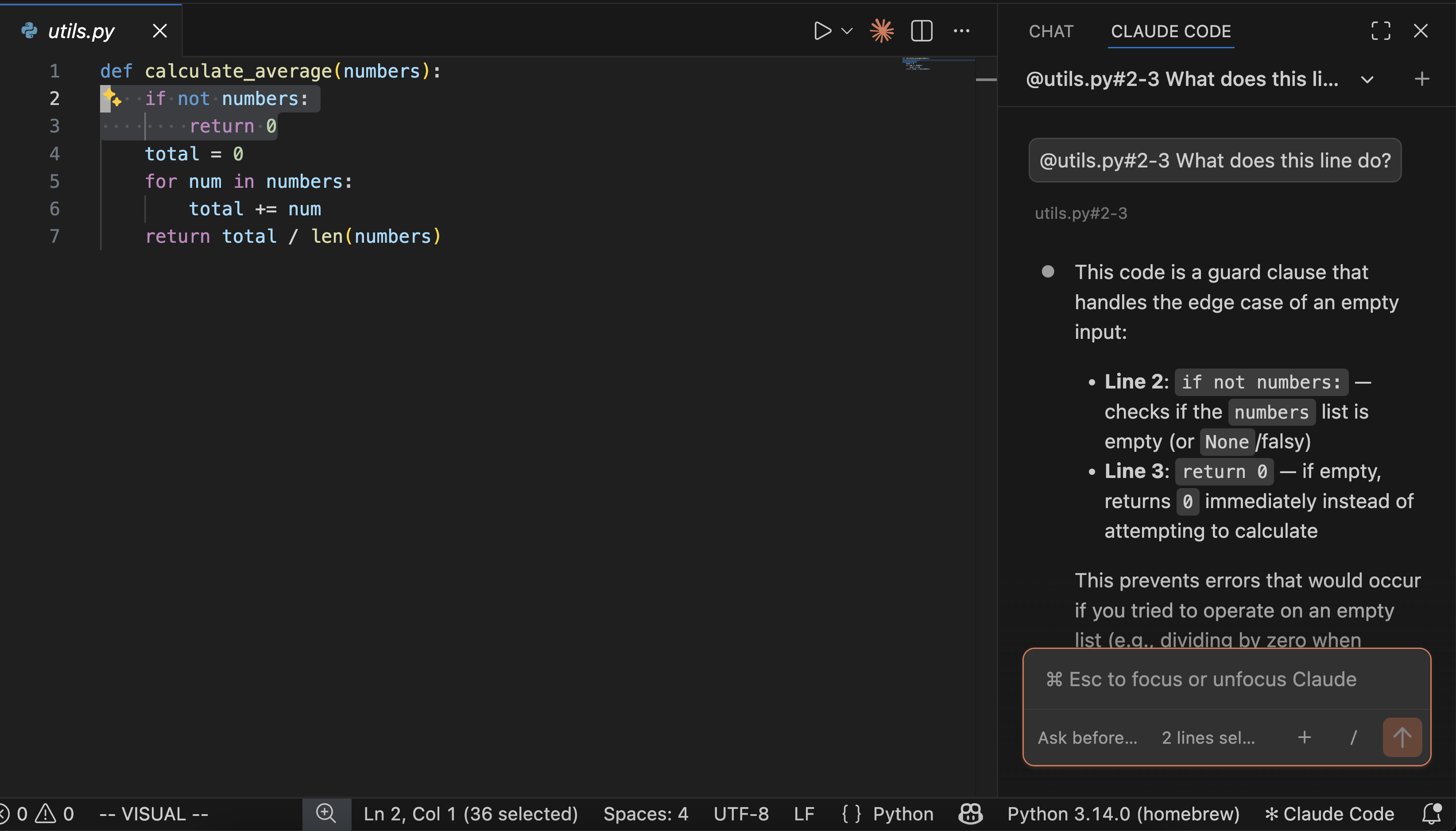
4
Review changes
Check the permission mode shown at the bottom of the prompt box:
- In Auto or Edit automatically mode, Claude edits most files in your workspace without asking.
-
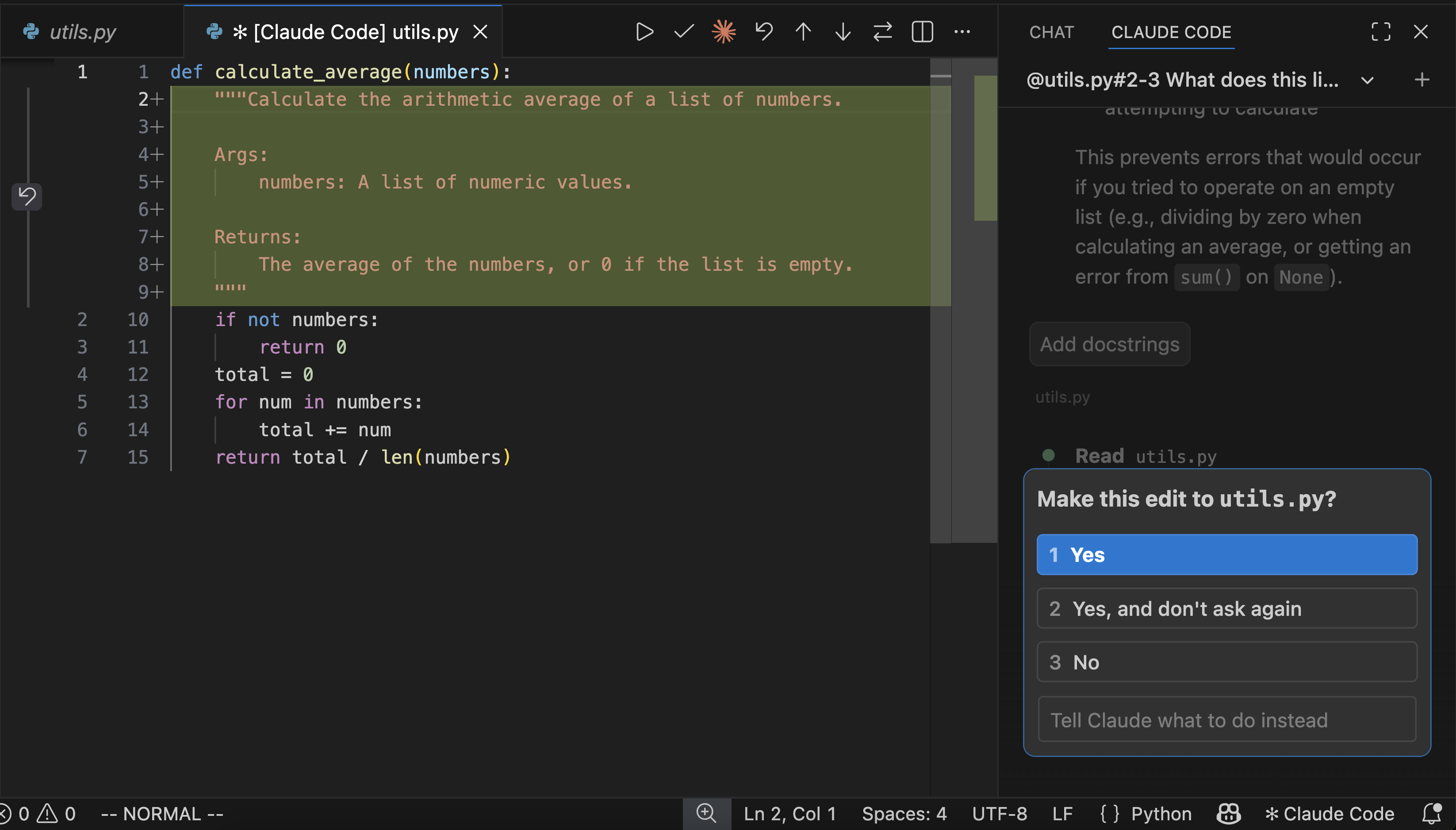
In Manual mode, when Claude wants to edit a file, it shows a side-by-side comparison of the original and proposed changes, then asks for permission. You can accept, reject, or tell Claude what to do instead. If you edit the proposed content directly in the diff view before accepting, Claude is told that you modified it so it doesn’t assume the file matches its original proposal.
Use the prompt box
The prompt box supports several features:-
Permission modes: click the mode indicator at the bottom of the prompt box to switch permission modes. With Claude Code v2.1.283 or later, Auto is the built-in starting permission mode, and on earlier versions only on Pro, Max, and Team plans. See how the extension chooses the starting permission mode for what changes that, and every permission mode the indicator offers.
- Auto: a classifier reviews most actions instead of asking you. See auto mode for what it reviews and blocks.
- Manual: Claude asks permission before file edits and most shell commands.
-
Plan: Claude describes what it will do and waits for approval before making changes. VS Code automatically opens the plan as a full Markdown document where you can add inline comments to give feedback before Claude begins.
You can also type
/planin the prompt box. Requires Claude Code v2.1.280 or later./plan: switches to plan mode. If you’re already in plan mode, shows the current plan instead./planwith a task, such as/plan fix the auth bug: switches to plan mode and starts planning that task./plan open: when you’re already in plan mode, opens the plan file in the editor.
- Edit automatically: Claude makes edits without asking.
-
Model: select Switch model… from the command menu to change the model mid-session. You can also click the model name at the bottom of the prompt box to open the same picker. With Claude Code v2.1.284 or later, typing
/modelon its own in the prompt box opens the picker too. When the current model supports effort levels, the picker also shows an Effort row and the model name button shows the selected level. When you pick a level other thanmax, Claude Code saves it for the current model as your default, undermodelSettingsin your user settings;maxapplies to the current session only. The model name button and the Effort row require Claude Code v2.1.257 or later. When dynamic workflows are enabled and the current model supports it, an Ultracode switch appears under the Effort row. Turn it on to have Claude plan a workflow for each substantive task in this session, at the selected effort level. While it’s on, the model name button shows· Ultracodeafter the level. The switch requires Claude Code v2.1.284 or later. -
Command menu: click
/or type/to open the command menu. Options include attaching files, switching models, and toggling extended thinking. The Customize section includes entries such as MCP servers, commands, output styles, hooks, memory, instructions, permissions, and plugins. Items with a terminal icon open in the integrated terminal.-
To browse commands such as
/usageor/remote-control, select Slash commands in the Customize section. A dialog lists them with a filter box. Pick one to run it. Typing/in the prompt box still suggests commands inline. Requires Claude Code v2.1.257 or later. Typing/skillsalso opens this dialog. Each skill row shows its visibility, such as On or Name only. Click the visibility to change it, except on rows marked locked, such as plugin skills. The/skillsshortcut and the visibility controls require Claude Code v2.1.280 or later. - Select Output styles in the Customize section to pick an output style, including your custom styles. Requires Claude Code v2.1.257 or later. To create a custom style instead, select Build a custom style from the Output styles menu. Claude Code writes the style file for you at the project or user level. Requires Claude Code v2.1.261 or later.
- Select Hooks in the Customize section to view the hooks loaded in the session, grouped by event. You can add, edit, or remove hooks saved in your user, project, and local settings files. Hooks from other sources, such as managed settings or plugins, are read-only. Requires Claude Code v2.1.269 or later.
- Select Permissions in the Customize section to view the session’s permission rules, grouped into Allow, Ask, and Deny. You can add rules to your user, project, or local settings and remove rules saved there. Rules from other sources, such as managed settings or approvals made for this session only, are read-only. Requires Claude Code v2.1.269 or later.
- Select Memory in the Customize section to turn auto memory on or off. While it’s on, you can also browse the memories Claude has saved and reveal the folders that store them in your file manager. Requires Claude Code v2.1.274 or later. Click a saved memory to read it in the dialog, where you can edit the text, delete the memory, or open its file in the editor. Viewing, editing, and deleting a memory in the dialog require Claude Code v2.1.275 or later.
- Select Instructions in the Customize section to edit the CLAUDE.md files Claude reads. Pick a file to open it in the editor. If the file doesn’t exist yet, Claude Code creates it first. Requires Claude Code v2.1.274 or later.
-
Select Status in the Customize section, or type
/status, to check the session’s Claude Code version, account, model, and MCP server details. Requires Claude Code v2.1.280 or later. -
Select Sandbox in the Customize section, or type
/sandbox, to see whether Claude’s Bash commands run sandboxed. You can switch the sandbox mode and add excluded commands there. Requires Claude Code v2.1.280 or later. -
Select Claude in Chrome in the Customize section, or type
/chrome, to check and manage the Claude in Chrome connection. Both require signing in with a claude.ai account. Requires Claude Code v2.1.280 or later. -
Select Export conversation in the Context section, or type
/export, to copy the conversation as plain text or save it to a file. Add a file name, such as/export notes.txt, to skip the dialog and choose where to save the file. Requires Claude Code v2.1.280 or later. -
The Settings section includes Enable Remote Control for all sessions, which sets
remoteControlAtStartupto control whether new interactive sessions connect to Remote Control automatically. Requires Claude Code v2.1.203 or later. When you turn the toggle on or off in a VS Code window, the change isn’t limited to sessions you start afterwards. It also applies to the sessions already open in that VS Code window. If you turn it off, the open sessions disconnect. With Claude Code v2.1.261 or later, the change also reaches sessions open in your other VS Code windows. -
The Settings section also includes Focus view, which hides tool calls, tool results, and thinking behind expandable rows, leaving your prompts and Claude’s responses. Toggle it there, with
Ctrl+Option+F(Mac) /Ctrl+Alt+F(Windows/Linux), or from the Command Palette with Claude Code: Toggle Focus view. The change applies to every open session and persists across sessions. Requires Claude Code v2.1.221 or later. Claude’s latest to-do list stays visible, and so does the text a pending question from Claude is asking about; this requires Claude Code v2.1.225 or later. While Claude runs subagents, live progress rows with their latest activity appear under the tool-call group that started them. This requires Claude Code v2.1.269 or later. -
To sign out of your Anthropic account, select Sign out in the Settings section, or type
/logout. On a third-party provider, the menu doesn’t offer either. Requires Claude Code v2.1.277 or later. -
To report a bug, click Report a problem at the bottom of the menu, or type
/bugor/feedbackwith an optional description that prefills the report. When you submit the report and you’re signed in to Anthropic on a first-party connection, Claude Code sends it to Anthropic. Requires Claude Code v2.1.229 or later. On a third-party provider, or without Anthropic credentials, nothing is sent. The dialog says so before you write. Submitting saves the report as a local archive under~/.claude/feedback-bundles/with known API key and token patterns redacted. Saving the report on your computer requires Claude Code v2.1.284 or later. After the report is saved, the confirmation names the file and includes a Show folder button. Send that file to your Anthropic account representative or attach it to a support request. If your organization’s policy turns product feedback off, Report a problem doesn’t appear in the menu, and/bugand/feedbackshow aFeedback is turned off by your organization's policy or this environment's settings.notice instead of opening the report. With Claude Code v2.1.284 or later, if you set theDISABLE_FEEDBACK_COMMANDorCLAUDE_CODE_DISABLE_NONESSENTIAL_TRAFFICenvironment variable, feedback is also turned off and opening the report shows that notice instead.
-
To browse commands such as
-
Side questions: type
/btwfollowed by a question to ask about your session without adding to the conversation. The answer opens in a panel beside the chat, where you can ask follow-up questions. Requires Claude Code v2.1.227 or later. The thread survives window reloads. Claude Code keeps the newest 20 exchanges and expires stored threads on thecleanupPeriodDaysschedule, as long as Claude Code can safely determine the retention period. To clear a thread, click the trash icon in the panel. -
Copy a response: hover over a response and click Copy response to copy it to your clipboard, or type
/copyto copy the latest response./copy 2copies the second-to-last. Requires Claude Code v2.1.277 or later. -
Bookmarks: hover over a response and click Bookmark response to save it, or click Remove bookmark on a saved response to remove it.
To review saved responses, open the Bookmarks panel. You can click the bookmark icon at the top of the Claude Code panel, select Bookmarks in the Context section of the command menu, or type
/bookmarks. Requires Claude Code v2.1.286 or later. -
Files Claude sends you: when the session is connected to Remote Control and Claude sends you files with the
SendUserFiletool, the conversation shows a row such as Sent report.md, chart.png. Click a file’s name to open it in the editor. The row stays visible in Focus view. Requires Claude Code v2.1.295 or later. A file appears as a full path you can’t click, such as\\server\share\report.md, when its path names a network host. Claude Code doesn’t link that file because opening it would contact that host and, on Windows, could send your Windows credentials to that host. -
Context indicator: the prompt box shows how much of Claude’s context window you’re using. Claude automatically compacts when needed, or you can run
/compactmanually. -
Prompt cache clock: a clock icon next to the context indicator estimates how much time the conversation’s prompt cache has left before it expires. It counts down from the cache’s five-minute or one-hour lifetime, and each response that uses the cache restarts the countdown. Apart from compaction, the actions that invalidate the cache don’t reset the clock, so it can still show minutes left after you switch models.
- Until the countdown runs out, the icon shows the minutes left, such as 12m.
- When the countdown runs out, the minutes disappear and the icon turns red, or your theme’s error color, until the next response. The cache has likely expired, so expect a slower, more expensive response to your next message while the cache rebuilds. If the five-minute lifetime keeps running out between your messages, see Choose the TTL yourself.
- Right after the conversation is compacted, the icon also turns red without minutes until the next response, because the cache doesn’t cover the compacted conversation yet.
-
Agent map: when the conversation includes subagents, an agent count such as 2 agents appears at the bottom of the prompt box. Its dot shows whether any subagent is working or waiting for your permission.
Click the agent count to open the agent map, which draws the conversation’s subagents as a tree under the main agent, each with its status, elapsed time, and token count. Click a subagent to see its prompt and tool calls, open its read-only transcript, or stop it while it runs. Requires Claude Code v2.1.269 or later.
The map also lists the session’s other background tasks, such as background shell commands and monitors, below the agents. Click a row to open the task’s card and stop it there.
To open the map when no agent count is showing, such as when Claude has started a background shell but no subagents, type
/tasksin the prompt box. Background tasks in the map and the typed/tasksrequire Claude Code v2.1.277 or later. With Claude Code v2.1.286 or later, when you click Stop or pressEsc, the current turn ends. Background agents keep running until they finish or you stop them from the map. -
Extended thinking: lets Claude spend more time reasoning through complex problems. Toggle it on via the command menu (
/). Claude’s reasoning appears in the conversation as collapsed blocks: click a block to read it, or pressCtrl+Oto expand or collapse every thinking block in the session. See Extended thinking for details. -
Multi-line input: press
Shift+Enterto add a new line without sending. This also works in the “Other” free-text input of question dialogs.
Reference files and folders
Use @-mentions to give Claude context about specific files or folders. When you type@ followed by a file or folder name, Claude reads that content and can answer questions about it or make changes to it. Claude Code supports fuzzy matching, so you can type partial names to find what you need:
Option+K (Mac) / Alt+K (Windows/Linux) to insert an @-mention with the file path and line numbers, for example @app.ts#5-10. Click the X on the selection indicator to remove it so Claude doesn’t receive the selection. The indicator comes back when you select other text.
The extension withholds selected text from some files:
- When the file is inside your workspace and matches your
files.excludeorsearch.excludesettings, Claude receives at most the file’s path and not the text you selected. - The same applies to a file git ignores, as long as VS Code’s
search.useIgnoreFilessetting and the extension’srespectGitIgnoresetting are both on, which is the default.
Read deny rule.
Claude also sees which file you have open in the editor, even when nothing is selected, and the prompt box shows its name. To add only your selected text, turn off the Attach Open File setting. The setting requires Claude Code v2.1.271 or later.
You can also attach images and files to your message:
- To attach an image, paste it from your clipboard into the prompt box.
- To attach files, hold
Shiftwhile dragging them into the prompt box. - To remove an attachment from context, click the X on it.
Include terminal output in prompts
Reference terminal output in your prompts using@terminal:name where name is the terminal’s title. This lets Claude see command output, error messages, or logs without copy-pasting.
Paste text
Text you paste stays visible in the prompt box, rather than collapsing to a placeholder as it does in the terminal. In sessions where Claude Code marks pasted text, Claude still sees a large paste as text you pasted rather than typed. Claude Code also removes invisible Unicode characters from text you paste into the prompt box and from anything else you send:- If a notice such as
Removed 3 invisible characters from the pasted textappears when you paste, the text went in without those characters. - If a notice about removed characters appears when you send, nothing was sent. The cleaned text is back in the prompt box. Send again to send the text as shown.
LaTeX math in responses
The chat panel shows LaTeX math in Claude’s responses as typeset formulas. Math rendering requires Claude Code v2.1.301 or later. In terminal mode, math isn’t typeset. The panel typesets both display math and inline math:- Display math: a
$$ … $$or\[ … \]block on a line or lines of its own, and a fenced code block withmathas its language - Inline math:
$…$or\(…\)that opens and closes on the same line, such as$E = mc^2$or\(a^2 + b^2 = c^2\)
$HOME, a price like $5, or sed 's/\(foo\)/\1/' isn’t typeset. Neither is text inside a code span or inside any code block other than a fenced math block. If a formula shows as written when you expected it typeset, see A formula shows as raw LaTeX.
When you select and copy text that includes a typeset formula, you get the formula’s TeX source in $…$ or $$…$$ delimiters rather than the drawn symbols. Copy response and /copy give you the response as Claude wrote it, TeX source included.
Resume past conversations
Click the Session history button at the top of the Claude Code panel to access your conversation history. You can search by keyword or browse by time. Click any conversation to resume it. If the conversation is already open in another tab of the current window, clicking it switches to that tab. When a notice says the conversation is still open somewhere else, see how to continue it in this window. If the conversation opens with no messages showing, see why a resumed conversation is blank at first. For more on resuming sessions, see Manage sessions.- Session titles: new sessions receive AI-generated titles based on your first message.
- Rename and archive: hover over a session to reveal these actions. Rename to give it a descriptive title, or archive to move it to the Archived sessions group at the bottom of the list.
- Conversations missing with
claudeProcessWrapperset: update the extension to version 2.1.304 or later. The list then includes the conversations that were missing, along with sessions thatclaude -por the Agent SDK started in this workspace.
- One session: expand Archived sessions and click Unarchive session.
- Every archived session at once: hover over the Archived sessions header in the sessions list in the Activity Bar and click its unarchive icon. Requires Claude Code v2.1.277 or later.
- The extension chooses the starting permission mode from
claudeCode.initialPermissionModeor a pick that carries over from an earlier conversation - You have
claudeCode.claudeProcessWrapperconfigured - A deny rule removes the
ExitPlanModetool
The conversation is still open somewhere else
To continue in this window when a notice says the conversation is still open somewhere else, click Open here anyway after the step for your case:- You have nothing else open: a Claude process from before the extension restarted may still have the conversation open. That process usually ends on its own within about 10 minutes, so wait that long and then click. If you click before it ends, the conversation is open in two places until it does.
- You have the conversation open somewhere else: close it there first, for example by exiting
claudein a terminal or closing its tab in another VS Code window
claudeProcessWrapper set, the extension skips this check and opens the conversation directly.
Resume cloud sessions from claude.ai
If you run cloud sessions, you can resume them directly in VS Code. This requires signing in with Claude.ai Subscription, not Anthropic Console.1
Open session history
Click the Session history button at the top of the Claude Code panel.
2
Select the Web tab
The dialog shows two tabs: Local and Web. Click Web to see sessions from claude.ai.
3
Select a session to resume
Browse or search the sessions. Click one to continue the conversation locally.
When the folder you have open is a GitHub repository, the Web tab shows only sessions from that repository.When you resume a cloud session, the extension downloads a copy of the conversation history; changes don’t sync back to claude.ai.
Check account and usage
Run/usage to open the Account & usage dialog, which shows your signed-in account and your usage. The usage figures match how you signed in:
-
claude.ai plan: usage bars for your plan’s limits, such as the current session and the week. Each bar shows how long until its limit resets.
The dialog also breaks down what is contributing to your plan limits:
-
Recommendations: suggested changes, one per row, such as
Trim ~/code/api/CLAUDE.md · 49k tokens per request -
Fix button: to have Claude Code apply the recommendations it can, click the button under them, such as Fix both. To learn which rows the button acts on and what then happens in your session, see Apply recommendations with the fix shortcut. Requires Claude Code v2.1.305 or later.
The button isn’t shown while Remote Control is connected. If a warning reads
The usage fix wasn’t fully sent. Open usage and try again.after Remote Control connected, disconnect Remote Control before you try again. - Attribution: tables of how much usage came from each skill, subagent, plugin, and MCP server
-
Recommendations: suggested changes, one per row, such as
-
Other sign-ins: when plan limits don’t apply to your sign-in, such as on a third-party provider or with an API key, the Usage section shows the session’s own cost and token usage instead. The CLI’s
/usageshows the same totals in its Session block. The sessions list in the Activity Bar also shows the active session’s totals under its Account & usage header. Requires Claude Code v2.1.277 or later.
Rewind with checkpoints
The VS Code extension supports checkpoints, which track Claude’s file edits and let you rewind to a previous state. Hover over any message to reveal the rewind button, then choose from three options:- Fork conversation from here: start a new conversation branch from this message while keeping all code changes intact
- Rewind code to here: revert file changes back to this point in the conversation while keeping the full conversation history
- Fork conversation and rewind code: start a new conversation branch and revert file changes to this point
Customize your workflow
You can reposition the Claude panel, run multiple conversations, group or filter the sessions list, or switch to terminal mode.Choose where Claude lives
You can drag the Claude panel to reposition it anywhere in VS Code. Grab the panel’s tab or title bar and drag it to:- Secondary sidebar: the right side of the window. Keeps Claude visible while you code.
- Primary sidebar: the left sidebar with icons for Explorer, Search, etc.
- Editor area: opens Claude as a tab alongside your files. Useful for side tasks.
Continue conversations after a reload
After you run Developer: Reload Window or restart VS Code, check where the conversation was open:- Editor tab: the conversation comes back with its tab.
- Sidebar: the conversation comes back if you sent a message or Claude responded in it within the last 10 minutes. If it doesn’t come back, resume the conversation from Session history.
Interrupted steps after a reload
If the reload interrupted Claude mid-step, Claude continues that step when the conversation comes back, and a notice in the chat marks the continuation. Requires Claude Code v2.1.274 or later. If the step was interrupted more than an hour ago or the session is open elsewhere, the conversation comes back idle instead.Turn off continuation after a reload
To stop Claude from continuing an interrupted step after a reload, open the Continue After Reload setting and uncheck it. If you setCLAUDE_CODE_RESUME_INTERRUPTED_TURN or any other CLAUDE_CODE_RESUME_ variable in VS Code’s environment or in the environmentVariables setting, it has no effect in the panel. That’s because the extension removes those variables before it starts the panel’s sessions.
A conversation was not reopened
After a reload, a new chat with a notice like this above its prompt box means the panel left your conversation closed because the conversation’s last two opens didn’t finish:- To open it anyway: click Open it anyway or pick the conversation from Session history. Once the conversation finishes opening, it comes back after later reloads as usual.
- If the panel stops responding while the conversation loads: reload the window. A new chat opens.
- To leave it closed: keep working in the new chat. The notice disappears once you send a prompt.
Run multiple conversations
Use Open in New Tab or Open in New Window from the Command Palette to start additional conversations. Each conversation maintains its own history and context, allowing you to work on different tasks in parallel. When using tabs, a small colored dot on the spark icon indicates status: blue means a permission request is pending, orange means Claude finished while the tab was hidden.Organize sessions into groups
In the sessions list in the Activity Bar, you can collect related sessions into named, collapsible groups. Requires Claude Code v2.1.229 or later.- Group or ungroup a session: right-click a session to create a group from it, move it into an existing group, or remove it from its group. Each session belongs to one group at a time, so moving it into another group removes it from the first.
- Move several sessions at once:
Cmd-click (Mac) /Ctrl-click (Windows/Linux) each session, orShift-click to select a range, then right-click the selection. - Group a session from its tab: run Claude Code: Add Session Tab to Group from the Command Palette, then pick or create a group. Requires Claude Code v2.1.257 or later.
- Rename or delete a group: right-click a group header. Deleting a group removes only the group, and its sessions return to the ungrouped list.
Filter the sessions list
To narrow a long sessions list in the Activity Bar, use the two filter controls at the top of the list. Requires Claude Code v2.1.271 or later. Archived sessions don’t appear while either filter is on.- Active: turn on this toggle to show only sessions that need your input, are working, or are unread, plus the session in the Claude tab you last focused.
- Filter by status: click the funnel icon, then check Needs input, Working, or Completed to show sessions in any of those states. Check Open or Closed to narrow by whether a session is open. A session counts as open when it has a tab in this window or is running in another Claude Code process on this machine, such as in a terminal.
Switch to terminal mode
By default, the extension opens a graphical chat panel. If you prefer the CLI-style interface, open the Use Terminal setting and check the box. You can also pressCmd+, on Mac or Ctrl+, on Windows/Linux to open VS Code settings, go to Extensions > Claude Code, and check Use Terminal.
Manage plugins
The VS Code extension includes a graphical interface for installing and managing plugins. Type/plugins in the prompt box to open the Manage plugins interface.
Install plugins
The plugin dialog shows two tabs: Plugins and Marketplaces. In the Plugins tab:- Installed plugins appear at the top with toggle switches to enable or disable them.
- If you turn off a plugin that your project’s shared
.claude/settings.jsonturns on, the extension asks first: Disable for me turns it off only for you, while Disable for everyone changes the shared file. - A plugin that failed to load shows a short reason on its row. Click the reason for what you can do about it, including copying the full error message to look up in Troubleshoot plugins.
- If you turn off a plugin that your project’s shared
- Available plugins from your configured marketplaces appear below
- Search to filter plugins by name or description
- Click Install on any available plugin
- Install for you: available in all your projects (user scope)
- Install for this project: shared with project collaborators (project scope)
- Install locally: only for you, only in this repository (local scope)
Uninstall plugins
Each installed row names the scope it’s installed at. To uninstall that installation, click the row’s trash icon. A dimmed trash icon marks a row you can’t uninstall from this workspace, such as a plugin your organization manages or one installed for another project. The extension asks first in two cases:- A plugin your project’s shared
.claude/settings.jsonturns on: choose Disable for me, which keeps the plugin installed for your collaborators, or Uninstall for everyone, which removes the project’s installation with--keep-data, so the plugin’s saved data directory stays. If you already turned the plugin off for yourself, the trash icon removes your own installation without the question. - Otherwise, the last installation of a plugin with saved data: choose whether to keep or delete the data; Keep is the default
Share a plugin install link
To send someone straight to installing a specific plugin, give them the extension’sinstall-plugin URL. Opening it launches or focuses VS Code, opens the Claude Code panel, and opens the Manage plugins dialog on that plugin’s scope choice. Nothing installs until the person picks a scope. If the plugin’s marketplace isn’t configured in their Claude Code yet, the dialog first asks them to add it.
The extension checks both values before it opens anything:
- Plugin name: at most 100 characters, starting with an ASCII letter or digit and otherwise using only ASCII letters, digits,
.,_, and-. - Marketplace source: only the forms the
marketplaceparameter lists, so not a local path, anhttp://address, or the marketplace’s name, such asclaude-plugins-official. Anhttps://URL can’t contain a user name, password, or query string. - Git ref: to pin the marketplace to a branch or tag, append the ref to the source after
%23, the encoded form of#, as inmarketplace=owner/repo%23v1.0. A link with an unencoded#fails. Marketplaces in theanthropicsGitHub organization can’t be pinned in a link.
Invalid plugin installation URL. The Claude Code panel and the dialog don’t open, and nothing installs. If your plugin’s name or marketplace can’t go in a link, tell people to add the marketplace in the Marketplaces tab and then install the plugin from the Plugins tab.
These cases end at a message in the dialog instead of the scope choice:
- The marketplace doesn’t list a plugin by that name: the dialog reports that the plugin wasn’t found. Check the
pluginvalue against the marketplace’s listing. - The plugin is already installed: the dialog says so, and nothing changes.
- A different marketplace with the same name is already added: the dialog says the link’s marketplace wasn’t added, and nothing installs.
http or https, so a vscode:// link there renders as plain text. Put the URL in a code block on those hosts, as The link renders as plain text instead of being clickable describes for claude-cli:// links.
Manage marketplaces
Switch to the Marketplaces tab to add or remove plugin sources:- Enter a GitHub repo, URL, or local path to add a new marketplace
- Click the refresh icon to update a marketplace’s plugin list
- Click the trash icon to remove a marketplace. Removing it uninstalls every plugin you installed from it, so a confirmation names those plugins first
The extension manages plugins by running the same commands as the CLI. Plugins and marketplaces you configure in the extension are also available in the CLI, and vice versa.
Plugins that draw in the panel
A plugin that contains a mod can draw in the chat panel. Drawing requires extension version 2.1.299 or later. A session that doesn’t fetch feature flags, such as one on Amazon Bedrock, needs 2.1.304 or later. From such a plugin you can see:- A pane beside the conversation or above the prompt box
- A toast or a status line above the prompt box
- A message or a tool call drawn the plugin’s own way
- From the token-chart plugin: the plugin drew or printed this, or this card is the plugin asking you something
- Edited by the token-chart plugin: the plugin changed something Claude Code draws, such as a tool call
- Prompt from the token-chart plugin: the plugin sent this message on your behalf
Automate browser tasks with Chrome
Connect Claude to your Chrome browser to test web apps, debug with console logs, and automate browser workflows without leaving VS Code. This requires the Claude in Chrome extension version 1.0.36 or later. Type@browser in the prompt box followed by what you want Claude to do:
- Enable Chrome by default: have each session connect to your browser as it starts, without typing
@browser - Permission prompts in VS Code sessions: when Claude Code asks you before a browser action
- Use Claude Code with Chrome: setup instructions, the full list of capabilities, and troubleshooting
Work with git
Claude Code integrates with git to help with version control workflows directly in VS Code. Ask Claude to commit changes, create pull requests, or work across branches. To start Claude in an isolated worktree with its own files and branch, see Run parallel sessions with worktrees.Create commits and pull requests
Claude can stage changes, write commit messages, and create pull requests based on your work:Run work in the background
Send a long-running command or subagent to the background, then check on it from the prompt box.Move a running command or subagent to the background
When a command or a subagent keeps Claude waiting longer than you want, click Run in background below its tool call in the conversation. Requires Claude Code v2.1.287 or later.- Timing: the action appears once a command has run for about two seconds, or as soon as Claude starts waiting for a subagent it spawned from the main conversation.
- After you click: Claude stops waiting and continues the turn. The command or subagent keeps running as a background task that notifies Claude when done.
/tasks in the prompt box to open the agent map. A subagent keeps its place in the tree of agents there, and a command is listed below the agents with its latest output on its card.
The Run in background action is missing under a subagent
By default in VS Code, subagents don’t show this action. To see why for one subagent, open its card in the agent map and read theSpawned by line:
Spawned by the main agent: the subagent started in the background, so Claude isn’t waiting for it and you don’t need to do anything. To have Claude wait for subagents instead, see Let Claude wait for a subagent.Spawned bynames another subagent: the action appears only for subagents the main agent spawned, not a nested subagent another subagent waits for. To end the nested subagent early, click Stop agent on its card. The waiting subagent then carries on without that result.
Monitor background processes
Type/tasks in the prompt box to open the agent map, which lists the session’s background tasks, such as a dev server Claude left running as a background shell command. Click a task to open its card, where you can stop it. Requires Claude Code v2.1.277 or later.
For a background shell command, or a monitor that runs a command, the card also shows the command’s latest output and refreshes it while the command runs.
See a background subagent’s tool calls
When a subagent shows as one status line with no tool calls, type/tasks in the prompt box to open the agent map and click the subagent there. The subagent is running in the background, and its card shows its tool calls and a button that opens its transcript.
VS Code commands and shortcuts
To open the Command Palette, pressCmd+Shift+P on Mac or Ctrl+Shift+P on Windows/Linux. Type “Claude Code” there to see all available VS Code commands for the Claude Code extension.
Some shortcuts depend on which panel is “focused” (receiving keyboard input). When your cursor is in a code file, the editor is focused. When your cursor is in Claude’s prompt box, Claude is focused. Use Cmd+Esc / Ctrl+Esc to toggle between them.
These are VS Code commands for controlling the extension. Not all built-in Claude Code commands are available in the extension. See VS Code extension vs. Claude Code CLI for details.
Launch a VS Code tab from other tools
The extension registers a URI handler atvscode://anthropic.claude-code/open. Use it to open a new Claude Code tab from your own tooling: a shell alias, a browser bookmarklet, or any script that can open a URL. If VS Code isn’t already running, opening the URL launches it first. If VS Code is already running, the URL opens in whichever window is currently focused.
Invoke the handler with your operating system’s URL opener.
- macOS
- Linux
- Windows
For example, to open a tab pre-filled with “review my changes”:
vscode://anthropic.claude-code/install-plugin, which opens the plugin dialog on one plugin. To launch a terminal session instead of a VS Code tab, use the CLI’s claude-cli:// handler. See Launch sessions from links.
Configure settings
You configure the extension in two places, VS Code’s extension settings and the Claude Code settings file:- Extension settings in VS Code: control the extension’s behavior within VS Code. Open with
Cmd+,(Mac) orCtrl+,(Windows/Linux), then go to Extensions > Claude Code. You can also type/and select General config… to open settings. - Claude Code settings in
~/.claude/settings.json: shared between the extension and CLI. Use it for allowed commands, environment variables, hooks, and MCP servers. With Claude Code v2.1.283 or later, it’s also one input to the permission mode conversations start in, and on earlier versions only on Pro, Max, and Team plans. Switch permission modes lists the order. See Settings for details.
Extension settings
VS Code readsinitialPermissionMode from your user settings and ignores workspace values. Before v2.1.225, VS Code defaulted the setting to default and applied workspace values.
Use third-party providers
By default, Claude Code connects directly to Anthropic’s API. If your organization uses Amazon Bedrock, Google Cloud’s Agent Platform, or Microsoft Foundry to access Claude, configure the extension to use your provider instead:1
Disable login prompt
Open the Disable Login Prompt setting and check the box.You can also press
Cmd+, on Mac or Ctrl+, on Windows/Linux to open VS Code settings, search for “Claude Code login”, and check Disable Login Prompt.2
Configure your provider
Follow the setup guide for your provider:
- Claude Code on Amazon Bedrock
- Claude Code on Google Cloud’s Agent Platform
- Claude Code on Microsoft Foundry
~/.claude/settings.json, which ensures your settings are shared between the VS Code extension and the CLI./login stays unused: the extension doesn’t send it with any request.
Use a screen reader
The extension’s chat panel works with screen readers. You don’t need to turn anything on: the extension announces conversation activity for every user, with no visual change. This is separate from the CLI’s opt-in screen reader mode, which adapts the terminal interface. Screen reader support in the chat panel requires Claude Code v2.1.236 or later. During a conversation, the extension announces:- Claude’s replies: the extension announces each reply once, when it’s complete, and stays silent while text streams in. Your screen reader reads code blocks as a line-count summary, reads links by their label, and reads tables cell by cell; the full reply stays readable in the transcript.
- Permission requests and questions: the extension announces a request when its permission prompt appears, naming the tool Claude wants to use. It announces in the same way when Claude asks you a question and when Claude finishes a plan and waits for your review.
- Status changes: the extension announces when Claude starts working, when Claude is ready for your input, and when Claude Code starts compacting the conversation. If you send a prompt while the session’s SessionStart hooks are still running, your screen reader also says “Running start-up hooks.”
- Queued messages: when you send a message while Claude is working, the extension announces “Message queued.” for that message.
- Errors and model prompts: the extension announces errors in the conversation, and announces when the usage-credits consent prompt or the flagged-request prompt appears.
Use the chat panel from the keyboard
Each turn in the transcript starts with a visually hidden heading labeled with the prompt that started the turn. Use your screen reader’s heading navigation to jump between turns. Within a turn, your screen reader announces whose message you’re on as you move through it:- Your messages: “You”
- Claude’s messages: “Claude”
- Tool steps: “Claude” plus the tool name, such as “Claude, Bash”
- Thinking blocks: “Claude, thinking”
Tab and read it at your own pace. To move focus to the newest message or a waiting permission prompt instead, run Claude Code: Focus last message from the Command Palette.
When a permission prompt option saves a permission rule or directory access, its label ends by naming where the approval is saved, such as “all projects” or “this session”. To change the destination:
- With that option focused, press the
LeftorRightarrow key. The extension announces each destination as you move to it. The arrow keys require Claude Code v2.1.268 or later. - Click the destination in the label.
VS Code extension vs. Claude Code CLI
Claude Code is available as both a VS Code extension (graphical panel) and a CLI (command-line interface in the terminal). Some features are only available in the CLI. If you need a CLI-only feature, runclaude in VS Code’s integrated terminal. This requires the standalone CLI install: the extension does not add claude to your PATH. See Run CLI in VS Code.
Run CLI in VS Code
To use the CLI while staying in VS Code, pressCtrl+` on Windows/Linux or Cmd+` on Mac to open the integrated terminal, then run claude. The CLI automatically integrates with your IDE for features like diff viewing and diagnostic sharing. If you use an external terminal, run /ide inside Claude Code to connect it to VS Code.
Installing the extension does not put claude on your shell PATH. The extension bundles a private copy of the CLI for its chat panel, but typing claude in a terminal requires the standalone CLI install. Run the install once and the commands on this page, including claude mcp add and claude --resume, work in any terminal. If claude is still not found after installing, verify your PATH.
Switch between extension and CLI
The extension and CLI share the same conversation history. To continue an extension conversation in the CLI, runclaude --resume in the terminal. This opens an interactive picker where you can search for and select your conversation.
Connect to external tools with MCP
MCP (Model Context Protocol) servers give Claude access to external tools, databases, and APIs. To manage MCP servers without leaving VS Code, type/mcp in the chat panel. From the dialog that opens, you can:
- Add servers
- Remove servers saved at the local, user, or project scope
- Enable or disable servers
- Reconnect to a server
- Manage OAuth authentication
claude mcp add in VS Code’s integrated terminal (Ctrl+` or Cmd+`). The dialog and the terminal command save to the same MCP configuration, and changes from either take effect in conversations you start afterwards. The example below adds GitHub’s remote MCP server, which authenticates with a personal access token passed as a header:
YOUR_GITHUB_PAT with your personal access token. The claude mcp add command saves the configuration without validating credentials, so a placeholder value is accepted here but the server fails to connect later. To verify the connection, start a new conversation, type /mcp, and check that the server shows Connected. A server with bad credentials shows Failed.
Once configured, ask Claude to use the tools (for example, “Review PR #456”).
To find servers to connect, see Find and build MCP servers.
The built-in IDE MCP server
When the extension is active, it runs a local MCP server that the CLI connects to automatically. Through this server, the CLI:- Opens diffs in VS Code’s native diff viewer
- Reads your current selection for
@-mentions - Asks VS Code to execute cells when you’re working in a Jupyter notebook
ide and is hidden from /mcp because there’s nothing to configure. If your organization uses a PreToolUse hook to allowlist MCP tools, though, you’ll need to know it exists.
Selection and open-file context. While connected, the CLI includes your current editor selection and the path of the active file as context on each prompt you send. The transcript shows a ⧉ Selected N lines from <file> line when this happens. These cases change that context:
- Queued messages: if you queue a message while Claude works, it keeps the selection you had when you pressed
Enter, whatever you select afterward. - Sensitive files: to exclude a sensitive file such as
.env, add aReaddeny rule for its path. A matching deny rule prevents both the selected text and the open-file notice for that file from reaching Claude. - Attach Open File turned off: if you turn off the Attach Open File setting, the CLI receives the active file’s path only while you have text selected in it.
127.0.0.1 on a random port in the range 10000–65535, and the port is not configurable. The transport and the auth token work as follows:
- Transport: unencrypted
ws://. Because the socket is loopback-only, any process that could capture the traffic can also read the token from the lock file, so TLS would not add protection. - Auth token: each extension activation generates a fresh random auth token and writes it to a lock file at
~/.claude/ide/<port>.lock. The CLI must present the token as theX-Claude-Code-Ide-Authorizationheader to connect. - Lock file permissions: the lock file has
0600permissions in a0700directory, so only the user running VS Code can read it. IfCLAUDE_CONFIG_DIRis set, the lock file is written to$CLAUDE_CONFIG_DIR/ide/instead.
Diagnostics in the chat panel. In the chat panel, with Claude Code v2.1.285 or later, Claude reads VS Code’s Problems panel through a separate built-in server named
claude-vscode. Claude can ask it for the current errors and warnings in one file, or in every file VS Code has diagnostics for.
Hooks and permission rules see the chat panel’s diagnostics tool as mcp__claude-vscode__getDiagnostics. To cover diagnostics in both the CLI and the chat panel, name both mcp__ide__getDiagnostics and mcp__claude-vscode__getDiagnostics in your hook or rule.
This settings.json example denies both tools:
Read deny rule covers neither tool, so block them by name with a deny rule as the example does.
Jupyter execution always asks first. mcp__ide__executeCode can’t run anything silently. Each call goes through these steps:
- The code is inserted as a new cell at the end of the active notebook.
- VS Code scrolls the cell into view.
- A native Quick Pick asks you to Execute or Cancel.
Esc, returns an error to Claude and nothing runs. The tool also refuses outright when there’s no active notebook, when the Jupyter extension (ms-toolsai.jupyter) isn’t installed, or when the kernel isn’t Python.
The Quick Pick confirmation is separate from
PreToolUse hooks. An allowlist entry for mcp__ide__executeCode lets Claude propose running a cell; the Quick Pick inside VS Code is what lets it actually run.Fix common issues
Sign-in, network, and launch errors have their own entries on the install troubleshooting and error reference pages. Find what you see in the table, then follow the link.Extension won’t install
- Ensure you have a compatible version of VS Code (1.94.0 or later)
- Check that VS Code has permission to install extensions
- Try installing directly from the VS Code Marketplace
Spark icon not visible
The Spark icon appears in the Editor Toolbar (top-right of editor) when you have a file open. If you don’t see it:- Open a file: The icon requires a file to be open. Having only a folder open isn’t enough.
- Check VS Code version: Requires 1.94.0 or later. Check under Help > About
- Restart VS Code: Run “Developer: Reload Window” from the Command Palette
- Disable conflicting extensions: Temporarily disable other AI extensions (Cline, Continue, etc.)
- Check workspace trust: The extension doesn’t work in Restricted Mode
Cmd+Shift+P / Ctrl+Shift+P) and type “Claude Code”.
Cmd+Esc does nothing on macOS
On macOS Tahoe and later, the system Game Overlay shortcut is bound toCmd+Esc by default and intercepts the keypress before it reaches VS Code. To free the shortcut:
- Open System Settings
- Go to Keyboard, then Keyboard Shortcuts, then Game Controllers
- Clear the Game Overlay checkbox
Cmd+K Cmd+S), search for Claude Code: Focus input, and assign a new binding.
Ctrl+J adds a new line in the prompt box
To stopCtrl+J from adding a new line in the prompt box, unbind the key in Claude Code’s keybindings.json file. The extension reads this file in version 2.1.309 or later, so update an older extension in the Extensions view first.
This example is the whole file with the one entry that unbinds the key, "ctrl+j": null in a Chat block:
~/.claude unless you moved it with CLAUDE_CONFIG_DIR. Look in that directory and take the step that matches what you find:
- No
keybindings.jsonyet: create it with exactly the content of the example - A
keybindings.jsonwith noChatblock: add the example’sChatblock to the top-levelbindingsarray, at any position - A
Chatblock with no"ctrl+j"line: add"ctrl+j": nullto that block’sbindings - A
Chatblock that already has a"ctrl+j"line: change that line’s value tonull
Ctrl+J in the prompt box adds no new line.
If Ctrl+J still adds a line in the prompt box, run these two commands from the Command Palette in order:
- Developer: Reload Window, then press
Ctrl+Jin the prompt box again - Claude Code: Show Logs, then look for a warning that includes
Ctrl+J in the chat input still inserts a newline. Correct the problem it reports in the file it names, save the file, and pressCtrl+Jagain.
Chat block sets "ctrl+j" to null. Report the issue if Ctrl+J still adds a line.
The Claude Code panel is blank or couldn’t load
If the Claude Code panel opens but shows nothing at all, not even the prompt box, update the extension to v2.1.309 or later in the Extensions view. Then run Developer: Reload Window from the Command Palette. If you then see aClaude Code couldn’t load notice, work through the steps it lists in order.
If the panel still doesn’t load, open the extension’s log and report the issue with a copy of it:
- Still blank on v2.1.309 or later: open the log with Claude Code: Show Logs from the Command Palette
- The notice’s steps didn’t help: click Show logs in the notice to open the log
A resumed conversation is blank at first
When you resume a past conversation or one comes back after a reload, its messages can stay blank while the conversation’s Claude Code process starts. After about a second,Waiting for your plugins… appears in the empty space.
You don’t need to do anything. The messages appear once the process has started and confirmed that no plugin needs to check them first, or after 20 seconds if starting takes longer.
The panel stops responding each time a reload reopens a conversation
If the whole panel crashes, freezes, or shows onlySomething went wrong each time you reload and your conversation comes back, update the extension to v2.1.301 or later. Then reload the window or restart VS Code again. After the conversation fails to finish opening twice in a row, you get a new chat in its place, with a notice that it was not reopened.
A formula shows as raw LaTeX
If none of the math in Claude’s responses is typeset, check the extension’s version in the Extensions view, because math rendering requires version 2.1.301 or later. If you use terminal mode, which doesn’t typeset math whatever the version, uncheck the Use Terminal setting so that Claude Code opens in the chat panel instead. If one formula shows as written while others near it are typeset, check it for these causes:- The formula is inline and the panel doesn’t treat it as math: ask Claude to send it again as a
$$block on its own lines. The panel leaves an inline formula as written when the text between its$…$delimiters:- Is more than simple arithmetic yet has no character such as
=,+, or^to mark it as math, as in$O(n log n)$ - Starts with a digit and has no such character, as in
$30$and$1/N$ - Has spaces inside the dollar signs, as in
$ x^2 $ - Is longer than 60 characters
- Is split across two lines. A
\(…\)formula split across two lines isn’t typeset either.
- Is more than simple arithmetic yet has no character such as
- The formula has a TeX syntax error: ask Claude to rewrite it with the error corrected.
- The formula defines a macro: a formula with a macro definition such as
\newcommandor\defshows as written. Ask Claude to rewrite it without the macro. - The formula contains an unescaped
%: ask Claude to rewrite it with\%for a percent sign. - The formula is too large: a formula longer than 8,192 characters, or one whose typeset output would be far larger than its TeX source, shows as written. Ask Claude to split it into smaller formulas or to write it more compactly.
- The formula follows a large amount of math: within one block of text in a response, the panel typesets formulas in order up to a limit. A later formula that would go past the limit shows as written. Ask Claude to send the formula you need again by itself.
Dictation or the Web tab fails behind a TLS-inspecting proxy
When dictation or the Web tab fails with a certificate error such asunable to get local issuer certificate, set NODE_EXTRA_CA_CERTS in the env block of ~/.claude/settings.json. Set it to the path of a PEM file with your proxy’s root CA certificate, which your IT team can give you. The failure appears on the microphone button or Web tab, or in the logs:
- Dictation: the microphone button shows the error text after
Dictation error: WebSocket error:. - Web tab: the tab that lists cloud sessions shows
Remote server is not connectedwithout the error text. To read it in the logs:- Run Claude Code: Show Logs from the Command Palette to open the
Claude VSCodeoutput channel. - Click Reconnect on the tab and wait until it stops showing
Connecting…. - Search the channel for
Error fetching remote sessions:orFailed to fetch organization UUID:, then read the error text after that prefix on the newest matching line.
- Run Claude Code: Show Logs from the Command Palette to open the
- Log warning: a warning naming
an authority that Claude Code does not trustreports a certificate error. Behind a TLS-inspecting proxy, setNODE_EXTRA_CA_CERTSinenvin~/.claude/settings.json. Versions before v2.1.309 don’t log this warning.
NODE_EXTRA_CA_CERTS to the certificate file’s full path, written without ~. For a Windows path, write each backslash twice in settings.json, as in C:\\certs\\example-ca.pem.
In a window connected to WSL, an SSH host, a dev container, or another system, save the certificate file and edit
~/.claude/settings.json on that system, not on your local computer./etc/ssl/certs/example-ca.pem:
~/.claude/settings.json
settings.json, then start a recording or click Reconnect again. If the error comes back, open the output channel with Claude Code: Show Logs and search it for use the CA certificates file. Such a warning gives the reason the extension can’t use your file and says where it read the path. Then find each place you set NODE_EXTRA_CA_CERTS in this table and do what its row says:
Claude Code never responds
If Claude Code isn’t responding to your prompts:- Check your internet connection: Ensure you have a stable internet connection
- Start a new conversation: Try starting a fresh conversation to see if the issue persists
- Try the CLI: Run
claudefrom the terminal to see if you get more detailed error messages
Uninstall the extension
To uninstall the Claude Code extension:- Press
Cmd+Shift+Xon Mac orCtrl+Shift+Xon Windows/Linux to open the Extensions view - Search for “Claude Code”
- Click Uninstall
claude in a VS Code integrated terminal, Claude Code reinstalls the extension automatically. To keep it uninstalled, turn off Auto-install IDE extension in /config, or set autoInstallIdeExtension to false. You can also set the CLAUDE_CODE_IDE_SKIP_AUTO_INSTALL environment variable to 1.
To also remove extension data and reset all settings, delete the extension’s storage directory for your platform.
On macOS:
Next steps
Now that you have Claude Code set up in VS Code:- Explore common workflows to get the most out of Claude Code
- Set up MCP servers to extend Claude’s capabilities with external tools. Add and manage them with
/mcpin the chat panel. - Configure Claude Code settings to customize allowed commands, hooks, and more. These settings are shared between the extension and CLI.
- Review security safeguards and data usage for Claude Code