

Hook lifecycle
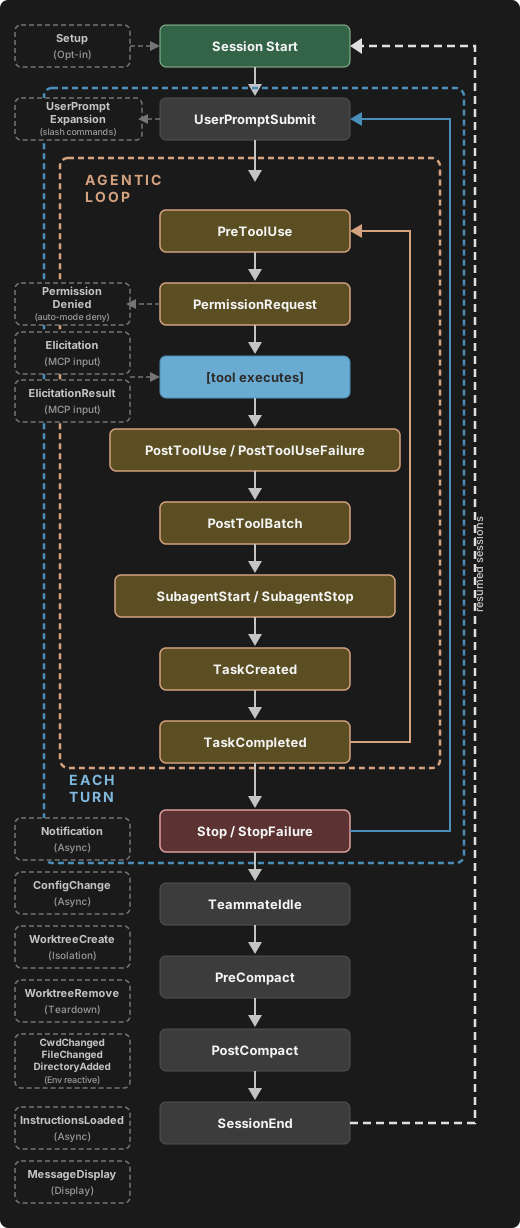
Claude Code runs hooks at specific points during a session. When an event fires and a matcher matches, Claude Code passes JSON context about the event to your hook handler. For command hooks, input arrives on stdin. For HTTP hooks, it arrives as the POST request body. Your handler can then inspect the input, take action, and optionally return a decision. Events fall into three cadences:- once per session:
SessionStartandSessionEnd - once per turn:
UserPromptSubmit,Stop, andStopFailure - on every tool call inside the agentic loop:
PreToolUseandPostToolUse, exceptEndConversationcalls, which skip both

How a hook resolves
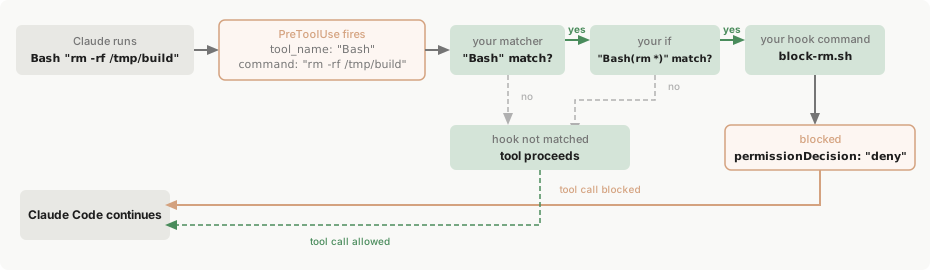
To see how these pieces fit together, consider thisPreToolUse hook that blocks destructive shell commands.
- macOS/Linux
- Windows (PowerShell)
The The script reads the JSON input from stdin, extracts the command, and returns a This script, like the other Bash examples on this page that parse JSON input, uses
matcher narrows to Bash tool calls and the if condition narrows further to Bash subcommands matching rm *, so block-rm.sh only spawns when both filters match:permissionDecision of "deny" if it contains rm -rf. Save it to .claude/hooks/block-rm.sh in your project and make it executable with chmod +x .claude/hooks/block-rm.sh so Claude Code can run it:jq, so install jq and make sure it is on your PATH before trying them.Bash "rm -rf /tmp/build" against the macOS/Linux config. Here’s what happens:
1
Event fires
The
PreToolUse event fires. Claude Code sends the tool input as JSON on stdin to the hook:2
Matcher checks
The matcher
"Bash" matches the tool name, so this hook group activates. If you omit the matcher or use "*", the group activates on every occurrence of the event.3
If condition checks
The
if condition "Bash(rm *)" matches because rm -rf /tmp/build is a subcommand matching rm *, so this handler spawns. If the command had been npm test, the if check would fail and block-rm.sh would never run, avoiding the process spawn overhead. The if field is optional; without it, every handler in the matched group runs.4
Hook handler runs
The script inspects the full command and finds If the command had been a safer
rm -rf, so it prints a decision to stdout:rm variant like rm file.txt, the script would hit exit 0 instead. Exit code 0 with no output means the hook has no decision to report, so the tool call continues through the normal permission flow. The hook can deny the call, but staying silent doesn’t approve it.5
Claude Code acts on the result
Claude Code reads the JSON decision, blocks the tool call, and shows Claude the reason.
Configuration
Hooks are defined in JSON settings files. The configuration has three levels of nesting:- Choose a hook event to respond to, like
PreToolUseorStop - Add a matcher group to filter when it fires, like “only for the Bash tool”
- Define one or more hook handlers to run when matched
This page uses specific terms for each level: hook event for the lifecycle point, matcher group for the filter, and hook handler for the shell command, HTTP endpoint, MCP tool, prompt, or agent that runs. “Hook” on its own refers to the general feature.
Hook locations
Where you define a hook determines its scope:
Cloud sessions on Claude Code on the web don’t read your local
~/.claude/settings.json; hooks there come from the repo and from your organization’s server-managed settings. See what carries over from your setup for which files reach a cloud session.
For details on settings file resolution, see settings.
Hooks from settings files, managed policy settings, and plugins also run inside subagents. When a subagent calls a tool, tool events such as PreToolUse and PostToolUse fire the same configured hooks as in the main conversation, and the input carries the agent_id and agent_type common input fields that identify the subagent.
Enterprise administrators can use allowManagedHooksOnly to restrict which hooks run:
- Your user, project, local, and plugin hooks are blocked. Hooks from plugins force-enabled in managed settings
enabledPluginsare exempt - Claude Code also narrows your
statusLine,fileSuggestion, andsubagentStatusLinesettings to managed settings - Claude Code also disables plugins with a
commandsource, including plugins force-enabled in managed settingsenabledPlugins, unlessdisableCommandPluginSourcesis explicitly set tofalse
disableAllHooks setting can’t disable managed hooks from outside managed settings.
The HTTP hook allowlists apply to hooks from every source, including managed policy settings:
allowedHttpHookUrls: when defined at any settings level, Claude Code runs an HTTP hook handler only if its URL matches the merged allowlisthttpHookAllowedEnvVars: when defined, Claude Code interpolates only the environment variables on that list into hook headers
Matcher patterns
Thematcher field filters when hooks fire. How a matcher is evaluated depends on the characters it contains:
A matcher on the regular-expression path is tested with JavaScript’s
RegExp.prototype.test, which succeeds on a match anywhere in the value. Edit.* matches both Edit and NotebookEdit; wrap the pattern in ^ and $, as in ^Edit$, when you need a whole-string match.
Comma separators and the surrounding whitespace tolerance require Claude Code v2.1.191 or later.
Hyphens in the exact-match set require Claude Code v2.1.195 or later. On earlier versions a hyphenated name like code-reviewer is evaluated as an unanchored regular expression, so it also fires for senior-code-reviewer; anchor it as ^code-reviewer$ on those versions to match only that name.
FileChanged and StopFailure use a narrower exact-match set of letters, digits, _, and | only. A hyphen, space, or comma in a matcher for those two events keeps it on the regular-expression path, and only | separates alternatives. Every other event with matcher support in the table that follows accepts | or ,.
The FileChanged event doesn’t follow these rules when building its watch list. See FileChanged.
Each event type matches on a different field:
The matcher runs against a field from the JSON input that Claude Code sends to your hook on stdin. For tool events, that field is
tool_name. Each hook event section lists the full set of matcher values and the input schema for that event.
This example runs a linting script only when Claude writes or edits a file:
matcher field to an event without matcher support, it is silently ignored.
For tool events, you can filter more narrowly by setting the if field on individual hook handlers. if uses permission rule syntax to match against the tool name and arguments together, so "Bash(git *)" runs when any subcommand of the Bash input matches git * and "Edit(*.ts)" runs only for TypeScript files.
Match MCP tools
MCP server tools appear as regular tools in tool events (PreToolUse, PostToolUse, PostToolUseFailure, PermissionRequest, PermissionDenied), so you can match them the same way you match any other tool name.
MCP tools follow the naming pattern mcp__<server>__<tool>, for example:
mcp__memory__create_entities: Memory server’s create entities toolmcp__filesystem__read_file: Filesystem server’s read file toolmcp__github__search_repositories: GitHub server’s search tool
.* to the server prefix. The .* is required: a matcher like mcp__memory or mcp__brave-search contains only exact-match characters, so it is compared as an exact string and matches no tool.
mcp__memory__.*matches all tools from thememoryservermcp__brave-search__.*matches all tools from a server whose name contains a hyphenmcp__.*__write.*matches any tool whose name starts withwritefrom any server
mcp__brave-search is evaluated as an unanchored regular expression and matches every tool from that server. The mcp__brave-search__.* form works on every version.
Tools from a plugin-bundled MCP server use a scoped server segment that includes the plugin name: mcp__plugin_<plugin-name>_<server-name>__<tool>. A matcher written against the bare server key never fires for these tools. For a plugin named my-plugin that bundles a server under the key db, a query tool appears as mcp__plugin_my-plugin_db__query, so the matcher for every tool from that server is mcp__plugin_my-plugin_db__.*. Use the same scoped tool name in a handler’s if field. See Plugin-provided MCP servers for how the scoped name is built.
This example logs all memory server operations and validates write operations from any MCP server:
Hook handler fields
Each object in the innerhooks array is a hook handler: the shell command, HTTP endpoint, MCP tool, LLM prompt, or agent that runs when the matcher matches. There are five types:
- Command hooks (
type: "command"): run a shell command. Your script receives the event’s JSON input on stdin and communicates results back through exit codes and stdout. - HTTP hooks (
type: "http"): send the event’s JSON input as an HTTP POST request to a URL. The endpoint communicates results back through the response body using the same JSON output format as command hooks. - MCP tool hooks (
type: "mcp_tool"): call a tool on an already-connected MCP server. The tool’s text output is treated like command-hook stdout. - Prompt hooks (
type: "prompt"): send a prompt to a Claude model for single-turn evaluation. The model returns its decision as JSON. See Prompt-based hooks. - Agent hooks (
type: "agent"): spawn a subagent that can use tools like Read, Grep, and Glob to verify conditions before returning a decision. Agent hooks are experimental and may change. See Agent-based hooks.
$CLAUDE_CODE_REMOTE environment variable is set to "true" in remote web environments and not set in the local CLI. As of v2.1.199, $CLAUDE_CODE_BRIDGE_SESSION_ID is set to the Remote Control session ID while the local session has an active Remote Control connection.
Common fields
These fields apply to all hook types:
The
if field holds exactly one permission rule. There is no &&, ||, or list syntax for combining rules; to apply multiple conditions, define a separate hook handler for each.
In an if condition for a file tool, a single-segment directory pattern like "Edit(src/**)" matches only the src directory in the working directory and the files under it. To match a directory named src at any depth, write "Edit(**/src/**)". Before v2.1.214, "Edit(src/**)" matched a directory named src at any depth under the working directory.
For Bash patterns, whether your hook command runs depends on the shape of the pattern and the Bash command Claude is invoking. Leading VAR=value assignments are stripped before matching.
The filter also fails open, running your hook regardless of pattern, when the Bash command can’t be parsed. Because the
if filter is best-effort, use the permission system rather than a hook to enforce a hard allow or deny.
Command hook fields
In addition to the common fields, command hooks accept these fields:Exec form and shell form
A command hook runs as exec form whenargs is set, and shell form when args is omitted. Set args whenever the hook references a path placeholder, since each element is passed as one argument with no quoting. Omit args when you need shell features like pipes or &&, or when neither concern applies.
Exec form runs when args is present. Claude Code resolves command as an executable on PATH and spawns it directly with args as the argument vector. There is no shell, so each args element is one argument exactly as written, and path placeholders like ${CLAUDE_PLUGIN_ROOT} are substituted into command and into each args element as plain strings. Special characters such as apostrophes, $, and backticks pass through verbatim because there is no shell to interpret them. No shell tokenization happens on any platform.
Shell form runs when args is absent. The command string is passed to a shell: sh -c on macOS and Linux, Git Bash on Windows, or PowerShell when Git Bash isn’t installed. Set the shell field to choose explicitly. The shell tokenizes the string, expands variables, and interprets pipes, &&, redirects, and globs.
On Windows, exec form requires
command to resolve to a real executable such as a .exe. The .cmd and .bat shims that npm, npx, eslint, and other tools install in node_modules/.bin are not executables and can’t be spawned without a shell. To run them in exec form, invoke the underlying script with node directly, for example "command": "node", "args": ["${CLAUDE_PLUGIN_ROOT}/node_modules/eslint/bin/eslint.js"]. The node plus script-path pattern works on every platform because node.exe is a real binary. To run a .cmd or .bat shim by name, use shell form.CLAUDE_PROJECT_DIR, CLAUDE_PLUGIN_ROOT, and CLAUDE_PLUGIN_DATA on the spawned process, so a script can read process.env.CLAUDE_PLUGIN_ROOT regardless of how it was launched.
Plugin hooks additionally substitute ${user_config.*} values, in exec form only: the value is substituted into command and into each args element as a plain string, so no shell re-parses it.
A shell-form plugin hook whose command references ${user_config.*} fails with an error instead of running. To use an option value from a shell-form hook, read the $CLAUDE_PLUGIN_OPTION_<KEY> environment variable, such as $CLAUDE_PLUGIN_OPTION_WEBHOOK_URL for a webhook_url option, or set args to switch the hook to exec form. Before v2.1.207, shell-form plugin hook commands also substituted ${user_config.*}.
In exec form,
command is the executable name or path only. If command is a bare name with no path separator and contains whitespace alongside args, Claude Code logs a warning because the spawn will fail: there is no executable named node script.js. Move the extra tokens into args. Absolute paths with spaces, such as C:\Program Files\nodejs\node.exe, are a single valid executable and don’t trigger the warning.HTTP hook fields
In addition to the common fields, HTTP hooks accept these fields:
Claude Code sends the hook’s JSON input as the POST request body with
Content-Type: application/json. The response body uses the same JSON output format as command hooks.
Error handling differs from command hooks; see HTTP response handling.
This example sends PreToolUse events to a local validation service, authenticating with a token from the MY_TOKEN environment variable:
MCP tool hook fields
In addition to the common fields, MCP tool hooks accept these fields:
Claude Code reads the tool’s text content the same way it reads command-hook stdout, following the parsing rule under exit code 0. If the named server is not connected, or the tool returns
isError: true, the hook produces a non-blocking error and execution continues.
MCP tool hooks are available on every hook event once Claude Code has connected to your MCP servers. SessionStart and Setup typically fire before servers finish connecting, so hooks on those events should expect the “not connected” error on first run.
This example calls the security_scan tool on the my_server MCP server after each Write or Edit, passing the edited file’s path:
Prompt and agent hook fields
In addition to the common fields, prompt and agent hooks accept these fields:Reference scripts by path
Use these placeholders to reference hook scripts relative to the project or plugin root, regardless of the working directory when the hook runs:${CLAUDE_PROJECT_DIR}: the project root. Claude Code also sets this variable in the environment of stdio MCP servers and plugin LSP servers.${CLAUDE_PLUGIN_ROOT}: the plugin’s installation directory, for scripts bundled with a plugin. Changes on each plugin update.${CLAUDE_PLUGIN_DATA}: the plugin’s persistent data directory, for dependencies and state that should survive plugin updates.
- Project scripts
- Plugin scripts
This example uses
${CLAUDE_PROJECT_DIR} to run a style checker from the project’s .claude/hooks/ directory after any Write or Edit tool call:Hooks in skills and agents
In addition to settings files and plugins, hooks can be defined directly in skills and subagents using frontmatter, in the same configuration format as settings-based hooks. How long Claude Code keeps them registered depends on the component:- Subagent hooks: Claude Code runs them only while that subagent is running and removes them when it finishes. Claude Code converts a
Stophook here toSubagentStop, the event it fires when a subagent completes. - Skill hooks: Claude Code registers them when you or Claude invoke the skill and keeps running them for the rest of the session, on turns after the skill’s own turn as well. To have Claude Code run a hook a single time instead, set
once: trueon it.
PreToolUse hook that runs a security validation script before each Bash command:
-p run in a folder you haven’t trusted.
Frontmatter hooks in a project subagent run only after you accept the workspace trust dialog for the folder the agent file came from. A -p session doesn’t count as accepting it. What runs before you trust a folder compares this with the settings-file rule, and the subagents page lists which scopes are exempt. Before v2.1.218, these hooks could run from folders you hadn’t trusted.
The /hooks menu
Type /hooks in Claude Code to open a read-only browser for your configured hooks. The menu shows every hook event with a count of configured hooks, lets you drill into matchers, and shows the full details of each hook handler. Use it to verify configuration, check which settings file a hook came from, or inspect a hook’s command, prompt, or URL.
The menu displays all five hook types: command, prompt, agent, http, and mcp_tool. Each hook is labeled with a [type] prefix and a source indicating where it was defined:
User Settings: from~/.claude/settings.jsonProject Settings: from.claude/settings.jsonLocal Settings: from.claude/settings.local.jsonPlugin Hooks: from a plugin’shooks/hooks.jsonSession Hooks: registered in memory for the current sessionBuilt-in Hooks: registered internally by Claude Code
Disable or remove hooks
To remove a hook, delete its entry from the settings JSON file. To temporarily disable all hooks without removing them, set"disableAllHooks": true in your settings file. Claude Code reads the value left after settings precedence applies, so a "disableAllHooks": false in a project’s .claude/settings.json overrides a true in your user settings. To turn hooks off for one run whatever the project’s settings say, pass --settings '{"disableAllHooks": true}', which takes precedence over project and local settings. There is no way to disable an individual hook while keeping it in the configuration.
The disableAllHooks setting respects the managed settings hierarchy. If an administrator has configured hooks through managed policy settings, disableAllHooks set in user, project, or local settings can’t disable those managed hooks. Only disableAllHooks set at the managed settings level can disable managed hooks.
Direct edits to hooks in settings files are normally picked up automatically by the file watcher.
Hook input and output
Command hooks receive JSON data via stdin and communicate results through exit codes, stdout, and stderr. HTTP hooks receive the same JSON as the POST request body and communicate results through the HTTP response body. This section covers fields and behavior common to all events. Each event’s section under Hook events includes its specific input schema and decision control options. On macOS and Linux, command hooks run in their own session without a controlling terminal. The hook process and any child processes can’t open/dev/tty or send escape sequences directly to the Claude Code interface. Windows has no /dev/tty.
To surface a message to the user on any platform, return systemMessage in JSON output. Some events discard it or deliver it elsewhere, and each event’s section says so. To trigger a desktop notification, set a window title, or ring the bell, return terminalSequence instead.
Common input fields
Hook events receive these fields as JSON, in addition to event-specific fields documented in each hook event section. For command hooks, this JSON arrives via stdin. For HTTP hooks, it arrives as the POST request body.
When running with
--agent or inside a subagent, two additional fields are included:
Only
SessionStart hooks can receive a model field, and it is not guaranteed to be present. There is no $CLAUDE_MODEL environment variable. A hook process inherits the parent environment, so it can read $ANTHROPIC_MODEL if you set it in your shell, but that value doesn’t change when you switch models with /model during a session. One set of variables is not inherited: Claude Code removes OTEL_* exporter variables from every subprocess it spawns, including hooks.
For example, a PreToolUse hook for a Bash command receives this on stdin:
tool_name, tool_input, and tool_use_id fields are event-specific. Each hook event section documents the additional fields for that event.
Exit code output
The exit code from your hook command tells Claude Code whether the action should proceed, be blocked, or be ignored. The exit code doesn’t act alone. Claude Code reads JSON output fields from stdout on every exit code, not just 0, and for events that use the standard decision model, a parsed object that passes schema validation takes effect alongside the code. Exit 2’s block is the one outcome JSON can’t override. Two tables own the per-event exceptions: Exit code 2 behavior per event says what exit codes do for each event, and Decision control says which decision fields each event honors. Universal fields such assystemMessage work across most events and are listed in the JSON output table.
Exit code 0
Exit 0 means success, and is the intended exit code when you print JSON for structured control. For most events, stdout is written to the debug log but not shown in the transcript. The exceptions areUserPromptSubmit, UserPromptExpansion, and SessionStart, where Claude Code adds plain-text stdout as context that Claude can see and act on.
Whether Claude Code reads your stdout as JSON output or as plain text depends on its first character, ignoring leading whitespace:
- Starts with
{: Claude Code parses it as JSON. If it isn’t valid JSON, Claude Code treats it as plain text. - Starts with anything else: Claude Code treats it as plain text, a JSON array or a quoted JSON string included.
<hook name> hook error notice with the validation message. The same happens on any exit code other than 2, while exit 2 still blocks.
Stderr from a hook that exits 0 goes to the debug log only, never the transcript, and Claude never sees it. To read it yourself, enable debug logging. To surface a warning to Claude from a PostToolUse or PostToolUseFailure hook, exit 2 instead so Claude sees the stderr even though the tool already ran.
Exit code 2
Exit 2 means a blocking error. On events that can block, exit 2 blocks whether or not you print JSON: even a JSONpermissionDecision of "allow" can’t override it. Claude Code still reads any valid JSON output on stdout. On Elicitation and ElicitationResult, an exit-2 hook’s hookSpecificOutput is ignored.
The blocking message is the reason from your JSON’s blocking decision when it makes one, and your stderr text otherwise. What the block does varies by event: PreToolUse blocks the tool call, UserPromptSubmit rejects the prompt, and so on. Exit code 2 behavior per event lists the effect for every event, and each event’s section says where the message goes.
A hook that exits 2 while printing JSON that fails JSON output schema validation still blocks: Claude Code uses stderr as the blocking reason and records the validation failure in the debug log. Before v2.1.214, Claude Code treated that combination as a non-blocking error and the action proceeded.
This script blocks rm commands by exiting 2 and leaves every other command to the normal permission flow:
Other exit codes
Any other exit code doesn’t block on its own for most hook events. What happens depends on your stdout:- With a parsed object that passes schema validation, for events that use the standard decision model, Claude Code ignores the exit code and the JSON alone decides the outcome:
- Each field the event supports is honored, including
permissionDecision,additionalContext,updatedInput, andsystemMessage, and the hook isn’t reported as an error. - Decision control lists the decision fields per event; universal fields like
systemMessagefollow the JSON output table.
- Each field the event supports is honored, including
- With a parsed object that fails schema validation, for events that use the standard decision model, it’s the same non-blocking error as on exit 0: the action proceeds, and the
<hook name> hook errornotice carries the validation message. - With stdout that Claude Code treats as plain text, or with empty stdout, it’s a non-blocking error for most hook events: the action proceeds, and the transcript shows a
<hook name> hook errornotice followed by the first line of stderr, prefixed withFailed with non-blocking status code:. To capture the full stderr, enable debug logging.
WorktreeCreate fails creation on any nonzero exit no matter what your JSON says, and events that discard hook output entirely, like StopFailure, ignore your JSON on every exit code, apart from side-effect fields like terminalSequence, which still fire.
A hook that can’t start lands in the same non-blocking bucket. When the script path doesn’t exist or isn’t executable, the shell exits with a code like 127 and you see the same notice with the interpreter’s message, for example Failed with non-blocking status code: /bin/sh: /path/to/hook.sh: No such file or directory. For most hook events, the action proceeds. When you set up a policy hook, watch for this notice on its first run: a mistyped path in settings.json leaves the gate silently disabled.
Timeouts
Acommand, http, or mcp_tool hook that reaches its timeout is canceled: Claude Code discards the hook’s output, and the hook renders no decision. On PreToolUse, the two hook families differ:
- A timed-out
command,http, ormcp_toolhook doesn’t block the tool call. The call continues through the normal permission flow, so don’t count on a stalled hook to act as a gate. - An Agent SDK callback hook that exceeds its timeout blocks the tool call.
Exit code 2 behavior per event
Exit code 2 is the way a hook signals “stop, don’t do this.” The effect depends on the event, because some events represent actions that can be blocked (like a tool call that hasn’t happened yet) and others represent things that already happened or can’t be prevented.
For
SessionStart, Setup, and SubagentStart, the exit code 2 stderr renders in the transcript as a <hook name> hook error notice, the same way a non-blocking error does. Claude doesn’t see it, and the session or subagent proceeds. For SubagentStart, the notice appears in the subagent’s own transcript, not in the parent conversation.
HTTP response handling
HTTP hooks use HTTP status codes and response bodies instead of exit codes and stdout. The outcomes below apply to most events; an event with its own failure contract in the per-event table, such asWorktreeCreate, applies that contract to a failed HTTP hook too:
- 2xx with an empty body: success, equivalent to exit code 0 with no output
- 2xx with a JSON object body: parsed using the same JSON output schema as command hooks. A body that fails schema validation is a non-blocking error
- 2xx with any other body, such as plain text: non-blocking error, handled the same as a non-2xx status. Claude Code doesn’t add the text to Claude’s context
- Non-2xx status: non-blocking error, execution continues
- Connection failure: non-blocking error, execution continues
- Timeout: the hook is canceled and renders no decision, and execution continues
JSON output
Exit codes only let you block or stay silent, but JSON output gives you finer-grained control. Instead of exiting with code 2 to block, exit 0 and print a JSON object to stdout. Claude Code reads specific fields from that JSON to control behavior, including decision control for blocking, allowing, or escalating to the user.Choose one approach per hook: either use exit codes alone for signaling, or exit 0 and print JSON for structured control. If you mix them, exit 2 keeps its blocking effect, and Claude Code still reads the JSON fields, with the one elicitation exception noted under Exit code 2.
additionalContext, systemMessage, and plain stdout, are capped at 10,000 characters. Output that exceeds this limit is saved to a file and replaced with a preview and file path, the same way a large valid Bash result is handled under Output limits.
The JSON object supports three kinds of fields:
- Universal fields like
continueare listed in the table below. Every event accepts them, but some events discard them or deliversystemMessagesomewhere other than the transcript. Each event’s section says so.terminalSequenceworks on those events too, with the exceptions listed under Emit terminal notifications. - Top-level
decisionandreasonare used by some events to block or provide feedback. hookSpecificOutputis a nested object for events that need richer control. It requires ahookEventNamefield set to the event name.
To stop Claude entirely:
PreToolUse and PostToolUse hooks, the stop applies even when the tool call fails or completes while Claude is still streaming a response.
Emit terminal notifications
Hooks run without a controlling terminal, so writing escape sequences directly to/dev/tty fails. Instead, return the escape sequence in the terminalSequence field and Claude Code emits it for you through its own terminal write path. This is race-free, works inside tmux and GNU screen, and works on Windows where there is no /dev/tty.
The field accepts a string of one or more allowlisted escape sequences:
- OSC
0,1,2: window and icon titles - OSC
9: iTerm2, ConEmu, Windows Terminal, and WezTerm notifications, including9;4taskbar progress - OSC
99: Kitty notifications - OSC
777: urxvt, Ghostty, and Warp notifications - Bare BEL
systemMessage and continue, such as Notification and StopFailure. It has two limits:
- Claude Code writes the sequence only in an interactive session, and only while its interface is on screen. In non-interactive mode with the
-pflag and in the Agent SDK, it ignores the field. - A
WorktreeCreatecommand hook can’t return JSON, because Claude Code reads its stdout as the worktree path. An HTTPWorktreeCreatehook returns JSON and can include the field.
Notification hook. The escape sequence is built with printf octal escapes so the control bytes never appear on the shell command line, and jq -n --arg builds the JSON output so quotes, backslashes, and newlines in the notification message are escaped correctly:
{ "terminalSequence": "..." } shape is the same from any shell or language.
Add context for Claude
TheadditionalContext field passes a string from your hook into Claude’s context window. Claude Code wraps the string in a system reminder and inserts it into the conversation at the point where the hook fired. Claude reads the reminder on the next model request, but it doesn’t appear as a chat message in the interface.
Return additionalContext inside hookSpecificOutput alongside the event name:
- SessionStart, Setup, and SubagentStart: at the start of the conversation, before the first prompt
- UserPromptSubmit and UserPromptExpansion: alongside the submitted prompt
- PreToolUse, PostToolUse, PostToolUseFailure, and PostToolBatch: next to the tool result
- Stop and SubagentStop: at the end of the turn. The conversation continues so Claude can act on the feedback. See Stop decision control
additionalContext for the same event, Claude receives all of the values. If a value exceeds 10,000 characters, Claude Code writes the full text to a file in the session directory and passes Claude the file path with a short preview instead.
Use additionalContext for information Claude should know about the current state of your environment or the operation that just ran:
- Environment state: the current branch, deployment target, or active feature flags
- Conditional project rules: which test command applies to the file just edited, which directories are read-only in this worktree
- External data: open issues assigned to you, recent CI results, content fetched from an internal service
bun test” reads as project information. Text framed as out-of-band system commands can trigger Claude’s prompt-injection defenses, which causes Claude to surface the text to you instead of treating it as context.
Claude Code saves the injected text in the session transcript. For mid-session events like PostToolUse or UserPromptSubmit, when you resume with --continue or --resume, Claude Code replays the saved text rather than re-running the hook for past turns, so values like timestamps or commit SHAs become stale. SessionStart hooks run again on resume with source set to "resume", or "fork" if you added --fork-session, so they can refresh their context.
Decision control
Not every event supports blocking or controlling behavior through JSON. The events that do each use a different set of fields to express that decision. Use this table as a quick reference before writing a hook:
A few events can also rewrite content rather than only allow or block it:
PreToolUse:updatedInputdirectly underhookSpecificOutputreplaces a tool’s arguments before it runs. See PreToolUse decision controlPermissionRequest:updatedInputinside thedecisionobject. See PermissionRequest decision controlPostToolUse:updatedToolOutputreplaces the tool’s result. See PostToolUse decision controlUserPromptSubmit: can’t replace the prompt; it only injectsadditionalContextalongside it
PreToolUse for outbound tool inputs and PostToolUse for inbound tool results.
Here are examples of each pattern in action:
- Top-level decision
- PreToolUse
- PermissionRequest
The only value for
decision is "block". To allow the action to proceed, omit decision from your JSON, or exit 0 without any JSON at all:Hook events
Each event corresponds to a point in Claude Code’s lifecycle where hooks can run. The sections below are ordered to match the lifecycle: from session setup through the agentic loop to session end. Each section describes when the event fires, what matchers it supports, the JSON input it receives, and how to control behavior through output.SessionStart
Runs when Claude Code starts a new session or resumes an existing session. Useful for loading development context like existing issues or recent changes to your codebase, or setting up environment variables. For static context that doesn’t require a script, use CLAUDE.md instead. SessionStart runs on every session, so keep these hooks fast. Onlytype: "command" and type: "mcp_tool" hooks are supported.
The matcher value corresponds to how the session was initiated:
Before v2.1.214, forked sessions reported source
"resume".
SessionStart input
In addition to the common input fields, SessionStart hooks receivesource and optionally model, agent_type, and session_title:
SessionStart decision control
Claude Code adds stdout it treats as plain text to Claude’s context. In addition to the JSON output fields available to all hooks, you can return these event-specific fields:sessionTitle.
Use reloadSkills when a SessionStart hook installs or updates skills. Skill discovery normally runs before SessionStart hooks finish, so files the hook writes into ~/.claude/skills/ or .claude/skills/ would otherwise only appear in the next session. This example syncs a shared skills repository and requests the re-scan:
fatal: message to stderr. Stderr from a SessionStart hook that exits 0 is informational only, so the reloadSkills request still applies.
Persist environment variables
SessionStart hooks have access to theCLAUDE_ENV_FILE environment variable, which provides a file path where you can persist environment variables for subsequent Bash commands.
To set individual environment variables, write export statements to CLAUDE_ENV_FILE. Use append (>>) to preserve variables set by other hooks:
CLAUDE_ENV_FILE is available for SessionStart, Setup, CwdChanged, and FileChanged hooks. Other hook types don’t have access to this variable.Setup
Fires only when you launch Claude Code with--init-only, or with --init or --maintenance in non-interactive mode with the -p flag. It doesn’t fire on normal startup. Use it for one-time dependency installation or scheduled cleanup that you trigger explicitly from CI or scripts, separate from normal session startup. For per-session initialization, use SessionStart instead.
The matcher value corresponds to the CLI flag that triggered the hook:
When you run
claude --init-only, Claude Code runs Setup hooks and SessionStart hooks with the startup matcher, then exits without starting a conversation.
When you start or continue a conversation with -p, you also need to supply a prompt, as an argument or piped on stdin. You can skip the prompt when a SessionStart hook supplies initialUserMessage or when you resume a session with a deferred tool call.
On success, --init-only prints nothing to the terminal. To confirm the hooks ran, start with claude --debug-file <path> --init-only, replacing <path> with a log file location, and check the log for the Setup and SessionStart hook entries.
Because Setup doesn’t fire on every launch, a plugin that needs a dependency installed can’t rely on Setup alone. The practical pattern is to check for the dependency on first use and install on miss, for example a hook or skill that tests for ${CLAUDE_PLUGIN_DATA}/node_modules and runs npm install if absent. See the persistent data directory for where to store installed dependencies. If you distribute your plugin through a marketplace, you may not need this pattern: Claude Code installs eligible Node.js package dependencies automatically when it caches the plugin.
Setup input
In addition to the common input fields, Setup hooks receive atrigger field set to either "init" or "maintenance":
Setup decision control
Setup hooks can’t block; execution continues on any exit code. Exit code 2 surfaces stderr to the user as a<hook name> hook error notice whether or not you print JSON. On any other non-zero exit, Claude Code applies the other exit codes rule: with a parsed object that passes schema validation it honors the fields and doesn’t report the hook as an error, and with anything else on stdout it shows that notice. In non-interactive mode, hook output appears only when you launch with --verbose.
To pass information into Claude’s context, return additionalContext in JSON output; plain stdout is written to the debug log only. In addition to the JSON output fields available to all hooks, you can return these event-specific fields:
CLAUDE_ENV_FILE. Variables written to that file persist into subsequent Bash commands for the session, just as in SessionStart hooks. Only type: "command" and type: "mcp_tool" hooks are supported.
InstructionsLoaded
Fires when aCLAUDE.md or .claude/rules/*.md file is loaded into context. This event fires at session start for eagerly-loaded files and again later when files are lazily loaded, for example when Claude accesses a subdirectory that contains a nested CLAUDE.md or when conditional rules with paths: frontmatter match. The hook doesn’t support blocking or decision control. It runs asynchronously for observability purposes.
The matcher runs against load_reason. For example, use "matcher": "session_start" to fire only for files loaded at session start, or "matcher": "path_glob_match|nested_traversal" to fire only for lazy loads.
InstructionsLoaded input
In addition to the common input fields, InstructionsLoaded hooks receive these fields:InstructionsLoaded decision control
InstructionsLoaded hooks have no decision control. They can’t block or modify instruction loading. Claude Code discards their JSON output fields, such assystemMessage and continue. Use this event for audit logging, compliance tracking, or observability.
UserPromptSubmit
Runs when the user submits a prompt, before Claude processes it. This allows you to add additional context based on the prompt/conversation, validate prompts, or block certain types of prompts.UserPromptSubmit hooks have a default timeout of 30 seconds for command, http, and mcp_tool types, shorter than the 600-second default for those types on most other events. Because this hook runs before every prompt and blocks model processing until it completes, a stuck hook stalls the session. If your hook needs more time, set the timeout field in the hook entry.
A UserPromptSubmit command, HTTP, or MCP tool hook that reaches its timeout is canceled and its output, including any additionalContext, is discarded. The prompt still reaches Claude without that context. The transcript shows a notice naming the hook, the timeout that fired, and that the output was discarded.
An Agent SDK callback hook on UserPromptSubmit that reaches its timeout blocks the prompt with a message naming the hook and the timeout, because a callback there can be acting as a policy gate that must not fail open. The session continues. Before v2.1.208, a callback timeout on that event ended the turn with an execution error.
UserPromptSubmit input
In addition to the common input fields, UserPromptSubmit hooks receive theprompt field containing the text the user submitted.
UserPromptSubmit decision control
UserPromptSubmit hooks can control whether a user prompt is processed and add context. All JSON output fields are available.
There are two ways to add context to the conversation on exit code 0:
- Plain text stdout: Claude Code adds stdout it treats as plain text to Claude’s context
- JSON with
additionalContext: use the JSON format below for more control. TheadditionalContextfield is added as context
additionalContext value are each injected as a system reminder that starts with the hook’s name; Claude reads both. To confirm delivery, check the debug log.
To block a prompt, return a JSON object with decision set to "block":
A hook that blocks by exiting 2 routes the same way as
reason: the block message shows the stderr text to the user, and it isn’t added to context.
UserPromptExpansion
Runs when a user-typed command expands into a prompt before reaching Claude. Use this to block specific commands from direct invocation, inject context for a particular skill, or log which commands users invoke. For example, a hook matchingdeploy can block /deploy unless an approval file is present, or a hook matching a review skill can append the team’s review checklist as additionalContext.
This event covers the path PreToolUse doesn’t: a PreToolUse hook matching the Skill tool fires only when Claude calls the tool, but typing /skillname directly bypasses PreToolUse. UserPromptExpansion fires on that direct path.
Matches on command_name. Leave the matcher empty to fire on every prompt-type command.
UserPromptExpansion input
In addition to the common input fields, UserPromptExpansion hooks receiveexpansion_type, command_name, command_args, command_source, and the original prompt string. The expansion_type field is slash_command for skill and custom commands, or mcp_prompt for MCP server prompts.
UserPromptExpansion decision control
UserPromptExpansion hooks can block the expansion or add context. All JSON output fields are available.
A hook that blocks by exiting 2 routes the same way as
reason: the block message shows the stderr text to the user.
MessageDisplay
Runs while an assistant message streams to the screen. Claude Code displays the message in increments: each time a batch of newly completed lines is ready to render, the hook runs once with those lines and Claude Code renders the hook’s replacement text in their place. A long message produces several calls; a short message may produce only one. Use MessageDisplay to:- strip markdown for a minimal display
- transform the text an Agent SDK application shows its users
- redact API keys or internal hostnames from Claude’s responses
timeout field in the hook entry.
MessageDisplay is display-only: the replacement text changes only what is rendered on screen. The transcript and what Claude sees keep the original text, so Claude never sees the replacement, and verbose mode shows the original. The hook receives assistant message text only, so tool results and the text you type render unchanged.
MessageDisplay doesn’t support matchers and fires for every assistant message that streams text; messages with no text, such as tool-call-only responses, don’t trigger it.
In non-interactive runs, including Agent SDK queries and claude -p, MessageDisplay runs once per assistant message instead of once per batch of lines. The single call arrives after the message completes and carries the full message text: index is 0, final is true, and delta holds the entire message. A hook that collects the delta text for each message receives the same total text in both modes.
MessageDisplay input
In addition to the common input fields, MessageDisplay hooks receive identifiers for the turn and message, the position of this call within the message, and the new text indelta. Batch boundaries depend on how the text streams, so use index and final to track progress through a message rather than expecting lines to be grouped a particular way.
MessageDisplay output
In addition to the JSON output fields available to all hooks, MessageDisplay hooks can returndisplayContent to replace the delta on screen:
MessageDisplay hooks have no decision control. They can’t block the message or change what is stored in the transcript or sent to Claude. Claude Code acts on
displayContent from their JSON output and discards systemMessage and continue.
This example strips markdown formatting from Claude’s responses for a plain-text display. The script reads each batch from stdin, removes bold markers and inline code backticks from delta, and returns the result as displayContent.
- macOS/Linux
- Windows (PowerShell)
Register a command hook for the event in your settings file:Save this script to
.claude/hooks/plain-display.sh in your project and make it executable with chmod +x:jq is missing, Claude Code displays the original text and notes the failure only in debug output, not in the session.
PreToolUse
Runs after Claude creates tool parameters and before processing the tool call. Matches on tool name:Bash, PowerShell, Edit, Write, Read, Glob, Grep, Agent, WebFetch, WebSearch, AskUserQuestion, ExitPlanMode, and any MCP tool names.
Use PreToolUse decision control to allow, deny, ask, or defer the tool call.
An Agent SDK callback hook on PreToolUse that exceeds its timeout blocks the tool call, and Claude receives an error result naming the timeout. An explicit deny returned by another hook still takes precedence.
PreToolUse input
In addition to the common input fields, PreToolUse hooks receivetool_name, tool_input, and tool_use_id.
For the file tools Write, Edit, and Read, tool_input.file_path is always absolute:
- Claude Code expands
~and relative paths before hooks run, so a hook that matches on paths can’t be bypassed via~or a relative spelling of the same path - On Windows, the path arrives with backslash separators, even when your hook runs under Git Bash where
$PWDlooks like/c/project - A comparison written with forward slashes, such as a
/src/check, never matches a backslash path, and the tool call proceeds as if the hook had nothing to block - Normalize separators before comparing:
FILE_PATH="${FILE_PATH//\\//}"in Bash, orfile_path.replace("\\", "/")in Python, then match a path segment such as/src/rather than anchoring with^, since the path is absolute
Write call on Windows delivers:
tool_input fields depend on the tool:
Bash
Executes shell commands.PowerShell
Executes PowerShell commands. See the PowerShell tool for availability by platform. The fields match the Bash tool, with the command string incommand:
Match
Bash|PowerShell in hooks that inspect shell commands, so they cover both tools:
- On Windows, wherever the PowerShell tool is enabled, Claude treats PowerShell as the primary shell and routes shell commands through it.
- On Windows without Git Bash, the tool is enabled automatically and Claude Code doesn’t register the Bash tool at all.
- A hook that matches only
Bashnever fires there.
Write
Creates or overwrites a file.Edit
Replaces a string in an existing file.Read
Reads file contents.Glob
Finds files matching a glob pattern.Grep
Searches file contents with regular expressions.WebFetch
Fetches and processes web content.WebSearch
Searches the web.Agent
Spawns a subagent.
When a foreground Agent call completes, your PostToolUse hook receives the subagent’s final text and run telemetry in
tool_response. Read these fields to inspect the run; for token and cost rollups across subagents, use the token and cost counters filtered to query_source "subagent", since totalTokens and usage cover the final request only:
For background subagents, the tool returns when the task moves to the background, so
tool_response carries no usage fields: a background launch returns immediately, and a foreground task that Claude Code backgrounds mid-run returns at that transition. It has status: "async_launched", agentId, description, prompt, outputFile, and resolvedModel.
On a completed response, resolvedModel names the model the subagent started on, which can differ from the model value in tool_input, such as when availableModels or another override applies. It requires Claude Code v2.1.174 or later. On an async_launched response, resolvedModel names the model in use when the agent moved to the background, so a swap that happened before backgrounding is reflected there. modelsUsed and the backgrounding-time resolvedModel behavior require Claude Code v2.1.212 or later.
AskUserQuestion
Asks the user one to four multiple-choice questions.ExitPlanMode
Presents a plan and asks the user to approve it before Claude leaves plan mode. Claude writes the plan to a file on disk before calling the tool, so the literaltool_input from the model is typically empty. Claude Code injects the plan content and file path before passing the input to hooks.
In
PostToolUse, tool_response is an object with plan and filePath fields holding the approved plan, plus internal status flags. Read tool_response.plan for the plan content rather than re-reading the file from disk.
PreToolUse decision control
PreToolUse hooks can control whether a tool call proceeds. Unlike other hooks that use a top-level decision field, PreToolUse returns its decision inside a hookSpecificOutput object. This gives it richer control: four outcomes (allow, deny, ask, or defer) plus the ability to modify tool input before execution.
When multiple PreToolUse hooks return different decisions, precedence is
deny > defer > ask > allow.
A hook that blocks by exiting 2 routes the same way as "deny": Claude sees the stderr message as the denial reason.
When a hook returns "ask", the permission prompt displayed to the user includes a label identifying where the hook came from: for example, [User], [Project], [Plugin], or [Local]. This helps users understand which configuration source is requesting confirmation.
A hook’s "ask" also forces a permission prompt in auto mode: the classifier can still deny the tool call, but it can’t approve the call silently. Before v2.1.211, the classifier could approve a Bash command running outside the sandbox without showing the prompt the hook requested; the classifier still applied its own safety rules to that command, and a hook "deny" was always honored.
AskUserQuestion and ExitPlanMode require user interaction and normally block in non-interactive mode with the -p flag. Returning permissionDecision: "allow" together with updatedInput satisfies that requirement: the hook reads the tool’s input from stdin, collects the answer through your own UI, and returns it in updatedInput so the tool runs without prompting. Returning "allow" alone is not sufficient for these tools. For AskUserQuestion, echo back the original questions array and add an answers object mapping each question’s text to the chosen answer.
As of v2.1.199, an MCP tool whose server marks it with _meta["anthropic/requiresUserInteraction"] is stricter: a hook can’t skip its approval prompt with "allow", with or without updatedInput, because Claude Code can’t confirm the hook collected the interaction the tool needs.
PreToolUse previously used top-level
decision and reason fields, but these are deprecated for this event. Use hookSpecificOutput.permissionDecision and hookSpecificOutput.permissionDecisionReason instead. The deprecated values "approve" and "block" map to "allow" and "deny" respectively. Other events like PostToolUse and Stop continue to use top-level decision and reason as their current format.Defer a tool call for later
"defer" is for integrations that run claude -p as a subprocess and read its JSON output, such as an Agent SDK app or a custom UI built on top of Claude Code. It lets that calling process pause Claude at a tool call, collect input through its own interface, and resume where it left off. Claude Code honors this value only in non-interactive mode with the -p flag. In interactive sessions it logs a warning and ignores the hook result.
The AskUserQuestion tool is the typical case: Claude wants to ask the user something, but there is no terminal to answer in. The round trip works like this:
- Claude calls
AskUserQuestion. ThePreToolUsehook fires. - The hook returns
permissionDecision: "defer". The tool doesn’t execute. The process exits withstop_reason: "tool_deferred"and the pending tool call preserved in the transcript. - The calling process reads
deferred_tool_usefrom the SDK result, surfaces the question in its own UI, and waits for an answer. - The calling process runs
claude -p --resume <session-id>. The same tool call firesPreToolUseagain. - The hook returns
permissionDecision: "allow"with the answer inupdatedInput. The tool executes and Claude continues.
deferred_tool_use field carries the tool’s id, name, and input. The input is the parameters Claude generated for the tool call, captured before execution:
cleanupPeriodDays retention sweep, which deletes session files after 30 days by default, following the retention sweep rules. If the answer is not ready when you resume, the hook can return "defer" again and the process exits the same way. The calling process controls when to break the loop by eventually returning "allow" or "deny" from the hook.
"defer" only works when Claude makes a single tool call in the turn. If Claude makes several tool calls at once, "defer" is ignored with a warning and the tool proceeds through the normal permission flow. The constraint exists because resume can only re-run one tool: there is no way to defer one call from a batch without leaving the others unresolved.
If the deferred tool is no longer available when you resume, the process exits with stop_reason: "tool_deferred_unavailable" and is_error: true before the hook fires. This happens when an MCP server that provided the tool is not connected for the resumed session. The deferred_tool_use payload is still included so you can identify which tool went missing.
--resume restores the permission mode that was active when the tool was deferred, so you don’t need to pass --permission-mode again. The exceptions are plan and bypassPermissions, which are never carried over, and auto, which is restored only when your account still meets the auto mode requirements. Passing --permission-mode explicitly on resume overrides the restored value.PermissionRequest
Runs when Claude Code is about to ask you for permission. In sessions that can’t show a prompt, such as background subagents in non-interactive mode, Claude Code still runs these hooks, and if no hook returns a decision, it denies the tool call. Use PermissionRequest decision control to allow or deny on behalf of the user. Use this event when you need a signal the moment Claude asks for permission. The Notification event’spermission_prompt type reaches you only after about 6 seconds without terminal input.
Matches on tool name, same values as PreToolUse.
PermissionRequest input
PermissionRequest hooks receivetool_name and tool_input fields like PreToolUse hooks, but without tool_use_id. An optional permission_suggestions array contains the “always allow” options the user would normally see in the permission dialog.
PreToolUse hooks run before every tool call, whether or not it needs permission. PermissionRequest hooks run only when Claude Code is about to ask you for permission, or when it would otherwise auto-deny a call that can’t prompt. Neither event fires for EndConversation.
PermissionRequest decision control
PermissionRequest hooks can allow or deny permission requests. In addition to the JSON output fields available to all hooks, your hook script can return a decision object with these event-specific fields:
A hook that exits 2 without a
decision object leaves the permission flow unchanged, and its stderr is discarded. Only the decision object can grant or deny the request.
Permission update entries
TheupdatedPermissions output field and the permission_suggestions input field both use the same array of entry objects. Each entry has a type that determines its other fields, and a destination that controls where the change is written.
setMode with bypassPermissions only takes effect if the session was launched with bypass mode already available: --dangerously-skip-permissions, --permission-mode bypassPermissions, --allow-dangerously-skip-permissions, or permissions.defaultMode: "bypassPermissions" in settings, and the mode is not disabled by permissions.disableBypassPermissionsMode. Otherwise the update is a no-op. bypassPermissions is never persisted as defaultMode regardless of destination.destination field on every entry determines whether the change stays in memory or persists to a settings file.
A hook can echo one of the
permission_suggestions it received as its own updatedPermissions output, which is equivalent to the user selecting that “always allow” option in the dialog.
PostToolUse
Runs immediately after a tool completes successfully. Matches on tool name, same values as PreToolUse.PostToolUse input
PostToolUse hooks fire after a tool has already executed successfully. The input includes both tool_input, the arguments sent to the tool, and tool_response, the result it returned. The exact schema for both depends on the tool. File-tool tool_input paths arrive in the same format as for PreToolUse: always absolute, with the platform’s native separators, so backslashes on Windows.
PostToolUse decision control
PostToolUse hooks can provide feedback to Claude after tool execution. In addition to the JSON output fields available to all hooks, your hook script can return these event-specific fields:
The example below replaces the output of a
Bash call. The replacement value matches the Bash tool’s output shape:
PostToolUseFailure
Runs when a tool that started executing fails: the tool threw an error, or an MCP tool returned an error result. Use this to log failures, send alerts, or provide corrective feedback to Claude. Matches on tool name, same values as PreToolUse.This event doesn’t fire for tool calls rejected before execution: an unknown tool name, input that fails schema or tool-specific validation, or a permission denial. Validation rejections are returned as
tool_use_error results and happen before hooks run, so they fire neither PreToolUse nor PostToolUseFailure. Permission denials fire PreToolUse but not this event; see PermissionDenied.PostToolUseFailure input
PostToolUseFailure hooks receive the sametool_name and tool_input fields as PostToolUse, along with error information as top-level fields. For example, a failed npm test command might deliver:
The
error string is generally the same text Claude receives as the failed tool’s result. Its format varies by tool and failure. Key your hook on tool_name, is_interrupt, and the Exit code N first line; treat the rest of the string as display text, not a stable format.
- For Bash and PowerShell, a command that ran and exited produces a first line
Exit code N, then any output the command produced as one block with stdout and stderr interleaved - A payload may also carry a bare failure message with no exit-code line, when Claude Code could not start the shell process itself
- Claude Code middle-truncates strings longer than 10,000 characters around a
... [N characters truncated] ...marker, and can insert lines of its own, such asCommand timed out after 2m 0s
PostToolUseFailure decision control
PostToolUseFailure hooks can provide context to Claude after a tool failure. In addition to the JSON output fields available to all hooks, your hook script can return these event-specific fields:
PostToolBatch
Runs once after every tool call in a batch has resolved, before Claude Code sends the next request to the model.PostToolUse fires once per tool, which means it fires concurrently when Claude makes parallel tool calls. PostToolBatch fires exactly once with the full batch, so it is the right place to inject context that depends on the set of tools that ran rather than on any single tool. There is no matcher for this event.
PostToolBatch input
In addition to the common input fields, PostToolBatch hooks receivetool_calls, an array describing every tool call in the batch:
tool_response contains the same content the model receives in the corresponding tool_result block. The value is a serialized string or content-block array, exactly as the tool emitted it. For Read, that means line-number-prefixed text rather than raw file contents. Responses can be large, so parse only the fields you need.
The
tool_response shape differs from PostToolUse’s. PostToolUse passes the tool’s structured Output object, such as {filePath: "...", success: true} for Write; PostToolBatch passes the serialized tool_result content the model sees.PostToolBatch decision control
PostToolBatch hooks can inject context for Claude. In addition to the JSON output fields available to all hooks, your hook script can return these event-specific fields:
decision: "block" or continue: false stops the agentic loop before the next model call. The blocking message comes from the JSON reason or stopReason, or from stderr on exit 2. You see it as a warning in the transcript, and it stays in the conversation, so Claude sees it when the conversation continues.
PermissionDenied
Runs when auto mode denies a tool call, including when it denies without a classifier verdict because a safety check separate from auto mode refused the classifier’s own request or its response didn’t parse. This hook only fires in auto mode: it doesn’t run when you manually deny a permission dialog, when aPreToolUse hook blocks a call, or when a deny rule matches. Use it to log denials, adjust configuration, or tell the model it may retry the tool call.
Matches on tool name, same values as PreToolUse.
PermissionDenied input
In addition to the common input fields, PermissionDenied hooks receivetool_name, tool_input, tool_use_id, and reason.
PermissionDenied decision control
PermissionDenied hooks can tell the model it may retry the denied tool call. Return a JSON object withhookSpecificOutput.retry set to true:
retry is true, Claude Code adds a message to the conversation telling the model it may retry the tool call. Claude Code doesn’t reverse the denial itself. If your hook doesn’t return JSON, or returns retry: false, the denial stands and the model receives the original rejection message.
Claude Code ignores retry: true when the classifier produced no verdict on the action: its response didn’t parse, or a safety check separate from auto mode refused the classifier’s own request. For those denials, Claude Code already tells the model in the rejection message whether to retry later or move on.
Notification
Runs when Claude Code sends notifications. Matches on notification type. Omit the matcher to run hooks for all notification types. You receive these hook events even with desktop notifications turned off: thepreferredNotifChannel setting, including notifications_disabled, changes only how you’re alerted, not whether your hook runs.
The
agent_needs_input and agent_completed types require Claude Code v2.1.198 or later.
The
permission_prompt, idle_prompt, elicitation_dialog, and elicitation_url_dialog types share their timing with desktop notifications, so you only see them when you appear to be away from the terminal:- Expect
permission_promptonce you haven’t typed for about 6 seconds. The timer starts when the permission prompt appears, and each keystroke defers it. To run a hook immediately on every permission ask, use PermissionRequest instead. - Expect
idle_promptabout 60 seconds after Claude finishes responding, and only if you haven’t typed since. - Expect
elicitation_dialogfor an elicitation form, orelicitation_url_dialogfor a browser URL request, once you haven’t typed for about 6 seconds. Both share the same 6-second gate aspermission_prompt: the timer starts when the dialog appears, and each keystroke defers it.
Notification input
In addition to the common input fields, Notification hooks receivemessage with the notification text, an optional title, and notification_type indicating which type fired.
systemMessage and continue fields but still emits terminalSequence, which is what the desktop notification example relies on. Notification hooks are intended for side effects such as forwarding the notification to an external service.
SubagentStart
Runs when a Claude Code subagent is spawned via the Agent tool. Supports matchers to filter by agent type name. For built-in agents, this is the agent name likegeneral-purpose, Explore, or Plan. For custom subagents, this is the name field from the agent’s frontmatter, not the filename.
For subagents shipped by a plugin, the agent type is the plugin-scoped identifier such as my-plugin:reviewer, not the bare frontmatter name. The colon places a plugin-scoped name on the regular-expression path, so anchor the matcher with ^ and $ for an exact match: ^my-plugin:reviewer$.
SubagentStart input
In addition to the common input fields, SubagentStart hooks receiveagent_id with the unique identifier for the subagent and agent_type with the agent name that the matcher filters on.
SubagentStop
Runs when a Claude Code subagent has finished responding. Matches on agent type, same values as SubagentStart.SubagentStop input
In addition to the common input fields, SubagentStop hooks receivestop_hook_active, agent_id, agent_type, agent_transcript_path, and last_assistant_message. The agent_type field is the value used for matcher filtering. The transcript_path is the main session’s transcript, while agent_transcript_path is the subagent’s own transcript stored in a nested subagents/ folder. The last_assistant_message field contains the text content of the subagent’s final response, so hooks can access it without parsing the transcript file.
SubagentStop hooks also receive the background_tasks and session_crons arrays described under Stop input, available in Claude Code v2.1.145 or later. Both arrays are scoped to the parent session, not the subagent.
hookSpecificOutput.additionalContext with hookEventName set to "SubagentStop", for non-error feedback that keeps the subagent running. Returning decision: "block" with a reason keeps the subagent running and delivers reason to the subagent as its next instruction. A hook that blocks by exiting 2 delivers its stderr message the same way. To inject context into the parent session after a subagent returns, use a PostToolUse hook on the Agent tool instead.
TaskCreated
Runs when a task is being created via theTaskCreate tool. Use this to enforce naming conventions, require task descriptions, or prevent certain tasks from being created.
TaskCreated hooks don’t support matchers and fire on every occurrence.
TaskCreated input
In addition to the common input fields, TaskCreated hooks receivetask_id, task_subject, and optionally task_description, teammate_name, and team_name.
TaskCreated decision control
A TaskCreated hook can block the creation in two ways. Either way, Claude Code deletes the task and returns your message to Claude as the tool’s error. Claude Code ignorescontinue: false from this event and Claude keeps working.
- Exit code 2: Claude Code returns the stderr text as the message.
- JSON
{"decision": "block", "reason": "..."}: Claude Code returnsreasonas the message.
TaskCompleted
Runs when a task is being marked as completed. This fires in two situations: when any agent explicitly marks a task as completed through the TaskUpdate tool, or when an agent team teammate finishes its turn with in-progress tasks. Use this to enforce completion criteria like passing tests or lint checks before a task can close. TaskCompleted hooks don’t support matchers and fire on every occurrence.TaskCompleted input
In addition to the common input fields, TaskCompleted hooks receivetask_id, task_subject, and optionally task_description, teammate_name, and team_name.
TaskCompleted decision control
TaskCompleted hooks support two ways to control task completion:- Exit code 2: the task is not marked as completed and the stderr message is fed back to the model as feedback.
- JSON
{"continue": false, "stopReason": "..."}: stops the teammate entirely, matchingStophook behavior. ThestopReasonis shown to the user.
Stop
Runs when the main Claude Code agent has finished responding. Does not run if the stoppage occurred due to a user interrupt. API errors fire StopFailure instead.Stop input
In addition to the common input fields, Stop hooks receivestop_hook_active, last_assistant_message, background_tasks, and session_crons. The stop_hook_active field is true when Claude Code is already continuing as a result of a stop hook. Check this value or process the transcript to avoid blocking on a condition that will never resolve. Claude Code overrides the hook and ends the turn after 8 consecutive blocks.
The last_assistant_message field contains the text content of Claude’s final response, so hooks can access it without parsing the transcript file. For hooks that act on the just-completed turn, such as read-aloud or notification hooks, use this field rather than reading transcript_path: the transcript file isn’t guaranteed to include the final message at Stop time on all versions.
The background_tasks and session_crons arrays, available in Claude Code v2.1.145 or later, let hooks distinguish “session is done” from “session is paused waiting for background work to wake it back up”. Both arrays are present when the task registry is reachable and are empty when nothing is in flight or scheduled.
Each entry in background_tasks describes one in-flight task and uses these fields:
Each entry in
session_crons describes one session-scoped scheduled wakeup, sourced from CronCreate, ScheduleWakeup, and /loop:
This example shows a Stop input with one in-flight shell task and one recurring cron:
Stop decision control
Stop and SubagentStop hooks can control whether Claude continues. In addition to the JSON output fields available to all hooks, your hook script can return these event-specific fields:
A hook that blocks by exiting 2 routes the same way as
reason: Claude receives the stderr message as the explanation for why it should continue.
additionalContext when the hook is working as designed and giving Claude guidance, such as “run the test suite before finishing”. It keeps the conversation going through the same loop protections as decision: "block", namely the stop_hook_active input and the 8-consecutive-continuation cap, but the transcript labels it Stop hook feedback and no hook error notification is shown:
StopFailure
Runs instead of Stop when the turn ends due to an API error. Claude Code ignores the hook’s output and exit code, apart fromterminalSequence. Use this to log failures, send alerts, or take recovery actions when Claude can’t complete a response due to rate limits, authentication problems, or other API errors.
StopFailure input
In addition to the common input fields, StopFailure hooks receiveerror, optional error_details, and optional last_assistant_message. The error field identifies the error type and is used for matcher filtering.
TeammateIdle
Runs when an agent team teammate is about to go idle after finishing its turn. Use this to enforce quality gates before a teammate stops working, such as requiring passing lint checks or verifying that output files exist. TeammateIdle hooks don’t support matchers and fire on every occurrence.TeammateIdle input
In addition to the common input fields, TeammateIdle hooks receiveteammate_name and team_name.
TeammateIdle decision control
TeammateIdle hooks support two ways to control teammate behavior:- Exit code 2: the teammate receives the stderr message as feedback and continues working instead of going idle.
- JSON
{"continue": false, "stopReason": "..."}: stops the teammate entirely, matchingStophook behavior. ThestopReasonis shown to the user.
ConfigChange
Runs when a configuration file changes during a session. Use this to audit settings changes, enforce security policies, or block unauthorized modifications to configuration files. ConfigChange hooks fire for changes to settings files, managed policy settings, and skill files. The matcher filters on the configuration source:
This example logs all configuration changes for security auditing:
ConfigChange input
In addition to the common input fields, ConfigChange hooks receivesource and optionally file_path. The source field indicates which configuration type changed, and file_path provides the path to the specific file that was modified.
ConfigChange decision control
ConfigChange hooks can block configuration changes from taking effect. Use exit code 2 or a JSONdecision to prevent the change. When blocked, the new settings are not applied to the running session.
policy_settings changes can’t be blocked. Hooks still fire for policy_settings sources, so you can use them for audit logging, but any blocking decision is ignored. This ensures enterprise-managed settings always take effect.
Claude Code acts on the blocking decision from a ConfigChange hook’s JSON output and discards systemMessage and continue. A blocked change surfaces no message to you or to Claude, whether you block with reason or with stderr on exit 2. Claude Code only writes a line to the debug log.
CwdChanged
Runs when the working directory changes during a session, for example when Claude executes acd command. Use this to react to directory changes: reload environment variables, activate project-specific toolchains, or run setup scripts automatically. Pairs with FileChanged for tools like direnv that manage per-directory environment.
CwdChanged hooks have access to CLAUDE_ENV_FILE. Variables written to that file persist into subsequent Bash commands for the session, just as in SessionStart hooks.
CwdChanged doesn’t support matchers and fires on every directory change.
CwdChanged input
In addition to the common input fields, CwdChanged hooks receiveold_cwd and new_cwd.
CwdChanged output
In addition to the JSON output fields available to all hooks, CwdChanged hooks can returnwatchPaths to dynamically set which file paths FileChanged watches:
CwdChanged hooks have no decision control. They can’t block the directory change.
Claude Code reads
watchPaths and systemMessage from their JSON output and discards continue. In interactive sessions, it shows the systemMessage as a brief terminal notification. The message doesn’t reach the SDK message stream.
DirectoryAdded
Runs after you add a working directory mid-session with the/add-dir command, or after an SDK client adds one with the register_repo_root control request. Use this to prepare a newly added repository, for example by installing its dependencies.
Claude Code doesn’t fire this event when:
- You pass a directory with the
--add-dirstartup flag; SessionStart covers those directories - You add a directory on the
/permissionsWorkspace tab - You add a directory that is already a working directory; the add fails with an error
DirectoryAdded input
In addition to the common input fields, DirectoryAdded hooks receivedirectory and source.
continue field from their JSON output and surfaces the rest differently per source:
slash_command: Claude Code delivers the hook’ssystemMessageto Claude as context on the next conversation turn, rather than showing it to you. A count of failed hooks appears in the transcript. Full failure output goes to the debug logregister_repo_root: Claude Code writessystemMessageoutput and failure output to the debug log only
FileChanged
Runs when a watched file changes on disk. Useful for reloading environment variables when project configuration files are modified. Thematcher for this event serves two roles:
- Build the watch list: the value is split on
|and each segment is registered as a literal filename in the working directory, so".envrc|.env"watches exactly those two files. Regex patterns are not useful here: a value like^\.envwould watch a file literally named^\.env. - Filter which hooks run: when a watched file changes, the same value filters which hook groups run using the standard matcher rules against the changed file’s basename.
CLAUDE_ENV_FILE. Variables written to that file persist into subsequent Bash commands for the session, just as in SessionStart hooks.
FileChanged input
In addition to the common input fields, FileChanged hooks receivefile_path and event.
FileChanged output
In addition to the JSON output fields available to all hooks, FileChanged hooks can returnwatchPaths to dynamically update which file paths are watched:
FileChanged hooks have no decision control. They can’t block the file change from occurring.
Claude Code reads
watchPaths and systemMessage from their JSON output and discards continue. In interactive sessions, it shows the systemMessage as a brief terminal notification. The message doesn’t reach the SDK message stream.
WorktreeCreate
Runs when a worktree is being created, whether fromclaude --worktree, from a subagent using isolation: "worktree", or for a background session that Claude Code isolates in its own worktree. By default Claude Code creates the isolated working copy with git worktree. Configuring a WorktreeCreate hook replaces that default git behavior, letting you use a different version control system like SVN, Perforce, or Mercurial.
Because the hook replaces the default behavior entirely, .worktreeinclude is not processed. If you need to copy local configuration files like .env into the new worktree, do it inside your hook script.
The hook must return the path to the created worktree directory. Claude Code uses this path as the working directory for the isolated session. See WorktreeCreate output for how each hook type returns the path.
Claude Code acts on the hook’s success and the returned path, and discards systemMessage and continue.
This example creates an SVN working copy and prints the path for Claude Code to use. Replace the repository URL with your own:
name from the JSON input on stdin, checks out a fresh copy into a new directory, and prints the directory path. The echo on the last line is what Claude Code reads as the worktree path. Redirect any other output to stderr so it doesn’t interfere with the path.
WorktreeCreate input
In addition to the common input fields, WorktreeCreate hooks receive thename field. This is a slug identifier for the new worktree, either specified by the user or auto-generated, for example bold-oak-a3f2.
WorktreeCreate output
WorktreeCreate hooks don’t use the standard allow/block decision model. Instead, the hook’s success or failure determines the outcome. The hook must return the path to the created worktree directory:- Command hooks (
type: "command"): print the path as the last non-empty line of stdout. Claude Code strips ANSI escape codes before reading that line, so shell startup banners printed before yourechoare ignored. Redirect any other hook output to stderr. - HTTP hooks (
type: "http"): return{ "hookSpecificOutput": { "hookEventName": "WorktreeCreate", "worktreePath": "/absolute/path" } }in the response body.
. or .. segments in it. If the resulting path isn’t a directory Claude Code can enter, the session prints an error naming the path and exits with code 1.
Claude Code refuses an absolute path that contains . or .. segments, and any path that passes through a symlink below the repository root, because a symlink committed to the repository could redirect the worktree outside it. The error names the rejected component. Return a normalized path that doesn’t pass through a symlink inside the repository. Before v2.1.216, worktree creation followed the hook’s path without this screening.
WorktreeRemove
Runs when a worktree is being removed. This is the cleanup counterpart to WorktreeCreate. The event fires when:- you exit a
--worktreesession and choose to remove it - a subagent with
isolation: "worktree"finishes - you delete a background session whose worktree the hook created
git worktree remove. If you configured a WorktreeCreate hook for a non-git version control system, pair it with a WorktreeRemove hook to handle cleanup. Without one, the worktree directory is left on disk.
Claude Code discards a WorktreeRemove hook’s JSON output fields, such as systemMessage and continue.
For a background-session delete, Claude Code verifies the stored worktree path before running the hook and refuses a path that is a symlink or passes through one below the repository root. The hook runs for a worktree that still contains files only when you confirm the delete in agent view; for such a worktree, claude rm keeps the session and worktree instead. Before v2.1.216, the hook ran on the stored path without these checks.
Claude Code passes the path returned by WorktreeCreate as worktree_path in the hook input. This example reads that path and removes the directory:
WorktreeRemove input
In addition to the common input fields, WorktreeRemove hooks receive theworktree_path field, which is the absolute path to the worktree being removed.
PreCompact
Runs before Claude Code is about to run a compact operation. The matcher value indicates whether compaction was triggered manually or automatically:
Exit with code 2 to block compaction. For a manual
/compact, the stderr message is shown to the user. You can also block by returning JSON with "decision": "block".
Blocking automatic compaction has different effects depending on when it fires. If compaction was triggered proactively before the context limit, Claude Code skips it and the conversation continues uncompacted. If compaction was triggered to recover from a context-limit error already returned by the API, the underlying error surfaces and the current request fails.
Claude Code discards a PreCompact hook’s systemMessage and continue fields.
PreCompact input
In addition to the common input fields, PreCompact hooks receivetrigger and custom_instructions. For manual, custom_instructions contains what the user passes into /compact. For auto, custom_instructions is empty.
PostCompact
Runs after Claude Code completes a compact operation. Use this event to react to the new compacted state, for example to log the generated summary or update external state. Claude Code discards a PostCompact hook’ssystemMessage and continue fields.
The same matcher values apply as for PreCompact:
PostCompact input
In addition to the common input fields, PostCompact hooks receivetrigger and compact_summary. The compact_summary field contains the conversation summary generated by the compact operation.
SessionEnd
Runs when a Claude Code session ends. Useful for cleanup tasks, logging session statistics, or saving session state. Supports matchers to filter by exit reason. Thereason field in the hook input indicates why the session ended:
SessionEnd input
In addition to the common input fields, SessionEnd hooks receive areason field indicating why the session ended. See the reason table above for all values.
systemMessage.
SessionEnd hooks have a default timeout of 1.5 seconds. This applies to session exit, /clear, and switching sessions via interactive /resume. If a hook needs more time, set a per-hook timeout in the hook configuration. The overall budget is automatically raised to the highest per-hook timeout configured in settings files, up to 60 seconds. Timeouts set on plugin-provided hooks don’t raise the budget. To override the budget explicitly, set the CLAUDE_CODE_SESSIONEND_HOOKS_TIMEOUT_MS environment variable in milliseconds.
Elicitation
Runs when an MCP server requests user input mid-task. By default, Claude Code shows an interactive dialog for the user to respond. Hooks can intercept this request and respond programmatically, skipping the dialog entirely. The matcher field matches against the MCP server name.Elicitation input
In addition to the common input fields, Elicitation hooks receivemcp_server_name, message, and optional mode, url, elicitation_id, and requested_schema fields.
For form-mode elicitation, the most common case:
Elicitation output
To respond programmatically without showing the dialog, return a JSON object withhookSpecificOutput:
Exit code 2 denies the elicitation. Claude Code doesn’t show your stderr message anywhere.
Claude Code acts on
hookSpecificOutput from an Elicitation hook’s JSON output and discards systemMessage and continue.
ElicitationResult
Runs after a user responds to an MCP elicitation. Hooks can observe, modify, or block the response before it is sent back to the MCP server. The matcher field matches against the MCP server name.ElicitationResult input
In addition to the common input fields, ElicitationResult hooks receivemcp_server_name, action, and optional mode, elicitation_id, and content fields.
ElicitationResult output
To override the user’s response, return a JSON object withhookSpecificOutput:
Exit code 2 blocks the response, changing the effective action to
decline. Claude Code doesn’t show your stderr message anywhere.
Claude Code acts on hookSpecificOutput from an ElicitationResult hook’s JSON output and discards systemMessage and continue.
Prompt-based hooks
In addition to command, HTTP, and MCP tool hooks, Claude Code supports prompt-based hooks (type: "prompt") that use an LLM to evaluate whether to allow or block an action, and agent hooks (type: "agent") that spawn an agentic verifier with tool access. Not all events support every hook type.
Events that support all five hook types (command, http, mcp_tool, prompt, and agent):
PermissionDeniedPermissionRequestPostToolBatchPostToolUsePostToolUseFailurePreToolUseStopSubagentStopTaskCompletedTaskCreatedTeammateIdleUserPromptExpansionUserPromptSubmit
command, http, and mcp_tool hooks but not prompt or agent:
ConfigChangeCwdChangedDirectoryAddedElicitationElicitationResultFileChangedInstructionsLoadedMessageDisplayNotificationPostCompactPreCompactSessionEndStopFailureSubagentStartWorktreeCreateWorktreeRemove
SessionStart and Setup support command and mcp_tool hooks. They don’t support http, prompt, or agent hooks.
How prompt-based hooks work
Instead of executing a Bash command, prompt-based hooks:- Send the hook input and your prompt to a Claude model, Haiku by default
- The LLM responds with structured JSON containing a decision
- Claude Code processes the decision automatically
Prompt hook configuration
Settype to "prompt" and provide a prompt string instead of a command. Use the $ARGUMENTS placeholder to inject the hook’s JSON input data into your prompt text.
This Stop hook asks the LLM to evaluate whether all tasks are complete before allowing Claude to finish:
Response schema
The LLM must respond with JSON containing:
What happens on
ok: false depends on the event:
StopandSubagentStop: the reason is fed back to Claude as its next instruction and the turn continues, unless the response also setsimpossible: true, in which case Claude Code allows the stop and the turn endsPreToolUse: the tool call is denied; by default the turn ends and the deny reason appears in the chat as a warning line. SetcontinueOnBlock: trueto instead return the reason to Claude as the tool error so it can adjust and continue, equivalent to a command hook’spermissionDecision: "deny". Before v2.1.210, the deny reason was returned to Claude as the tool error and the turn continuedPostToolUse: by default the turn ends and the reason appears in the chat as a warning line. SetcontinueOnBlock: trueto feed the reason back to Claude and continue the turn insteadPostToolBatch,UserPromptSubmit, andUserPromptExpansion: the turn ends and the reason appears as a warning line. These events end the turn ondecision: "block"regardless ofcontinuePostToolUseFailureandTaskCreated: the reason is returned to Claude as a tool error and the turn continues, regardless ofcontinueOnBlockTaskCompleted: when it fires because a task is marked completed during a turn, the reason is returned to Claude as a tool error and the turn continues, regardless ofcontinueOnBlock. When it fires because a teammate stops, it behaves likeTeammateIdleand halts the teammate by defaultTeammateIdle: by default the teammate stops and the reason appears as a warning line. SetcontinueOnBlock: trueto feed the reason back to the teammate and keep it working insteadPermissionRequest:ok: falsehas no effect. To deny an approval from a hook, use a command hook returninghookSpecificOutput.decision.behavior: "deny"PermissionDenied:ok: falsehas no effect because the denial already happened. The only output this event reads ishookSpecificOutput.retry, which prompt and agent hooks can’t set. They run on this event, but their output is discarded. Use a command hook to returnretry
Check multiple conditions before stopping
ThisStop hook uses a detailed prompt to check three conditions before allowing Claude to stop. SubagentStop hooks use the same format to evaluate whether a subagent should stop. If the model returns "ok": false because the condition isn’t met yet, Claude continues working with the provided reason as its next instruction:
Agent-based hooks
Agent-based hooks (type: "agent") are like prompt-based hooks but with multi-turn tool access. Instead of a single LLM call, an agent hook spawns a subagent that can read files, search code, and inspect the codebase to verify conditions. Agent hooks support the same events as prompt-based hooks.
How agent hooks work
When an agent hook fires:- Claude Code spawns a subagent with your prompt and the hook’s JSON input
- The subagent can use tools like Read, Grep, and Glob to investigate
- After up to 50 turns, the subagent returns a structured
{ "ok": true/false }decision - Claude Code allows the action if
okistrue. Ifokisfalse, Claude Code handles the block the same way as a prompt hook withcontinueOnBlock: trueon that event, as listed under Response schema
Agent hook configuration
Settype to "agent" and provide a prompt string. The configuration fields are the same as prompt hooks, except that agent hooks have a longer default timeout and no continueOnBlock field:
The response schema is
{ "ok": true } to allow or { "ok": false, "reason": "..." } to block. On ok: false, Claude Code handles an agent hook the way it handles a prompt hook with continueOnBlock: true on the same event; agent hooks have no continueOnBlock field, and don’t support the prompt-hook impossible field.
This Stop hook verifies that all unit tests pass before allowing Claude to finish:
Run hooks in the background
By default, hooks block Claude’s execution until they complete. For long-running tasks like deployments, test suites, or external API calls, set"async": true to run the hook in the background while Claude continues working. Async hooks can’t block or control Claude’s behavior: response fields like decision, permissionDecision, and continue have no effect, because the action they would have controlled has already completed.
Configure an async hook
Add"async": true to a command hook’s configuration to run it in the background without blocking Claude. This field is only available on type: "command" hooks.
This hook runs a test script after every Write tool call. Claude continues working immediately while run-tests.sh executes for up to 120 seconds. When the script finishes, its output is delivered on the next conversation turn:
timeout field sets the maximum time in seconds for the background process. If not specified, async hooks use the same 10-minute default as sync hooks.
Claude Code delivers an async hook’s results only while the session runs:
- In non-interactive mode with the
-pflag, Claude Code kills any async hook still running at teardown and finalizes it with outcomecancelled - If your hook’s work must outlive a
claude -psession, start a fully detached process from it
How async hooks execute
When an async hook fires, Claude Code starts the hook process and immediately continues without waiting for it to finish. The hook receives the same JSON input via stdin as a synchronous hook. After the background process exits, Claude Code delivers theadditionalContext and systemMessage fields from the hook’s JSON response to Claude on the next conversation turn. Unlike a synchronous hook’s systemMessage, neither field is shown to you.
Claude Code validates that JSON response against the same output schema as synchronous hooks, and drops any field whose value has the wrong type, such as a systemMessage that isn’t a string, instead of delivering it. Run with --debug to see a warning naming each dropped field. Before v2.1.202, malformed JSON output from an async hook could crash the session, and the crash recurred each time the session was resumed.
Async hook completion notifications are suppressed by default. To see them, enable verbose mode with Ctrl+O or start Claude Code with --verbose.
Run tests after file changes
This hook starts a test suite in the background whenever Claude writes a file, then reports the results back to Claude when the tests finish. Save this script to.claude/hooks/run-tests-async.sh in your project and make it executable with chmod +x:
.claude/settings.json in your project root. The async: true flag lets Claude keep working while tests run:
Limitations
Async hooks have additional constraints compared to synchronous hooks:- Hook output is delivered on the next conversation turn. If the session is idle, the response waits until the next user interaction. Exception: an
asyncRewakehook that exits with code 2 wakes Claude immediately even when the session is idle. - Each execution creates a separate background process. There is no deduplication across multiple firings of the same async hook.
Security considerations
Disclaimer
Workspace trust
Claude Code checks workspace trust before it runs any hook from a settings file. What counts as trusted depends on the session type:- Interactive session: Claude Code holds back hooks from every settings file, including your own
~/.claude/settings.json, until you accept the workspace trust dialog for the folder or one of its parent directories -por SDK session: Claude Code never shows the dialog and treats the folder as trusted, so hooks committed in a repository’s.claude/settings.jsonrun in a folder you’ve never trusted
claude -p over a repository you didn’t write, review its .claude/ settings files, start with --bare, or turn hooks off for that run with --settings '{"disableAllHooks": true}'. Frontmatter hooks in a project subagent follow a stricter rule than settings-file hooks. What runs before you trust a folder lists each kind of repository content by session type.
Security best practices
Keep these practices in mind when writing hooks:- Validate and sanitize inputs: never trust input data blindly
- Always quote shell variables: use
"$VAR"not$VAR - Block path traversal: check for
..in file paths - Use absolute paths: specify full paths for scripts. In exec form, use
${CLAUDE_PROJECT_DIR}and the path needs no quoting. In shell form, wrap it in double quotes - Skip sensitive files: avoid
.env,.git/, keys, etc.
Windows PowerShell tool
On Windows, you can run individual hooks in PowerShell by setting"shell": "powershell" on a command hook. Claude Code auto-detects pwsh.exe, the PowerShell 7 and later executable, and falls back to powershell.exe for Windows PowerShell 5.1.
${CLAUDE_PROJECT_DIR} or $env:CLAUDE_PROJECT_DIR. As of v2.1.198, Claude Code rewrites the ${CLAUDE_PROJECT_DIR}, ${CLAUDE_PLUGIN_ROOT}, and ${CLAUDE_PLUGIN_DATA} placeholders in a PowerShell shell-form command to PowerShell’s ${env:NAME} form, whether the hook is defined in settings.json, a plugin, or a skill. PowerShell then resolves the value from the exported environment after parsing, so the placeholder works inside double-quoted strings but not inside single-quoted strings, where PowerShell never expands variables.
Before v2.1.198, this rewrite applied only to plugin hooks. On earlier versions, a settings.json hook needs the $env: form or exec form, where ${CLAUDE_PROJECT_DIR} is substituted in each args element regardless of where the hook is defined.
Don’t write the bare $CLAUDE_PROJECT_DIR spelling in a PowerShell hook. PowerShell parses it as an undefined local variable and resolves it to $null, which leaves the script path without its project-root prefix. Claude Code doesn’t rewrite that form; it logs a warning in the debug log instead.
The example below shows a settings.json hook that runs a project script with the $env: form, which works on every version:
Debug hooks
Hook execution details, including which hooks matched, their exit codes, and full stdout and stderr, are written to the debug log file. Start Claude Code withclaude --debug-file <path> to write the log to a known location, or run claude --debug and read the log at ~/.claude/debug/<session-id>.txt. The --debug flag doesn’t print to the terminal.
For example, a PostToolUse hook on Write whose command prints hook-ran produces entries like:
CLAUDE_CODE_DEBUG_LOG_LEVEL=verbose to see additional log lines such as hook matcher counts and query matching.
For troubleshooting common issues like hooks not firing, Stop hooks that keep blocking, or configuration errors, see Limitations and troubleshooting in the guide. For a broader diagnostic walkthrough covering /context, /doctor, and settings precedence, see Debug your config.