JTree
Adding and deleting nodes in JTree
Section titled “Adding and deleting nodes in JTree”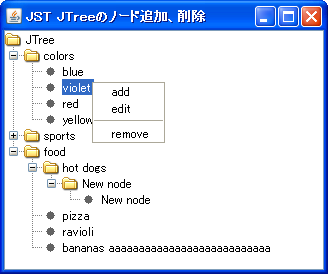
AddNode
Select a JTree node to open JPopupMenu, and then delete, rename, or add child nodes to that node.
Drag and drop JTree nodes.
Section titled “Drag and drop JTree nodes.”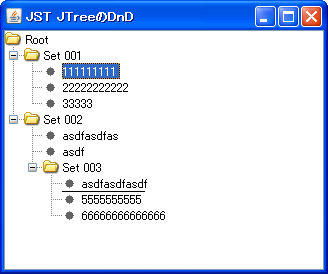
Search for JTree nodes
Section titled “Search for JTree nodes”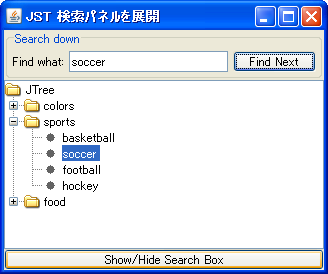
Scan the nodes in the JTree.
Section titled “Scan the nodes in the JTree.”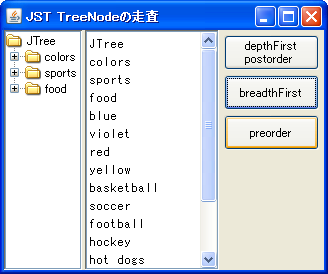
TraverseAllNodes
We obtain the Enumeration from the JTree node and then traverse the subtree.
Expanding and collapsing JTree nodes
Section titled “Expanding and collapsing JTree nodes”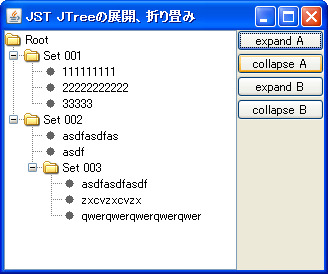
Highlight JTree nodes
Section titled “Highlight JTree nodes”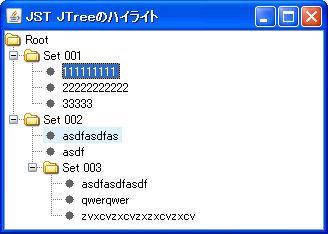
Display JTree Tooltips
Section titled “Display JTree Tooltips”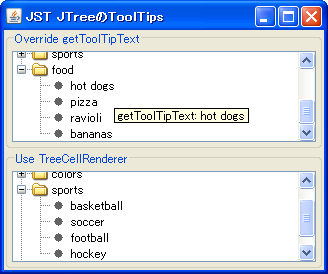
TreeToolTips
We will create a JTree that displays JToolTip with different content for each node.
JTree sorting
Section titled “JTree sorting”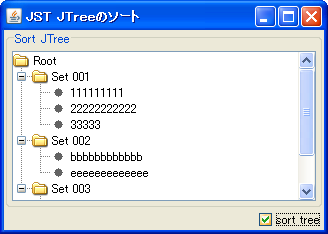
SortTree
The JTree is sorted using a Comparator that compares node names prioritizing parent nodes over leaf nodes.
Display JPopupMenu on a JTree node
Section titled “Display JPopupMenu on a JTree node”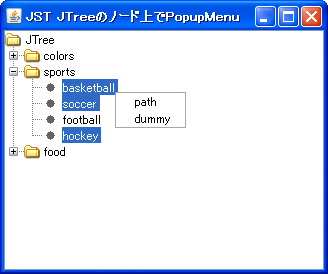
TreeNodePopupMenu
The JPopupMenu will only be displayed when you click on a node in the JTree.
Extract comments from a JPEG file.
Section titled “Extract comments from a JPEG file.”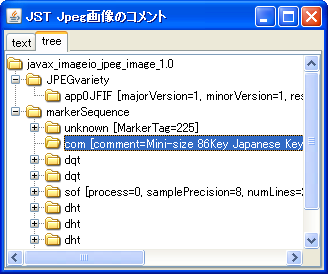
IIOMetadata
This extracts metadata such as comments from a JPEG file in XML format and displays it in JTree.
Hide the expand and collapse icons in JTree.
Section titled “Hide the expand and collapse icons in JTree.”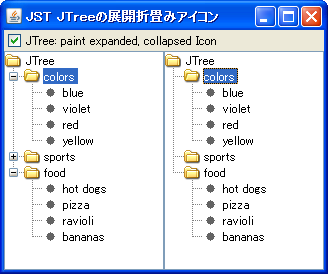
Changed JTree’s OpenIcon, ClosedIcon, and LeafIcon.
Section titled “Changed JTree’s OpenIcon, ClosedIcon, and LeafIcon.”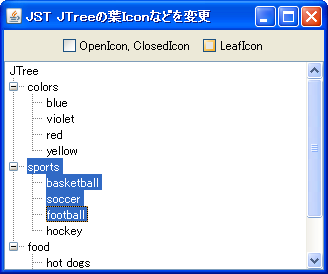
Deselect the JTree.
Section titled “Deselect the JTree.”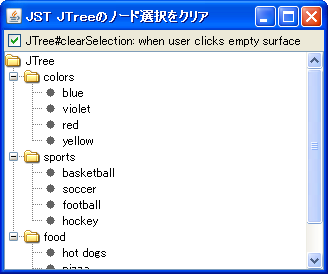
TreeClearSelection
In JTree, clicking outside of a node area with the mouse will deselect it.
Do not display horizontal and vertical lines in JTree.
Section titled “Do not display horizontal and vertical lines in JTree.”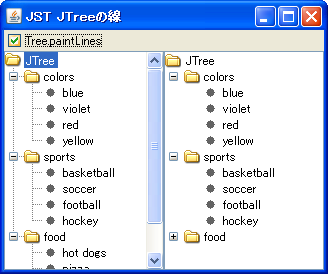
TreePaintLines
This toggles the display of the horizontal and vertical lines connecting the icons in JTree.
Displaying the directory structure in JTree using FileSystemView
Section titled “Displaying the directory structure in JTree using FileSystemView”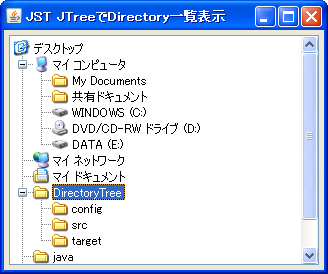
Switch the selection mode of JTree
Section titled “Switch the selection mode of JTree”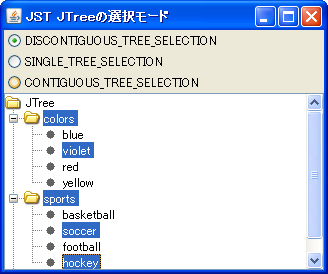
TreeSelection
We retrieve the SelectionModel from the JTree and switch the node selection mode.
Drag the margins of the JTree to scroll.
Section titled “Drag the margins of the JTree to scroll.”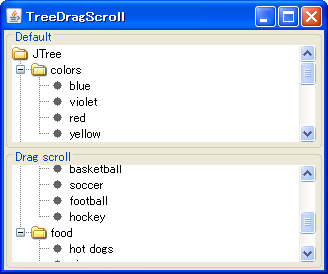
Expand the selected node in the JTree.
Section titled “Expand the selected node in the JTree.”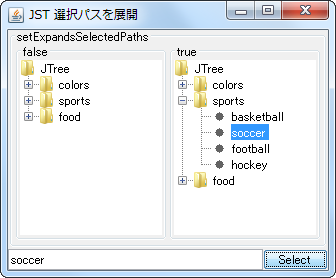
ExpandsSelectedPaths
Expand and make visible all paths to the selected node in the JTree.
Make the JTree transparent and the selected state semi-transparent.
Section titled “Make the JTree transparent and the selected state semi-transparent.”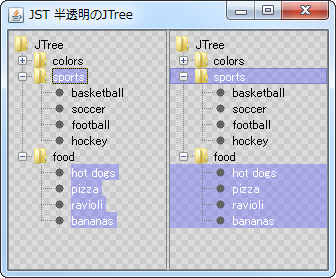
TranslucentTree
This makes the background of the JTree transparent and the selected node color semi-transparent.
Remember and restore the deployment state of JTree.
Section titled “Remember and restore the deployment state of JTree.”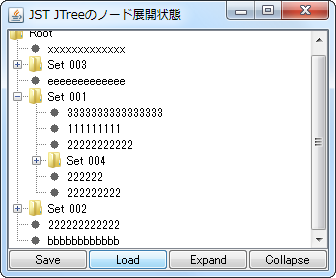
ExpandedDescendants
This function remembers and restores whether a JTree node is deployed or not.
Create a table of contents with JTree
Section titled “Create a table of contents with JTree”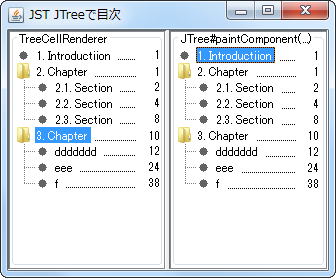
TableOfContentsTree
This creates a table of contents by adding a leader and page number to the JTree node.
Setting up a node that cannot be expanded in JTree
Section titled “Setting up a node that cannot be expanded in JTree”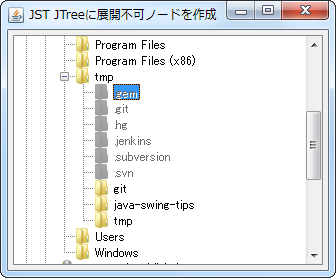
Testing adding nodes to JTree
Section titled “Testing adding nodes to JTree”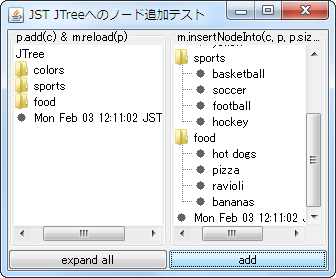
InsertNodeInto
This test checks how the expansion status of sibling nodes changes when a node is added to a JTree.
Change the border when a JTree node gains focus.
Section titled “Change the border when a JTree node gains focus.”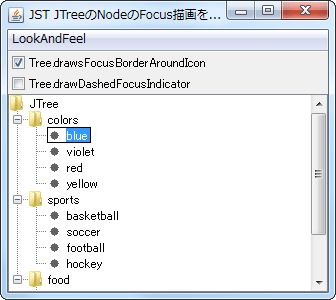
DrawsTreeFocus
The border rendering when a JTree node is selected and focuses is changed using UIManager.
Modifying the rendering of parent nodes that do not have leaf nodes in JTree
Section titled “Modifying the rendering of parent nodes that do not have leaf nodes in JTree”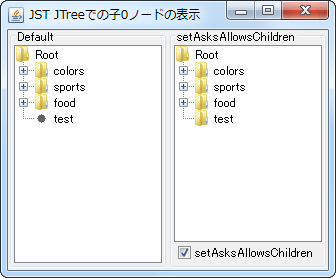
AsksAllowsChildren
This setting ensures that a folder icon is displayed even if the parent node of a JTree does not have any leaf nodes as children.
Set JTree nodes to non-collapsible
Section titled “Set JTree nodes to non-collapsible”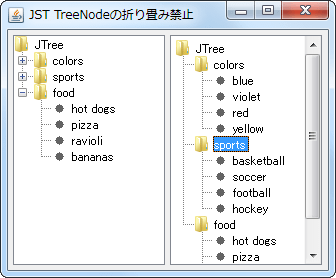
TreeNodeCollapseVeto
This setting prevents JTree nodes from collapsing when clicked with the mouse.
Display expand/collapse icons on the root node of the JTree.
Section titled “Display expand/collapse icons on the root node of the JTree.”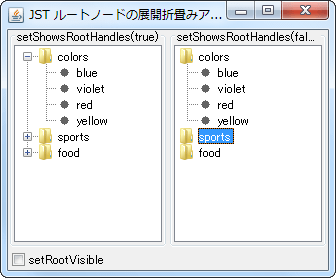
ShowsRootHandles
This toggles whether to display the root handle icon, which shows the node's expansion and collapse status, on the root node of a JTree.
Hide the root node of the JTree.
Section titled “Hide the root node of the JTree.”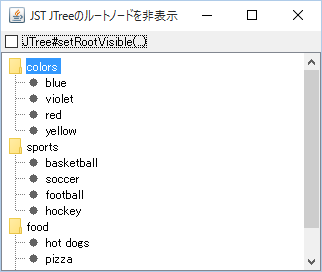
TreeRootVisible
This toggles whether to display the root node of the TreeModel shown in JTree.
Limit JTree cell selection to nodes instead of entire rows using NimbusLookAndFeel.
Section titled “Limit JTree cell selection to nodes instead of entire rows using NimbusLookAndFeel.”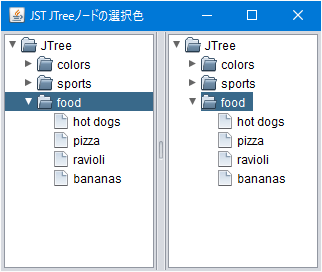
TreeCellSelectionBackground
This sets the range that JTree fills with the selected cell color to only the node, rather than the entire row as is the default setting in NimbusLookAndFeel.
Moving nodes between JTree instances using drag and drop.
Section titled “Moving nodes between JTree instances using drag and drop.”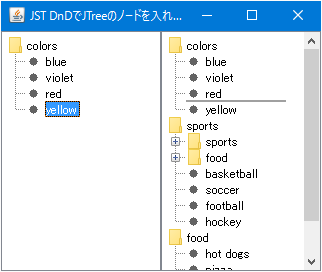
Saving and restoring the checked state of a JCheckBox added to a JTree node.
Section titled “Saving and restoring the checked state of a JCheckBox added to a JTree node.”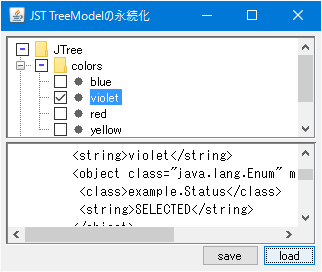
UserObjectPersistence
This process configures the UserObject, which holds the checked state of a JCheckBox added to a JTree node, to be persistent, and then allows for saving and restoring that object.
Displaying an AnimatedGIF in a JTree TreeNode
Section titled “Displaying an AnimatedGIF in a JTree TreeNode”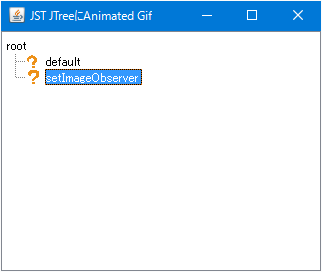
AnimatedTreeNode
Configure an ImageObserver so that the AnimatedGIF ImageIcon set in the JTree node can be animated.
Insert new nodes before and after the selected node in the JTree.
Section titled “Insert new nodes before and after the selected node in the JTree.”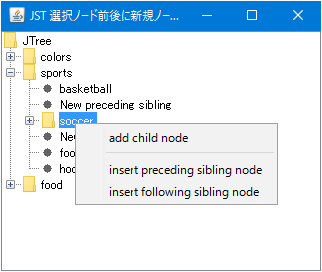
InsertSiblingNode
Select a JTree node to open the pop-up menu, and then insert a new node before or after it.
Search for JTree nodes by name and filter the displayed results.
Section titled “Search for JTree nodes by name and filter the displayed results.”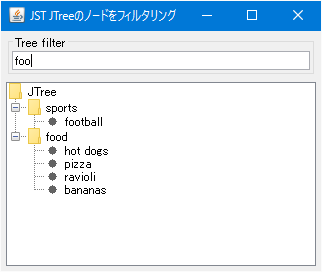
TreeNodeFilter
This code searches for JTree nodes and performs filtering to hide nodes whose TreePath does not match the specified criteria.
Change the style of the connection lines between JTree nodes.
Section titled “Change the style of the connection lines between JTree nodes.”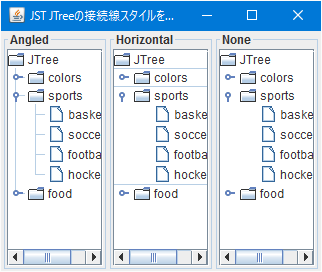
Get the node hierarchy depth in JTree
Section titled “Get the node hierarchy depth in JTree”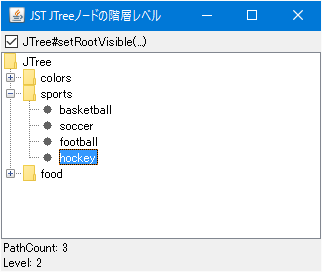
TreeNodeMaxLevel
In JTree, we obtain the number of elements within the TreePath as the depth of the node hierarchy, and then limit the number of nodes that can be added accordingly.
Changing the node indentation in JTree
Section titled “Changing the node indentation in JTree”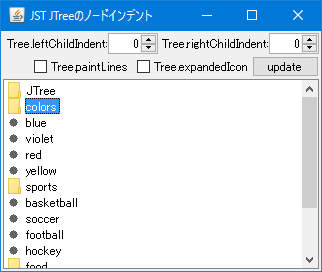
TreeChildIndent
You can specify the indentation amount of a JTree to change the position where child nodes are drawn.
Change the size of the JTree root node icon and set it so that a connecting line is drawn in the center.
Section titled “Change the size of the JTree root node icon and set it so that a connecting line is drawn in the center.”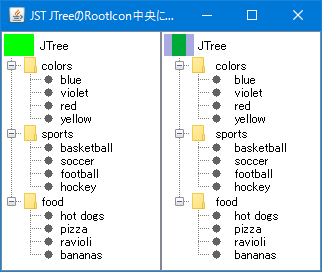
MiddleXOfRootNodeIcon
This modifies only the JTree root node icon, enlarging its size and setting it to draw a vertical connecting line in the center of the icon.
Change the icon displayed while editing a JTree node.
Section titled “Change the icon displayed while editing a JTree node.”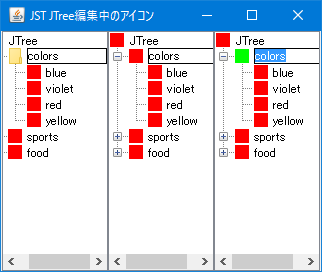
TreeCellEditorNodeIcon
This changes the node icon displayed when editing a JTree node begins.
Automatically add and display chapter numbers to the titles of each node in JTree.
Section titled “Automatically add and display chapter numbers to the titles of each node in JTree.”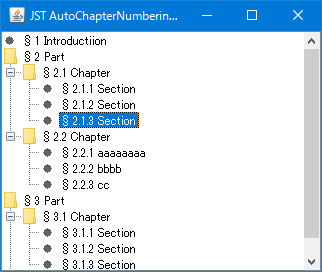
AutoChapterNumberingTreeNode
We will create a TreeCellRenderer that automatically adds chapter numbers to each node in the JTree and displays them at the beginning of the title.
NimbusLookAndFeel allows you to change the style of node connection lines in a JTree.
Section titled “NimbusLookAndFeel allows you to change the style of node connection lines in a JTree.”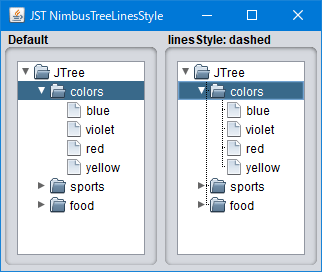
NimbusTreeLinesStyle
This displays the connection lines between JTree nodes in NimbusLookAndFeel and changes their style to dotted lines.
Change the color of the connection lines between JTree nodes.
Section titled “Change the color of the connection lines between JTree nodes.”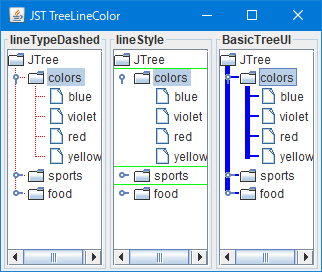
TreeLineColor
This modifies the color, thickness, and other properties of the connection lines between JTree nodes.
Creating a side menu with JTree and CardLayout
Section titled “Creating a side menu with JTree and CardLayout”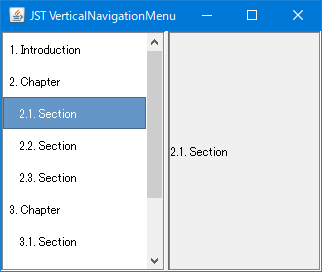
VerticalNavigationMenu
We'll modify the JTree's style to create a side menu-like component and implement panel switching in CardLayout based on node selection.
Configure JTree to collapse all other sibling nodes when a node is expanded.
Section titled “Configure JTree to collapse all other sibling nodes when a node is expanded.”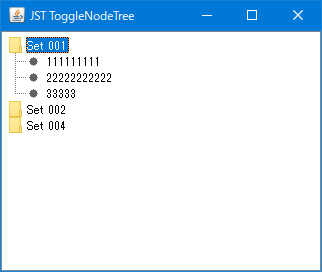
ToggleNodeTree
When a node in the first level of a JTree is expanded, all other sibling nodes are set to collapse, limiting the number of expandable nodes to just one.
Sets the key input delay time used for leading string searches in JComboBox, JList, JTree, etc.
Section titled “Sets the key input delay time used for leading string searches in JComboBox, JList, JTree, etc.”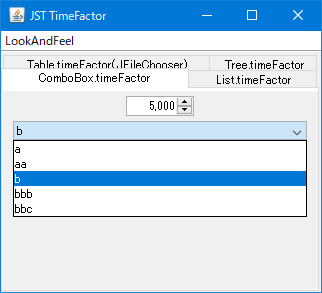
TimeFactor
This setting configures the multi-key input delay time used for searching the first string via key input in the detailed views of JComboBox, JList, JTree, JFileChooser, etc.
Display a JToolTip overlaid on a JTree node cell.
Section titled “Display a JToolTip overlaid on a JTree node cell.”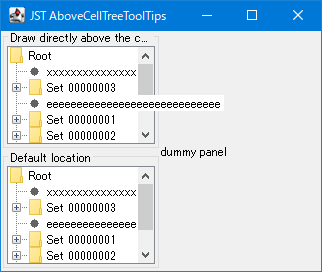
AboveCellTreeToolTips
This code retrieves icons and text from JTree nodes, generates a JToolTip, and displays it overlaid on the node cell.
Change the color of the drop line that displays the insertion destination when using drag and drop with TransferHandler.
Section titled “Change the color of the drop line that displays the insertion destination when using drag and drop with TransferHandler.”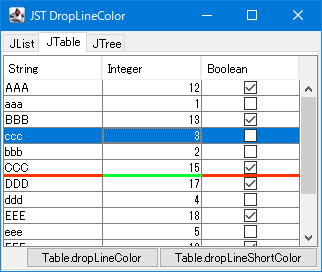
DropLineColor
This modifies the color of the drop line that displays the insertion destination when using the TransferHandler in JList, JTable, and JTree.
In JTree, configure it so that only specific nodes cannot be expanded when clicked with the mouse.
Section titled “In JTree, configure it so that only specific nodes cannot be expanded when clicked with the mouse.”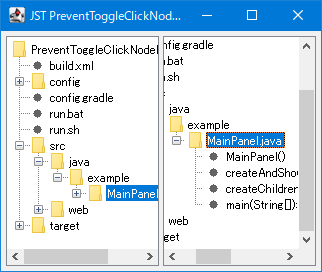
PreventToggleClickNodeExpanding
This setting prevents expansion and collapse only when a specific parent node is clicked with the mouse in JTree.
Select JTree nodes in conjunction with scrolling in JEditorPane.
Section titled “Select JTree nodes in conjunction with scrolling in JEditorPane.”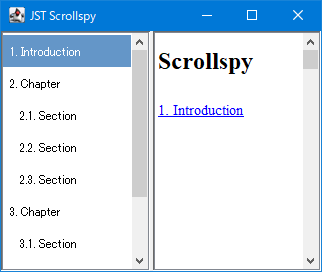
Scrollspy
This function searches for and selects a JTree node with the same name as the link that becomes visible in conjunction with scrolling in JEditorPane.
Enable JCheckBoxes in groups.
Section titled “Enable JCheckBoxes in groups.”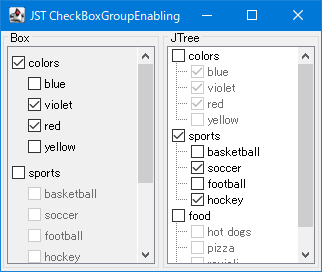
CheckBoxGroupEnabling
A group of parent and child JCheckBoxes is created from the TreeModel, and the child JCheckBox group is activated only when the parent JCheckBox is selected.
Scroll horizontally to the position where the selected node in the JTree is displayed.
Section titled “Scroll horizontally to the position where the selected node in the JTree is displayed.”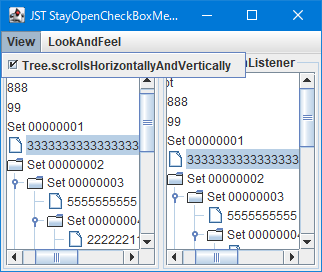
TreeScrollsHorizontallyAndVertically
This setting allows JTree to scroll not only vertically but also horizontally to a node selected via keyboard input.
The display state of JTree node connection lines and expand/collapse icons can be toggled by hovering the mouse cursor over them.
Section titled “The display state of JTree node connection lines and expand/collapse icons can be toggled by hovering the mouse cursor over them.”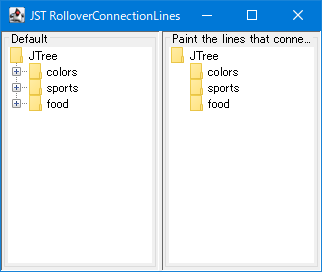
RolloverConnectionLines
You can toggle the display of JTree node connection lines and expand/collapse icons by rolling over them with the mouse cursor.
Extend the selectable node area in JTree to the entire row.
Section titled “Extend the selectable node area in JTree to the entire row.”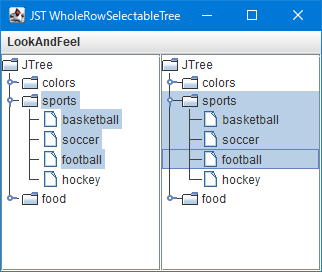
WholeRowSelectableTree
This extends the selectable area via mouse clicks in JTree nodes to the entire row.
Switch between expanded and collapsed JTree nodes using key input.
Section titled “Switch between expanded and collapsed JTree nodes using key input.”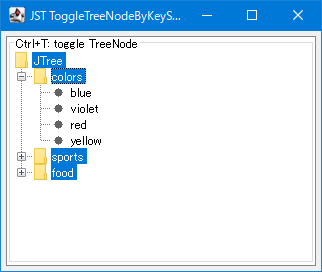
ToggleTreeNodeByKeyStroke
If a parent node in the JTree is selected, you can switch its expanded/collapsed state using key input.
Investigate whether a JTree TreeNode can be edited.
Section titled “Investigate whether a JTree TreeNode can be edited.”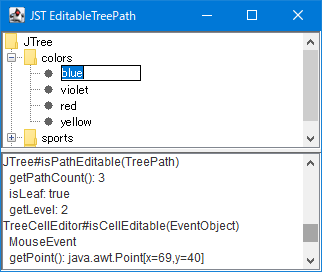
EditableTreePath
The JTree node editor determines whether editing can begin by obtaining its status from TreePath or MouseEvent.
Change the selection area drawing in JTree to a rounded rectangle.
Section titled “Change the selection area drawing in JTree to a rounded rectangle.”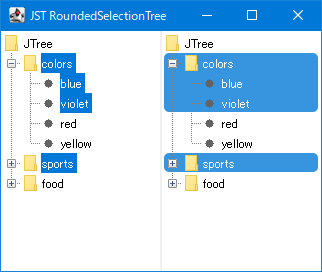
RoundedSelectionTree
Extend the JTree selection to the entire row and draw it as a rounded rectangle with rounded corners.
Round the corners of right-angled polygons generated by node selection in JTree.
Section titled “Round the corners of right-angled polygons generated by node selection in JTree.”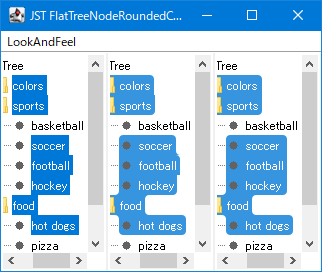
FlatTreeNodeRoundedCornerSelection
The corners of the right-angled polygons generated by JTree node selection are flattened to prevent the creation of sharp points, and then rounded.
Rearrange JTree nodes by dragging and dropping.
Section titled “Rearrange JTree nodes by dragging and dropping.”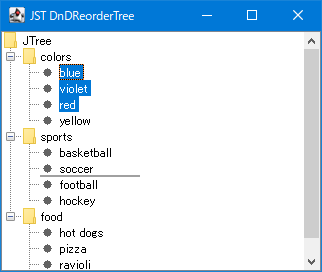
DnDReorderTree
We will create a TransferHandler that allows you to rearrange JTree nodes using drag and drop.
In JTree, change the selection state of child nodes when the parent node is expanded.
Section titled “In JTree, change the selection state of child nodes when the parent node is expanded.”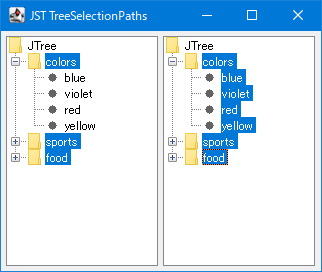
TreeSelectionPaths
Create a TreeWillExpandListener in JTree that switches the selection state of child nodes based on the selection state of the parent node when the parent node is expanded.
Implement node expansion and collapse animations in JTree.
Section titled “Implement node expansion and collapse animations in JTree.”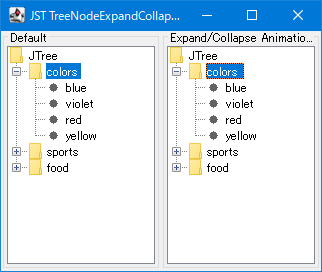
TreeNodeExpandCollapseAnimations
This program performs an animation that increases or decreases the height of child nodes when expanding or collapsing JTree nodes.
Draw a striped background for JTree cells.
Section titled “Draw a striped background for JTree cells.”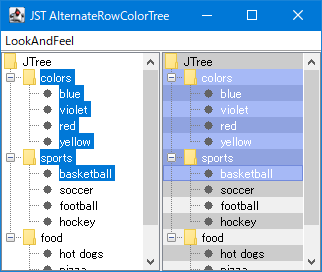
AlternateRowColorTree
This sets the JTree cell background to alternate between different colors to create a striped pattern.
The JTree row will only be rendered in a rollover state if the JPopupMenu configured in the JTree is hidden.
Section titled “The JTree row will only be rendered in a rollover state if the JPopupMenu configured in the JTree is hidden.”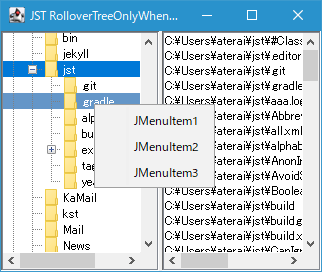
RolloverTreeOnlyWhenPopupHidden
This update adds a feature to JTree that draws a rollover effect on the row under the mouse cursor, and configures it to maintain that rollover state if JPopupMenu is displayed.
Get the common parent node of the nodes selected in JTree.
Section titled “Get the common parent node of the nodes selected in JTree.”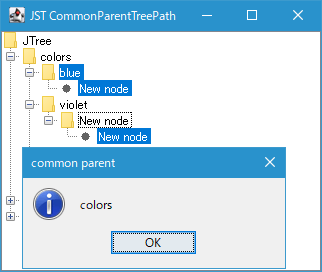
CommonParentTreePath
This method retrieves a common parent TreeNode by searching for the longest common path among the TreePaths of multiple nodes selected within the JTree.
Navigate to the Windows LNK shortcut location using the folder structure displayed in JTree.
Section titled “Navigate to the Windows LNK shortcut location using the folder structure displayed in JTree.”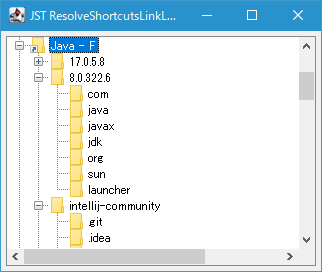
ResolveShortcutsLinkLocation
If the TreeNode in a folder structure created using JTree is a Windows lnk shortcut, you can use JFileChooser's ShellFolder to make it possible to navigate to the linked folder.
Change the location where JPopupMenu opens based on keyboard input to be based on the selected cell.
Section titled “Change the location where JPopupMenu opens based on keyboard input to be based on the selected cell.”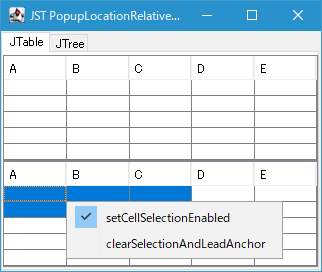
PopupLocationRelativeToCell
When a JPopupMenu configured in a JTable or JTree is opened via keyboard input, its display position is set to be based on the selected cell.