JFrame JDialog JWindow
Always display the JFrame in the foreground.
Section titled “Always display the JFrame in the foreground.”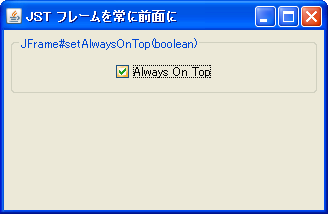
Customize the title bar and other decorative elements of the JFrame to your own specifications.
Section titled “Customize the title bar and other decorative elements of the JFrame to your own specifications.”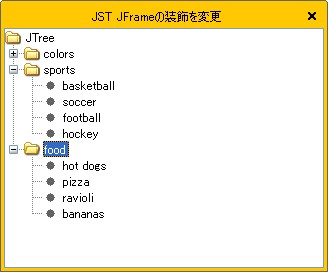
CustomDecoratedFrame
This method hides the JFrame's title bar and other elements, redraws them independently, and adds features such as movement and resizing.
Display JInternalFrame as a JFrame
Section titled “Display JInternalFrame as a JFrame”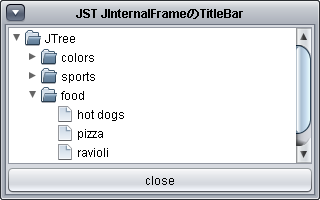
InternalFrameTitleBar
The title bar of the JFrame is hidden, and the title bar of the JInternalFrame is used as a substitute.
Move the JWindow with the mouse
Section titled “Move the JWindow with the mouse”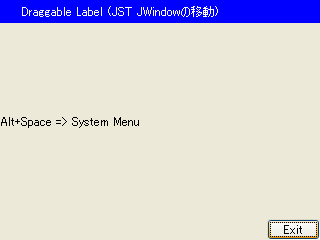
Make the window full screen
Section titled “Make the window full screen”
Hide the JFrame icon
Section titled “Hide the JFrame icon”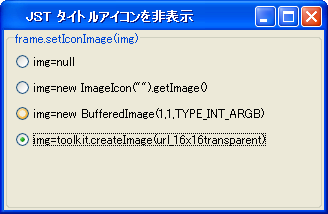
Synchronize JFrame movement
Section titled “Synchronize JFrame movement”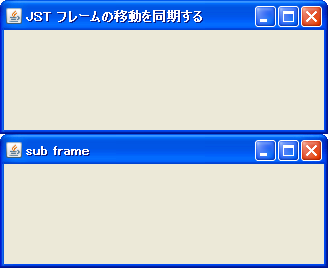
DockingFrames
We will create two JFrames side by side and make them movable while maintaining their relative positions.
Creating and ending multiple JFrames
Section titled “Creating and ending multiple JFrames”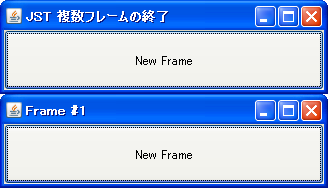
CloseOperation
This program creates multiple JFrames and terminates the application when all of them are closed.
Get WindowAncestor
Section titled “Get WindowAncestor”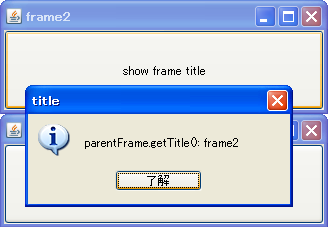
WindowAncestor
The parent window can be obtained using methods such as SwingUtilities.getWindowAncestor.
Change the icon in the JFrame.
Section titled “Change the icon in the JFrame.”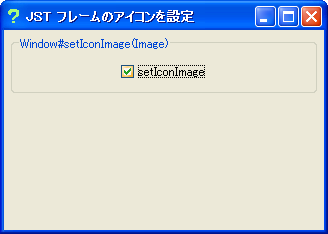
FrameIcon
This changes the icon displayed to the left of the JFrame's title bar to a different image.
Cancel JFrame termination
Section titled “Cancel JFrame termination”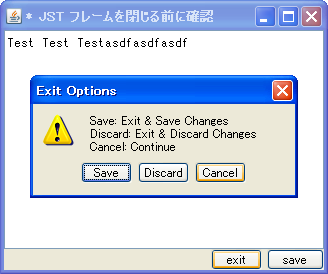
WindowClosing
Before closing the JFrame, a dialog box will appear asking if you really want to exit or cancel the exit.
Specify the focus when a window is opened.
Section titled “Specify the focus when a window is opened.”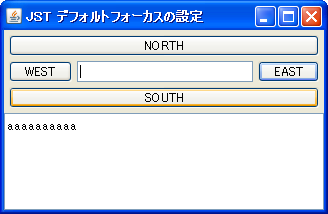
DefaultFocus
This specifies the component that will have focus by default when a window such as a JFrame or JDialog is opened.
Fix the size of the JFrame
Section titled “Fix the size of the JFrame”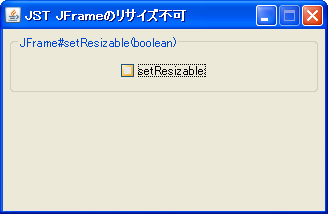
Close the JDialog by pressing the ESC key.
Section titled “Close the JDialog by pressing the ESC key.”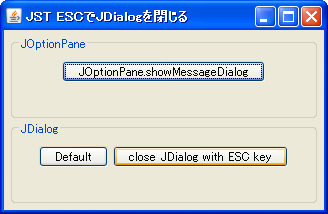
Display JFrame in the center of the screen
Section titled “Display JFrame in the center of the screen”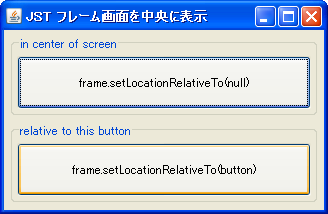
CenterFrame
This sets windows such as JFrames and JDialogs to be positioned in the center of the screen.
Maintain a consistent aspect ratio for JFrames.
Section titled “Maintain a consistent aspect ratio for JFrames.”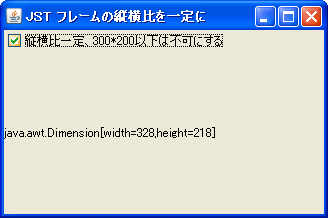
ConstrainedProportions
This restricts the JFrame's width-to-height ratio to a constant value.
Dynamic layout dynamic evaluation
Section titled “Dynamic layout dynamic evaluation”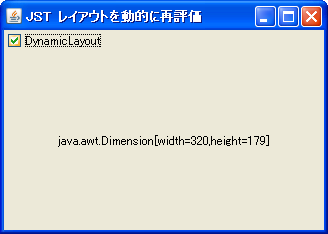
DynamicLayout
Set DynamicLayout to re-evaluate the layout in response to changes such as window resizing.
Minimum size of JFrame
Section titled “Minimum size of JFrame”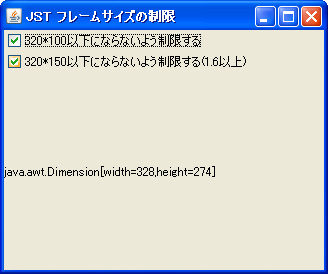
Displaying a SplashScreen using JWindow
Section titled “Displaying a SplashScreen using JWindow”
Displaying a modal SplashScreen with a JProgressBar using JDialog
Section titled “Displaying a modal SplashScreen with a JProgressBar using JDialog”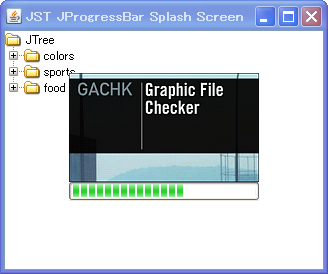
ProgressSplashScreen
This displays a modal SplashScreen with a JProgressBar using JDialog.
Make JFrame semi-transparent
Section titled “Make JFrame semi-transparent”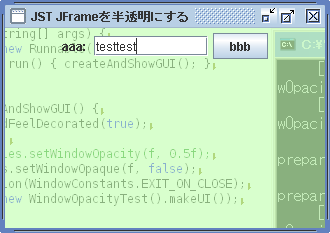
WindowOpacity
This sets the background of the JFrame to be semi-transparent, excluding the title and child components.
JFrame transparency and redrawing
Section titled “JFrame transparency and redrawing”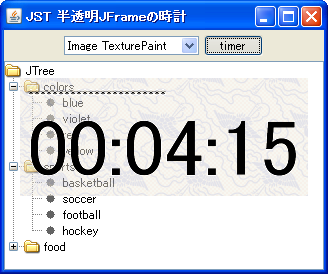
TranslucentFrameRepaint
We will place a semi-transparent digital clock in a transparent JFrame and test the redrawing of the background color when the text is updated.
Change the shape of the window
Section titled “Change the shape of the window”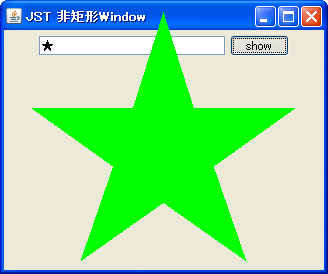
WindowShape
This hides the JFrame's title bar and other elements, and changes the window's shape to a non-rectangular shape.
Remember the position and size of the JFrame.
Section titled “Remember the position and size of the JFrame.”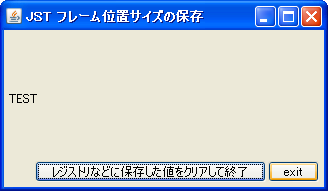
Preferences
Use Preferences to save the frame's position and size to the registry or elsewhere.
Use PersistenceService to remember the position and size of the JFrame.
Section titled “Use PersistenceService to remember the position and size of the JFrame.”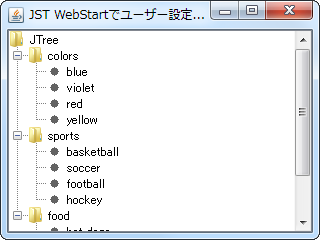
PersistenceService
We obtain the PersistenceService from the ServiceManager and use it to save and retrieve the position and size of JFrames and other objects.
Display drag icons even outside of JFrame
Section titled “Display drag icons even outside of JFrame”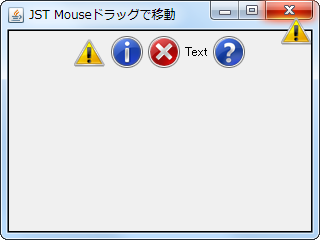
DragSourceMotionListener
By obtaining the cursor position during dragging using DragSourceMotionListener and moving the window containing the added icon to that position, the drag icon can be displayed even outside of the JFrame.
Display the value in a tooltip while dragging the JSlider knob.
Section titled “Display the value in a tooltip while dragging the JSlider knob.”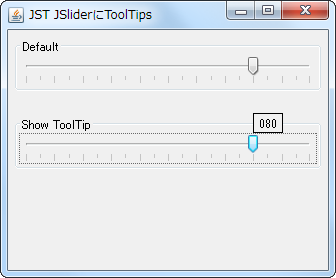
SliderToolTips
The current value of the JSlider knob is displayed in a tooltip while you are dragging it.
Close the window from JPopupMenu, etc.
Section titled “Close the window from JPopupMenu, etc.”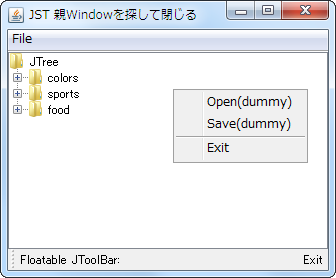
WindowClosingAction
Create an Action in JPopupMenu or JToolBar to close the parent window.
Drag and rearrange the icons placed in the JToolBar.
Section titled “Drag and rearrange the icons placed in the JToolBar.”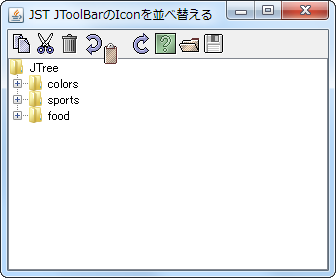
RearrangeToolBarIcon
You can rearrange the icons placed in the JToolBar by dragging and dropping them.
Set up decorations for resizing in JRootPane
Section titled “Set up decorations for resizing in JRootPane”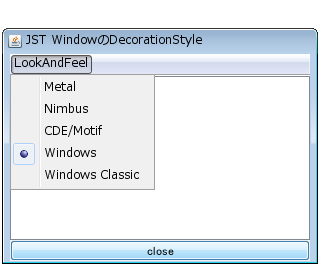
WindowDecorationStyle
Remove the decorations from the JFrame itself and set a transparent window decoration for resizing on the JRootPane.
Display a JWindow as a slide-in on the desktop.
Section titled “Display a JWindow as a slide-in on the desktop.”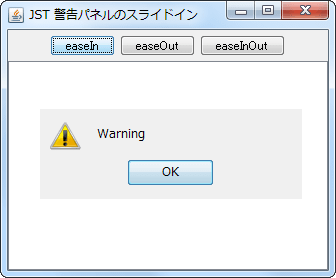
SlideInNotificationWindow
A JWindow with a JOptionPane added will be displayed on the desktop using a slide-in animation.
Change the title bar background color when JFrame uses the default window decoration.
Section titled “Change the title bar background color when JFrame uses the default window decoration.”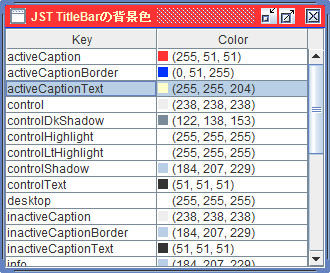
WindowTitleBackground
If the JFrame uses the default window decorations, it will change the title bar text color, background color, etc.
Hide the taskbar button when minimizing the JFrame while using a TrayIcon.
Section titled “Hide the taskbar button when minimizing the JFrame while using a TrayIcon.”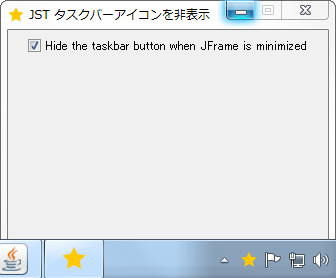
HideTaskbarButton
This toggles whether the application's taskbar button is displayed when the JFrame is minimized while using a TrayIcon.
Use a transparent JDialog in a Modal to block input to the parent JFrame.
Section titled “Use a transparent JDialog in a Modal to block input to the parent JFrame.”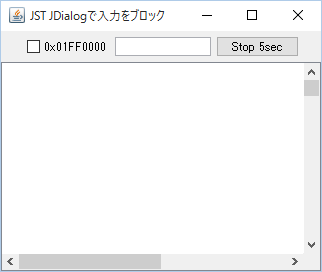
BlockingDialog
By displaying a transparent JDialog using a Modal, input operations on the entire parent JFrame are blocked.
Change the IconImage in the JFileChooser title bar.
Section titled “Change the IconImage in the JFileChooser title bar.”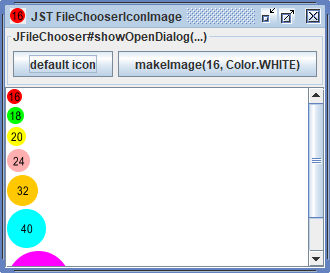
FileChooserIconImage
This changes the title bar icon of the JFileChooser to a different icon from that of its parent JFrame.
Smooth the edges of the window with soft clipping.
Section titled “Smooth the edges of the window with soft clipping.”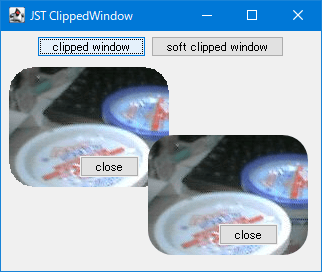
SoftClippedWindow
This feature smooths out jagged edges that occur when a window is cropped using a graphic shape, by applying a soft clipping effect.
Retrieve the maximize and minimize events of a JFrame.
Section titled “Retrieve the maximize and minimize events of a JFrame.”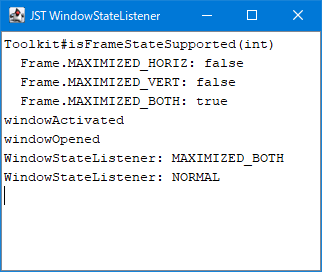
WindowStateListener
This program retrieves the maximize and minimize events for a JFrame.
Create a JFrame status bar with resizable size grips.
Section titled “Create a JFrame status bar with resizable size grips.”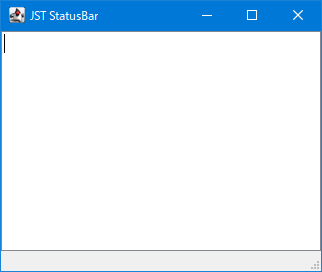
StatusBar
A status bar with a resizable size grip that can be dragged with the mouse will be placed at the bottom of the JFrame.
Cut out a JWindow with a semi-transparent, smooth shape.
Section titled “Cut out a JWindow with a semi-transparent, smooth shape.”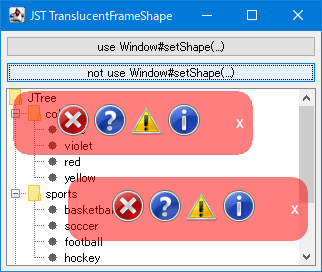
TranslucentFrameShape
This sets the JWindow to be semi-transparent and changes its shape to one with smooth edges.
Make components added to the JFrame’s title bar draggable.
Section titled “Make components added to the JFrame’s title bar draggable.”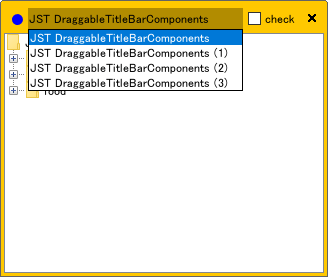
DraggableTitleBarComponents
This creates a custom title bar for the JFrame and makes components added inside it draggable with the mouse.
Create a cell editor using JTextArea and JFrame that allows for fixed width, text wrapping, and height expansion beyond the parent frame.
Section titled “Create a cell editor using JTextArea and JFrame that allows for fixed width, text wrapping, and height expansion beyond the parent frame.”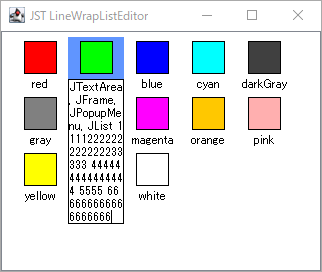
LineWrapListEditor
A JTextArea is configured to have a fixed width and adjustable height with wrapping based on the length of the text. This is then placed in a JFrame and used as a JList cell label editor that can be displayed outside of its parent frame.
Place focusable components within the JWindow.
Section titled “Place focusable components within the JWindow.”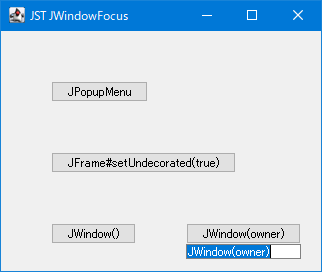
JWindowFocus
We will run tests that place focusable components in JWindow, plain JFrame, JPopupMenu, etc.
Create a list cell editor with center alignment and line wrapping capabilities using JTextPane.
Section titled “Create a list cell editor with center alignment and line wrapping capabilities using JTextPane.”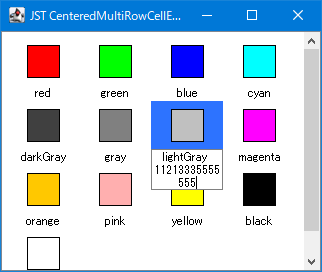
CenteredMultiRowCellEditor
Create a center-aligned, line-wrapping editor using JTextPane, add it to a JFrame, and use it to edit list cells.
Change the text selection highlight color depending on whether the JFrame is active.
Section titled “Change the text selection highlight color depending on whether the JFrame is active.”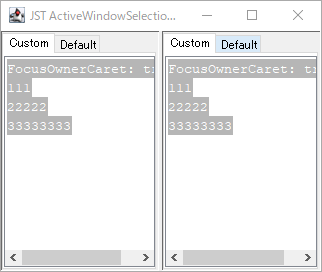
ActiveWindowSelectionHighlight
This code changes the background color of the text selection highlight in its child JTextComponent depending on whether the JFrame is active.
Take screenshots using Robot
Section titled “Take screenshots using Robot”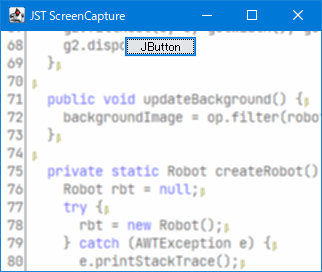
ScreenCapture
By using Robot to capture a screenshot image and rendering it as a background image, the JFrame is made to appear semi-transparent.
Change the background color of the JOptionPane title bar according to the MessageType.
Section titled “Change the background color of the JOptionPane title bar according to the MessageType.”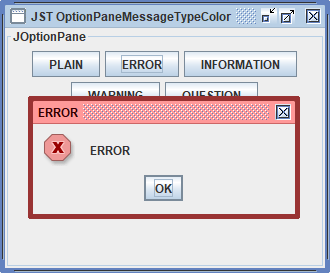
OptionPaneMessageTypeColor
This changes the title bar background color and border color of the JOptionPane to colors corresponding to the MessageType.
You can create a new JFrame and discard an empty JFrame by dragging out the tab in JTabbedPane.
Section titled “You can create a new JFrame and discard an empty JFrame by dragging out the tab in JTabbedPane.”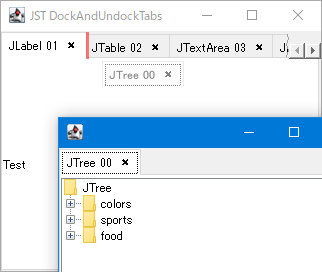
DockAndUndockTabs
If you drag a tab from a JTabbedPane outside of a JFrame, a new JFrame containing that tab will be created. If the original JTabbedPane becomes empty, the entire parent JFrame will be discarded.
Fade out a JWindow with a transparency animation.
Section titled “Fade out a JWindow with a transparency animation.”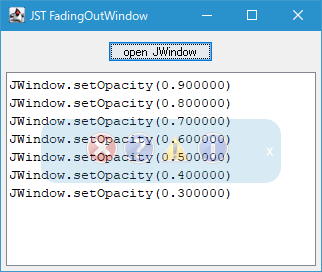
FadingOutWindow
The transparency of the JWindow is changed using a Timer, and it is set to disappear with a fade-out effect.
Place a JButton on the default window title bar of the JFrame.
Section titled “Place a JButton on the default window title bar of the JFrame.”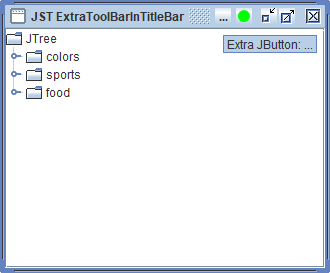
ExtraToolBarInTitleBar
When JFrame uses the default window decoration, it displays a JWindow containing JButtons and other elements in conjunction with the iconized button position in the title bar.