
Texture packing
Spine can pack your individual images into a texture atlas or grid (spritesheet) for more efficient rendering at runtime. Spine's texture packer is a general purpose tool. While it can be used for your Spine skeletons, it can also be run separately to pack all the images for your applications.
In most graphics APIs (for example, OpenGL), a texture is bound, some drawing is done, another texture is bound, more drawing is done, and so on. Binding the texture is relatively expensive, so it is ideal to store many smaller images on a larger image, bind the larger texture once, then draw portions of it many times. Spine can efficiently pack many smaller images into larger images, resulting in what is called a "texture atlas".
Spine uses multiple advanced packing algorithms. Packing is done with numerous heuristics at various sizes and the most efficient result is chosen.

Texture atlas files
A texture atlas consists of a text file with an .atlas file extension and one or more image files, called atlas "page images". The atlas file Packing
Texture packing can also be done using the Packing during data export
When exporting Running the texture packer separately
Choose Texture Packer from the main menu:

On the texture packer dialog, specify the folder containing the images to pack, where to write the atlas files, and the name of the atlas.

The Settings button configures the texture packer settings.
Settings
The texture packer has many settings to control how images are packed.

This dialog can be intimidating at first, but many settings can be left at their defaults. Some notable settings:
- Max width and height. This determines how much can fit on a single atlas page image.
- Packing rectangles or polygons. Packing polygons is more efficient but slower and requires knowing the project file for context.
- Premultiplied alpha. This setting should match how the images are rendered at runtime.
- Strip whitespace.
- Scale.
Regions
| Setting | Description |
|---|---|
| Strip whitespace X/Y | Removes blank pixels around the edges of the input images. The amount removed is stored in the atlas data so the images can be drawn in your application as if they were not whitespace stripped. |
| Rotation | More efficient packing is achieved by rotating some images 90 degrees. Applications must take special care to draw these regions properly. |
| Alias | Two images that are pixel for pixel the same will only be packed once. |
| Ignore blank images | Images that are only transparent pixels will not be packed. |
| Alpha threshold | Alpha values below this are treated as zero when whitespace is stripped. |
Region padding
| Setting | Description |
|---|---|
| Padding X/Y | The number of pixels between packed images. Some texture filtering averages neighboring pixels, so a padding of 2 is recommended to avoid neighboring regions from affecting each other. |
| Edge padding | The padding will also be applied to the edge of the page images. |
| Duplicate padding | The padding will copy pixels from the closest region. This can hide "seam" artifacts if texture filtering selects padding pixels. When whitespace stripping, duplicate padding is only applied on edges that have non-whitespace pixels. When packing polygons, duplicate padding is only applied to images used by a region attachment or by a mesh attachment that covers the entire image. |
Pages
| Setting | Description |
|---|---|
| Min width/height | The smallest size for any page image. |
| Max width/height | The maximum size of any page image. If the images don't fit in a page this size, multiple page images are output. |
| Power of two | Makes the output page dimensions a power of two. This is a requirement for some game toolkits. |
| Divisible by 4 | Makes the output page dimensions divisible by 4. This is a requirement for some texture compression algorithms. |
| Square | Makes the width and height equal. This is a requirement for some texture compression algorithms (eg, PVRT). |
Runtime
These settings are hints intended for the application loading the data to optionally apply at runtime.
| Setting | Description |
|---|---|
| Filter min/mag | The texture minification and magnification settings. |
| Wrap X/Y | The texture wrap settings. |
| Format | The in-memory format. |
Output
| Setting | Description | ||
|---|---|---|---|
| Format | Output PNG or JPG pages. | ||
| JPG quality | The compression for JPG output. | ||
| Packing | Determines how the images are packed.
| ||
| Premultiply alpha | Multiplies pixel RGB values by the alpha value. Rendering the images at runtime must also use premultiplied alpha. This is recommended for Bleed | Sets RGB values for transparent pixels to the RGB values of the nearest non-transparent pixels. When not using premultiplied alpha at runtime, this prevents texture Scale | An entire atlas is output for each scale specified. |
| Suffix | The suffix for each scaled atlas. If blank, files for multiple scales will be output with the same name to a subfolder for each scale. | ||
| Resample | The algorithm to use for scaling. |
Options
| Setting | Description | |
|---|---|---|
| Atlas extension | The file extension for the atlas data file. | |
| Combine subdirectories | The current folder and all subfolders are packed on to the same pages. Any subfolder containing a | |
| Flatten paths | Subfolders are stripped from region file names. Image file names should be unique. | |
| Indexes | Image names are stripped of everything after the last underscore. See Legacy output | Writes the atlas file in a format that can be read by Spine Runtimes versions prior to 4.0. |
| Debug | Lines are drawn on the output pages to show the packed image bounds. | |
| Auto Scale | Scale is reduced until all the images fit on one atlas page (slow). | |
| Fast | Packing will not be as efficient but will execute much faster. | |
| Limit memory | When unchecked, all images are loaded to memory at the same time to increase packing speed. Spine may crash if not enough memory is available. | |
| Pretty print | The atlas file is written with extra whitespace to make it easier for a human to read. | |
| Current project | When checked, mesh UVs for mesh image files in the current project are used to strip whitespace. When packing as part of data export, this setting is ignored and meshes in the current project are always used to strip whitespace. |
Other
These settings are not available on the settings dialog and may only be specified in the JSON configuration file.
| Setting | Description |
|---|---|
| ignore | Images in this folder and any subfolders will not be packed. |
| bleedIterations | The number of times bleed is applied. Defaults to 2. |
| separator | The string to use when appending numbers to file names. Defaults to underscore ( |
Folder structure
When JSON Configuration
When Texture atlas name
The texture atlas name is used to name the atlas and PNG files. For example, if the texture atlas name is skeleton then the atlas files would be named skeleton.atlas, skeleton.png, skeleton2.png, etc.
Ninepatches
Ninepatches are not generally useful for Spine skeletons, but can be useful for other purposes.
If an image file name ends with ".9" just before the file extension, it is considered a ninepatch. Ninepatch images can be created manually or by using Image indexes
Image indexes are not generally useful for Spine skeletons, but can be useful for other purposes.
If an image file name ends with underscore and then a number (eg animation_23.png), the number is considered the "index" and is stored for the region in the atlas data file. The image name is stored without the underscore and index. This allows a list of images with the same name to be retrieved, ordered by index, to make it easy to pack frame-by-frame animations without losing the order of the frames.
Texture Unpacker
Spine provides a texture unpacking utility which takes a texture atlas and writes out individual images from it. Any rotation in the atlas is undone and any stripped whitespace is restored in the individual images.
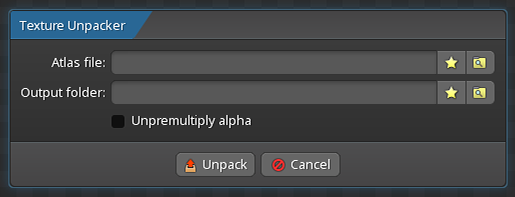
Texture unpacking can also be done using the command line interface.
Enter the path to the Atlas file and the Output folder, which is the path to the folder where you want the unpacked images to be stored. Check Unpremultiply alpha if the atlas was packed with premultiplied alpha. If the atlas file has "pma:true", that will be used instead of this checkbox.