
Preview view
The Animations
At the top right of the preview view, all animations are listed for the currently selected skeleton, just as they appear in the tree. If a project has multiple skeletons, a select box indicates for which skeleton the animations are being shown.
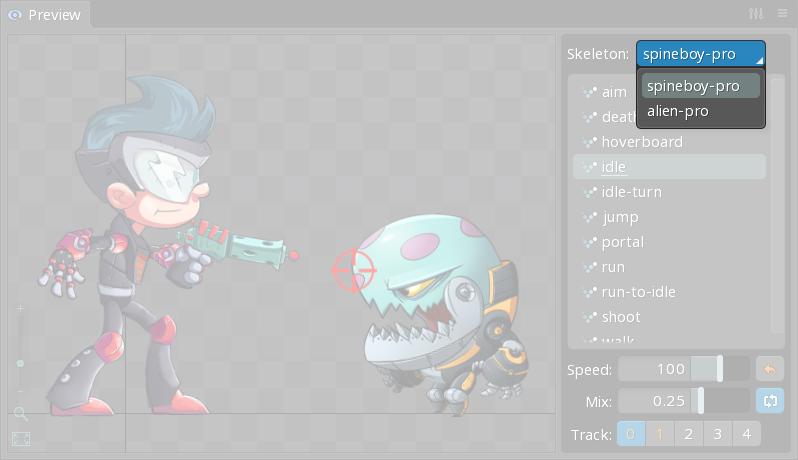
Right click a track button to toggle the animation for that track.
Clicking an animation sets the animation for the active track, equivalent to AnimationState Tracks
Tracks allow multiple animations to be applied at the same time. See Speed
The speed slider sets the speed of animations played on the track. It is equivalent to TrackEntry Mix
The mix slider sets the mix duration when the current animation changes for the track. It is equivalent to TrackEntry Repeat
The repeat button sets whether the next animation played on the track will loop. It does not affect the currently playing animation. It is equivalent to TrackEntry Alpha
The alpha slider mixes the pose from the animation currently playing on the track with the pose from animations on lower tracks. It is equivalent to TrackEntry Hold previous

The hold previous button sets whether the next animation played on the track will use the "hold previous" feature, which is used to prevent "dipping" when the animation changes. It does not affect the currently playing animation. It is equivalent to TrackEntry Additive

The additive button sets whether the next animation played on the track will use the "additive" feature, which adds the animation's pose to the pose from animations on lower tracks. It does not affect the currently playing animation. It is equivalent to setting TrackEntry View settings
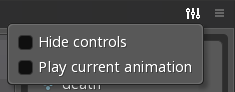
Hide controls
When checked, the list of animations and playback controls are hidden.
Play current animation
When checked, the preview view will automatically play the active animation. This can save time when using the preview view to show the active animation.
Show bones
When checked, bones are displayed inside the preview view.