
IK constraints
IK constraints are not available in Spine Essential.
An IK constraint sets bone rotations so the tip of a bone touches or points at a target bone. This has a wide variety of uses but the most common is to control limbs by moving a hand or foot.
The usual way of animating is called FK or "forward kinematics". FK is a top-down approach: to position the hand, first the upper arm is rotated, then the lower arm. Many movements can be achieved this way, but others are difficult. For example, to keep the hand in place as the skeleton stands up, the arm bones need to be adjusted continuously. It takes many keys to keep the hand in place.
IK or "inverse kinematics" can solve this more elegantly by using a bottom-up approach. For example, the hand position is set, then Spine automatically sets the rotation for the upper and lower arm bones.
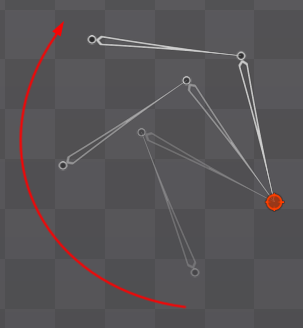
IK is useful for many tasks such as keeping feet from penetrating the floor during a walk animation, adjusting the IK target at runtime to stand on uneven terrain, Setup
Spine IK's can constrain one or two bones. To create an IK constraint, first:
- For one bone, select the bone to constrain. After creating the IK constraint, the bone will rotate to point at the target bone.
- For two bones, select a bone to constrain and also select one of its children. After creating the IK constraint, the bones will rotate so the tip of the child bone is at the target bone.
Clicking a constrained bone creates the target at the tip, ensuring the constrained bones don't move when the IK constraint is created.
Next, choose New... IK Constraint in the tree properties to enter choose target mode. Choose the target bone by either clicking an existing bone or click in empty space to create a new bone. Clicking a constrained bone creates the target at the tip of that bone. The target bone cannot be a descendant of the constrained bones.

Constraining three or more bones is not supported because it is nondeterministic and would be difficult to control. Instead, use multiple IK constraints or FK.
Properties
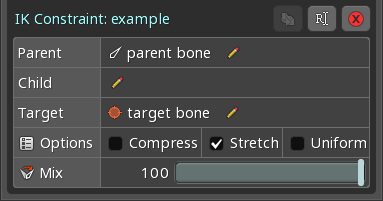
For one bone IK:
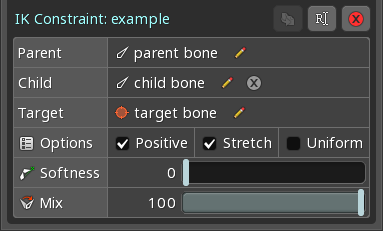
For two bone IK:
Parent
This shows the first constrained bone. Clicking the bone selects it.
A different bone can be chosen by clicking the pencil icon.
Child
This property will be blank for one bone IK.
This shows the second constrained bone. Clicking the bone selects it.
A different bone can be chosen by clicking the pencil icon or the child bone can be cleared by clicking the X button.
Target
This shows the target bone. Clicking the bone selects it.
A different bone can be chosen by clicking the pencil icon.
Positive
This property is available only for two bone IK.
When checked, the child bone rotates in the positive direction (counterclockwise) relative to the parent bone.

The positive bend direction property can be Compress
This property is available only for one bone IK.
Compress causes the constrained bone to be scaled smaller when the distance to the target bone is smaller than the constrained bone's length.
The compress property can be Stretch
Stretch causes the constrained bones to be scaled larger when the distance to the target bone is greater than the constrained bones' lengths.
The stretch property can be Uniform
When checked and Softness
This property is available only for two bone IK.
Softness slows down the bones as the constrained bones straighten. With 0 softness, IK bones may move very quickly just before the target goes out of range, which is usually undesirable.
The softness value is the target bone's distance from the maximum reach of the bones where the bones start to slow down as they straighten. The bones won't be fully straightened until the target moves that far past the maximum reach of the bones.
The softness property can be Mix
See Limitations
Due to the interactions of IK and Video