Dopesheet view
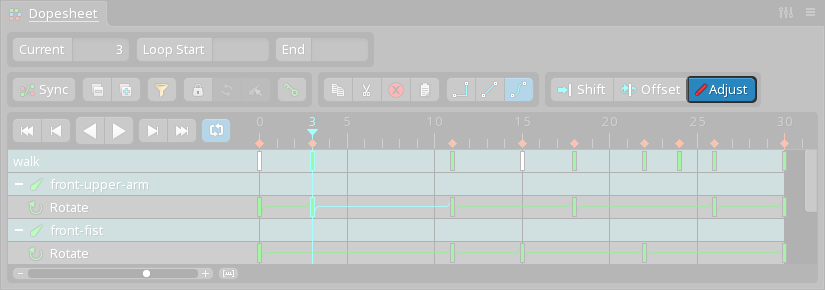
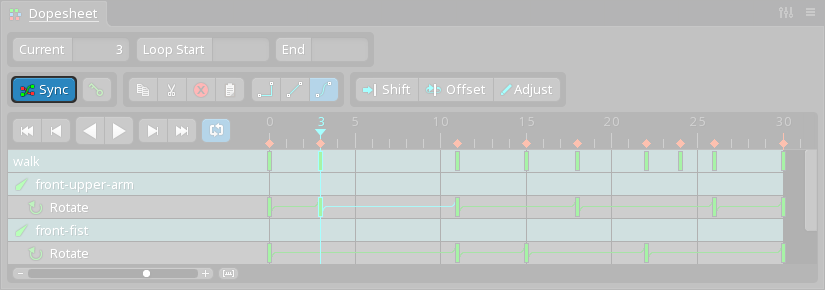
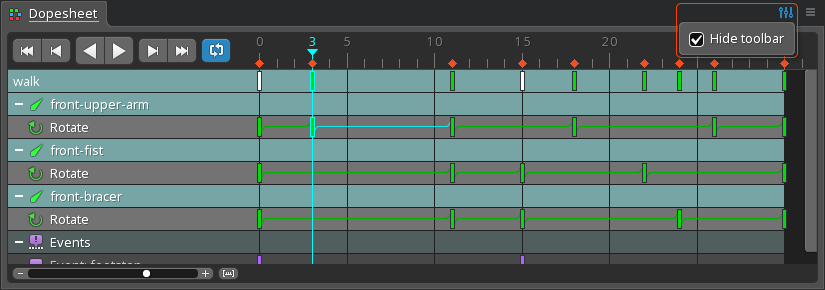
The dopesheet view displays and edits the timing of an animation's Rows
Below the Overview row
The first row in the dopesheet is the "overview row". It shows the animation name and the keys for all the rows below it. This is useful when needing to modify all the keys in an animation or all the keys currently being shown in the dopesheet.
Clicking the animation name can be useful when another animation needs to be selected, though the Bone rows

Keys are grouped by the bone most related to the keyed property.
A bone row can be collapsed or expanded by clicking the collapse (-) or expand (+) icon at the left of the row, or by right clicking the bone name. When expanded, the bone row only shows a key when multiple properties under it have keys on the same frame. When collapsed, the bone row shows all the keys for the properties under it.
Clicking a bone name is more useful when the dopesheet is Property rows

Under a bone row are property rows for each keyed property. The property row shows all the keys for that property. Lines between keys indicate the type of interpolation between the keys.
Clicking the name of a Interpolation
Straight lines between keys indicate linear interpolation between the keys. Slightly curved lines indicate Bézier interpolation and dotted lines indicate a stepped transition. See the Other rows
Rows for Contents
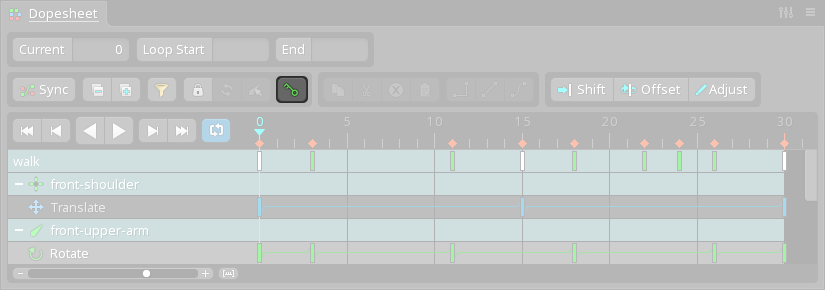
The dopesheet has two modes to control which bone rows are shown: unlocked and locked.
Unlocked
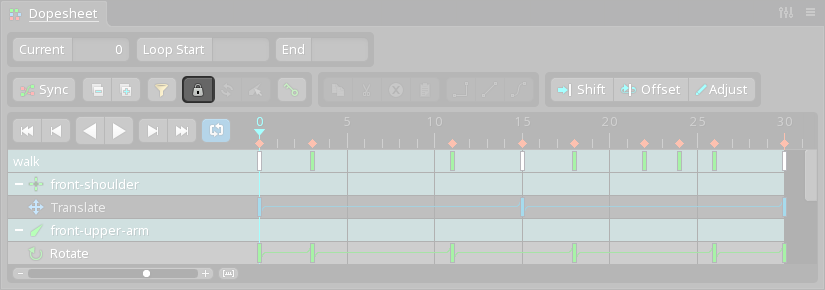
To see all bone rows, Locked
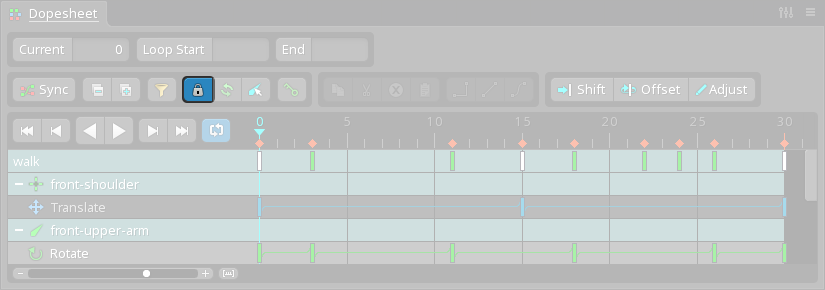
When Refresh
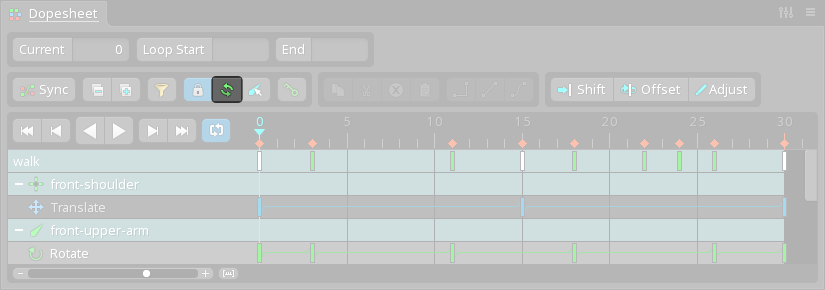
The refresh button updates the dopesheet to show the bone rows for the current selection. This is equivalent to unlocking and locking the dopesheet again.
Select
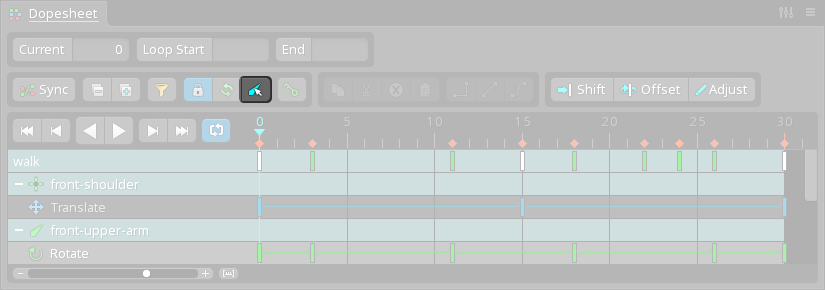
The select button selects the bones in the viewport for all of the currently shown bone rows. It can be useful to select the bones, modify the selection, then click refresh to change the bone rows shown in the dopesheet.
Order
Bone rows appear in the dopesheet using the order the bones were selected. Bone rows can be rearranged by dragging them up or down.
Visibility
Bone rows for Filters
When Timeline position
The current timeline position is shown next to the Current button.
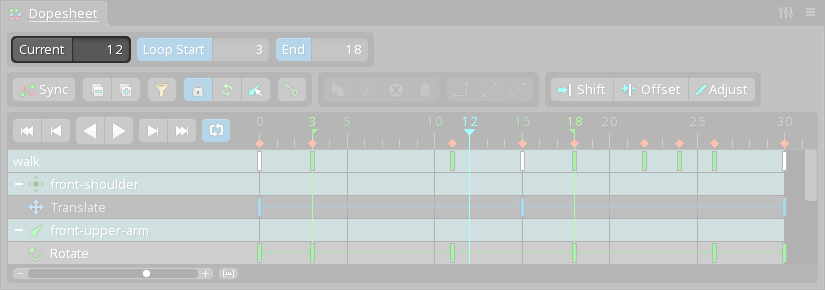
A frame number can be typed and followed by enter or tab to set the current timeline position. A fractional number can be typed to set the timeline position between frames.
Click in empty space to set the timeline position to that frame, if Loop
To set the start or end frame, set the timeline position then click the Loop Start or End button. Alternatively, type a frame number in each box. When both have been set and Selection
Click to select a key. This will also set the timeline position to the selected key, if Box selection
Drag in empty space to box select. Hold ctrl (cmd on Mac) before dragging to make a box selection that starts on top of a key.
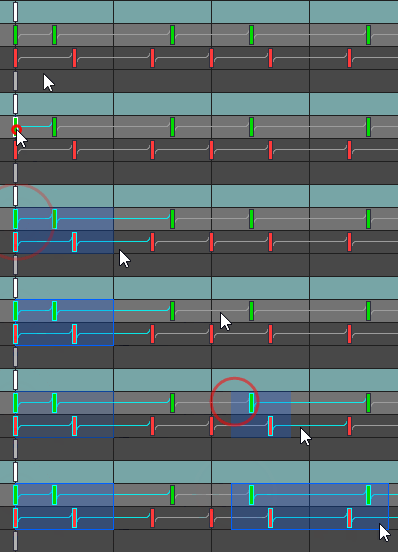
To box select without leaving the box selection behind, drag and release the mouse button quickly. To keep the box selection, drag then pause briefly before releasing the mouse button. Multiple box selections can be created this way by holding ctrl (cmd on Mac).
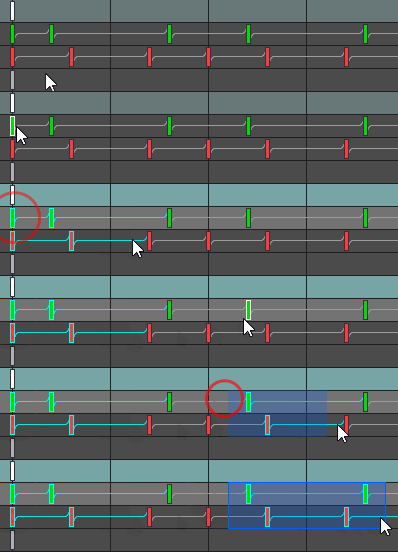
The left or right edge of a box selection can be dragged to scale the selected keys. Scaling keys increases or decreases the timing between the selected keys. When used on the overview row, scaling can increase or decrease the duration of the entire animation.
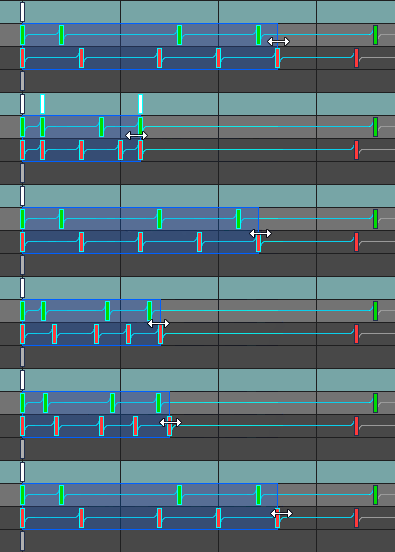
Scaling can be used to reverse the order of the keys by moving the left edge past the right, or the right edge past the left.
Hold shift to disable Manipulating keys
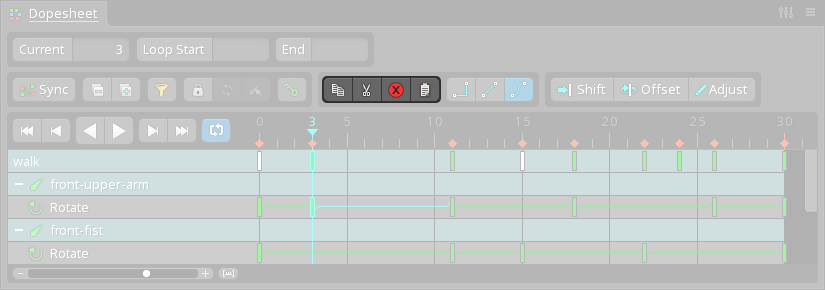
Selected keys can be dragged left or right to change the frame where the key takes effect. Hold ctrl+shift (cmd+shift on Mac) when starting the drag to duplicate the selected keys. Hold shift while dragging to disable Clipboard buttons
See Shift
See Offset
See Adjust