
Rotating diamond tutorial
June 15th, 2020
In this blog post we will create a rotating diamond animation using only weights and bones, without any deform keys. This advanced tutorial requires the use of Spine Professional.
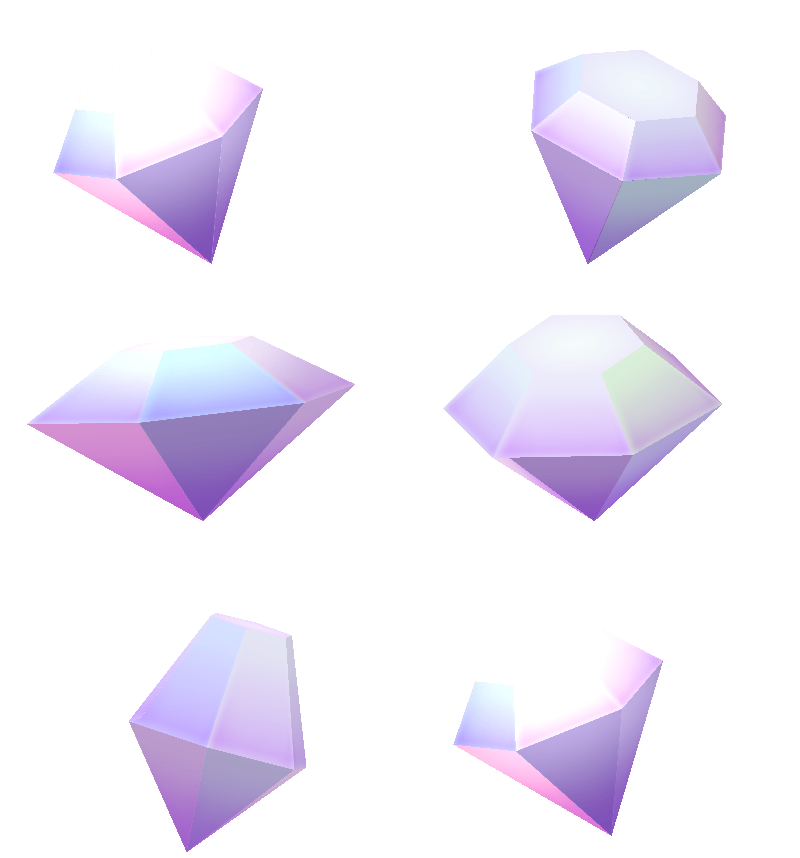
To achieve this rotation effect, the skeleton combines the use of Setup
You can download the project to follow along, as well as to see the final result Rotating in perspective
The first step is to create a section that rotates in perspective, just like the Exact vertex placement
Now that we have two sections rotating in perspective, we are going to use them as references to position each side of the diamond by Adding new sides
To add another slice to the diamond we need to duplicate the two upper-side and lower-side meshes, switch to animate mode, then choose a frame from the timeline so that the side we want to add is clearly visible, then repeat the process of selecting the vertices from the top hexagon, copying and pasting their positions on the duplicated side.
Since the mesh is already bound to the bones we need, this time we are going to press Draw order and colors
The next step consists of adjusting the Adding a glow image

The rotating diamond is now complete, but you can add more details like sparkles, or a glow image with additive mode to turn on when the side is facing the viewer to simulate an additional shimmer, as was done here. The glow can even be weighted to the scaling bones of the diamond so that it follows any change of proportions you may decide to add.
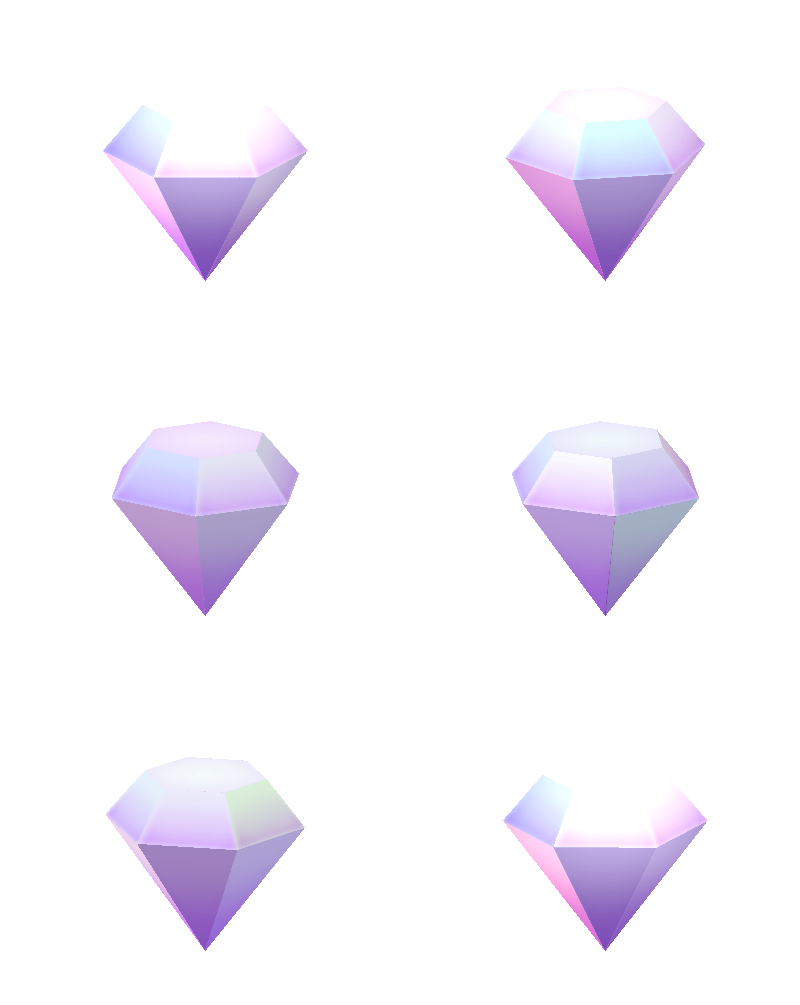
Alternative proportions and perspectives
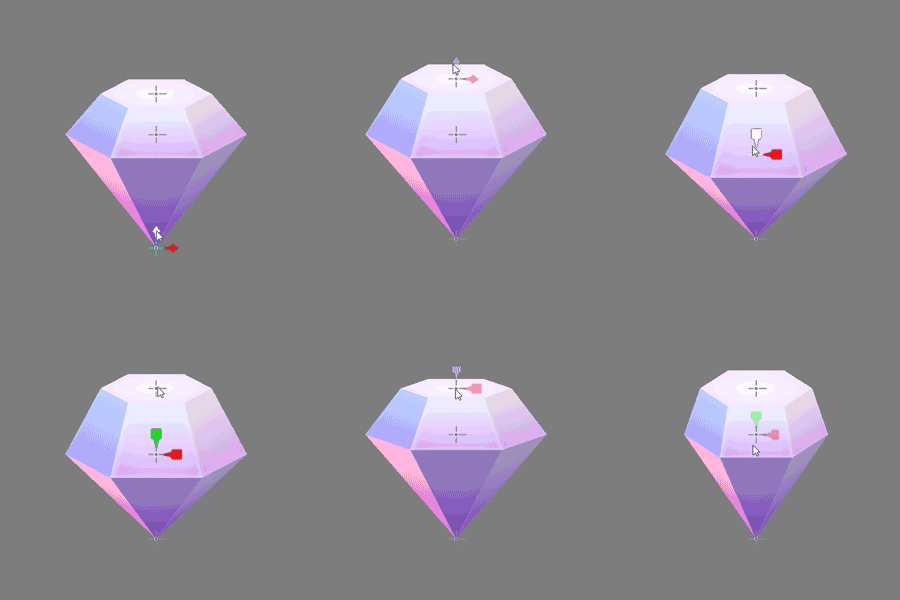
It is possible to achieve different proportions by scaling the bones top-scale and middle-scale and translating those bones and the lower-point bone. If done during an animation this can simulate a tilt in the spin, such as in the example below.
Conclusion
This advanced technique can be applied to any geometrical object with flat surfaces, so you can potentially create rotating cubes, pyramids, or even bottles, vases, lamps, chests, gift boxes, stars, books, and so on. We love to see what you create, so don't forget to tag your creations using #madewithspine! Let us know your thoughts on the Spine forum.