
Rigging new poses - Spine workflow tutorial
December 24th, 2020
Creating poses with different art during your animations is a great way to expand the range of what your characters are able to do in Spine. We gave a glimpse of this in our Preparing the assets
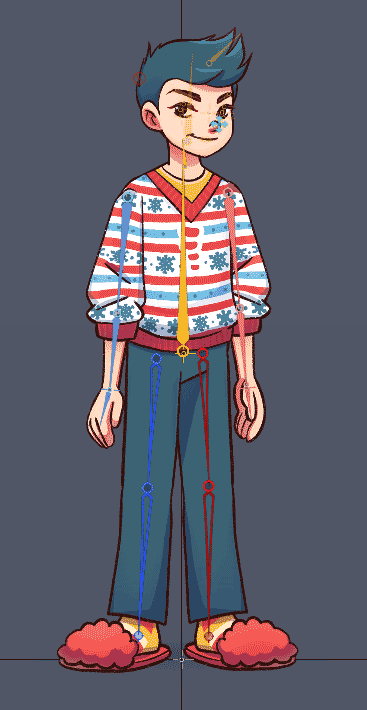
Let's imagine that you have already rigged a character and you want to add a new pose in the middle of an animation. The first step is creating the additional assets required for the new pose. You can use Spine's Importing the assets
The PhotoshopToSpine script generates a JSON file along with images that you can import into your existing Spine project.
To import the new assets, open the Spine project you wish to import the new assets into (in our case that's 1-festive-spineboy.spine inside the folder 1-festive-spineboy-start/). Next, choose Adding the new pose assets in Spine
We are now ready to integrate the new assets into the rig so that they can be used in animations.
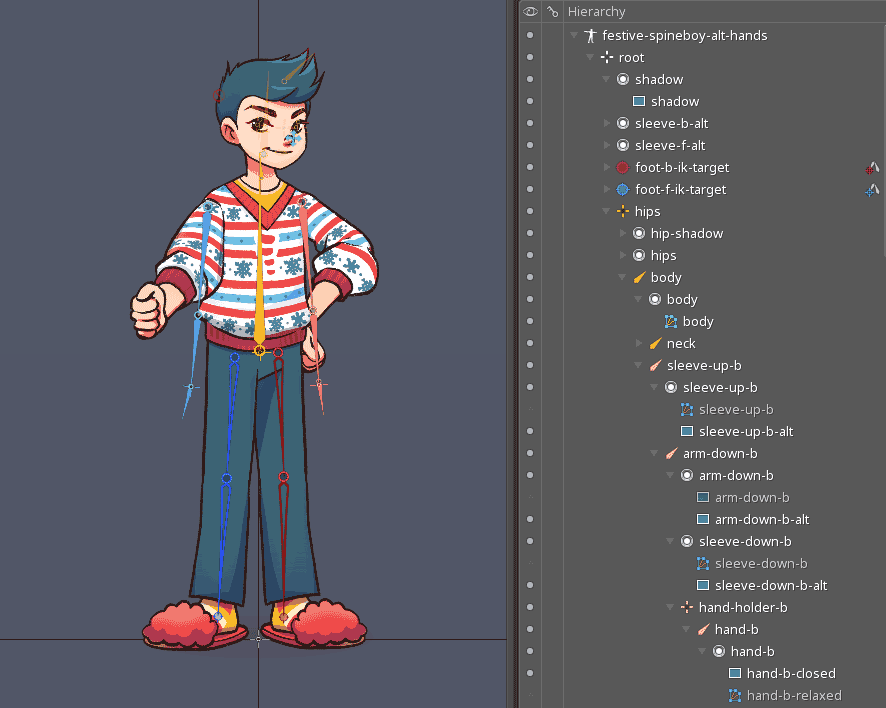
The first problem is that the positions of the new attachments likely don't match the bones already present in the skeleton. You may be tempted to work around this problem by creating a new set of bones for the new poses. This can work fine, but has the drawback of crowding the skeleton with many bones, turning your character into an unmanageable octopus, and making it harder to navigate and use your rig in the long run.
How to rig the new pose images
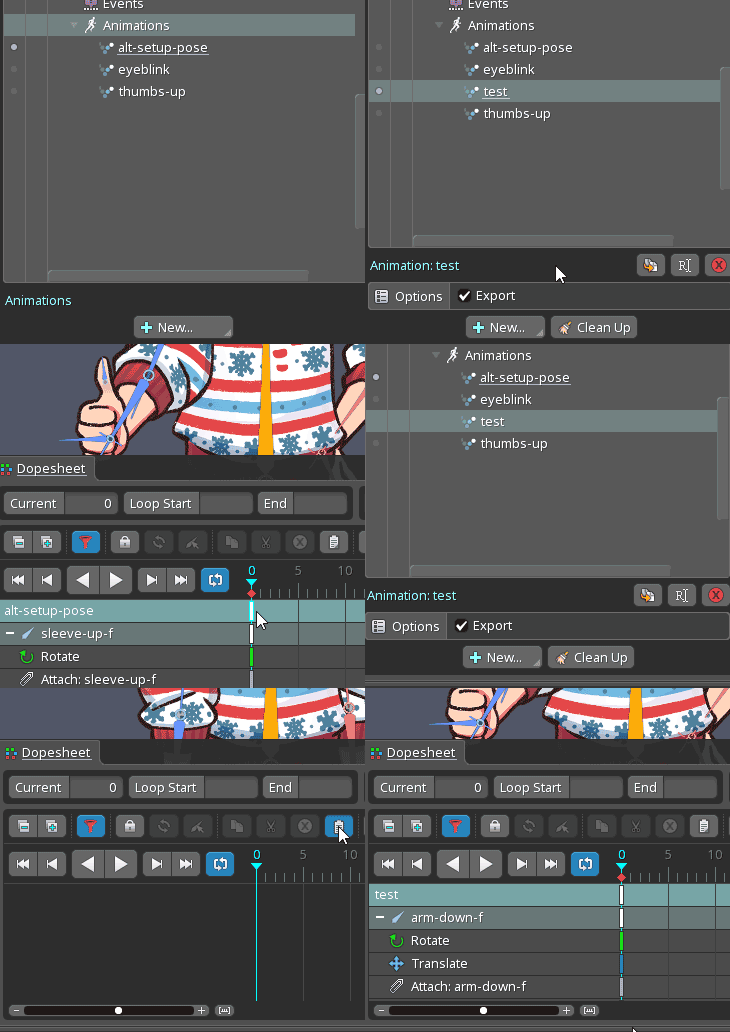
There is a better approach to integrate new parts! We can store a pose inside an animation that will act as an alternative setup pose. This animation then also serves as a convenient source to quickly copy a pose and paste it into a new animation. Let's call an animation used for this purpose a "setup pose animation".
To get started, in setup mode, make the new attachments for the new pose visible, turn them all into meshes, and use Edit Mesh to create the mesh structures. Remember to follow the Using the new pose
- Press the spacebar to clear your selection. This will make all the dopesheet rows visible, making it easier to copy and paste in one click by selecting the keyframe from the first row.
- Offset the keys that show the attachments so that they are in the middle of the animation to make the change less harsh.
- Keep the images in separate slots and fade the new slots in if you'd like to create the illusion of a smoother transition with images that differ a bit more.
After setting everything up, making use of the pose is very easy: just copy all the keys from the setup pose animation to the new animation.
Adding new bones to be used in the new pose
As you add new parts to a pose, you may realize that you actually do need a new bone or two for better control. How can this be done when the pose is very different from the setup pose?
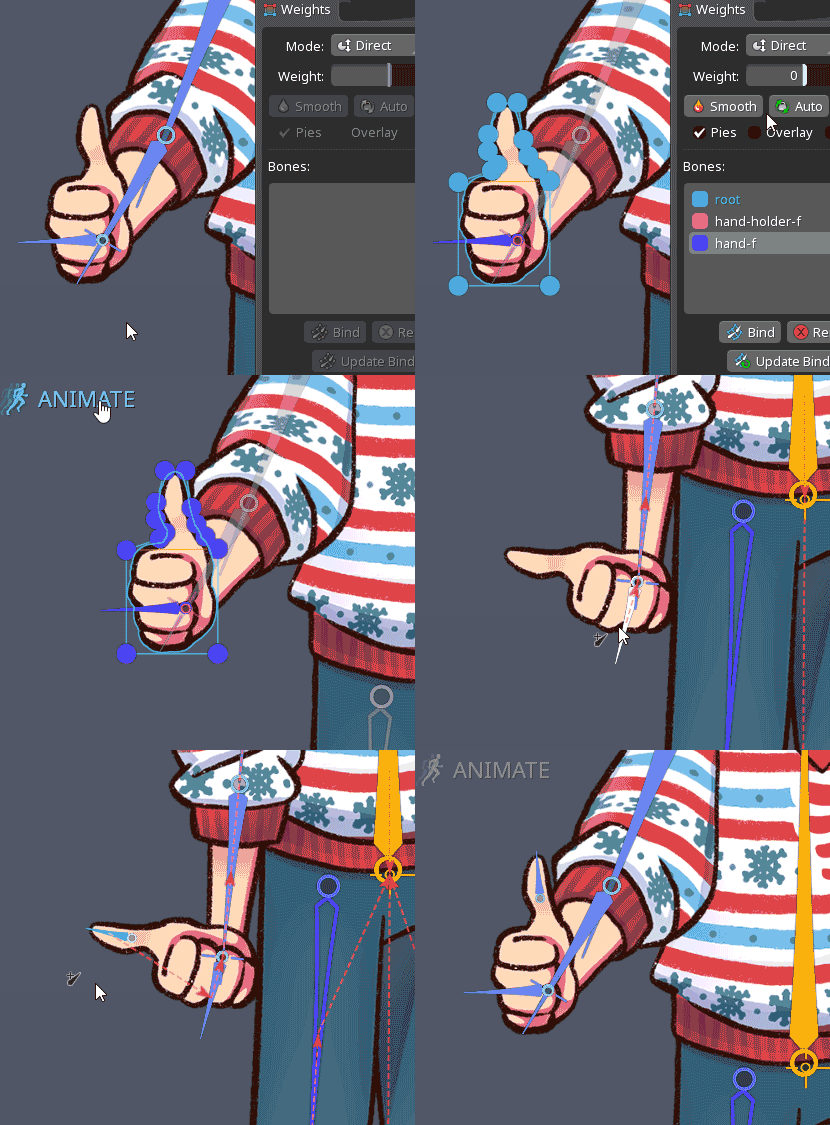
First, follow the procedure described in the last section to match the existing bones to the new meshes in the setup pose animation. Next, bind the meshes in the setup pose animation to the bone that will be the parent of the new bones, setting the weight to 100%.
Now switch to setup mode and make the new meshes visible. They may appear positioned strangely, but they are properly aligned with the bone that will be the parent of our new bones. Use the meshes as a reference to create the new bones. Once this is done you can hide the meshes again in the setup mode.
Switch to animate mode and in the setup pose animation bind the meshes to the newly created bones. Proceed by setting their weights in a test animation as described above.
Modifying a mesh in an alternative pose
What if the mesh structure can be improved and needs to be changed? This is easy in Spine version 4.0 and higher: you can simply use the Edit Mesh button in animate mode.
In earlier versions of Spine it's possible but a bit more difficult because Edit Mesh can only be used in setup mode. The mesh was bound for a pose in an animation and in setup mode it is likely distorted, making editing the mesh there difficult or impossible. It can be done, but it requires losing the mesh's weights. You can take note of the most important weight percentages or keep the vertices count low so that the weights are easier to recreate.
First weight all of the mesh vertices 100% to the root bone (or another bone that doesn't move). If you didn't unbind the root from the mesh, you can just set the weight to 100%, otherwise make sure to bind the root while in the setup pose animation so that the correct state of the mesh is stored when it is bound.
Go back to setup mode and activate the mesh, which now shows in its undistorted state in setup mode, then click Edit Mesh. Once your mesh modifications are complete, switch to animate mode, activate the setup pose animation and press Video
If you're more of a visual learner, we've got you covered! Erika has streamed these techniques on Conclusion
This is a powerful technique to master as it unlocks a huge variety of expressiveness for your characters. For it to work it's important to be careful and pay attention to where you are binding the bones and that the setup pose animation is treated as carefully as in setup mode. Since this is an advanced technique, it is easy to get lost trying to remember all the steps, so we hope this blog post comes in handy for you.
Have you tried out this workflow? Let us know what you've created! We love to see your creations, so remember to tag them using #madewithspine on social media!
Stop by the Spine forum and let us know your thoughts about these techniques or ask questions if you get stuck.