
Mesh weight workflows
May 18th, 2020
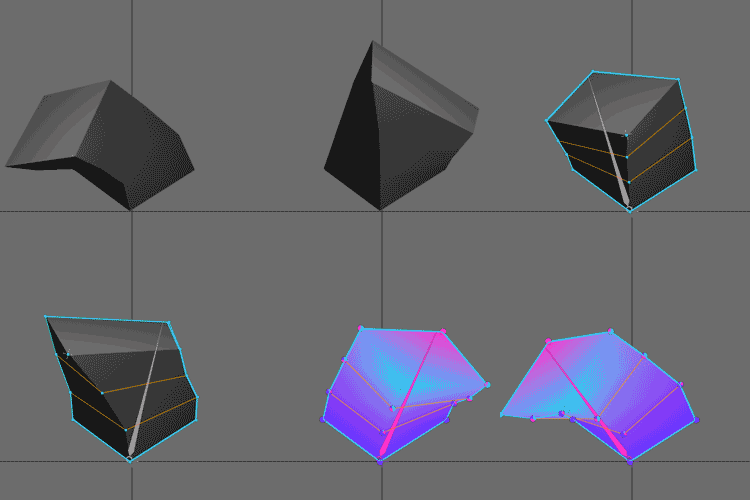
Given the same mesh, we can achieve very different results by using different bones and weights to manipulate the vertex positions.
For example Planning ahead
In our previous blog posts on meshes, we established simple rules for placing mesh vertices based on the mesh's purpose. We can extend this purpose-based thinking to setting weights. Thankfully, we already did most of the planning when we decided the structure of the mesh.
We've already seen some examples of this purpose-based thinking for weights in the previous section, which considered around which bones the mesh and its vertices should pivot.
What we need to answer when setting weights is the following question: which vertices should be moved by which bone to fulfill the purpose of the mesh?
To make our life easier, we should always strive for simplicity. When setting weights, this means we want to weight vertices to the minimum number of bones necessary for the mesh to fulfill its purpose. The fewer bones we have to deal with to manipulate a mesh, the easier it becomes to animate the mesh.
Here's another example: we can turn our rather static cube into a bendy, jelly cube by first modifying its mesh structure to allow bending, then setting the weights so the bending can be easily controlled by a single bone. Note that this setup only allows us to bend the cube as illustrated in the GIF below. Limiting the cube's "purpose" this way allows the setup to be simple.
Be mindful of when you bind meshes to bones
By binding meshes in animate mode, you can create advanced setups that add alternative poses which use a different configuration of bones. We've described this process in Set and test weights in animate mode
Weights are set automatically the first time a mesh is bound to bones. To see the effect of our weights, we might be tempted to move the bones around in setup mode. It can be fine to move bones to see how the weights deform and then use undo, but as explained in the previous section, moving the bones in setup mode means the vertices will move when weights are adjusted.
How can we make this process safer? By setting weights directly in animate mode! Create a test animation in which the bones that should deform the mesh are moving, then adjust the weights until you're happy with the results.
This is especially useful when simulating depth or dealing with complex meshes. Seeing your weights in motion makes it so much easier to adjust them compared to setting them while looking at a still pose.
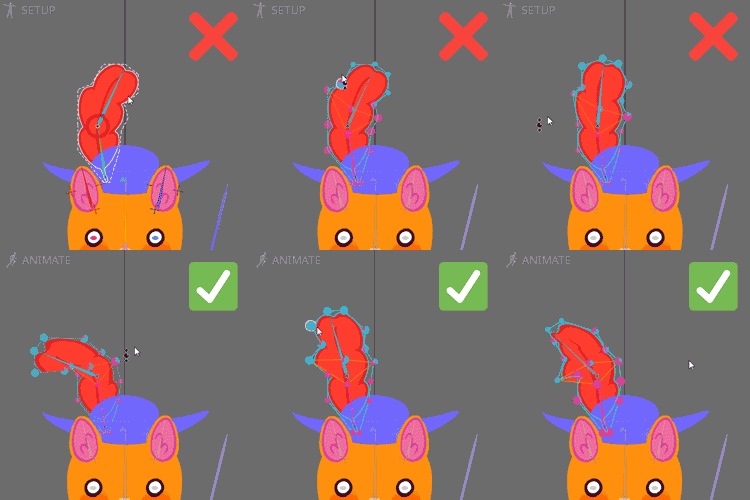
Pressing Ctrl (Cmd on Mac) temporarily pauses the animation, making it easier to select the vertices with the weights direct tool.
Start from extremes
When testing the effectiveness of the weights assigned to a mesh, always start from the extremes. That is to say, the two most opposite values or positions. We can apply this process to bone positions as well as weights, giving us two different workflows.
The easiest way to set the weights for a mesh is to start by assigning a value of 100% to the vertices that are on the extreme opposite ends of the movement the mesh needs to make. Next, work on getting the vertices in between to balance the mix of weights in an amount that follows the movement planned for the mesh. This applies to nearly all meshes except the Group weights
Another way to simplify the process of assigning weights is to find groups of weights that can have all the same weight, or close to it to start with.
Meshes that bend only from a side view make this process quite easy. For example, if you want an arm to retain its shape in the upper part, you will need to select at least 4 vertices and weight them all to the upper arm bone. Then repeat the process for the lower part of the arm. With that out of the way, figuring out the weights for the vertices at the elbow, where the arm bends, is much easier. These can also be selected in pairs of two vertices if the mesh is tubular.
Meshes that simulate depth are a bit trickier. Imagine dividing the mesh into several slices. The slices could be at regular intervals from the part of the mesh that is the most far away toward the part that is the closest to the viewer. Each of these slices is a group of vertices that has the same weights because it's at the same depth from the viewer.
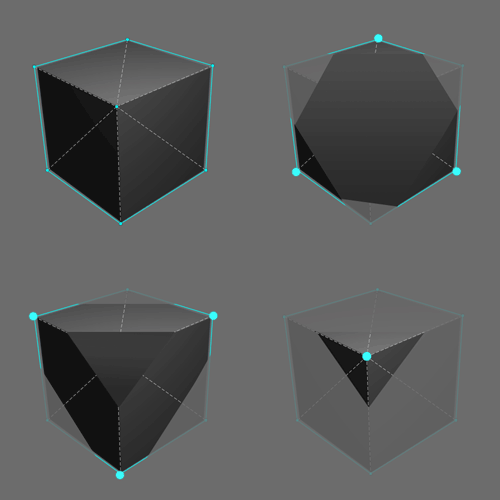
Even if the weights won't have the exact same weights in the end, having a general approximation is still very useful before fine tuning the weights that are not quite right yet.
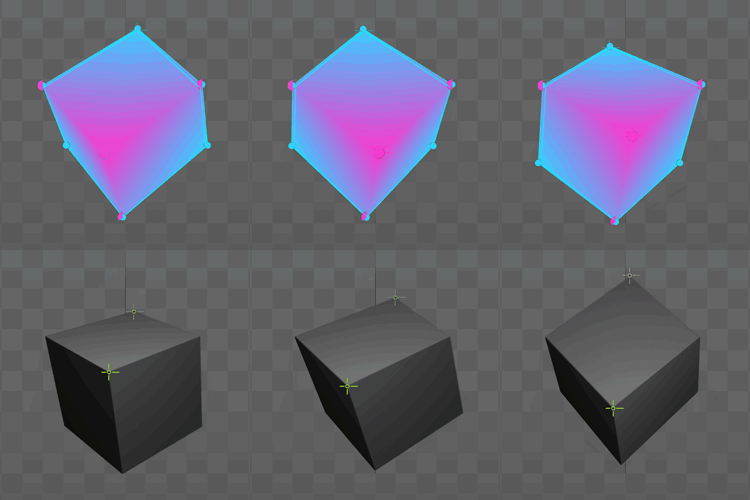
This principle is similar to Start from the parent
When a mesh is bound to more than two bones, it is a good idea to start weighting the mesh from the bone highest in the tree hierarchy and then descending one bone at a time. If the bones are independent, meaning one bone is not parented to the other, then you can simply choose to start from one side of the mesh and progress toward the other side.
Starting from the parent bone lets you to define the general motion first. You can then move on to the child bones to add detail to mesh sections that depend on the parent bone's weights.
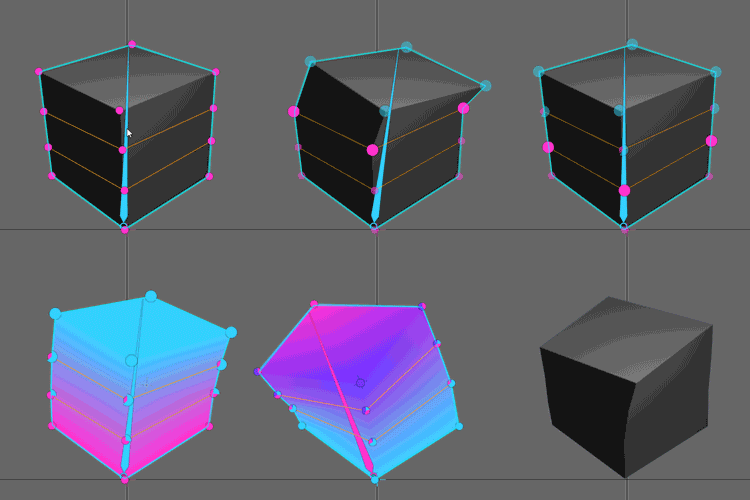
For example to recreate the jelly cube, set the weights so it can bend nicely first. Next, add the weights of the the third child bone that controls the top of the cube.
Spine can do the math
Manually setting weights so that vertices are progressively more influenced by bones can be tedious. The quickest way to make a soft bending mesh is to weight half of its vertices 100% to one bone, and the other half to the other bone, then box select the weights in the middle, and press the Overlapping triangles
When the mesh overlaps with itself, sometimes a part of the image that should be behind is instead drawn on top. When that happens you can fix it by changing the Mesh cleanliness
Unnecessary weights may be present in your mesh after calculating weights automatically, smoothing, or painting the weights on the mesh. Deform keys are the devil
This whole post is about weights, but what about deform keys? Many new Spine users are tempted to use Conclusion
We hope these tips can help you tackle weights and meshes in general and with more confidence. If you haven't already, don't forget to check the two previous blog posts exploring mesh creation tips and a taxonomy of meshes. What would you like to learn about next? We would love to hear your thoughts on the Spine forum.