Showing posts with label plugin. Show all posts

Saturday, 5 October 2013

Apache Maven Tips: Add/Append Copyright and License Header to your Project’s Source Code Artifacts using Maven License Plugin

apache-mavenEvery project requires proper copyrights and license information header to be added/appended at the top of each of the project’s source code artifacts. There is a very useful plugin for Apache Maven, called Maven License Plugin that helps you easily add/append such copyrights and license information.

First create a copyrights and license header file, for example:

${project}

Copyright (c) ${year}, ${founder}

This project includes software developed by ${founder}
${website}

Licensed under the Apache License, Version 2.0 (the
"License"); you may not use this file except in compliance
with the License. You may obtain a copy of the License at:

http://www.apache.org/licenses/LICENSE-2.0

Unless required by applicable law or agreed to in writing,
software distributed under the License is distributed on
an "AS IS" BASIS, WITHOUT WARRANTIES OR CONDITIONS OF ANY
KIND, either express or implied. See the License for the
specific language governing permissions and limitations
under the License.

Note the highlighted “parameters” enclosed within special notation “${ }”. We will define the values for these parameters when we will configure Maven License Plugin in our project’s POM file, as show below:

<plugin>
    <groupId>com.mycila.maven-license-plugin</groupId>
    <artifactId>maven-license-plugin</artifactId>
    <version>1.10.b1</version>
    <configuration>
        <header>src/license/LicenseHeader.txt</header>
        <properties>
            <project>${project.name}</project>
            <founder>${project.organization.name}</founder>
            <year>${project.inceptionYear}</year>
            <website>${founder-website}</website>

        </properties>
        <includes>
            <include>src/main/java/**</include>
            <include>src/test/java/**</include>

        </includes>
    </configuration>
    <executions>
        <execution>
            <goals>
                <goal>format</goal>
            </goals>
            <phase>process-sources</phase>
        </execution>
    </executions>
    <dependencies>
        <dependency>
            <groupId>com.mycila</groupId>
            <artifactId>licenses</artifactId>
            <version>1</version>
        </dependency>
    </dependencies>
</plugin>

  1. Under the configuration tag, notice the <header/> element where we’ve mentioned the path to our copyrights and license header file.
  2. Similarly, the <properties/> element under <header/> is the place where you can define parameters and their values to be replaced by the parameter place holders as show in the header file above.
  3. The <includes/> element is the place where you can configure which files should the plugin attempt to add/append the copyright and license information. You can use wild cards as shown above.

Following is an example of Source Code file after processed by Maven License Plugin:

Thursday, 3 October 2013

Apache Maven Tips: Customizing Maven Site generation via Site Descriptor (Site.xml), Maven Site Plugin and Velocity Template

apache-mavenThere are two kind of customizations you can do with Maven Site generation:

(1) Configuring the Site Descriptor (Simple) – This is a higher level customization, where you can change or configure certain sections/areas of the site layout including the navigation/menu. Read more on Maven website.

(2) Custom Velocity Template (Complex) – This is a low level customization, where you have full control over the generated html content. However it is more complex than the first one because you need to have an understanding of Apache Velocity templating language.

To begin with, add Maven Site Plugin configuration under the <build/> tag of your POM:

<plugin>
    <artifactId>maven-site-plugin</artifactId>
    <version>3.3</version>
    <configuration>
        <templateFile>${basedir}/src/site/maven-site-template.vm</templateFile>
    </configuration>

</plugin>

Recommended way to develop/design a custom maven site template, is to start with the default template provided by maven itself, and then change it to your desired layout.

Tuesday, 1 October 2013

Apache Maven Tips: How to add/include or remove/exclude files as Resources and Test Resources

apache-mavenApache Maven’s Standard Directory Layout contains specific folders for application wide Resources and TestResources, they are:

src/main/resources
src/test/resources

What if you want to add or include more files as Resources or TestResources? a typical example is the use of standard README, LICENSE and NOTICE files, which by convention should reside at the very root of the project, like this:

./README
./LICENSE
./NOTICE
./src/...

In such situations, you can add or include files by adding a configuration similar to the following, under the <build/> section of your POM:

<build>
    <resources>
        <resource>
            <directory>${project.basedir}</directory>
            <includes>
                <include>README*</include>
                <include>LICENSE*</include>
                <include>NOTICE*</include>
            </includes>
        </resource>
    </resources>
    <testResources>
        <testResource>
            <directory>${project.basedir}</directory>
            <includes>
                <include>README*</include>
                <include>LICENSE*</include>
                <include>NOTICE*</include>
            </includes>
        </testResource>
    </testResources>

Similarly, you can remove or exclude files by adding a configuration similar to the following, under the <build/> section of your POM:

<build>
    <resources>
        <resource>
            <directory>${project.basedir}/src/main/resources</directory>
            <excludes>
                <exclude>SomeFile.toExclude</exclude>
            </excludes>
        </resource>
    </resources>
    <testResources>
        <testResource>
            <directory>${project.basedir}/src/test/resources</directory>
            <excludes>
                <exclude>SomeFile.toExclude</exclude>
            </excludes>
        </testResource>
    </testResources>

Monday, 22 July 2013

Maven, Struts2 Annotations and Tiles Integration Example via Convention / Codebehind / Zero Config plugin using Eclipse IDE

In this example, I will demonstrate how you can use Struts2 Annotations and Conventions alone to avoid XML Configuration. I will also integrate Struts2 Tiles Plugin, because I’ve seen a number of people struggling when it comes to Tiles integration with Struts2 Annotation and Convention based projects. Do note that Struts2 Convention Plugin has replaced the older Codebehind plugin and Zero Config Plugin.

The Struts2 Convention Plugin provides the following features:

  • Action location by package naming conventions
  • Result (JSP, FreeMarker, etc) location by naming conventions
  • Class name to URL naming convention
  • Package name to namespace convention
  • SEO compliant URLs (i.e. my-action rather than MyAction)
  • Action name overrides using annotations
  • Interceptor overrides using annotations
  • Namespace overrides using annotations
  • XWork package overrides using annotations
  • Default action and result handling (i.e. /products will try com.example.actions.Products as well as com.example.actions.products.Index)

The Convention Plugin should require no configuration to use. Many of the conventions can be controlled using configuration properties and many of the classes can be extended or overridden.

Ok, let’s start then.

Open Eclipse IDE and create a new Maven project.

eclipse new other project

eclipse new maven project

eclipse new maven project - create a simple maven project (skip archetype selection)

eclipse new maven project - configure project

Note that I’ve selected the “war” Packaging above.

From the eclipse IDE’s Project Explorer, double click on “pom.xml” file. It is your project’s Maven POM file and it should look like:

This is the bare bone maven pom file. Now, add following three dependencies to it:

  1. Struts2 Core
  2. Struts2 Convention Plugin
  3. Struts2 Tiles Plugin

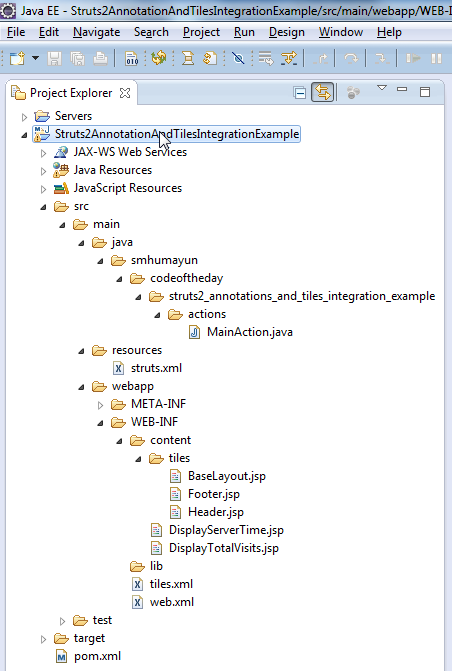
maven directory structure

Now,

Create a package structure as you like. However, make sure the immediate parent package that contains your Struts2 Actions should be named either of the following (refer to directory structure image above):

  • action
  • actions
  • struts
  • struts2

Why? because by “Convention”, Struts2 will “scan” for Action(s) in package(s) that “exactly” matches the names mentioned above. Yes, you can do all sorts of overriding and customizations, but you have to do that using XML Configuration (file called Struts.xml), which we want to avoid in our example. So, we will stick to the “Conventions” Smile

Create a new Action class. Make sure you follow these “Conventions”:

  • Your Action class must suffix with “Action”
    • For example: MyAction, ListOfAction, DownloadAction, etc..
  • OR, your class must implements “com.opensymphony.xwork2.Action” interface

(refer to directory structure image above) I prefer first one because in that case I’m less coupled with the Struts2 API. Lesser the “invasion” by a framework, the better!

Also, for the very same reason, and to demonstrate the plain POJO integration concept by Struts2, I avoid extending my Action class with any of the Struts2 support classes (i.e. com.opensymphony.xwork2.ActionSupport).

Two important things to notice in the class above are:

  • @Result (…, type=”tiles”) – This is to instruct Struts2 that the result is of “Tiles” type and to enable or configure that type you will have to create a minimal Struts XML Configuration file called struts.xml, because this particular configuration can not be done using Struts2 Annotations:
  • @Result (…, location=”your-tile-definition-name”) – The location refers to one of the tiles defined in your tiles definition file.

Create (if not already created) a web.xml, Java Web Application Deployment Descriptor, under /src/main/webapp/WEB-INF/ and add following to it:

  1. Struts2 Standard Filer Mapping
  2. Tiles Configuration
  3. Tiles Listener

Create your tiles definition file and define all tiles definition:

Create following JSP files:

BaseLayout.jsp:

Header.jsp:

Footer.jsp:

DisplayServerTime.jsp:

DisplayTotalVisits.jsp:

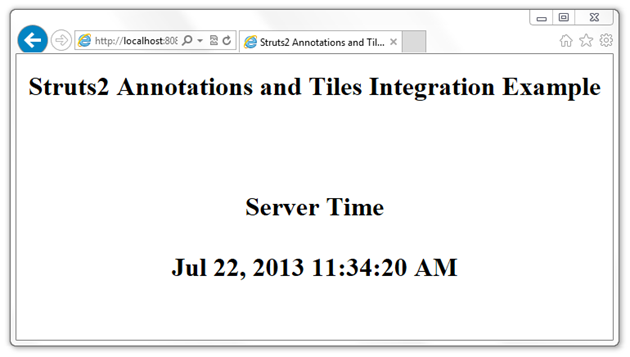
Finally, deploy the application on any Java Web Application Server, open your browser and go to URLs:

DOWNLOAD COMPLETE SOURCE CODE FROM HERE